 ✕
✕
✕
✕
By Justin SabrinaUpdated on June 29, 2026
Whether you're commuting, working out, or relaxing at home, Spotify delivers instant access to your favorite music tracks, playlists, albums, artists, podcasts, and even audiobooks for free. However, it's not perfect enough that it sometimes runs slowly during playback. There are many reasons why Spotify is so slow, including a poor internet connection, accumulated cache, outdated software, and insufficient device storage.
When Spotify is running slow on your computer or your Spotify is so slow on your phone, you can follow this guide to solve the problem successfully. Here we'll will walk you through exactly how to deal with the slow Spotify app on PC, Mac, Android, and iPhone. The ultimate guide is to download Spotify music to MP3 with a powerful Spotify music converter. This way, you can listen to your favorite Spotify tracks offline with other players smoothly, without worrying about a slow Spotify app again.
CONTENTS
When Spotify is working slow in Android phone or iPhone, for a quick fix, try the below 3 method first. If these methods don't work, proceed to Part 2 or Part 3 for more advanced troubleshooting tips.
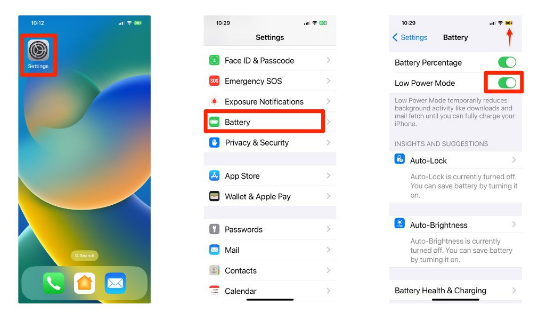
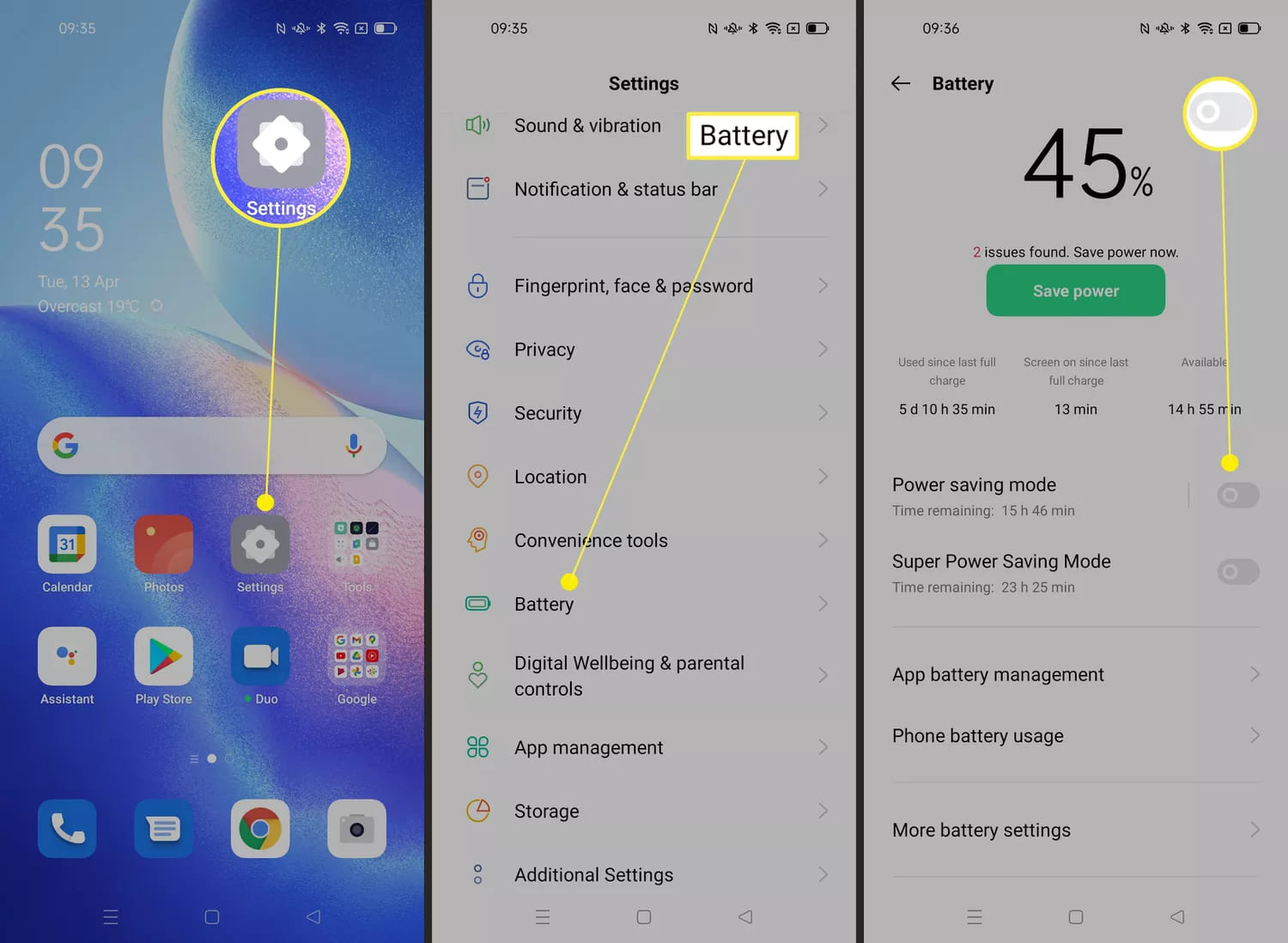
Low Power Mode (or Battery Saver) is designed to extend your device's battery life by limiting background activity and reducing performance. While this is great for battery conservation, it can also limit Spotify's performance, causing slower loading, delayed playback, or lag when browsing playlists. Therefore, you'd better disable power-saving mode on your phone to ensure Spotify app runs smoothly.
On iPhone: Open "Settings", tap "Battery", turn "Low Power Mode" off.
On Android: Go to "Settings", tap "Battery" or "Battery & Device Care", disable "Power Saving Mode".
Afterwards, relaunch Spotify and test playback.
An unstable internet connection is one of the most common reasons Spotify is running slow. Even if your device appears connected, weak Wi-Fi signals or congested mobile networks may slow song loading and playlist synchronization. To fix a slow Spotify on your phone, switch between mobile data or Wi-Fi network. If you're using a VPN or network proxy, try disabling it as well, these can also cause significant lag.
Most Android devices support SD card expansion, and many Android users store Spotify downloads on an SD card to save internal storage. However, damaged, slow, or incompatible SD cards can significantly reduce Spotify's performance, causing Spotify to become unresponsive or downloaded songs to fail to play.
How to fix Spotify working slow in Android phone:
Step 1. Open Spotify app, go to "Settings and Privacy".
Step 2. Disable offline storage on the SD card if available.
Step 3. Then, power off your Android phone or tablet.
Step 4. Remove the SD card from your Android safely.
Step 5. Restart your Android, and relaunch Spotify again.
If the quick fixes above don't solve the problem, don't worry. The following methods work on almost every platform, whether you're using Spotify on a Mac, Windows PC, laptop, Android phone or tablet, iPhone, or iPad. Let's get started!
If Spotify lags in playback, try to restart your device. Restarting your device can help clear temporary memory, stop background processes, and refresh system resources.
On Windows: Click the "Start" menu, select the "Power" icon, choose "Restart".
On Mac: Click the "Apple logo" in the top-left corner, select "Restart".
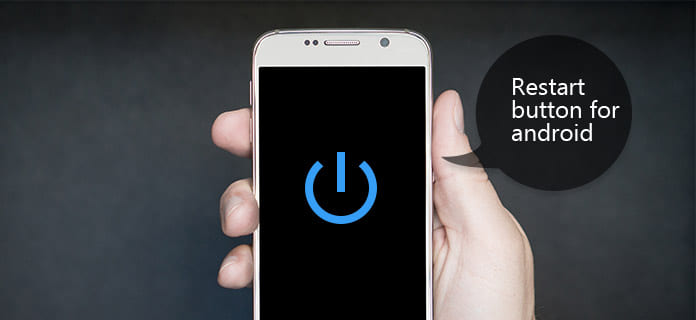
On Android: Press and hold the "Power" button, tap "Restart".
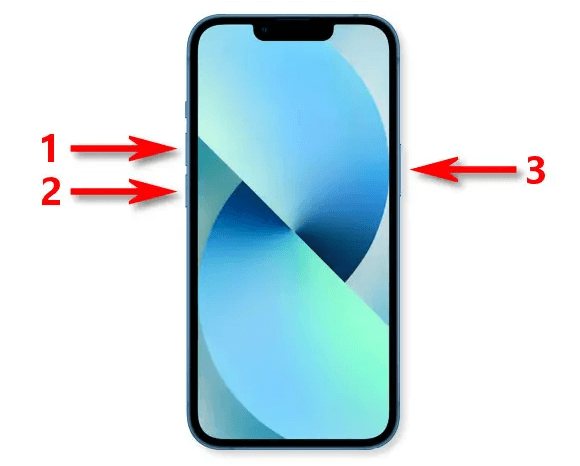
On iPhone: Press and hold the "Power" button (and 'Volume" button on newer models). Slide to power off.
After that, turn your mobile device or computer back on and reopen Spotify app.
Spotify allows you to stream or download music in different audio qualities, including low, normal, high, or very high. However, higher streaming quality consumes more bandwidth and system resources. If your network isn't stable enough, Spotify may buffer frequently or load slowly. Therefore, it is recommended to lower the audio quality on your device when the Spotify app is so slow. You can follow these steps below:
On Android and iPhone:
Setp 1. Open the Spotify app. Tap your Profile picture.
Step 2. Select "Settings" and Privacy". Scroll to "Audio Quality".
Step 3. Select a quality your network can support (Low, Normal, High, or Very High)
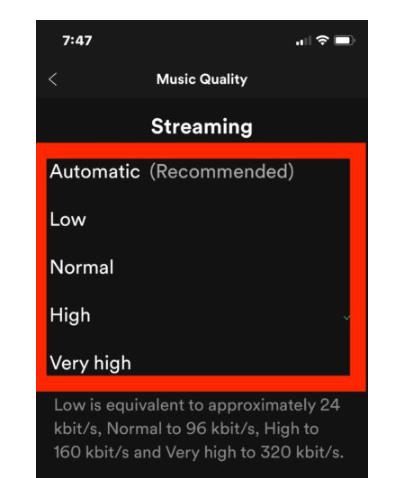
Setp 4. Enable "Auto adjust quality" for more stable performance.
On Windows and Mac:
Step 1. Launch the Spotify desktop app, click your Profile icon.
Step 2. Choose "Settings". Scroll to "Music Quality".
Step 3. Lower the streaming quality to "Automatic" or 'Normal".
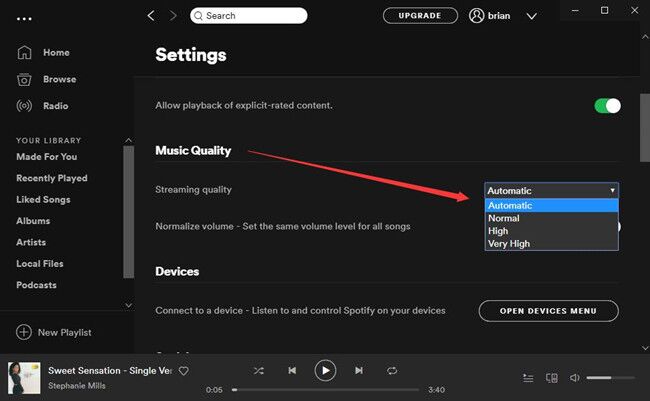
After changing the settings, restart Spotify and check whether playback becomes faster.
Spotify stores cache files to speed up loading and reduce data usage. Over time, however, the cache can become very large or corrupted, causing the Spotify app to slow down, freeze, or respond poorly. To solve the problem of "why is Spotify so slow", you'll need to clear Spotify cache from your devices.
On Android and iPhone:
Step 1. Open Spotify app and tap your profile picture.
Step 2. Select "Settings and Privacy", scroll down and tap "Storage".
Step 3. Tap "Clear Cache". Confirm your choice.
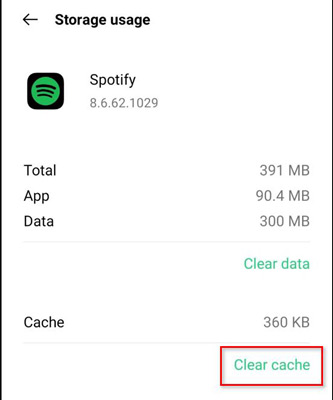
On Windows and Mac:
Step 1. Launch the Spotify desktop app.
Step 3. Click your account name and select "Settings".
Step 3. Scroll down to the "Storage" section.
Step 4. Click "Clear Cache", and then restart Spotify.

Alternatively, you can manually delete Spotify cache folder or files on your computer.
On Windows:
Press Win + R, click Browse and go to the folder:
C:\Users\\AppData\Local\Spotify
. Delete all folders and data.
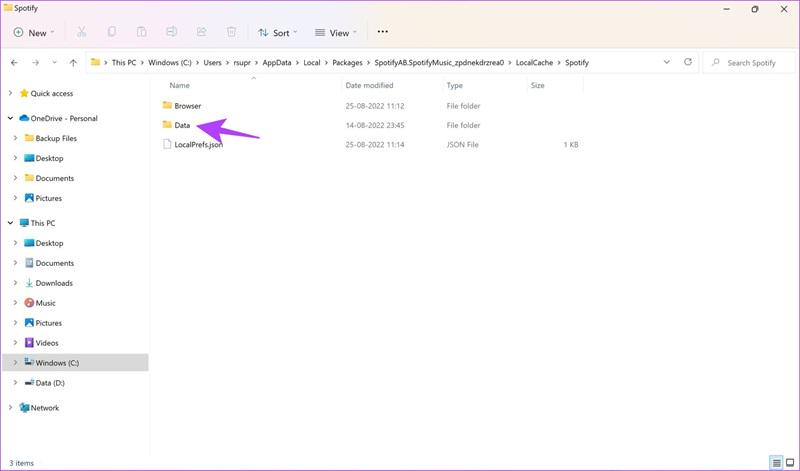
On Mac:
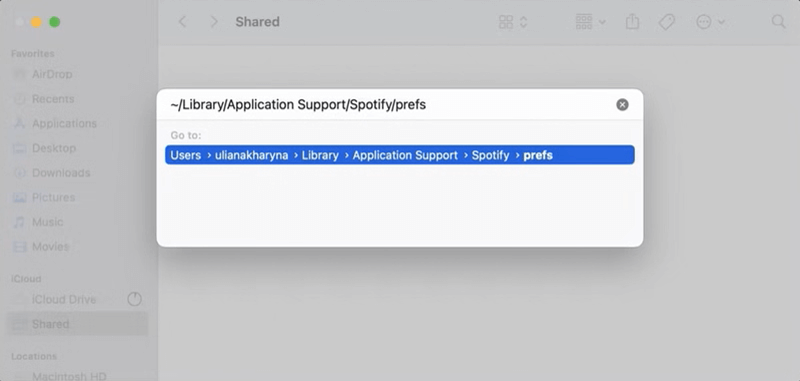
In Finder, press Command + Shift + G, enter
~/Library/Application Support/Spotify/PersistentCache/Storage
, then delete the files in the Storage folder.
Running an outdated version of Spotify may lead to slow performance issues. Thankfully, Spotify regularly releases updates that improve stability, optimize performance, and fix known problems. To fix a slow Spotify desktop app on Mac or PC, or mobile devices, updating the Spotify app is highly recommended.
On Android and iPhone:
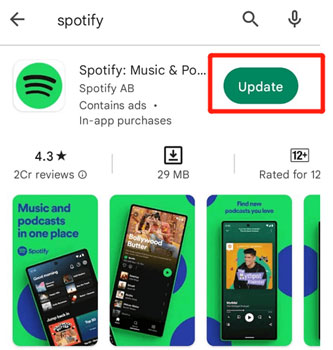
Step 1. Open the Google Play Store (Android) or App Store (iPhone).
Step 3. Search for Spotify.
Step 3. Tap "Update" if a newer version is available.
Step 4. Launch the updated Spotify app, and enjoy a smooth listening!
On Windows and Mac:
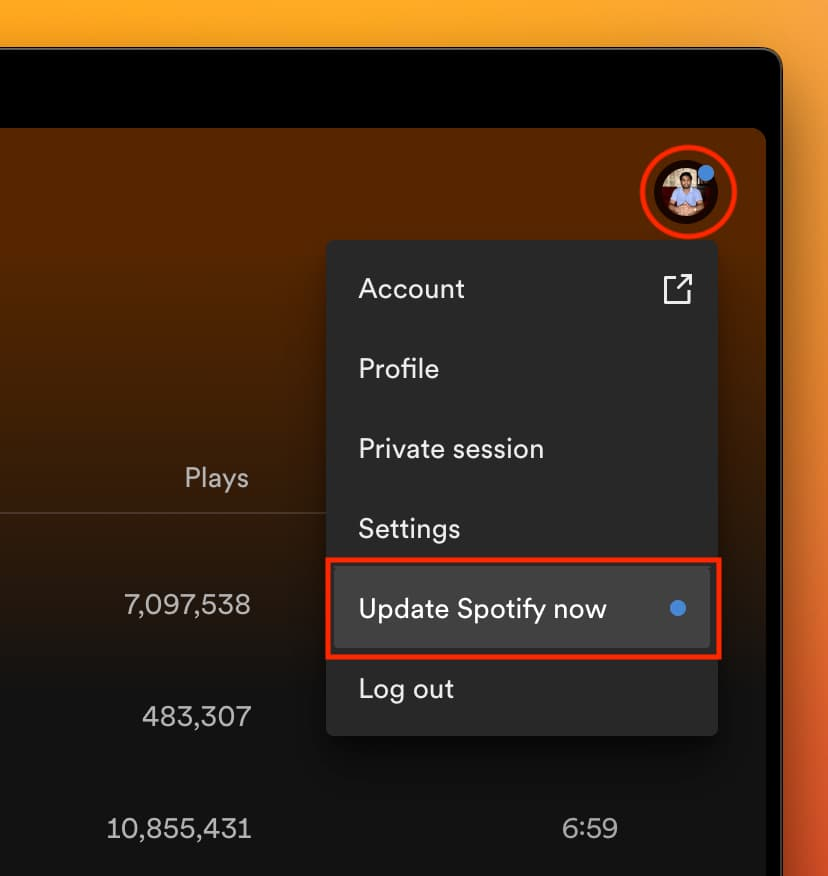
Step 1. Open the Spotify desktop app.
Step 2. Look for a blue dot next to your profile picture, and click it.
Step 3. If an update is available, you'll see "Update Spotify Now".
Step 4. Click it to install the latest version of Spotify app.
Alternatively, go to the Microsoft Store (Windows) or App Store (Mac) to download the newest Spotify version.
If Spotify continues running slowly after trying the previous solutions, you can consider performing a clean reinstall. This involves more than the uninstall button on your computer or phone, you should also delete Spotify's remaining cache and configuration files, then install the latest version. This removes corrupted files and restores Spotify to optimal performance. For more details, refer to Spotify Official Community.
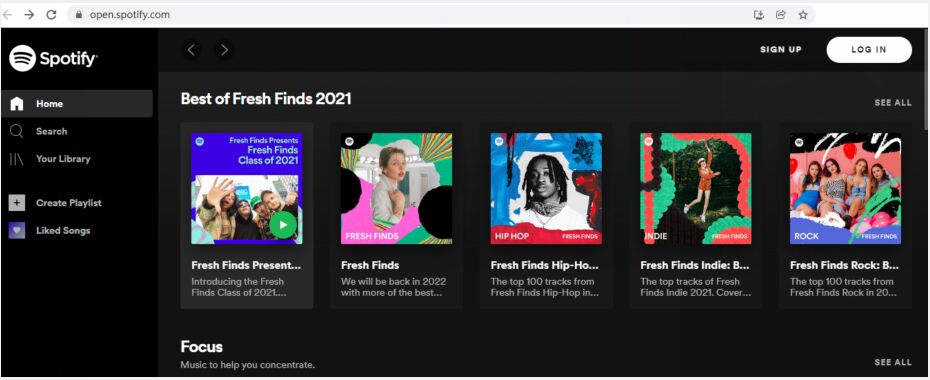
Why is Spotify so slow? Sometimes the issue isn't your internet connection or device, it's simply the Spotify application itself. If Spotify is running slow on your computer, try using the Spotify Web Player in your browser. Likewise, if the web player is slow, switching back to the Spotify desktop app or mobile app may provide better performance.
While the above methods are effective, you may still encounter issues such as "Why is Spotify so slow?" or Spotify app freezing or crashing. Even after downloading Spotify tracks with a Premium account, you can only enjoy the downloads within the Spotify app, because they are just cache files. To permanently and completely avoid Spotify buffering, lagging, or streaming delays, the best solution is to download Spotify music to MP3. This allows you to play your favorite Spotify songs offline using any media player without relying on the Spotify app.
UkeySoft Spotify Music Converter is a professional solution for downloading Spotify music as local MP3 audio files with up to 320kbps high bitrate. It also supports multiple output formats, including M4A, FLAC, WAV, AAC, and AIFF, making your downloaded Spotify music compatible with virtually any device and player! This tool supports both Spotify Free and Spotify Premium accounts, allowing to download Spotify songs, playlists, albums, podcasts, and audiobooks for permanent offline listening.
Unlike other online Spotify downloaders and traditional audio recorders, UkeySoft Spotify Music Converter preserves ID3 tags, cover artwork, and lyrics, while its built-in music manager helps organize your offline music library effortlessly. With it, you can say goodbye to Spotify app, and enjoy smooth, uninterrupted listening anywhere, anytime!
Step 1. Select Spotify and Log In to Spotify Account
Download and install UkeySoft MusicOne Converter on your Windows PC or Mac computer, or laptop.
Launch the program. As you can see, it features an intuitive interface, no ads, no pop-ups.
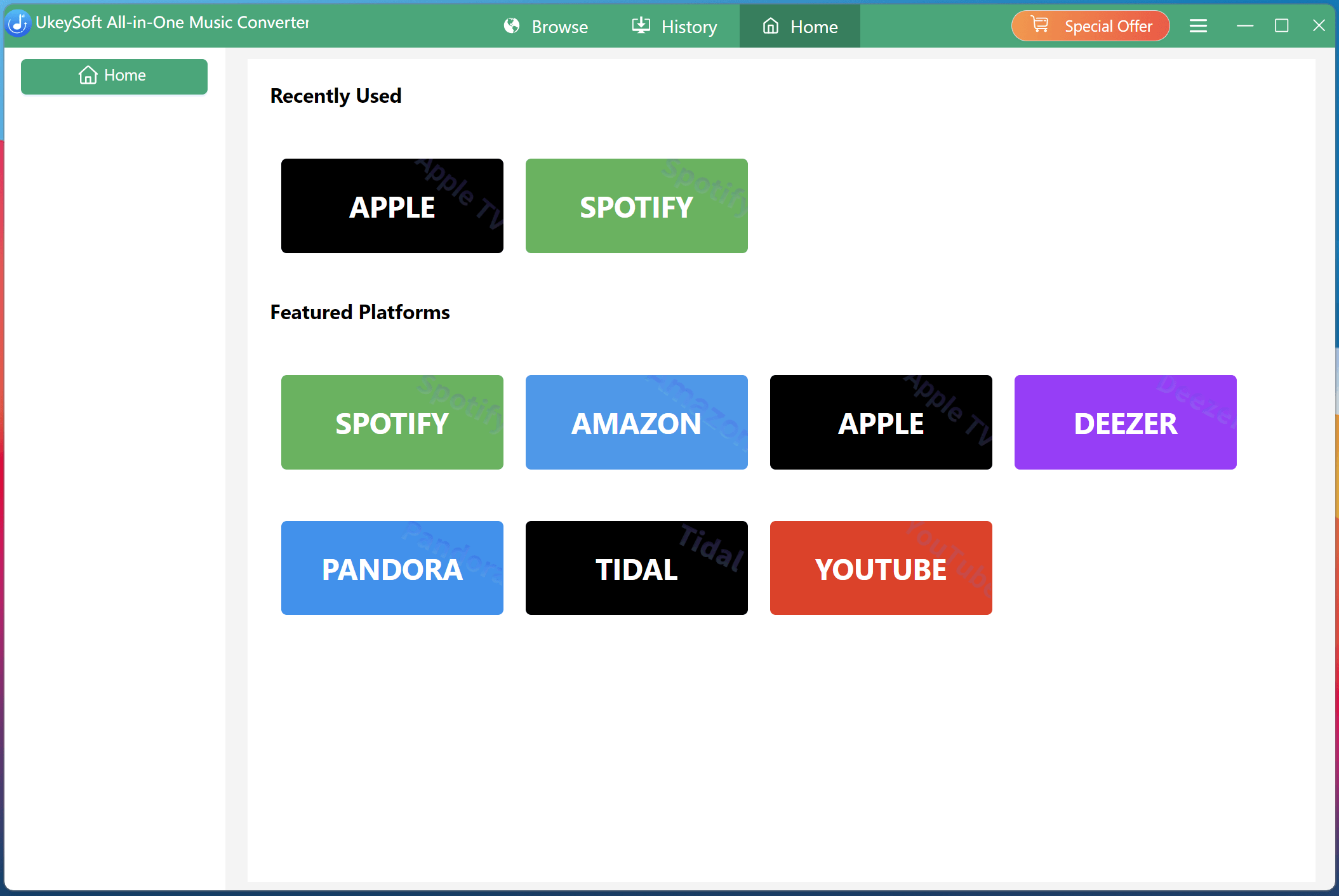
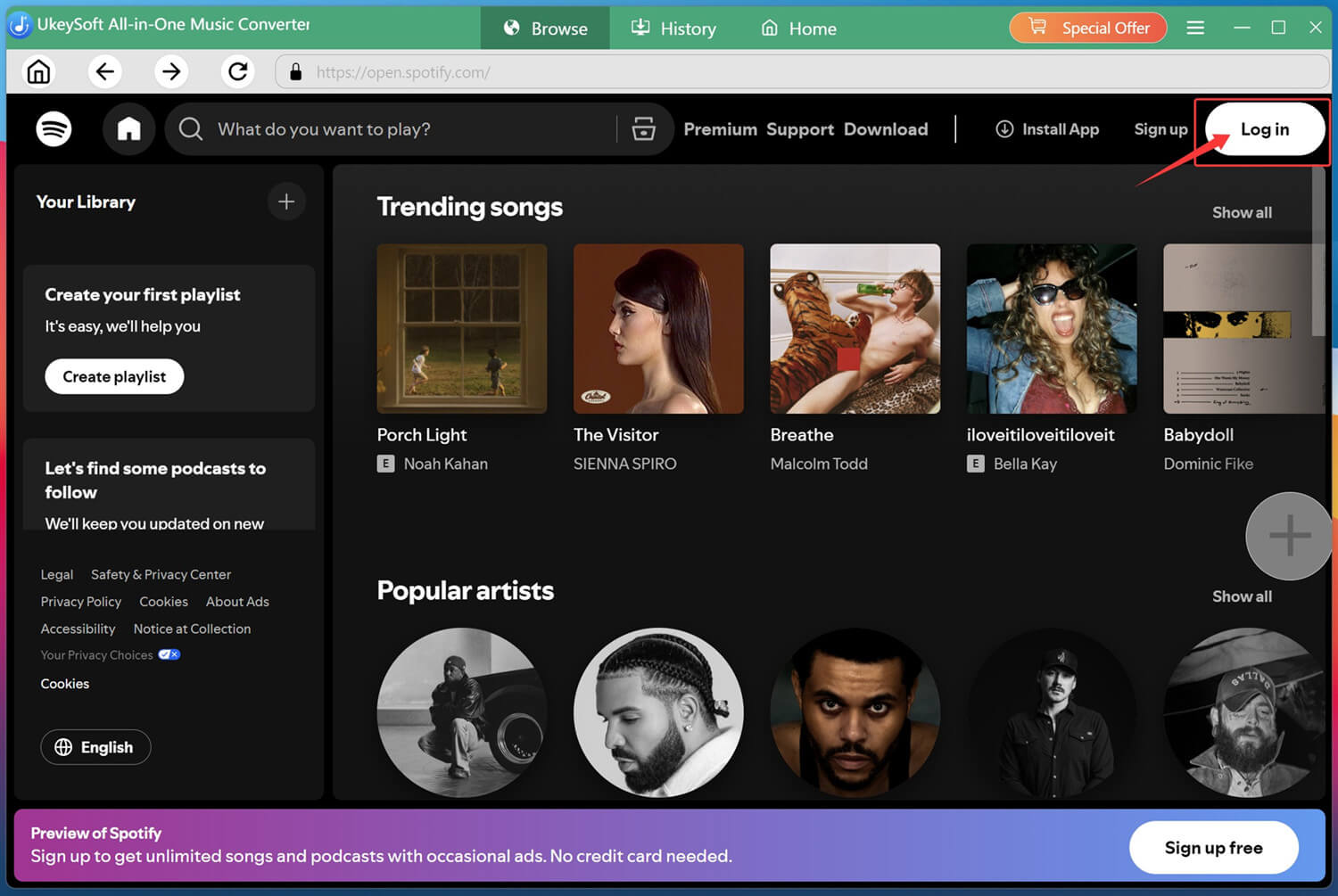
From the available streaming services, select Spotify and log in using either your Spotify Free or Premium account.
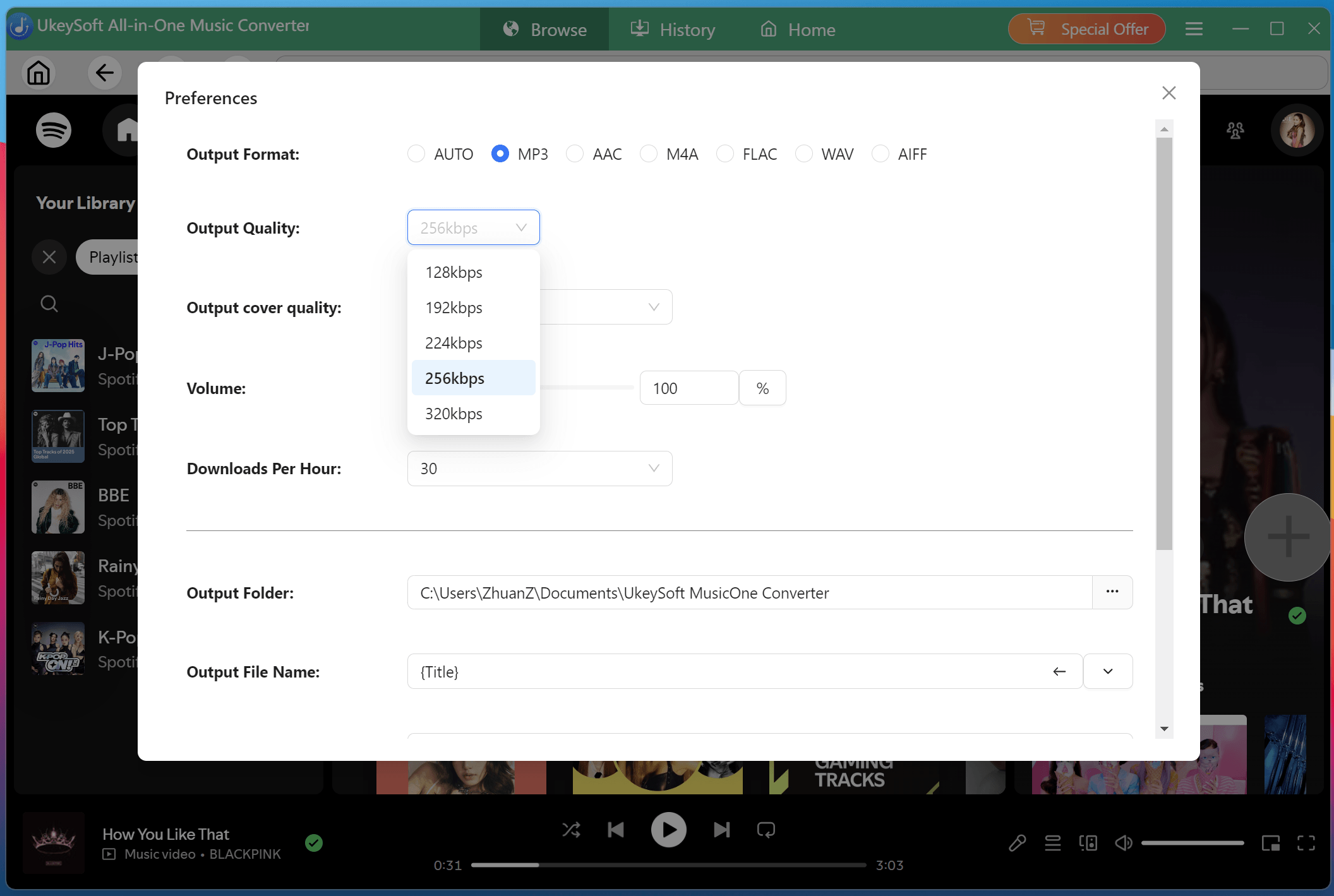
Step 2. Modify Output Settings
Click the "Menu" icon in the upper-right corner and select "Preferences". Under the output settings section, choose your preferred format such as MP3, FLAC, M4A, WAV, AAC, or AIFF. You can also customize output quality, output file name, output folder, and other parameters to meet your listening needs.
Step 3. Browse and Add Spotify Songs
Browse Spotify's music library through the integrated web player. Open any playlist, album, artist page, or individual track, then click the green "+" icon to add the items.
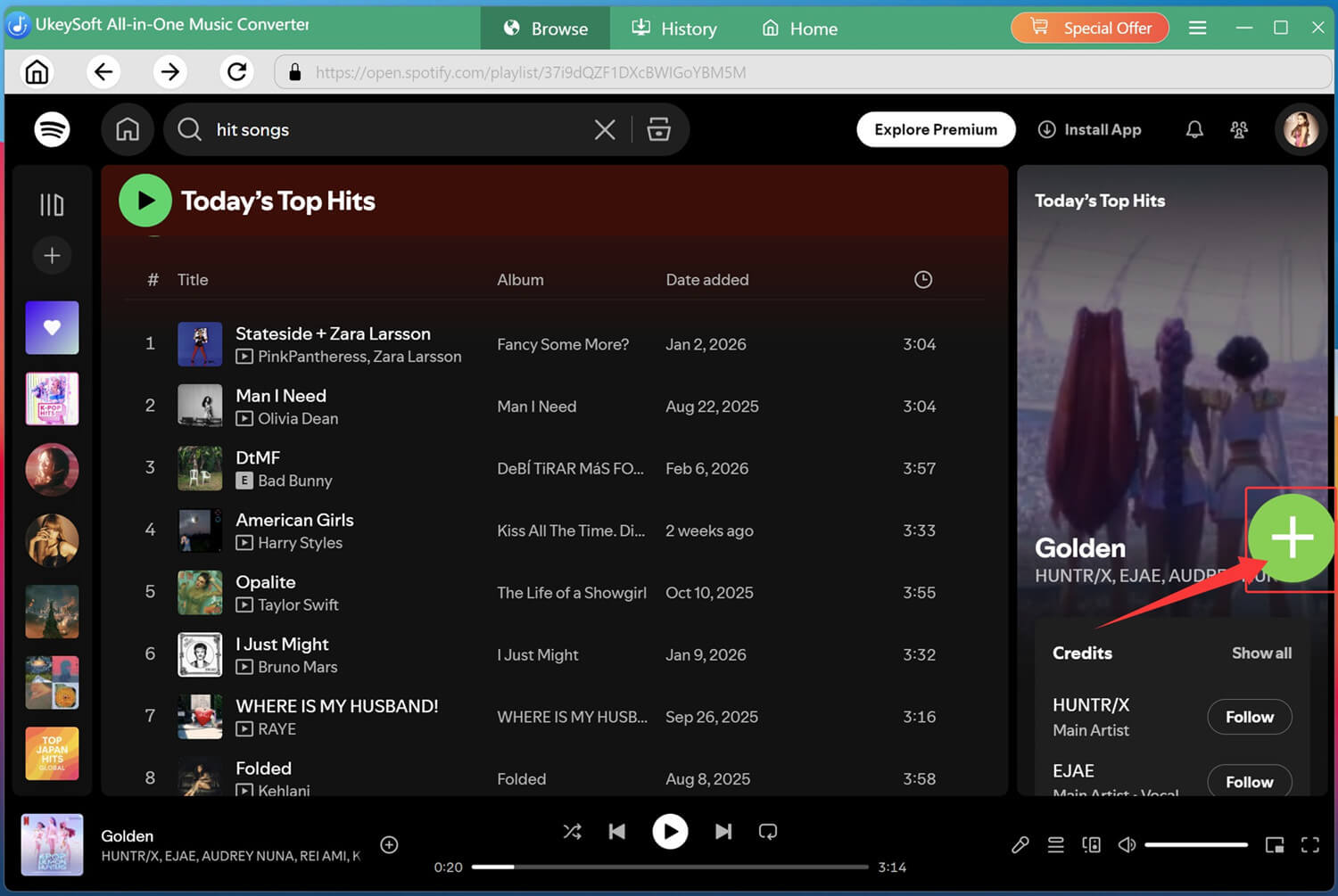
Review the imported tracks in the conversion queue. You can select individual songs or entire playlists at once.
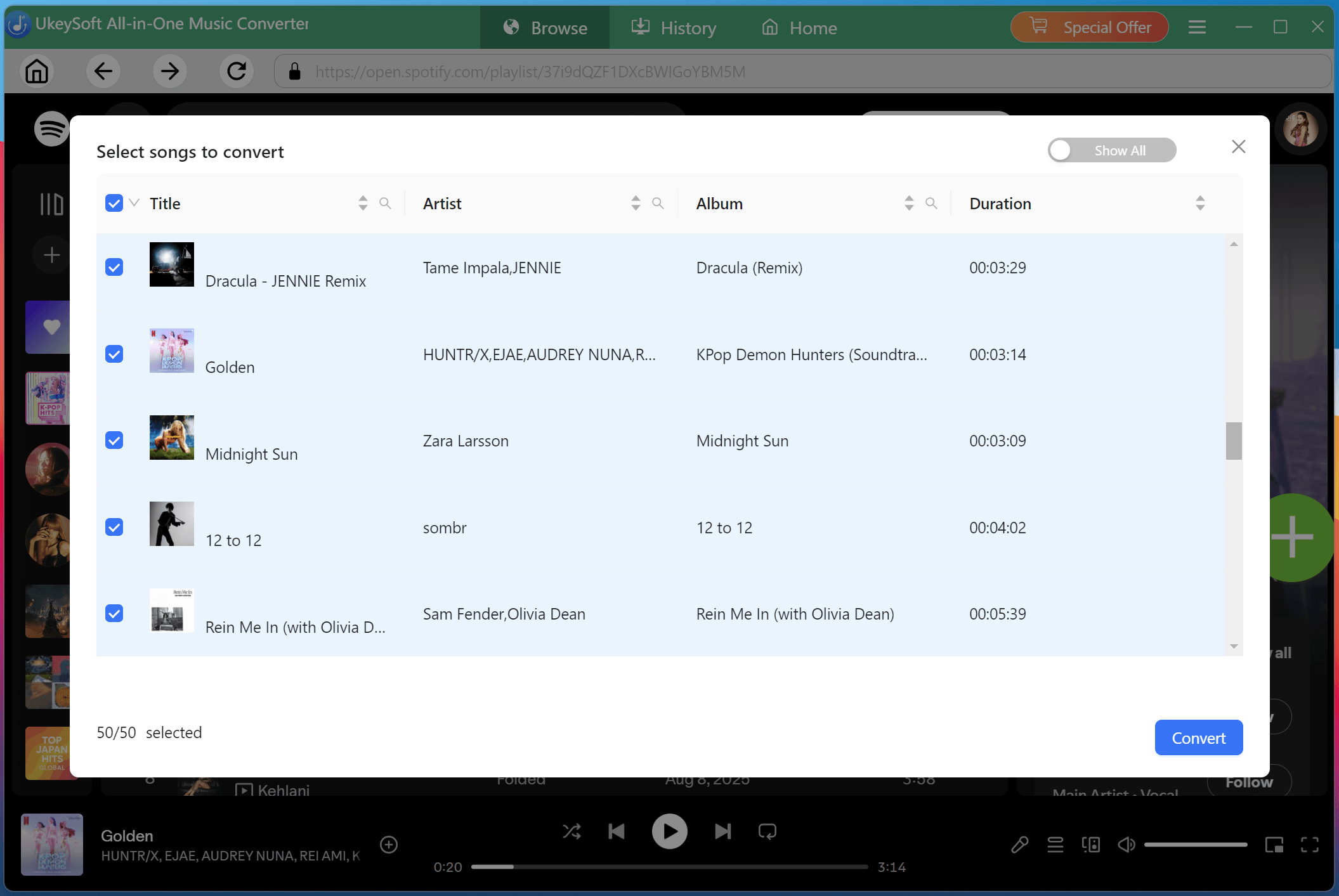
Step 4. Begin Downloading Spotify Songs to MP3
Click "Convert" button to start downloading and converting Spotify music tracks to MP3 while preserving original audio quality, metadata, and available lyric information for easier offline music management
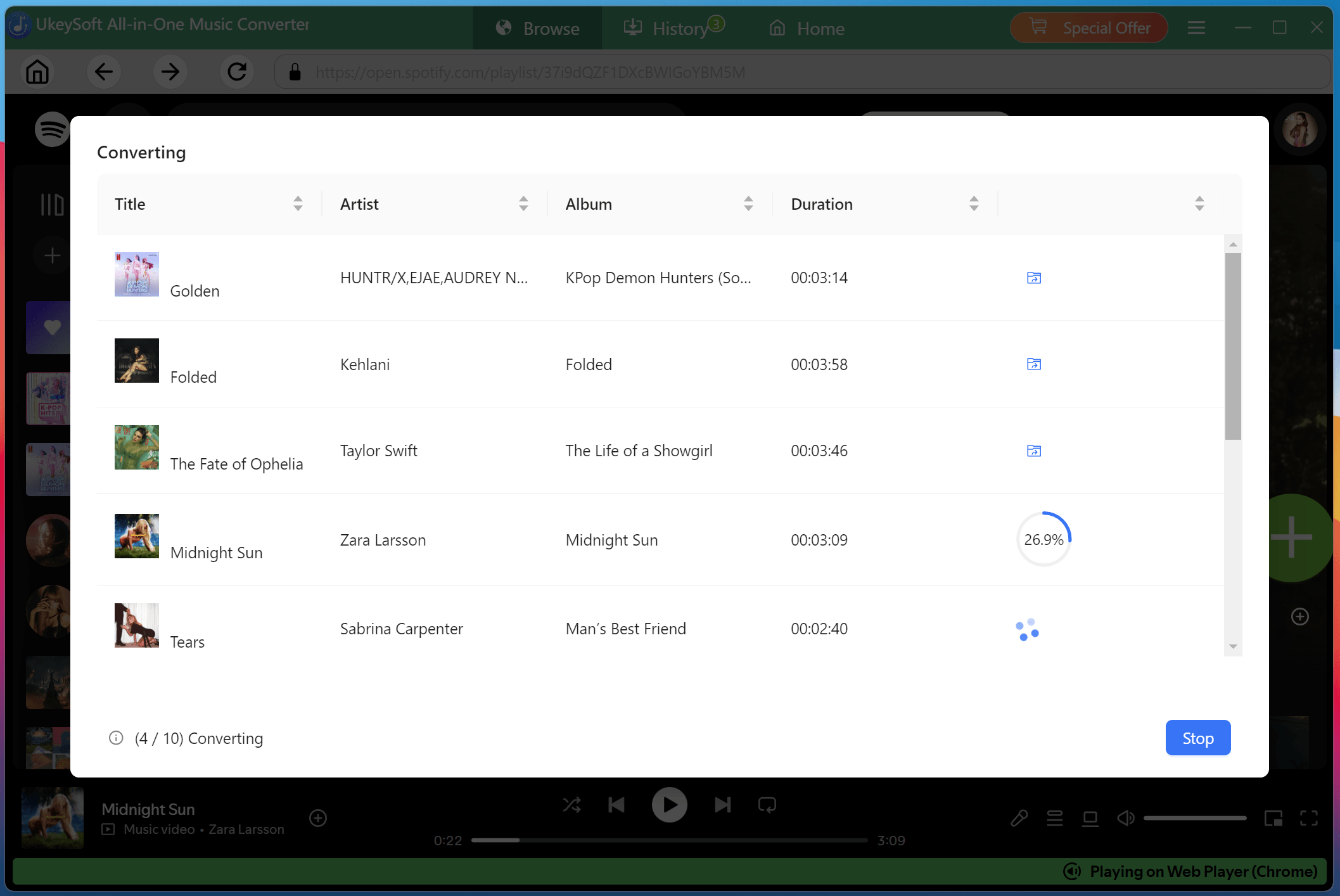
Step 5. Access Downloaded Spotify Songs
After conversion finishes, navigate to the "History" section to listen to Spotify music directly!
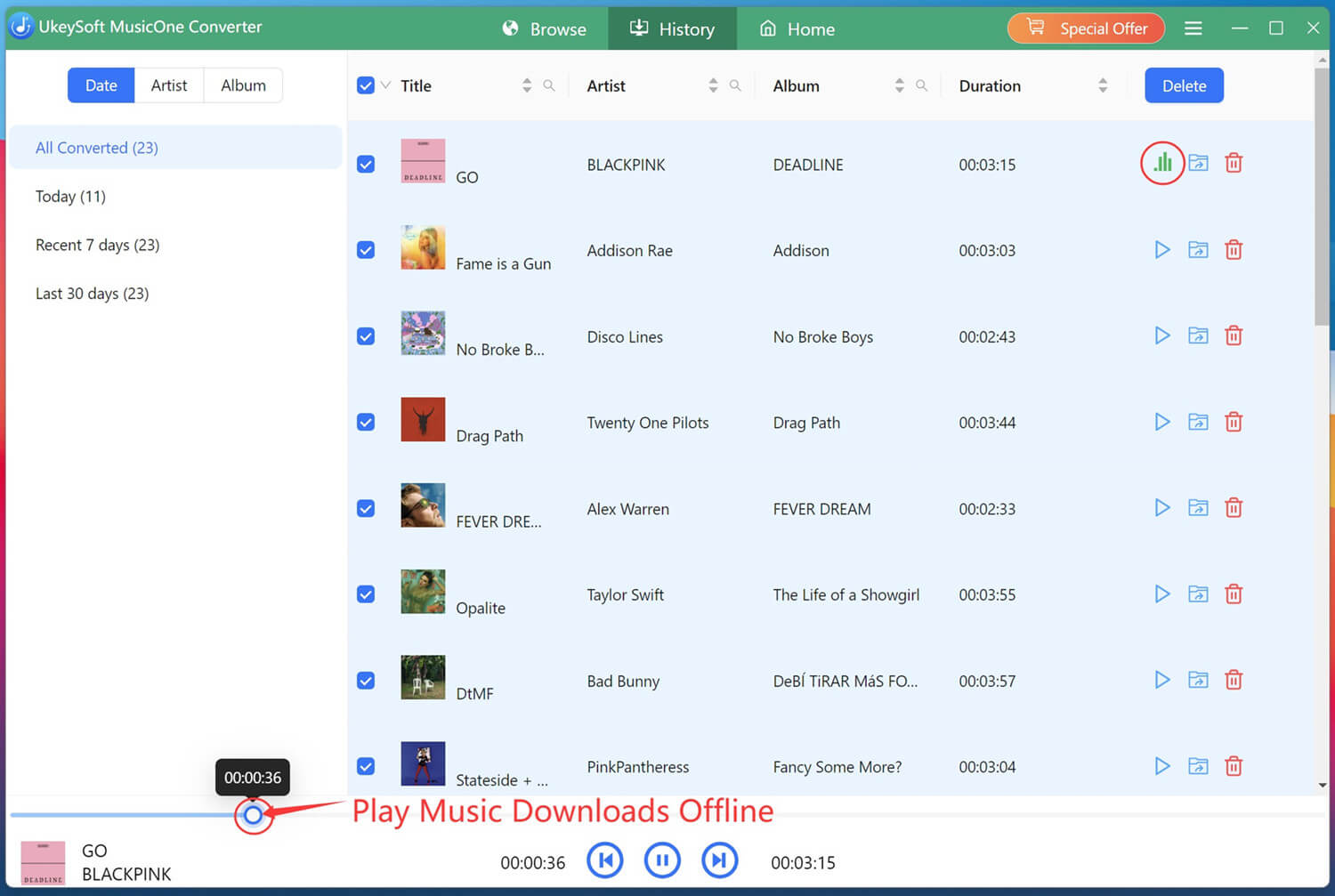
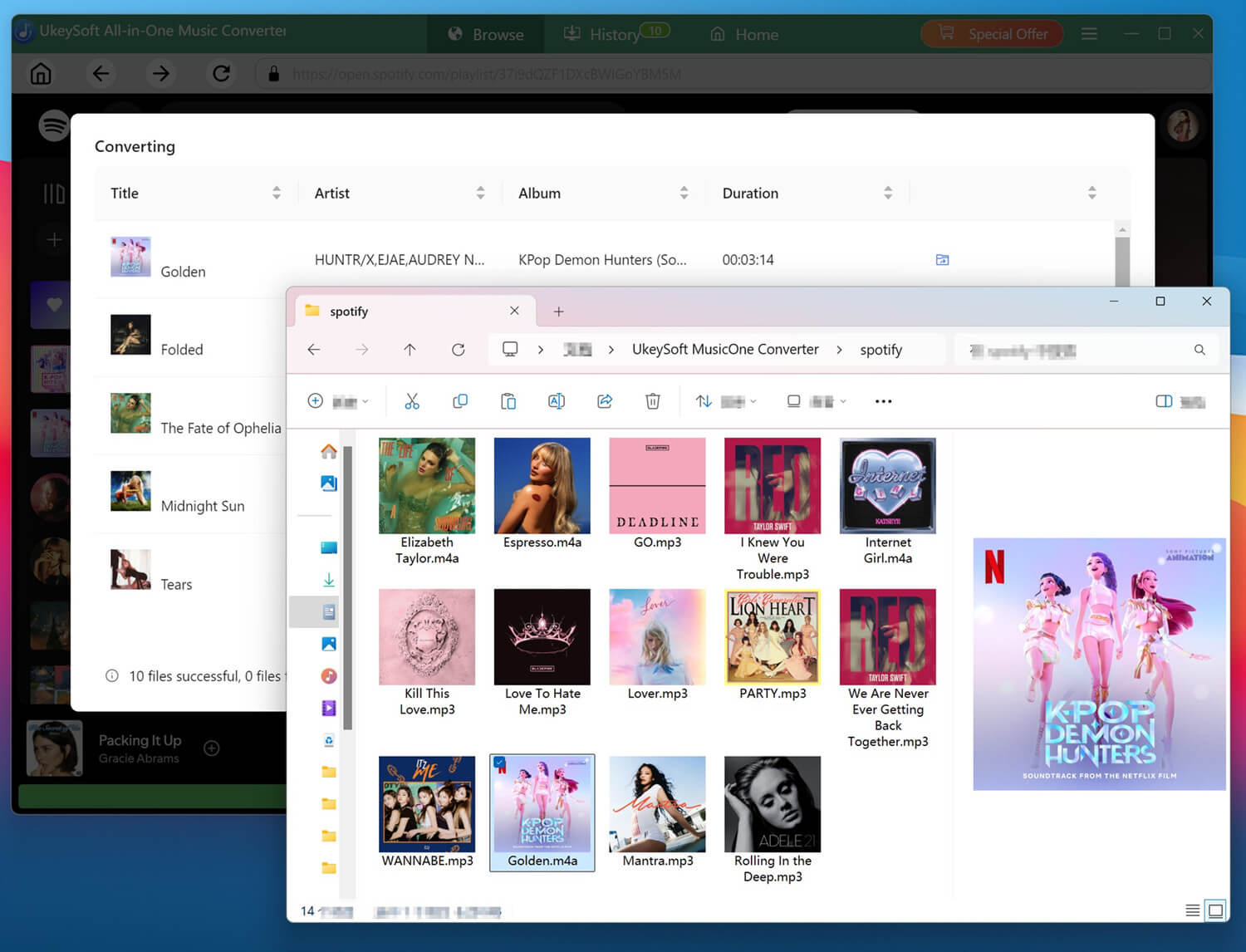
Click the Folder icon, you'll find your Spotify songs saved as high-quality MP3 files with all ID3 tags preserved. The lyrics will be saved as LRC files in the same folder!
A slow Spotify app can affect every aspect of your listening experience, from searching songs to switching playlists and buffering music. Fortunately, you can follow above simple troubleshooting methods to fix the issue when your Spotify is so slow. To improve your listening experience, downloading Spotify music to MP3 is the ideal solution.
With UkeySoft Spotify Music Converter, you can download Spotify songs, albums, and playlists to MP3 in up to 320 kbps quality at 16X faster speed, even without a Premium account. After downloading, you can directly listen to your Spotify music with its built-in music player, or add them into other music players freely!

Sorry the comment has been closed.










![7 Best FREE Apple Music Converters [2026 Updated]](https://www.ukeysoft.com/wp-content/uploads/2019/04/best-apple-music-converter.jpg)



















Porducts
Solution
Copyright © 2026 UkeySoft Software Inc. All rights reserved.


 English
 Arabic
 Chinese (Simplified)
 Chinese (Traditional)
 Croatian
 Czech
Czech Danish
 Dutch
Dutch Estonian
 Finnish
 French
 German
 Greek
Greek Hebrew
 Hindi
Hindi Hungarian
 Indonesian
 Italian
 Japanese
 Kazakh
 Korean
 Malay
Malay Norwegian
 Polish
 Portuguese
 Romanian
 Russian
 Slovenian
 Spanish
 Swedish
 Thai
Thai Turkish
 Ukrainian
 Vietnamese



























![Free Download Top 10 Christmas Songs to MP3 from Spotify [2026 Updated]](https://www.ukeysoft.com/wp-content/uploads/2023/01/christmas-songs-to-mp3.jpg)


































































































































Comments are off!