 ✕
✕
✕
✕
By Justin SabrinaUpdated on July 09, 2026
To enhance your streaming experience, Spotify offers real-time lyrics while listening to your favorite tracks. The built-in lyrics feature is available on both Free and Premium tiers. It is important to note that lyrics on Spotify may not be available for every song. The lyrics feature on Spotify is powered by Musixmatch, and artists can choose whether or not to include lyrics for their songs. If you are new to this feature and wondering how to access lyrics on Spotify, you are in the right place.
Whether you're using a smartphone, desktop computer, or Smart TV, it's easy to get Spotify lyrics while streaming music tracks on Spotify app or web player. In this article, we'll walk you through exactly how to get Spotify lyrics on every device. In addition, we will also introduce a powerful tool - UkeySoft Spotify Music Converter, which can help you download Spotify music along with lyrics copy for permanent offline access.
CONTENTS
Although Spotify offers offline downloads for Premium subscribers, downloaded songs remain encrypted within the Spotify application. Once your subscription expires or you cancel Premium, you can no longer access those downloaded tracks. Moreover, lyrics on spotify cannot be downloaded. To truly own your favorite Spotify tracks and save lyrics from Spotify, you will need a tool to bypass these restrictions.
This is where UkeySoft Spotify Music Converter comes in! This tool is well designed for both Spotify Free and Premium users. It allows you to download Spotify songs, albums, playlists, podcasts, and audiobooks directly to your Windows/Mac computer while preserving excellent audio quality. The software supports multiple audio formats, including MP3, M4A, FLAC, WAV, AAC, and AIFF. With it, you can easily download Spotify music to MP3 at 320kbps high quality for a Premium listening experience.
Even better, it empowers both Spotify free and premium users to download Spotify lyrics to LRC or TXT files. After which, you can import the downloaded Spotify music to any compatible player, or read lyrics while playing the Spotify music on other music app, such as Musixmatch or Lyrics Mania.
Why Choose UkeySoft Spotify Music Converter?
Step 1. Select Spotify and Log In to Spotify Account
Download and install UkeySoft MusicOne Converter on your Windows PC or Mac computer, or laptop.
Launch the program. As you can see, it features an intuitive interface, no ads, no pop-ups.
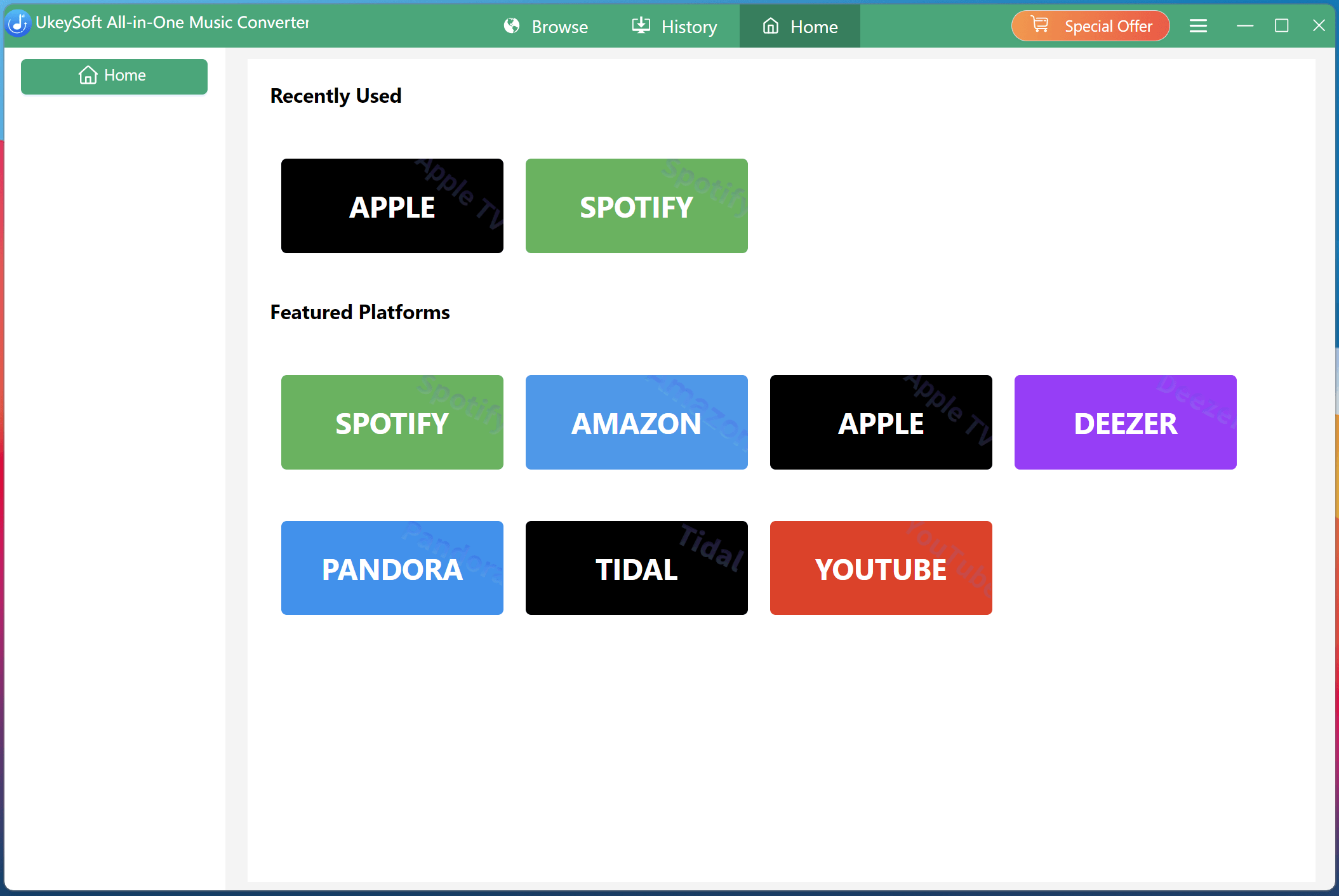
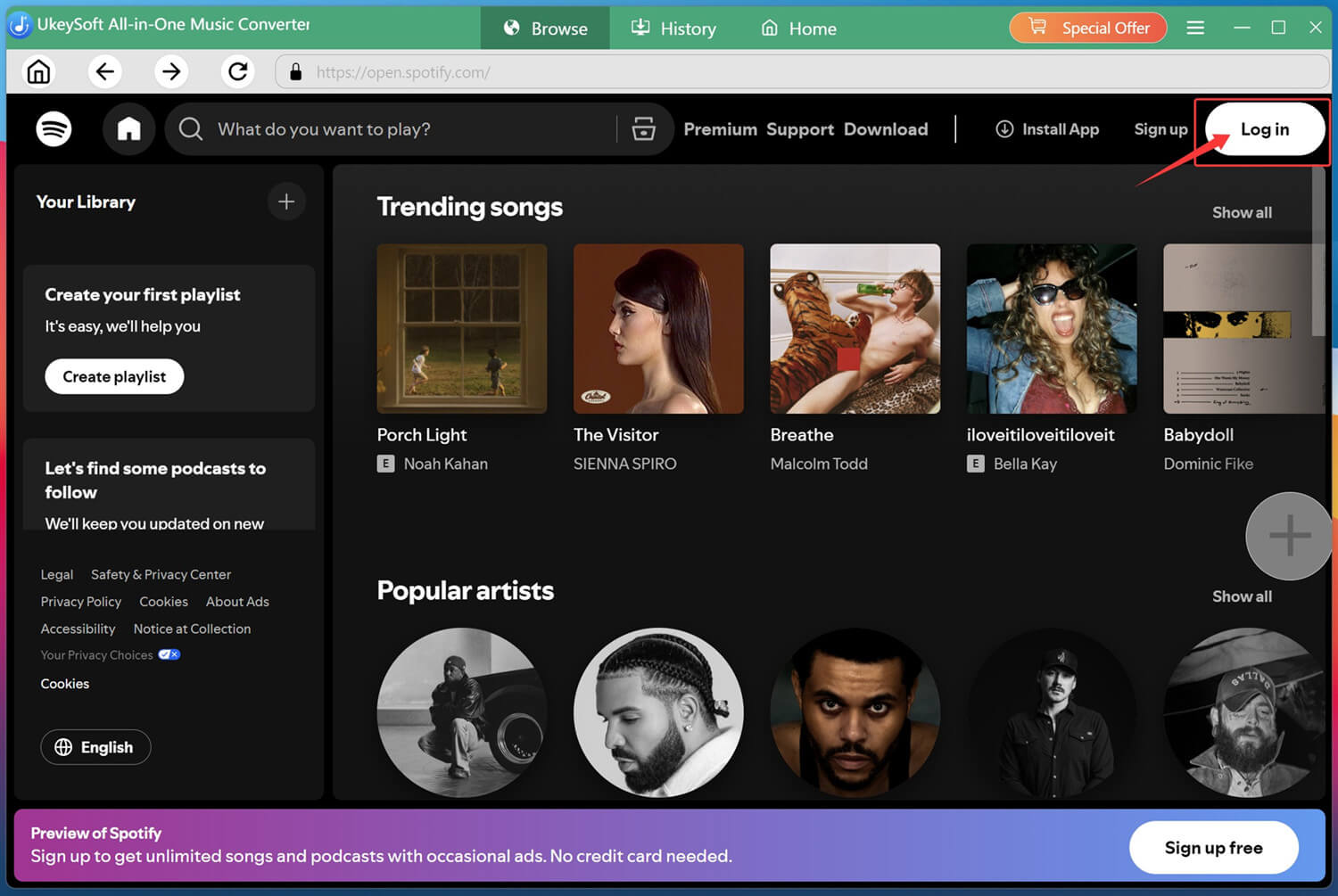
From the available streaming services, select Spotify and log in using either your Spotify Free or Premium account.
Step 2. Modify Output Settings
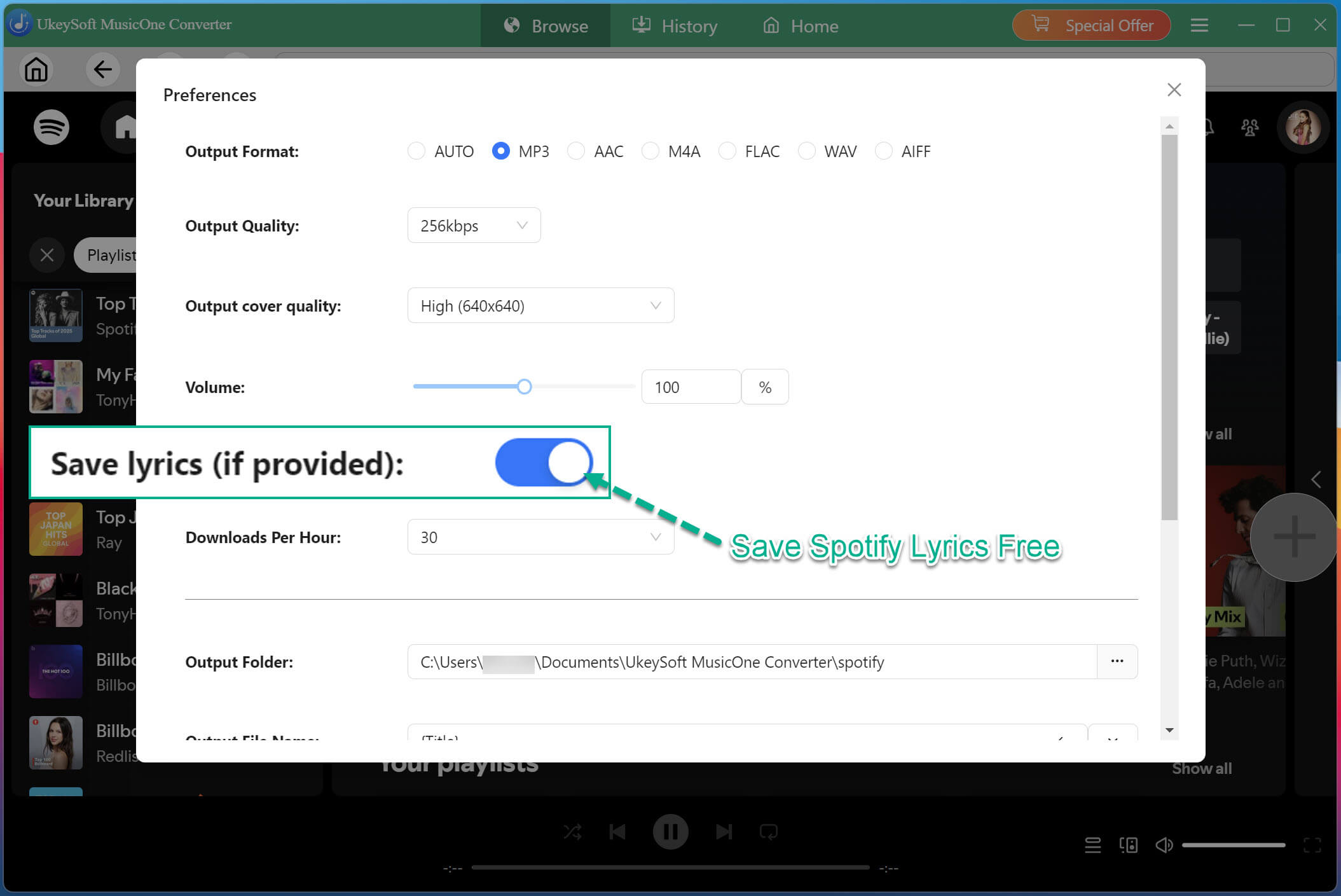
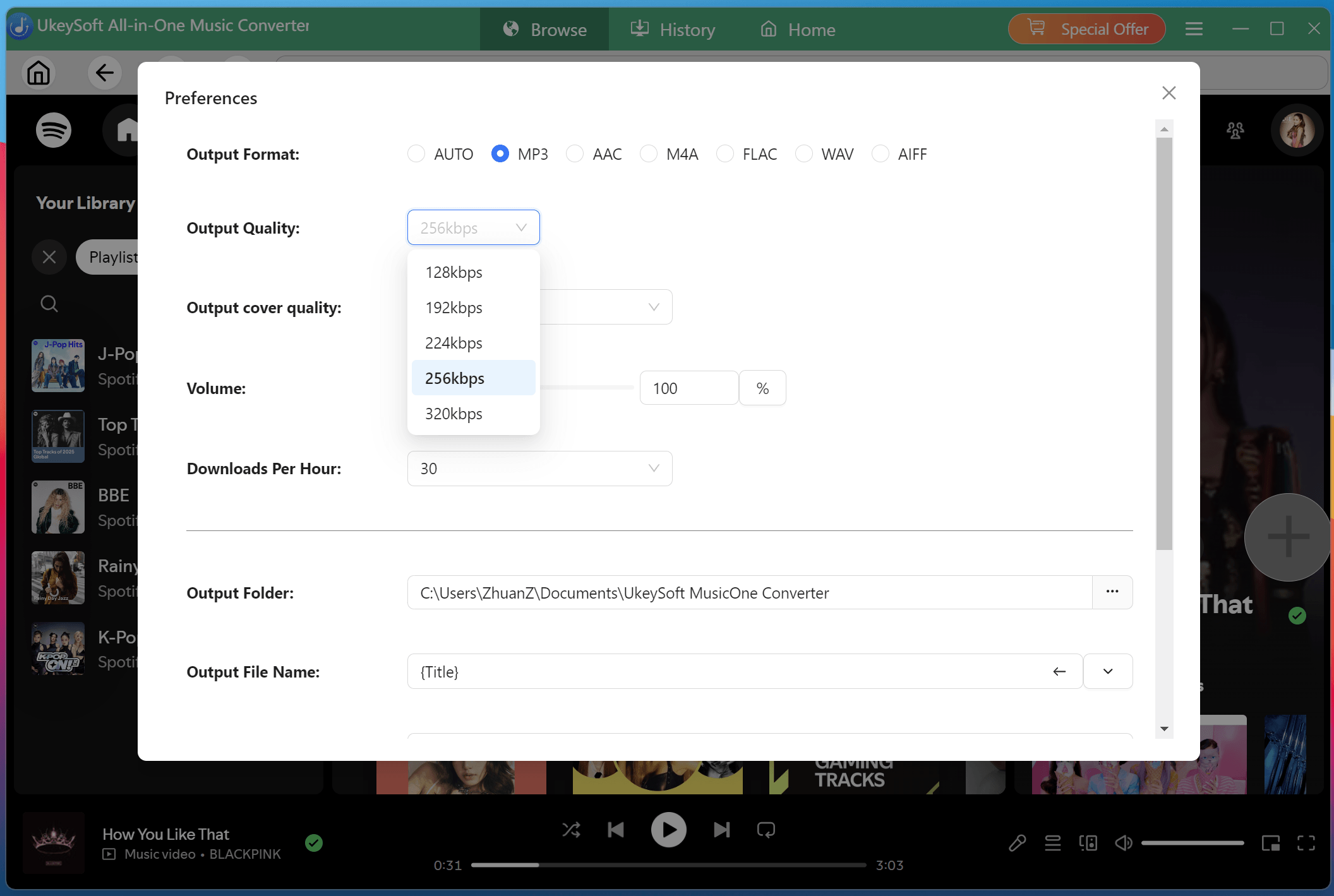
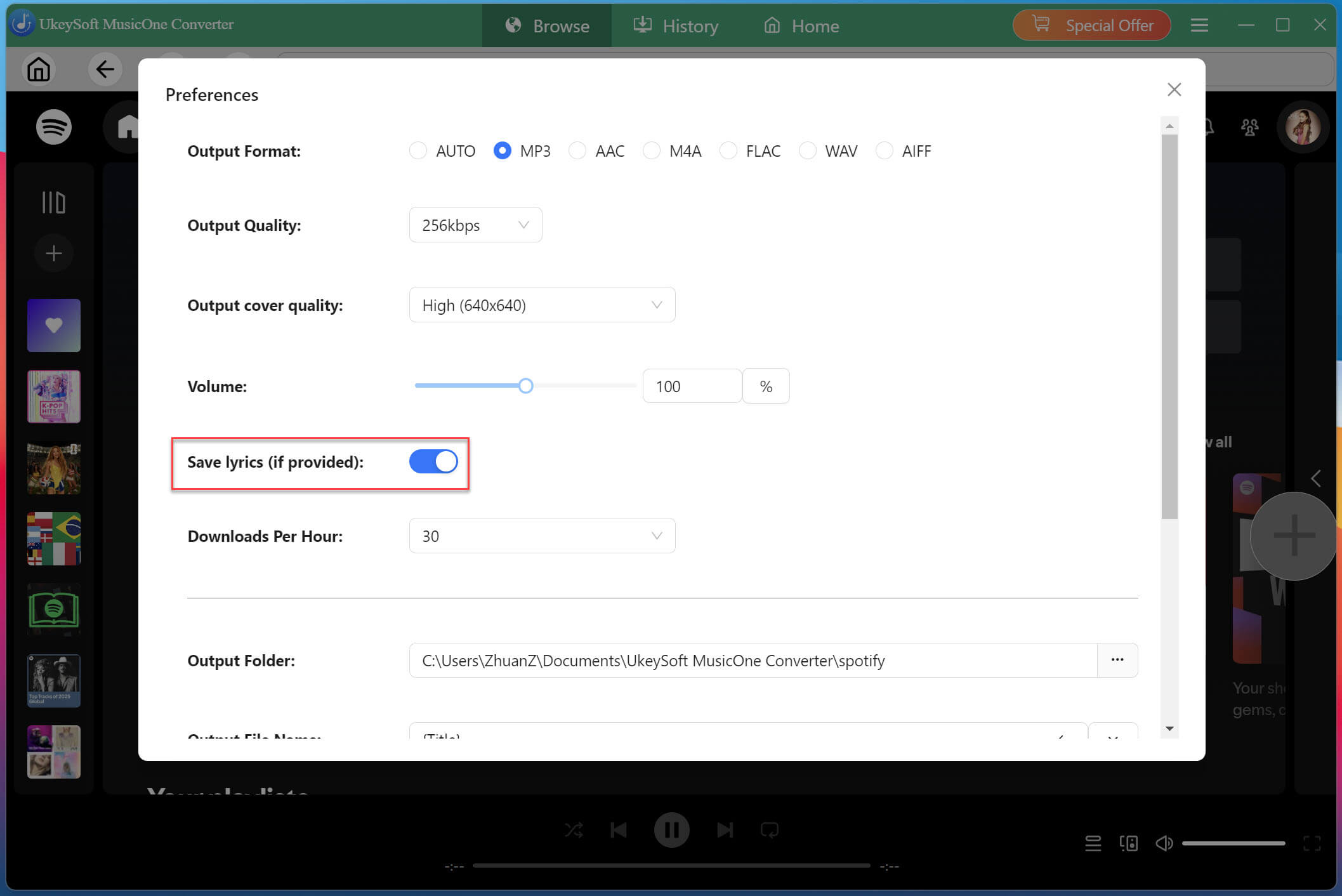
Click the "Menu" icon in the upper-right corner and select "Preferences". Under the output settings section, choose your preferred format such as MP3, FLAC, M4A, WAV, AAC, or AIFF. You can also customize output quality, output file name, output folder, and other parameters to meet your listening needs.
To save lyrics from Spotify, you need to enable the "Save lyrics" option. Once enabled, you can download Spotify lyrics in a text or LRC format.
Step 3. Browse and Add Spotify Songs
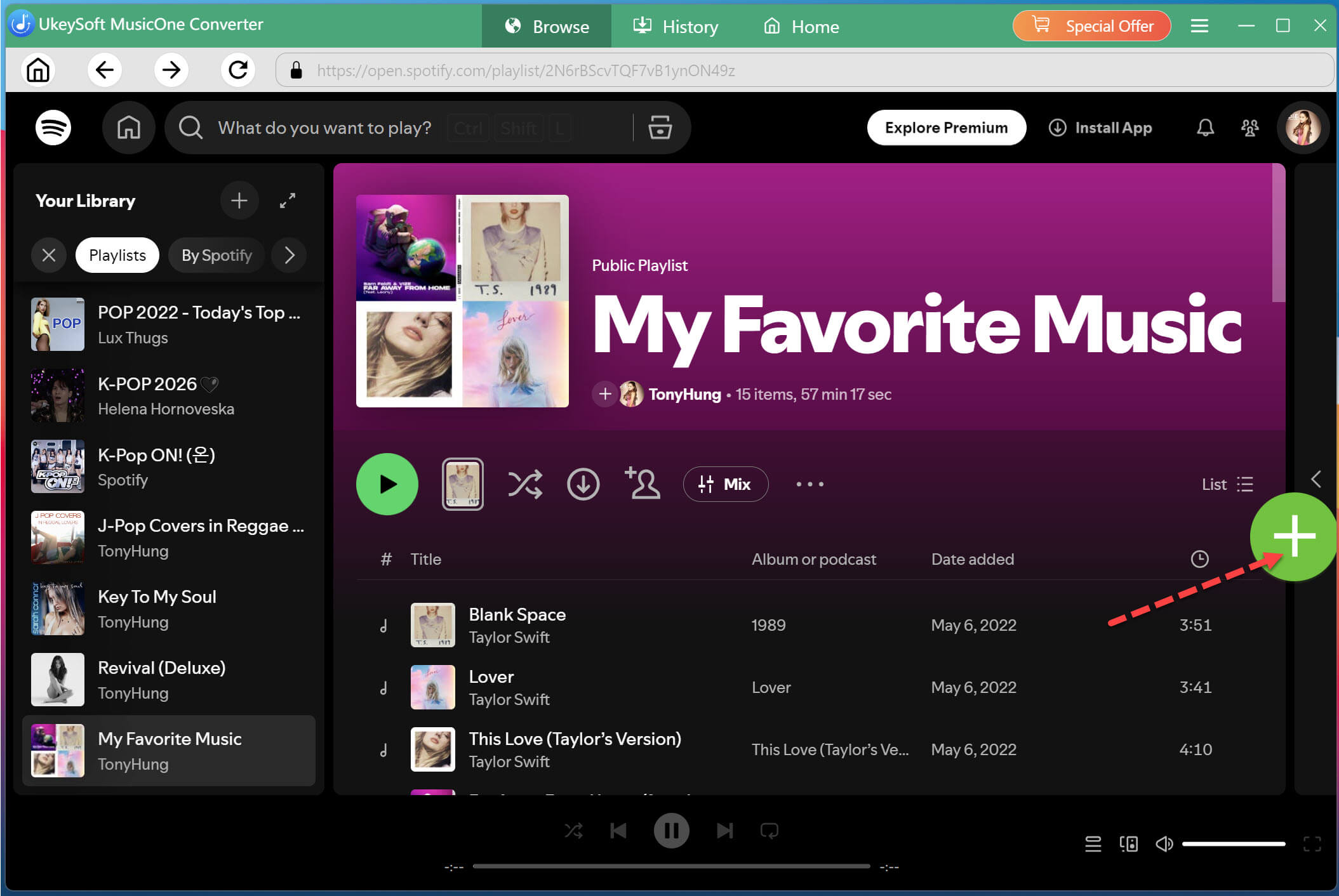
Browse Spotify's music library through the integrated web player. Open any playlist, album, artist page, or individual track, then click the green "+" icon to add the items.
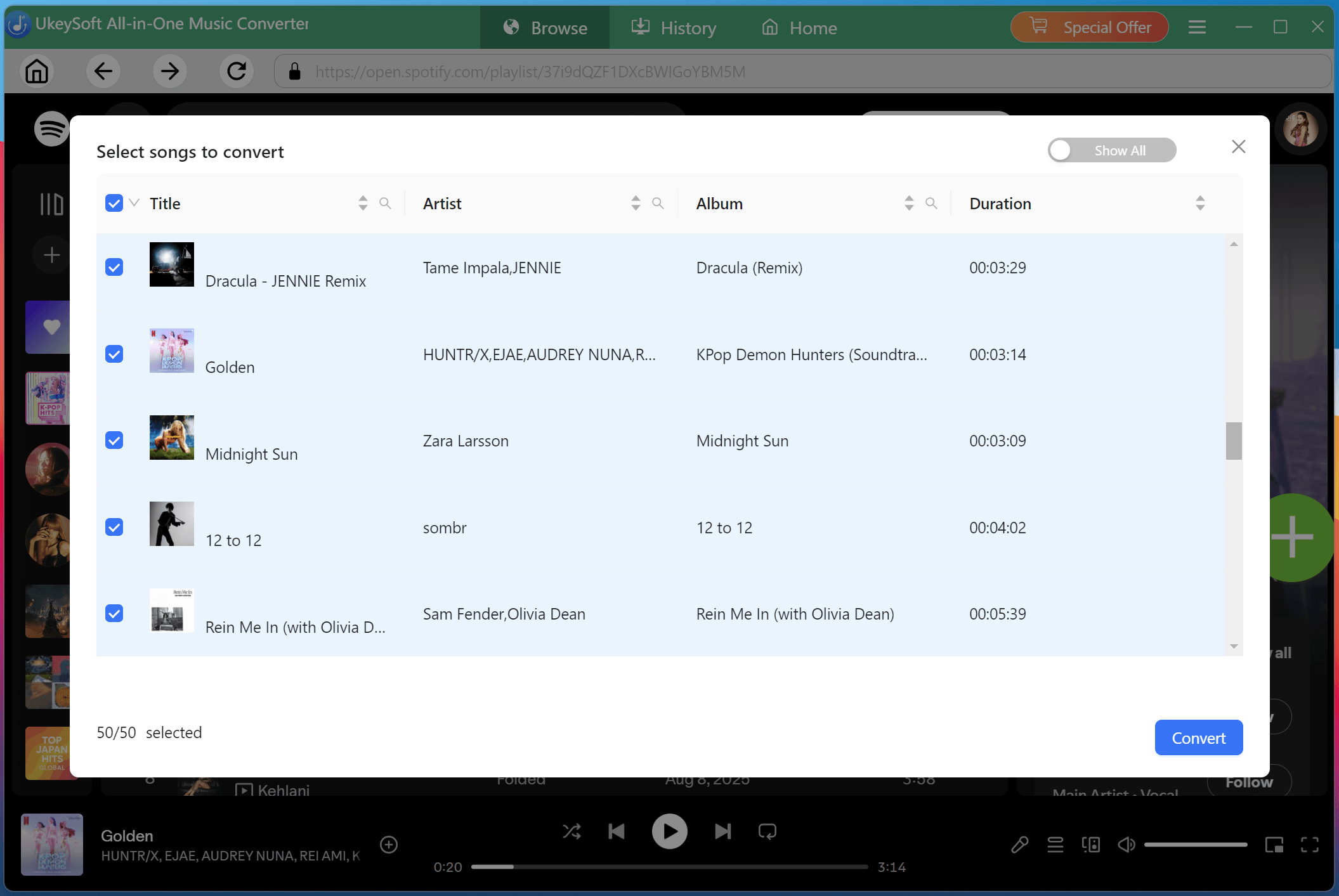
Review the imported tracks in the conversion queue. You can select individual songs or entire playlists at once.
Step 4. Begin Downloading Spotify Songs with Lyrics Kept
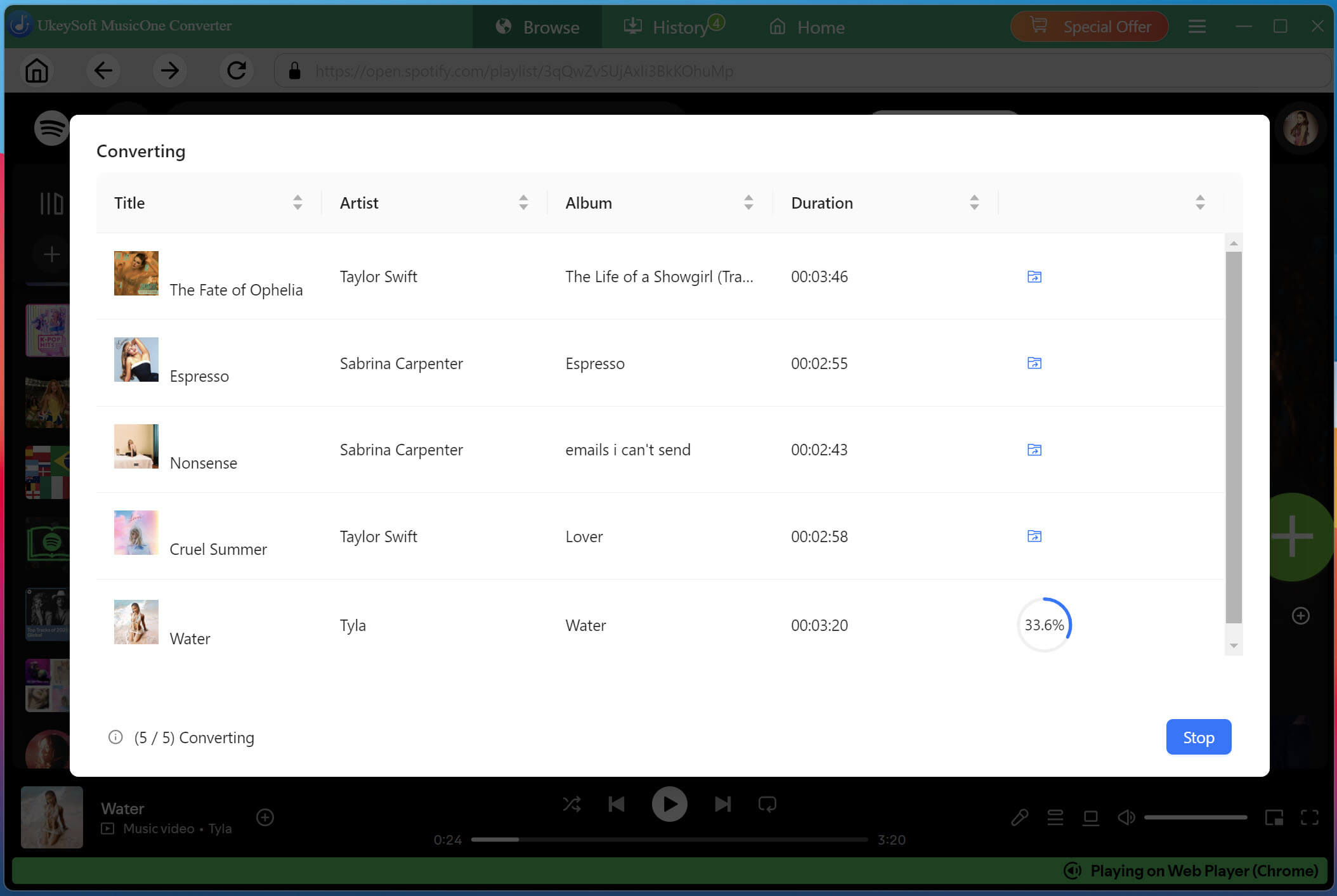
Click "Convert" button to start downloading and converting Spotify music tracks to MP3 while preserving original audio quality, metadata, and available lyric information for easier offline music management
Step 5. Access Downloaded Spotify Songs
After conversion finishes, you can quickly locate the downloaded Spotify MP3 files by clicking the "Folder" icon next to each track. The lyrics are automatically saved in .lrc format alongside the MP3 music files.
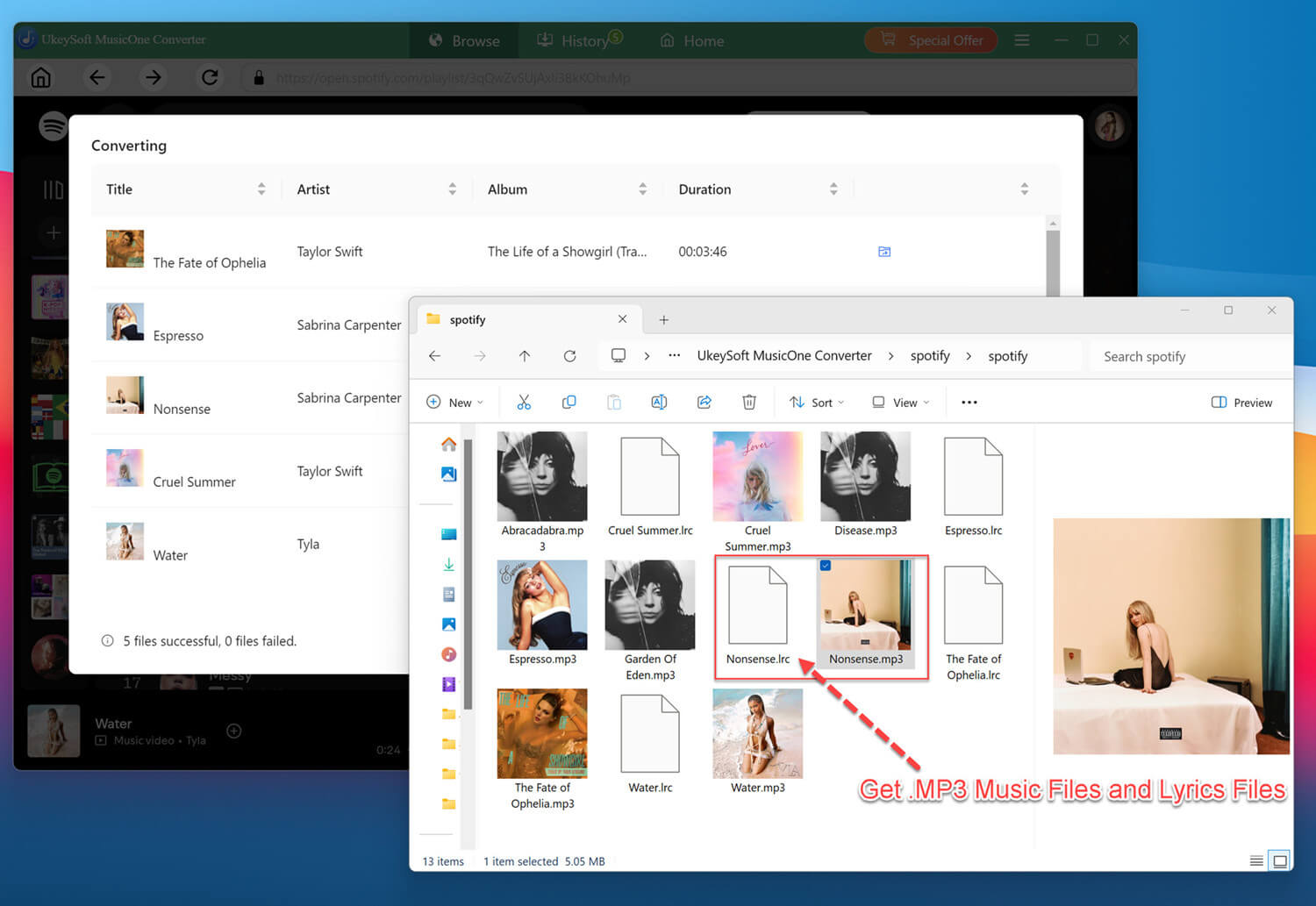
Additionally, you may access your saved Spotify music through the "History" tap or by clicking the "Blue Folder" icon.
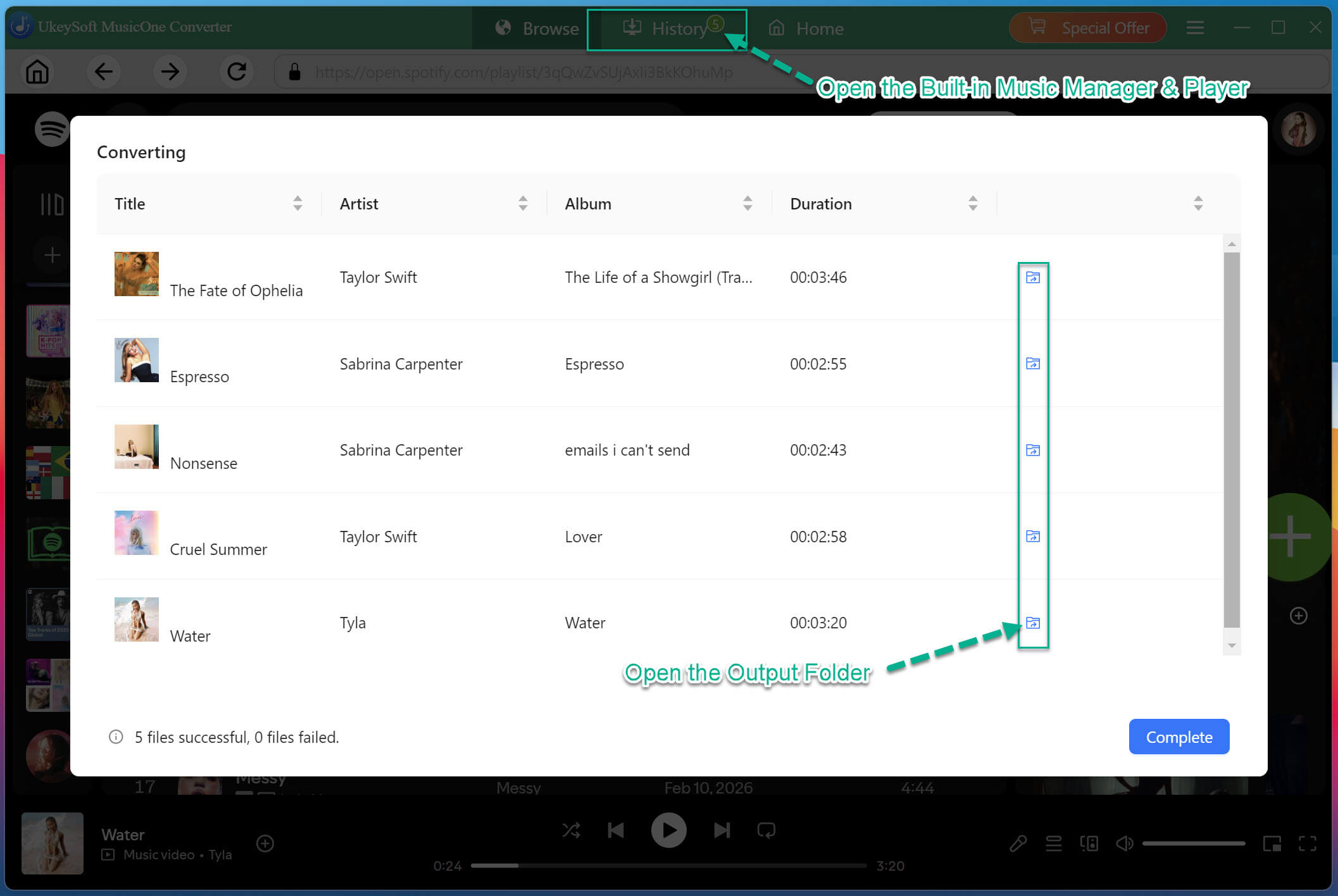
Step 6. Listen to Spotify Music Offline
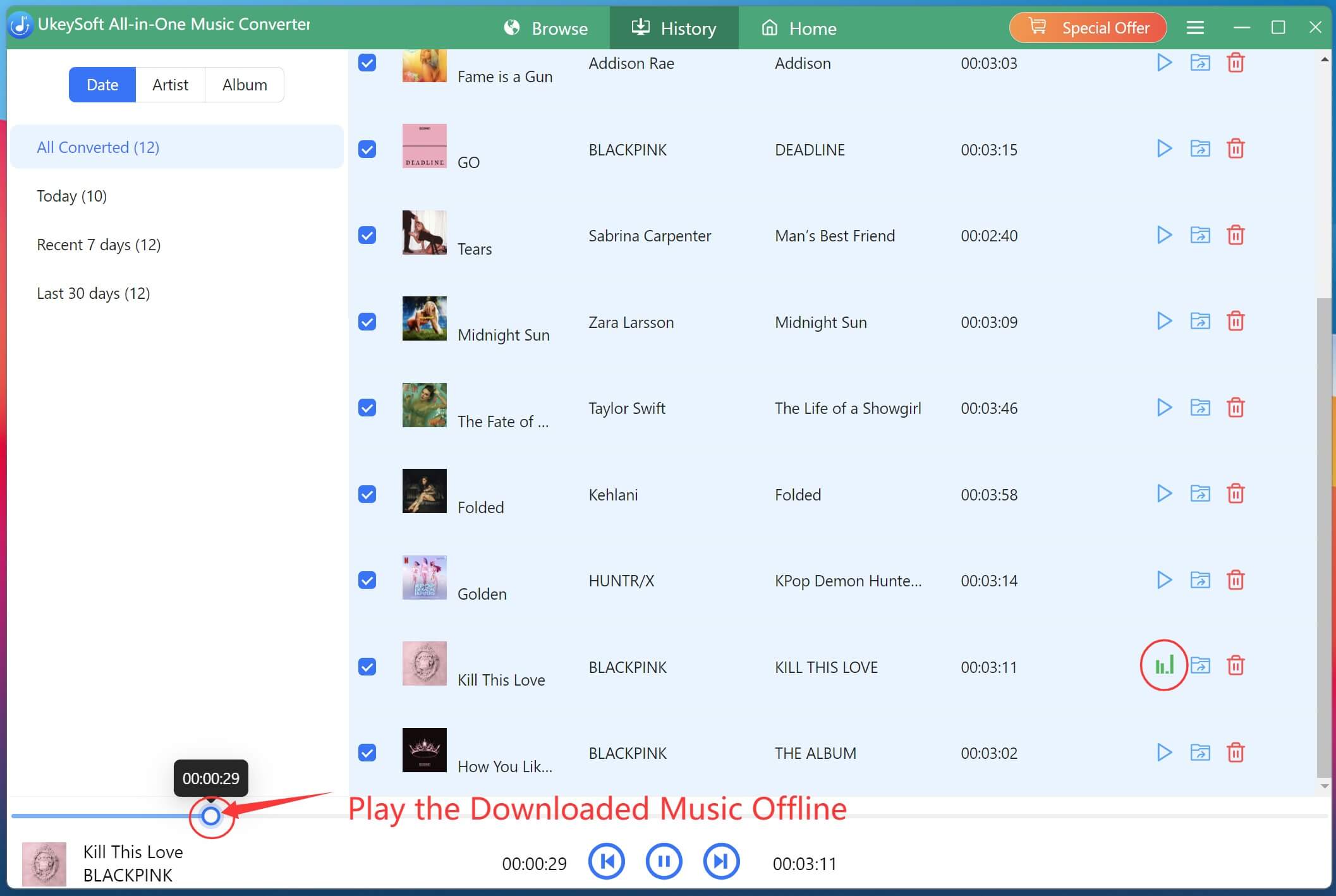
As you can see, UkeySoft Spotify Music Converter automatically classifies the output Spotify songs by artist, album, or date. You can listen to these Spotify music with the built-in music player, simple press on the "Play" icon next to the song title.
Step 7. Get Spotify Music with Lyrics Kept
Find your downloaded Spotify music files by clicking the "Blue Folder" icon. To read or edit the lyrics as plain text, simply change the .lrc extension to .txt. This makes it easy to access both your downloaded Spotify songs and synchronized lyrics offline.
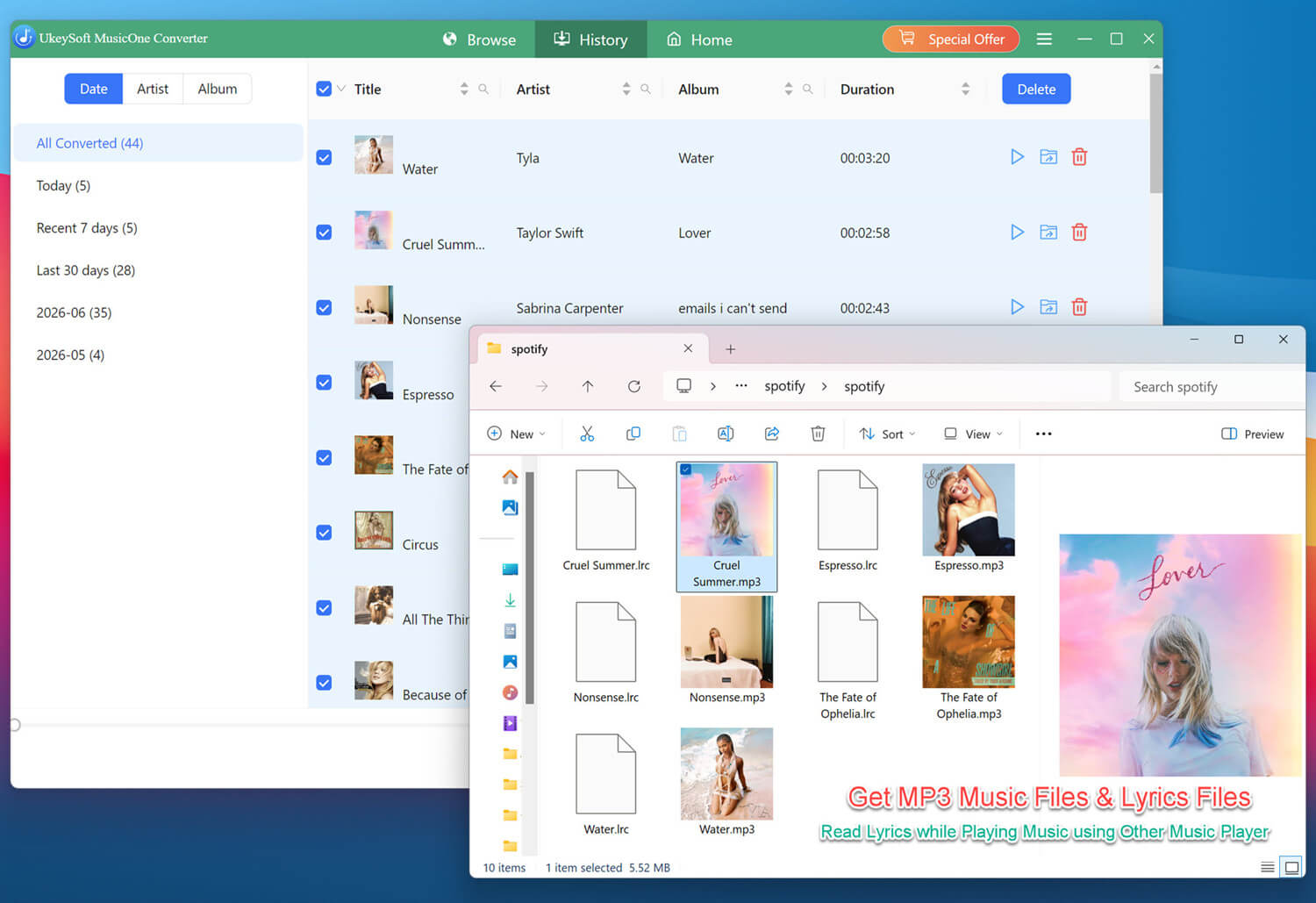
Now, you can add these Spotify MP3 music files and .lrc files to other music apps like Musixmatch or Lyrics Mania. These music apps float a small lyric box over your home screen. Once adding successfully, you can play these high-quality Spotify music and read the lyrics in real time!
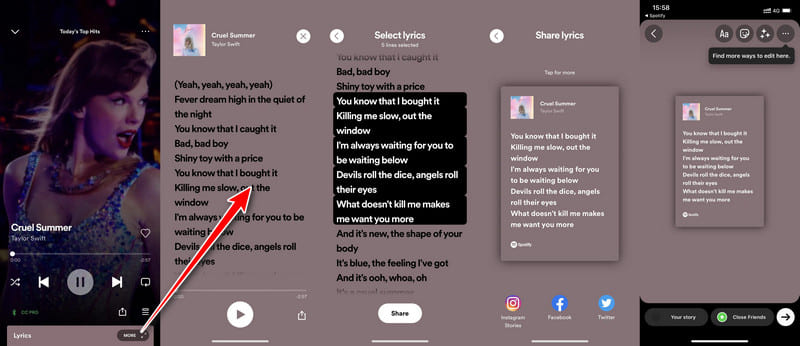
Spotify's lyrics feature is available on both Android and iPhone devices. If lyrics are available for a song, you can instantly view synchronized lyrics while the music plays.
Follow these steps to get Spotify lyrics on iPhone, iPad, or Android.
Step 1. Open the Spotify app on your Android or iPhone.
Step 2. Play any song from your library, playlist, album, or search results.
Step 3. Tap the song title at the bottom of the screen to enter the "Now Playing" interface.
Step 4. Swipe upward from the bottom of the screen.
Step 5. The lyrics panel will appear automatically if lyrics are available.
Step 6. Continue scrolling to view the complete lyrics while the song plays.
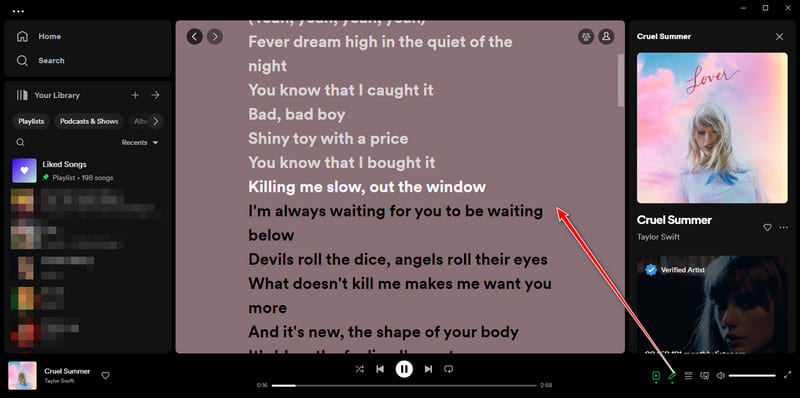
If you're listening to music on your computer, you might be wondering how to show Spotify lyrics on PC/Mac. Desktop users can also access lyrics on Spotify directly from the Spotify desktop app or web player. Here's how to show Spotify lyrics on Windows/Mac:
Step 1. Launch the Spotify desktop app or go to its official website on your Windows PC or Mac.
Step 2. Log in to your Spotify account. Find a song and start playing it.
Step 3. Locate the microphone icon in the bottom-right corner of the playback bar, and click the icon.
Step 4. Spotify will immediately display synchronized lyrics on the screen.
Beyond mobile and desktop, the Spotify app is seamlessly integrated across a wide range of Smart TV platforms, making it a good option to streaming Spotify for parties, family gatherings, and home entertainment. The good news is you can also display Spotify lyrics on Smart TV if your TV supports Spotify's latest lyrics feature.
Step 1. Use the remote to open the Spotify app on your Smart TV. Sign in to your Spotify account.
Step 2. Play a song, and navigate to the "Now Playing" screen.
Step 3. Locate the Lyrics button on the playback interface.
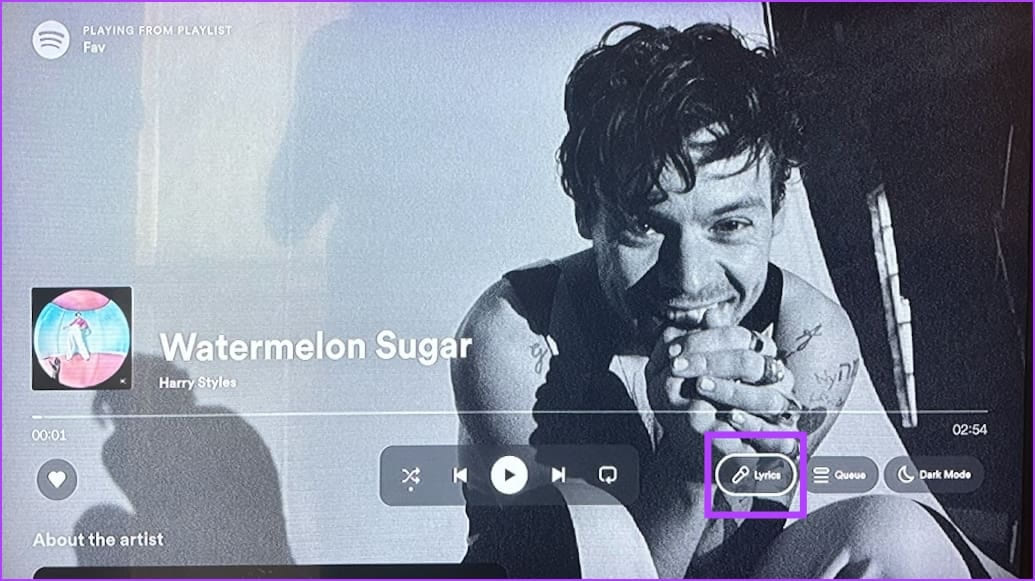
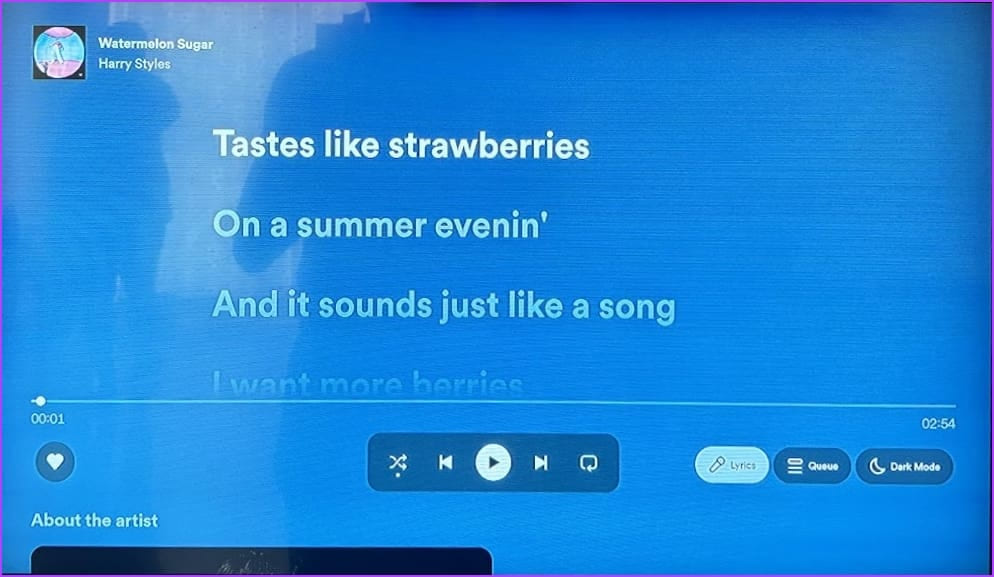
Step 6. Select the lyrics option. Lyrics will appear on the television screen and synchronize with the music playback.
Does Spotify Have Lyrics for All Songs?
No. Not every Spotify song offers lyrics. The availability of lyrics depends on whether the track has been synchronized with Musixmatch's database. Lyrics appear on Spotify only when artists opt in and licensing rights are secured, otherwise, they won't be displayed.
Are Lyrics on Spotify Only for Premium?
No, you do not need Spotify Premium to see lyrics. Both Spotify Free and Premium users can generally access lyrics on Spotify whenever lyric support is available for a track.
Why Aren't Lyrics Showing on Spotify?
Lyrics may not show on Spotify due to unavailable track licensing, a weak internet signal, or an outdated app. It's also worth noting that lyrics are not supported in Offline Mode, during Spotify Connect casting, or with many screen mirroring functions, so disabling these may resolve the issue.
How do I Save Lyrics from Spotify?
Spotify does not offer an official way to save or export lyrics to your library for offline reading. But you can utilize a third-party tool such as UkeySoft Spotify Music Converter. It enables you to download Spotify Music along with lyrics copy, save Spotify songs as MP3, AAC, WAV, FLAC and other audio files permanently.
Spotify's built-in lyrics feature makes it easier than ever to follow songs, sing along, and discover the meaning behind your favorite music. Follow the detailed guide to access lyrics on Spotify across all your devices! If you want to download lyrics on Spotify as a text document, then UkeySoft Spotify Music Converter is a good helper. It is an one-stop Spotify music downloader, Spotify music converter, Spotify lyrics downloader, Spotify music player and manager! All types of Spotiofy users can use it to download lyrics on Spotify in a text or LRC format, and save Spotify songs as MP3, WAV, FLAC, AAC, M4A, or AIFF files for permanent offline listening.

Sorry the comment has been closed.










![7 Best FREE Apple Music Converters [2026 Updated]](https://www.ukeysoft.com/wp-content/uploads/2019/04/best-apple-music-converter.jpg)



















Porducts
Solution
Copyright © 2026 UkeySoft Software Inc. All rights reserved.


 English
 Arabic
 Chinese (Simplified)
 Chinese (Traditional)
 Croatian
 Czech
Czech Danish
 Dutch
Dutch Estonian
 Finnish
 French
 German
 Greek
Greek Hebrew
 Hindi
Hindi Hungarian
 Indonesian
 Italian
 Japanese
 Kazakh
 Korean
 Malay
Malay Norwegian
 Polish
 Portuguese
 Romanian
 Russian
 Slovenian
 Spanish
 Swedish
 Thai
Thai Turkish
 Ukrainian
 Vietnamese



























![Top 10 Christmas Songs to MP3 Download [Spotify]](https://www.ukeysoft.com/wp-content/uploads/2023/01/christmas-songs-to-mp3.jpg)


































































































































Comments are off!