By
ChesterUpdated on August 07, 2026
Summary
Wondering how to download YouTube Music to USB drive? In this post, we’ll guide you step-by-step on how to download YouTube Music to your computer without Premium. Once the songs are downloaded, you can easily transfer them to a USB flash drive and enjoy your favorite tracks offline on any device.
YouTube Music is a top choice for discovering and streaming a wide variety of songs. However, there are times when you might not have internet access or want to save on data. That’s when downloading YouTube Music and transferring it to a USB drive becomes useful. In this guide, we’ll show you how to download YouTube Music to USB drive. Whether you're a YouTube Music Premium, YouTube Premium subscriber nor a Free user, you can download and transfer YouTube Music songs to USB flash drive for backup, or listening everywhere you want via USB flash drive.
CONTENTS
Part 1. Can I Download YouTube Music to USB?
When you download songs, playlists, or albums using the YouTube Music app, they show up in the “Library” under the “Downloads” section. However, these files are protected by YouTube Music, which means you can’t move or copy them to a USB flash drive, even if you have a YouTube Music Premium subscription. If you want more freedom with your music, especially to save songs to a USB drive, you’ll need to remove YouTube Music’s protection. This is where tools like 4kFinder YouTube Music Converter come in handy.
With 4kFinder YouTube Music Converter, you can download YouTube Music tracks and convert them into formats that work on all kinds of devices even without a Premium account. This lets you build your own offline music collection and easily play it through a USB drive or other media players.
Part 2. Best Solution to Download YouTube Music to USB
YouTube Music Premium allows users to download songs for offline listening, but the files remain restricted within the app. On the other hand, 4kFinder YouTube Music Converter offers greater flexibility for both Premium and free users by saving YouTube Music tracks without any DRM restrictions.
Best Tool to Download YouTube Music to USB - 4kFinder YouTube Music Converter
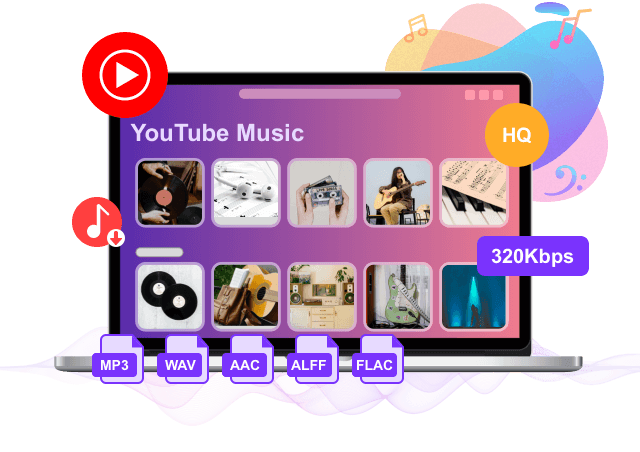
4kFinder YouTube Music Converter is a powerful tool that lets you download music directly from the YouTube Music web player on your computer. Unlike the YouTube Music app, which only allows offline playback for Premium users, 4kFinder works for everyone. It converts YouTube Music to MP3, M4A, AAC, FLAC, WAV and AIFF, while preserving lossless audio quality and ID3 tags. Once downloaded, your music is saved locally, so you can listen offline anytime and even transfer the files to a USB drive for safe keeping. Moreover, 4kFinder is equipped with built-in YouTube Music web player, you can browse, search, download and play in one-stop, there is not necessary to install YouTube Music app.
4kFinder YouTube Music Converter
- Download YouTube Music with free and Premium account.
- Convert YouTube Music to MP3, M4A, AAC, FLAC, WAV, AIFF.
- Keep original audio quality and ID3 tags.
- Batch download YouTube Music at 16X faster speed.
- Transfer YouTube Music to USB without limits.
- Built-in YouTube Music web player, no extra apps needed.
- Keep YouTube Music permanently even after subscription.
- Fully compatible with Windows & Mac.
Ture user reviews from Trustpilot
Tutorial: How to Download YouTube Music to USB
Step 1. Sign In to Your YouTube Music Account
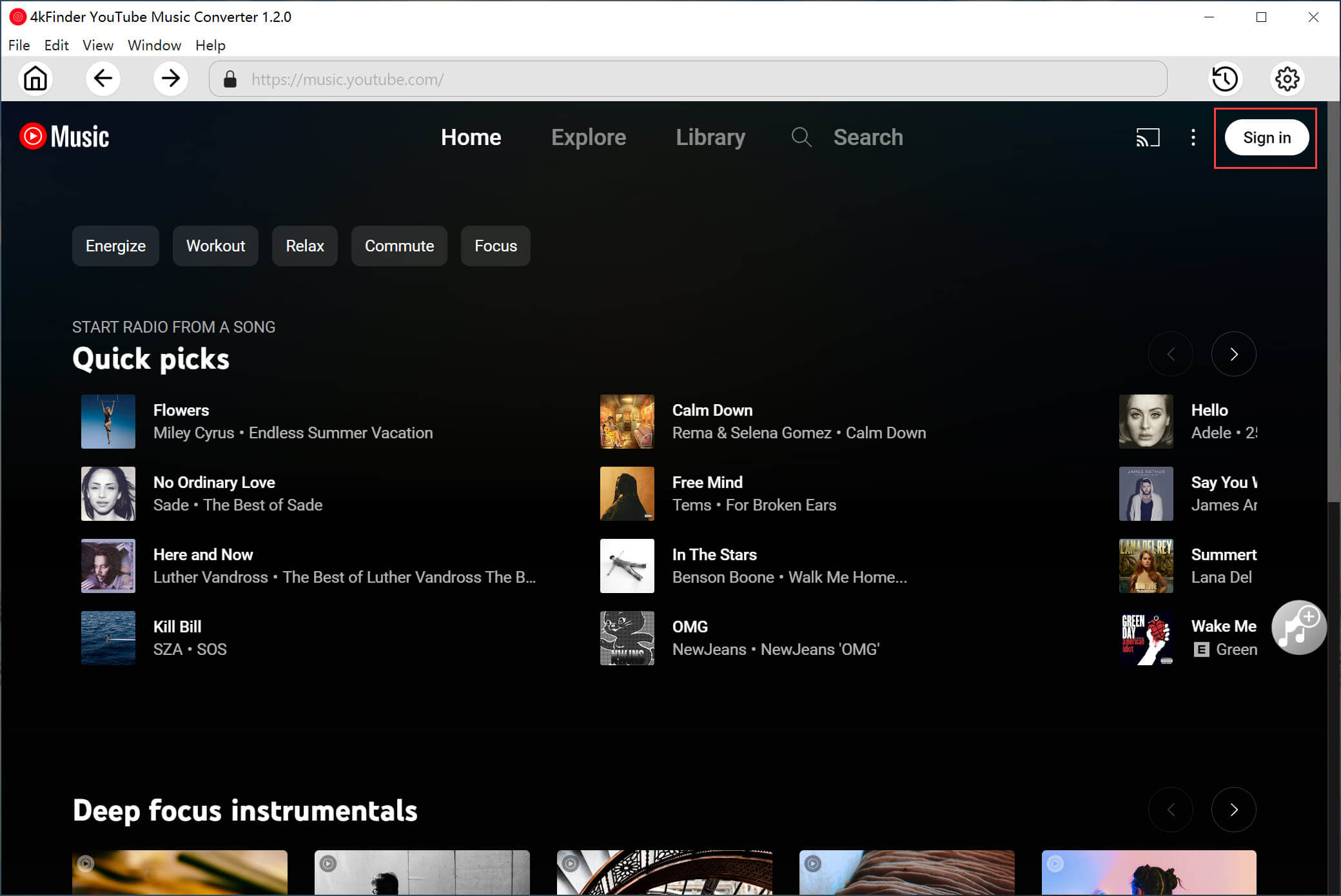
First, download and install 4kFinder YouTube Music Converter on your computer. Open the program and click “SIGN IN” to log into your YouTube Music account. You can use either a Free or Premium account.
Step 2. Set the Output Format
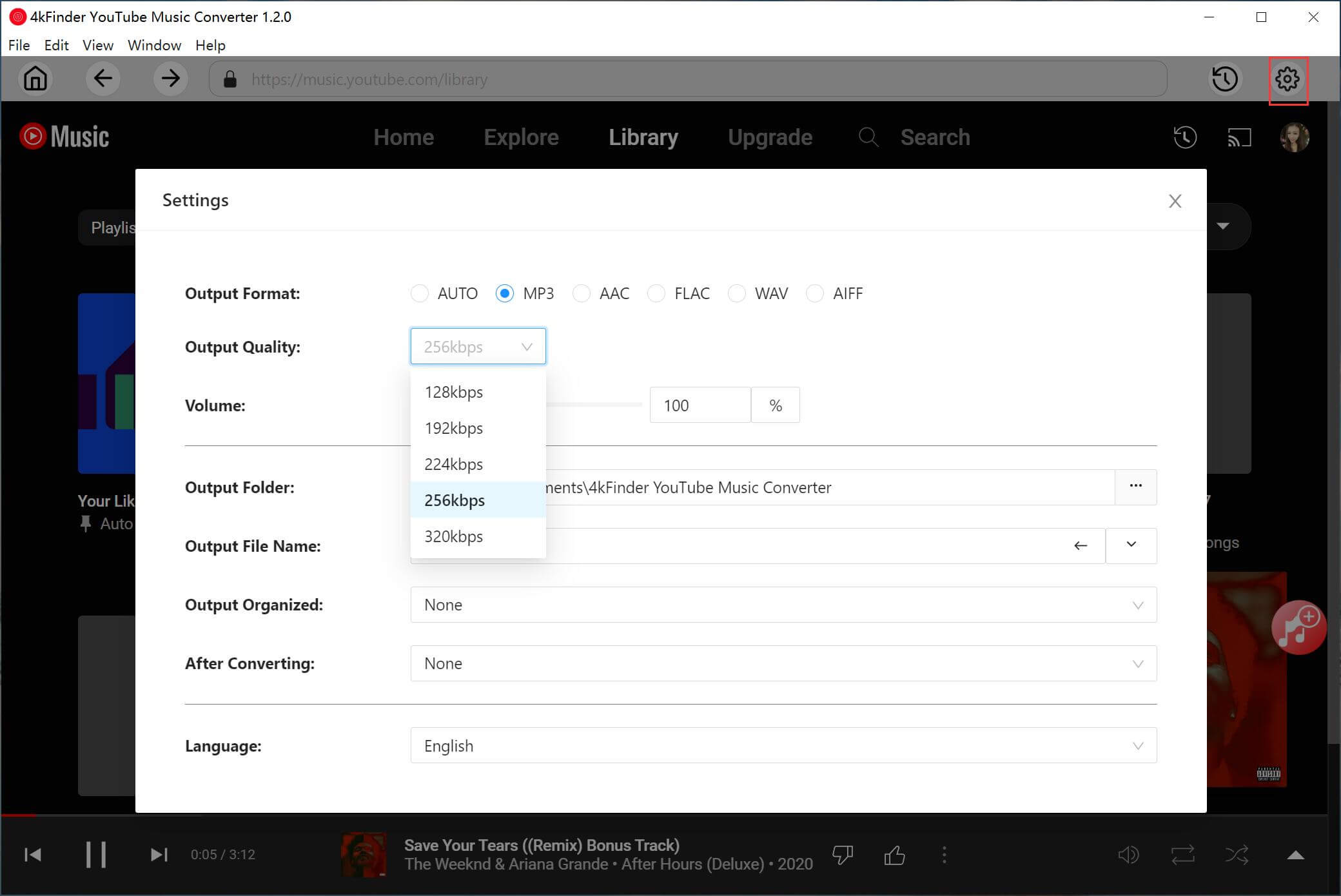
Click the gear icon in the top corner to open the settings. Choose your preferred output format, like MP3, and adjust other options such as quality, bitrate, or output folder if needed.
Step 3. Add Songs, Albums, or Playlists
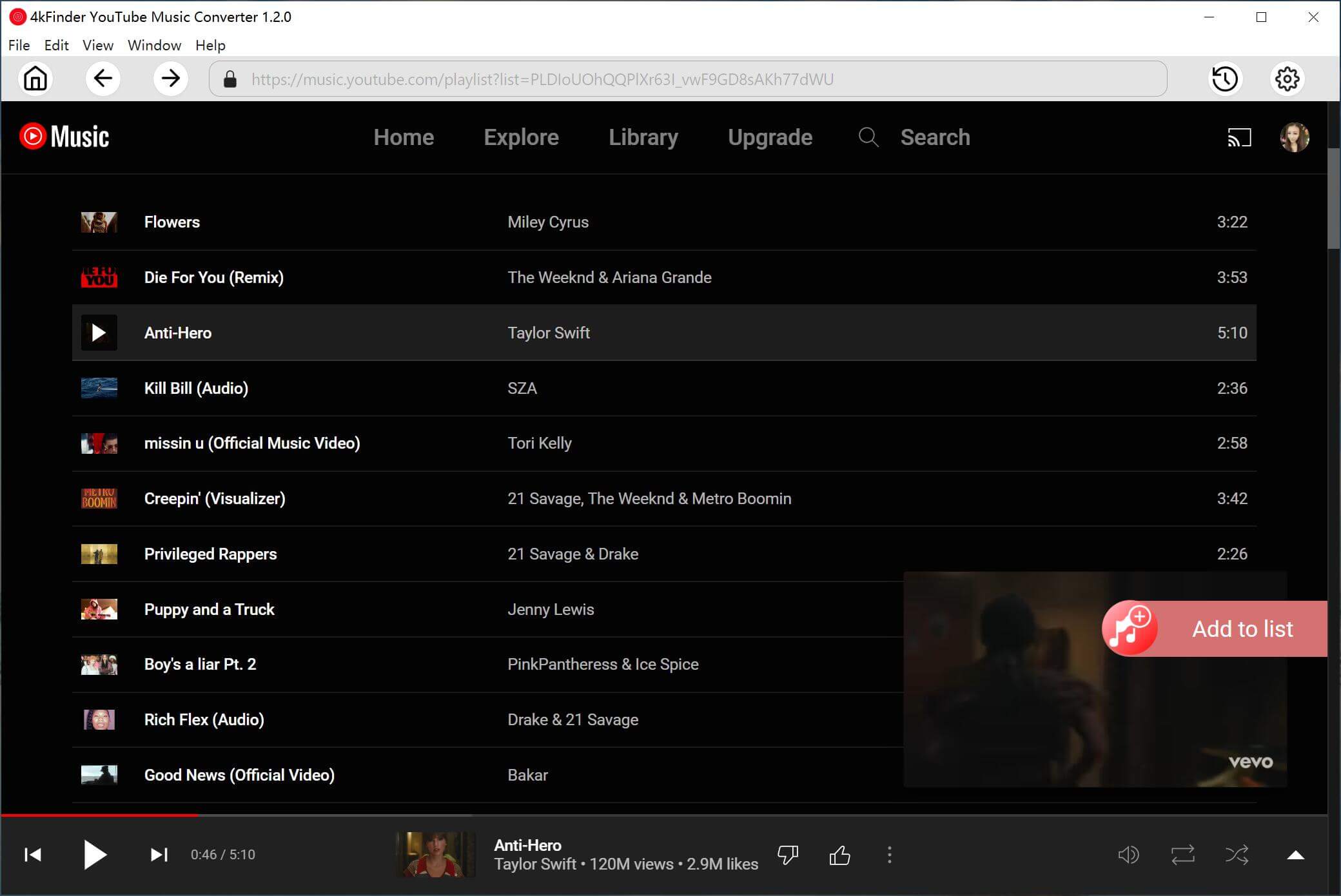
Use the built-in YouTube Music web player in the converter to browse and search for music. When you find a song, album, or playlist you like, open it and click the red "+" icon to add it to the download list.
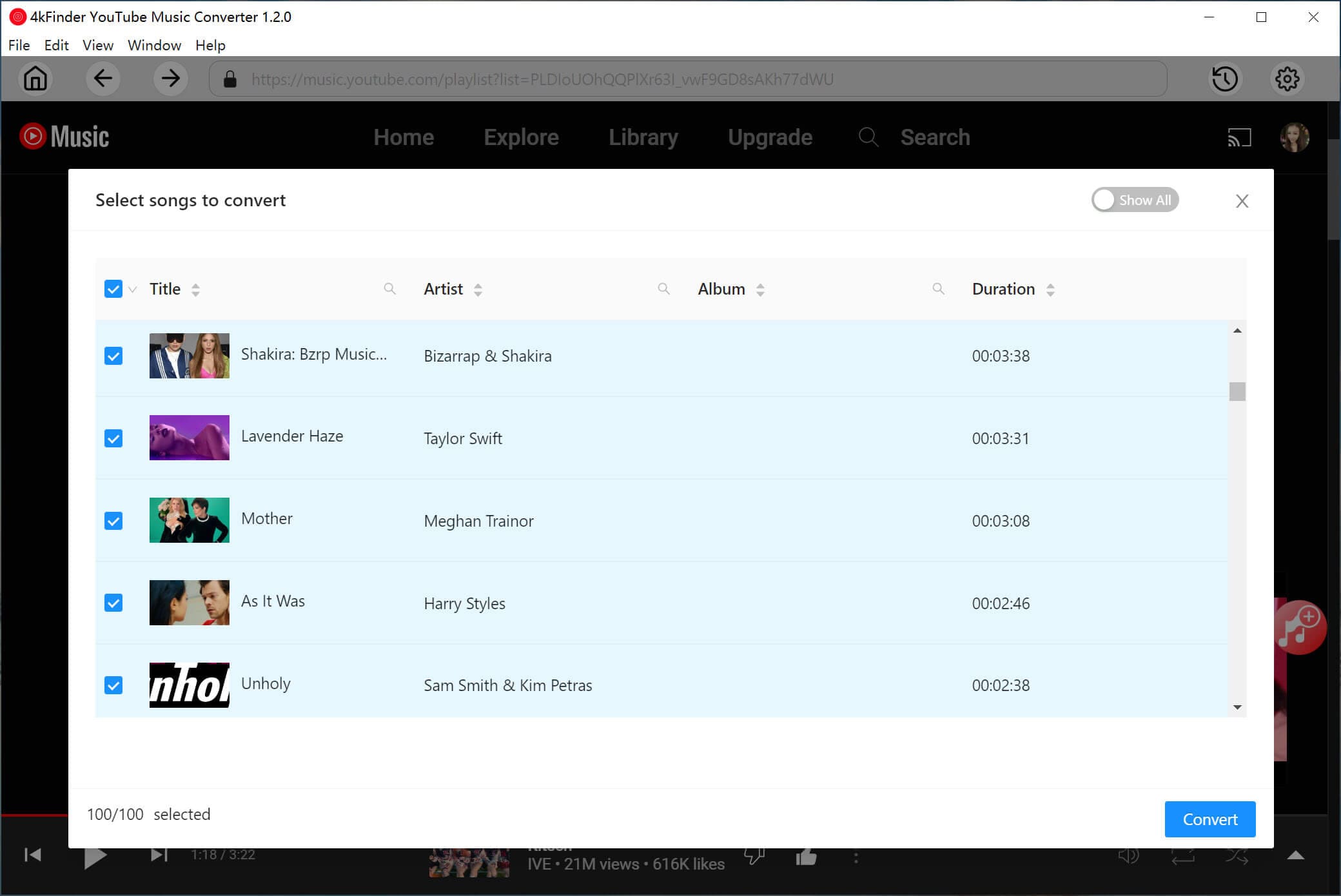
Tip: The tool will automatically load all songs from the album or playlist, but you can uncheck any songs you don’t want to download.
Step 4. Start Downloading YouTube Music
Once you've selected the songs you want, click the “Convert” button. 4kFinder will start downloading and converting the songs from YouTube Music into the format you selected.
![download youtube music to mp3]()
Step 5. Find Your Downloaded Songs
After the conversion is done, click the clock icon (History) in the top corner to see your downloaded music. You can sort by Date, Artist, or Album. Click the blue folder icon next to a song to open the folder where the files are saved.
![preview mp3 youtube music]()
Part 3. How to Transfer YouTube Music to USB
By following these steps, you can easily move your downloaded YouTube Music files from your computer to a USB flash drive, making your music library portable and ready to enjoy anywhere.
For Windows Users:
Step 1.
Plug your USB drive into a USB port on your computer.
Step 2.
Open File Explorer (press "Windows + E" or click the File Explorer icon).
Step 3.
Find the folder where your YouTube Music downloads are saved (from 4kFinder YouTube Music Converter).
Step 4.
Drag and drop the music files into your USB drive.
For Mac Users:
Step 1.
Insert your USB drive into a USB port on your Mac.
Step 2.
Open a Finder window (click the Finder icon or press "Command + N").
Step 3.
Locate the folder where your downloaded YouTube Music files are stored.
Step 4.
Drag and drop the music files into your USB drive listed in the Finder sidebar.
Part 4. FAQs to Download YouTube Music to USB Drive
Q1. What’s The Best Music Format for YouTube Music?
MP3 is a great choice, it offers good sound quality with small file sizes. If you want higher quality and have enough storage, FLAC is a top pick for lossless audio.
Q2. Can I Transfer Songs from YouTube Music Free to a USB?
Yes! With 4kFinder, you can download songs from both the free and Premium versions of YouTube Music and save them to a USB drive.
Q3. Can I Play YouTube Music MP3 Files on Any Device?
Absolutely. Once you convert YouTube Music to MP3, you can play the songs on various devices like car audio systems, home stereos, smart TVs, and more, just plug in your USB.
Q4. Can I Transfer Full Playlists or Albums to A USB?
Yes, 4kFinder lets you download entire playlists and albums from YouTube Music, so you can easily move them to a USB in one go.
Q5. Is It Legal to Transfer YouTube Music to A USB?
It depends on how you use the files. Downloads with 4kFinder are for personal use only, sharing or distributing them may violate YouTube's terms.
Conclusion
YouTube Music works like a rental service, using special encryption to protect all its songs. This means that neither Free nor Premium users can directly copy music to a USB drive. Fortunately, 4kFinder YouTube Music Converter makes it easy. This tool lets you convert YouTube Music songs, playlists, albums, or artist tracks to MP3 and other common formats. Once converted, you can easily transfer the music to a USB flash drive. In short, 4kFinder gives you more freedom to enjoy your YouTube Music collection anywhere.
Tip: System Requirements:
Windows 7 or later on 64bit required
Download YouTube Music to USB

Chester has always had great enthusiasm for writing, programming and web development. He likes writing about software and technology, his works are featured on some tech blogs or forums like Tom's Hardware, CNET, etc.
 English
 Arabic
 Chinese (Simplified)
 Chinese (Traditional)
 Croatian
 Czech
Czech Danish
 Dutch
Dutch Estonian
 Finnish
 French
 German
 Greek
Greek Hebrew
 Hindi
Hindi Hungarian
 Indonesian
 Italian
 Japanese
 Kazakh
 Korean
 Malay
Malay Norwegian
 Polish
 Portuguese
 Romanian
 Russian
 Slovenian
 Spanish
 Swedish
 Thai
Thai Turkish
 Ukrainian
 Vietnamese









Comments are off!