By
Justin SabrinaUpdated on July 24, 2026
Summary
Spotify search not working? Check common problems and 18 possible fixes here. You may also use a third-party
Spotify music downloader to search, listen to and download Spotify without depending on the Spotify app at all.
Sometimes, Spotify search function not working, leaving you unable to explore new artists, rediscover favorites, and navigate millions of songs effortlessly. This is a fairly common occurrence, and anyone using the Spotify music will have experienced it, whether on Windows, Mac, iPhone, Android, Web Player, or even a smart device.
This comprehensive guide covers every possible cause for Spotify Search not working and provides 18 proven fixes that may resolve the issue. But, to avoid Spotify Search feature inconveniences, you can consider downloading Spotify music to MP3 for unlimited playback and permanent keeping.
CONTENTS
Part 1. Why is Search Not Working on Spotify
When trying to search for anything in spotify app, many users report issues like:
"Spotify search function not working"
"Spotify search always returns no results"
"Spotify playlist search not working"
"Spotify playlist search function gone"
"Spotify artist search not working"
"Spotify search results not loading"
"Spotify Search bar gone"
"Search bar disappeared in playlists"
"No search option on main menu"
Before you try to fix Spotify Search Not Working, it's important to understand the root causes. The issue can be triggered by network errors, device glitches, outdated apps, corrupted files, or even server downtime. Here are the most common reasons:
1. Poor Internet Connection
When your network lags, Spotify cannot communicate with its servers in real time, causing the search bar to freeze, refuse to load results, or display incomplete data. So, make sure your have a strong, smooth and stale network when streaming and searching on Spotify.
2. App-Related Issues
The Spotify Search Not Working issue can also stem from bugs or glitches within the Spotify app itself. Outdated versions, temporary bugs, corrupted files, cache problems, or internal app glitches can cause the issue. Check and update the Spotify app regularly.
3. Device-Related Issues
Your device may be the culprit, especially if you haven't started your devices for a long time. Low storage, outdated OS versions, background restrictions, or disabled system permissions can prevent Spotify from working correctly.
4. Internal Server Errors of Spotify
Spotify servers may be down due to maintenance or unexpected outages. When this happens, you'll be unable to enjoy all features in Spotify, including searching function, offline download, Spotify Connection, DJ mode, etc. Waiting for the server to recover is often the only fix.
News:
UkeySoft All-in-One Music Converter empowers great streaming music download functionality, equipping with its integration with multiple popular streaming platforms like Spotify, Apple Music, Amazon Music, Deezer, Tidal, Pandora, YouTube Music, and Audible. It lets you download and convert streaming music content to MP3, M4A, FLAC, WAV, AAC, AIFF for offline listening!
Part 2. How to Fix Spotify Search Not Working? (18 Ways)
If you're also facing the Spotify search not working issue, don't worry. The following 17 detailed countermeasures may help you troubleshoot and resolve the problem. After that, you can search and enjoy your Spotify music again.
Fix 1. Check If Spotify Server Is Down
First, check whether Spotify is experiencing a global outage. If Spotify's servers are down, the search function may stop responding or display empty results. Visit a site like Downdetector or Spotify Status Twitter page, which provide updates about Spotify's current status. If thousands of users report issues, your best option is to wait until Spotify resolves its server problems.

Fix 2. Check Internet Connection
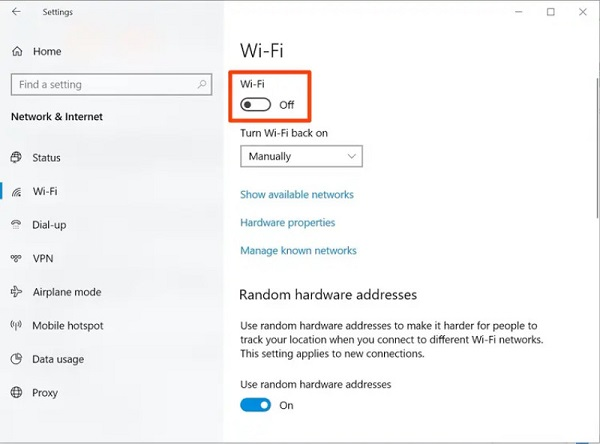
A weak or unstable connection is the most common reason Spotify search isn't working. Switch from mobile data to Wi-Fi (or vice versa) and test other apps to verify connectivity. You can also reset your router or toggle Airplane Mode to refresh network settings.
Fix 3. Disable Spotify Offline Mode to Fix Spotify Playlist Search Not Working
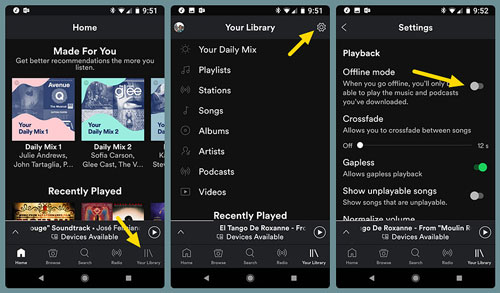
To fix Spotify playlist search not working, try to disable the offline mode in Spotify app. If Spotify is set to Offline Mode, the app cannot access Spotify's online servers, meaning the search function becomes completely disabled. Follow these steps to disable it and reconnect to the internet.
On Android/iOS:
Step 1. Open Spotify app. Tap" Your Library" at the bottom of the screen.
Step 2. Tap on "Gear" icon, scroll to "Playback".
Step 3. Find the "Offline mode" and disable it.
On Windows/Mac:
Step 1. Launch Spotify desktop player.
Step 2. Go to the Menu (three dots).
Step 3. Navigate to "File" > "Offline Mode".
Step 4. Make sure it is unchecked.

Fix 4. Disable Smart Shuffle Mode
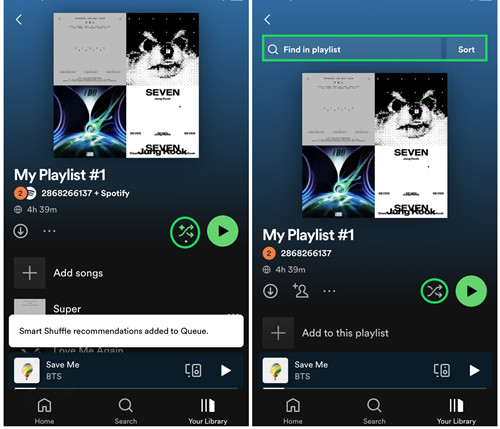
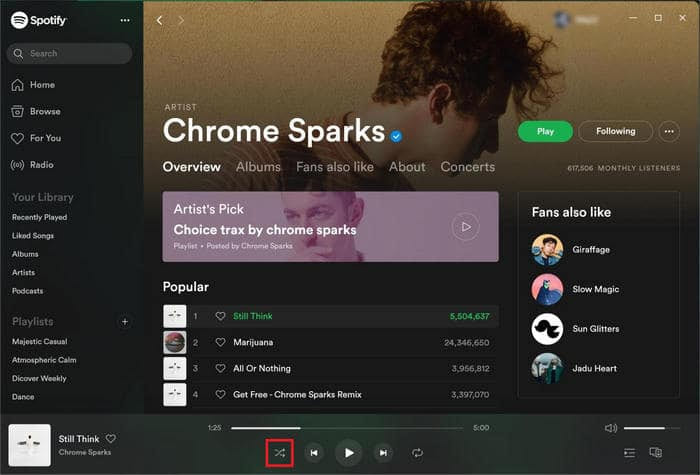
If you can't search / sort playlists in Spotify, you may have enabled Smart Shuffle. Smart Shuffle is a feature that mixes recommended songs into your playlist, but sometimes it causes track results to disappear or fail to load. In such case, you need to disable the Smart Shuffle, which will refresh the playlist environment and restore the search bar.
On Android/iOS:
Step 1. Open Spotify app, tap "Your Library".
Step 2. Open the playlist which you cannot search for songs.
Step 3. Tap the "Shuffle" icon until it turns off.
Step 4. Finally, refresh the playlist and search for any song.
On Windows/Mac:
Step 1. Start the Spotify desktop app and open a playlist.
Step 2. Click the Shuffle icon until it returns to the standard mode (gray or white).
Fix 5. Log Out and Log In Spotify Account
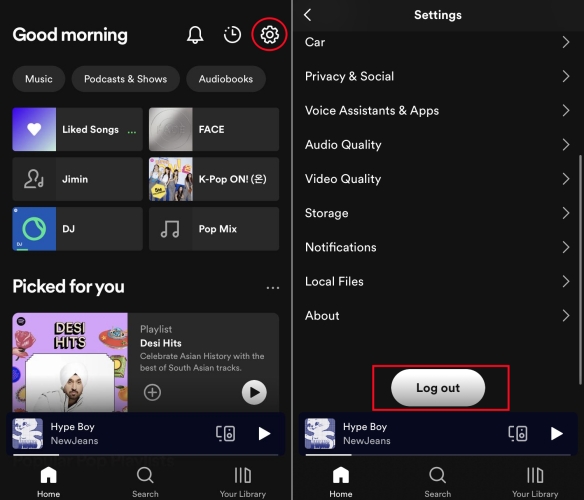
You can also try to log out and then log in your Spotify account, which is a potential troubleshoot to the Spotify search not working issue. This action can help reset the account sync and rebuilds your search history.
On Android/iOS:
Launch Spotify app, tap "Your Library" > "Settings" > "Log out".
On Windows/Mac:
Open the Spotify dekstop app, tap on your "Profile" and select "Log Out".
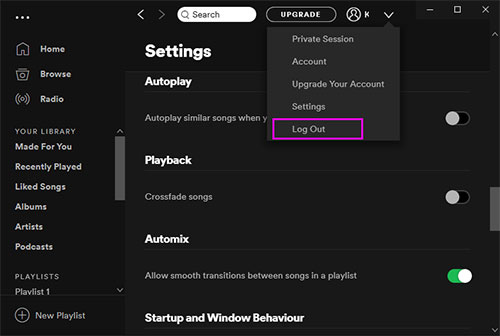
After logging out of your Spotify account on your device, close the Spotify app and restart it. Then log back into your Spotify account.
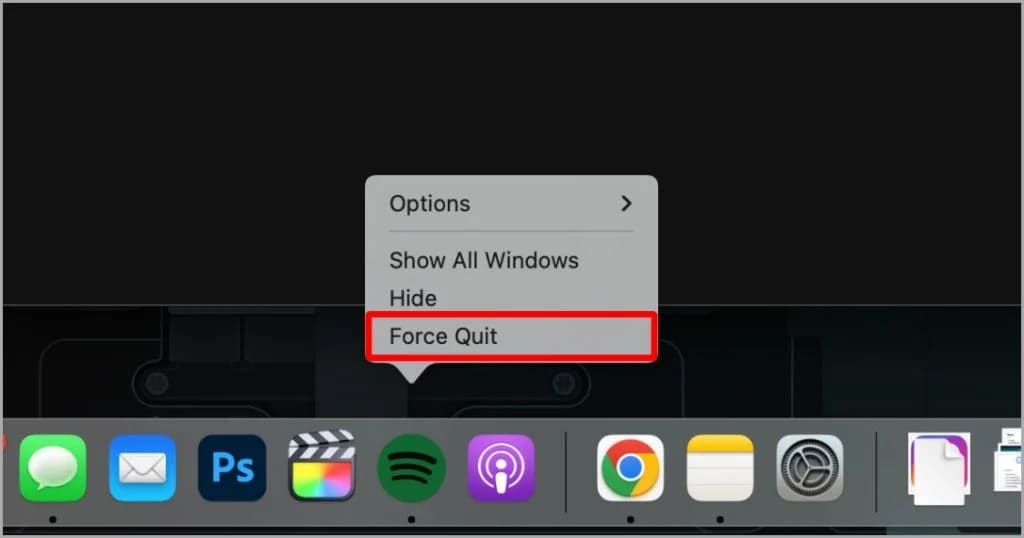
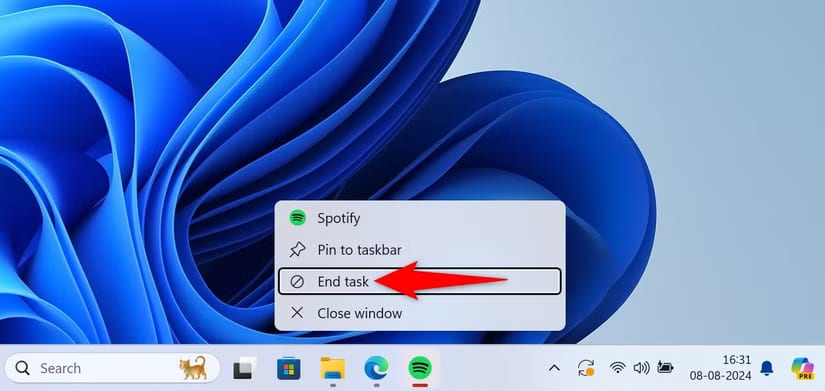
Fix 6. Force Quit and Reopen the Spotify App
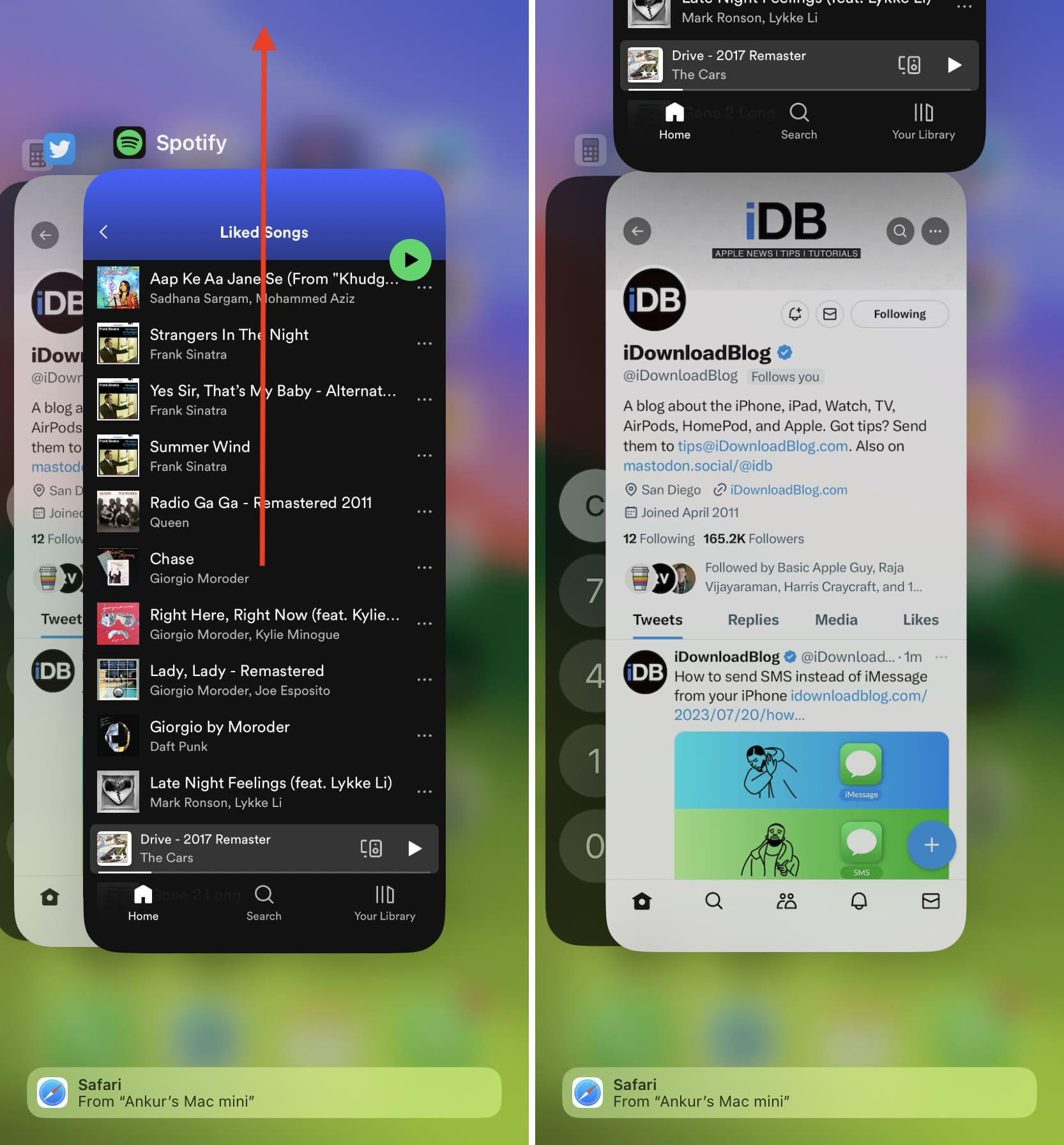
Sometimes the Spotify search function stops working due to temporary app glitches. A quick solution that usually resolves the problem is force-quitting and re-opening the Spotify app. This action can refresh its background processes and restore normal search behavior.
Force Quit Spotify App On iOS/Android:
Force Quit Spotify App On Mac:
Force Quit Spotify App On Windows:
Fix 7. Update Spotify App to the Latest Version
In some cases, the reason Spotify search not working is nothing more than an on outdated version of Spotify. Developers regularly release updates to fix bugs, patch vulnerabilities, and improve responsiveness. The steps to solve this problem is quite simple, just go to the App Store or Settings, and update the Spotify app to the latest version. Check the detailed steps below:
For iOS/Android:
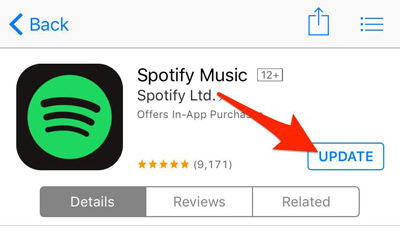
Step 1. Open the App Store on iPhone/iPad, or go to the Google Play Store on Android device.
Step 2. Search Spotify, and tap "Update" button.
For Windows/Mac:
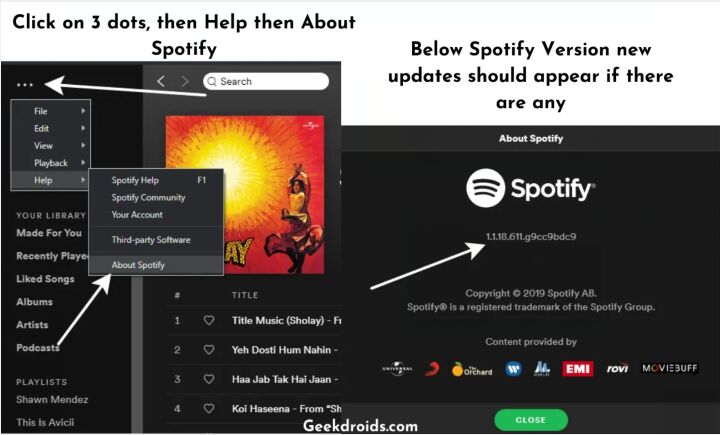
Step 1. Open Spotify app on your desktop.
Step 2. Click on three dots, select "Help" > "About Spotify"
Step 3. Install the update if available.
Fix 8. Uninstall and Reinstall Spotify
When the solution mentioned above doesn't work, you might also consider uninstalling Spotify from your device to resolve the problem of Spotify search function not working. This clears corrupted cached data, resets hidden configurations, and installs fresh files.
On Windows:
Step 1. Go to Start > Settings > App & features.
Step 2. Find Spotify and select it.
Step 3. Click "Uninstall" button.
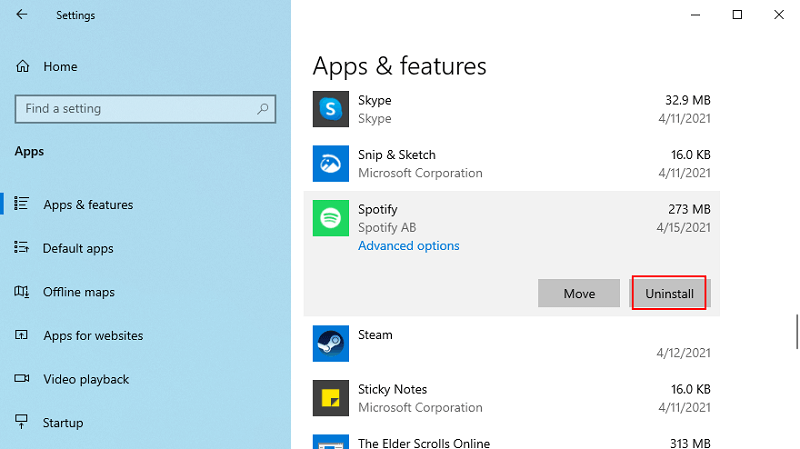
Step 4. Reinstall from Spotify's official website or Microsoft Store.
On Mac:
Step 1. To begin with, you need to fully quite the Spotify app.
Step 2. Open Finder > Applications > Spotify app > Move to Trash.
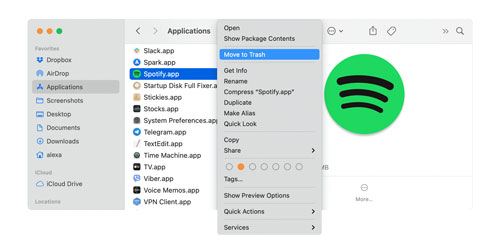
Step 3. Then, click "Go" menu at the top of the screen. Hold down the "Option" key on your keyboard and select "Library" > "Cache".
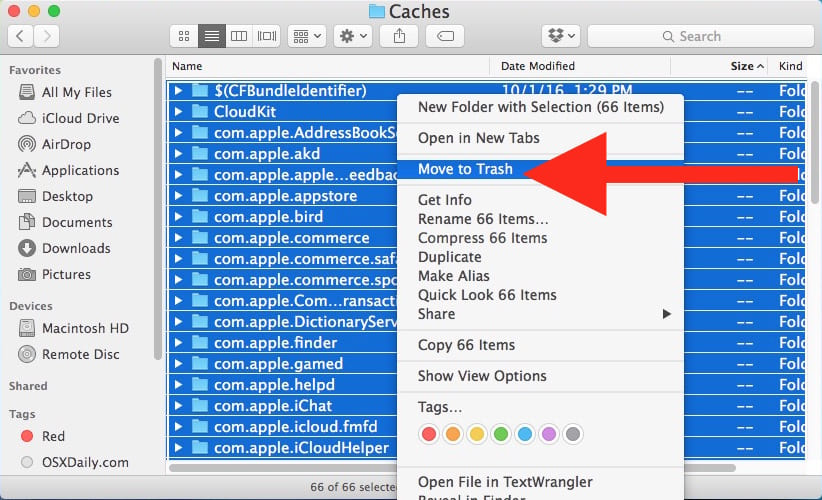
Step 4. Select Spotify app caches and right click on them, choose "Move to Trash". Empty the Trash in Mac OS.
Step 5. Reinstall Spotify from the website or App Store.
On Android:
Option 1. Long press Spotify > Uninstall.
Option 2. Or go to Google Play Store, find Spotify app > Uninstall.

Afterward, reinstall the Spotify app via Google Play Store.
On iPhone:
Step 1. Hold the Spotify app > Remove App > Delete App.
Step 2. After that, go to App Store, reinstall the Spotify app.

Fix 9. Restart the Device or the Browser
Sometimes, the Spotify search is not working because of temporary glitches in the operating system or browser. So, restarting your device can be a helpful way to get ahead of the game. If you are using Spotify web player to search for anything but it didn't work, you can try to restart your browser.
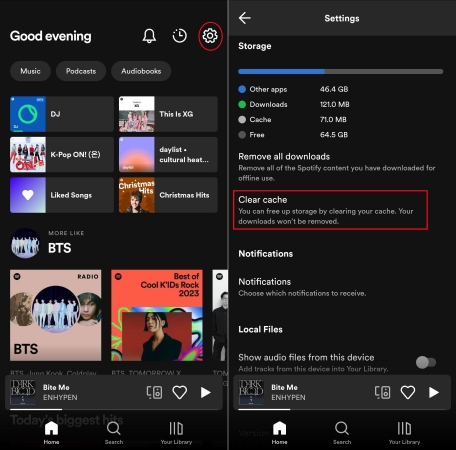
Fix 10. Clear Spotify Cache
When Spotify app has store many caches, it can cause the Spotify search not to work. Regularly clearing the cache can refreshe the Spotify app's data and restore normal performance. Check below steps:
On Android:
Go to Settings > Apps > Spotify > Storage > Clear Cache
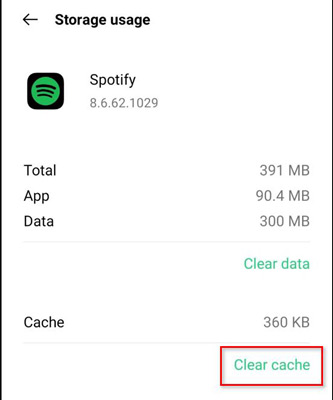
On iOS:
Open Spotify App, tap on the Profile icon, go to Settings > Storage > Clear cache.
On Windows:
Open Spotify app, locate the "Offline songs storage", go to this path:
C:\Users\Username\AppData\Local\Spotify\Storage
Delete cache files manually.

On Mac:
Head to the Spotify app, click on the Profile icon. Go to Settings > Storage > Cache, then click on Clear Cache.

Fix 11. Use Spotify's Web Version to Search
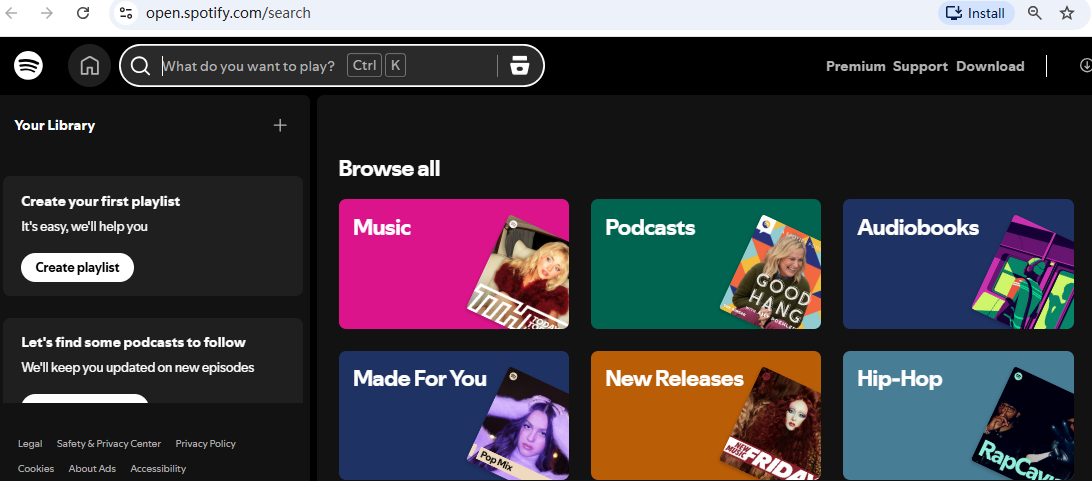
Spotify allows to stream music in both Spotify app or web player. If the Spotify app search is broken, switch temporarily to Spotify Web Player. The Spotify web player operates independently of the app, so search functionality may work even when the app is malfunctioning. Visit play.spotify.com and attempt your search there.
You can search for single, podcast, hot playlist, classic album, popular artist like Taylor Swift in the search bar just you are using the Spotify app.
Fix 12. Use Google to Search
When Spotify search not working in the app, you may also use Google or other browsers to search for Spotify songs. For example, here I open Google Chrome in a browser, type "Taylor Swift Album Folklore Spotify" in the search box.

Then open the link from the search results to enjoy the content. What's more, you may also search for any other music content from the Search field.

Fix 13. Use Shazam to Search
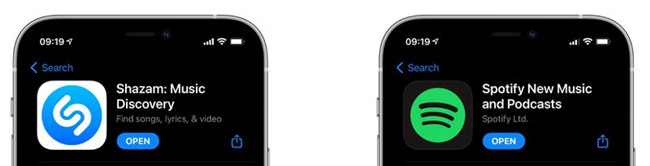
To add identified songs to a Spotify, you may also consider using Shazam instead. The app can instantly detect music playing around you, then directly link to the Spotify track. Shazam app is also perfect for discovering background songs playing on TV, radio, apps, or cafes.
On iOS:
Step 1. Download the Shazam app on your iPhone or iPad.
Step 2. Go to Settings on your device, and select "Control Center" > "Access Within Apps", and enable it.
Step 3. Find "Music Recognition" and click the + icon next it.
Step 4. Open the Shazam app, play any music source, then open "Control Center", select the Shazam icon, and Shazam will recognize it and automatically add it to your Spotify playlist.
On Android:
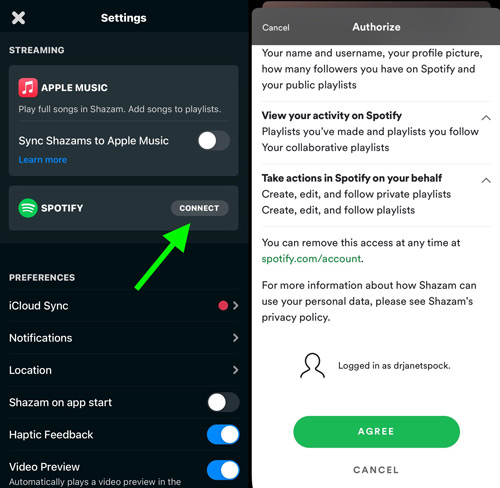
Step 1. Open the Shazam app on your Android device, go to "Library", tap the Gear icon (Settings).
Step 2. Under "Streaming," tap "Connect" next to Spotify, and click "Agree" option to connect Shazam and Spotify.
Step 3. Open the Shazam app and enale "Notification bar" in Shazam's settings.
Step 4. Play a song, swipe down from the top of the screen and tap the "Tap to Shazam" notification.
Step 5. After Shazam identifies the song, you will see song information and a Spotify button will appear. Tap on the Spotify button to open the full track and get the full song information.
Tips: Shazam is also available on Mac and Windows, it can help you identify Spotify music with the click of a button!
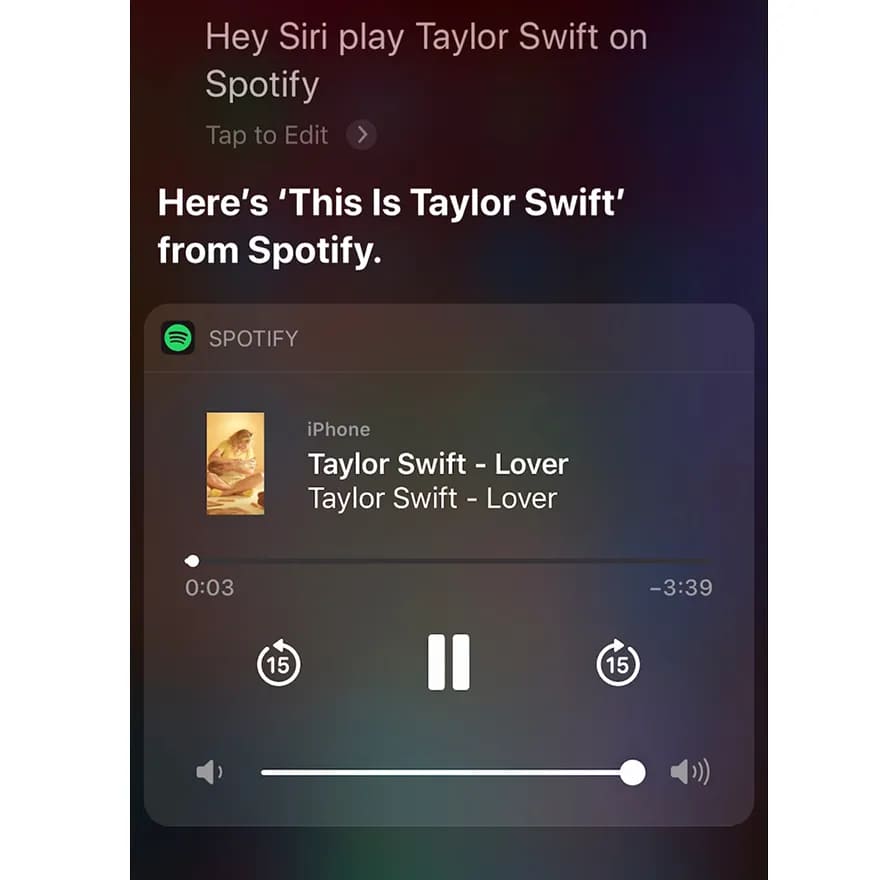
Fix 14. Use Voice Search to Search
Many people prefer to play Spotify on smart speakers, like Amazon Echo, Sonos, HomePod, Google Home, etc. Once connected, you can use voice assistants like Google Assistant, Siri, or Alexa to control over your Spotify account. In addition, you may also play Spotify in the car, and use voice assistants to search Spotify music for playback.
For example, you can use below voice commands to seach Spotify content directly. Simply say:
"Google, open playlist name on Spotify".
"Siri, play jazz music on Spotify".
"Alexa, play [song/artist/album]" or "Alexa, play [genre]".
"Hey Siri, play Taylor Swift on Spotify", or "Find songs by The Weeknd".
Fix 15. Disable Background Usage Restrictions
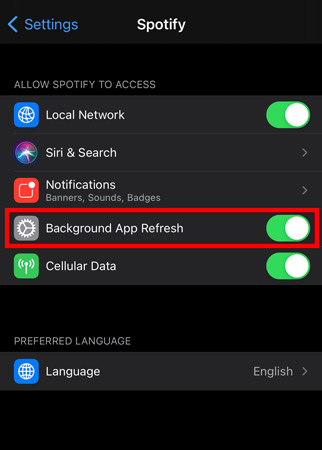
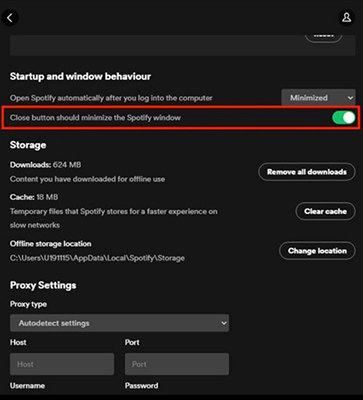
To save battery or data, the operating systems sometimes restrict what apps can do in the background. If Spotify is restricted in the background, it may case Spotify search not working issue due to limited access to network and memory. So, you'll need to disable restrictions on your devices.
On iOS:
Go to Settings > Spotify > Background App Refresh > Enable it.
On Android:
Go to Settings apps > Apps > Spotify > Allow background activity > Enable

On Desktop:
Open Spotify app > Profile > Settings > Show Advanced Settings > Close button should minimize the Spotify window > Disable
Fix 16. Turn on Camera Permission for Spotify
To solve Spotify search not working problem, you can also try to enable the camera permissions for Spotify app. This may seem irrelevant, but it is not. Certain features like scanning Spotify Codes require camera permission. If camera access is disabled, scanning search may fail, and the search feature may glitch. So, it's worth a try.
On iOS:
Step 1. Go to Settings > Privacy & Securite > Camera > Spotify.
Step 2. Toggle the switch to the "on" position.
On Android:
Step 1. Go to Settings > Apps & Notifications > Spotify > Permissions.
Step 2. Ensure that the camera permission is granted to Spotify.
Fix 17. Disable VPN
Some people use VPN to access networks. While VPN can change your virtual location, but it may interfere with Spotify's regional servers. When location mismatches occur, Spotify may block search access for security reasons. Disable your VPN and restart Spotify to often fix the issue of Spotify search not working. After disconnecting the VPN connection, please try searching in the Spotify app again.
Fix 18. Contact Spotify Official Help
If none of the fixes above work, your account may require manual refreshing on Spotify's side. Contact Spotify Support and report: "Spotify Search Not Working on my device", providing your device model, OS version, and the steps you've already tried. Attach screenshots if possible. Their team can help reset your account, check logs, or confirm a regional server issue.
Part 3. Bonus: Best Way to Avoid Spotify Search Not Working Issue
If you're tired of dealing with the Spotify search not working issue, there's an alternative way to enjoy smooth searching, browsing, and downloading - without using the official Spotify app or web player at all. The third-party tool UkeySoft Spotify Music Converter is an ideal solution. It is an one-stop Spotify music player, downloader, converter and manager. It has a built-in Spotify web player, allowing to access, browse, search and stream any music content online directly!
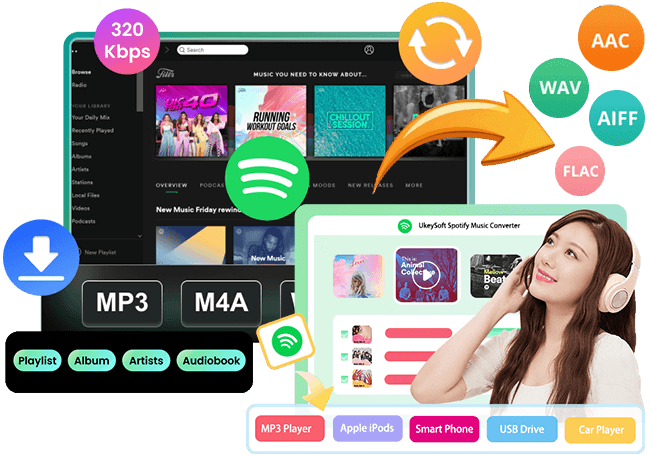
Main features: With UkeySoft, you can download Spotify music without premium, and convert Spotify music to MP3, M4A, FLAC, WAV, AAC, or AIFF at high quality for offline saving and playing forever.
With UkeySoft Spotify Music Converter, you can no long use the Spotify App or web player, no need a Premium subscription, say goodbye to Spotify App and ads! Enjoy your favorite Spotify songs & podcasts on any device or player anytime, anywhere!
UkeySoft Spotify Music Converter
- Built-in Spotify Web Player, no Spotify app required.
- Search Spotify songs, albums, and playlists directly.
- Convert Spotify music to MP3, M4A, AAC, WAV, FLAC, AIFF.
- Download all Spotify music with a Free or Premium account.
- Save Spotify music permanently with all ID3 metadata.
- Preserves the original audio quality (up to 320kbps/640kbps).
- Ultra-fast 16X speed to convert entire Spotify playlists/albums in batch.
- Build & manage local music library with built-in organization tool.
Simple Steps to Download Spotify Music to MP3
Tip: System Requirements:
Windows 7 or later on 64bit required
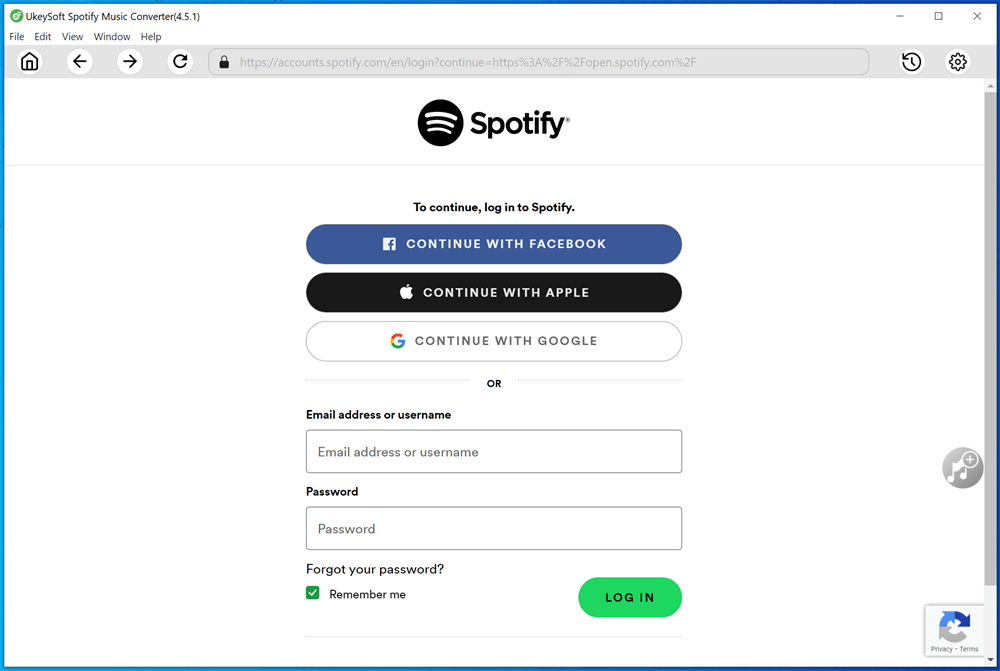
Step 1. Log In to Your Spotify Account
Fire up the UkeySoft Spotify Music Converter on Windows or Mac. Launch it, sign in with a Spotify free or premium account.
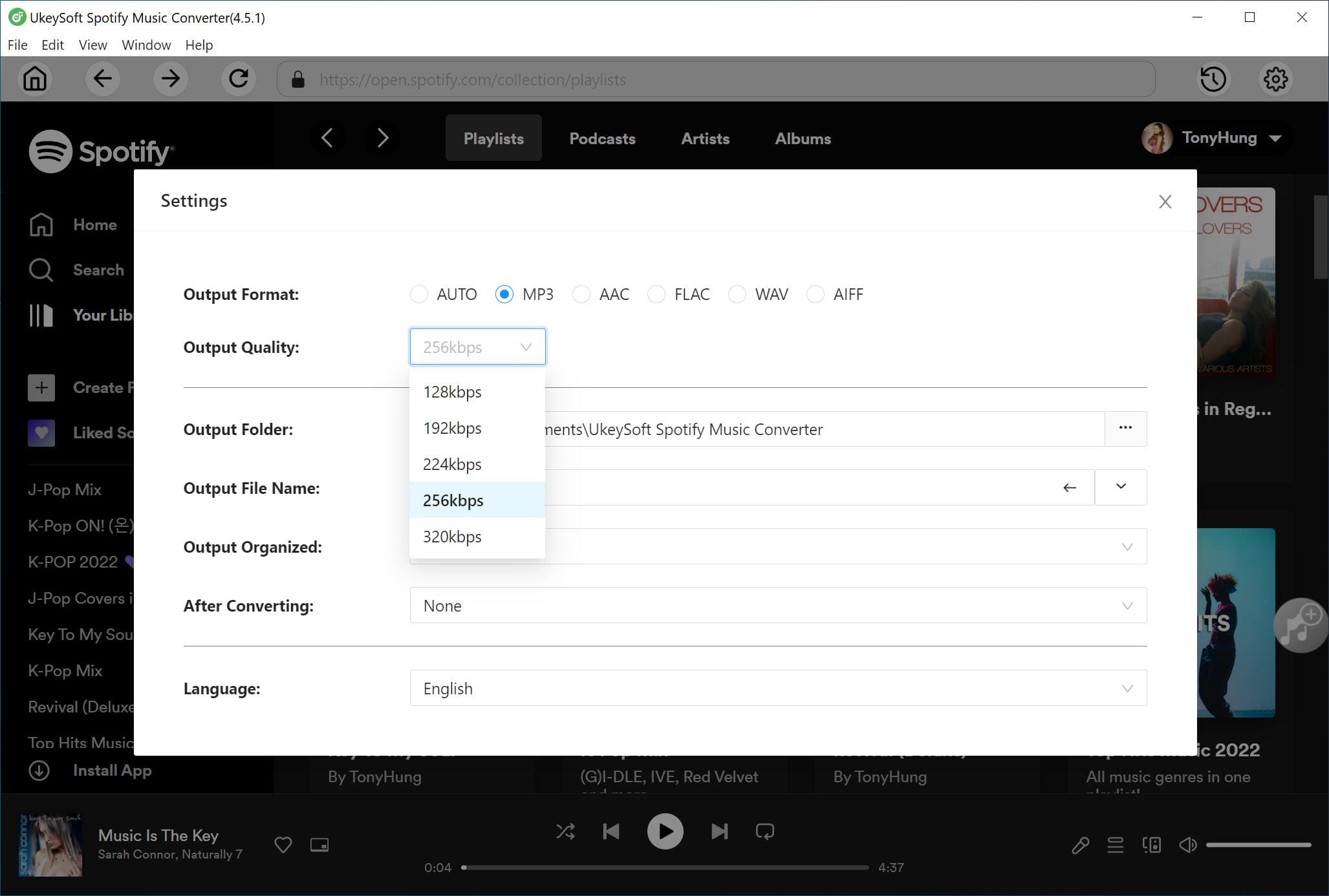
Step 2. Modify Output Settings
Click on "Gear" icon to configure output settings like audio format, audio quality, etc.
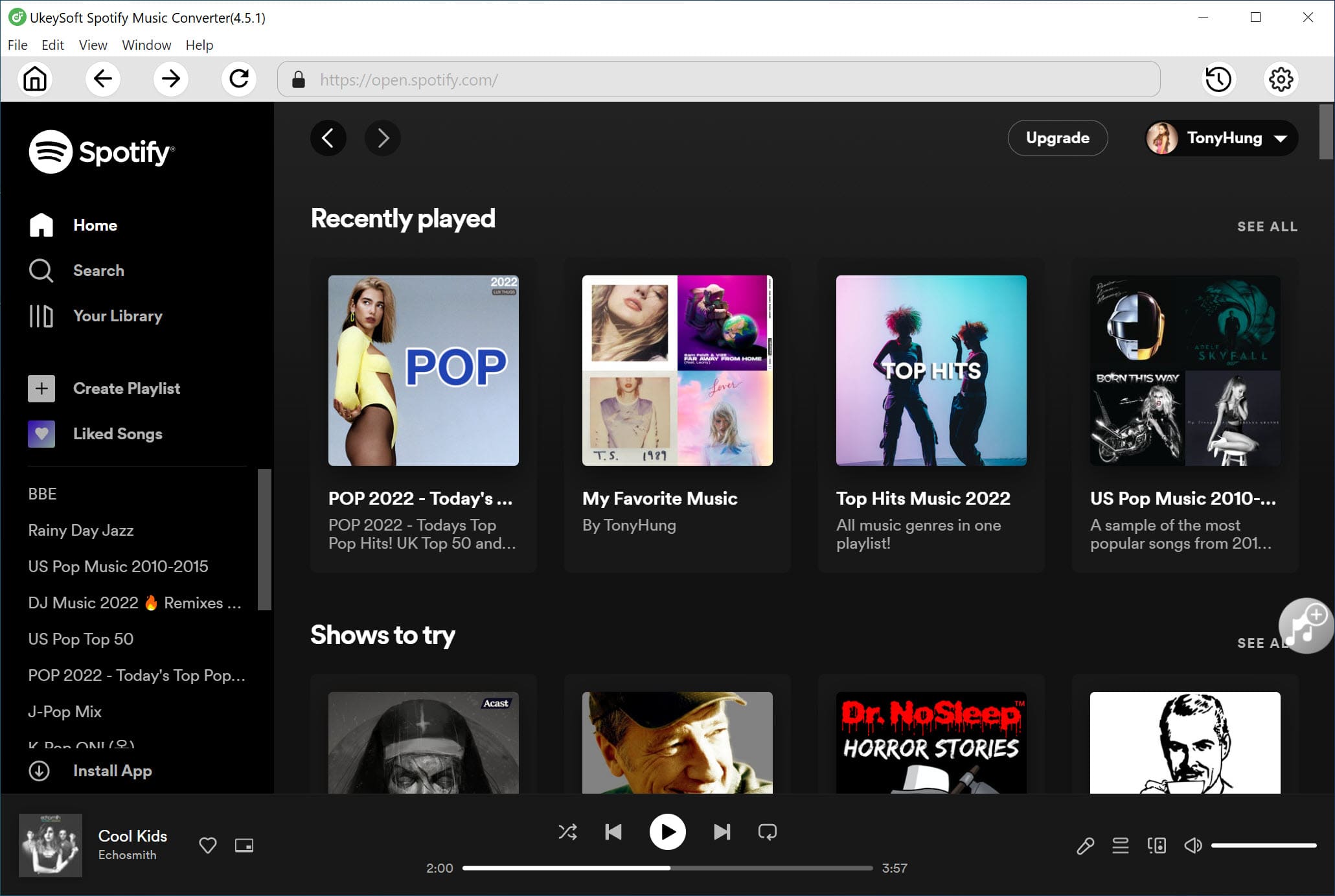
Step 3. Search and Add Spotify Music
On the home page, search for any music in the search bar.
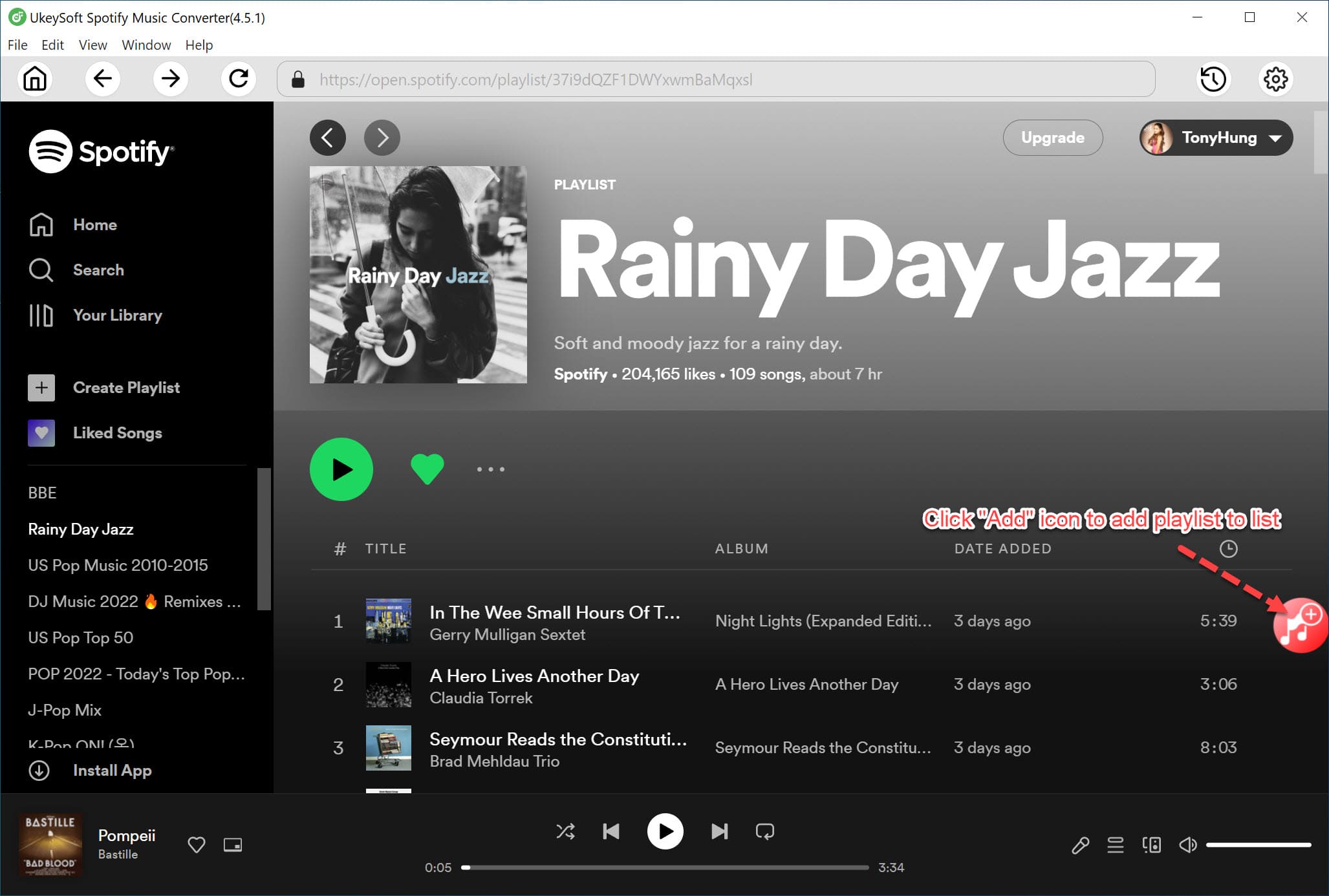
Or, open any song, album, playlist or podcast, and click "Add to list" to add the items.
Step 4. Start Converting Spotify Music to MP3
Select target songs and hit on "Convert" button. UkeySoft will now download and convert your selected Spotify music to MP3.
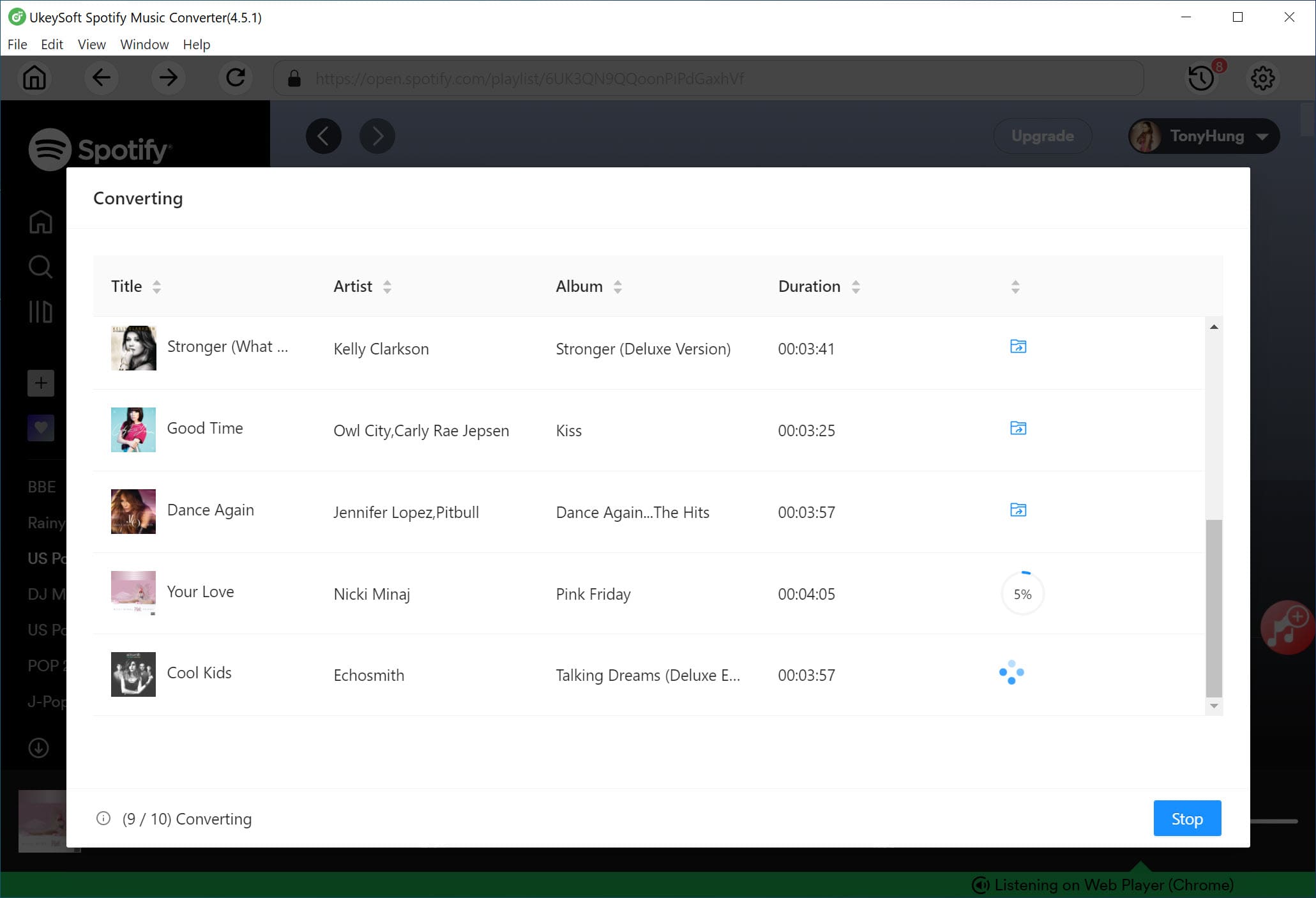
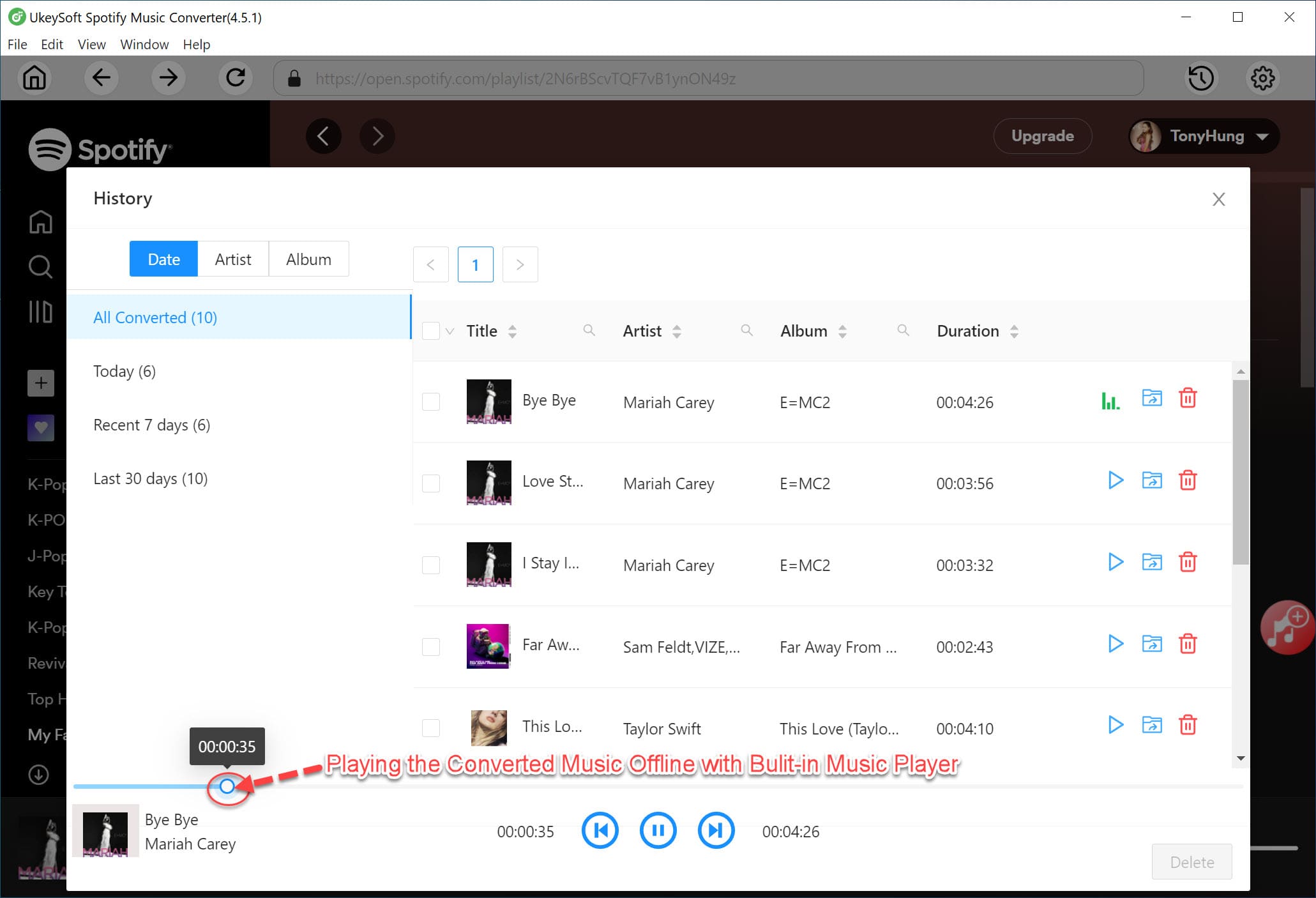
Once finished, your converted Spotify music files will be saved in the specified folder.
⭐ To address issues with Spotify search not working, turn to UkeySoft Spotify Music Converter with an embedded Spotify web player and downloading Spotify music as MP3 for offline listening is a workaround.
Part 4. FAQs about Spotify Search
1. How to Search Users on Spotify?
Open Spotify app or web player. Go to the search bar and type: spotify:user:username
Or type their display name and filter results under "Profiles".
2. How to Search Your Liked Songs on Spotify?
Visit Spotify web player or app and log in to your account. Go to Your Library > Liked Songs and use the search bar inside the playlist to filter tracks. If you can not find your liked songs, check the network, your Spotify membership, or reinstall the Spotify app, or change a device to search again.
3. How to Search a Playlist on Spotify?
Enter keywords or playlist names in the search bar. Or use Google with: playlist name + Spotify. Or, use Spotify voice search if you have connection.
4. Why Won't Spotify Let Me Search Songs?
Possible reasons include poor internet, outdated app version, corrupted cache, server issues, or offline mode turned on. For detailed information, turn back to Part 1. To fix Spotify search not working issue, refer to Part 2 ultimate guides.
Part 5. Final Words
Spotify search not working can be annoying, but the good news is that it's usually easy to fix. Whether it's a connectivity issue, outdated app version, corrupted cache, or server problem, the 18 step-by-step methods listed above can help you solve Spotify Search Not Working issues instantly. If you have more effective methods, feel free to share with us in the Comment section.
If you want a more stable and independent way to search and play Spotify music without the app, try the best Spotify app alternative - the third-party tool UkeySoft Spotify Music Converter. It allows smooth searching, downloading, and offline playback any Spotify music track, album, playlist, or podcast without Premium! Have a free try right now!
Fix Spotify Search Not Working

Justin Sabrina has always had great enthusiasm for writing, programming and web development. He likes writing about software and technology, his works are featured on some tech blogs or forums like Tom's Hardware, CNET, etc.
 English
 Arabic
 Chinese (Simplified)
 Chinese (Traditional)
 Croatian
 Czech
Czech Danish
 Dutch
Dutch Estonian
 Finnish
 French
 German
 Greek
Greek Hebrew
 Hindi
Hindi Hungarian
 Indonesian
 Italian
 Japanese
 Kazakh
 Korean
 Malay
Malay Norwegian
 Polish
 Portuguese
 Romanian
 Russian
 Slovenian
 Spanish
 Swedish
 Thai
Thai Turkish
 Ukrainian
 Vietnamese







Comments are off!