 ✕
✕
✕
✕
By Justin SabrinaUpdated on March 30, 2026
With the rising popularity of Garmin smartwatches (perferct For fitness enthusiasts and runners), many users are keen to integrate their favorite streaming services. A good news is that Garmin watch offers excellent compatibility with various music platforms, such as Spotify, Amazon Music, Deezer, and YouTube Music.
If you are an enthusiasts of Spotify music, you might be wondering how to use Spotify on a Garmin watch. In general, there are two main ways to play Spotify music on Garmin watch. The first method is using the official Spotify app. The second method involves converting Spotify music to MP3 format and transferring it to the Garmin devices. Keep reading to learn more.
CONTENTS
Many Garmin watches, particularly models with "Music" in the name (e.g., Forerunner, Fenix, Venu series), feature native Spotify integration. By installing the official Spotify application through Garmin Connect IQ app, users can use Spotify with Garmin watch directly and sync playlists for offline listening.
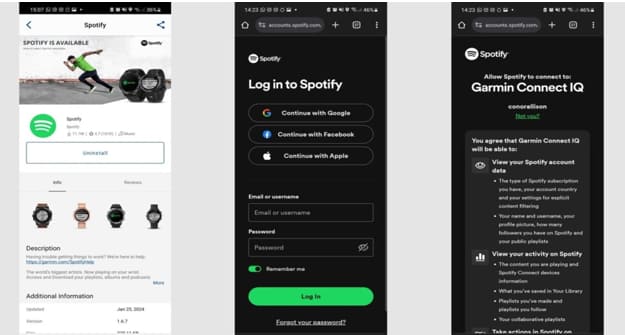
Step 1. Launch the Connect IQ Store app on your smartphone. This app allows you to download music apps, watch faces, and widgets for your Garmin smartwatch.
Step 2. In the search bar, type Spotify and select the official Spotify app. Tap "Install" button.
Step 3. If you have multiple Garmin devices connected, select the smartwatch where you want to install Spotify. And accept permissions.
Step 4. Open Spotify on your Garmin watch and select "Get Started".
Step 5. A login window will appear on your phone where you can sign into your Spotify account and approve the connection.
Step 1. Go to Settings > Connectivity > Wi-Fi Networks on your Garmin watch and connect to a stable network.
Step 2. You can navigate through the main Menu and scroll down to select Music.
Step 3. Tap "Add Music & Podcasts" to launch the Spotify integration and view your library.
Step 4. Browse through Playlists, Recently played, or Workouts and choose the content you want to sync.
Step 5. Tap the "Download" icon next to your selected playlist. Once complete, the offline Spotify content is stored on your watch.
Step 6. Connect Bluetooth headphones and enjoy Spotify music offline on your Garmin watch anywhere.
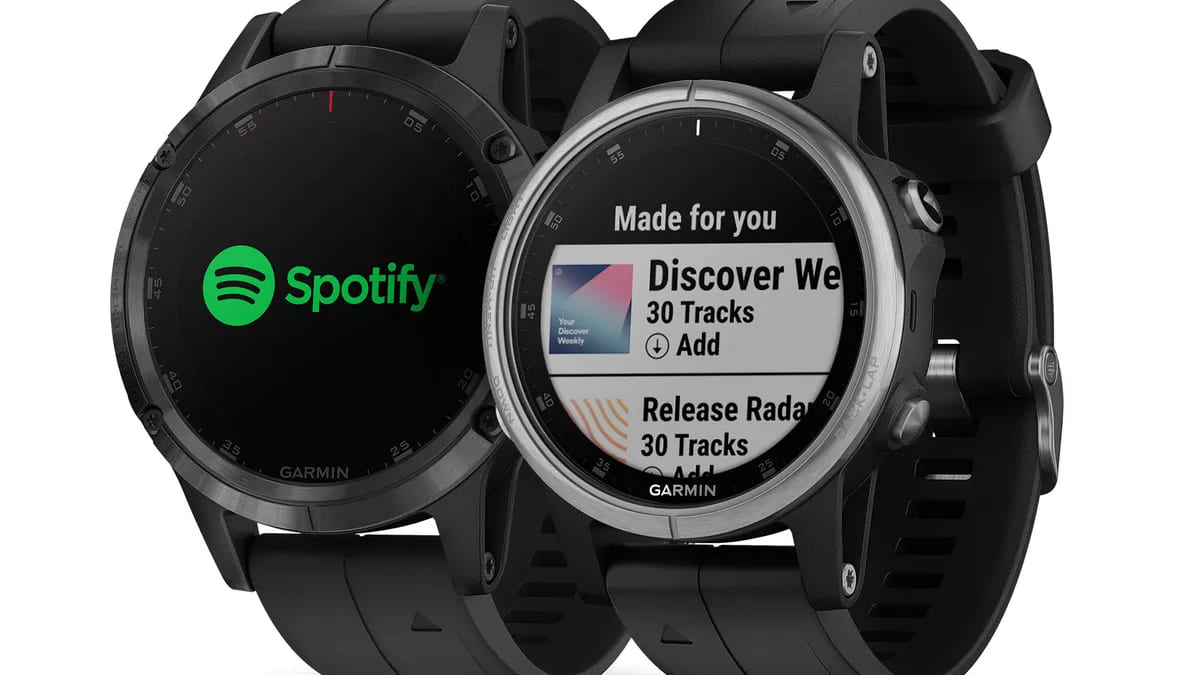
Here is the complete list of Spotify-compatible Garmin watches:
● Fenix Series: Fenix 5 Plus Series (Fenix 5 Plus, Fenix 5X Plus), Fenix 6 Pro Series (Fenix 6 Pro, Fenix 6S Pro, Fenix 6X Pro), Fenix 7 / Fenix 7 Pro Series, Fenix 8 Series, Epix Series (all generations)
● Forerunner Series: Forerunner 245 Music, Forerunner 255 Music, Forerunner 265 Series, Forerunner 645 Music, Forerunner 745, Forerunner 945 / 945 LTE, Forerunner 955 Series, Forerunner 965 Series, Forerunner 165 Music, Forerunner 570 (newer models with music)
● Venu Series: Venu Series (Venu, Venu 2, Venu 2 Plus, Venu 3), Venu Sq Music Edition, Venu X1
● Vivoactive Series: Vivoactive 3 Music, Vivoactive 4 / 4S, Vivoactive 5, Vivoactive 6
● Other Premium Models: MARQ Series (all generations), Enduro / Enduro 2, Approach S62 / S70 (Golf models with music), D2 Series (Aviation)
To play Spotify music on Garmin Watch, you need a Spotify Premium subscription. What about the Spotify Free users? What if your Spotify Premium account expires? Thankfully, there is another alternative method. Generally, Garmin watches supports common audio formats, like MP3, M4A, AAC, WAV, and M4B. In such case, you can use a third-party Spotify music converter to convert Spotify music to Garmin-compatible audio format first, then, transfer the music files to your Garmin watch. Here you can rely on UkeySoft Spotify Music Converter.
UkeySoft Spotify Music Converter is a professional tool designed to help users download and convert Spotify tracks, playlists, albums, and podcasts into common audio formats. It works perfectly for Spotify music downloads, no Premium is needed. Using it, both Spotify Free and Premium users can download and convert Spotify music to high-quality MP3 320kbps, M4A/AAC 640kbps, or lossless WAV files. This allows to transfer Spotify music to Garmin watch through Garmin Express or iTunes and enjoy permanent offline playback.
Highlights: The software offers a 16X faster speed and supports batch conversion, allowing you to download entire playlists or albums from Spotify at once.
More Features of UkeySoft Spotify Music Converter:
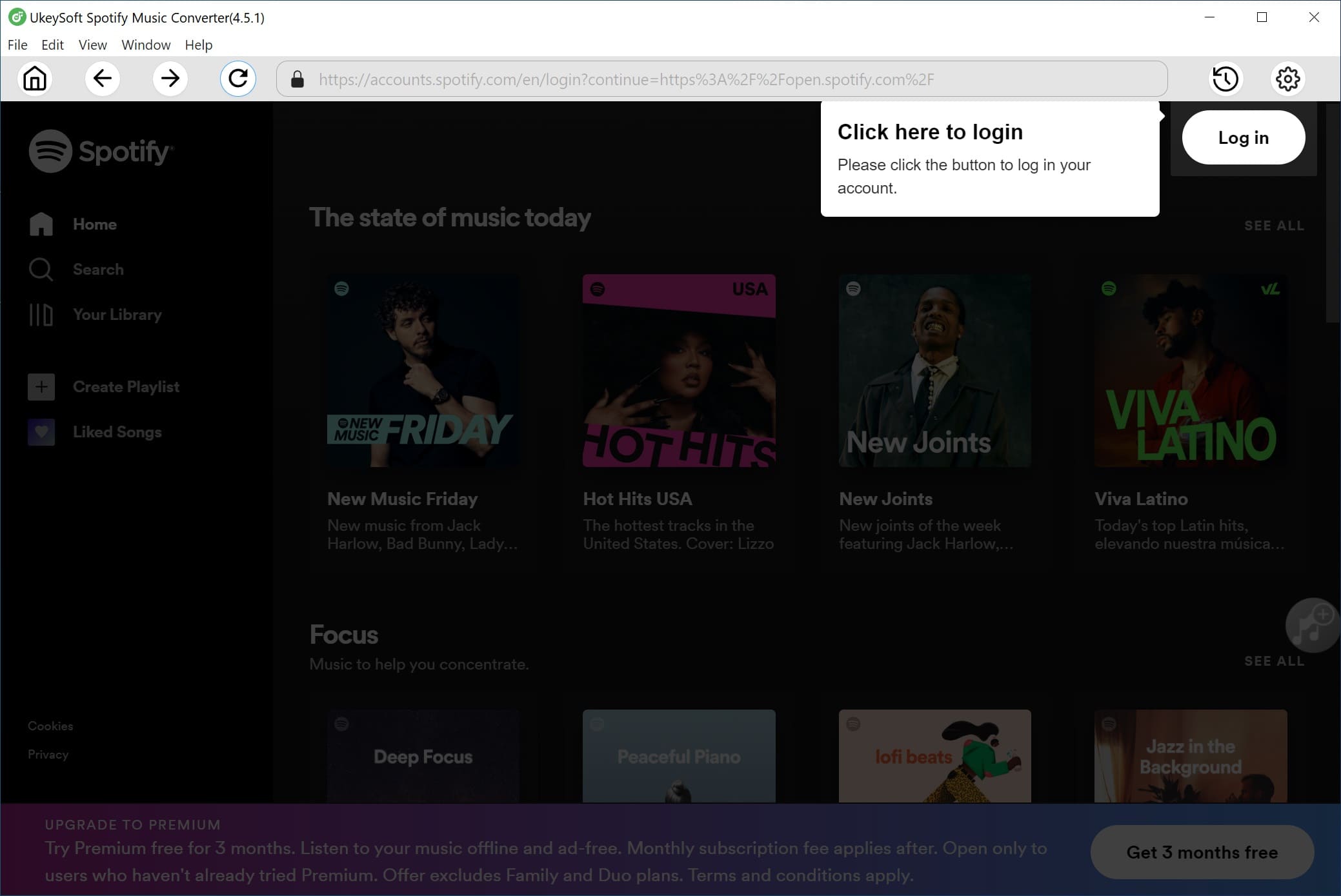
Step 1. Log In to Spotify Account
Download, install and launch UkeySoft Spotify Music Converter on a Mac or PC. Sign in to your Free or Premium Spotify account using the built-in web player.
Step 2. Choose MP3 for Garmin Watches
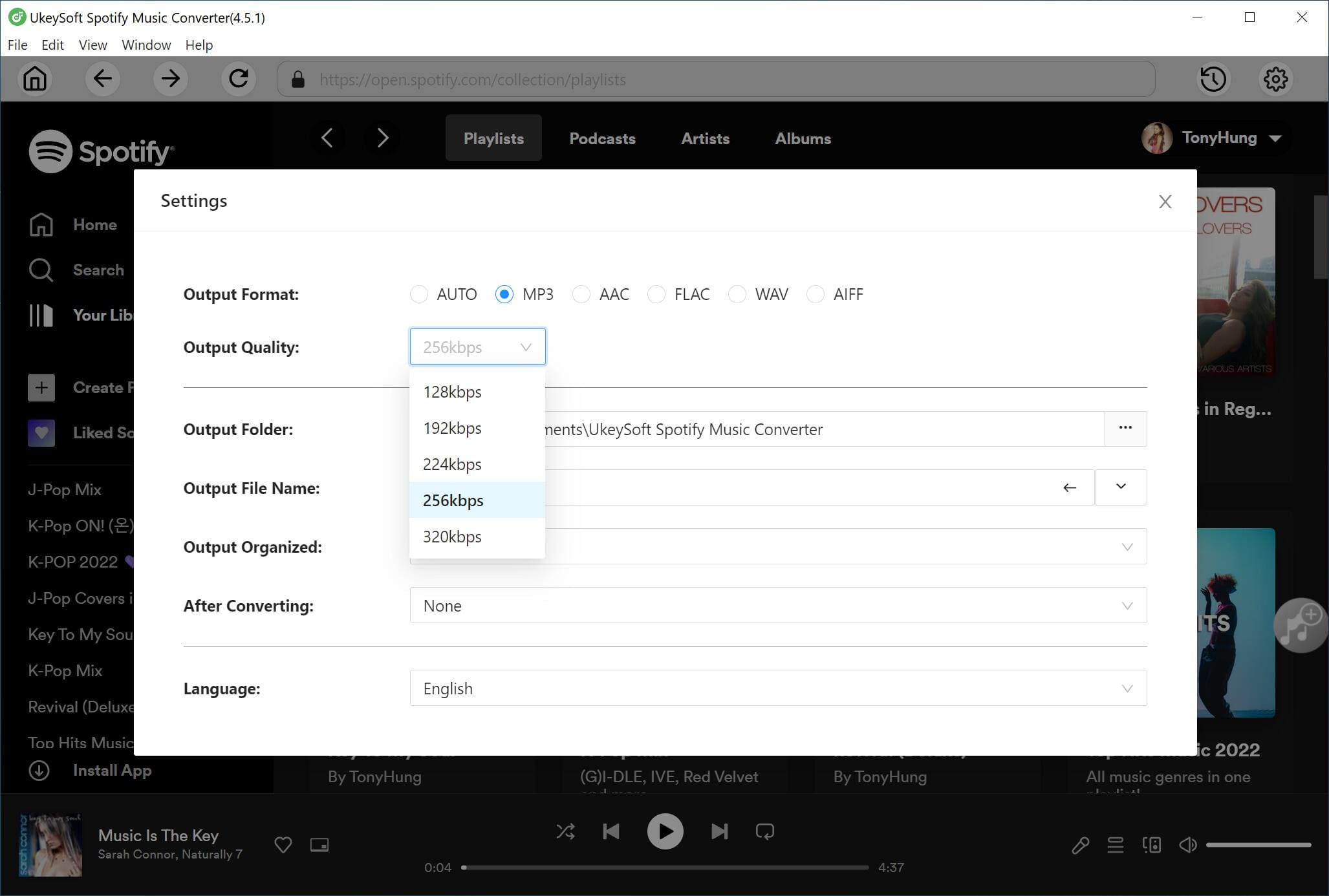
Click "Gear" icon at the upper right corner. In the settings window, you must customize the output format. Since Garmin watches natively support MP3 files, set the "Output Format" to MP3. You can also adjust the bitrate to 320kbps for the highest quality and select your preferred output folder
Step 3. Add Spotify Songs for Garmin Watches
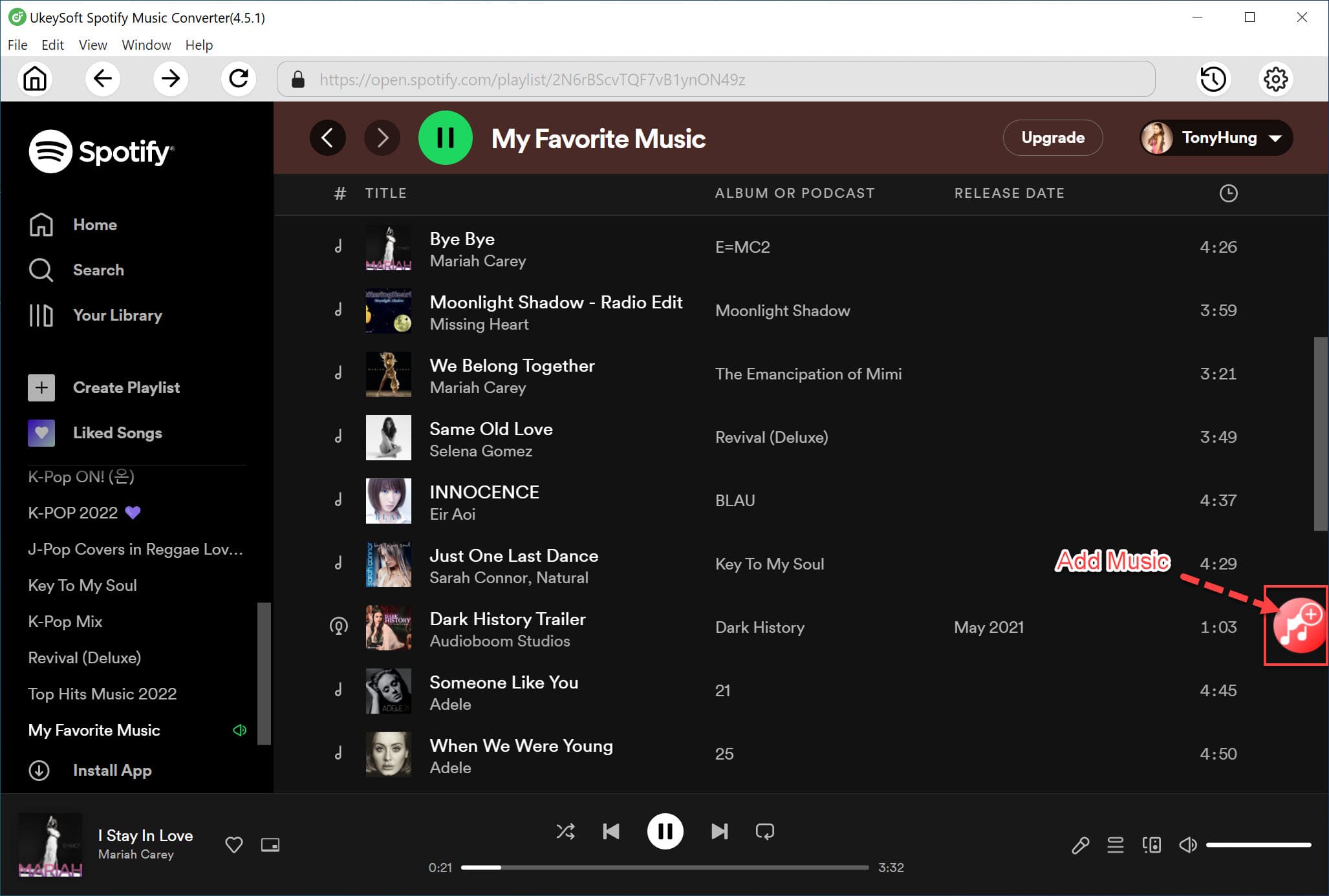
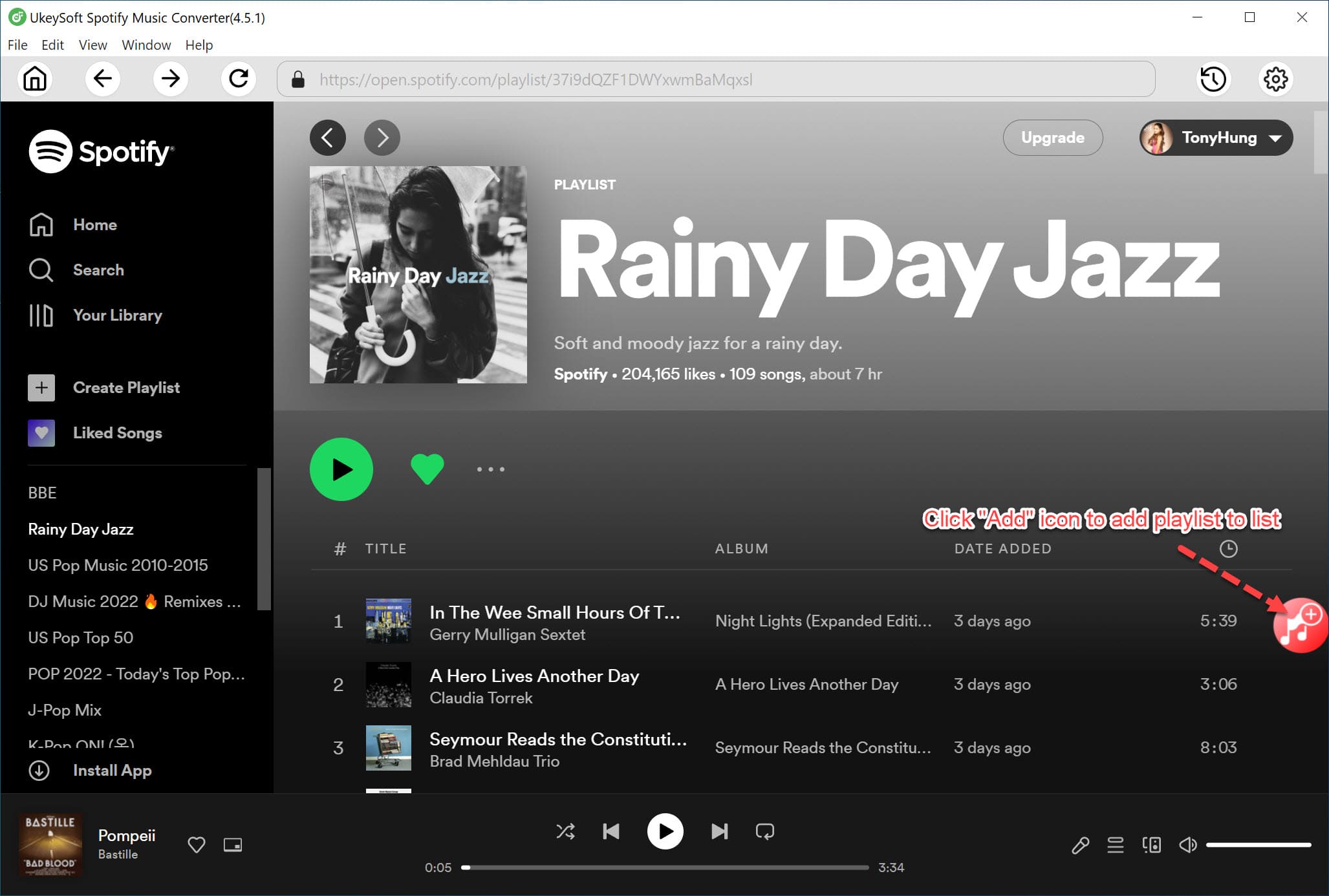
Navigate to the playlist, album, or song you wish to download, open it, click the red "+" icon to add it into the converting list.
Next, confirm and select your target Spotify songs in the window.
Step 4. Start to Convert Spotify Songs to MP3
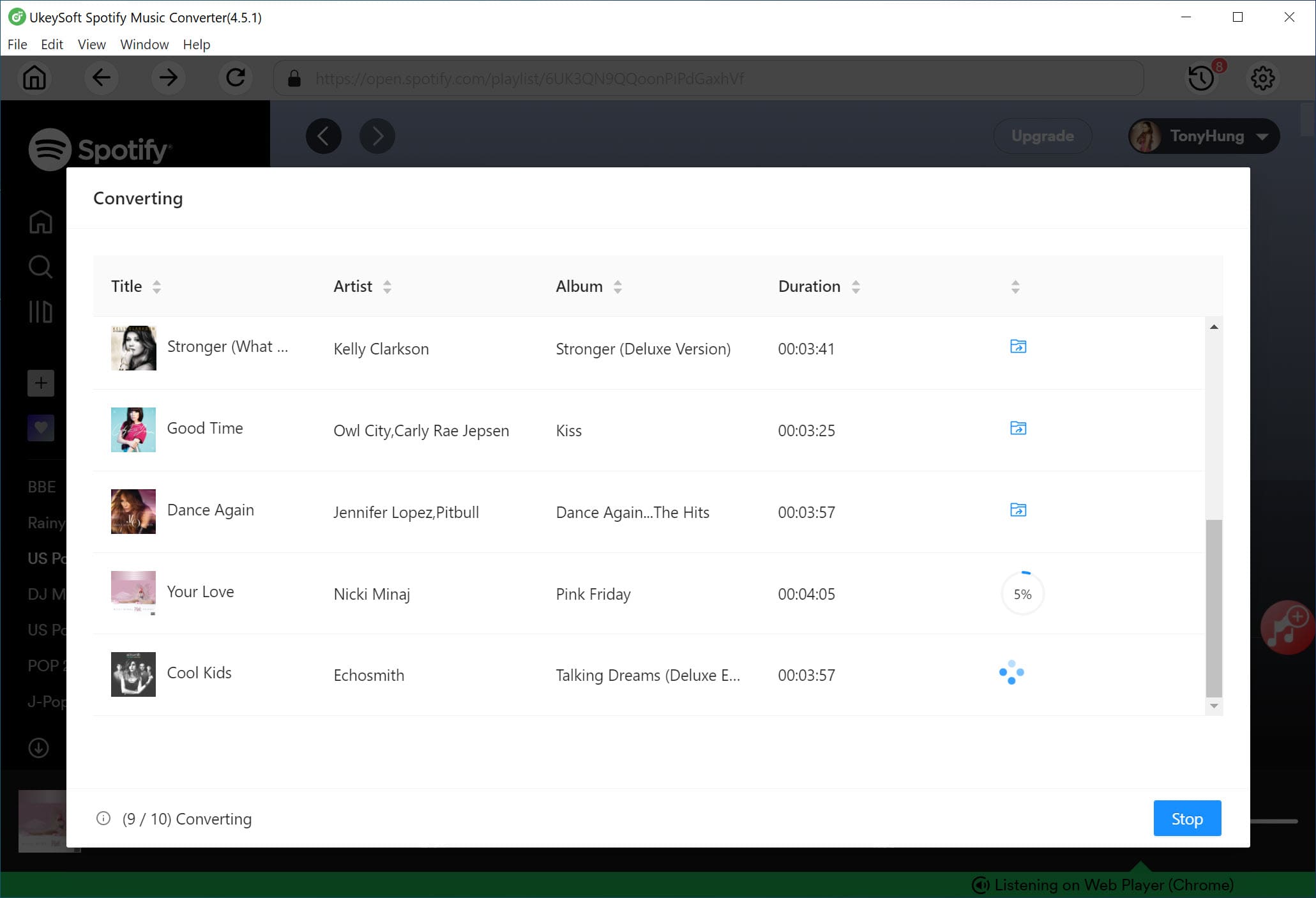
Simply press on the "Convert" button, UkeySoft will begin downloading and converting your selected Spotify tracks to MP3 format at 320kbps high bitrate.
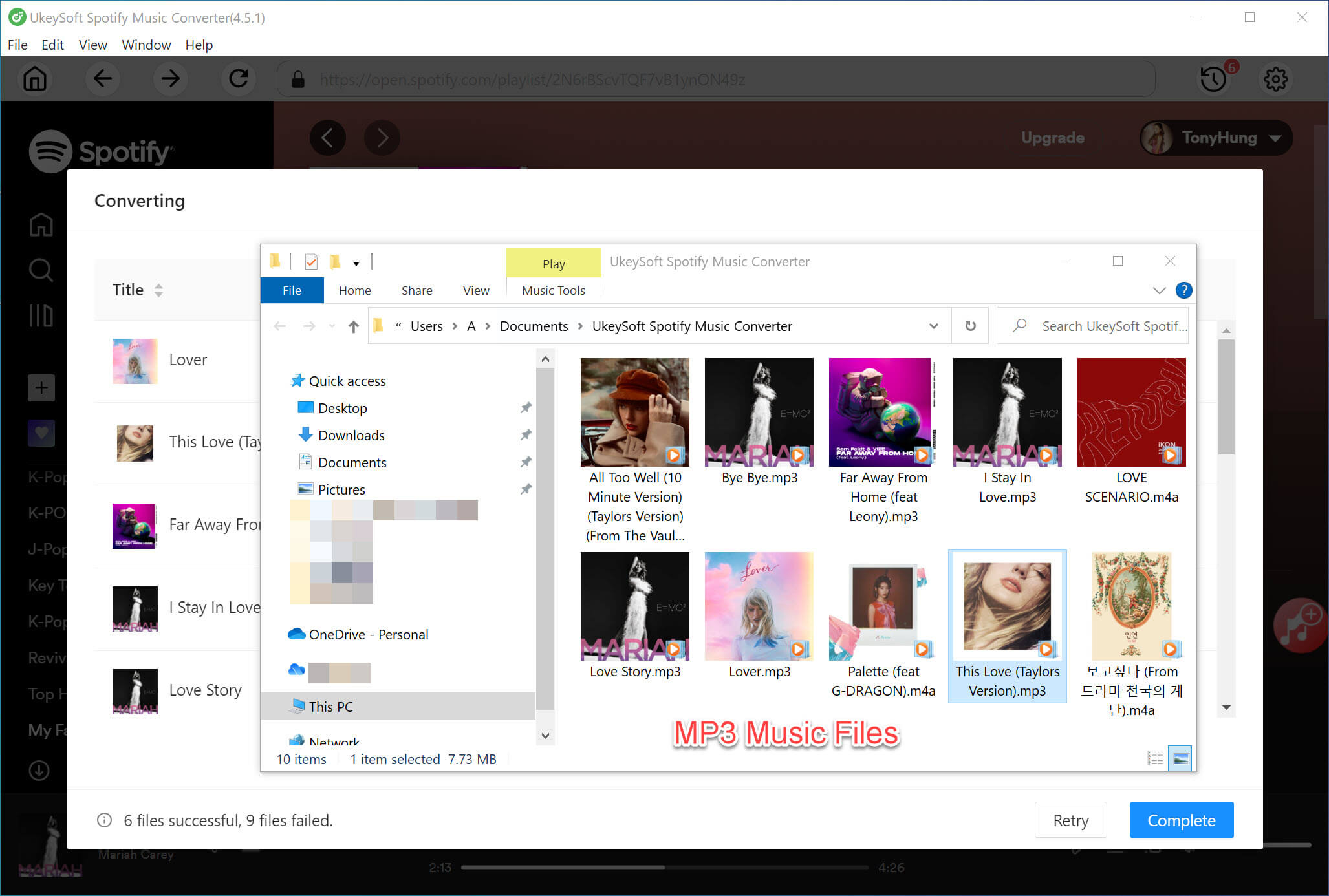
Step 5. Get Output Spotify MP3 Files
Once complete, click the "History" icon to find the converted Spotify music files. Click the blue folder icon to locate them on your computer
Step 6. Add Spotify Music MP3 Songs to iTunes Library
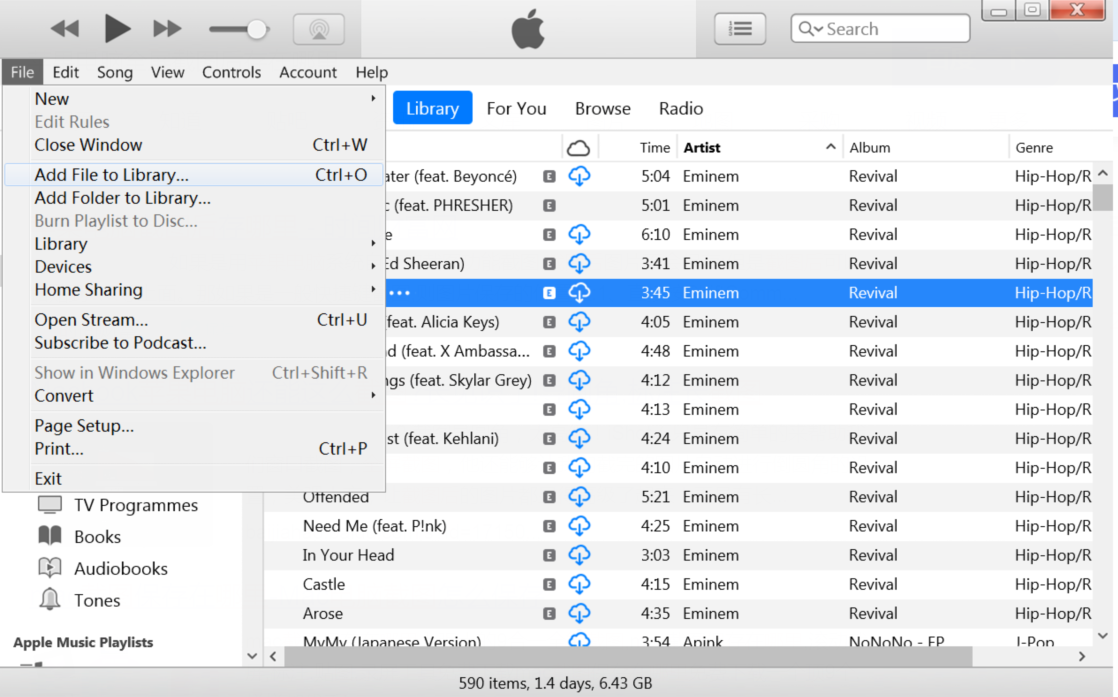
After conversion, open iTunes, go to File > Add File to Library, and import the converted Spotify MP3 music files. This allows the files to be recognized by Garmin Express for synchronization with your smartwatch.
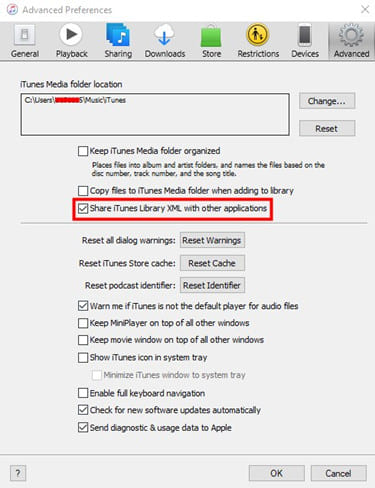
Move to "Preferences". Tap "Advanced" tab, select "Share iTunes Library XML with other applications", click "OK".
Step 7. Sync Spotify Music MP3 Songs to Garmin Watch
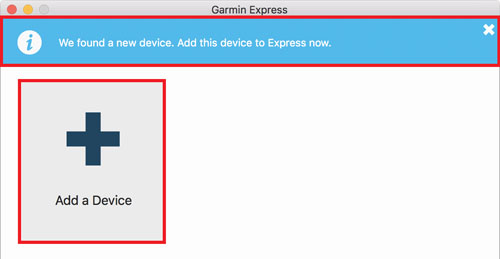
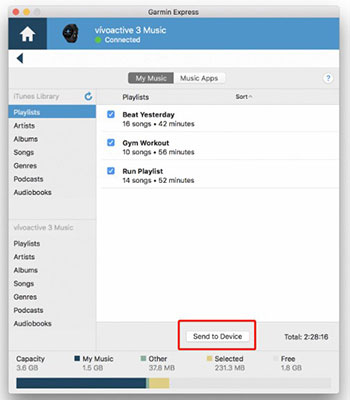
Open Garmin Express on your PC/Mac, connect your Garmin watch to your computer using a charging cable.
Click "Add a Device" and follow the on-screen instructions to pair your watch.
In Garmin Express, select your device and then click on the "Music" tab.
Choose the imported Spotify MP3 songs and start syncing them to your device.
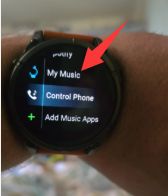
Once completed, on your Garmin, open the Music widget, select "My Music", select any imported Spotify song and enjoy offline playback on your Garmin watch without Premium.
Most Garmin smartwatches support Spotify music. You've seen two methods of playing Spotify music on Garmin watch. The simple method is via Spotify app if you have a Premium subscription. But the best solution is to utilize UkeySoft Spotify Music Converter to convert Spotify music to MP3 or other supported formats and then transfer them to a Garmin watch (any model, any series). This option is available on all subscription tiers of Spotify users, including the ad-supported account. No Premium is required, no Spotify app, enjoy your favorite Spotify tracks on Garmin smartwatch offline permanently!

Sorry the comment has been closed.










![7 Best FREE Apple Music Converters [2026 Updated]](https://www.ukeysoft.com/wp-content/uploads/2019/04/best-apple-music-converter.jpg)



















Porducts
Solution
Copyright © 2026 UkeySoft Software Inc. All rights reserved.


 English
 Arabic
 Chinese (Simplified)
 Chinese (Traditional)
 Croatian
 Czech
Czech Danish
 Dutch
Dutch Estonian
 Finnish
 French
 German
 Greek
Greek Hebrew
 Hindi
Hindi Hungarian
 Indonesian
 Italian
 Japanese
 Kazakh
 Korean
 Malay
Malay Norwegian
 Polish
 Portuguese
 Romanian
 Russian
 Slovenian
 Spanish
 Swedish
 Thai
Thai Turkish
 Ukrainian
 Vietnamese



























![Top 10 Christmas Songs to MP3 Download [Spotify]](https://www.ukeysoft.com/wp-content/uploads/2023/01/christmas-songs-to-mp3.jpg)


































































































































Comments are off!