 ✕
✕
✕
✕
By Justin SabrinaUpdated on March 12, 2026
Amazon Music is one of the most popular streaming platforms today, offering millions of songs, curated playlists, podcasts, and personalized recommendations. With a subscription to Amazon Music Unlimited or Amazon Prime Music, users can access a vast library of tracks and listen to Amazon Music across multiple devices online or offline.
If you own a smartwatch, it's very convenient to play Amazon Music on it. Since Amazon Music has integrated with several smartwatches, such as Garmin devices. In this guide, we will explore how to sync Amazon Music to Garmin Watch and play Amazon Music on any Garmin Watch without an Amazon Music subscription. Now, let's dive in.
CONTENTS
Yes. some streaming music services (such as Amazon Music, Spotify, YouTube Music and Deezer) are compatible with Garmin watches. You can download Amazon Music app on Garmin watch via Garmin Connect IQ. To get started, it's important to check if your Garmin watch supports Amazon Music. Here is a list of compatible Garmin watch series for Amazon Music:
● Garmin Venu: Venu, Venu 2/2S, Venu 3/3S, Venu Sq Music Edition
● Garmin Forerunner: 165 Music, 245 Music, 255 Music, 265, 645 Music, 745, 945, 955, 965
● Garmin Fēnix: 5S Plus, 5 Plus, 5X Plus, 6 / 6S / 6X Pro & Sapphire editions, 6 Pro Solar, 7 series (Standard/Solar/Sapphire), 8 series
● Garmin Epix: Epix (Gen 2), Epix Pro (Gen 2)
● Others: Enduro 2/3, vivoactive 4/5, MARQ, Approach S62/S70, Descent Mk2/Mk2i/Mk2S/Mk3/Mk3i, D2 Delta/Delta PX/Delta S/Mach 1/Mach 1 Pro/Mach 2
However, only users who paid for the Amazon Prime or Amazon Music Unlimited can use Amazon Music with a compatible Garmin watch. Amazon Music Free users may not play Amazon Music as they like on streaming devices.
If you're new to Amazon Music, you're lucky that both Amazon Prime and Amazon Music Unlimited offer a 30-day free trial. Hence, you will have a chance to experience listening Amazon Music on a Garmin watch for free. To get Amazon Music to your Garmin watch without subscription plan, you can directly move to Way 2.
If your Garmin smartwatch supports Amazon Music app, you can install the official Amazon Music application and sync Amazon Music content to Garmin Watch directly. Plus, you can even download playlists and play Amazon Music on Garmin Watch without carrying your phone.
Requirements:
# Install the Amazon Music App via Garmin Connect IQ
Step 1. Open the Garmin Connect IQ Store on your smartphone.
Step 2. Search for Amazon Music, and select the Amazon Music app from the result.
Step 3. Tap "Install" and choose your Garmin smartwatch.
Step 4. Accept the required permissions and wait for the installation process to complete.
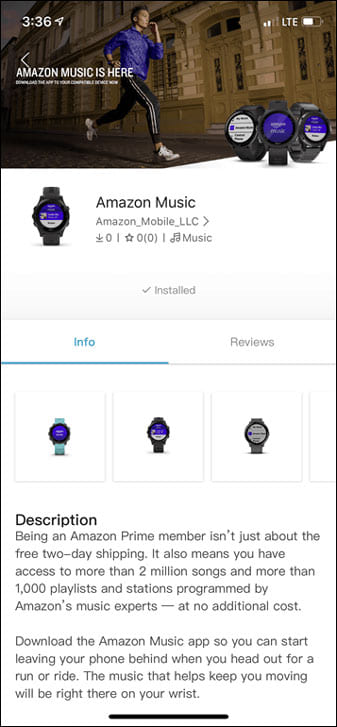
Step 5. Once installed, the Amazon Music app will appear on your Garmin watch.
# Set Up Amazon Music on Garmin Watch
Step 1. On your Garmin watch, quickly access the music controls. On most models, you can do this by holding the "Down" button .
Step 2. Press the Up/Menu button (or look for a settings gear) and choose "Music Providers" from the menu. Select Amazon Music from the list.
Step 3. On your phone or computer, go to amazon.com/us/code, sign in to your Amazon account, and enter the six-letter code shown on your Garmin watch.
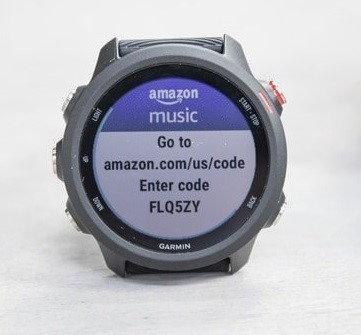
Step 4. Once you enter the code, your Amazon account will be linked to your Garmin watch.
# Sync Amazon Music to Garmin Watch
Step 1. Open your Garmin watch, from the "Music Widget", tap the three-dot menu and choose the "Amazon Music" icon.
Step 2. Tap "Browse" button. Browse your saved playlists or recommended content.
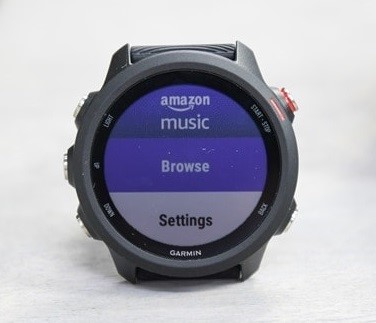
Step 3. Select the playlist and it will be synced to your Garmin watch automatically.
# Download and Play Amazon Music on Garmin Watch
Step 1. Open the Amazon Music app on your watch, tap on the playlist you want to download, and select the "Download" option.
Step 2. Once downloaded, connect your Garmin watch with Headphones via Bluetooth, and you can play Amazon Music on Garmin Watch completely.
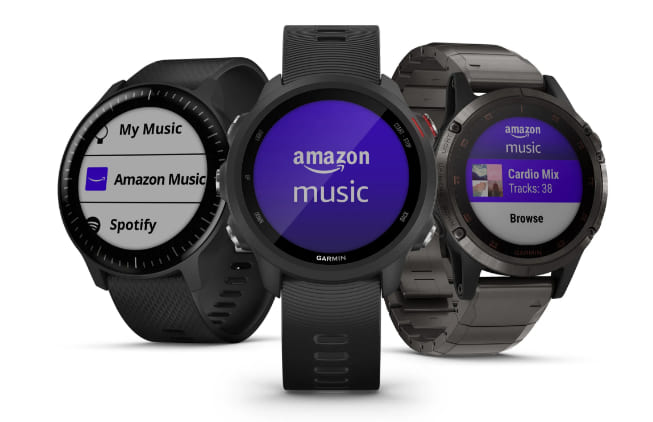
Although the official method allows you to sync Amazon Music to Garmin Watch, it still has some limitations. First, an active Amazon Music subscription is required. Second, Amazon Music is only available in certain countries and regions.
Fortunately, Garmin watches natively support MP3, M4A, AAC, WAV, and M4B audio formats.If you are an Amazon Music free user and want to play Amazon Music on your watch anywhere, the best solution is to convert Amazon Music tracks to MP3 and transferring them directly to your watch.
Here you need the help of UkeySoft Amazon Music Converter. This professional tool is designed to help users download and convert songs from Amazon Music into common audio formats such as MP3, AAC, M4A, WAV, FLAC, and AIFF. Whether you are Amazon Music Free or Paid users, you can utilize this tool to download Amazon Music for free. Once converted, the songs can be stored locally and transferred to any device, including Garmin smartwatches.
The software features a built-in Amazon Music web player. This allows users to browse their music library directly inside the program without installing the official Amazon Music desktop app. It also comes with a free music manager and preserves important ID3 tags such as song title, artist, album artwork, and genre. This help keep your music library organized when transferred to other devices.
More Features of UkeySoft Amazon Music Converter:
Step 1. Run UkeySoft Amazon Music Converter
Download and install UkeySoft Amazon Music Converter on your Mac or Windows PC. Launch the software. The built-in Amazon Music web player will load automatically. Sign in to your Amazon Music free or paid account to access the official music library.
Step 2. Modify the Output Settings
Click on the Settings menu (usually a gear icon). In the settings window, configure the output options. Set the Output Format to MP3 for maximum compatibility with Garmin watches. You can also adjust the Output Quality to 320kbps for the highest bitrate and select your preferred output folder, organize the output file name, etc.
Step 3. Add Amazon Music Songs
Navigate through your Amazon Music library within the UkeySoft interface. Browse your playlists, albums, or individual songs. Once you find the content you want, click the red "+" icon to add it into the converting list.
Next, a list of songs from your selected playlist or album will appear. By default, all songs are selected for conversion. You can uncheck any tracks you do not wish to download.
Step 4. Convert Amazon Music Songs to MP3
Now, hit on the "Convert" button. The software will begin downloading and converting the selected Amazon Music tracks to MP3 format at 10X high speed. During the process, do not use the Amazon Music app or web player.
Step 5. Get Output Amazon MP3 Songs
Once the conversion is complete, click on the "History" icon within the software. Click the blue folder icon next to a converted track to open the output folder on your computer. Your Amazon Music MP3 files are stored on your computer locally and permanently.
Step 1. Import the converted Amazon Music files into iTunes or the Music app on your computer so they can be recognized by Garmin music management tools.
Step 2. Connect your Garmin smartwatch to your computer using a USB cable.
Step 3. Open Garmin Express app on your computer and click "Add a Device", select your connected Garmin watch.
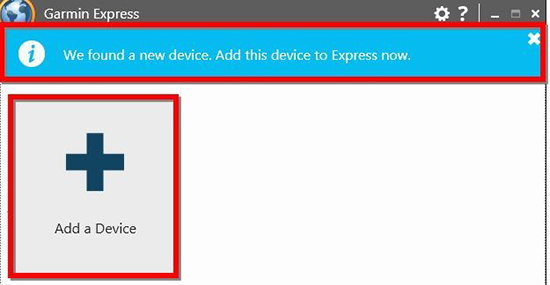
Step 4. Navigate to the "Music" section in Garmin Express and choose the music folder containing your converted Amazon Music MP3 files.
Step 5. Click "Send to Device" to sync Amazon Music to Garmin Watch.
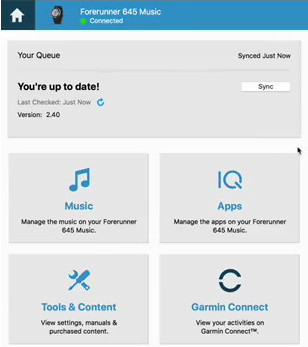
Step 6. Once the sync is complete, safely eject your watch from the computer. On your Garmin watch, open the "Music widget" (not the Amazon Music app).
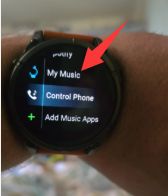
Step 7. Pair your Bluetooth headphones, and you're ready to play Amazon Music songs offline on your Garmin watch without the Amazon Music app!
How Many Songs Can I Store on an Amazon Music Playlist on My Garmin Watch?
Garmin watches allow a maximum of 150 songs per playlist when you sync Amazon Music to Garmin Watch.
How Do I Create an Amazon Music Playlist for My Garmin Watch?
To create playlists that can be synced to your watch, you need an Amazon Music Unlimited subscription or Amazon Prime membership. After creating playlists in the Amazon Music app, you can download them to your Garmin device through the Amazon Music watch app.
Why Did My Amazon Music Playlist Disappear From My Garmin Watch?
If your playlists disappear from your watch, several reasons may be responsible:
Reconnecting your account and syncing again usually restores access to your playlists.
If you have an Amazon Music subscription, it's easy to sync Amazon Music on your Garmin watch and play Amazon Music on Garmin watch with Bluetooth headphones. However, when your subscription ends, you are unable to get access Amazon Music on your Garmin watch, even the tracks you've downloaded in advance.
To get Amazon Music on your Garmin watch with subscription, there is still a workaround: use UkeySoft Amazon Music Converter to convert Amazon Music to MP3 or other Garmin-compatible formats, and then you can put Amazon Music Garmin watch (any model, any series), and enjoy unlimited offline playback without the Amazon Music app!

Sorry the comment has been closed.























Porducts
Solution
Copyright © 2026 UkeySoft Software Inc. All rights reserved.


 English
 Arabic
 Chinese (Simplified)
 Chinese (Traditional)
 Croatian
 Czech
Czech Danish
 Dutch
Dutch Estonian
 Finnish
 French
 German
 Greek
Greek Hebrew
 Hindi
Hindi Hungarian
 Indonesian
 Italian
 Japanese
 Kazakh
 Korean
 Malay
Malay Norwegian
 Polish
 Portuguese
 Romanian
 Russian
 Slovenian
 Spanish
 Swedish
 Thai
Thai Turkish
 Ukrainian
 Vietnamese










![7 Best FREE Apple Music Converters [2026 Updated]](https://www.ukeysoft.com/wp-content/uploads/2019/04/best-apple-music-converter.jpg)













































![Top 10 Christmas Songs to MP3 Download [Spotify]](https://www.ukeysoft.com/wp-content/uploads/2023/01/christmas-songs-to-mp3.jpg)












































































































Comments are off!