 ✕
✕
✕
✕
By ChesterUpdated on March 18, 2026
Garmin watches are popular devices that combine a sports watch, smartwatch, and fitness tracker in one. Most models can track steps, sleep, and heart rate, and many are water resistant. They also work with Garmin Connect, where you can check your health data and connect with other users. Many Garmin watches let you store local songs, so you can Play Spotify music on Garmin Watch without your phone, and some models support streaming services like Spotify, Amazon Music, Deezer, and iHeartRadio for offline listening.
In this guide, we will show you 2 ways to transfer Spotify music to Garmin Watch. You will learn how to transfer Spotify music to Garmin Watch with a Spotify Premium account, and how to Play Spotify music on Garmin Watch without Premium.
CONTENTS
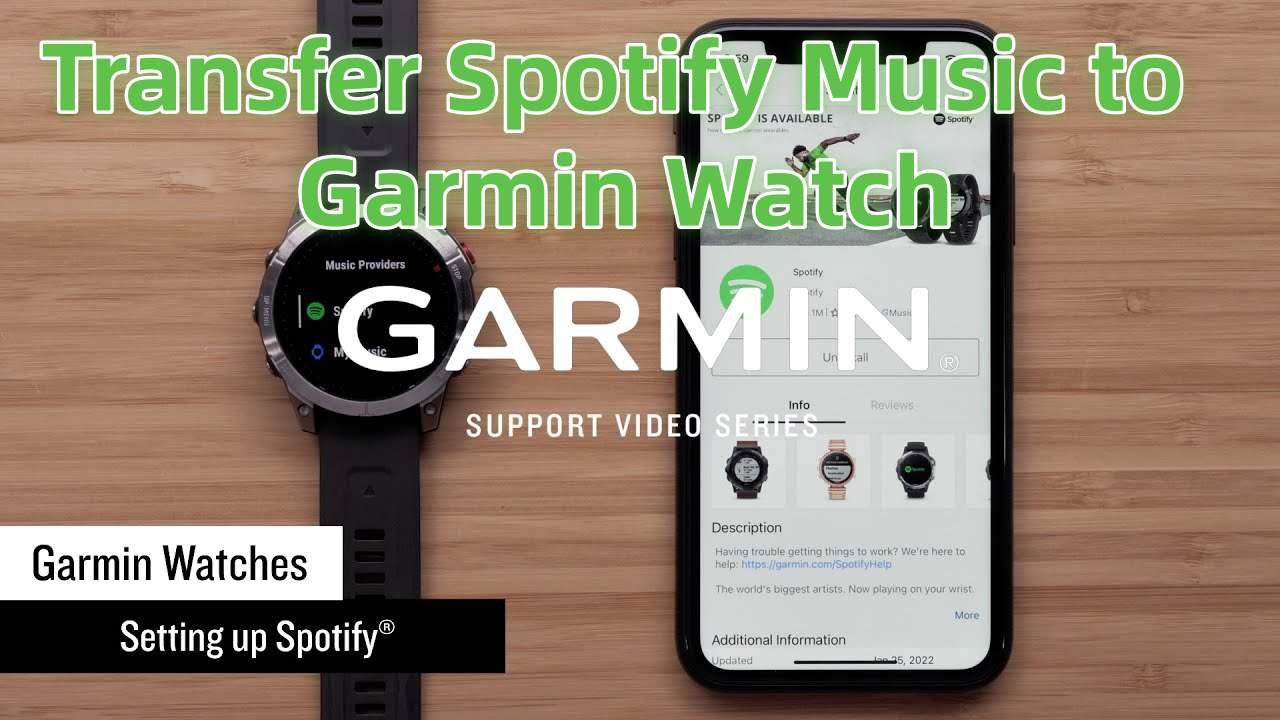
Spotify is available as an app in the Garmin Connect IQ store, which you can access through the Garmin Connect mobile app. To use Spotify on a Garmin smartwatch, you need a Spotify Premium account. After setup, you can download music and podcasts to your compatible Garmin watch and listen offline using the Spotify Connect IQ app.
Step 1. Install the Spotify Connect IQ App
First, download the Spotify Connect IQ app on your iPhone or Android phone and sign in to your Garmin account. Choose your Garmin watch, install the app, and sync the device.
Step 2. Set Up the Spotify App
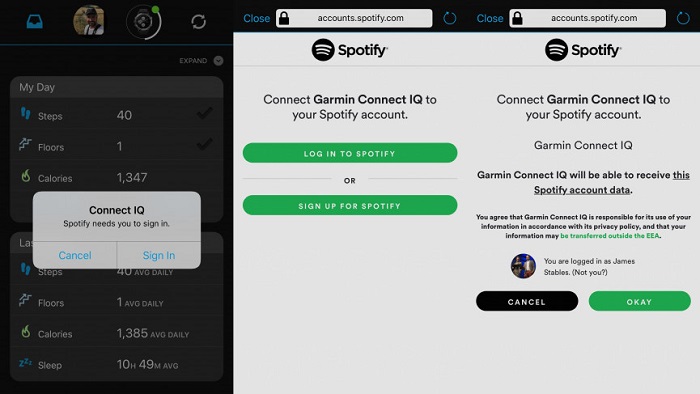
Press and hold the DOWN button on your watch. When asked to choose a music provider, press the DOWN button again and select Spotify. You will then be asked to open the Garmin Connect app on your phone. Log in to your Spotify account and accept the terms to finish the setup.
Step 3. Transfer Spotify Music to Your Garmin Watch
Open the Spotify app on your Garmin watch, tap Your Library, then select Add Music and Podcasts. Tap Add to download your content.
After downloading, connect a pair of Bluetooth earbuds to your Garmin watch, and you can start playing Spotify music and podcasts directly from your watch.
However, not all Garmin smartwatch models support the Spotify app, and a Spotify Premium account is usually required to access playlists on a Garmin watch. So, can Spotify Free users still Play Spotify music on Garmin Watch? The answer is yes. You can transfer local music files from your computer to your Garmin device and listen offline.
If you want to transfer Spotify music to Garmin Watch with a Spotify Free account, you can use UkeySoft Spotify Music Converter. This tool allows you to convert Spotify songs, albums, playlists, and podcasts into common audio formats such as MP3, M4A, AAC, FLAC, WAV, and AIFF while keeping the original audio quality and ID3 tags. It also lets you download Spotify music and podcasts directly to your computer even without Premium. After that, you can transfer Spotify music to Garmin Watch as local files and Play Spotify music on Garmin Watch offline using Bluetooth headphones.
👍Great Features of UkeySoft Spotify Music Converter
In the following step by step guide, we will show you how to download Spotify songs to your computer using UkeySoft Spotify Music Converter.
Step 1. Launch the Program and Log in to Spotify
UkeySoft Spotify Music Converter works on Windows and Mac computers. Download and install the correct version, then open the program and log in to your Spotify account.
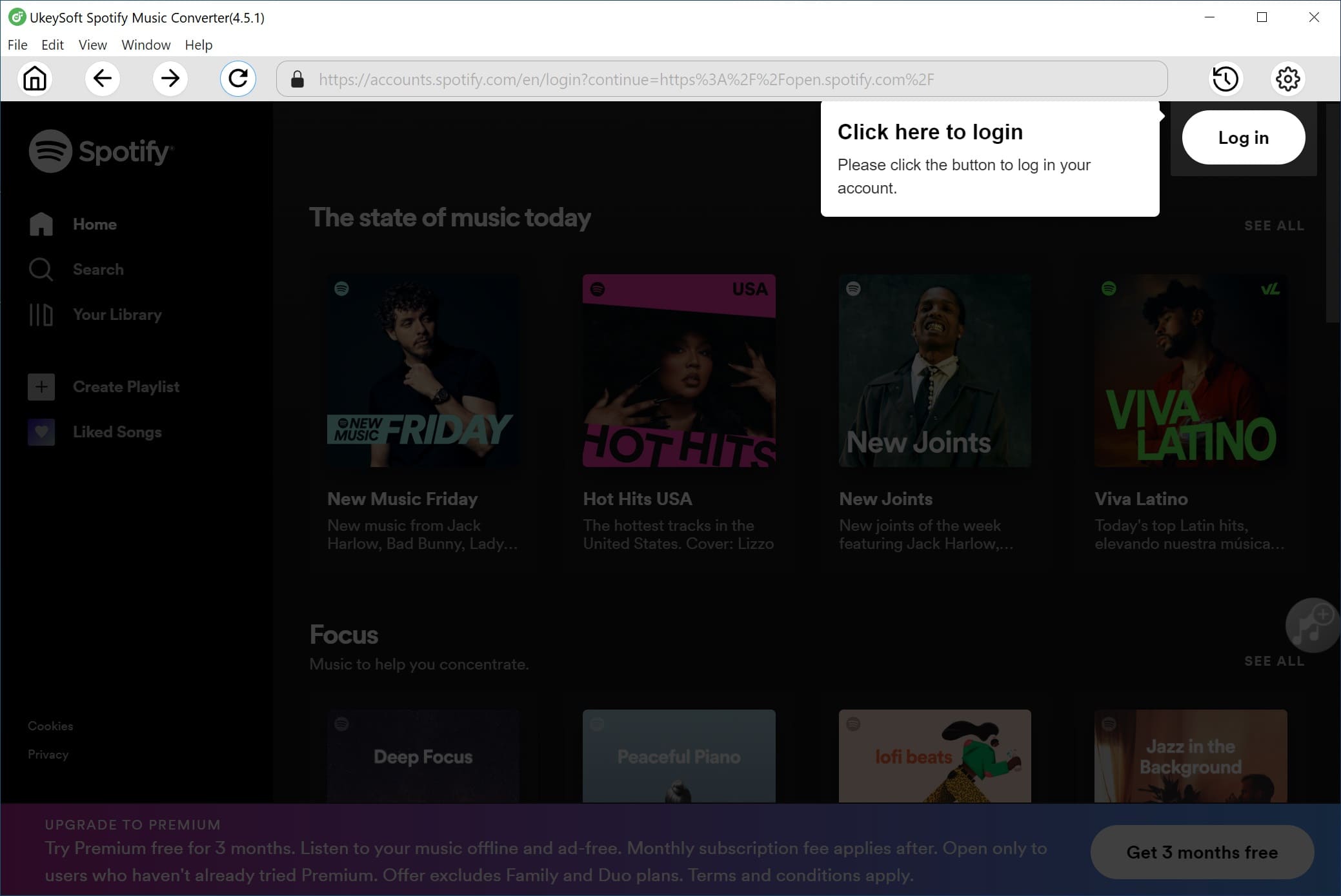
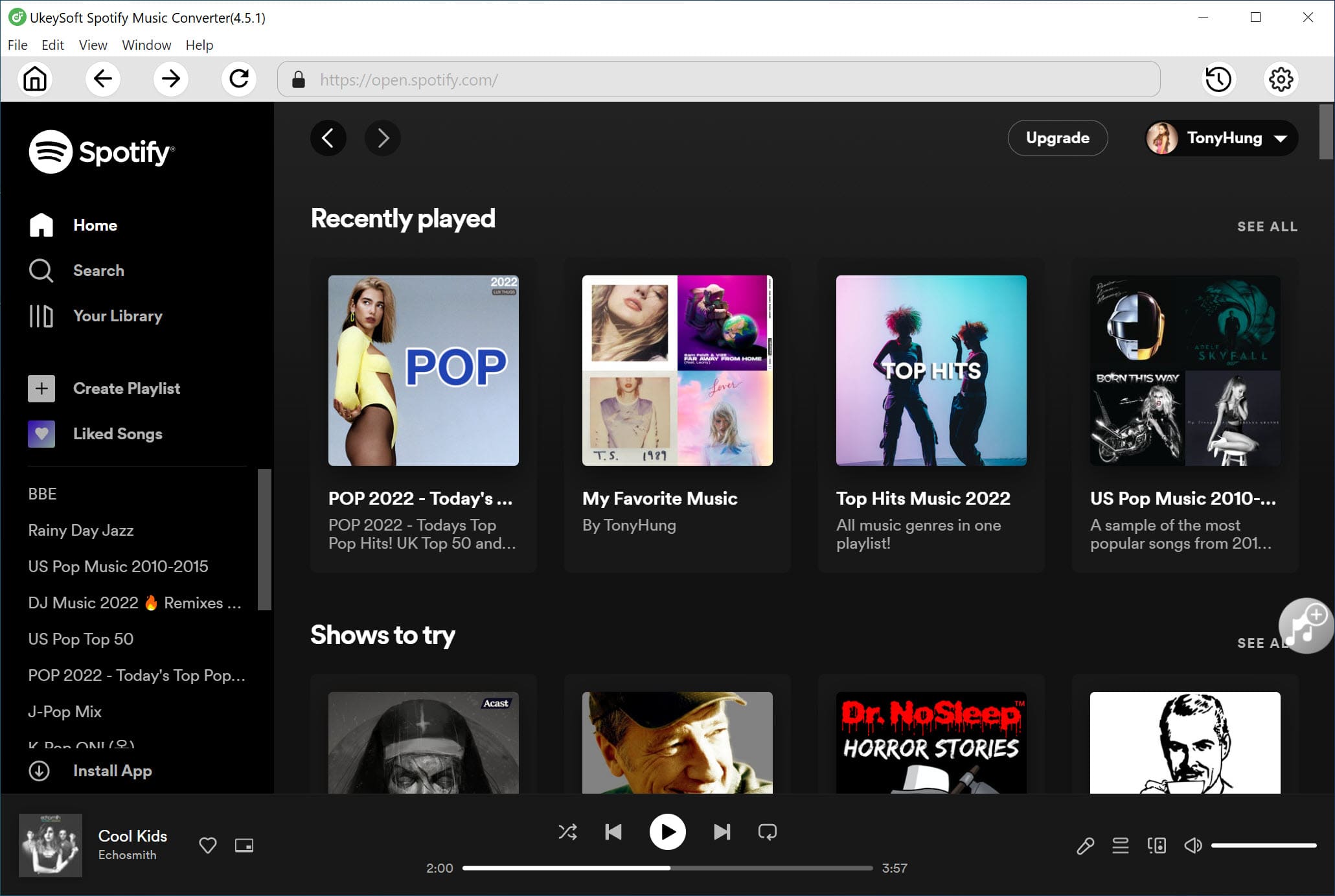
The software includes a built-in Spotify web player, allowing both Free and Premium users to browse, search, and play songs, albums, and playlists directly inside the program.
Step 2. Choose the Output Format
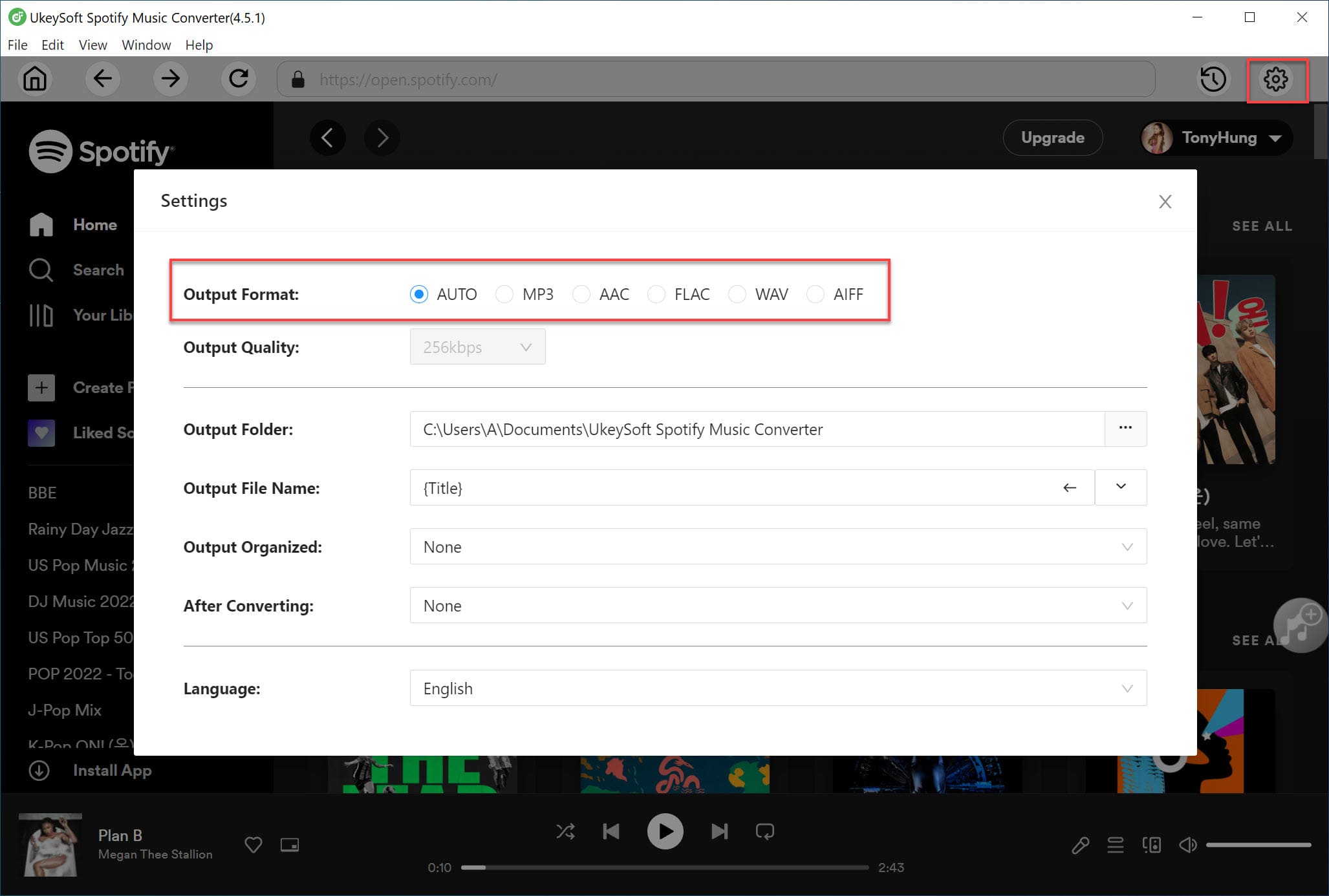
Click the Settings icon in the upper right corner. You can choose from several output formats, including MP3, M4A, WAV, FLAC, AIFF, and AAC. MP3 is recommended because it works well with Garmin watches and most devices.
Step 3. Add Spotify Songs or Playlists
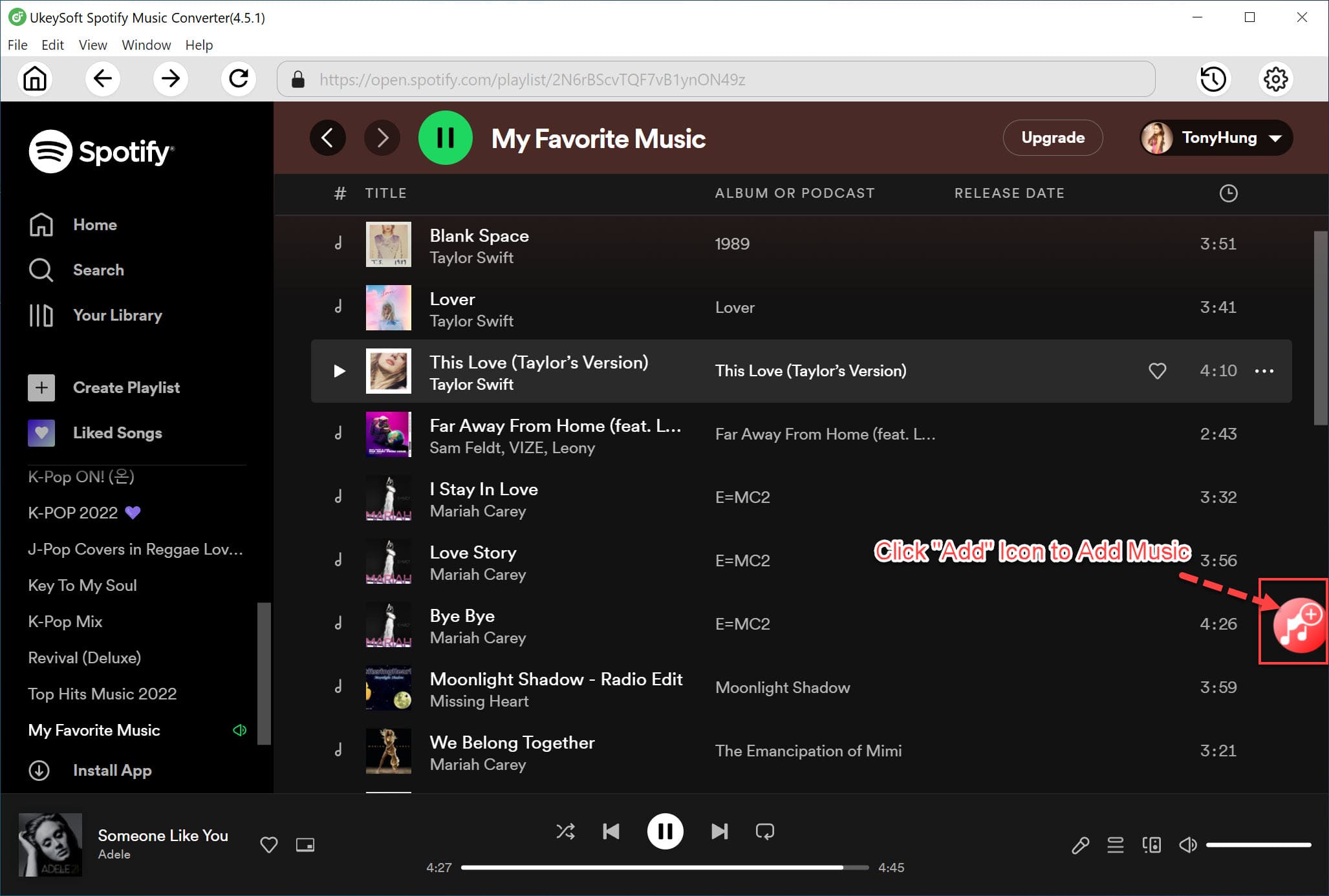
Open the playlist or album you want in the built in web player, then click the plus icon to add the music. The program will automatically scan and load all tracks into the conversion list.
Step 4. Select Songs to Convert
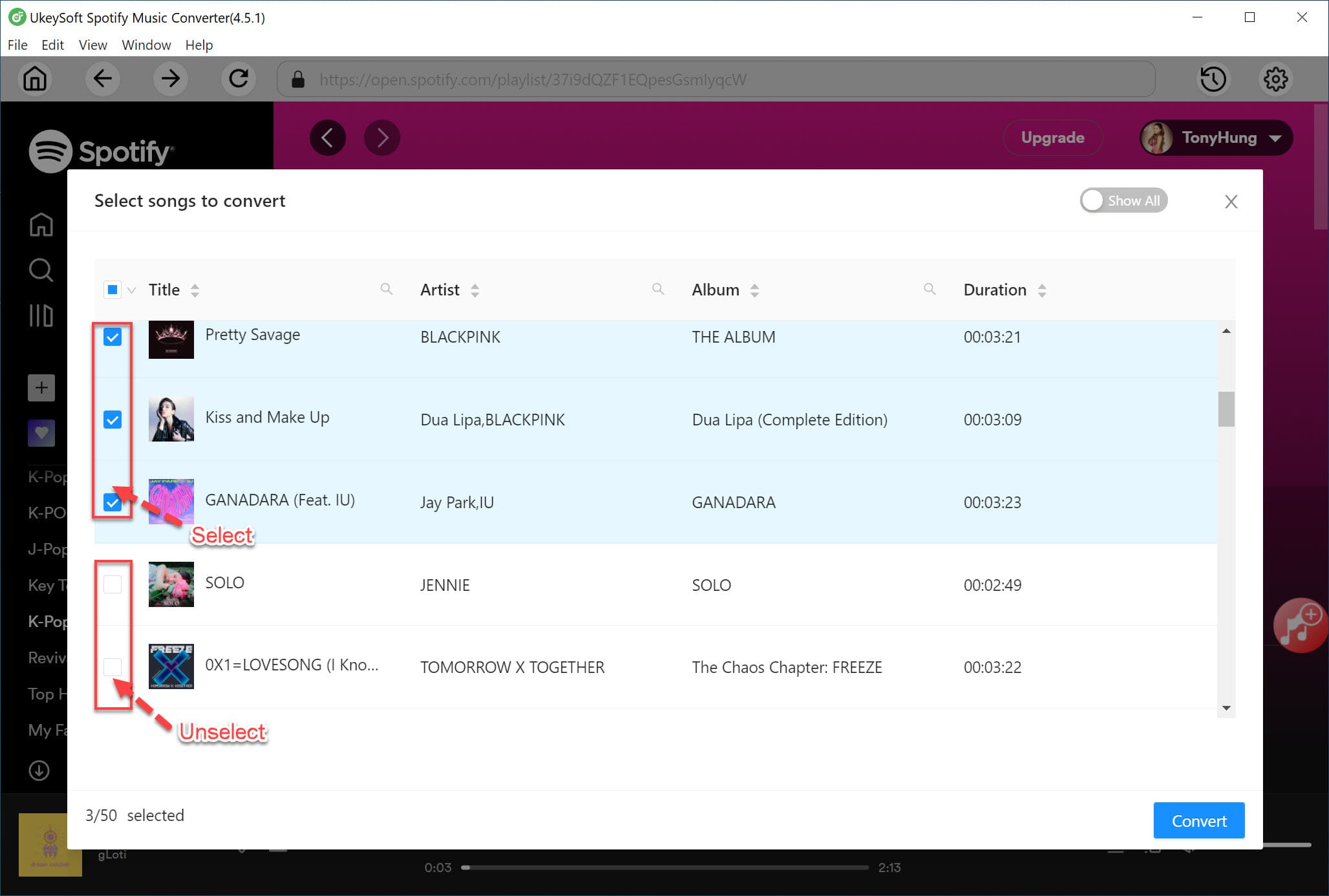
All songs are selected by default. You can remove any tracks you do not want before starting the conversion.
Step 5. Start to Convert Spotify Music
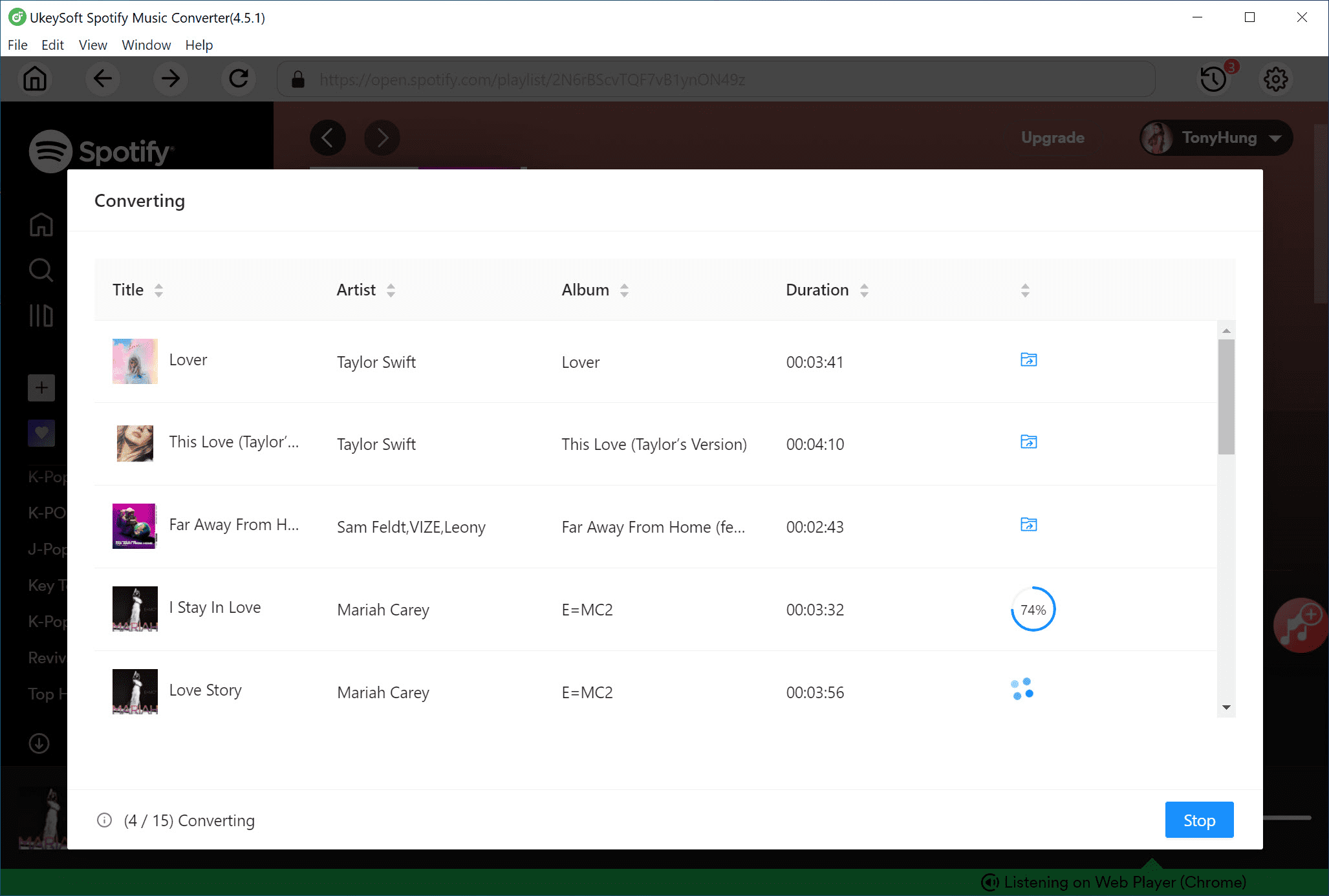
Click the Convert button to start converting Spotify songs or playlists to the format you selected. The program supports fast conversion speed to help save time.
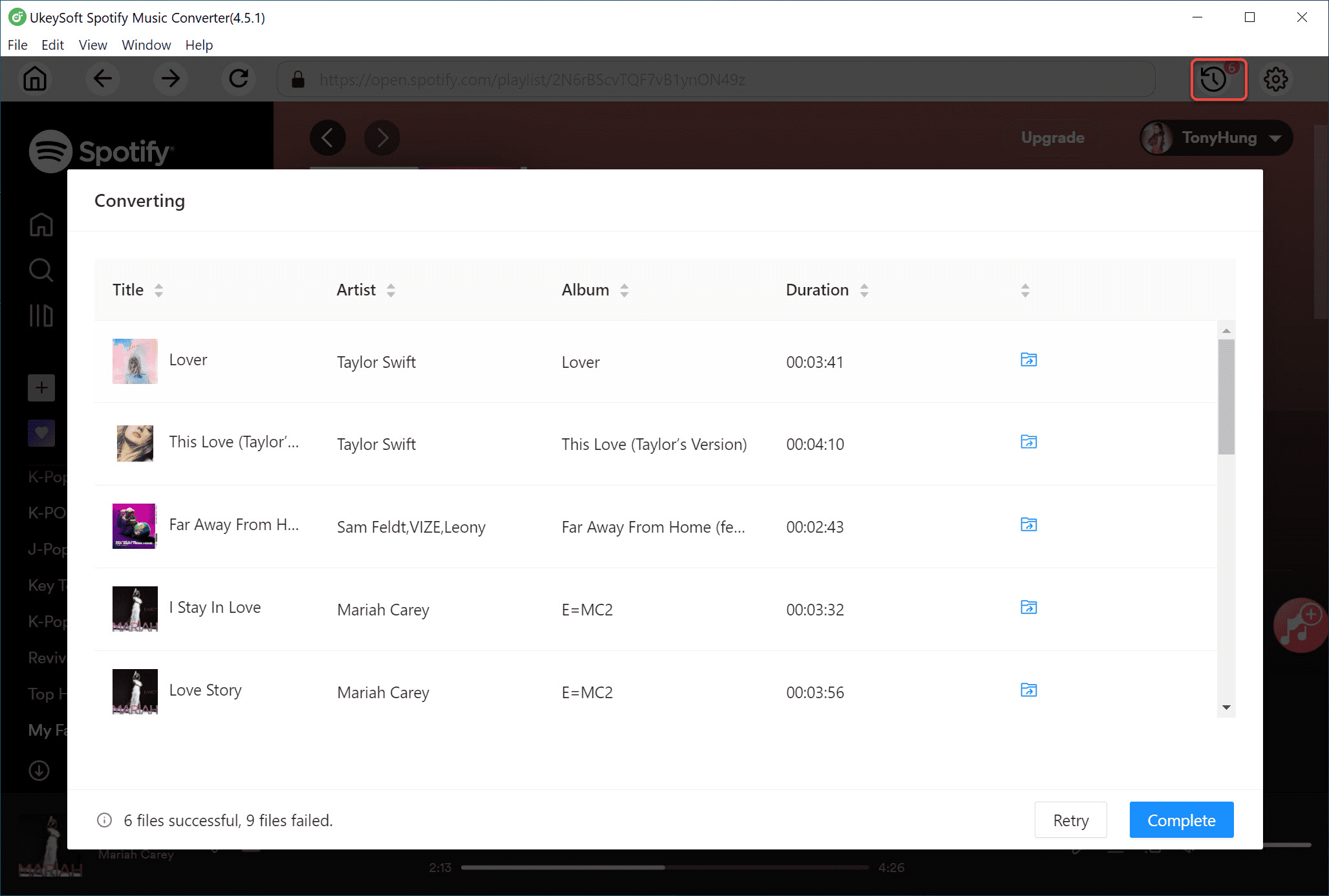
Step 6. View the Converted Songs
After the conversion is complete, click the Output Folder to open the saved files. You will find your Spotify songs stored locally in the selected audio format.
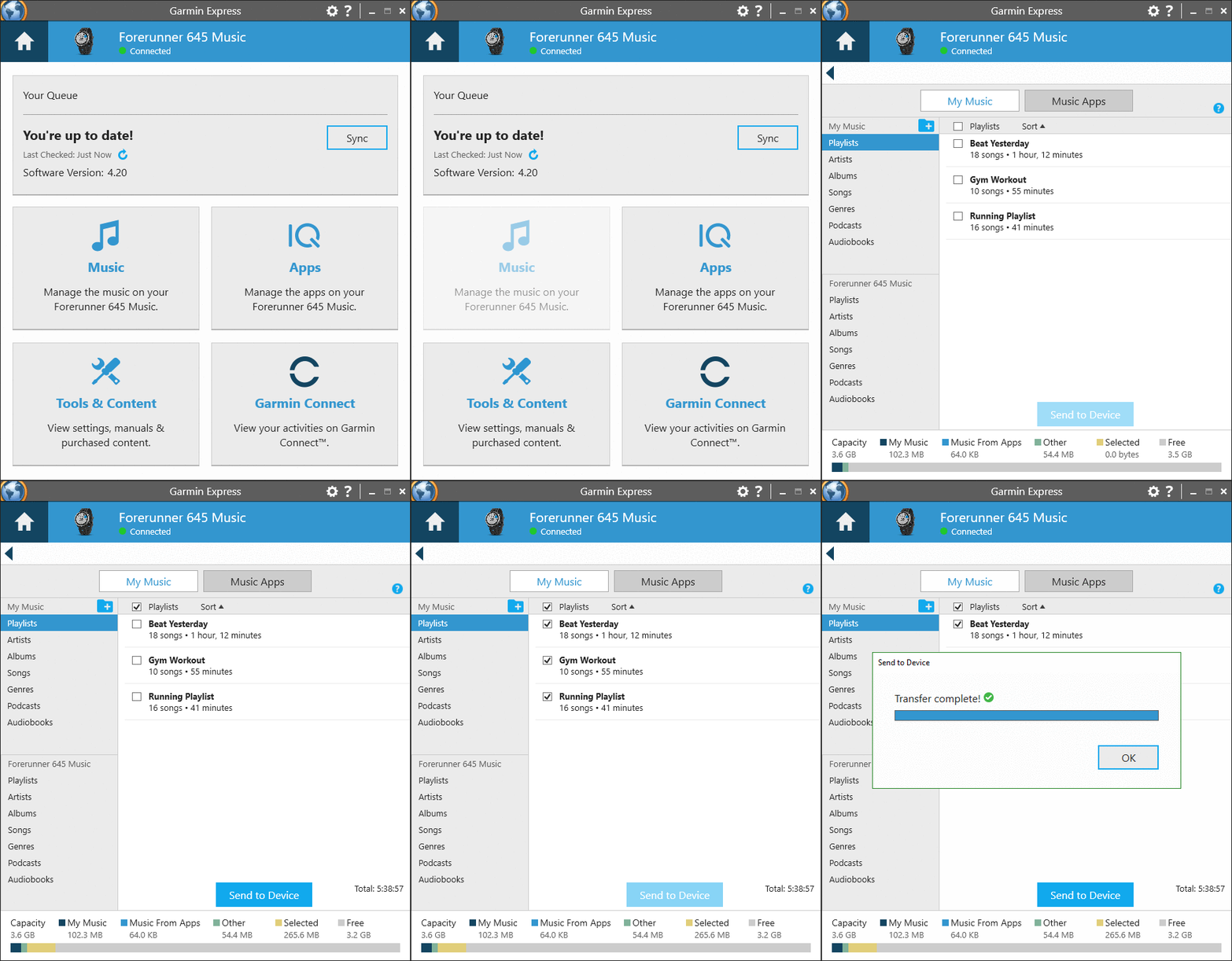
After downloading Spotify music to your computer, you can transfer the songs to your Garmin watch easily using the Garmin Express app. This program helps you sync music, playlists, and podcasts from your computer to a Garmin music watch.
Step 1. Install Garmin Express
Download and install Garmin Express on your computer. Open the program, select Get Started, then choose Add a Device.
Step 2. Connect Your Garmin Watch
Use the charging cable to connect your Garmin watch to the computer. Click Add Device and sign in to your Garmin account.
Step 3. Transfer Music Files
Select the Music option in Garmin Express. Click the folder icon to find the music you want to upload, choose the local Spotify music files, and click Send to Device to start transferring.
Step 4. Play Music on Your Watch
Open the music controls on your Garmin watch and connect your Bluetooth headphones. Select My Music, and you can now play Spotify songs directly from your Garmin watch.
Q1. How Many Songs Can a Garmin Watch Hold?
It depends on your watch’s storage. Most Garmin watches that support music can store hundreds of songs, playlists, and albums, but not all models have music storage.
Q2. How Do I Delete Spotify Songs on a Garmin Watch?
You can’t delete single songs. To remove a song, delete the playlist or album it’s in and resync Spotify. On your watch, open Spotify, go to Your Library, select Edit Downloads, then tap Remove for the playlist or album, or choose Remove all.
Using the methods above, it is easy to Play Spotify music on Garmin Watch. You can download Spotify songs and listen offline on your Garmin watch with the Spotify Connect IQ app. If your watch does not support this app or you do not have a Spotify Premium account, you can still transfer Spotify music to Garmin Watch using UkeySoft Spotify Music Converter. This tool lets you download Spotify music with a Spotify Free account and upload the songs to your watch for playback anytime. UkeySoft Spotify Music Converter offers a free trial that allows you to convert the first three minutes of each song. Download it and try it for yourself.

Sorry the comment has been closed.










![7 Best FREE Apple Music Converters [2026 Updated]](https://www.ukeysoft.com/wp-content/uploads/2019/04/best-apple-music-converter.jpg)



















Porducts
Solution
Copyright © 2026 UkeySoft Software Inc. All rights reserved.


 English
 Arabic
 Chinese (Simplified)
 Chinese (Traditional)
 Croatian
 Czech
Czech Danish
 Dutch
Dutch Estonian
 Finnish
 French
 German
 Greek
Greek Hebrew
 Hindi
Hindi Hungarian
 Indonesian
 Italian
 Japanese
 Kazakh
 Korean
 Malay
Malay Norwegian
 Polish
 Portuguese
 Romanian
 Russian
 Slovenian
 Spanish
 Swedish
 Thai
Thai Turkish
 Ukrainian
 Vietnamese



























![Top 10 Christmas Songs to MP3 Download [Spotify]](https://www.ukeysoft.com/wp-content/uploads/2023/01/christmas-songs-to-mp3.jpg)


































































































































Comments are off!