 ✕
✕
By Justin SabrinaUpdated on November 17, 2026
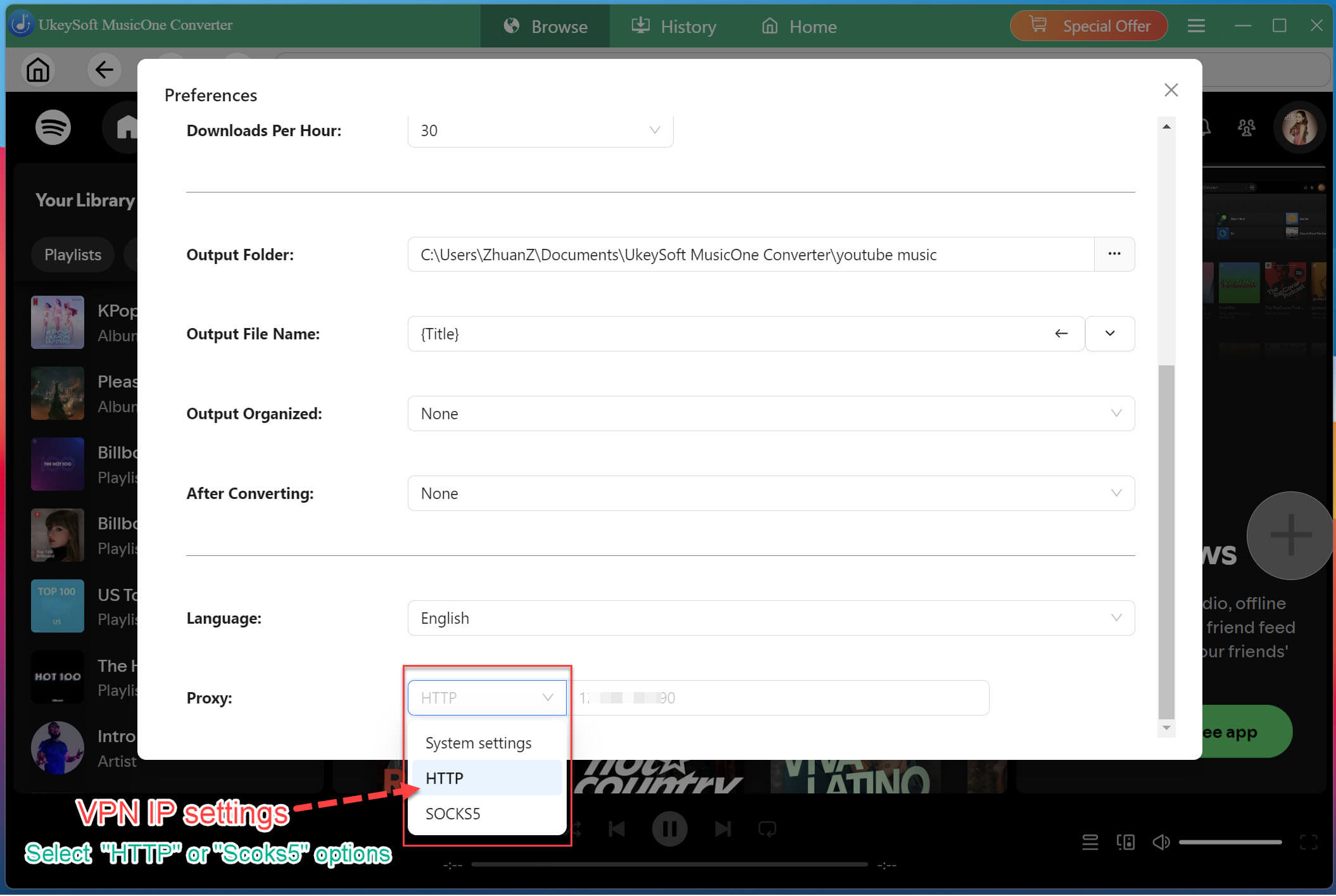
UkeySoft MusicOne Converter V.3.2.3 updated, which supports to download streaming music via VPN connection. If you failed to download music via VPN connection, please update the software to V.3.2.3 version or above, then configure a “SOCKS5” or “HTTP” proxy in our software, try to download your favorite music again.
UkeySoft MusicOne Converter is an all-in-one streaming music downloader & converter, helping users download music from Spotify, Apple Music, YouTube Music, Amazon Music, Tidal, Deezer, SoundCloud, and Pandora Music to MP3, WAV and more formats.
To improve music download success rate and conversion efficiency, UkeySoft MusicOne Converter has added a VPN setting option, which solves the problem of some streaming music websites being unable to download music due to VPN connection.
How to set "SOCKS5" proxy option? (For user who use the VPN), please view below detail user guide:
Step 1. Download, install and launch UkeySoft MusicOne Converter on computer (Windows/Mac).
Step 2. Clicking on the “Three horizontal bars” in the upper right corner of the software, then click "Preferences" option to open the setting windows.
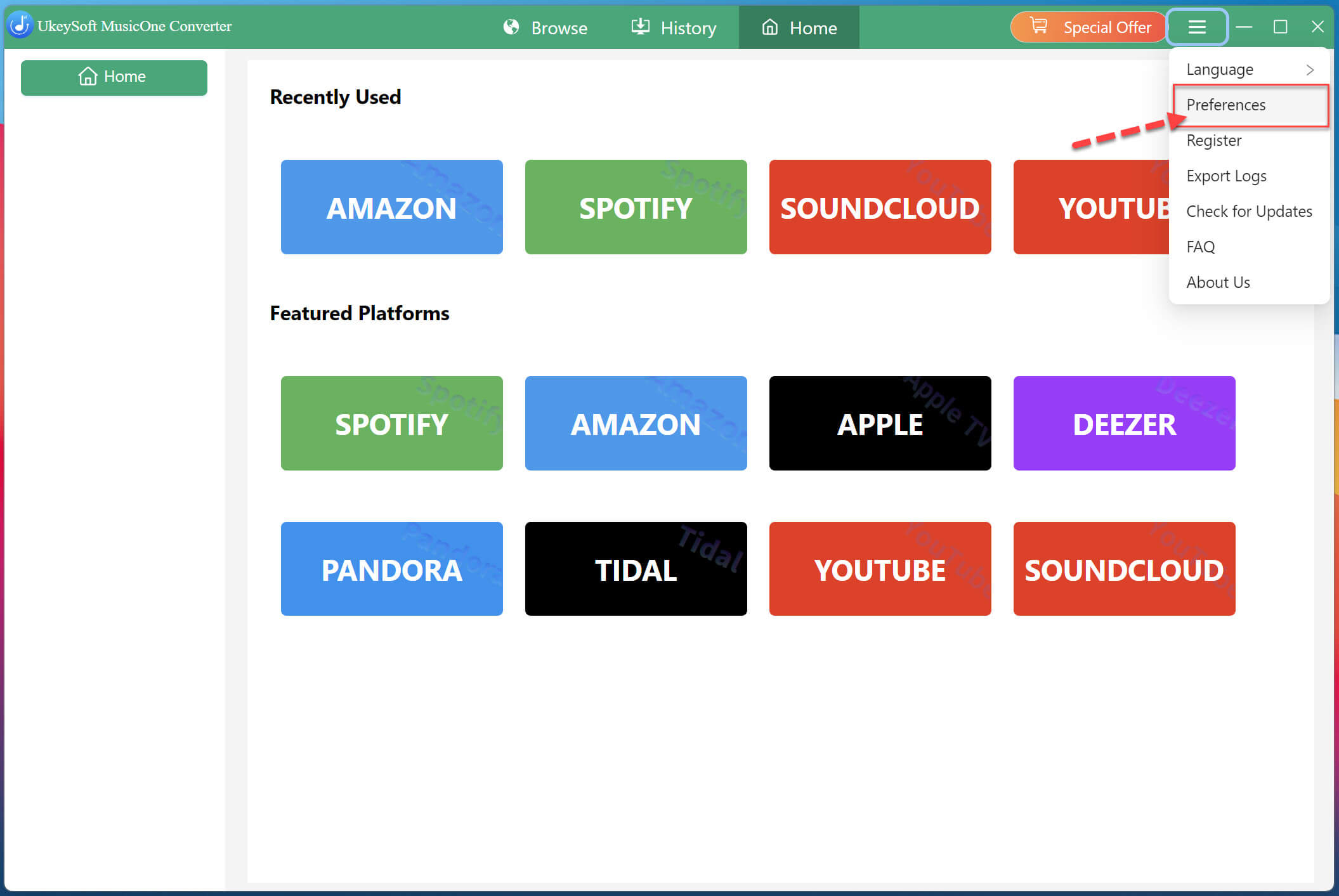
Step 3. Please scroll to the bottom of the settings window, and you'll see a "Proxy" option.
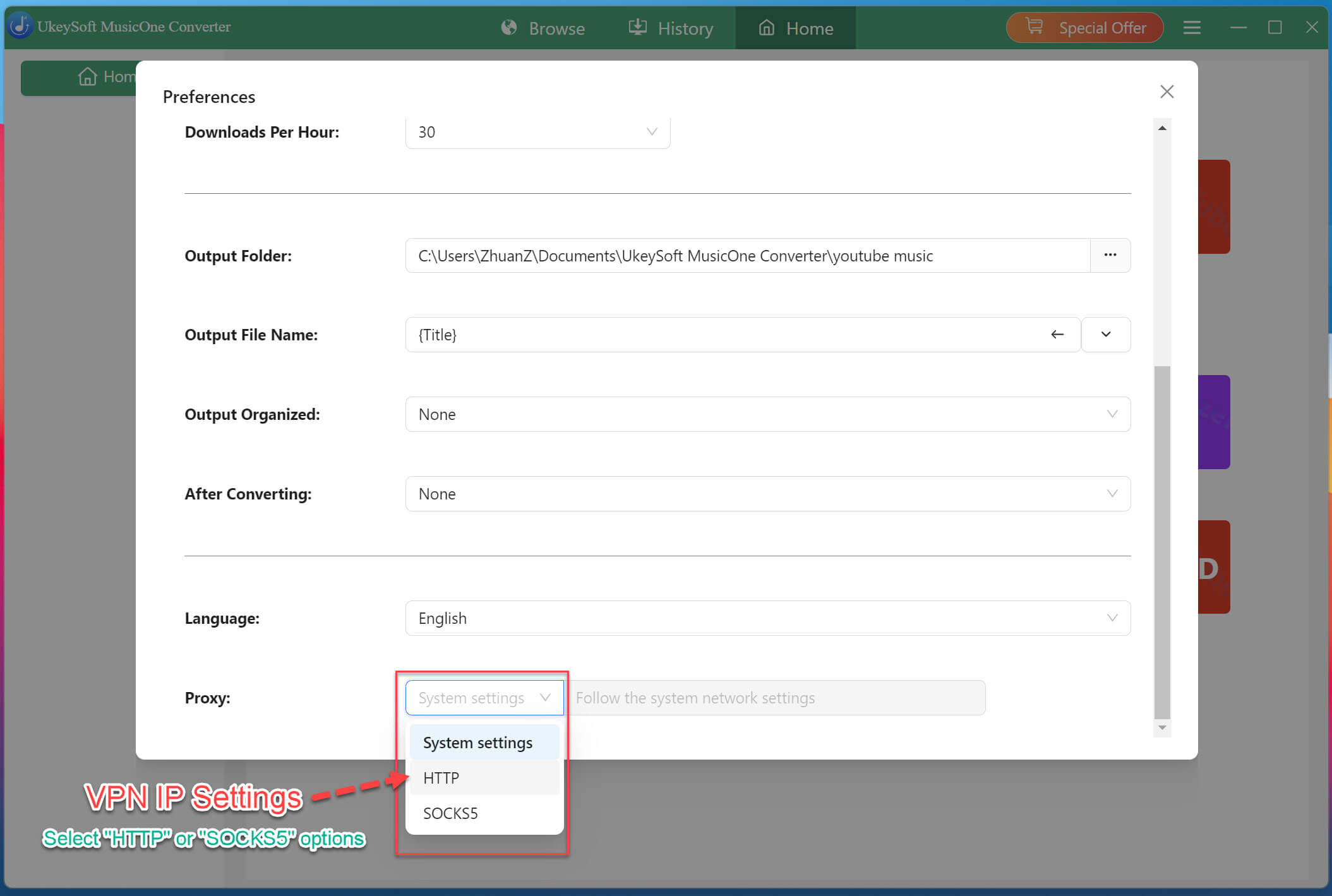
If you failed to download music after connecting to the VPN, you can choose either “HTTP” or “SCOKS5” protocol, and then enter the VPN proxy IP address.
Step 4. After setting the VPN proxy IP, please close the setting windows and go back to the main interface, try to search and download music again.
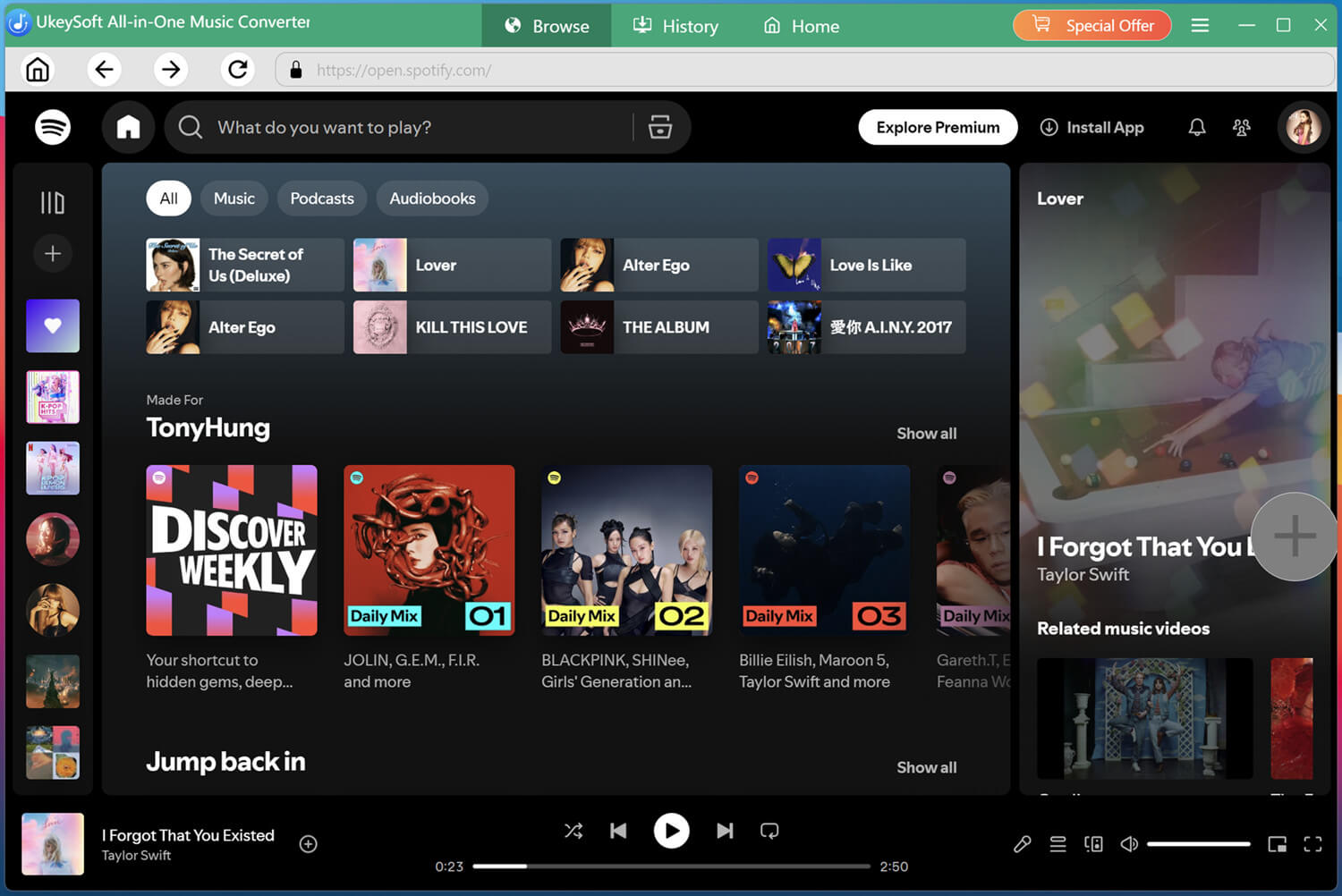
For Spotify users who have reported music download failed, please update UkeySoft MuiscOne Converter to the latest version at first; if you have connected to a VPN for streaming and download music, please configure a SOCKS5 proxy in UkeySoft MuiscOne Converter, then try to download music again.
Step 1. Launch UkeySoft MusicOne Converter on computer and login your Spotify account.
Step 2. After sign in your Spotify account, please clicking on the “Three horizontal bars” in the upper right corner of the software, then click "Preferences" option to open the setting windows.
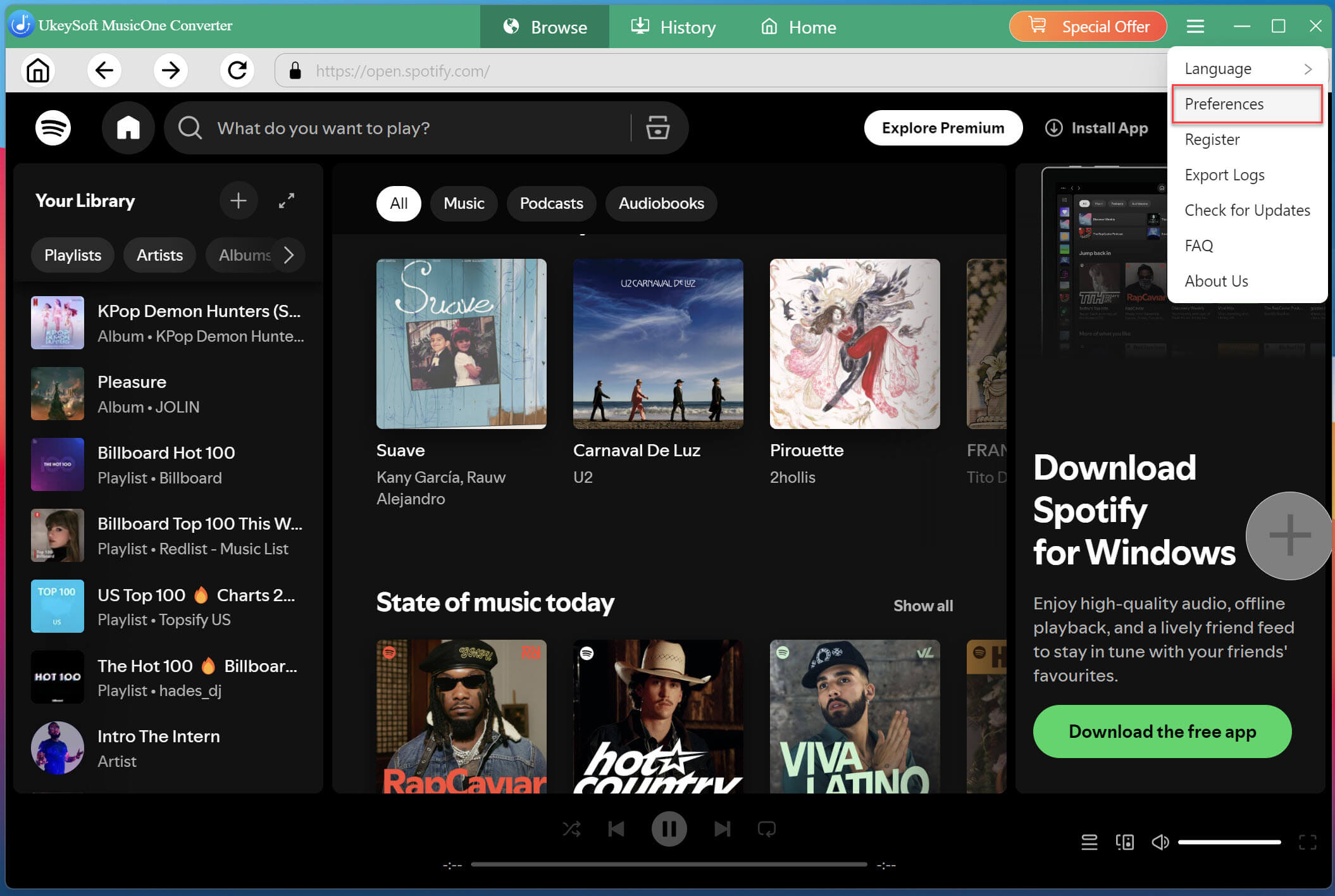
Step 3. Please scroll to the bottom of the settings window, and you'll see a "Proxy" option, then choose either "HTTP" or "SCOKS5" protocol, and then enter the VPN proxy IP address.

Sorry the comment has been closed.























Porducts
Solution
Copyright © 2026 UkeySoft Software Inc. All rights reserved.


 English
 Arabic
 Chinese (Simplified)
 Chinese (Traditional)
 Croatian
 Czech
 Danish
 Dutch
 Estonian
 Finnish
 French
 German
 Greek
 Hebrew
 Hindi
 Hungarian
 Indonesian
 Italian
 Japanese
 Kazakh
 Korean
 Malay
 Norwegian
 Polish
 Portuguese
 Romanian
 Russian
 Slovenian
 Spanish
 Swedish
 Thai
 Turkish
 Ukrainian
 Vietnamese









































































































































Comments are off!