 ✕
✕
✕
✕
By Justin SabrinaUpdated on April 02, 2026
As a streaming music giant, Spotify has always focused on improving the user experience. In addition to offering millions of songs, podcasts, and audiobooks for free, Spotify is rolling out music videos to its Premium subscribers to compete with other platforms such as YouTube. If you are interested in Spotfiy music videos, you can't miss this article. Here you will know everything about Spotify music videos features, including availability, supported devices, step-by-step instructions, troubleshooting, and a bonus tip to enjoy Spotify music offline without limitations.
CONTENTS
Spotify officially began rolling out its beta music video feature in late 2025. It allows Premium subscribers to access and enjoy catalog of official music videos, from studio versions to live performances and covers. As of early 2026, Spotify music videos are available in 97 countries or regions, including: United States, Canada, United Kingdom, Germany, Italy, Netherlands, Poland, Sweden, Spain, Brazil, Australia, Kenya, Nigeria, Philippines, Indonesia, Japan, Singapore, South Korea, Taiwan, Hong Kong, and many more.
For detailed information, you can check this official list on Spotify.
You can watch music videos on Spotify across multiple devices, making it a flexible and accessible feature.
Supported platforms include:
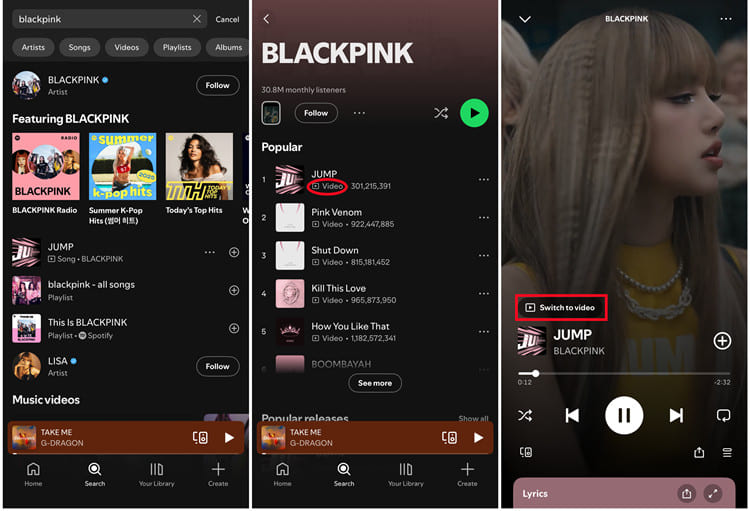
Step 1. Open the Spotify app or web player on your device, sign in with your Premium account.
Step 2. Search for a song, artist, or album. For example, here I open a "BlackPink" album.
Step 3. Select and start playing a supported track.
Step 4. Look for the "Switch to video" button in the Now Playing screen.
Step 5. Tap or click the button to start the video.
• Popular songs are more likely to include videos
• Official artist releases often support video playback
• New releases frequently include video content
If you're in a supported region and have a Premium subscription, watching music videos on Spotify is simple.
Here's what you need:
# Watch Spotify Music Videos on Mobile and Tablet
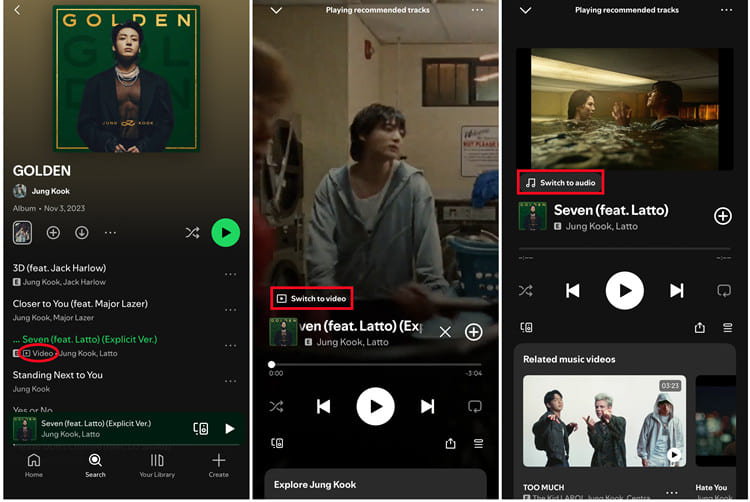
Step 1. Open the Spotify app on your phone or tablet.
Step 2. Play any song that has an available music video (look for the "Video" badge).
Step 3. Tap the Now Playing bar to expand the full-screen player.
Step 4. Look for the "Switch to video" toggle.
Step 5. Tap it to start watching the music video. You can watch in portrait or rotate your device for full-screen landscape.
Step 6. To return to audio-only mode, tap "Switch to audio".
# Watch Spotify Music Videos on Desktop and Web Player
Step 1. Open Spotify desktop player, or visit its web player in your browser.
Step 2. Log in to your Premium account. Play a song that supports video.
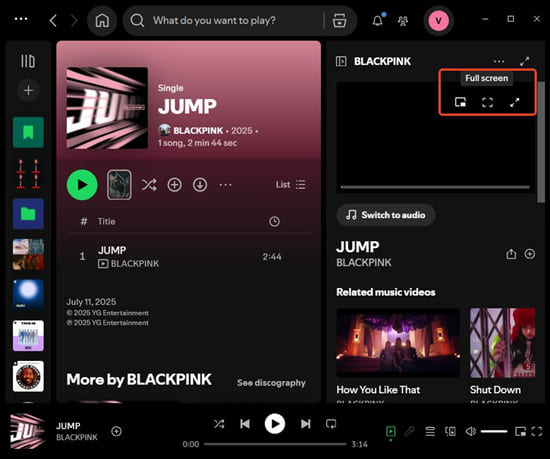
Step 3. Click the Now Playing panel. Then, select "Switch to video".
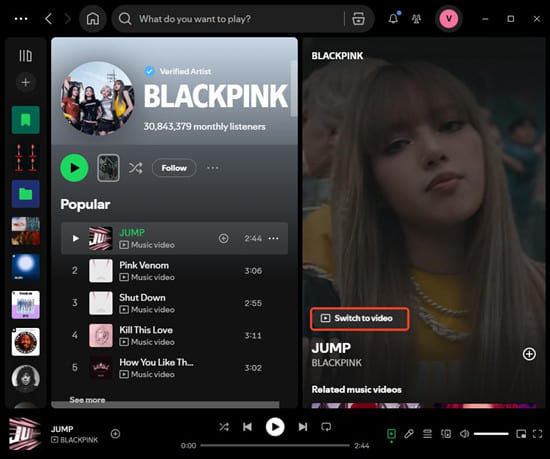
Step 4. The video will start playing immediately. You can resize the video window or go full screen by clicking the full-screen icon.
# Watch Spotify Music Videos on Smart TV
Step 1. Use the remote to launch Spotify app on your Smart TV (Apple TV, Android TV, Fire TV, etc.).
Step 2. Play a track on your mobile or desktop, then tap the Spotify Connect icon and choose your TV.
Step 3. In the Now Playing view, tap "Switch to video" to start the video on your TV.
Step 4. Use the task bar to adjust video settings on your TV - playback stays in sync with the music.
Since Spotify music videos are still a new feature, you may encounter occasional bugs that interrupt your viewing experience. Based on community feedback and our own testing, here are the most common issues and how to resolve them.
| Issue | Solution |
| Video tab not showing | Ensure your region supports videos and update your app |
| Videos buffer constantly | Check your internet connection or lower video quality |
| Low quality videos on Spotify | Adjust streaming quality settings |
| Premium but no videos | Log out and back in or reinstall Spotify |
| Music videos don't load | Clear cache or switch network |
| Spotify just forced music videos | Toggle back to audio using "Switch to Audio" |
While Spotify's music video feature is exciting, it comes with limitations. Videos are only available to Premium subscribers in supported regions, and you cannot download them for offline viewing. For another, all music downloads are restricted within the Spotify app, you cannot transfe any Spotify download to your MP3 player or other devices. Your Spotify music downloads expire when your subscription ends.
To overcome these issues, a good choice is to download Spotify music as local MP3 files. Here you can turn the this powerful Spotify music downloader - UkeySoft Spotify Music Converter.
UkeySoft Spotify Music Converter is one of line up of UkeySoft All-in-One Music Converter. It offers the download ability and convenience to all users, including Spotify Free and Premium. With it, you can download individual songs, podcasts, audiobooks, or entire albums and playlists from Spotify to MP3, AAC, WAV, FLAC, M4A, or AIFF regula formats. Even better, this tool will preserve perfect sound quality at up to 320kps and original ID3 tags metadata. After which, you can add and play your downloaded Spotify music with other media players, without worrying about the device limits and Spotify bugs.
More Features of UkeySoft Spotify Music Converter:
Step 1. Select Spotify and Log In to Spotify Account
Click the Download above, get UkeySoft Spotify Music Converter downloaded on your Windows PC or Mac. Install and launch the software.
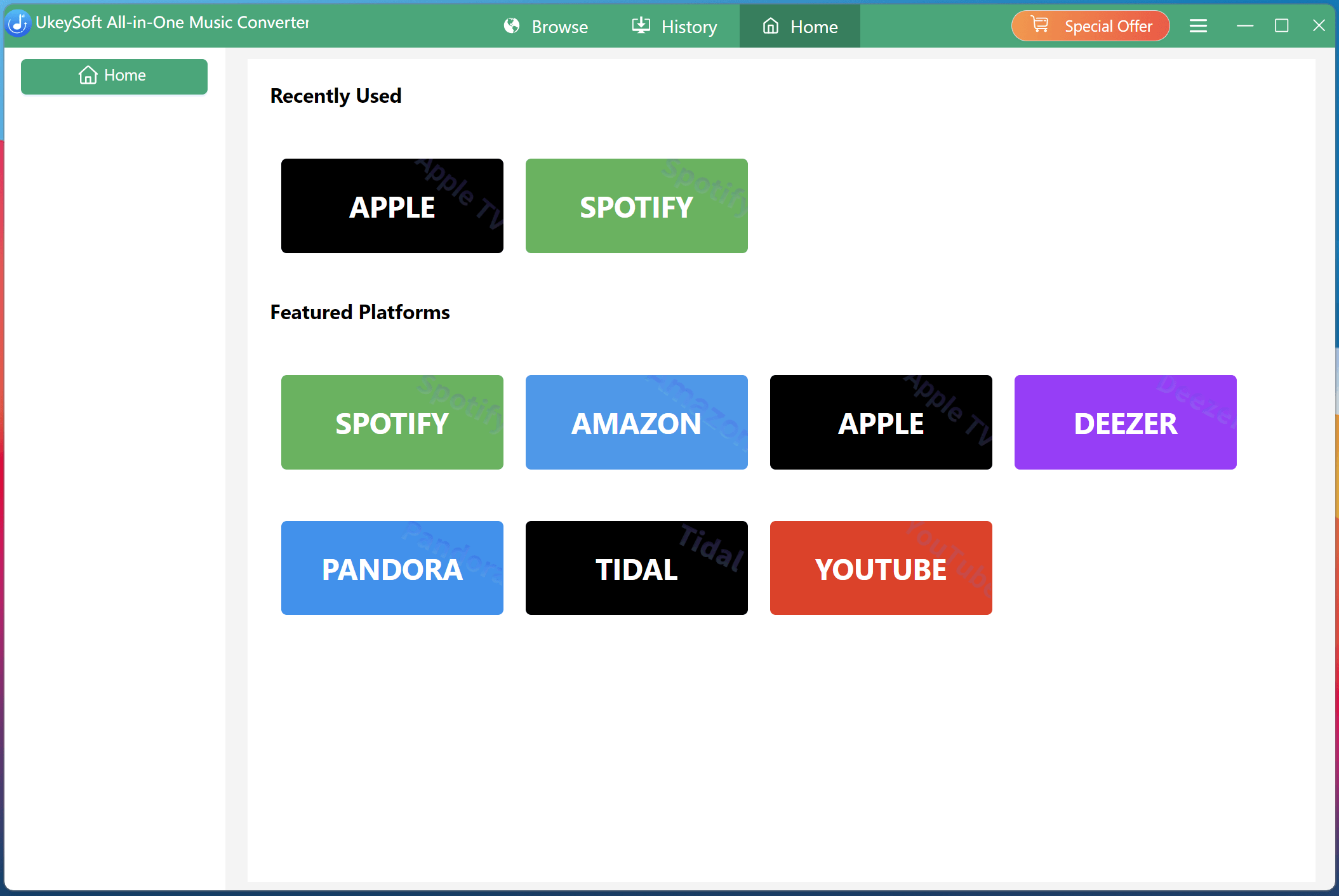
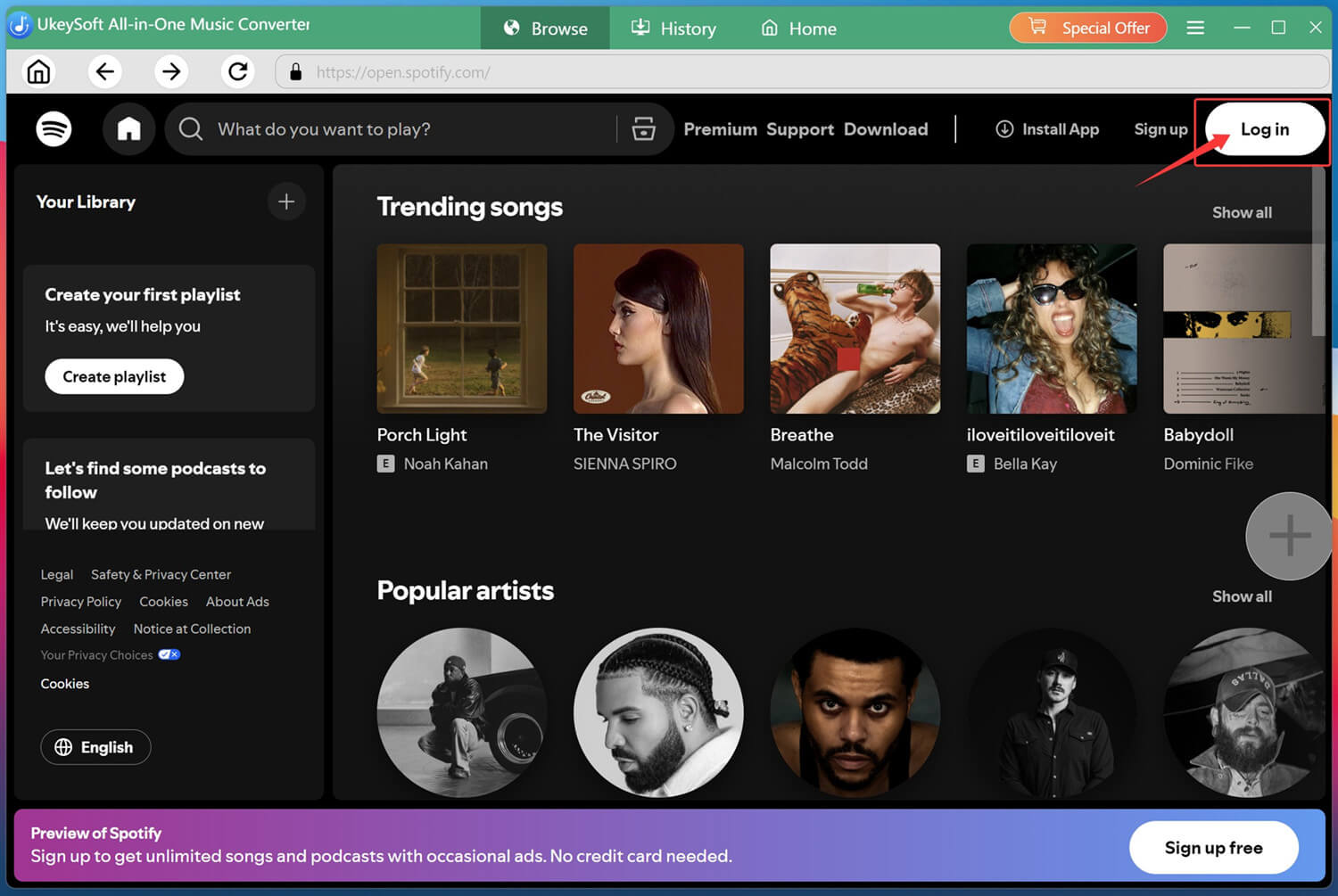
Click the Spotify icon. The built-in web player will open - log in to your Spotify free or premium account to access your music library.
Step 2. Configure Output Settings
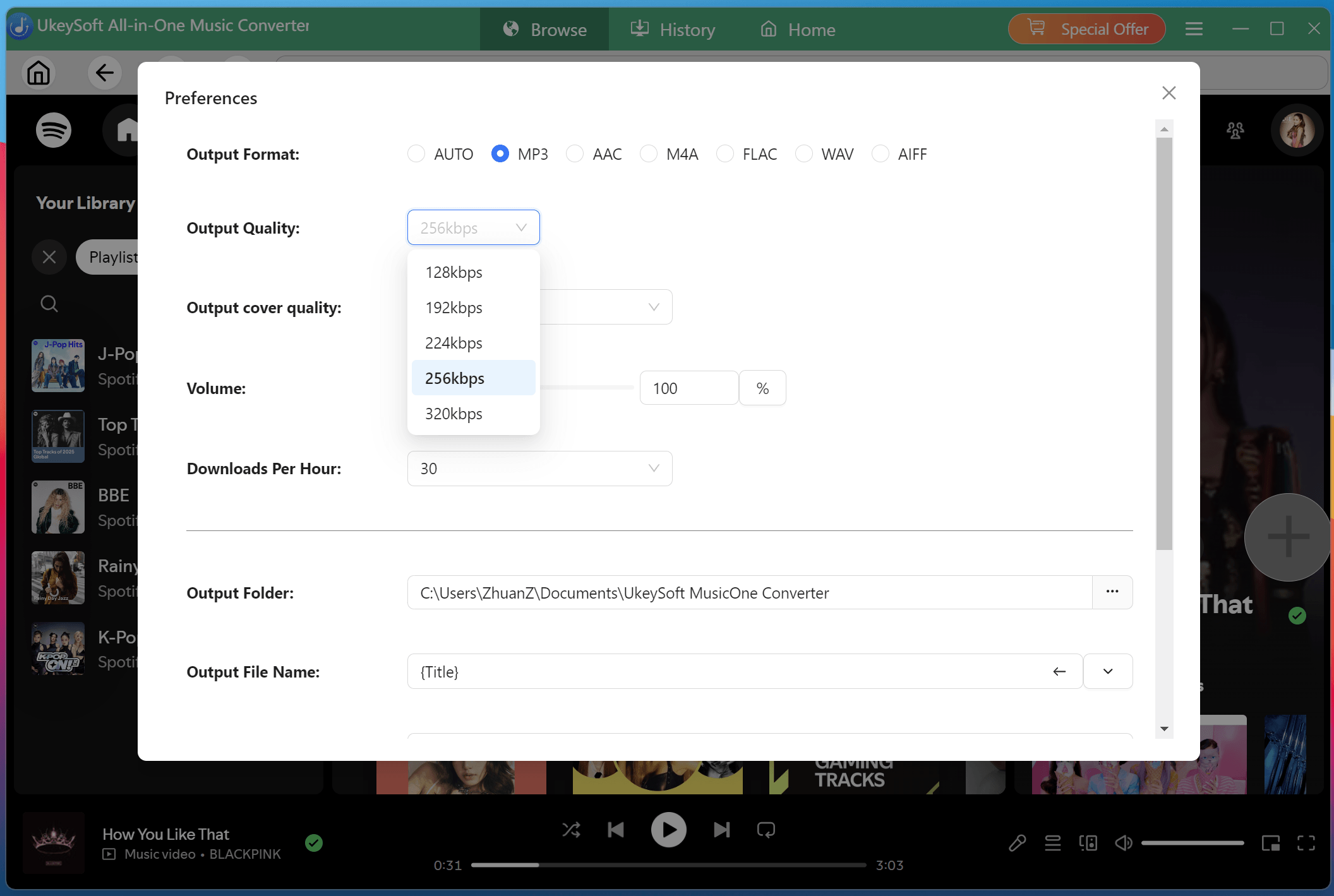
Go to the Menu > Preference to customize output format, output quality, and output folder, ensuring your downloaded Spotify music matches your preferred quality and storage preferences.
Step 3. Browse, Open, and Add Spotify Songs
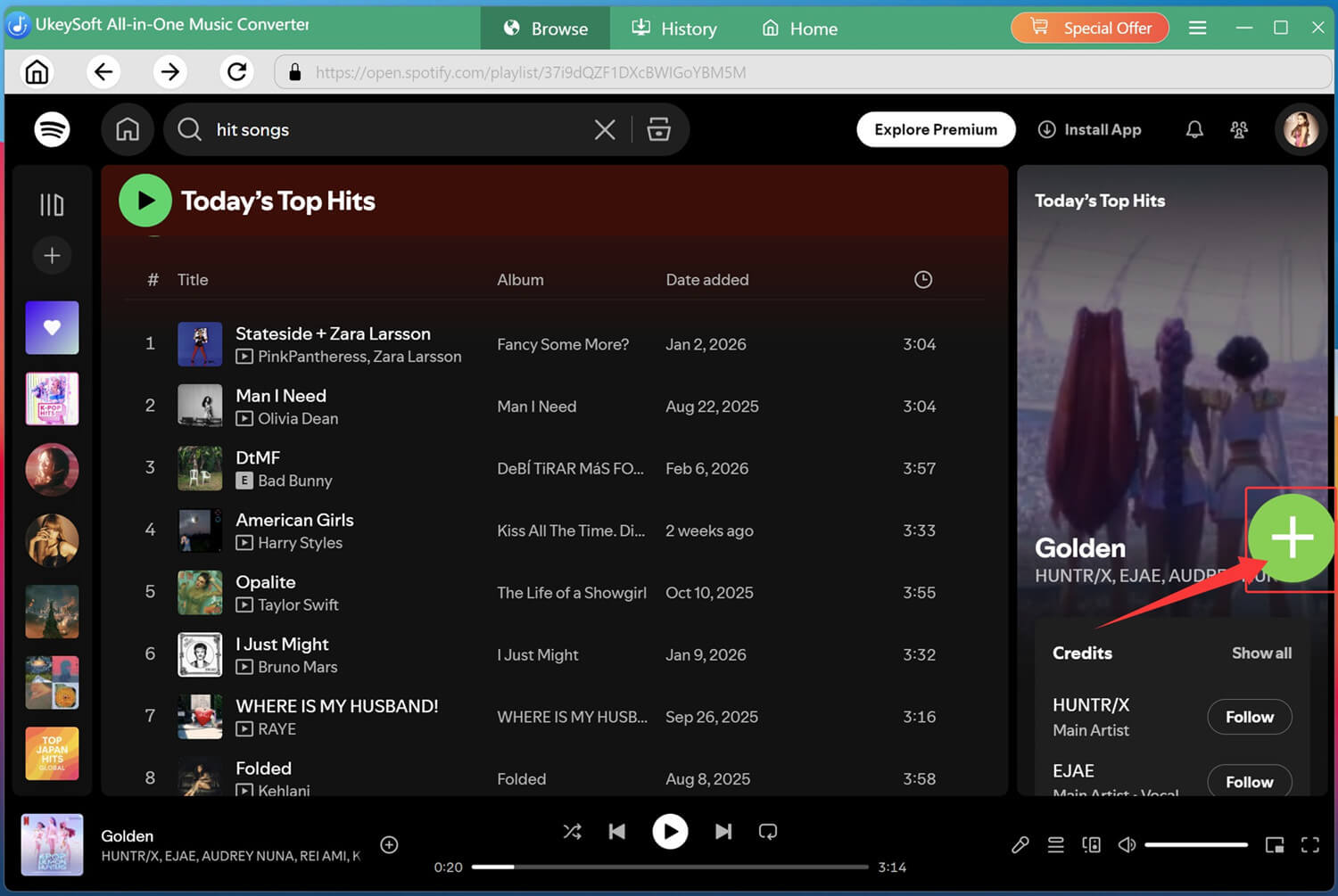
Browse Spotify inside the built-in player, open a playlist or album, and add songs to the conversion list by clicking the red "+" icon.
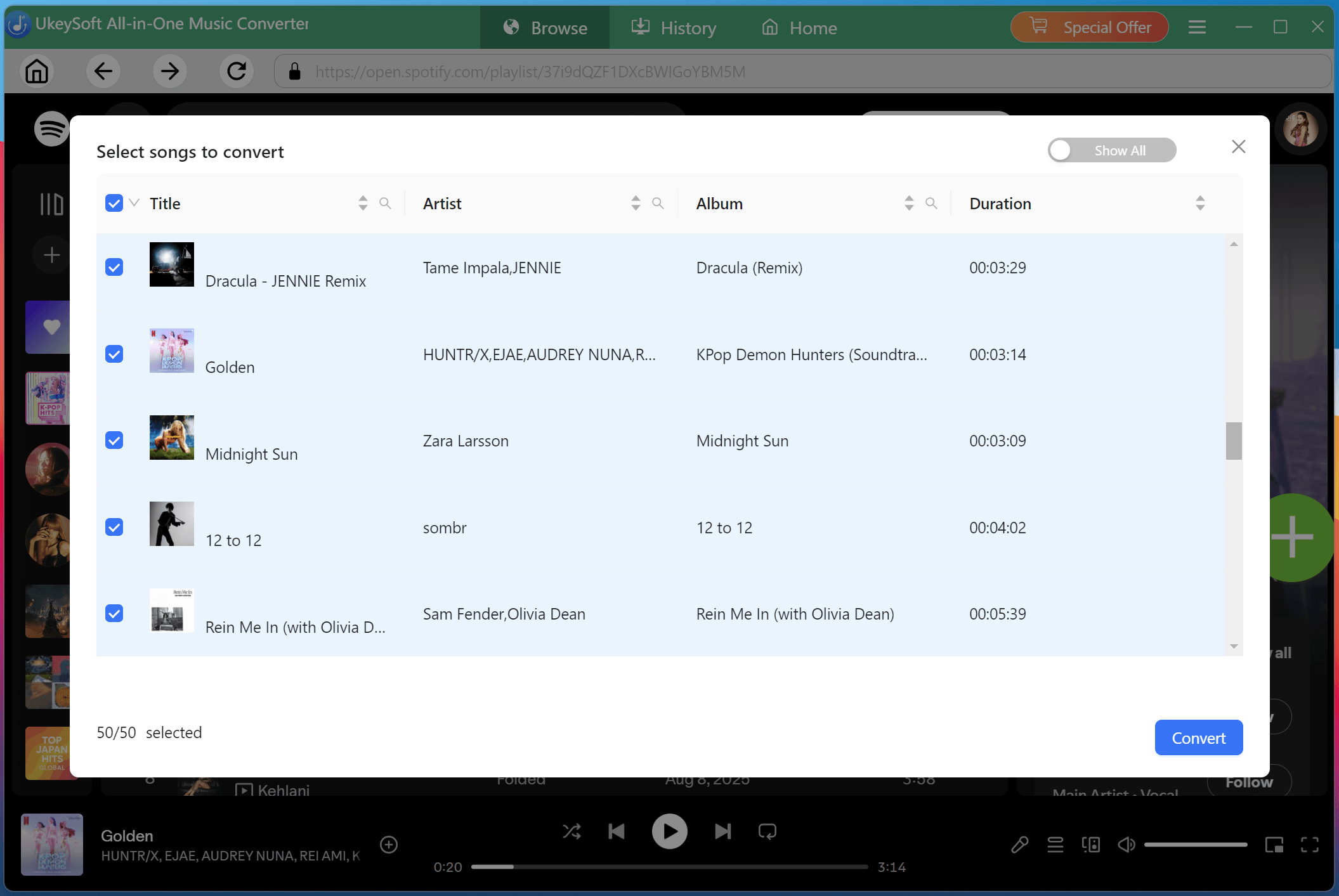
Choose the specific songs or entire playlist you want to download. Uncheck any you don't want to convert.
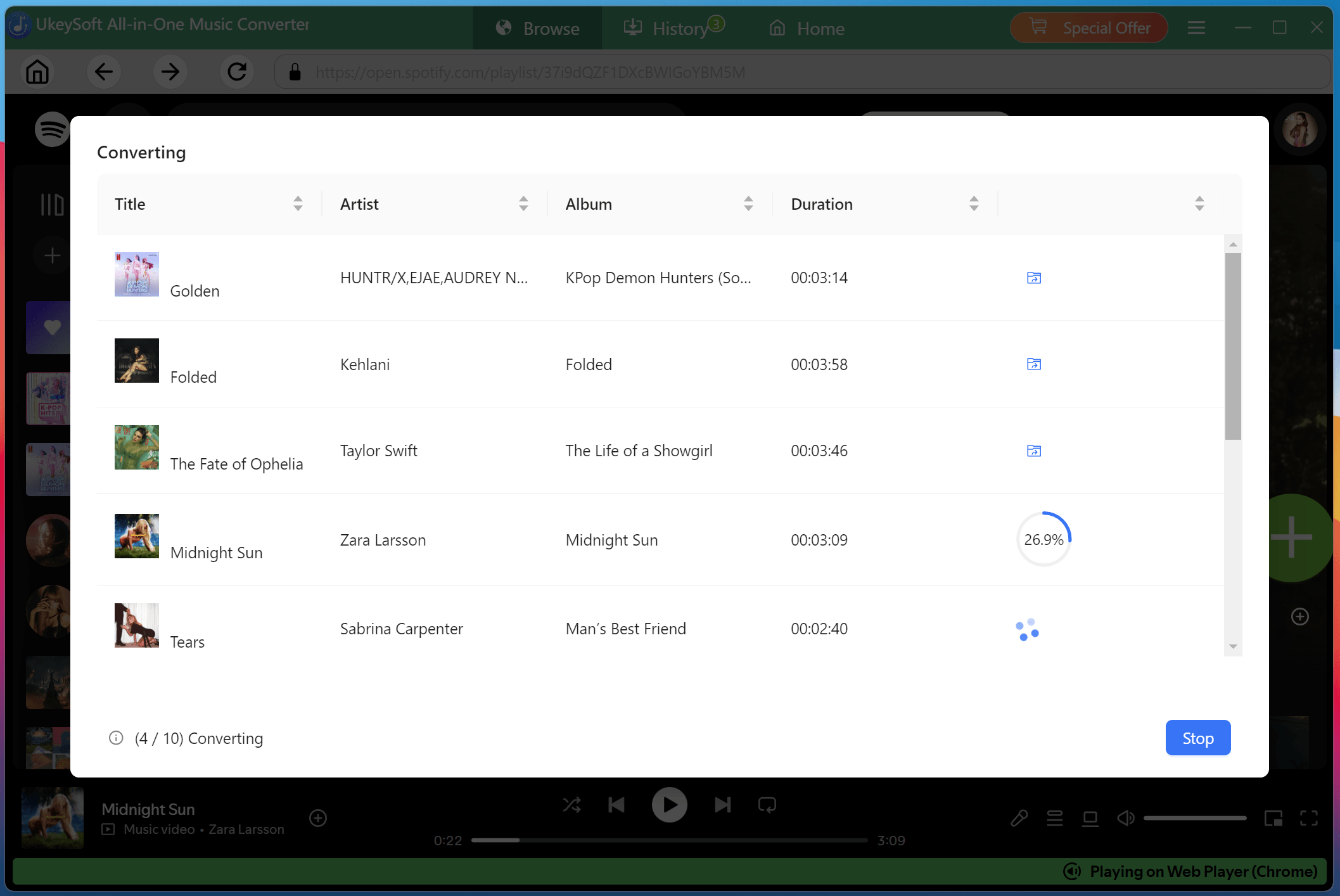
Step 4. Convert Spotify Songs to MP3
Click "Convert" button to start downloading Spotify music locally. The software will process your selected tracks quickly and convert them into high-quality MP3 or other formats.
Step 5. Get Downloaded Spotify Songs
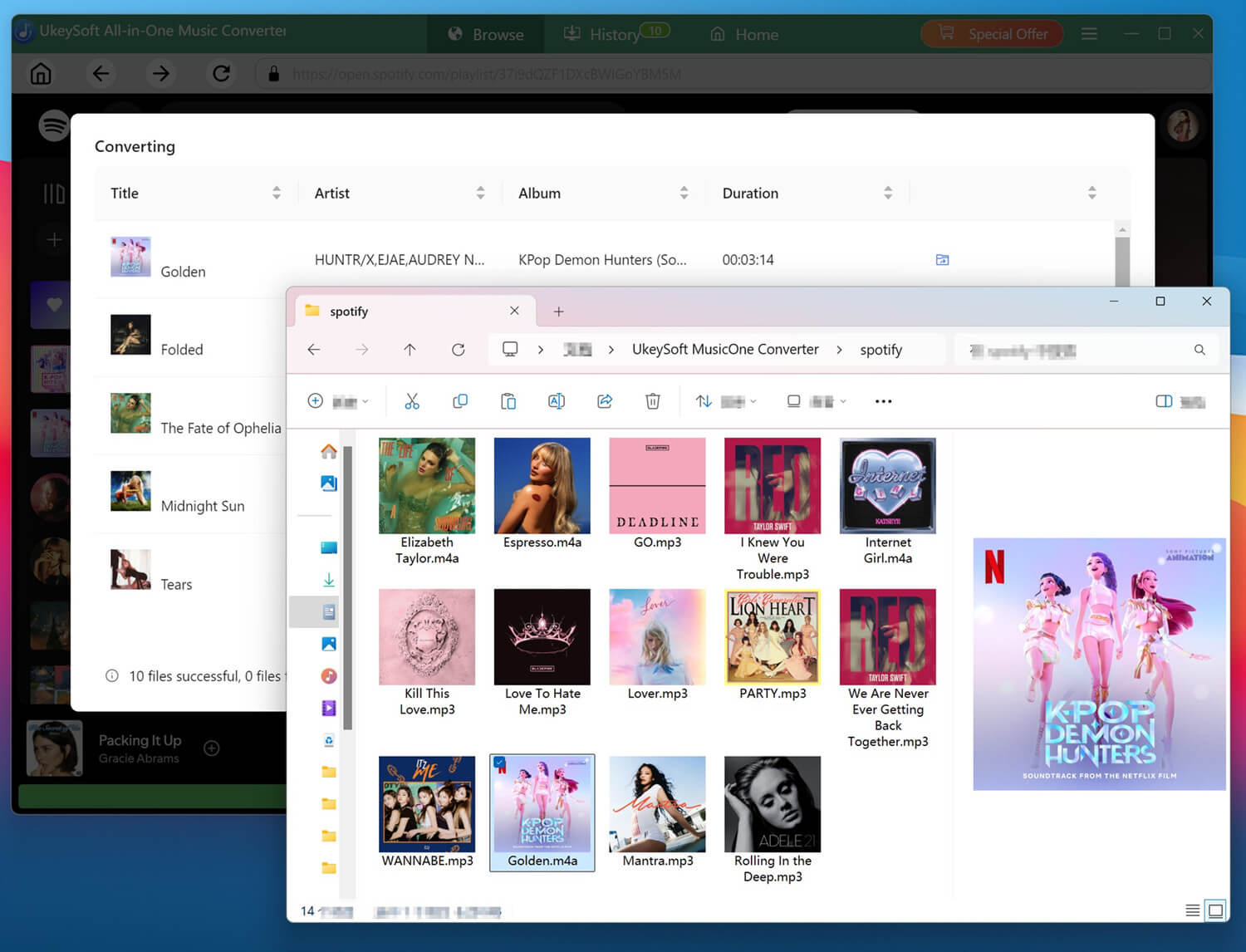
After completion, turn to the "History" section. Listen to the downloaded Spotify music with the built-in music player!
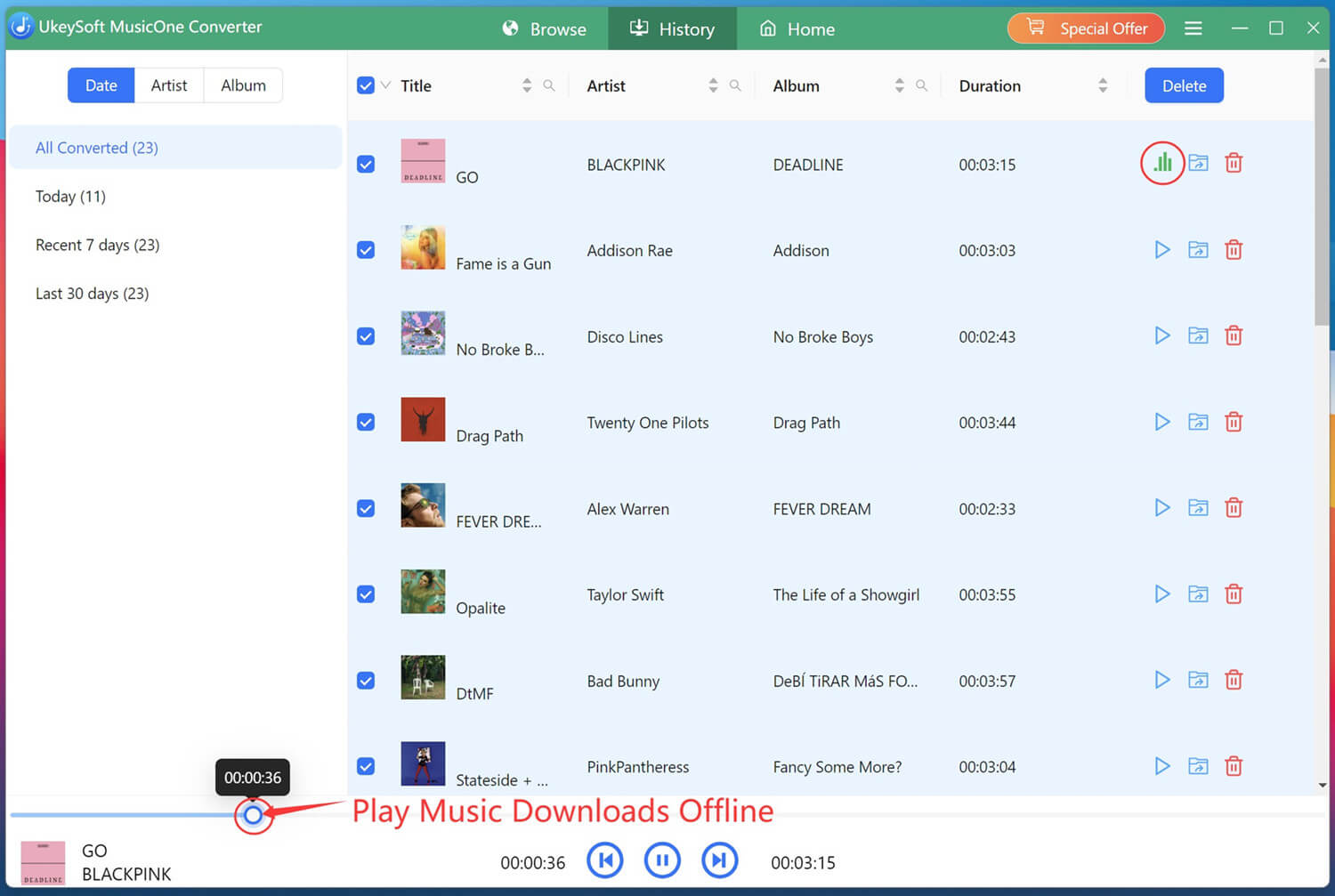
You can open the output folder to access your downloaded songs, which can now be played offline on any device without restrictions.
Q1. Are music videos on Spotify only for Premium?
Yes, currently Spotify music videos are available only for Premium users in supported regions. Free-tier users cannot access the video feature.
Q2. Can you watch Spotify videos without Premium?
Yes. You can watch video podcasts on Spotify for free on mobile and desktop by playing an episode and tapping the "Now Playing" view to enable video.
Q3. How do I turn music videos on Spotify?
You can access it through the Now Playing View when listening to supported music tracks. Just tap the "Switch to Video" toggle, and the music video will start playing from the beginning. To head back to audio-only mode, tap "Switch to Audio."
Q4. Can I watch Spotify music videos in full screen?
Yes, you can watch videos in full-screen mode. On mobile, rotate your device to landscape orientation. On desktop and TV, click or tap the full-screen icon in the video player controls.
Q5. Can you download Spotify music videos?
No, Spotify does not currently allow downloading music videos for offline viewing. However, you can download Spotify audio tracks for offline playback with a Premium subscription, but these expire when your subscription ends.
Spotify music videos are finally here, bringing a new dimension to the world's most popular music streaming platform. If you have an active Premium subscription, you can watch Spotify music videos on your phone, tablet, desktop or smart TV. However, downloading Music Videos on Spotify is currently not supported. For downloading Spotify music with free account, using UkeySoft Spotify Music Converter! This turns your Spotify music library into fully portable files that you can listen to anytime, anywhere, on any device! Say goodbye to Spotify app and its platform restrictions!

Sorry the comment has been closed.










![7 Best FREE Apple Music Converters [2026 Updated]](https://www.ukeysoft.com/wp-content/uploads/2019/04/best-apple-music-converter.jpg)



















Porducts
Solution
Copyright © 2026 UkeySoft Software Inc. All rights reserved.


 English
 Arabic
 Chinese (Simplified)
 Chinese (Traditional)
 Croatian
 Czech
Czech Danish
 Dutch
Dutch Estonian
 Finnish
 French
 German
 Greek
Greek Hebrew
 Hindi
Hindi Hungarian
 Indonesian
 Italian
 Japanese
 Kazakh
 Korean
 Malay
Malay Norwegian
 Polish
 Portuguese
 Romanian
 Russian
 Slovenian
 Spanish
 Swedish
 Thai
Thai Turkish
 Ukrainian
 Vietnamese



























![Top 10 Christmas Songs to MP3 Download [Spotify]](https://www.ukeysoft.com/wp-content/uploads/2023/01/christmas-songs-to-mp3.jpg)


































































































































Comments are off!