 ✕
✕
✕
✕
By Justin SabrinaUpdated on March 30, 2026
"Can I download music from Apple Music onto a MP3 player?"
With uncompromising sound quality, long battery life, and better privacy, MP3 players still matter in 2026. Songs you bought from Amazon Store or already saved on your computer folder can usually be transferred to an MP3 player without issues. However, streaming music downloads are different. They may appear downloaded in streaming music apps, but all you'll find are unrecognizable cache files that can't be transferred or opened.
In this comprehensive guide, we'll walk you through three simple methods to download music to your MP3 player. Whether you have purchased songs, use streaming services, or want to transfer music to MP3 player from your computer, this complete guide will show you all the working methods. Let's explore!
How to Download Music to Your MP3 Player Based on Your Situation
CONTENTS
If you already own music files on your computer, it's the easiest way to get them onto your MP3 player. All you need to do is check the format and move them over. MP3 format is widely supported by most MP3 players such as SanDisk, Sony Walkman, Zune, and more.
● Songs purchased from online stores like Amazon Music, or Bandcamp can be typically downloaded to local MP3 audio files on your devices.
● Purchased songs from iTunes are typically in AAC (.m4a) format, you can convert iTunes songs to MP3 in iTunes app or using online audio converters.
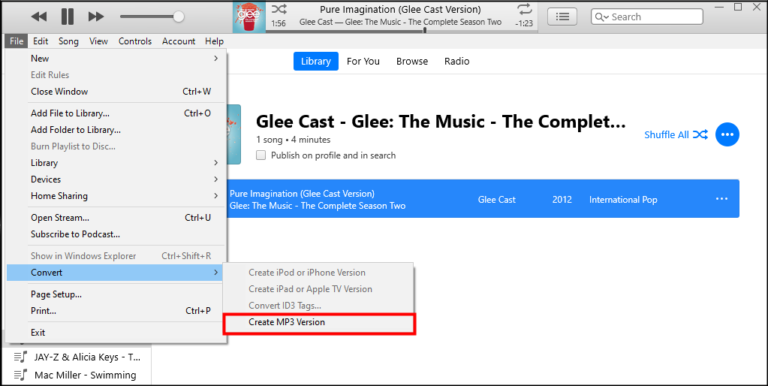
After that, you can connect your MP3 player with computer using USB cable, and copy the MP3 files to it.
Some modern devices function like compact Android media devices. Models like the Sony NW-A306 Walkman, HiBy R4, Mechen H1 Pro, FiiO M series, and many modern players run on Android, allowing you to install streaming music apps directly.
If your MP3 player supports Wi-Fi and streaming music apps, you can directly download music to your MP3 player without using a computer. Below we will show you how to download Spotify music to MP3 player.
Step 1. Turn on your MP3 player such as Sony NW-A306, and connect it to a stable Wi-Fi network.
Step 2. Open the app store on your device and install Spotify or your preferred music app.
Step 3. Open Spotify app, and sign in with your Spotify Premium account.
Step 4. Browse playlists or albums, then tap the "Download" button to download music to your MP3 player.
Step 5. Once downloaded, you can listen to music on your MP3 player without an internet connection.
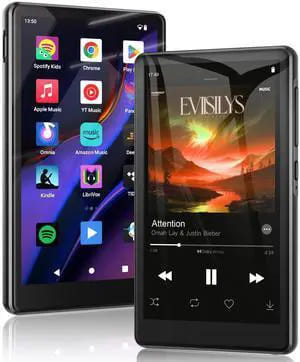
If you're using an older MP3 player without network connection, things are a bit different. Streaming music downloads are not regular music files. When you download songs through the official apps, they're saved as cache files in a DRM-protected format. They expire, they're locked to the app, and you cannot transfer them to your MP3 player. To put music on an MP3 player, you first need to convert streaming music to MP3 or another common format. This is where UkeySoft All-in-One Music Converter comes in.
UkeySoft All-in-One Music Converter is a professional desktop software designed to download and convert streaming music from 7 major platforms - Spotify, Apple Music, Amazon Music, YouTube Music, Tidal, Deezer, and Pandora Music. It works with both free and premium accounts, allowing you to download singles, albums, playlists, podcasts, and even music videos to your computer folder.
It help users download music to an MP3 player by converting streaming music into compatible MP3, M4A, AAC, FLAC, WAV, or AIFF formats. Meanwhile, this tool preserves original audio quality up to 320kbps for MP3, 640kbps for M4A/AAC, and lossless quality for FLAC or WAV. The software features a built-in web player, batch download support, and full ID3 tag preservation, ensuring your music is perfectly organized when transferred to your MP3 player.
Main Features of UkeySoft All-in-One Music Converter:
Step 1. Choose a Music Platform and Sign In
To begin with, download and install UkeySoft All-in-One Music Converter on your Windows PC or Mac. Fire up the software, here we choose Spotify music from the main interface.
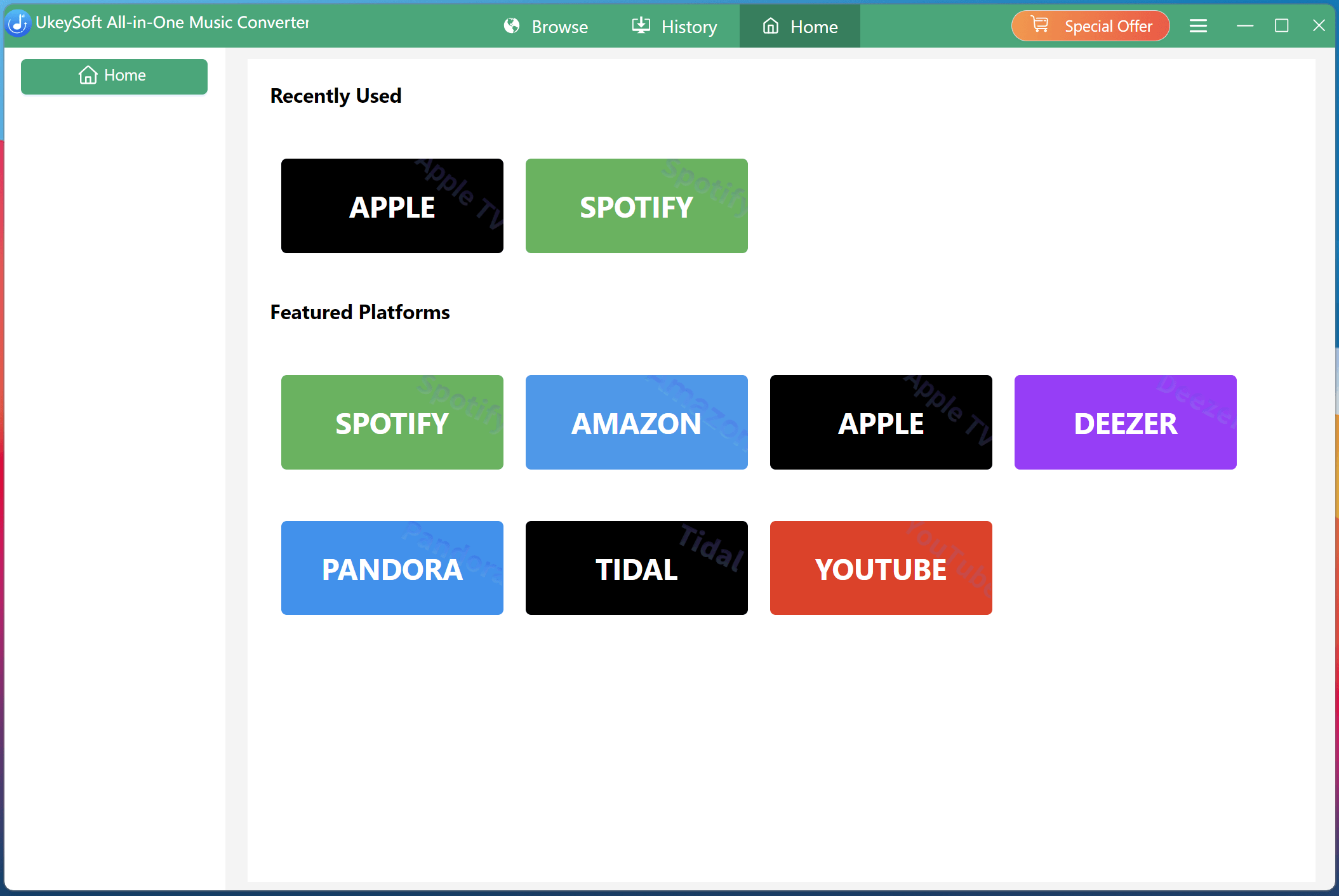
Next, log in to your Spotify account (free or premium both work) through the built-in web player to access your playlists and saved music.
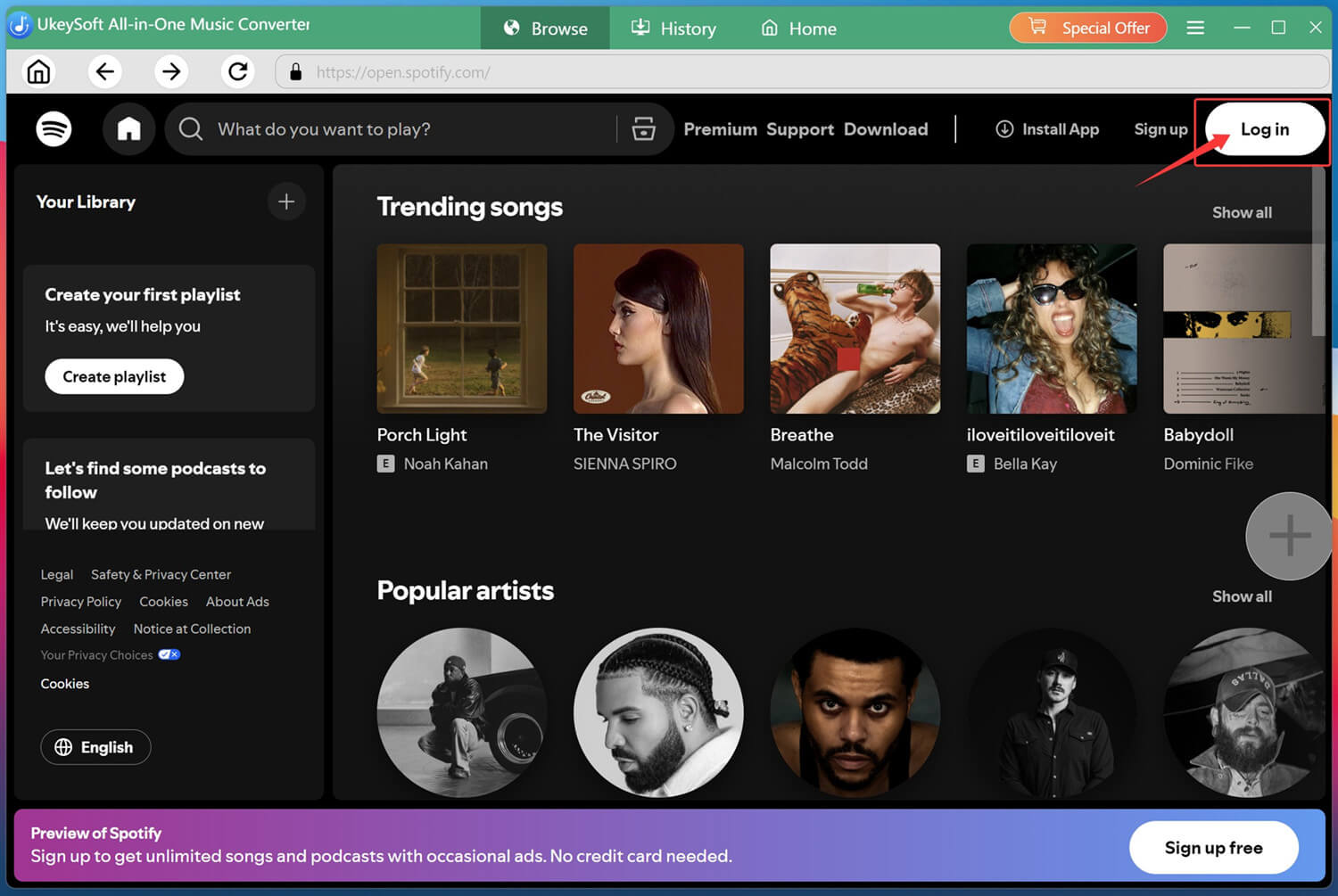
Step 2. Define Output Settings
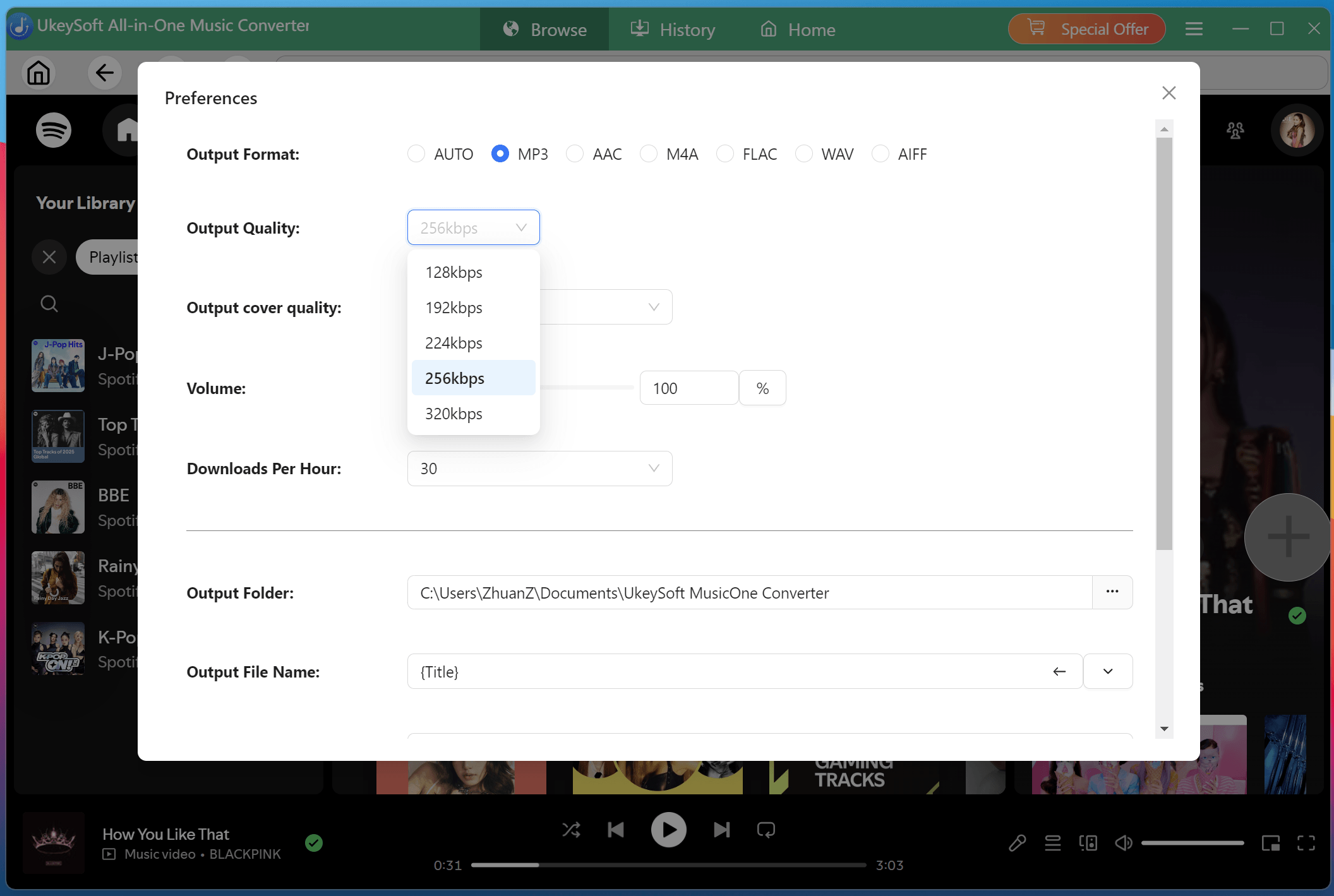
Access the Preference window by clicking the Menu icon. Choose MP3 as the output format, 320kbps as the output quality, change the output folder, and organize output file name based on your preferences.
Step 3. Add and Select Spotify Songs
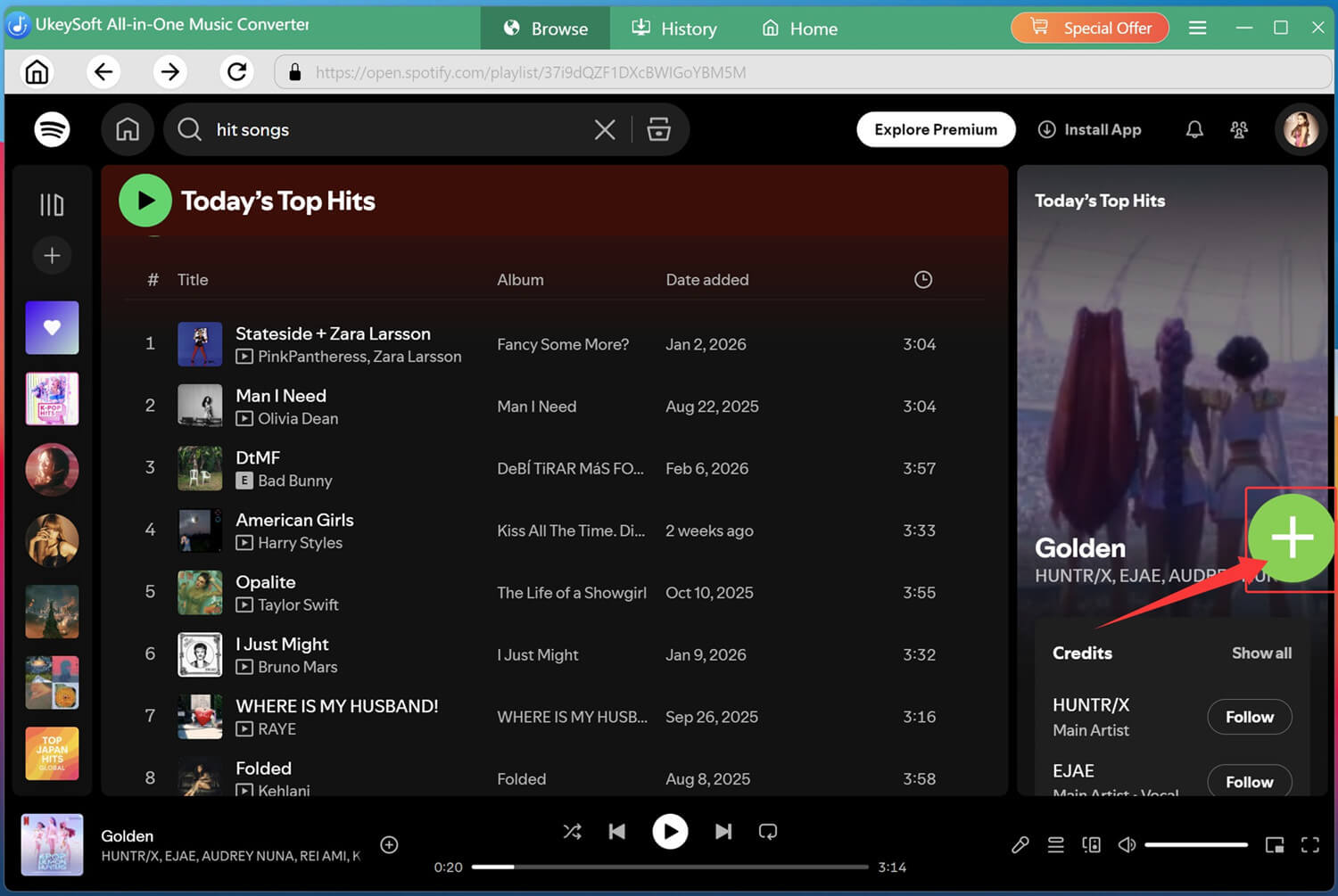
Find the playlist, album, or tracks you want. Then click the green "+" icon to load them into the conversion queue.
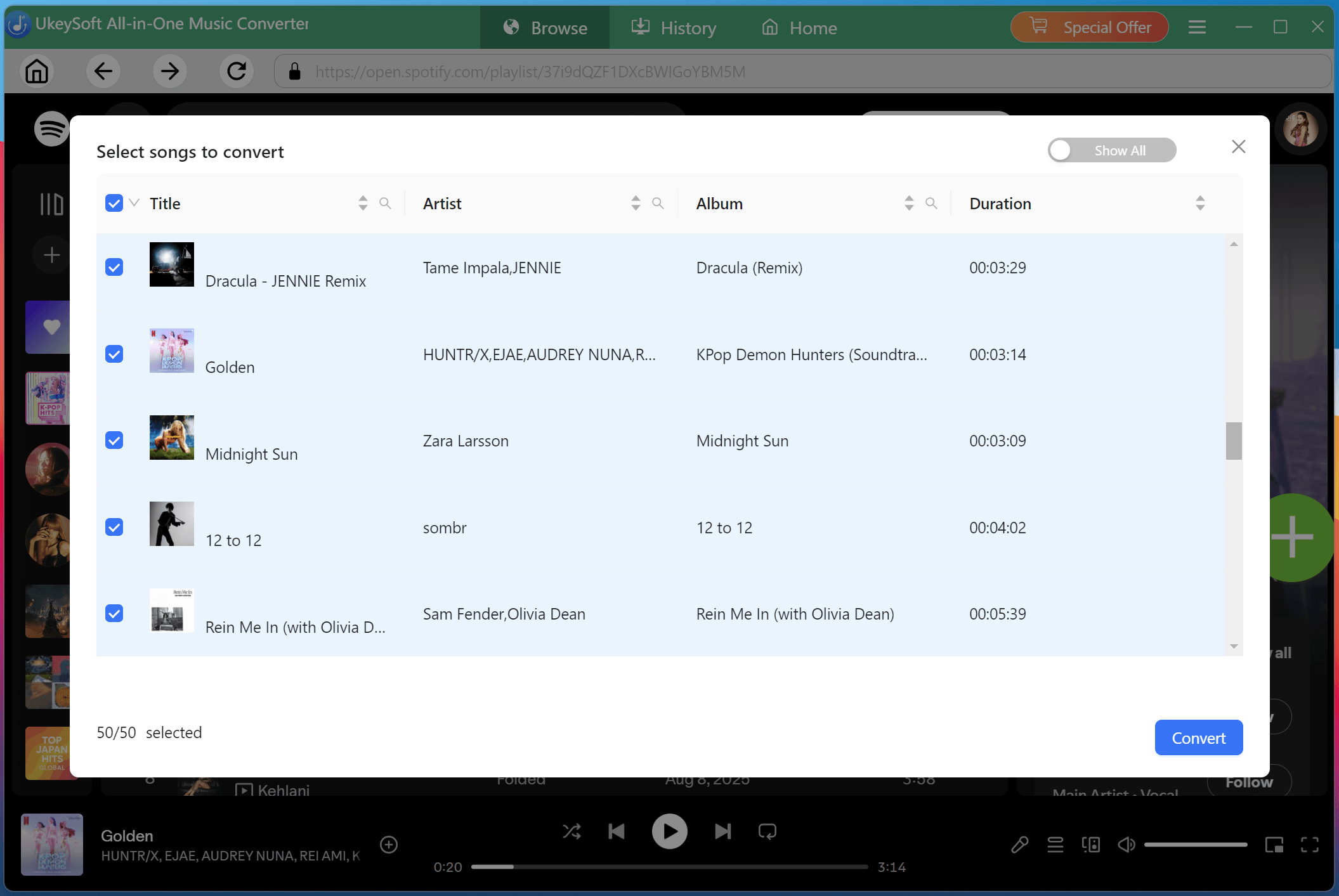
Choose the specific tracks or entire playlists you want to convert and prepare them for download.
Step 4. Start to Convert Spotify Songs to MP3
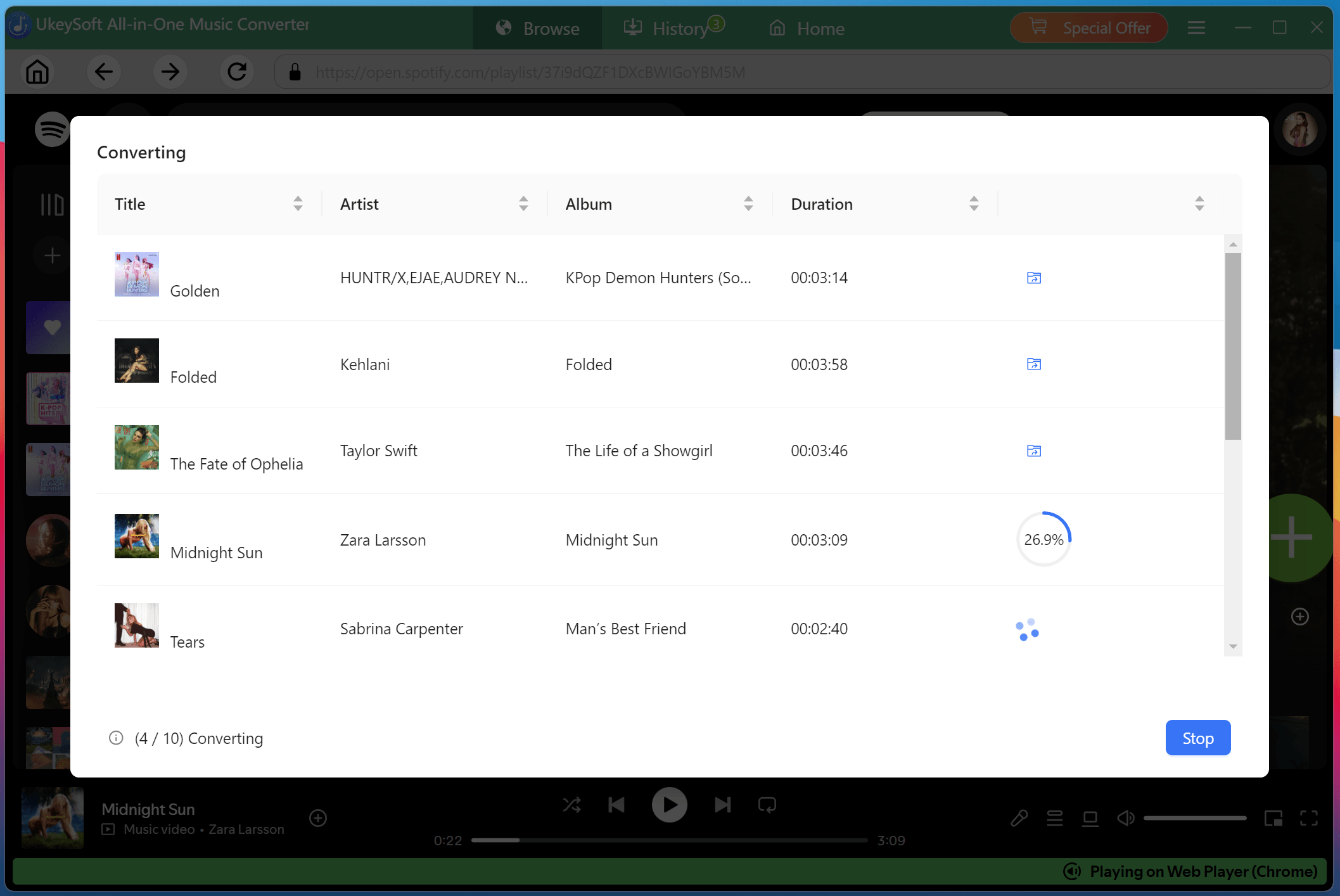
If ready, click "Convert" button, UkeySoft will download and convert your selected tracks to MP3 with 320kbps bitrate at up to 16X faster speed.
Step 5. Get Output Spotify Songs
Once finished, go to the "History" tab. Now, you can listen to these high-quality Spotify music directly with the built-in music player.
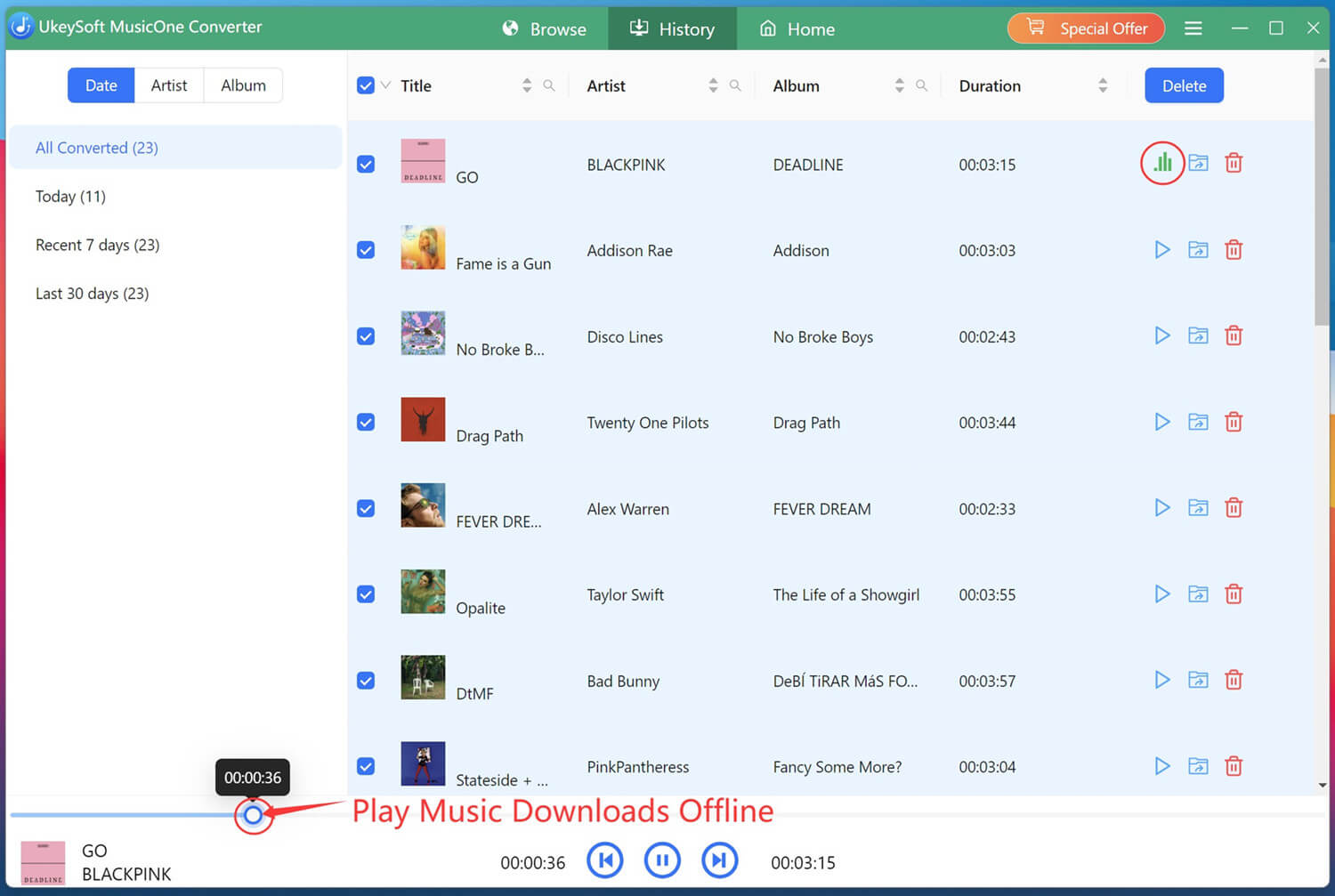
Click the folder icon next to any song title, you can locate the converted MP3 music files in your output folder, ready for transfer.
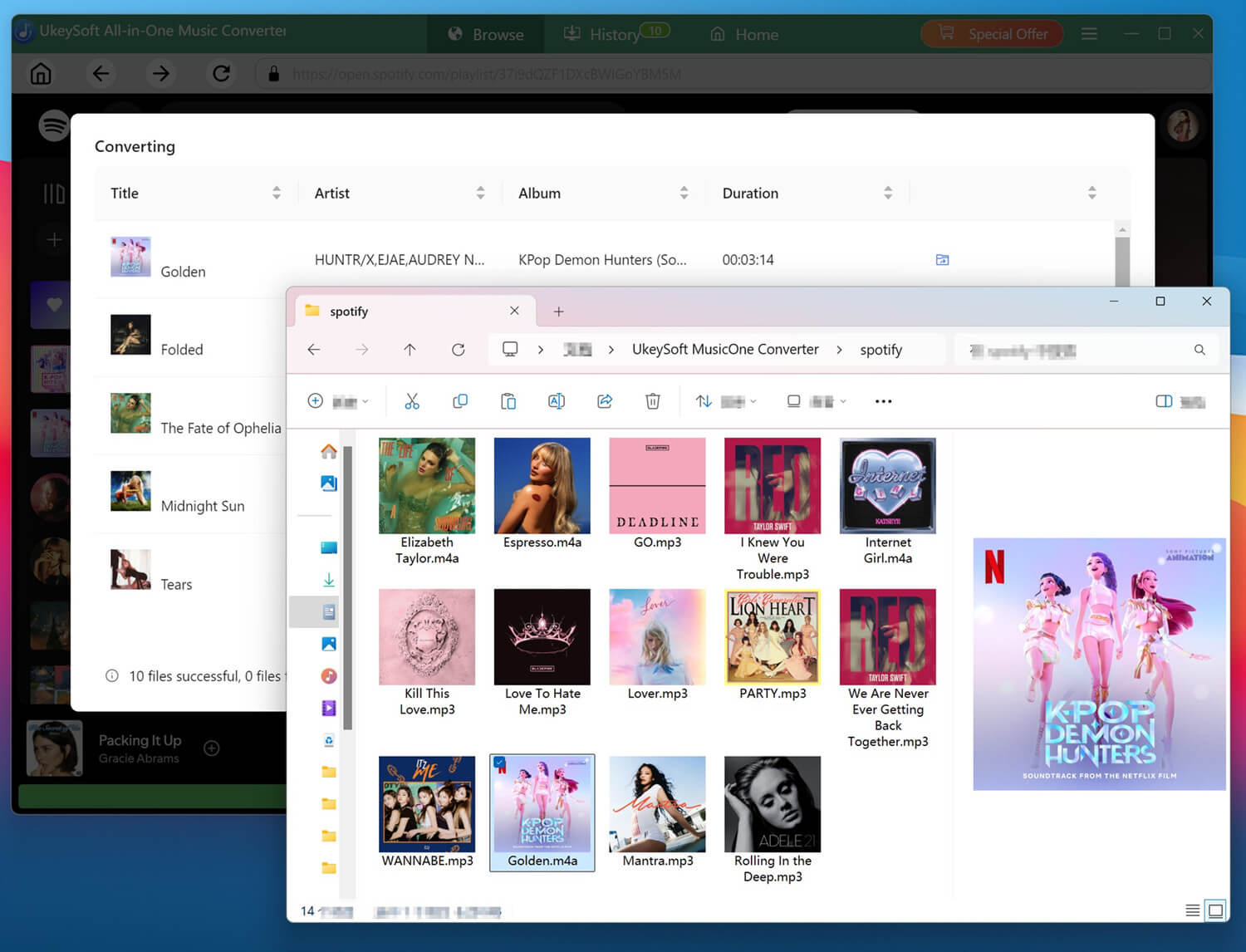
After preparing your music files, the next step is to transfer music to MP3 player. Here are four common methods.
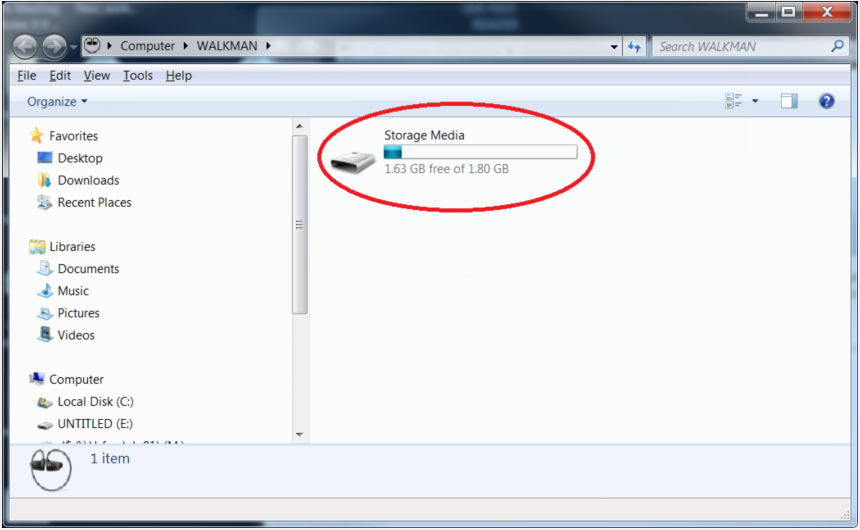
Way 1. Using Windows 10/11
Step 1. Use the USB cable to connect your player to your Windows PC. Your player should appear as a drive in File Explorer.
Step 2. Navigate to the folder where your MP3 files are stored.
Step 3. Select the songs or folders you want, then drag and drop them into your MP3 player's "Music" folder. Wait for the transfer to complete.
Step 4. Right-click the player's drive in File Explorer and select "Eject".
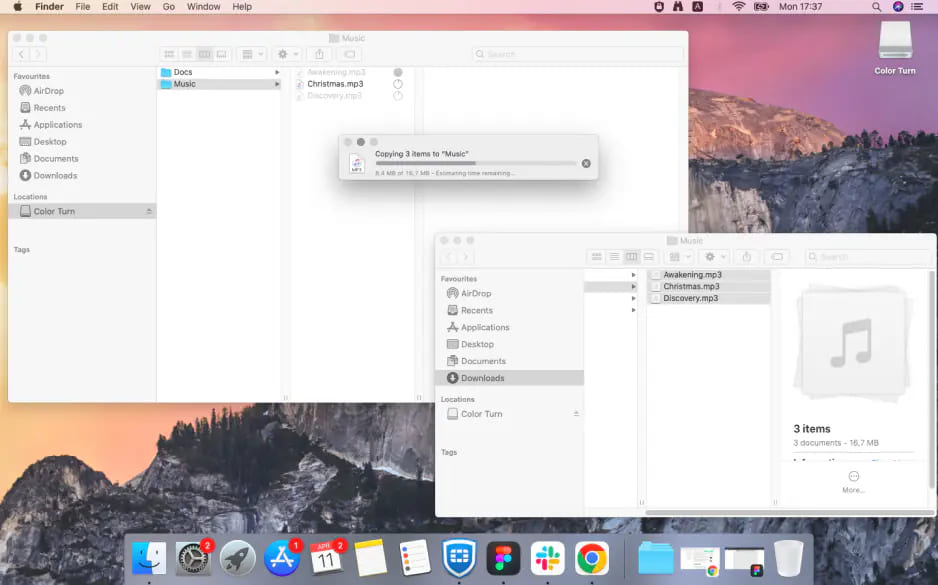
Way 2. Using Finder on macOS
Step 1. Plug your MP3 player into your Mac using a USB cable. The device should appear in Finder under "Locations".
Step 2. Click on your MP3 player's icon to open its storage.
Step 3. Open a second Finder window to your music folder. Select your MP3 music files and drag them into your player's "Music" folder.
Step 4. Click the "Eject" icon next to your player's name in Finder before disconnecting.
Way 3. Using iTunes (Windows or Older macOS)
If you're using an older iPod Nano, iPod Shuffle, iPod Classic, or a player that syncs with iTunes, this method works best.
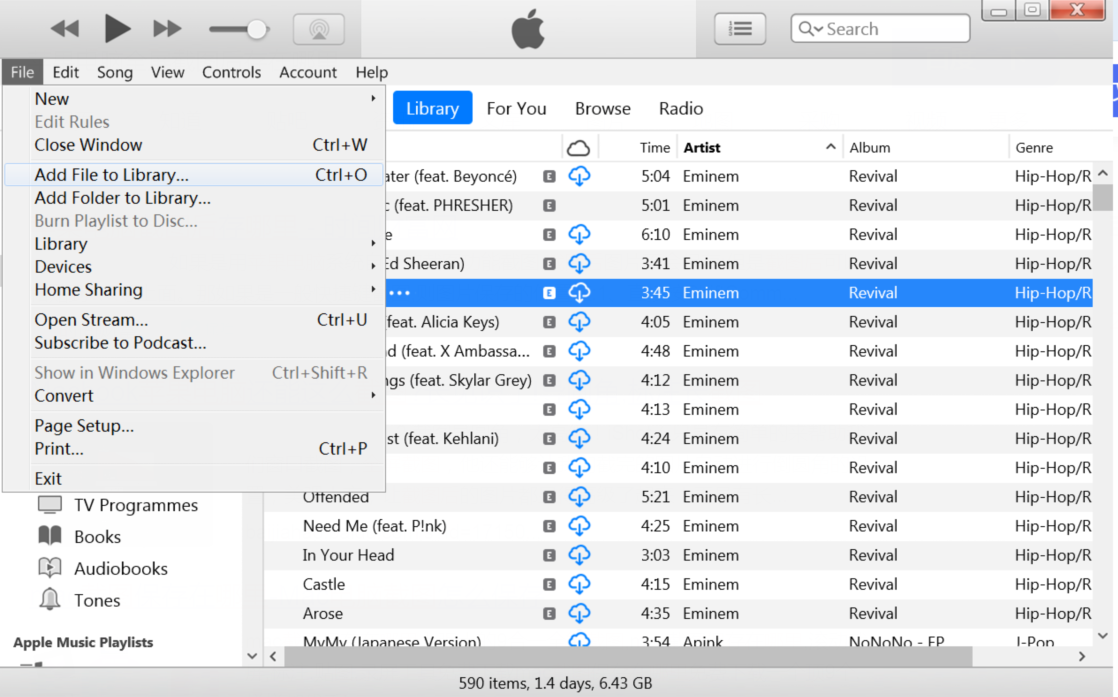
Step 1. Open iTunes, go to "File" > "Add File to Library...", add the converted music or purchased songs to your library.
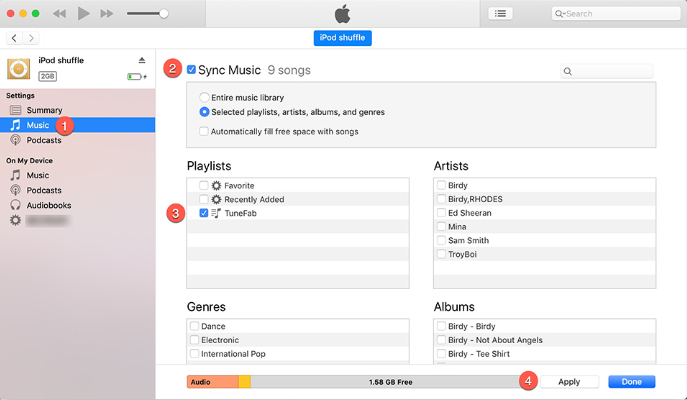
Step 2. Connect your MP3 player to your computer. Click the device icon near the top left of the iTunes window.
Step 3. In the left sidebar, click "Music." Check "Sync Music" and select either "Entire music library" or "Selected playlists, artists, albums."
Step 4. Click "Apply" > "OK" to start transferring your music.
Way 4. Using Windows Media Player
Step 1. Connect your MP3 player and launch Windows Media Player.
Step 2. Click "Organize" > "Manage Music Library" > "Music". Then select the folder where your music is stored and add it in to Windows Media Player.
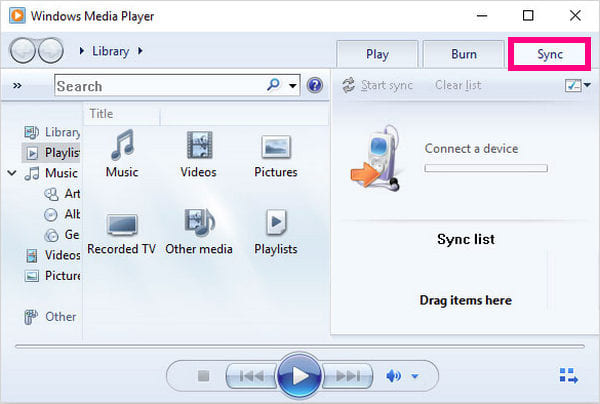
Step 3. Click the "Sync" tab in the top right corner.
Step 4. Drag songs, albums, or playlists from your library to the "Sync List" on the right.
Step 5. Click "Start Sync" to begin transferring your music to the MP3 player.
MP3 players are far from outdated. There are the three methods to download music to an MP3 player. For streaming music tracks, it's essential to use a reliable converter to get MP3 music. UkeySoft All-in-One Music Converter provides a stable and efficient way to convert streaming tracks to DRM-free MP3 files with lossless quality and full ID3 tags. Now, get its free try version. Build your library, fill your MP3 player, and take your soundtrack wherever you go.

Sorry the comment has been closed.










![7 Best FREE Apple Music Converters [2026 Updated]](https://www.ukeysoft.com/wp-content/uploads/2019/04/best-apple-music-converter.jpg)



















Porducts
Solution
Copyright © 2026 UkeySoft Software Inc. All rights reserved.


 English
 Arabic
 Chinese (Simplified)
 Chinese (Traditional)
 Croatian
 Czech
Czech Danish
 Dutch
Dutch Estonian
 Finnish
 French
 German
 Greek
Greek Hebrew
 Hindi
Hindi Hungarian
 Indonesian
 Italian
 Japanese
 Kazakh
 Korean
 Malay
Malay Norwegian
 Polish
 Portuguese
 Romanian
 Russian
 Slovenian
 Spanish
 Swedish
 Thai
Thai Turkish
 Ukrainian
 Vietnamese



























![Top 10 Christmas Songs to MP3 Download [Spotify]](https://www.ukeysoft.com/wp-content/uploads/2023/01/christmas-songs-to-mp3.jpg)


































































































































Comments are off!