 ✕
✕
✕
✕
By Justin SabrinaUpdated on June 18, 2026
As one of the most popular smartwatches, Garmin watch perfectly combine powerful health tracking features with convenient music playback capabilities. Naturally, many Apple Music users wonder if they can play Apple Music on Garmin watch devices during workouts, runs, or outdoor activities.
Does Garmin support Apple Music? How do you put Apple Music on Garmin watch? Here you will find the answers and get a step-by-step guide on how to convert Apple Music to MP3 with the help of UkeySoft Apple Music Converter, and then you're able to add Apple Music tracks to any Garmin smartwatches for offline playback.
CONTENTS
If you have an Apple Watch, you can easily stream or download Apple Music on your Apple Watch. However, the compatibility between Apple Music and Garmin watches is currently limited.
Currently, Garmin watches only support a few integrated streaming services such as Spotify, Deezer, and Amazon Music, and YouTube Music. Unfortunately, there is no official Apple Music app available for Garmin devices. This means there is no direct way to stream or download Apple Music on Garmin watch through the Apple Music app.
Luckily, there is another alternative method. You can still use Apple Music with Garmin watch by controlling music playback from your paired iPhone. Once connected, you can pause, skip tracks, or adjust the volume of Apple Music playback on your Garmin watch during workouts. Follow the steps below to set up the connection.
Step 1. First, download and install the Garmin Connect app from the App Store on your iPhone.
Step 2. Turn on Bluetooth on your iPhone and Garmin watch.
Step 3. Open the Garmin Connect app and tap "Add Device". Select your Garmin watch model from the list and follow the instructions on the screen to complete the pairing process.
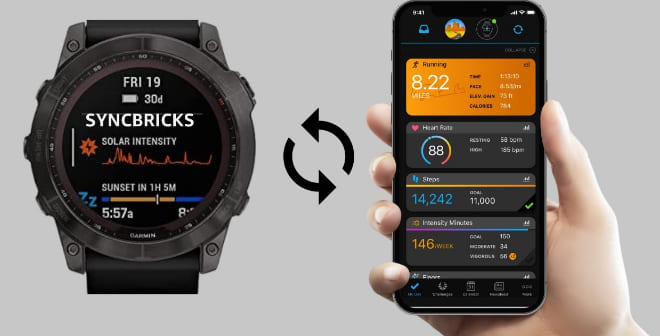
Step 4. Once the connection is established, your watch will sync with your iPhone automatically.
Step 5. On your Garmin watch, open the "Music Controls" widget.
Step 6. Open Apple Music app on your iPhone and start playing any song, playlist, or album.
Step 7. Once music begins playing, you can use the on-screen buttons on your Garmin watch to control the music playback.
This method lets you listen to your Apple Music on Garmin watches while exercising without constantly touching your phone! But you need to have your iPhone nearby and stable Internet connection. If you want to enjoy Apple Music on Garmin watch without iPhone, move to below method.
Many Garmin models allow users to store songs directly on the watch and listen to music without carrying a phone. However, all streaming music content on Apple Music are DRM-protected. When you download an Apple Music track on your device, it will be stored as an encrypted M4P format. You cannot transfer these Apple Music M4P songs to Garmin watches directly.
| Audio Format | |
| Garmin-supported Formats | Common MP3, WAV, M4A, AAC, M4B, etc. |
| Apple Music Format | DRM-protected M4P |
Garmin watches only supports unprotected MP3, WAV, M4A, AAC, M4B, etc. audio formats. It doesn't support DRM-ed Apple Music M4P songs. To add Apple Music songs to Garmin watches, you need to remove Apple Music DRM and convert Apple Music to MP3 or other formats.
UkeySoft Apple Music Converter is the first step that lets you download and convert Apple Music to MP3, FLAC, WAV, AAC, or other common formats that Garmin watches support. This powerful desktop tool helps you unlock Apple Music DRM protection and save Apple Music as local audio files. It has a built-in Apple Music web player, which allows you to access the Apple Music library directly within the program. You can log in to your Apple Music account, browse your playlists, albums, or favorite songs, and select the tracks you want to convert in batches!
In addition, you're allowed to customize the audio quality of up to 320kbps for MP3 or 640kbps for M4A/AAC! This ensures you can get high-quality Apple Music tracks and enjoy a great offline listening experience on your Garmin watch! After conversion, you are able to sync the Apple Music tracks to any model or series of Garmin watch for offline playback!
More Features of UkeySoft Apple Music Converter:
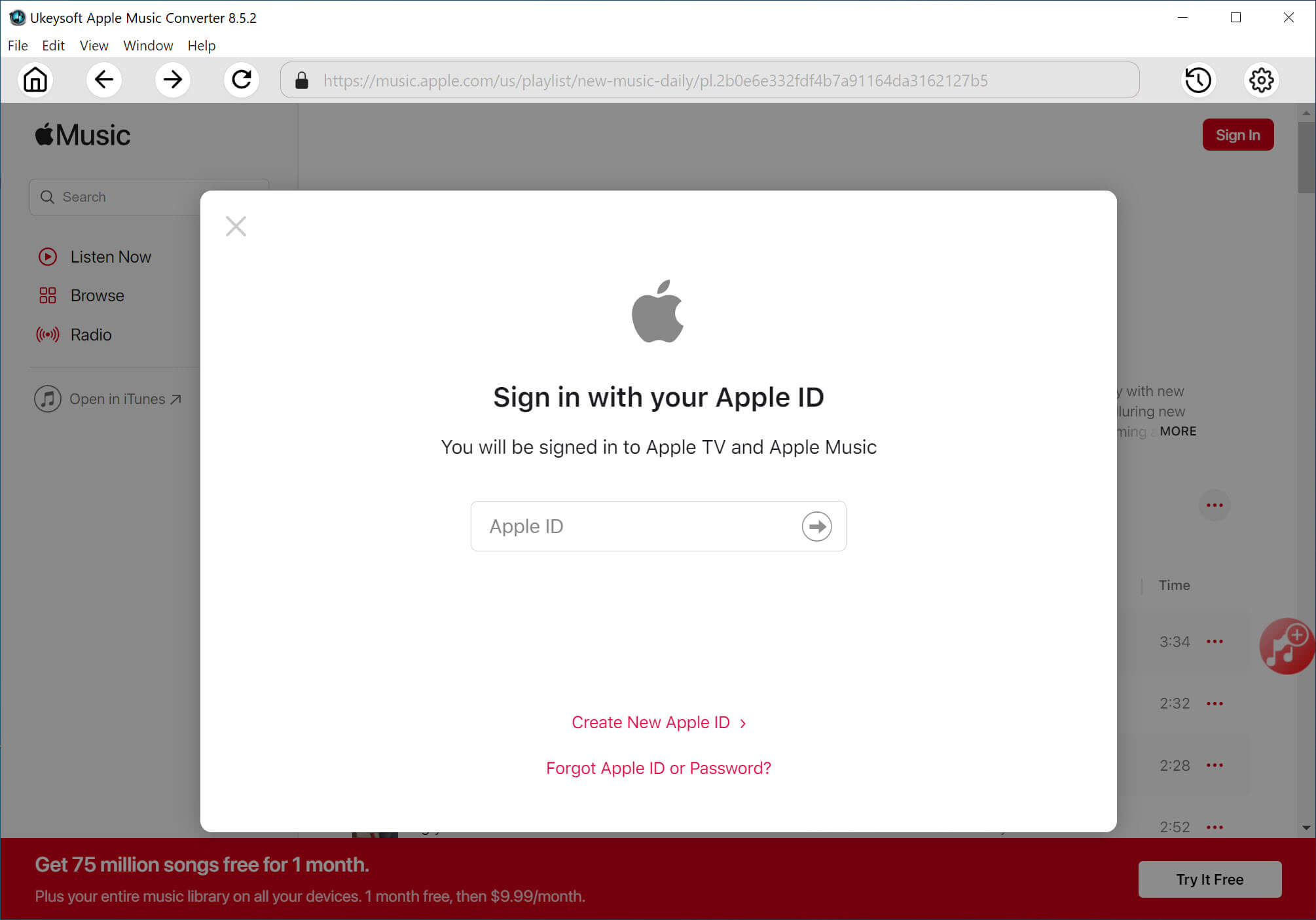
Step 1. Log In to Apple Music Account
Download and install the UkeySoft Apple Music Converter on your Mac or Windows PC. Then launch the software and sign in with your Apple Music account (Apple ID and password). Once logged in, you'll have full access to your entire Apple Music library.
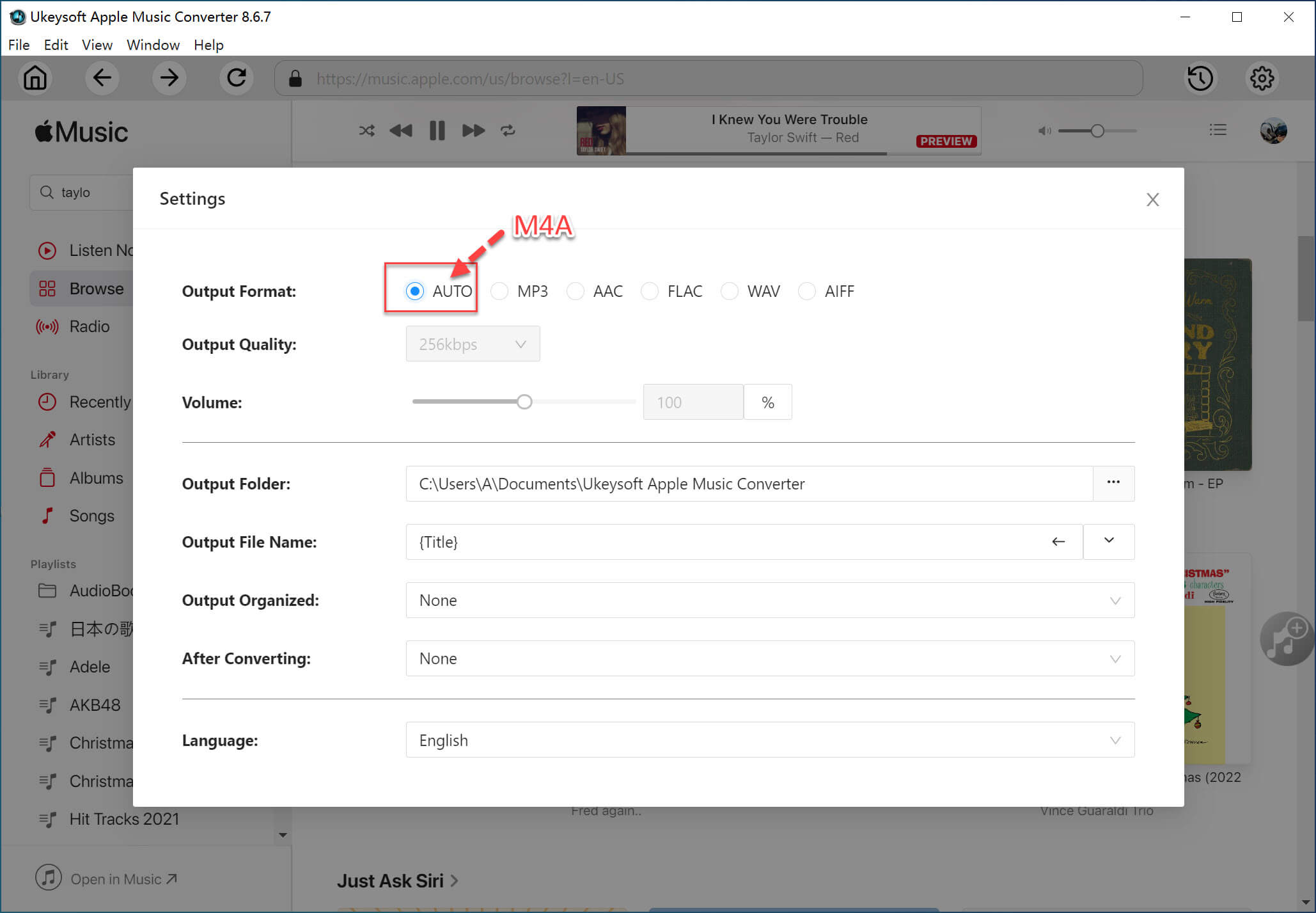
Step 2. Choose Garmin-supported MP3 Format
Move to the top right corner of the screen, click on the "Gear" icon to customize your preferences. The default format is M4A, here you can select MP3 as the output format as it has the best compatibility with all Garmin watches.
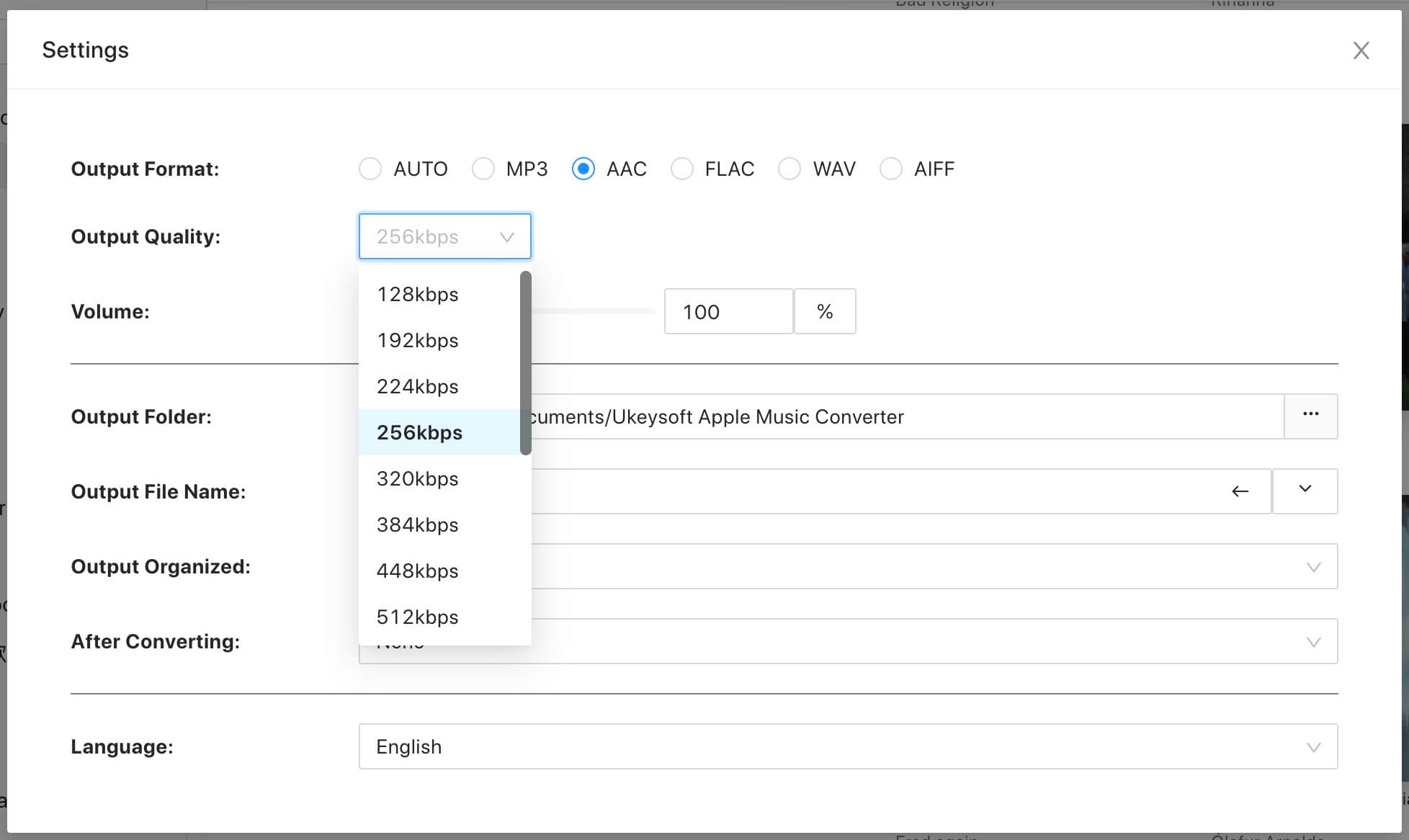
Adjust the output quality to 320kbps option to get the lossless audio quality. You may also choose whether to organize files by artist, album, or playlist
Step 3. Select Apple Music Tracks
Browse your Apple Music library using the built-in web browser. Open any track, album, or playlist, and click the "Add to list" icon in the right side to add it to the conversion list.
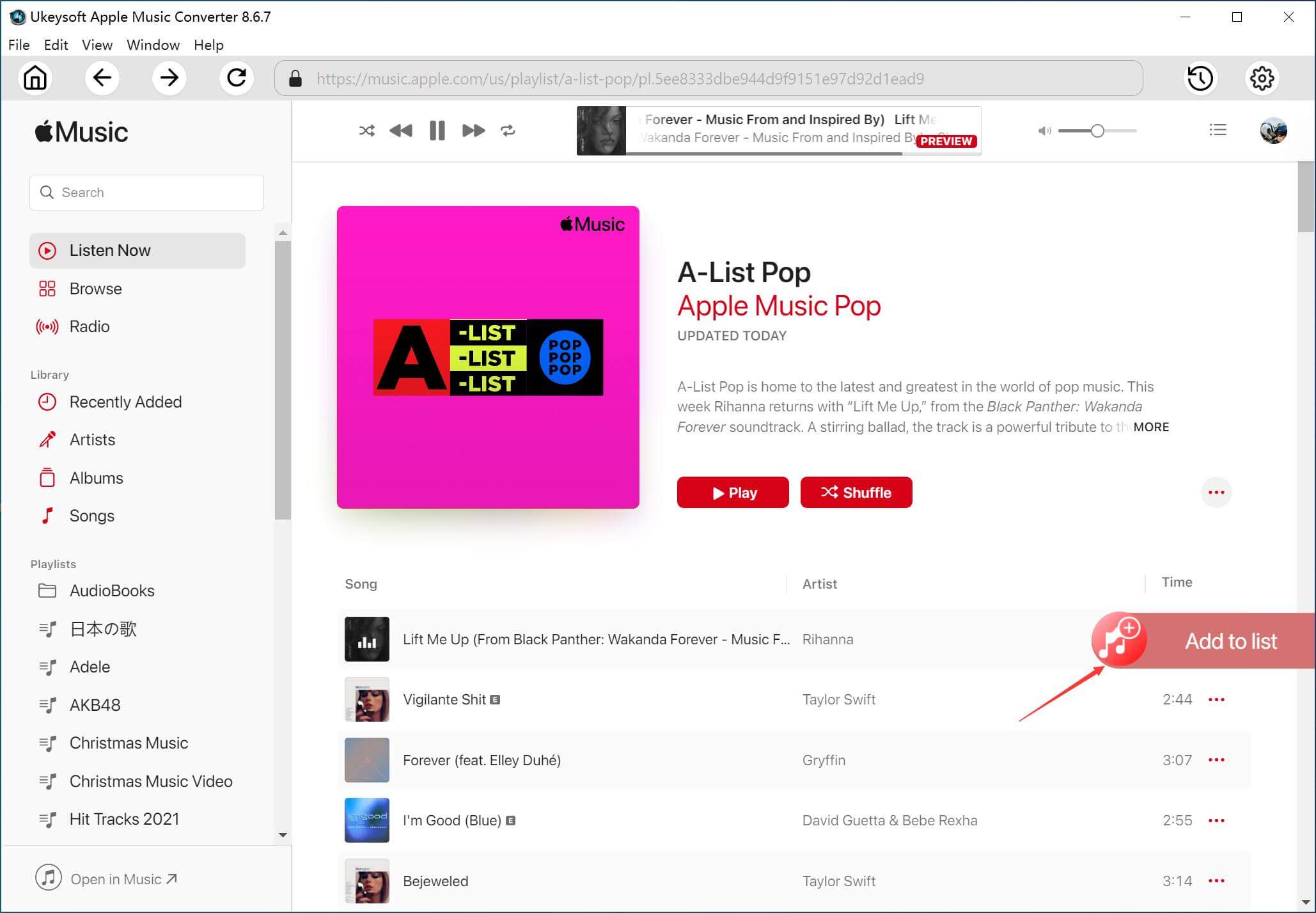
Once added tracks successfully, review your conversion queue to ensure all desired tracks are included.
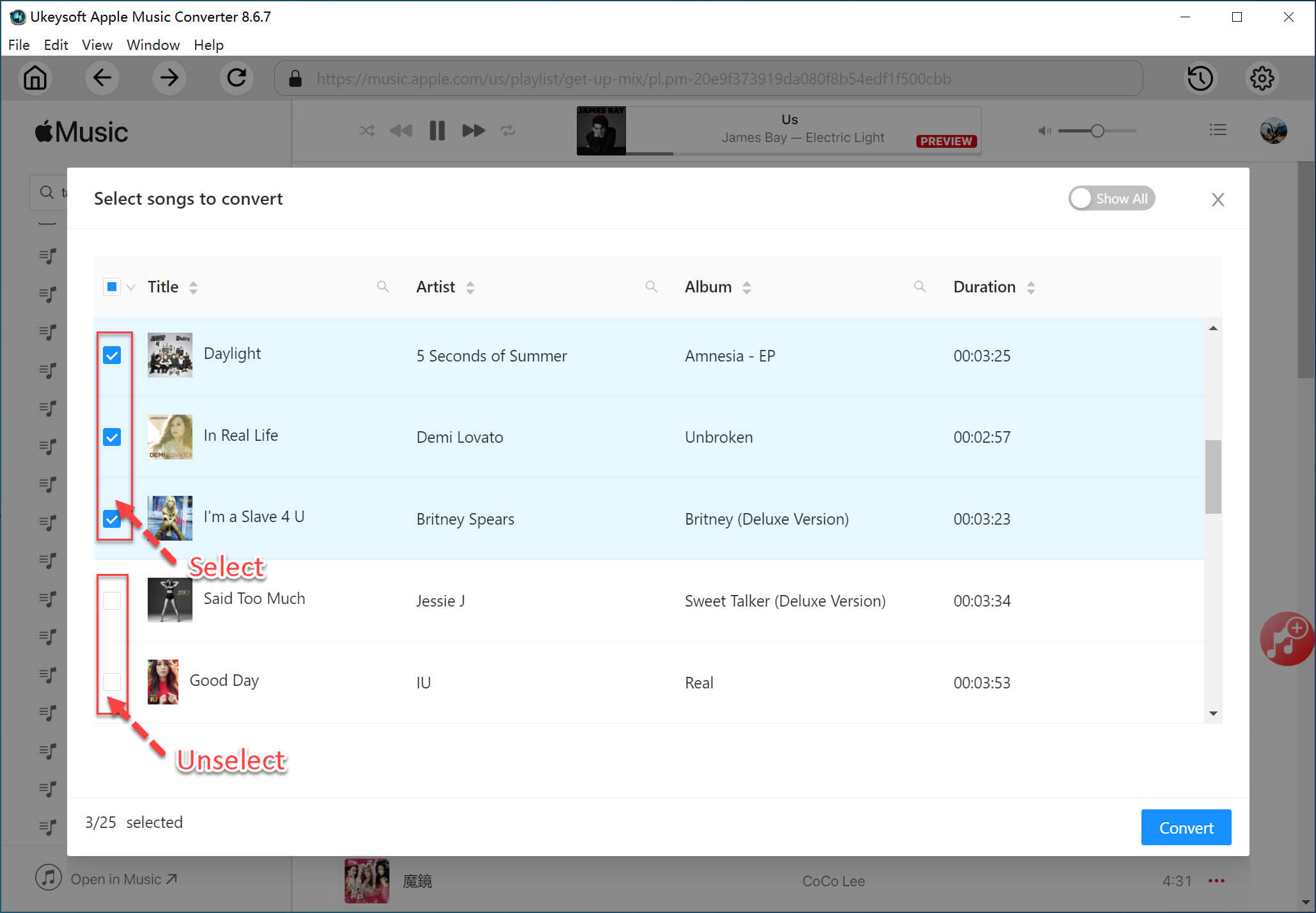
Step 4. Convert Apple Music to MP3 for Garmin Watch
Click on the "Convert" button to start the conversion process. The software will convert Apple Music tracks into DRM-free MP3 audio files with 320kbps high quality. It works at 16X faster speed, just wait a few minutes.
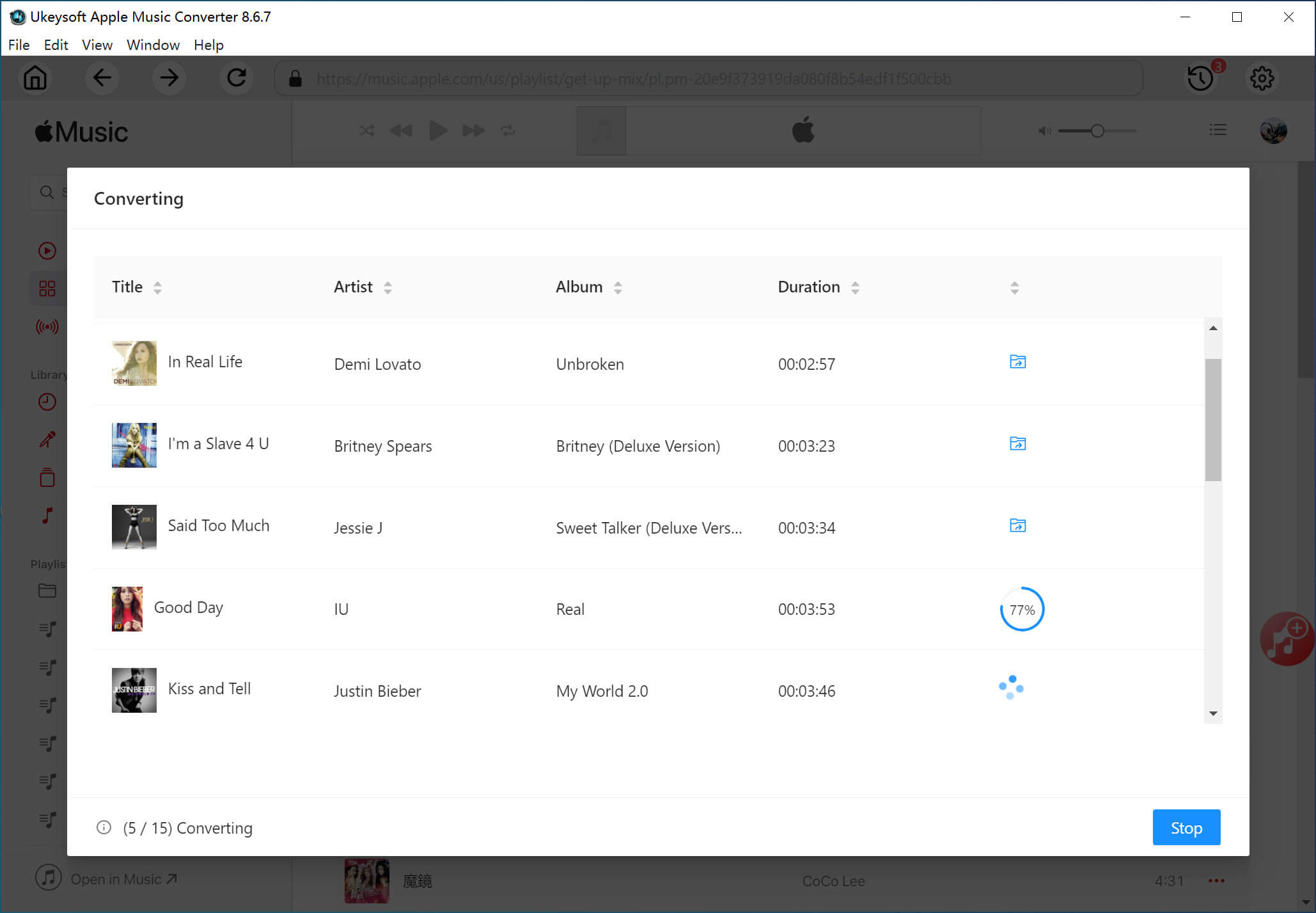
Step 5. Get the Converted Apple Music MP3 Files
When conversion completes, click "History" (a clock icon) to view the conversion history. With the built-in music player, you can directly play these Apple Music songs offline on the software.
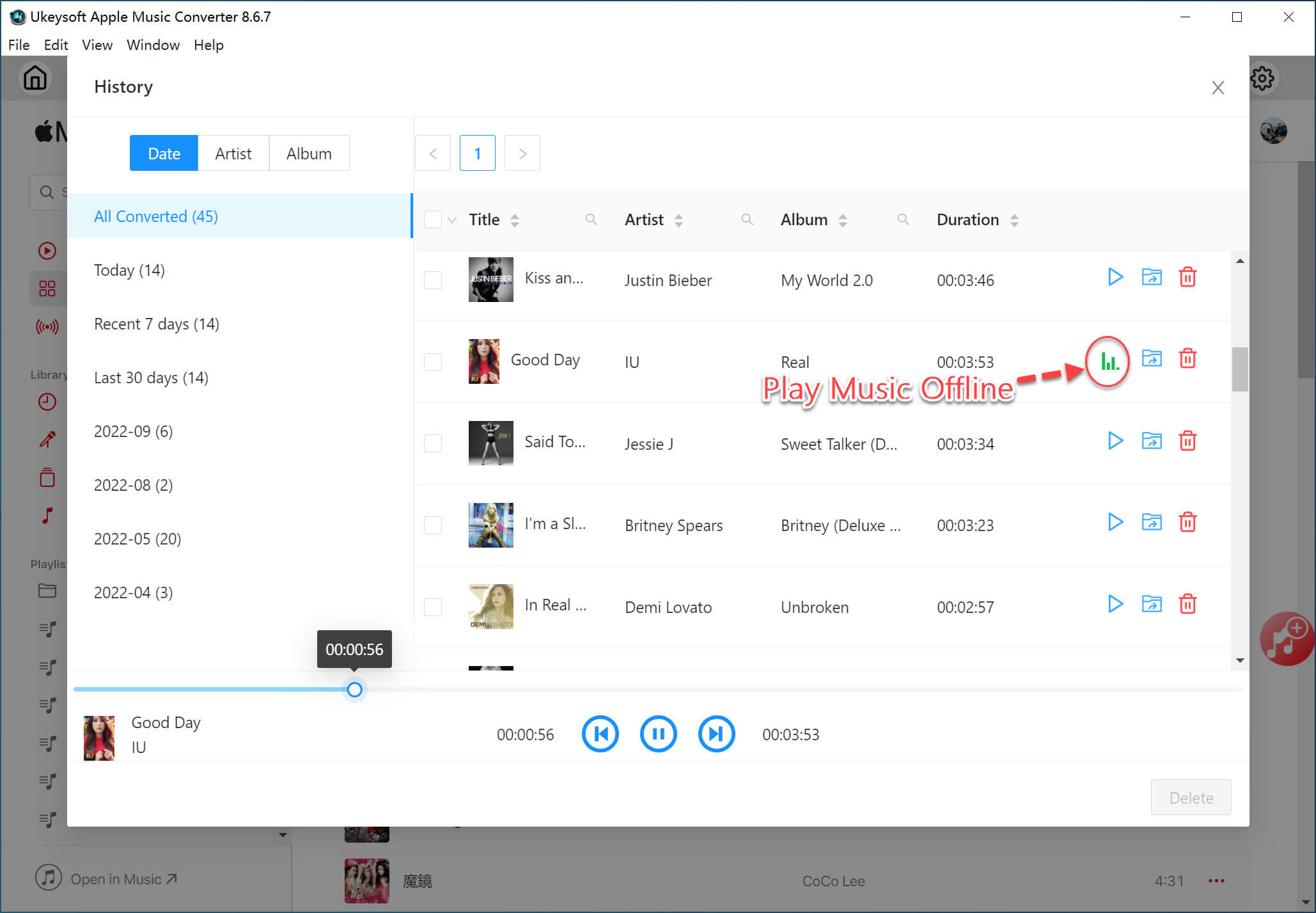
Click the "Blue Folder" icon next to any track to open its location. As you can see, all your Apple Music tracks are stored in .mp3 format. Ready for transfer to your Garmin watch.
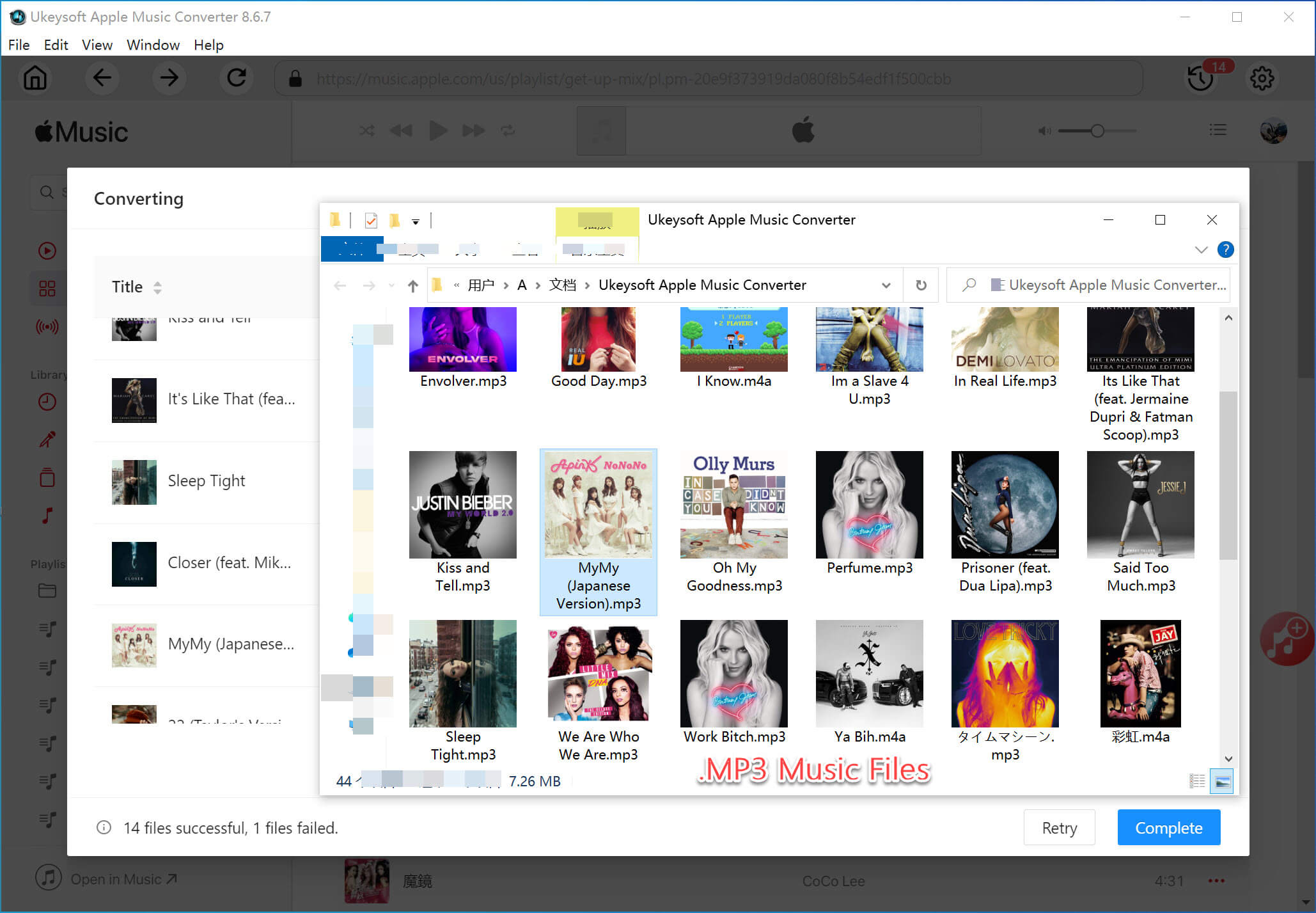
By converting Apple Music tracks to MP3 or other formats with UkeySoft Apple Music Converter, you can easily put Apple Music tracks on all Garmin watch models without limits. Check the list below:
Garmin Forerunner Series:
● Forerunner 165 Music
● Forerunner 255 Music
● Forerunner 265
● Forerunner 955
Garmin Fenix Series:
● Fenix 6 Pro
● Fenix 7
● Fenix 7 Pro
Garmin Venu Series:
● Venu
● Venu 2
● Venu 2 Plus
● Venu Sq Music
Garmin Vivoactive Series:
● Vivoactive 3 Music
● Vivoactive 4
Garmin D2 Air Series:
● Garmin D2 Air
● Garmin D2 Air X10
● Garmin D2 Air X15
Step 1. Add Converted Apple Music MP3 Songs to iTunes
First, you need to add the converted Apple Music files to your iTunes library so that Garmin Express can detect them.
1. Launch the latest version of iTunes and click "File" > "Add File to Library" or "Add Folder to Library".
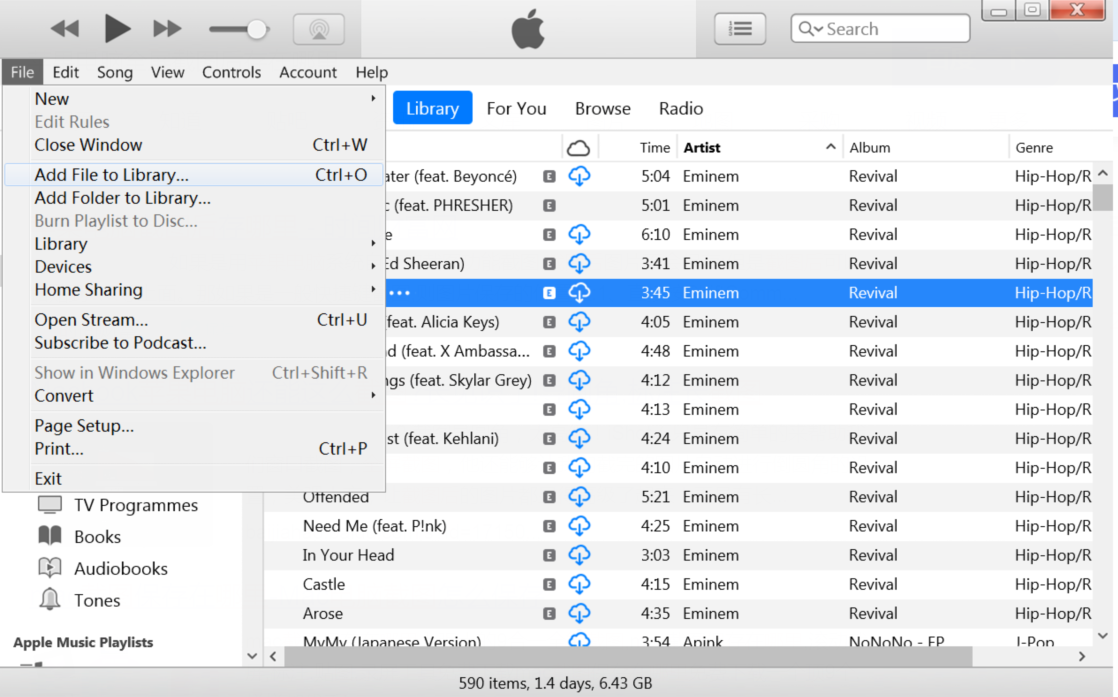
2. Locate the folder where the converted Apple Music files (MP3 or M4A) were saved.
3. Select the Apple Music files or folder and click "Open" to import them into iTunes.
4. Once the files appear in the iTunes library, you can organize them into playlists, albums, or keep them in the main music library.
Step 2. Install Garmin Express App on Desktop
Garmin Express is the official app for managing music, updates, and files on Garmin watches.
1. Visit garmin.com/express and download the Garmin Express installer.
2. Install the program on your Windows or Mac computer.
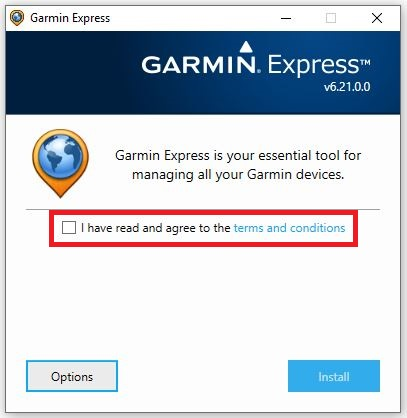
3. Launch Garmin Express on your computer after installation.
Step 3. Connect Your Garmin Watch to the Computer
1. Use a USB charging cable to connect your Garmin watch to the computer.
2. Ensure the watch is powered on and unlocked.
3. In Garmin Express, click "Add a Device". Sign in to your Garmin account if prompted.
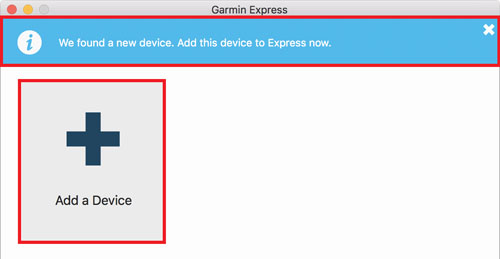
4. Garmin Express will automatically detect the connected watch.
5. Click "Add Device" and follow the instructions to complete the setup.
6. Once the device is added successfully, it will appear on the Garmin Express home screen.
Step 4. Enable iTunes Library Sharing
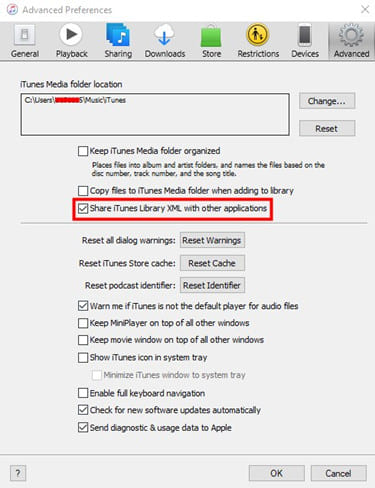
Open iTunes and go to "Preferences". Click the "Advanced" tab. Check the option "Share iTunes Library XML with other applications". Click "OK" to save the settings.
Step 5. Select Apple Music Songs to Transfer
1. Now, click on your Garmin watch from the home screen.
2. Navigate to the "Music" tab at the top.
3. Garmin Express will automatically detect available music sources, including: iTunes playlists, Local music folders, etc.
4. Choose the playlists or songs that contain your converted Apple Music files.
5. Check the boxes next to the Apple Music songs you want to transfer.
6. Finally, click "Send to Device" in Garmin Express app.
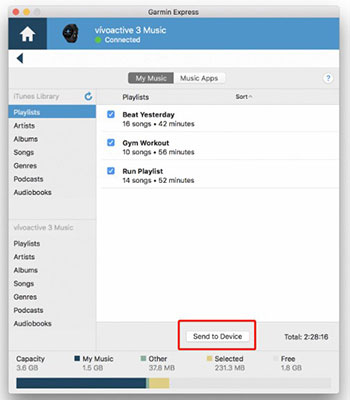
7. Garmin Express will begin syncing the selected Apple Music songs to your Garmin watch.
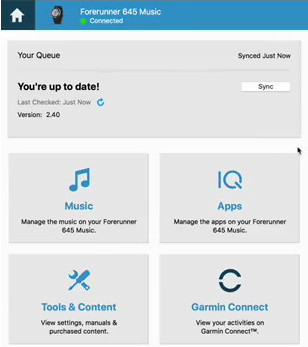
Step 6. Play Apple Music on All Garmin Watch Models (Offline)
1. Turn on your Bluetooth headphones and enable pairing mode.
2. Navigate to Music settings on your Garmin watch.
3. Select Headphones and choose "Add New".
4. Select "My Music" as the source, select any imported Apple Music song and start playing!
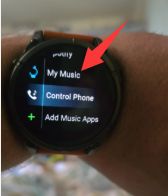
5. From the watch face, press the Down button until you see the Music widget.
6. Press the Start/Stop button to open the music player interface.
7. You will see all transferred Apple Music songs and playlists in the music library, select any song to start listening offline!
While Garmin watches do not support the Apple Music app. And you are not allowed to add downloaded Apple Music songs to Garmin watch due to DRM protection. Converting Apple Music to MP3 makes it possible to use your favorite Apple Music tracks in any Garmin watch. UkeySoft Apple Music Converter in introduced here to help you download and convert Apple Music to MP3, M4A, AAC, WAV or other formats with lossless audio quality. The, you can easily transfer Apple Music to your Garmin watch, Apple Watch, Huawei watch, Galaxy watch, Samsung watch, and more smartwatches or portable devices without limits!

Sorry the comment has been closed.










![7 Best FREE Apple Music Converters [2026 Updated]](https://www.ukeysoft.com/wp-content/uploads/2019/04/best-apple-music-converter.jpg)



















Porducts
Solution
Copyright © 2026 UkeySoft Software Inc. All rights reserved.


 English
 Arabic
 Chinese (Simplified)
 Chinese (Traditional)
 Croatian
 Czech
Czech Danish
 Dutch
Dutch Estonian
 Finnish
 French
 German
 Greek
Greek Hebrew
 Hindi
Hindi Hungarian
 Indonesian
 Italian
 Japanese
 Kazakh
 Korean
 Malay
Malay Norwegian
 Polish
 Portuguese
 Romanian
 Russian
 Slovenian
 Spanish
 Swedish
 Thai
Thai Turkish
 Ukrainian
 Vietnamese



























![Top 10 Christmas Songs to MP3 Download [Spotify]](https://www.ukeysoft.com/wp-content/uploads/2023/01/christmas-songs-to-mp3.jpg)


































































































































Comments are off!