 ✕
✕
✕
✕
By Justin SabrinaUpdated on July 16, 2026
Spotify's lyrics feature is welcomed by anyone who likes reading along to their music. To improve its lyrics experience, it has launched translations, lyric previews, and offline lyrics. Whether you're learning a new language, practicing karaoke, or simply want to follow every lyric while listening, Spotify's synchronized lyrics make every song more enjoyable.
If you are also looking a way to download synced lyrics from Spotify, you've come to the right place. In the latest article, we've introduced how to see or get lyrics on Spotify across different devices. Today, in this article, we will teach you how to download Spotify lyrics to LRC or TXT files, no matter if you are a Spotify Free or Premium user!
CONTENTS
If you've updated to Spotify Premium, you can now access lyrics offline. When you download your favorite tracks for offline listening, the lyrics are automatically saved along with the music files. This means you can continue viewing synchronized lyrics even without an internet connection.
How to Download Spotify Songs with Lyrics for Offline Viewing
Step 1. Download Spotify Songs
Open the Spotify app on your mobile device or desktop. Sign in with your Premium account. Navigate to your favorite playlist, album, or podcast, then tap the "Download" button to save it for offline listening.
Step 2. Switch to Offline Mode
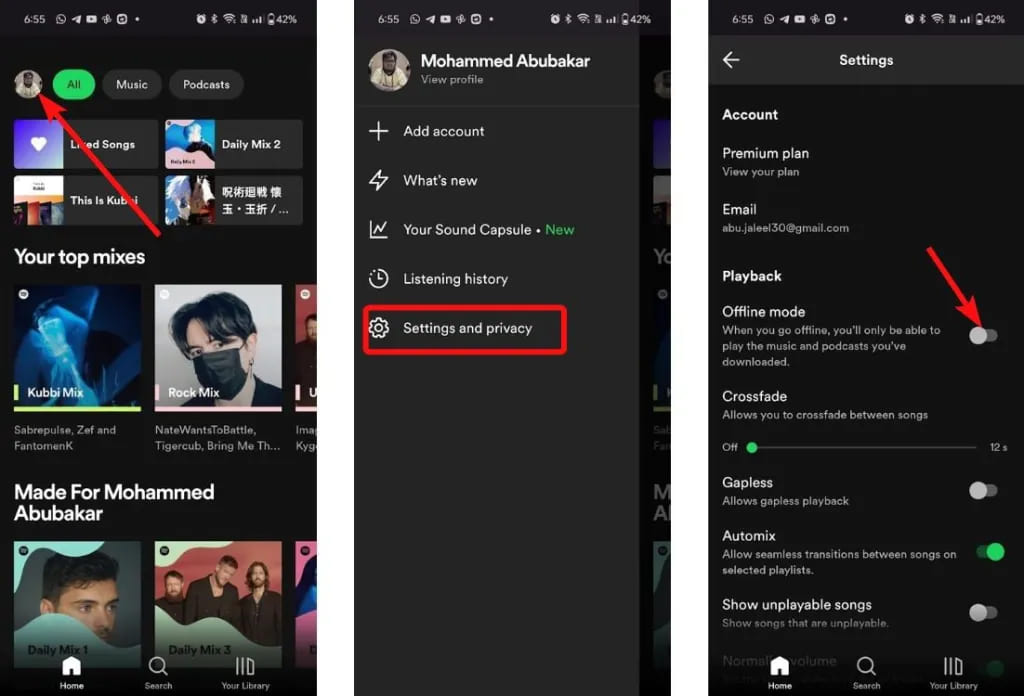
After the download finishes, navigate to your Profile picture on your mobile device, tap "Settings and privacy", tap "Data-saving and offline", and switch "Offline Mode".
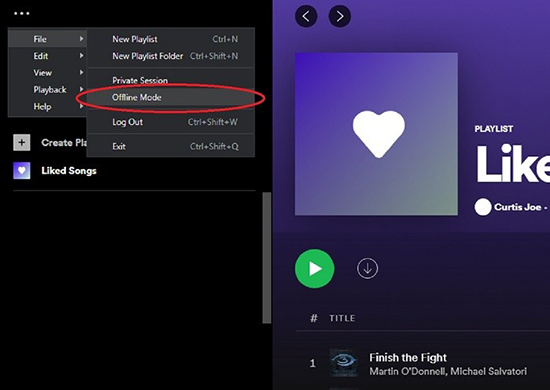
For desktop player: Mac users ought to click Spotify in the Apple Music at the top of the screen, while Windows users click the three dots, then click "File". Select "Offline Mode".
Step 3. View Synced Lyrics
Start playing a downloaded song in Spotify app. Open the Now Playing screen and swipe upward to display the synchronized lyrics. The lyrics will continue scrolling in real time as the music plays.
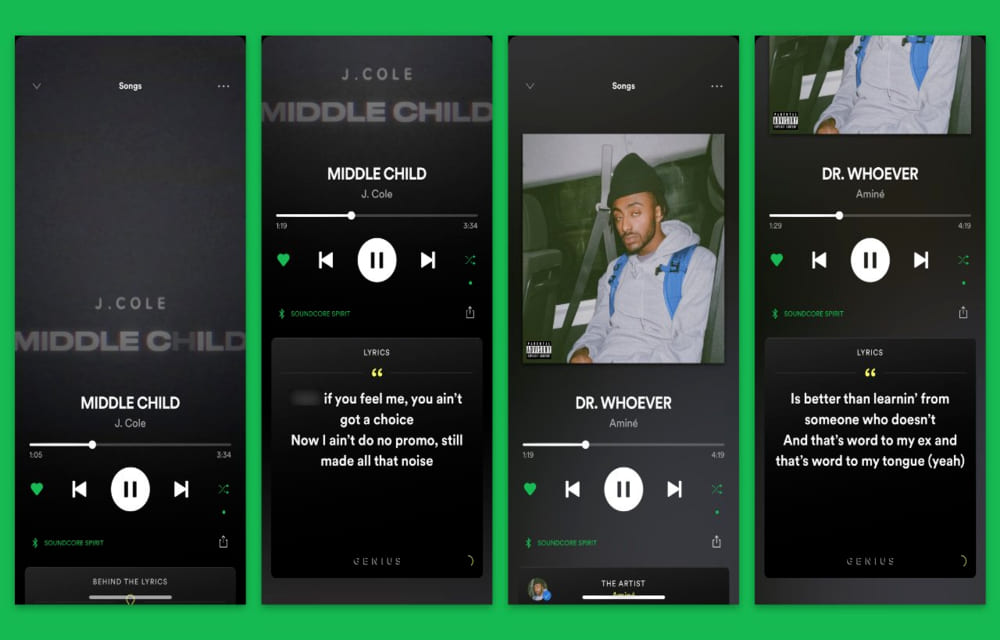
Note: Not every Spotify track includes lyrics. Spotify's lyric feature relies on licensed lyric providers, so lyric availability varies depending on the song, artist, and regional licensing.
While Spiotify allow Premium subscribers to follow synchronized lyrics while listening offline, all downloaded Spotify songs are encrypted cache files, both lyrics and songs remain inside the Spotify app only. It doesn't let you extract lyrics in LRC or Text files. Once your Premium subscription ends or the downloads are removed, you'll lose access to them.
Whether you want to keep Spotify songs forever or export lyric files separately, the better solution is to use a third-party Spotify downloader. Here we highly recommend the UkeySoft Spotify Music Converter. This approach works for both Spotify Free and Premium users, giving you permanent access to both the music and its accompanying lyrics.
UkeySoft Spotify Music Converter is an all-in-one Spotify music downloader, Spotify music converter, Spotify lyrics downloader, Spotify music player and manager! Well designed for both Spotify Free and Premium users, it enables you to batch download songs, albums, playlists, podcasts, and audiobooks from Spotify with the lyrics and ID3 tags metadata kept. It also includes a built-in music manager to organize your downloaded library efficiently.
As an awesome Spotify music converter, the software can download and convert Spotify music to universal audio formats, including MP3, M4A, FLAC, WAV, AAC, or AIFF, making them accessible on various music players and devices. What's more, this tool allows you to customize the output quality to get the premium listening experience. You can adjust to 320kbps for MP3, or 640kbps for M4A/AAC.
Smart Spotify Lyrics Downloader - UkeySoft Spotify Music Converter also lets you download Spotify lyrics to LRC or TXT files with a Free or Premium account, so you can easily read lyrics while playing the downloaded Spotify songs with other music players!
👍 More Features of UkeySoft Spotify Music Converter
Step 1. Download the UkeySoft Spotify Music Converter
To begin of, download and install UkeySoft MusicOne Converter on your computer running Windows OS or macOS.
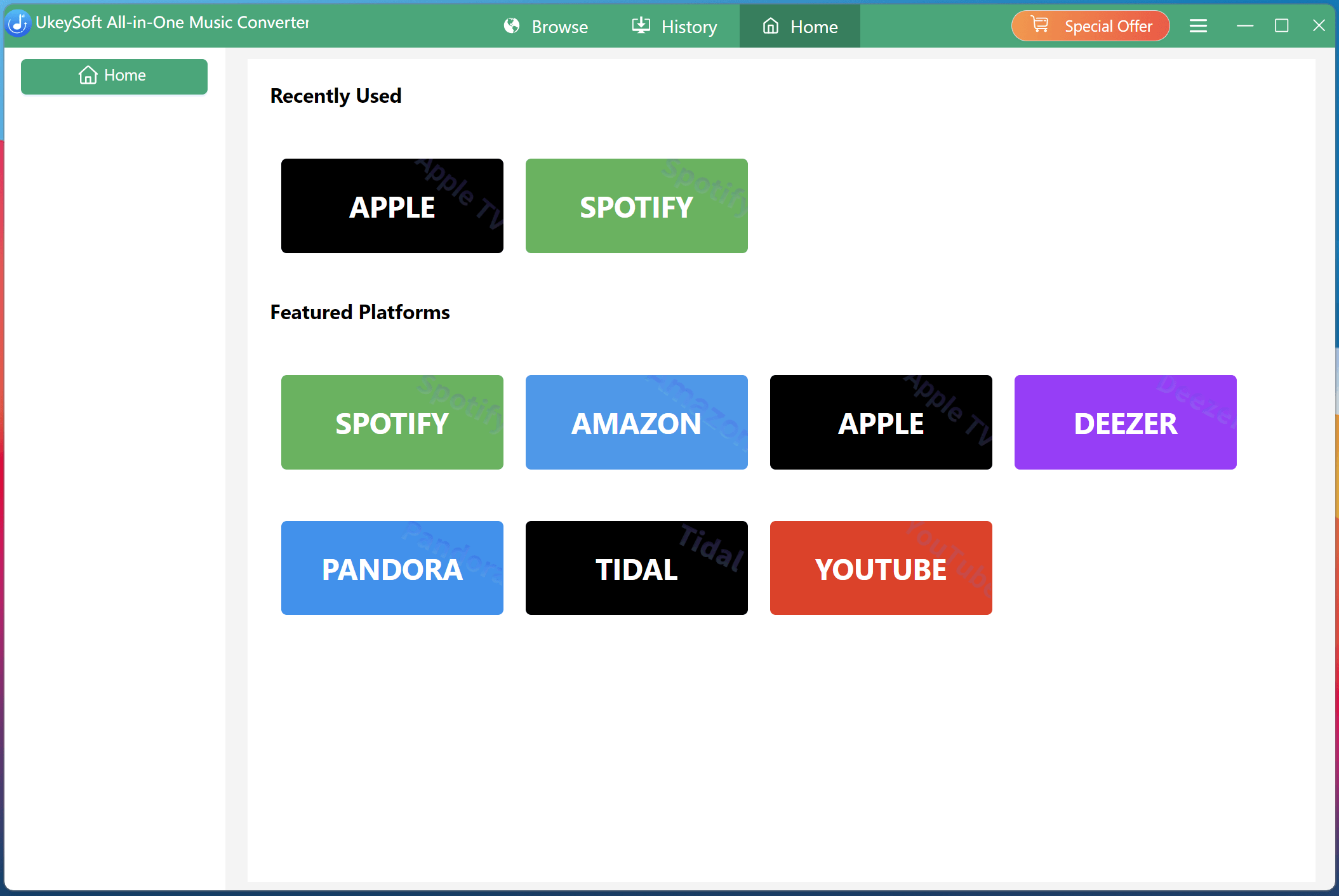
Step 2. Select Spotify and Log In Account
The install and launch the program. Select Spotify service to enter the UkeySoft Spotify Music Converter.
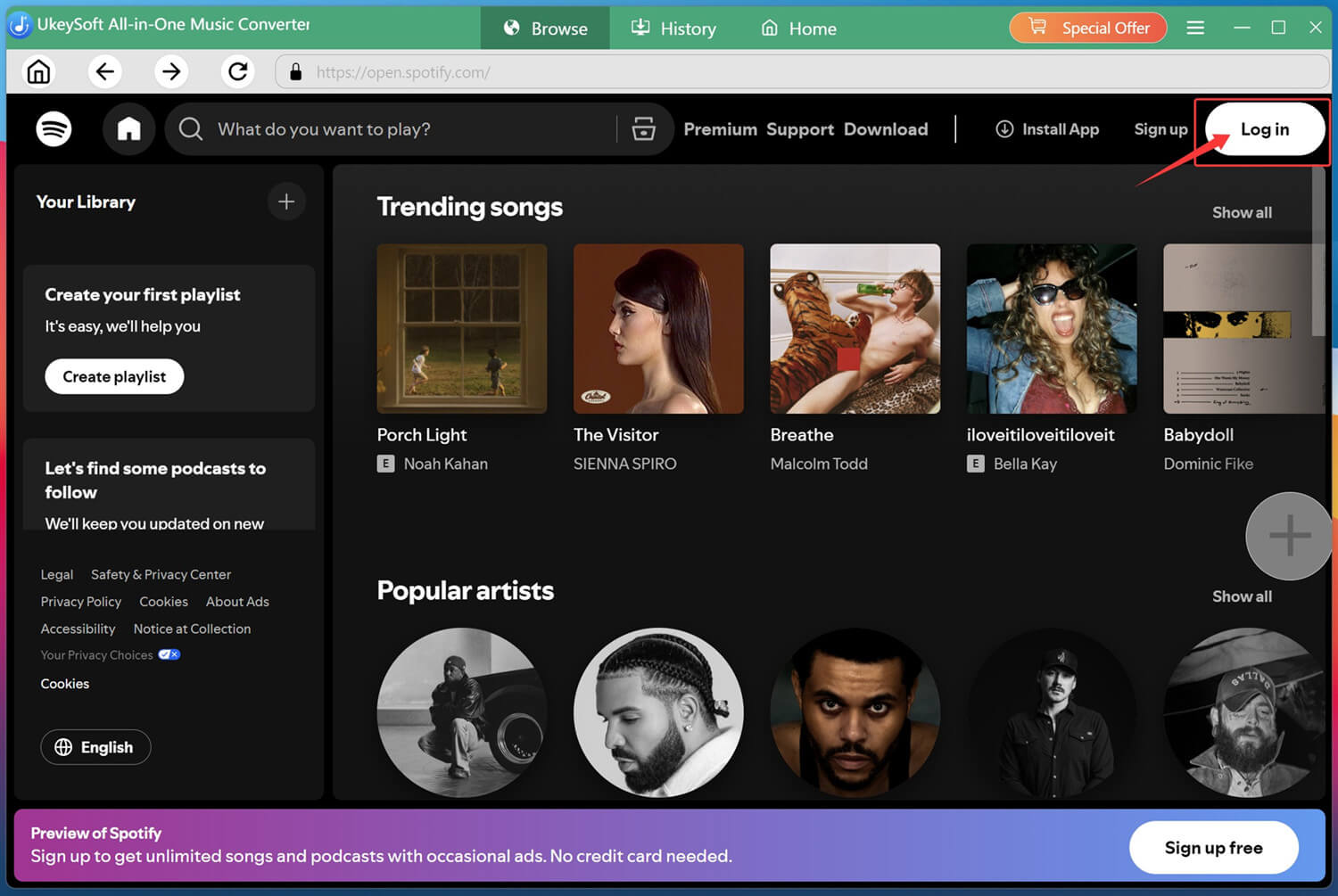
Sign in with your Spotify Free or Premium account through the built-in Spotify web player. After logging in, you can browse your entire Spotify library just like using the official Spotify app.
Step 3. Adjust Output Settings
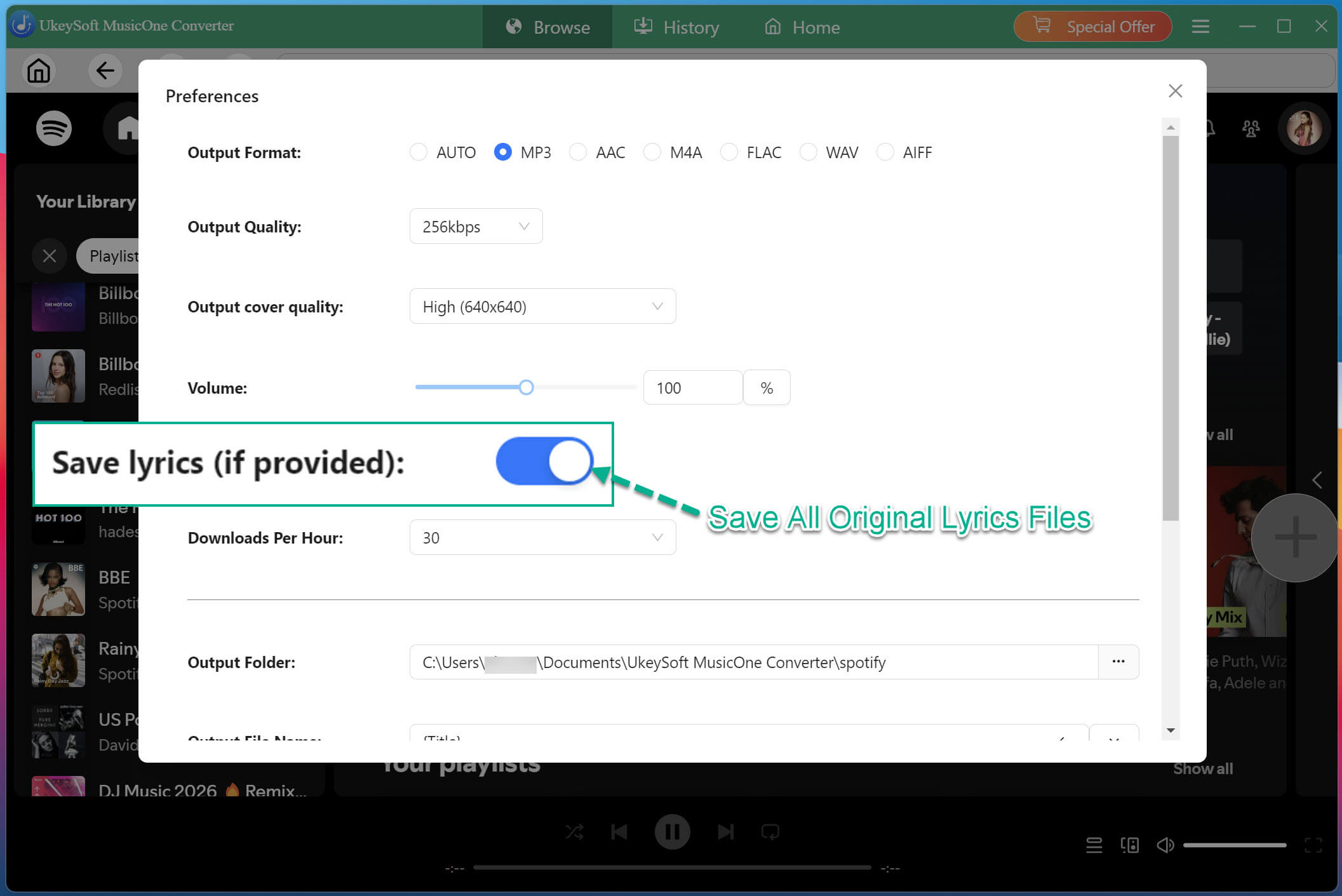
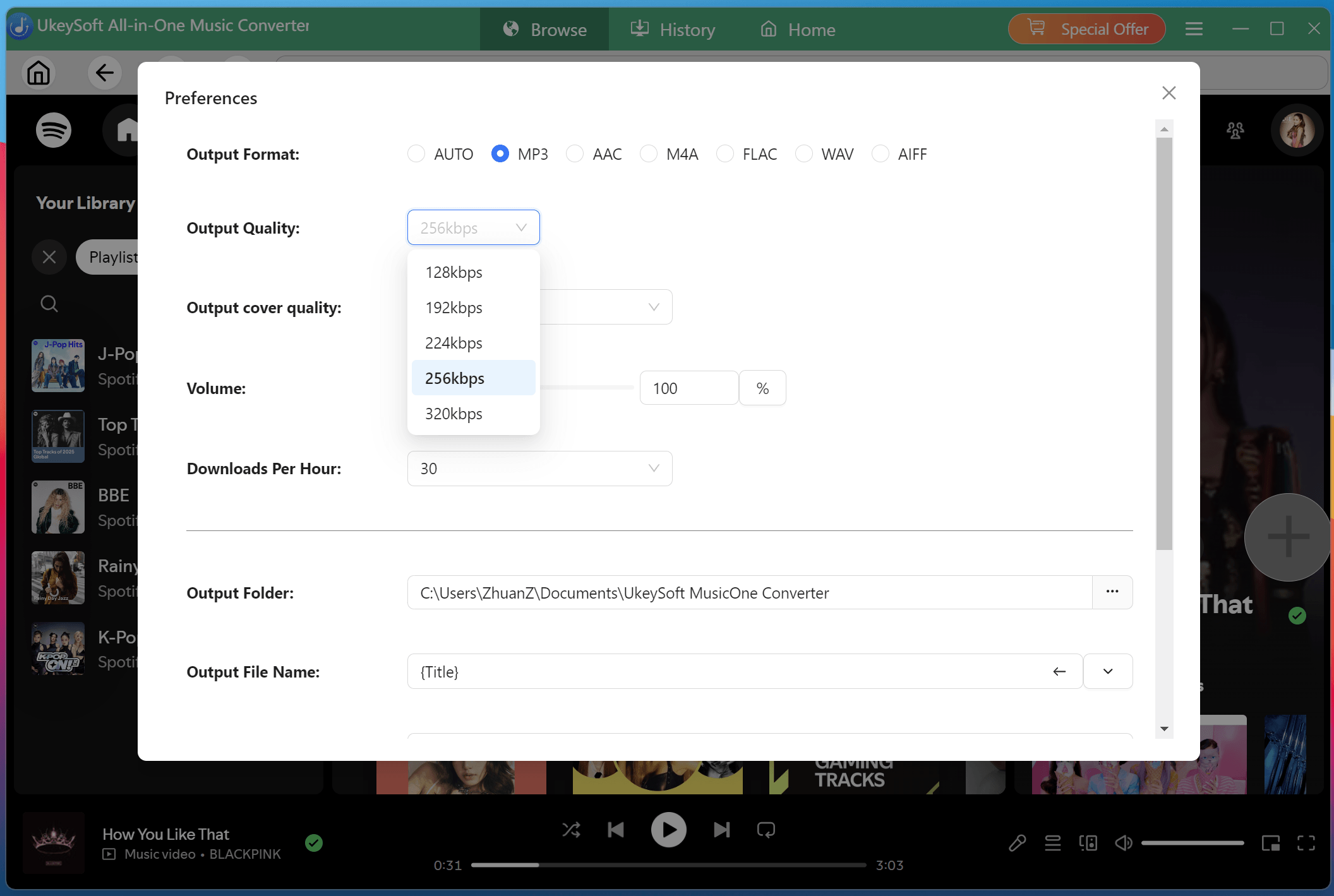
Click the "Menu" icon (three horizontal lines) in the upper-right corner, and select "Preferences" option to access the settings panel. Choose your preferred output format, output quality, output folder, file naming rules, and other conversion settings according to your needs. For example, here we pick MP3 and 320kbps options.
Next, enable the "Save lyrics" option. UkeySoft will automatically export the lyrics together with each downloaded Spotify song.
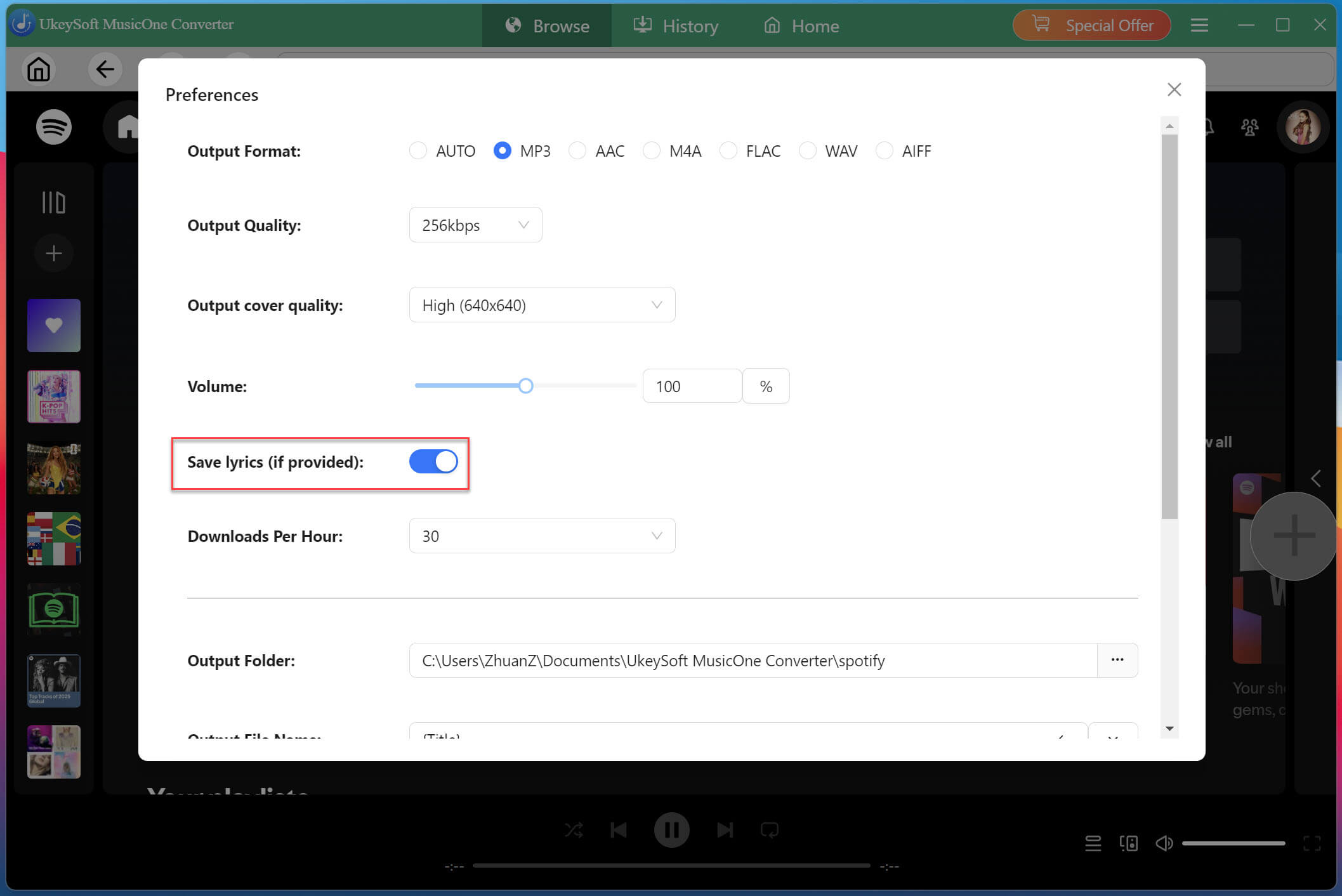
Step 4. Open and Add Spotify Songs
Find your desired song, artist, album, or playlist. When you locate the content you want, open it, click the "+" button in the right side to parse and add it to the conversion list.
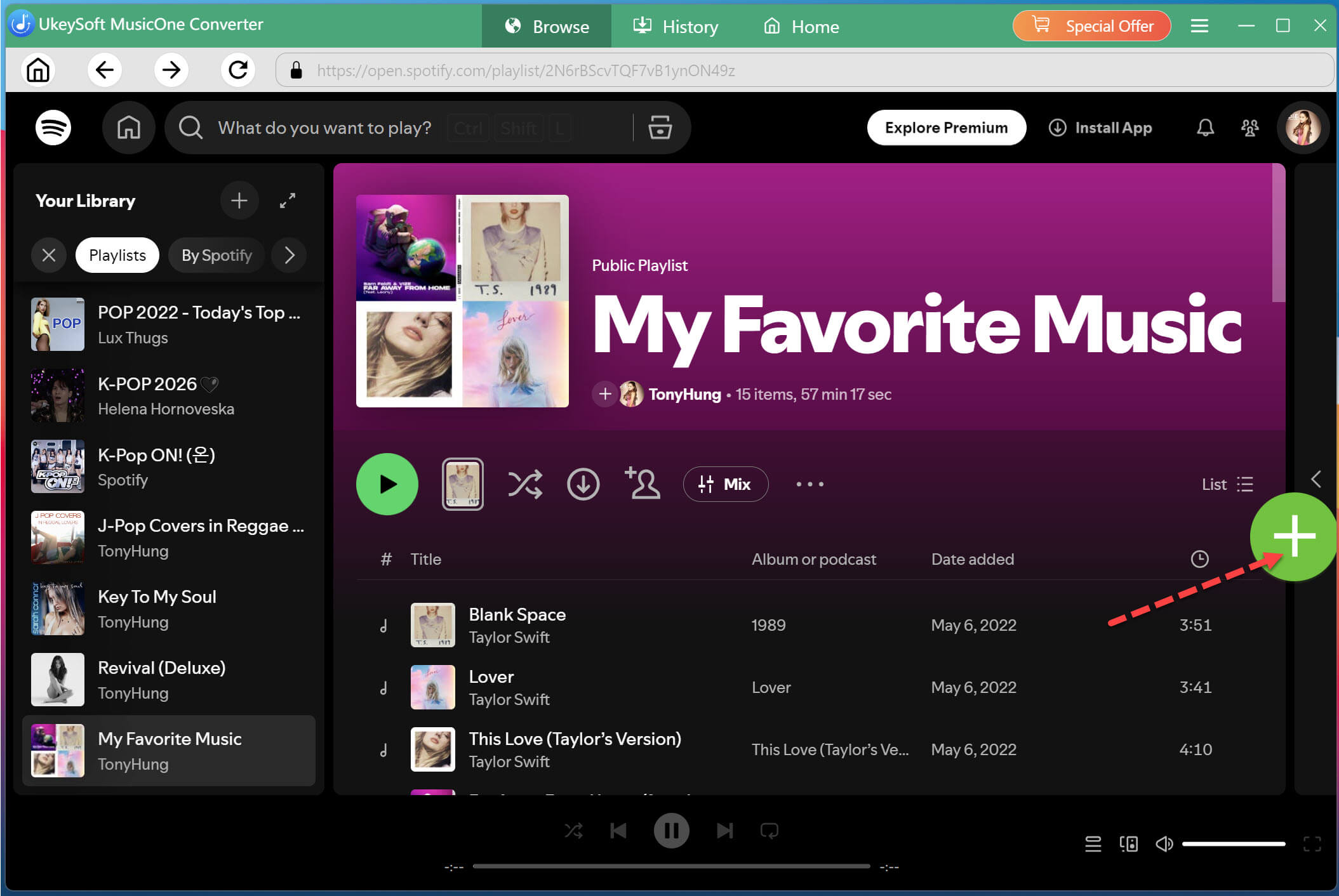
The software will analyze the playlist and display every available track. Select individual songs or choose the entire playlist before continuing.
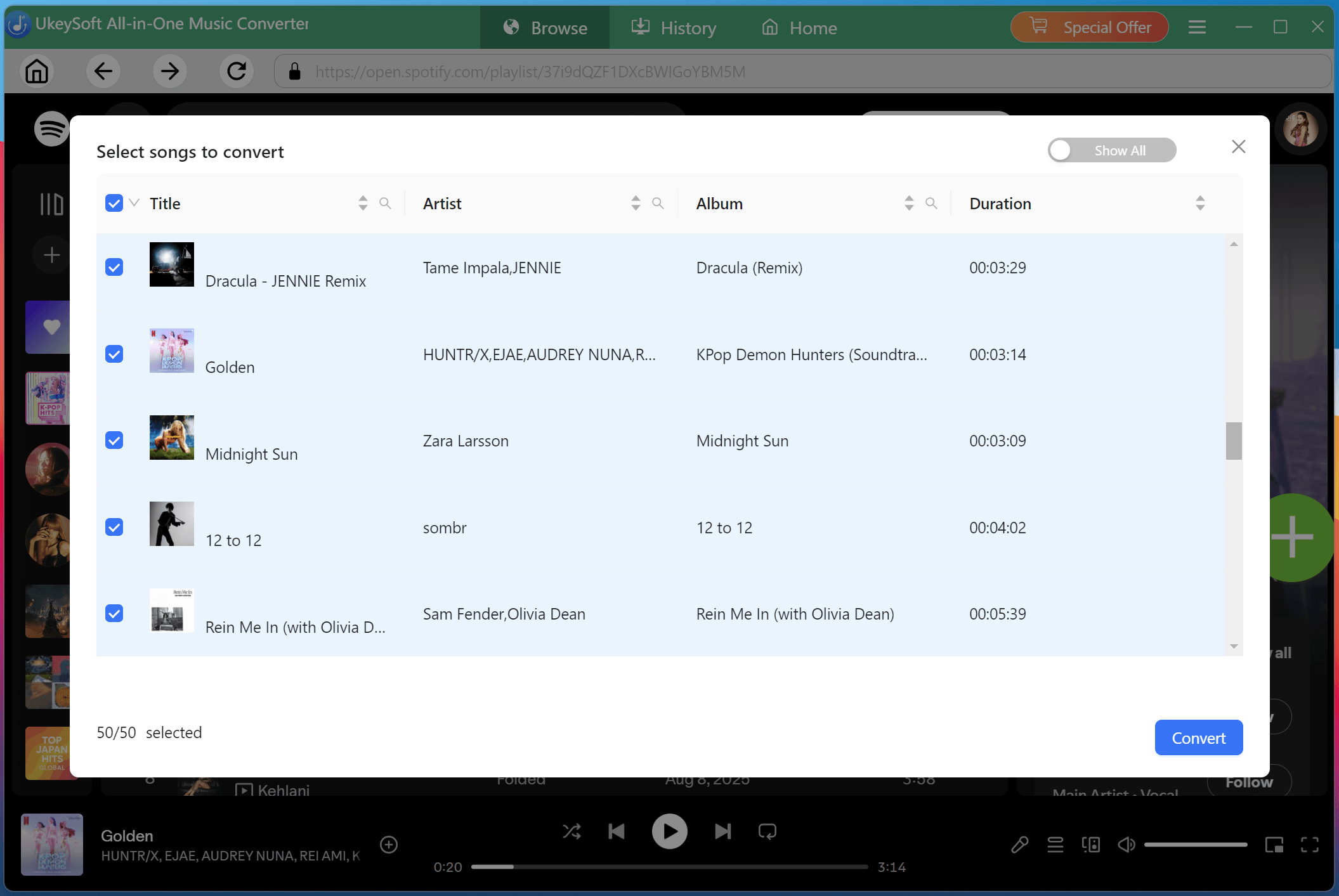
Step 5. Download Spotify Songs and Save Lyrics in LRC
When everything is ready, click "Convert" button to begin downloading Spotify songs from the built-in web player. The software simultaneously downloads the Spotify music, converts it into MP3 or your selected format, and saves the synchronized lyrics in LRC format according to your settings.
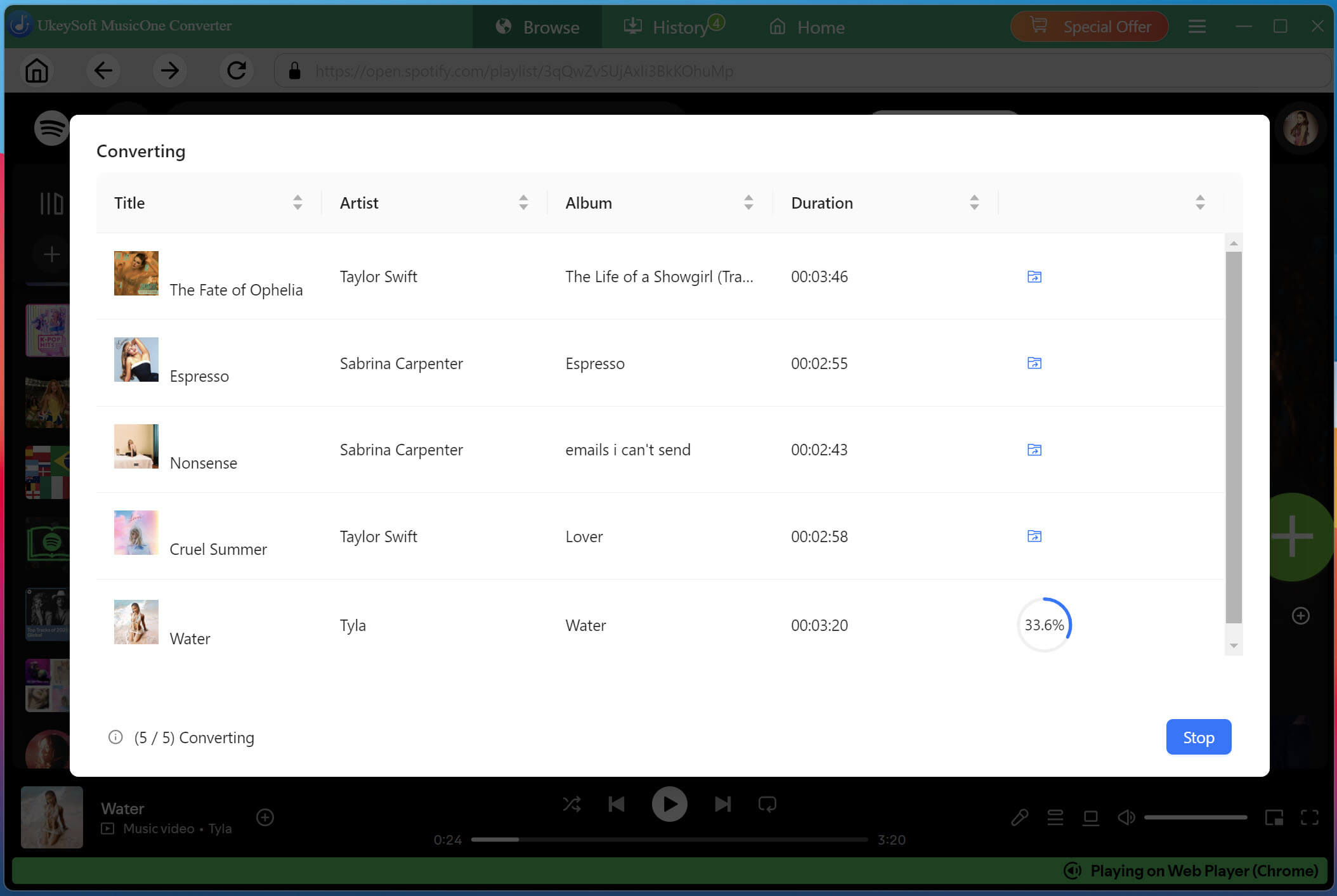
Step 6. Listen to Spotify Music Offline
Once the conversion is complete, click the "History" tab to check the well downloaded Spotify songs. You can now enjoy these high-quality Spotify music with its built-in music player!
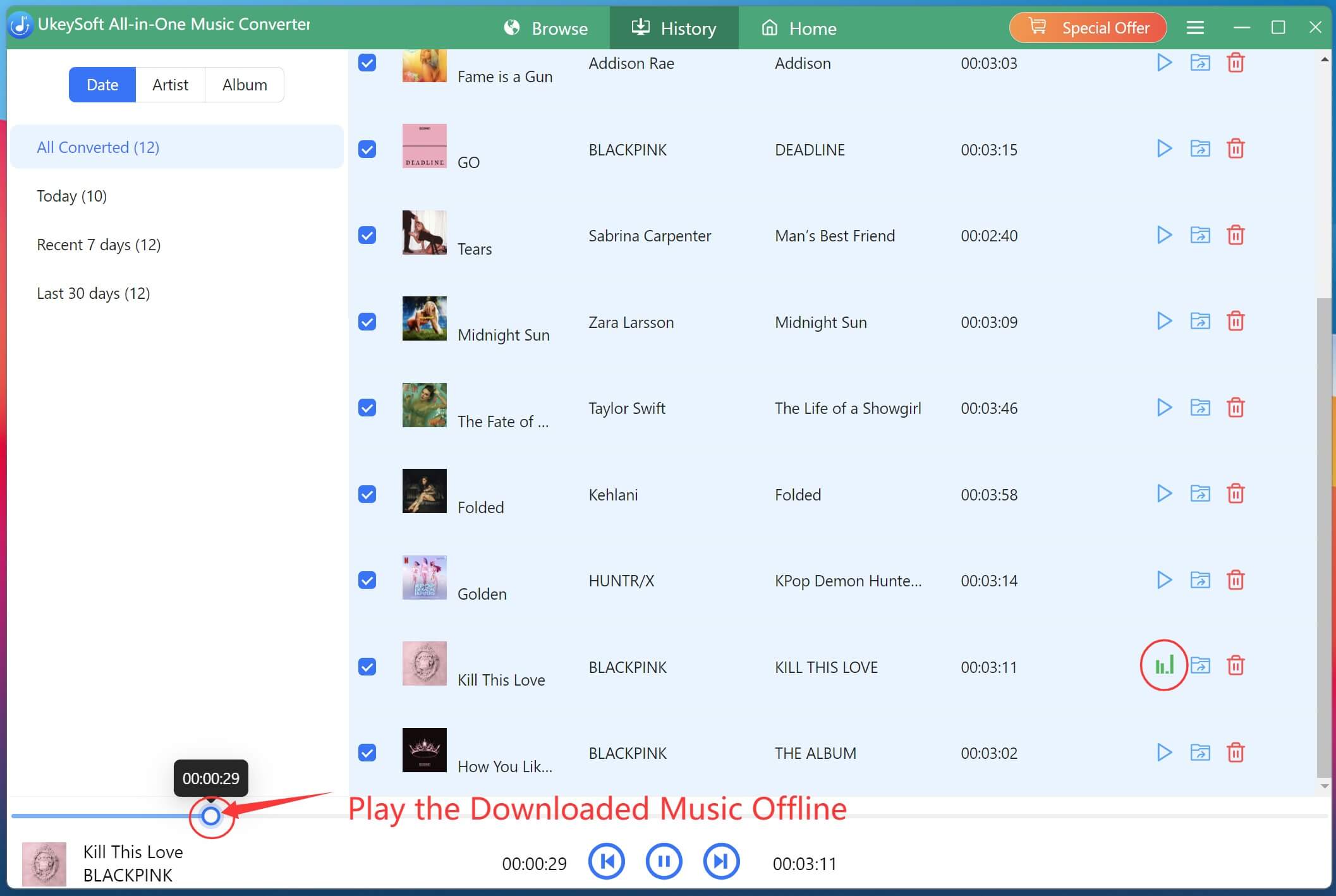
Step 7. Get Spotify Lyrics as LRC or TXT Files
Also, you can hit on the "Blue Folder" icon, or navigate directly to your specified output folder to access all your downloaded Spotify songs. As you can see, each downloaded Spotify song is saved together with an independent lyric file.
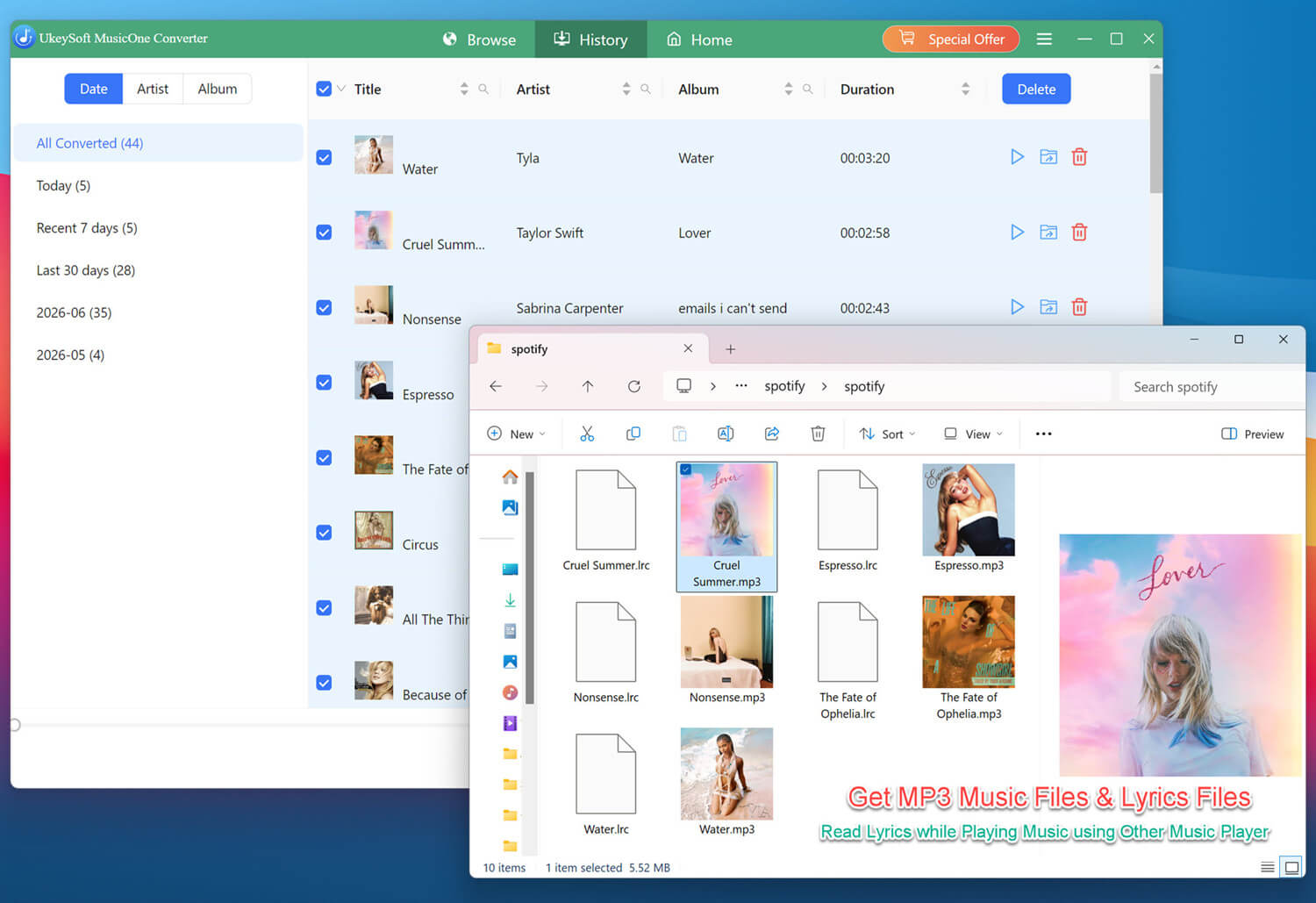
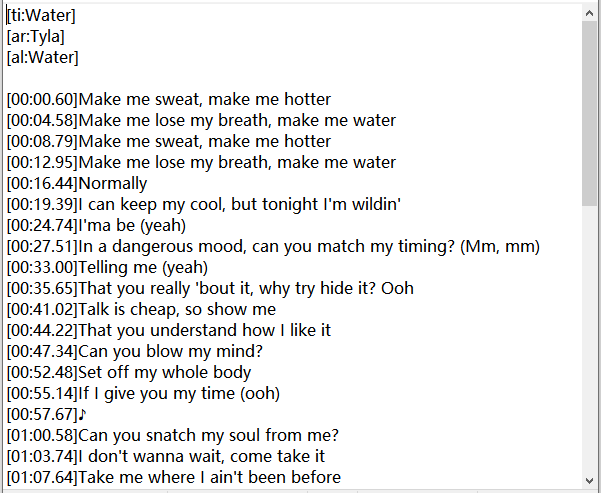
To obtain Spotify lyrics to TXT files, you can also rename the LRC file extension to .txt. After that, open the TXT file, and you can see the time when each lyric appeared, very clearly. Easily study languages, practice singing, or enjoy lyrics offline!
In short, Spotify only allows Premium users to save Spotify music with lyrics, but it still doesn't let users export lyrics or save them as standalone files. If you want to save synchronized lyrics as independent LRC or TXT files, it is advisable to try UkeySoft Spotify Music Converter. With support for Spotify Free and Premium accounts, batch downloads, multiple output formats, automatic lyric extraction, and a built-in music manager, UkeySoft Spotify Music Converter makes it easy to build an offline Spotify music library with synchronized lyrics that you can keep forever. Download it right now, use it to download lyrics on Spotify in a text or LRC format!

Sorry the comment has been closed.

![7 Best FREE Apple Music Converters [2026 Updated]](https://www.ukeysoft.com/wp-content/uploads/2019/04/best-apple-music-converter.jpg)





Porducts
Solution
Copyright © 2026 UkeySoft Software Inc. All rights reserved.


 English
 Arabic
 Chinese (Simplified)
 Chinese (Traditional)
 Croatian
 Czech
Czech Danish
 Dutch
Dutch Estonian
 Finnish
 French
 German
 Greek
Greek Hebrew
 Hindi
Hindi Hungarian
 Indonesian
 Italian
 Japanese
 Kazakh
 Korean
 Malay
Malay Norwegian
 Polish
 Portuguese
 Romanian
 Russian
 Slovenian
 Spanish
 Swedish
 Thai
Thai Turkish
 Ukrainian
 Vietnamese


















![Top 10 Christmas Songs to MP3 Download [Spotify]](https://www.ukeysoft.com/wp-content/uploads/2023/01/christmas-songs-to-mp3.jpg)






































Comments are off!