By
ChesterUpdated on July 24, 2026
Summary
Wondering how to fix Spotify Error Code 18 on Windows 10 & 11? You are in the right place. This easy guide explains what causes the error and walks you through several official solutions step by step. In addition, the guide also shows you a simple and reliable way to download Spotify music to your computer as local files. So you can listen to your favorite songs anytime and avoid Spotify Error Code 18 and other playback problems.
Spotify is a great music streaming service for working, studying, or even DJing at a party. However, some users run into problems when installing or opening the app on their computer. One common issue is Spotify Error Code 18 on Windows, which can cause the installer to fail or make Spotify crash. You may see messages like "The installer is unable to install Spotify (Error Code 18)" or "The files to be written are in use." If you're confused or stuck with this problem, don't worry. In this guide, we will show you how to fix Spotify Error Code 18 on Windows 10 & 11 step by step.
CONTENTS
Part 1. Understanding Spotify Error Code 18
Spotify Error Code 18 commonly appears when there is an issue during the software installation on a Windows computer. Since Windows comes with a built-in tool called Device Manager, this kind of error can often be identified quickly. Similar errors may also occur when installing other programs.
Part 2. Causes and Common Signs of Spotify Error Code 18
1. Causes of Spotify Error Code 18
Spotify Error Code 18 can occur for several reasons, including:
- The installation fails or the installer files are damaged
- Malware or viruses prevent Spotify from running properly
- Windows registry errors caused by installing or uninstalling Spotify
- Important Spotify-related files are missing or deleted
2. Common Symptoms of Spotify Error Code 18
When Spotify Error 18 happens, you may notice the following issues:
- A pop-up message showing "Spotify Error Code 18"
- Your computer crashes during installation or while Spotify is running
- Windows freezes and stops responding
- Keyboard input becomes slow or unresponsive
Part 3. Official Solution to Fix Spotify Error Code 18
Now that you know what Spotify Error Code 18 is, let's look at how to fix it. Below are some easy ways to solve Spotify Error Code 18 on Windows.
Solution 1. Scan for Viruses or Malware
Use a trusted antivirus program to check your computer. For example, open McAfee Antivirus Plus and run a Quick Scan or Full Scan. The software will find and remove any harmful files automatically.
Solution 2. Fix Spotify Error Code 18 with MSConfig
Step 1. Press Win + R, type msconfig, and click OK.
Step 2. In the System Configuration window, go to Services, click Disable all, then click OK.
Step 3. Restart your PC. After restarting, open msconfig again, click Enable all, and restart once more. This often fixes the problem.
Solution 3. Fix Spotify Error Code 18 Using Registry Editor
Step 1. Type Command Prompt in the Windows search box. Right-click it and choose Run as administrator.
Step 2. Type regedit and press Enter. Click Yes when asked.
Step 3. In Registry Editor, click File > Export, choose a folder, and save a backup file. This keeps your system safe before making changes.
Solution 4. Reinstall the Network Adapter
Step 1. Press Win + R, type hdwwiz.cpl, and click OK.
Step 2. Open Network adapters in Device Manager, right-click your adapter, and select Uninstall device. Restart your computer and reconnect to the internet.
Solution 5. Change DNS Settings Manually
Step 1. Go to Control Panel > Network and Internet > Network and Sharing Center
Step 2. Click your network and choose Properties
Step 3. Select Internet Protocol Version 4 (TCP/IPv4) and click Properties
Step 4. Choose Use the following DNS server addresses
Step 5. Enter:
- Preferred DNS: 8.8.8.8
- Alternate DNS: 8.8.4.4
Step 6. Check Validate settings upon exit and click OK
Solution 6. Run System File Checker
Step 1. Click Start and type Command Prompt.
Step 2. Press Ctrl + Shift + Enter to open it as administrator.
Step 3. Click Yes, type sfc /scannow, and press Enter.
Part 4. Best Way to Fix Spotify Error Code 18 on Windows 10 & 11
After following the steps above, you should be able to fix Spotify Error Code 18 successfully. Still, Spotify Error Code 18 can occur not only during installation but also while Spotify is running. This may lead to unexpected data loss, especially for downloaded tracks. To avoid this risk, backing up your Spotify music regularly is highly recommended.
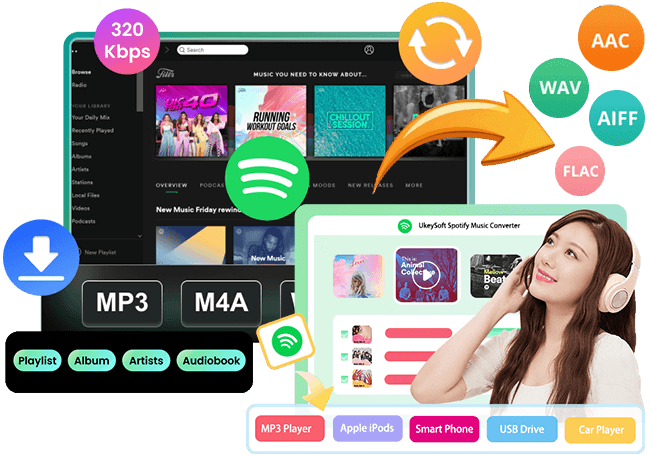
UkeySoft Spotify Music Converter works on both Windows and Mac computers and comes with a built in Spotify web player for stable performance. It lets you convert Spotify music to MP3, M4A, AAC, FLAC, WAV, or AIFF and save the files locally. Moreover, all music is kept in original quality up to 320kbps with full ID3 tags, making it easy to manage and protect your music collection.
Note
UkeySoft Spotify Music Converter is equipped with built-in Spotify web player, you can search, browse, download and play music in one place, there is no need to install the Spotify official app.
UkeySoft Spotify Music Converter
- Support both Spotify Free and Premium subscription.
- Convert Spotify songs/playlists/albums to MP3, M4A, AAC, FLAC, WAV and AIFF.
- Keep original music quality and ID3 tags after converting the songs.
- Offer up to 16X faster download speed with batch feature.
- Keep Spotify songs permanent on your computer for offline playback on any device.
- Fix Spotify Error Code 18 and other issues.
- Works on Windows and Mac computer.
Tutorial: How to Download Spotify on Computer Locally
The process is very easy. Just install the program on your computer and follow the steps below.
Step 1. Open Spotify Converter and Sign In
UkeySoft Spotify Music Converter works on both Windows and Mac. Download the correct version, install it, and launch the program. Then sign in to your Spotify account.
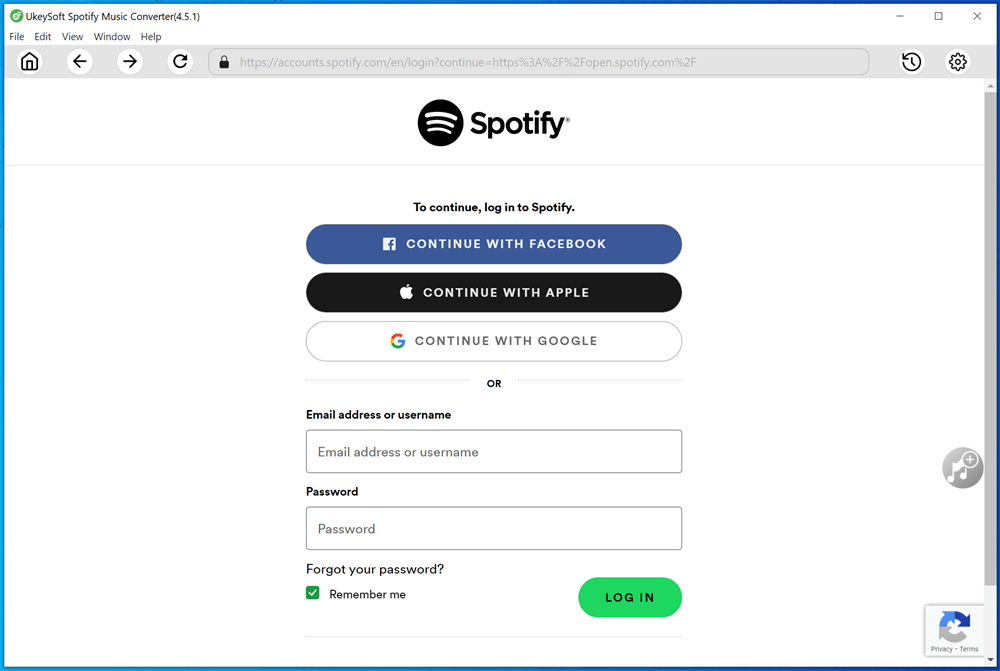
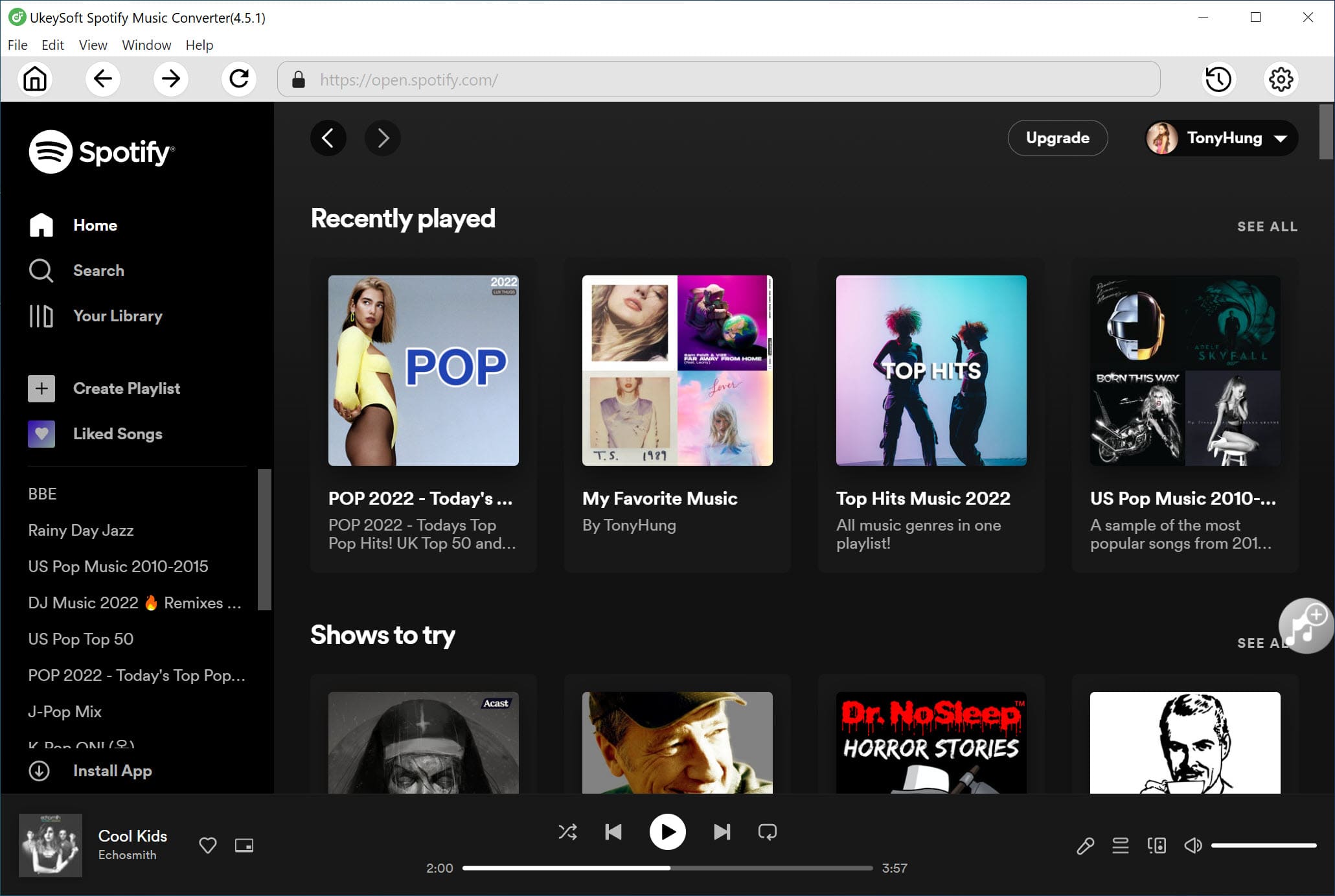
After logging in, you can browse, search, and play music directly in the built in Spotify web player.
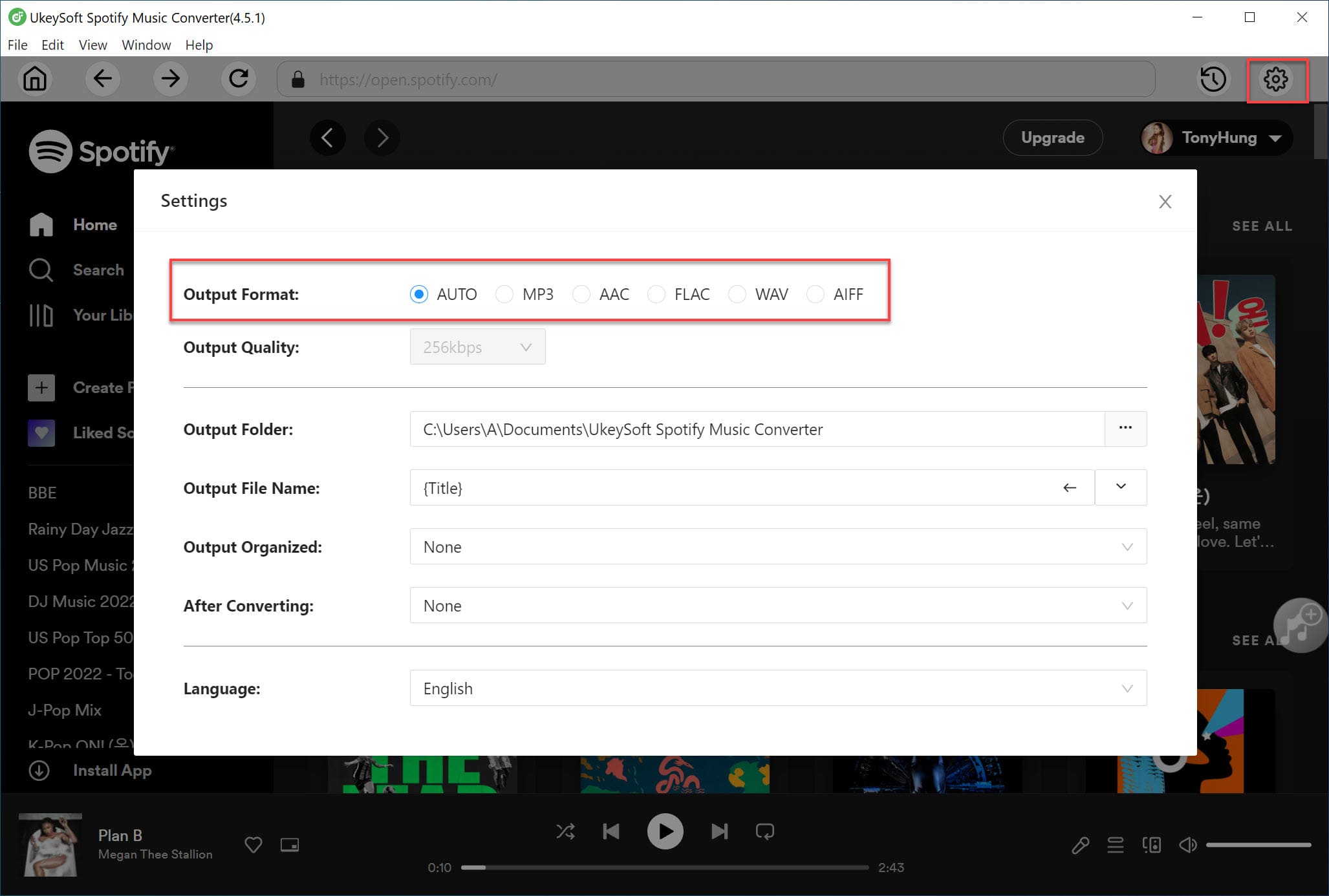
Step 2. Output Settings
Click the Settings icon in the top right corner. You can choose from six formats, such as MP3, M4A, WAV, FLAC, AIFF, and AAC. The default format is M4A. Since MP3 works on most devices and players, it is best to choose MP3.
Step 3. Add Spotify Songs Playlists or Albums
Use the built in Spotify web player to open the playlist or album you want to convert. Click the Add icon to add the content to the list.
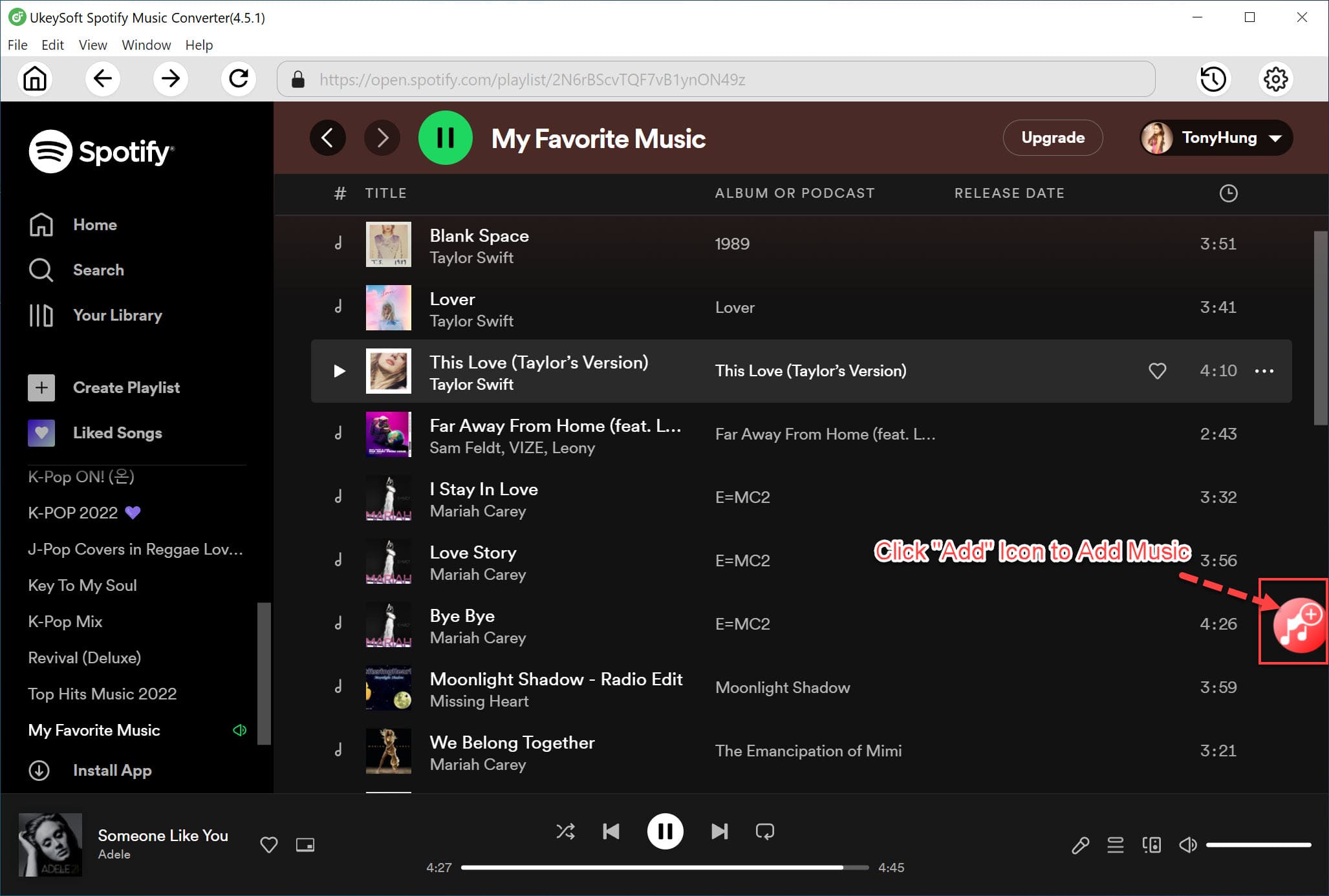
All songs are selected by default. You can uncheck any tracks you do not want to download.
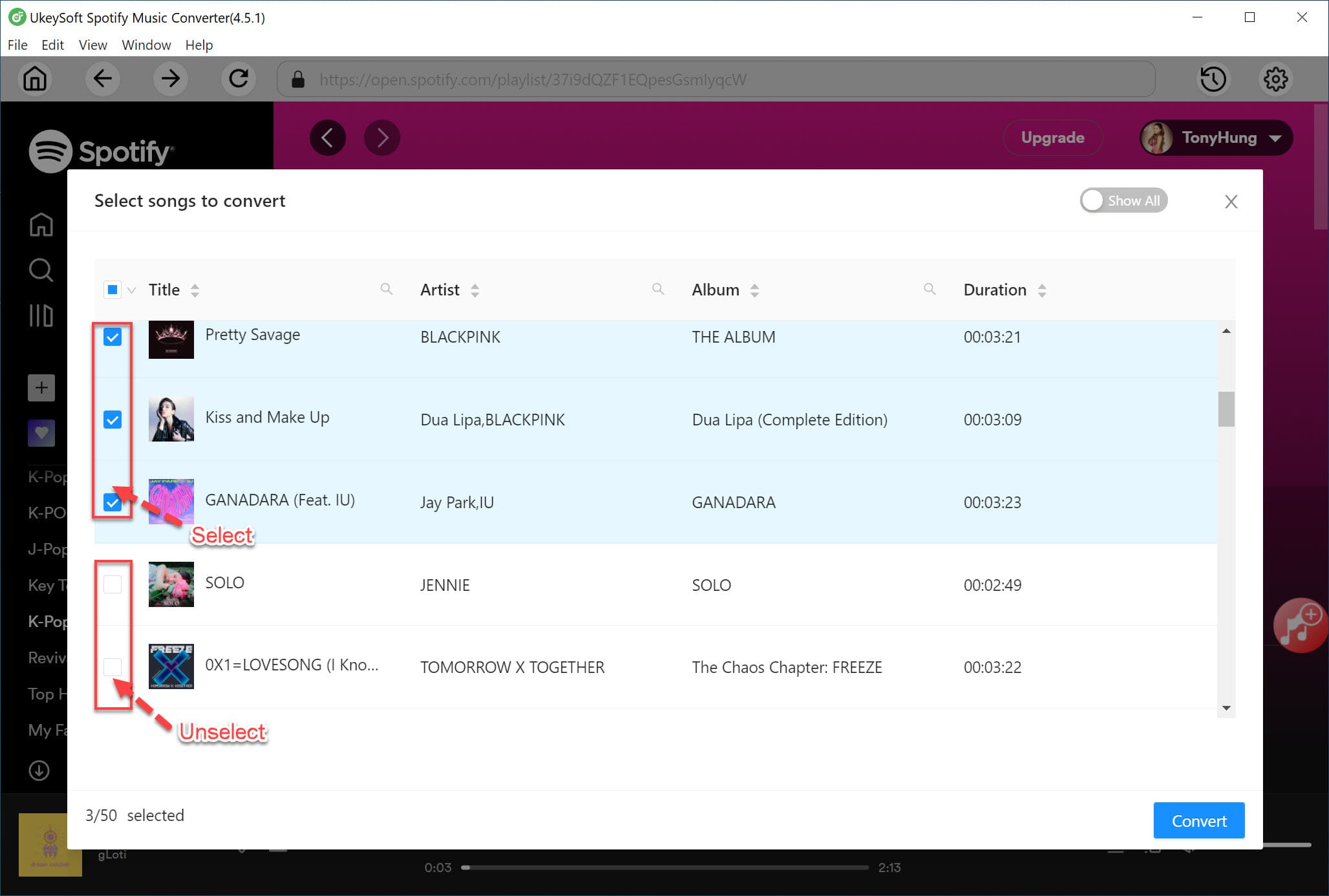
Step 4. Start to Convert Spotify Music
Click the Convert button to start converting Spotify songs or playlists to MP3 or another selected format. The program supports conversion speeds up to 16X faster.
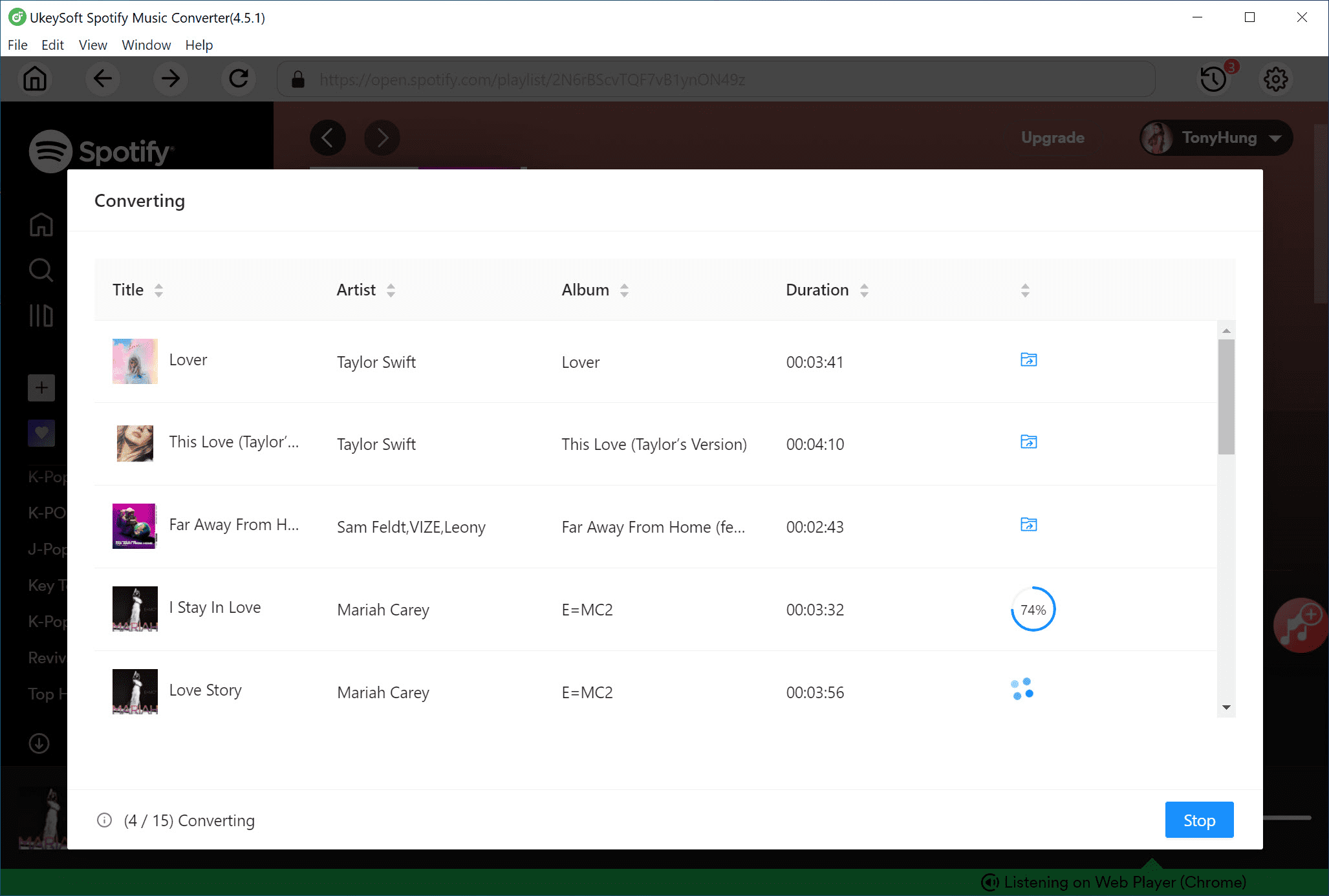
Step 5. Check the Converted Files
Once the conversion is complete, click the blue Output Folder button to open the saved location. You can now access your Spotify songs as local MP3 or other format files and enjoy smooth playback without Spotify Error Code 18 or other issues.
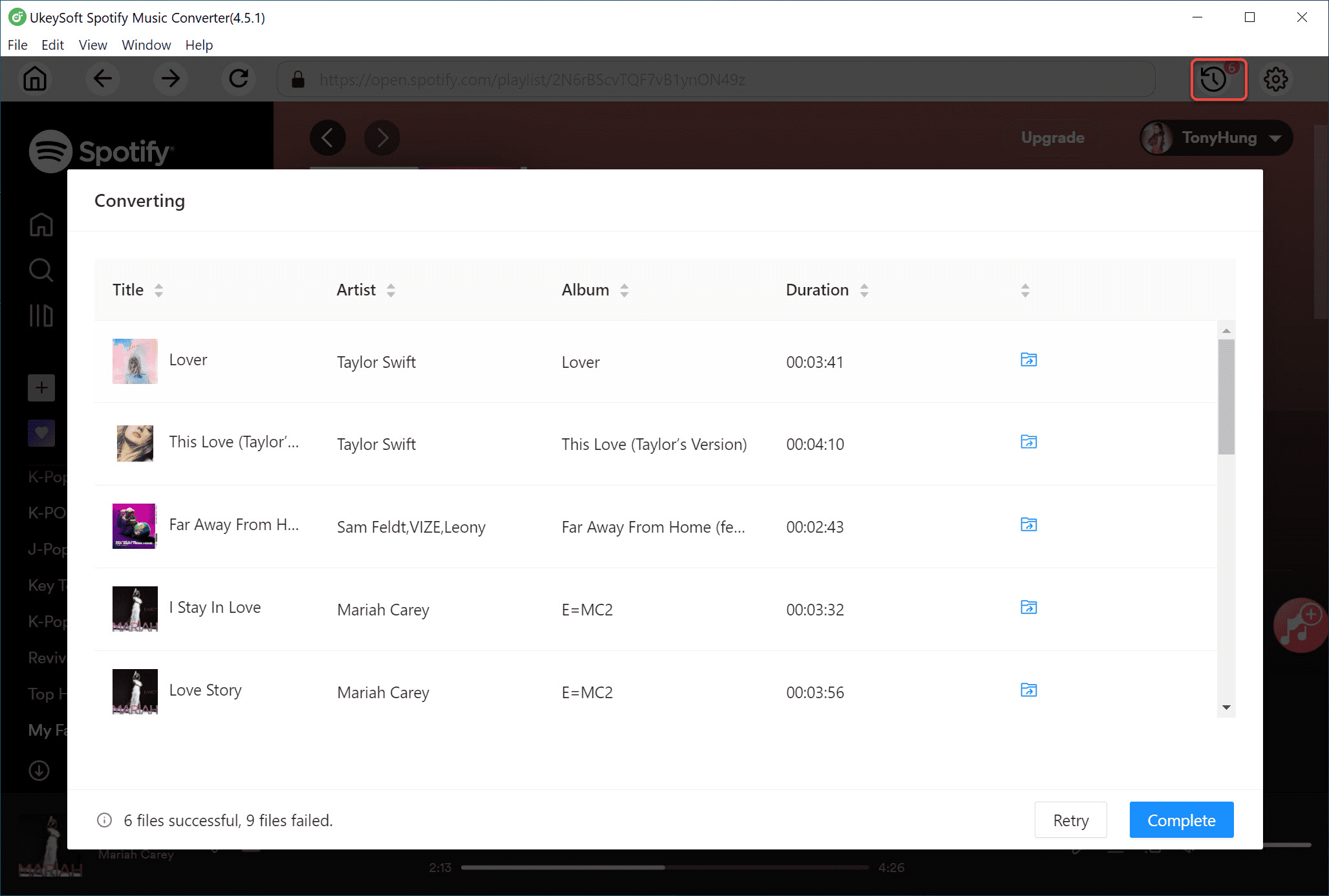
Conclusion
In conclusion, this guide shared several effective ways to fix Spotify Error Code 18 on Windows 10 & 11. To avoid future problems caused by Spotify Error Code 18, it is a good idea to use UkeySoft Spotify Music Converter to save Spotify songs as local files for backup on any device. This helps reduce the impact of Spotify errors and keeps your music safe.
Tip: System Requirements:
Windows 7 or later on 64bit required
Fix Spotify Error Code 18

Chester has always had great enthusiasm for writing, programming and web development. He likes writing about software and technology, his works are featured on some tech blogs or forums like Tom's Hardware, CNET, etc.
 English
 Arabic
 Chinese (Simplified)
 Chinese (Traditional)
 Croatian
 Czech
Czech Danish
 Dutch
Dutch Estonian
 Finnish
 French
 German
 Greek
Greek Hebrew
 Hindi
Hindi Hungarian
 Indonesian
 Italian
 Japanese
 Kazakh
 Korean
 Malay
Malay Norwegian
 Polish
 Portuguese
 Romanian
 Russian
 Slovenian
 Spanish
 Swedish
 Thai
Thai Turkish
 Ukrainian
 Vietnamese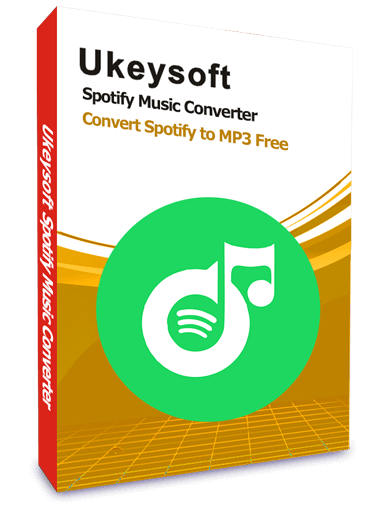







Comments are off!