 ✕
✕
✕
✕
By Justin SabrinaUpdated on September 05, 2025
Nowadays, we value privacy and security more seriously. If you plan to share your computer with others, it is necessary to protect your privacy from unauthorized access. Hiding files and folders is the best way to keep safe from prying eyes. Do you know how to hide files on a Mac or Windows computer? In the latest article, we introduced you on how to hide and lock a folder on Mac. Today, we will focus on how to hide specific files and folders in Windows 11. Now read this post and hide your files with simple clicks.
CONTENTS
Way 1. Hide Files and Folders in Windows 11 via File Explorer
Way 2. Hide Files and Folders in Windows 11 via Ukeysoft File LockerHOT!
It is an easy task to hide files and folders on Windows 11. Microsoft has added some cool and fascinating features to its latest version of Windows 11, including built-in device encryption. File Explorer can help with that. It is a helpful and convenient file manager application for Windows operating system. Let's start with the easiest way to hide a file or folder on Windows 11 using File Explorer.
Step 1. Open File Explorer from the taskbar icon, or simply press Windows + E.
Step 2. Turn to the file or folder you want to hide, and right-click on it. Then select Properties from the menu.
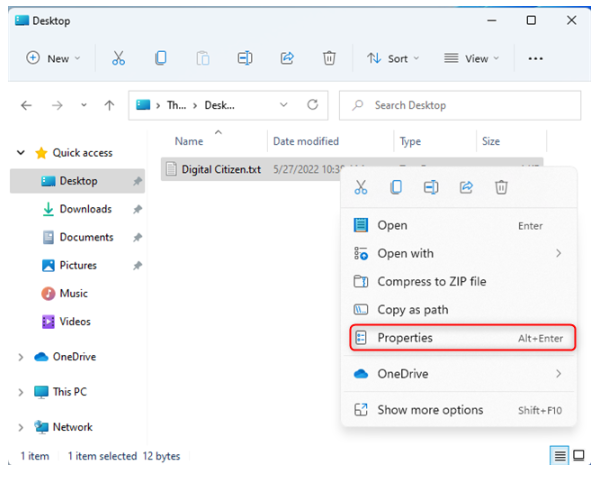
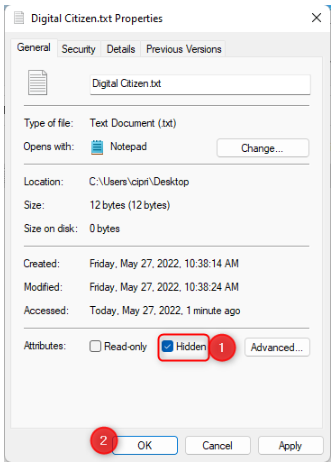
Step 3. Under the General tab, tick the checkbox of Hidden and click OK.
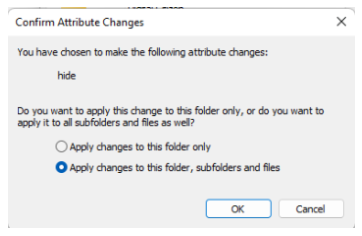
Step 4. A small window will pop up. Tick Apple changes to this folder, subfolders, and files. And hit OK.
Step 5. Then the files or folders you selected will be grayed out, but it is still be visible.
Step 6. To completely hide your folders, click View button > Show, then deselect the Hidden items.
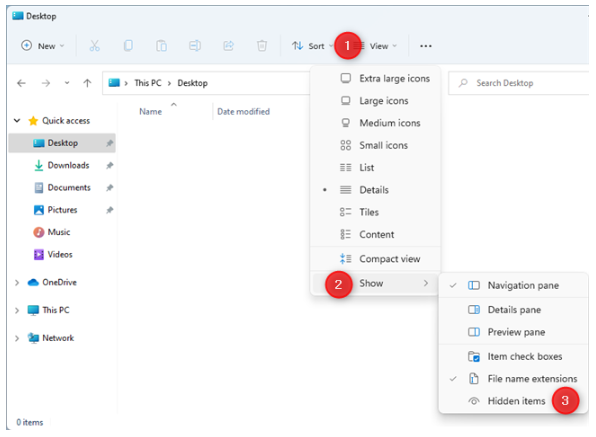
Tips: Afterwards, you can set the item to be visible again.
Another way to hide files and folders in Windows 11 is by using a professional file locker. Here you can turn to UkeySoft File Locker.
UkeySoft File Locker is a simple but powerful file & folder locker software for Windows and Mac computer. By using an encryption technique for security, UkeySoft is the best option to protect your data. It enables you to hide and lock your files and folders on internal hard drive, external USB drive, flash drive and more.
This smart tool allows you to set a password to lock files, folders, and drives. No one can access it without the password. Additionally, it also helps you erase and wipe any data and file on your hard drive complete and permanently.
Highlights:
Step 1. Download and Run UkeySoft File Locker
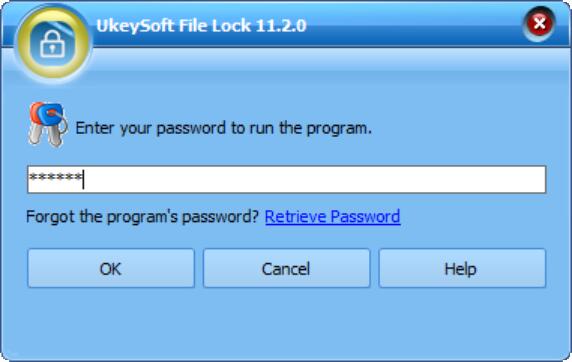
Download and install the UkeySoft File Locker on your Windows computer from the button above. Then start the program. When you run at the first time, you'll need to enter the initial password – 123456, and click "OK" to go on.
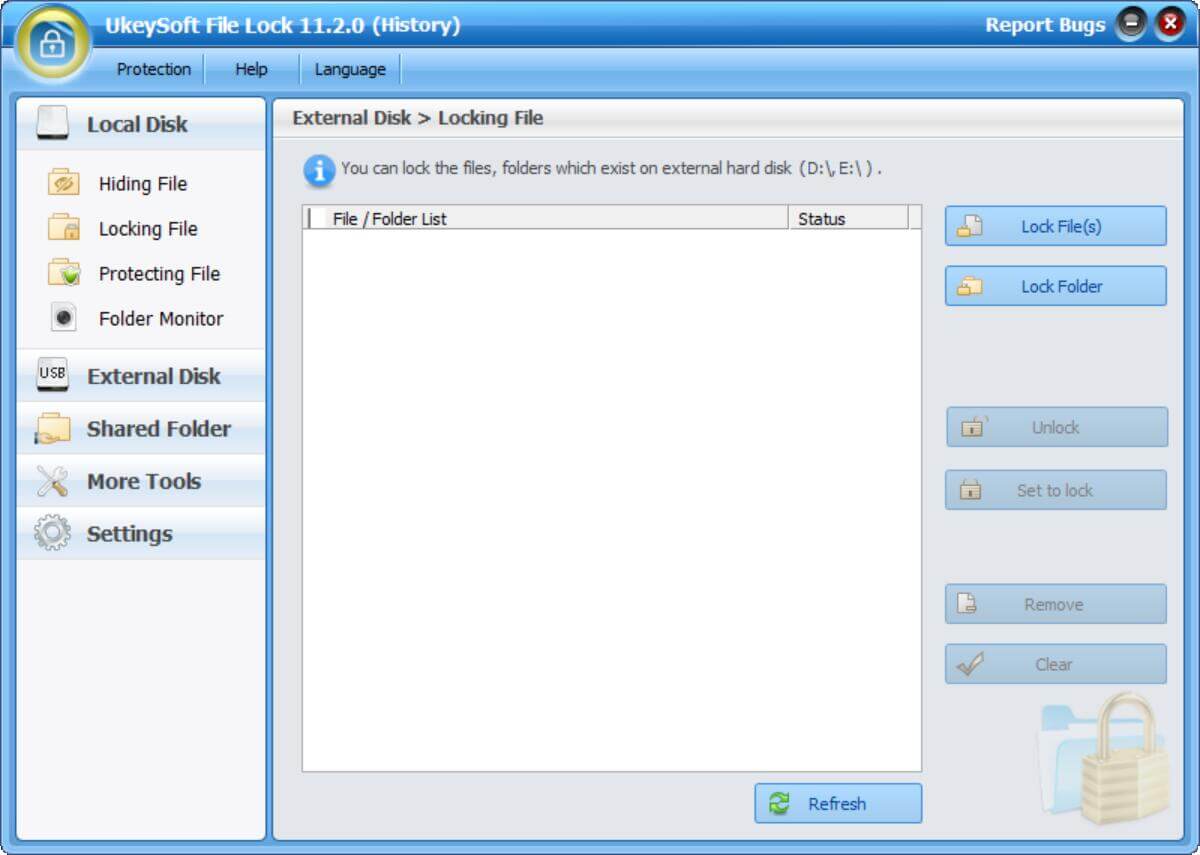
Then you will go to its main interface.
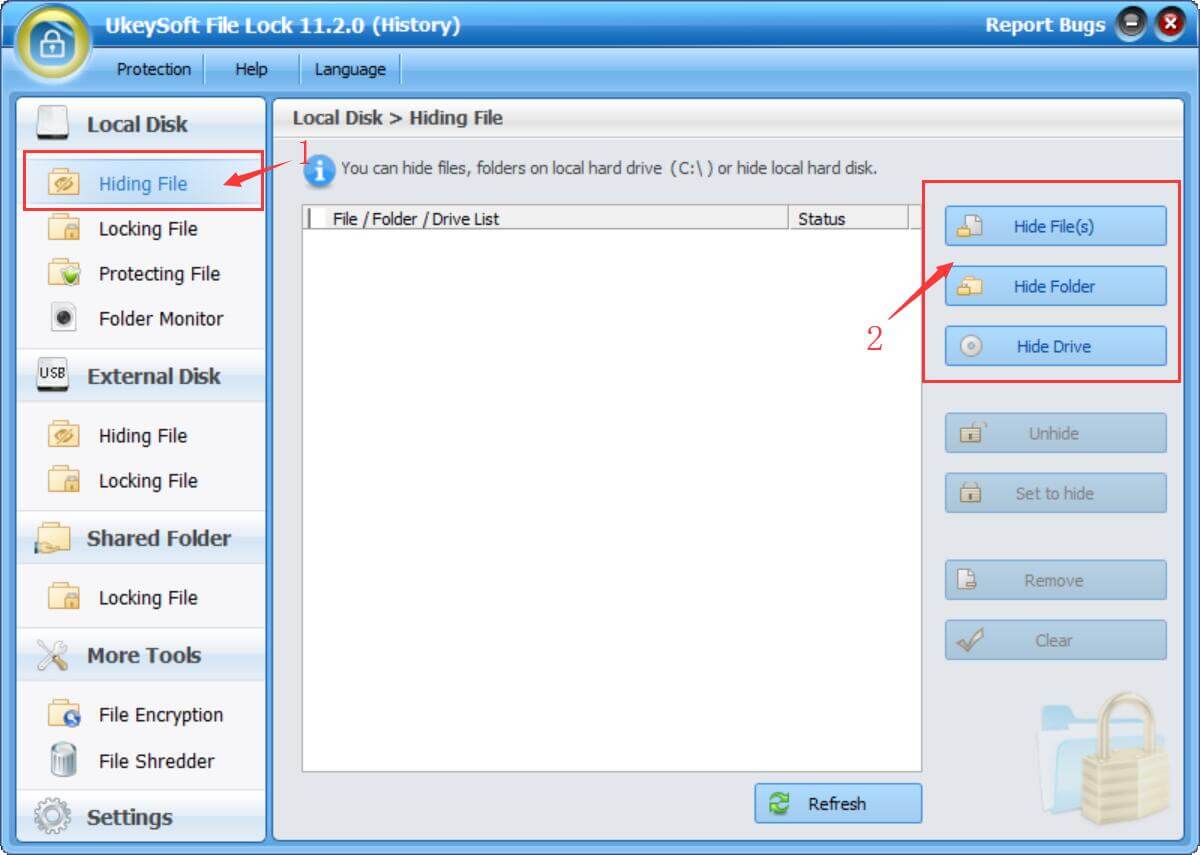
Step 2. Select "Hiding File" Function
Tap "Hiding File" in the left panel, and it will display 3 hiding features in the right side.
Step 3. Add Files/Folders to Hide
Yon can select "Hide File(s)" option and add your files you want to hide.
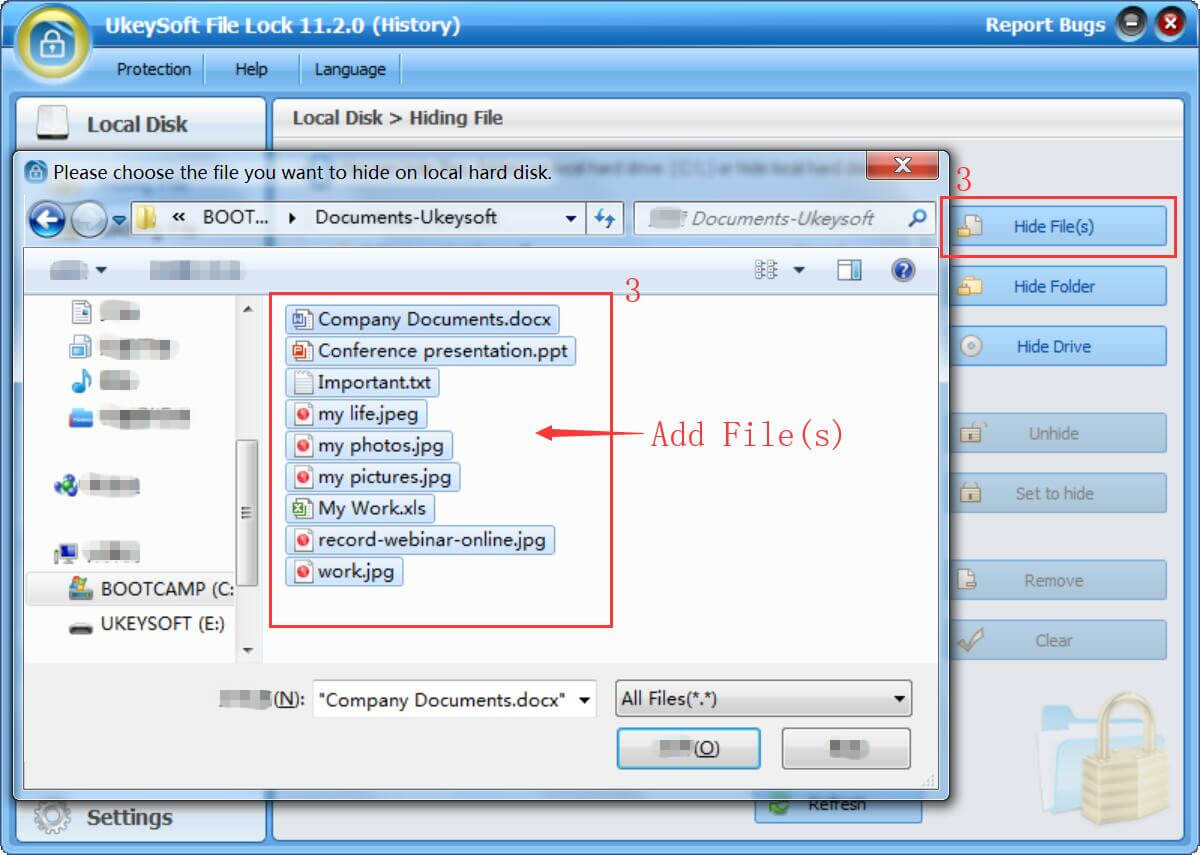
Also, you may choose "Hide Folder" option, and add the folders from local drive.
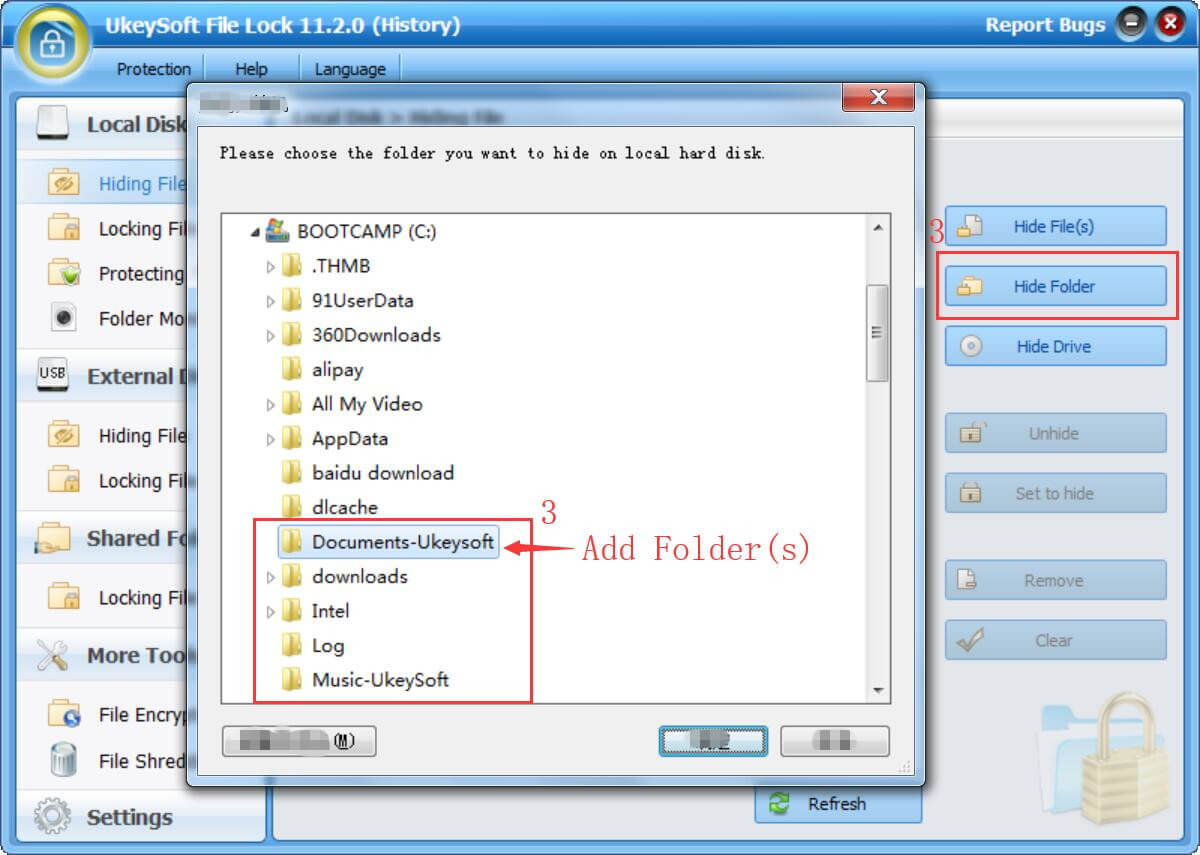
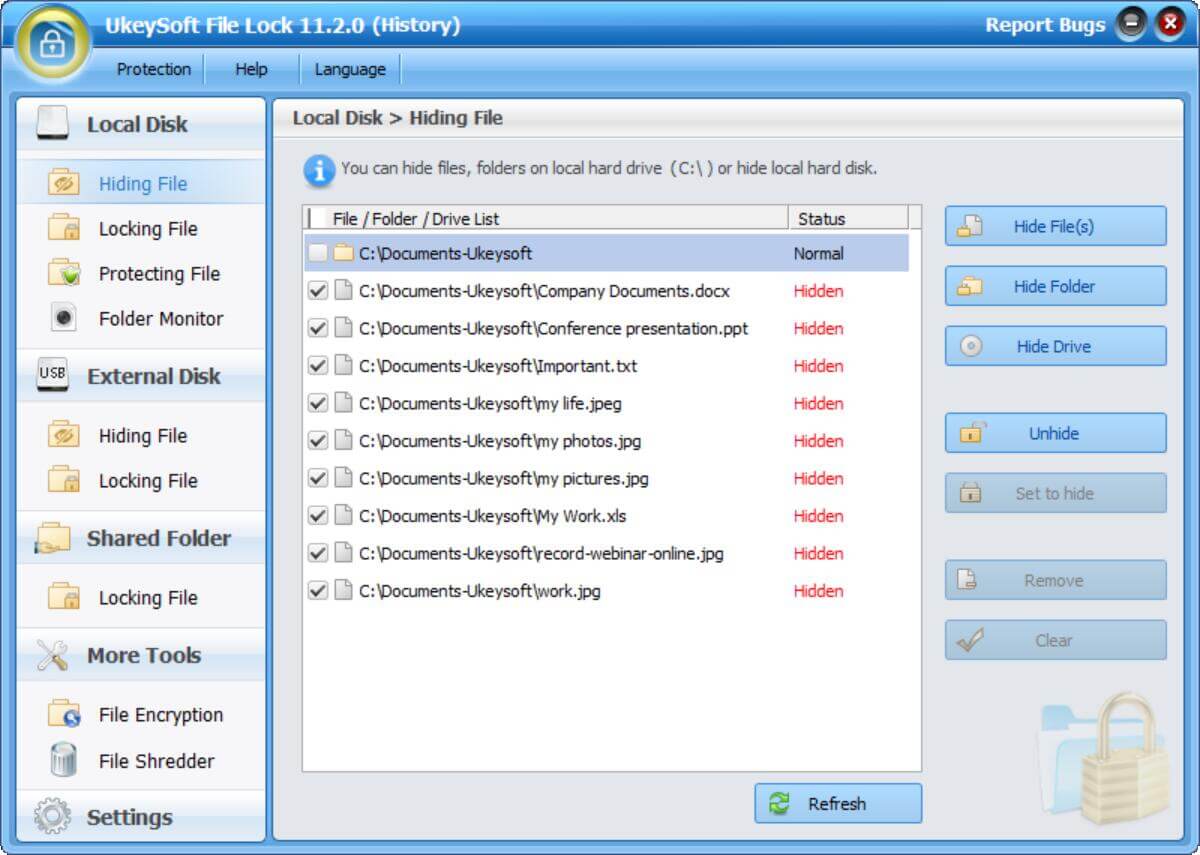
Step 4. Hide Files & Folders Successfully
As you can see, all the selected files and folders have been added to the hiding list.
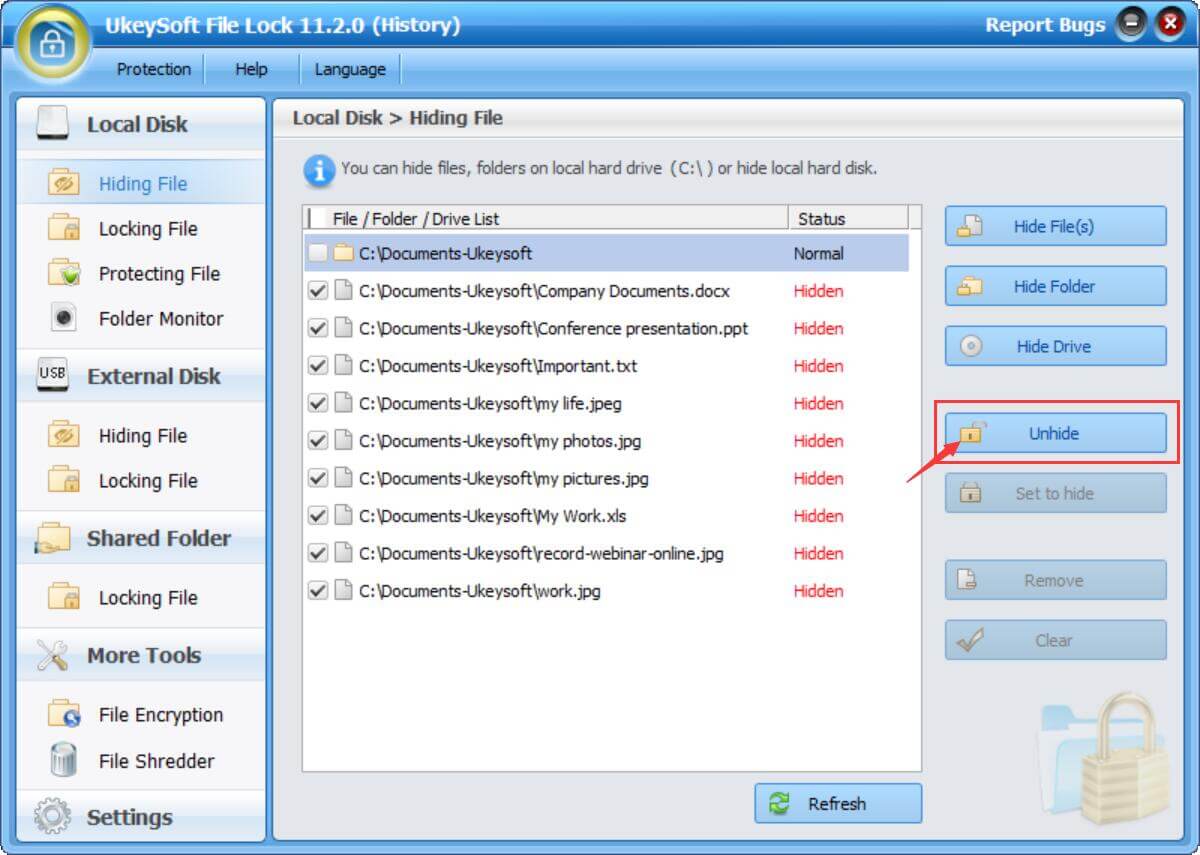
Step 5. (Optional) Show Hidden Files and Folders
If you want to show hidden files in Windows 11, just select the files or folders, and tap the "Unhide" button in the right side.

Justin Sabrina has over 10 years of content writing experience. She specializes in product reviews, how-to guides, tips and tricks, top lists, etc. on data encryption, multi-media conversion, screen recording and iOS unlocking. At UkeySoft, she performs in-depth research SEO copywriting and collaborates with our R & D team to offer effective software solution, most of her articles on software are helpful and easy to read, helping our reader easily solve problems through using software or apps.

Li Zhang is a sophisticated editor for UkeySoft in tech blog writing, as well as a SEO and content marketing expert. She has been writing related article about multimedia conversion, streaming music and streaming video since 2018. Also, she's starting to write article about data security, including articles about file lock, USB encryption, DVD encryption, etc. Each helpful tutorial and solution is based on her practical tests, she is aways energetic and trustworthy in this field.

Chester is an experienced editor for UkeySoft focused on tech article writing, software & hardware produce review and tutorial. He specializes in composing posts about music conversion, video downloading, video conversion, screen recording and other tech knowledge tips. He always understands user needs and pain points and familiar with all kinds of multimedia conversion software and streaming music downloader on the market. So far, he has published 400+ helpful tech articles of software reviews, how-to guides to help reader in need.
Prompt: you need to log in before you can comment.
No account yet. Please click here to register.










![7 Best FREE Apple Music Converters [2026 Updated]](https://www.ukeysoft.com/wp-content/uploads/2019/04/best-apple-music-converter.jpg)




















Convert Apple Music, iTunes M4P Songs, and Audiobook to MP3, M4A, AAC, WAV, FLAC, etc.

















![Top 10 Christmas Songs to MP3 Download [Spotify]](https://www.ukeysoft.com/wp-content/uploads/2023/01/christmas-songs-to-mp3.jpg)








































Convert songs, podcasts from Amazon Prime Music, Music Unlimited, and HD into MP3, M4A, AAC, WAV, FLAC, etc.























Download Tidal HiFi, high-quality songs to computer, convert Tidal music to MP3, FLAC, WAV, AAC, etc. at 10X faster.
























Download songs, albums, playlists, and podcasts from Deezer to MP3, M4A, etc. in original quality.






Batch download Pandora songs, albums, playlists and podcasts to your computer, convert Pandora Music to MP3, M4A, etc.

Download and convert songs, albums, playlists from YouTube Music Free & Premium to MP3, M4A, AAC, FLAC, WAV, AIFF.






















Convert Audible AA/AAX audiobooks to MP3, M4A, M4B, etc. for easily playback everywhere.

Convert iTunes M4V movies, TV shows and music videos to MP4 video format.



Convert incompatible video/audio files,edit video and enhance video quality.

Rip DVD to any main stream audio & video formats for playback on portable and mobile devices.


Password protect and hide files & folders located on your computer, USB devices.

Password protect and encrypt USB disk, memory stick and more USB flash drive.


Cut, merge, crop, trim and rotate video; Add BGM to video and enhance video effect.

Free download music from Spotify to get free songs for adding to your created videos.

Porducts
Solution
Copyright © 2026 UkeySoft Software Inc. All rights reserved.


 English
 Arabic
 Chinese (Simplified)
 Chinese (Traditional)
 Croatian
 Czech
Czech Danish
 Dutch
Dutch Estonian
 Finnish
 French
 German
 Greek
Greek Hebrew
 Hindi
Hindi Hungarian
 Indonesian
 Italian
 Japanese
 Kazakh
 Korean
 Malay
Malay Norwegian
 Polish
 Portuguese
 Romanian
 Russian
 Slovenian
 Spanish
 Swedish
 Thai
Thai Turkish
 Ukrainian
 Vietnamese









No comment yet. Say something...