 ✕
✕
✕
✕
By Justin SabrinaUpdated on May 09, 2026
Question: "Audible app is not working on my recently purchased Pixel 9. The app worked on pixel 6a and phones. I can't download books; and, or, listen to books. Please help." - An Audible user asking on Google Community
For audiobook lovers, Audible is the go‑to platform for relaxing, learning, and staying entertained during commutes or downtime. It offers unmatched convenience that allows to stream and download audiobooks across mobile devices, tablets, and computers. However, many users occasionally encounter problems such as the Audible app not working, the Audible app keeps crashing, or the Audible app not opening properly.
Fortunately, most issues have simple fixes. In this guide, we'll explore why the Audible app stops working and how to fix it. From basic troubleshooting to advanced solutions, you can easily get back to enjoy your favorite audiobooks. To permanently fix Audible app not working issue, you can convert Audible audiobooks to MP3 with UkeySoft Audible Converter. This allows you to transfer and play Audible books on any other device or player outside the Audible app!
CONTENTS
There are many reasons why the Audible app may stop functioning correctly. In some cases, the issue is caused by unstable internet connections, server outages, corrupted cache files, or outdated app versions. Sometimes users notice the Audible app keeps crashing after system updates or while downloading audiobooks.
Other common causes include damaged audiobook files, insufficient storage space, login authentication errors, or compatibility issues between the Audible app and your device operating system. Fortunately, most of these problems can be fixed easily with the right troubleshooting methods. Scroll down to find the solutions!
Dealing with the "Audible not working" issue is not a difficult task. When you find that Audible no longer works for you, you can try below basic troubleshooting steps to have a quick fix.
1. Check Network Connection
Audible requires a stable network for streaming, syncing, downloading, and account verification. Before delving into more complex troubleshooting steps, ensure your Wi-Fi or mobile data is working.
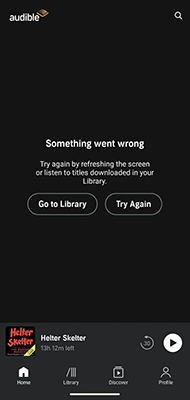
Other Tips: Try switching between Wi-Fi and mobile data, restart your router, or reconnect your device to improve network stability before reopening Audible. Turning Airplane Mode on and off can also quickly fix temporary network issues.
2. Check If Audible Is Down
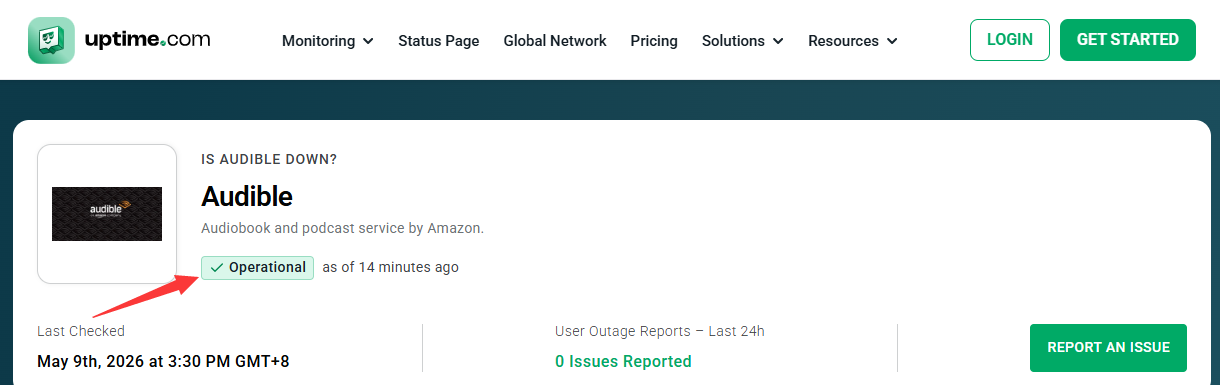
Sometimes the issue is not on your device but on Audible's servers. If the Audible platform experiences outages or maintenance, users may face loading failures, syncing problems, or login issues.
You can visit websites like Uptime.com or check Audible's official social media accounts (Twitter @AudibleHelp) for service alerts. If a widespread outage is confirmed, you will need to wait for Amazon engineers to resolve the issue.
3. Re-login After Account Logout
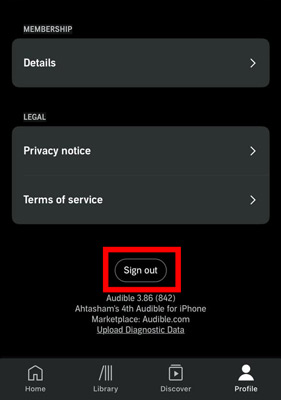
Authentication problems could be the major cause of Audible app not working or failing to load your library. To fix such issues, log out of your Audible account completely, close the app, then sign in again using your Amazon account credentials. This simple method often helps refresh account authorization and solve syncing problems.
4. Force Restart the Audible App
Force restarting the Audible app is a common troubleshooting method. It can help remove temporary glitches, frozen screens, and loading problems. This is one of the quickest ways to resolve the problem of Audible app not working. Here's how you can force-stop the Audible app and reopen it.
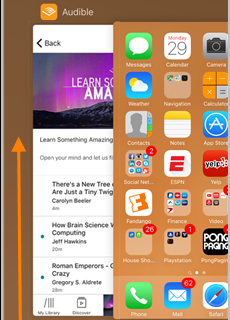
On iOS (iPhone/iPad):
Step 1. Swipe up from the bottom of the screen and pause in the middle (or double-click the Home button on older devices).
Step 2. Swipe left or right to locate the Audible app card.
Step 3. Swipe up on the Audible card to force close it.
Step 4. Wait 10 seconds, then relaunch Audible from the Home screen.
On Android:
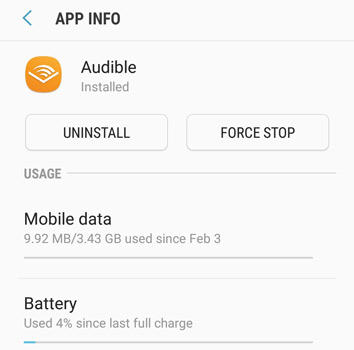
Step 1. Open "Settings", tap "Apps" and choose "Audible".
Step 2. Select "Force Stop" and confirm.
Step 3. Afterwards, launch Audible app again.
On Fire Tablets:
Step 1. Swipe down from the top of the screen to open "Quick Settings".
Step 2. Tap "Settings", select "Apps & Notifications", tap "Manage All Applications", and then "Audible".
Step 3. Tap "Force Stop", then "OK" to confirm your action.
Step 4. Return to the "Home" screen and reopen Audible app.
5. Reset the Audible App
Resetting the Audible app helps clear internal app errors while preserving your purchased audiobooks in the cloud. This method is especially useful when the Audible app not opening or freezing frequently. You can reset Audible app on different devices by following these simple steps:
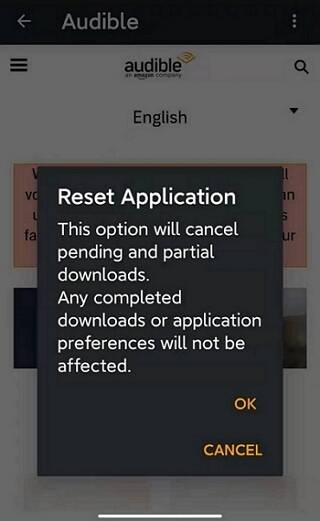
Step 1. Open the Audible app, tap "Profile" in the bottom right corner.
Step 2. Select "Help & Support" option, and tap the three dots.
Step 3. Select "Reset Application", tap "OK" to confirm.
6. Remove and Re-download Audible Books
Occasionally, corrupted audiobook files can trigger playback failures and cause the Audible app not working properly. Removing the audiobooks and then re-downloading them to your library works as a simple workaround. You can refer to below simple guide:
Step 1. Open Audible app, and go to "My Library".
Step 2. Choose the option of the "Delete" section.
Step 3. Find the problematic audiobook, tap the three dots next to the book title.
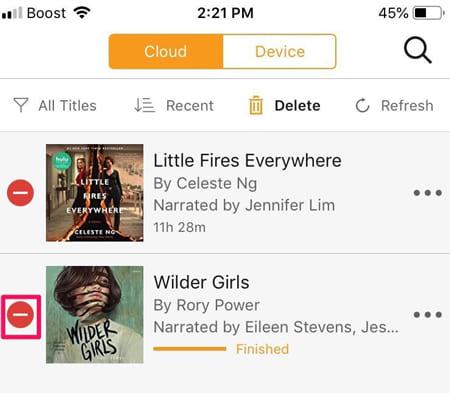
Step 4. Select "Remove from Device".
Step 5. Restart the Audible app, tap the book cover to re-download it.
Audible is still not working? Try the following advanced troubleshooting tips to resolve the issue and enjoy your favorite audiobooks again.
1. Update Audible App
Another potential issue could be the outdated Amazon Music app itself. An outdated app version may contain bugs, compatibility issues, or playback errors. So, make sure you are running the latest version of Audible app.
You can go to the App Store, Google Play Store, or Amazon Appstore on your iOS/Android/Fire tablet, search for Audible. Tap "Update" if available.
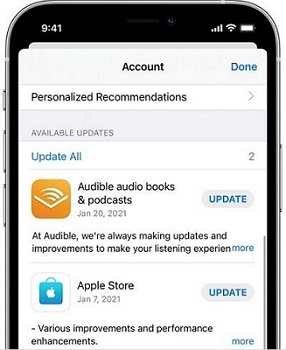
2. Delete and Reinstall the Audible App
Sometimes, the Audible app may crash or malfunction due to data overload. If updating the app still does not help, you can consider reinstalling Audible app. A clean reinstall removes all app data, including any deeply corrupted file. After that, try reinstalling the Audible app to see if the problem has been solved.
3. Clear Audible Cache Files
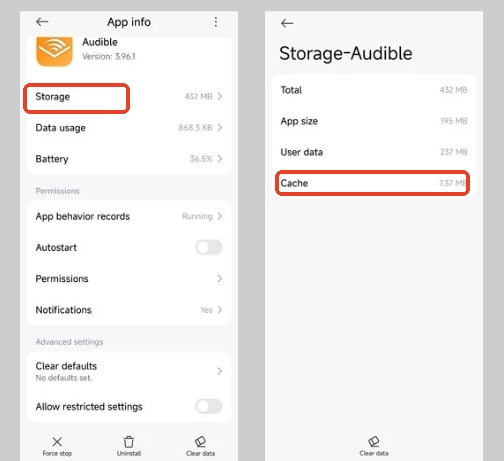
Audible's "Smart Cache" can indeed consume a significant amount of storage. However, overloaded cache data and temp files can slow down performance, trigger crashes, and create loading problems. Clearing the cache is an effective way to resolve the Audible not loading issue. Here's how to do it:
On Android:
Open "Settings", go to "Apps", find and select Audible.
Tap "Storage", and select "Cache", then tap "Clear Cache".
On iOS:
iOS automatically manages app cache. You may need to reinstall Audible to fully clear cached data.
On Fire Tablets:
Go to "Settings", tap "Applications", select "Audible". Tap "Clear Cache".
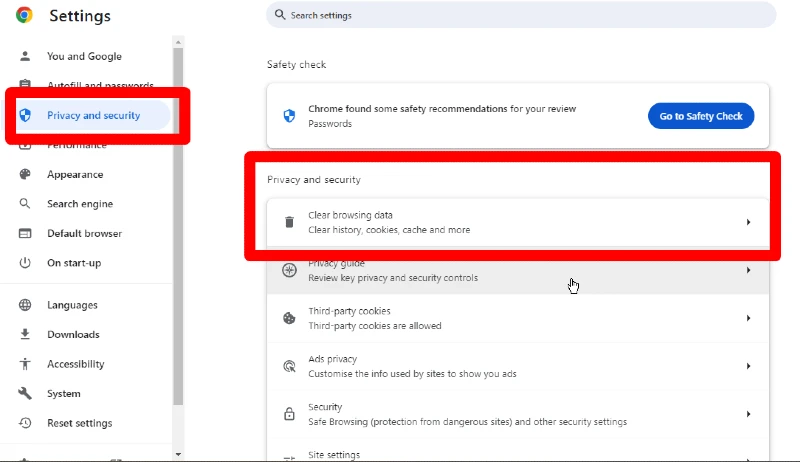
On Browser:
If you play Audible books in a browser, please go to "Settings", tap "Privacy and security," and click "Clear browsing data".
4. Restart Your Devices
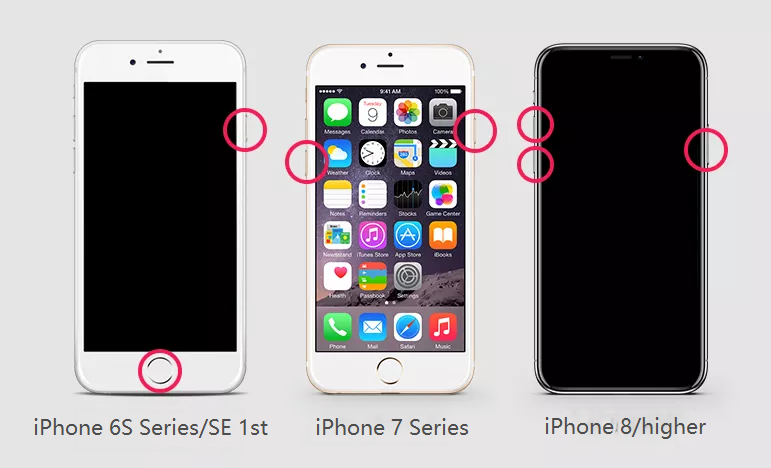
Sometimes device-level glitches may cause the Audible app keeps crashing unexpectedly. Restarting your phone or tablet can refresh system processes and clear temporary errors.
On iOS:
Press and hold the "Side" button + "Volume" button until the power slider appears, then slide to power off. Restart after a few seconds.
On Android:
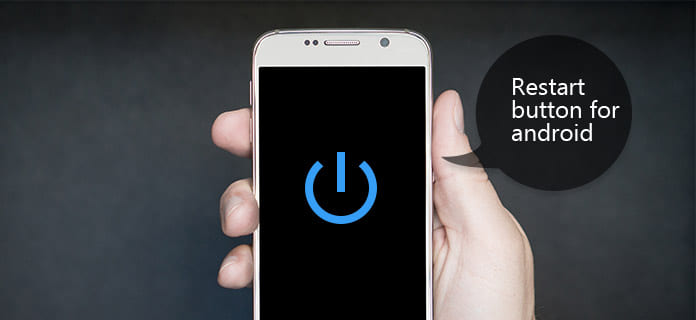
Press and hold the "Power" button (or Power + Volume Down) until the power menu appears. Tap "Restart" (or "Reboot").
On Fire Tablets:
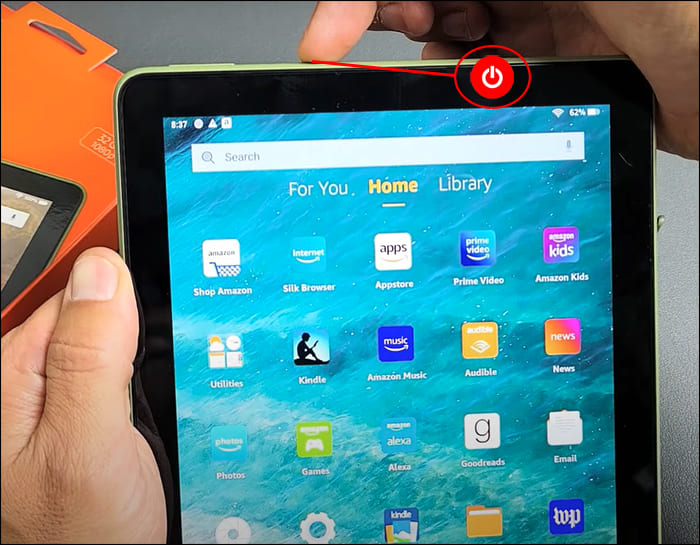
Press and hold the "Power" button for 5 seconds. Tap Restart from the on-screen menu.
5. Update Your Device OS
Outdated operating systems can create compatibility issues with newer Audible app versions. To fix Audible app not working issues, try to update your device OS.
On iOS: Go to "Settings", tap "General", select "Software Update".
On Android: Open "Settings", go to "System" > "Software Update". Download and install updates.
On Fire Tablets: Open "Settings", tap "Device Options", select "System Updates".
6. Use Audible on Other Supported Devices
If Audible still does not work properly on one device, try accessing your account using another compatible device. For example, if the Audible app not working on your iPhone, you can switch to an iPad, Android phone, Fire tablet, or desktop computer for audiobook playback.
7. Listen to Audible Books via the Audible Website Cloud Player
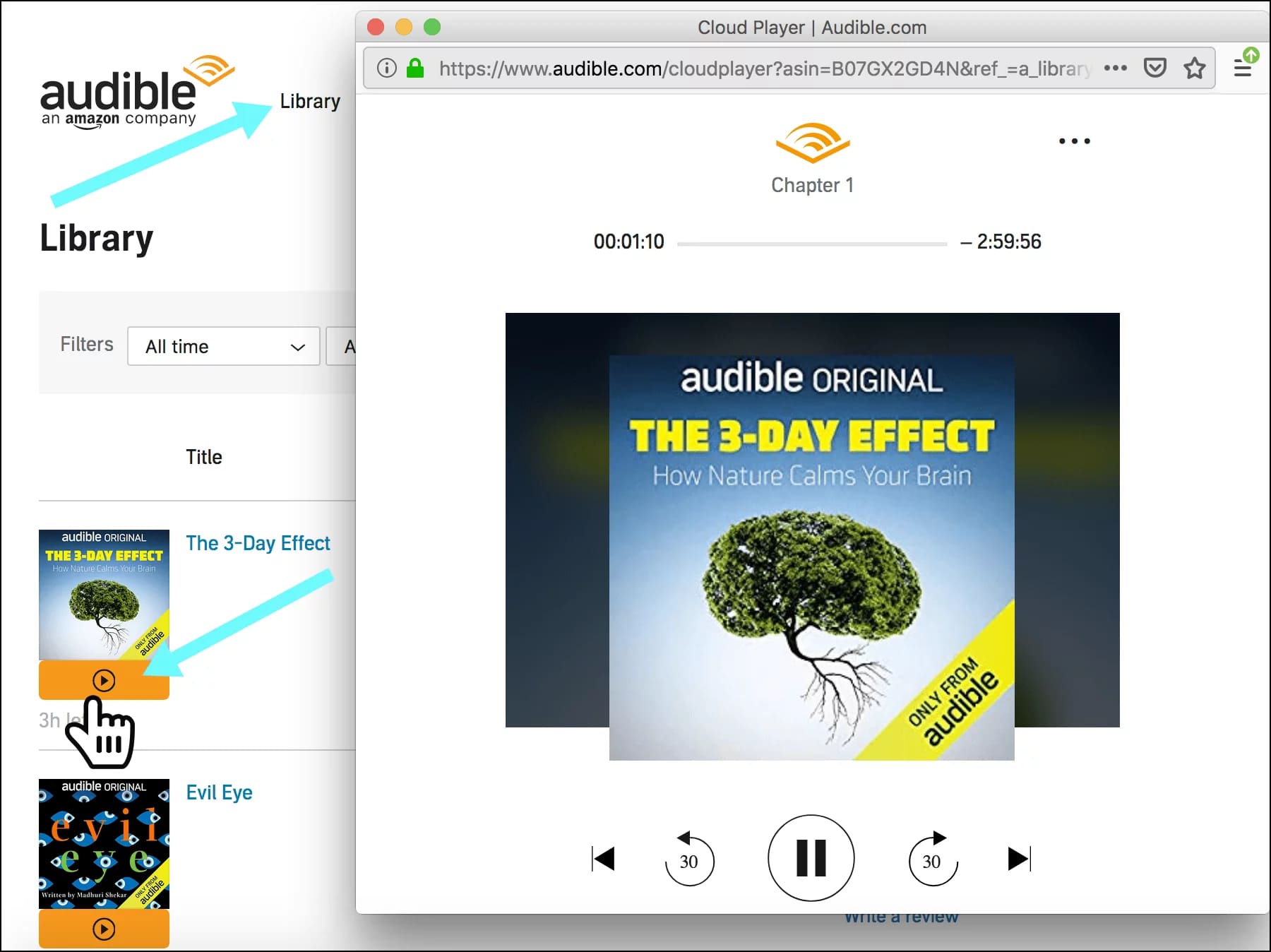
When the Audible app refuses to open or keeps crashing, you can still access your audiobooks through the Audible Cloud Player. This web-based player requires no installation. Simply open a web browser on your computer or mobile device, go to audible.com/listen, log into your account, and start streaming any title in your library.
Typically, Audible applies DRM protection to downloaded audiobooks. All downloaded books are saved as AA or AAX files, which can only be played within the Audible or iTunes app. To permanently fix Audible app not working, the best solution is to convert Audible audiobooks into DRM-free MP3 files.
To do this, UkeySoft Audible Converter is a good helper. It can assist you to remove DRM from Audible and convert Audible AA/AAX files into MP3, WAV, M4B, M4A, AC3, AAC, FLAC, OGG, and AIFF formats for unrestricted playback. After conversion, audiobooks can be transferred to any media player like WMP, VLC, iTunes, QuickTime, or device like smartphone, tablet, MP3 player, iPod, USB drive, car system, or offline device without Audible app restrictions. Say goodbye to Audible app!
The software supports up to 700X faster conversion speed with batch processing technology, allowing users to convert multiple audiobooks simultaneously while preserving original sound quality. In addition, it can keep complete ID3 tags and chapter information, enabling users to organize audiobooks more efficiently and conveniently.
Unlike many traditional online Audible converters, UkeySoft does not require Audible account authorization or iTunes authentication. Better still, it also lets you customize bitrate and sample rate settings (up to 320kbps at 48000Hz) or split large audiobooks by chapter or time. Whether you want flexible offline listening or permanent audiobook backups, UkeySoft Audible Converter provides a simple solution and excellent experience.
Key Features of UkeySoft Audible Converter:
Step 1. Launch UkeySoft Audible Converter
Download and install UkeySoft Audible Converter on your Windows PC or Mac. Launch the program. The interface is clean and intuitive, with clear buttons for adding Audible files and adjusting settings.
Step 2. Two Ways to Add Audible AA/AAX Audiobooks
Drag & Drop: Simply drag your downloaded .AA or .AAX files from your computer's folder into the UkeySoft's conversion window.
Manually Add: Click the "Add" button, then browse your computer to select the downloaded Audible AA or AAX files you want to convert. You can select multiple files at once.
Note: You need to download your purchased audiobooks from Audible to your computer in advance.
Step 3. Customize Output Settings
Click "Options" button and tap "Advanced" tab, choose MP3 as the output format. Set the bitrate to 320kbps for best quality, and sample rate to 48000Hz.
Switch "General" tab, you can also choose to split output files by chapters or by a fixed time interval. Select a destination folder for the converted files.
Step 4. Begin to Convert Audible Books to MP3
Click the "Convert" button to start converting Audible audiobooks to MP3 at 320kbps high quality. The software will preserve all ID3 tags and chapter markers while removing Audible DRM restrictions.
Step 5. Get Output Audiobooks and Enjoy Freely
After conversion finishes, click the "History" button to access your DRM-free audiobooks. Go to the output folder and transfer them to any media player or device for offline listening.
Experiencing the Audible app not working can be frustrating, especially when your audiobook stops playing right in the middle of a great story. Fortunately, most problems can be solved by checking network connections, clearing cache files, updating the app, or reinstalling Audible. If you want a permanent solution without depending on the Audible app, convert your Audible audiobooks to MP3 using UkeySoft Audible Converter. Once converted, you can freely enjoy Audible audiobooks offline on any device without crashes, loading failures, or playback limitations. Free download UkeySoft Audible Converter today and take full control of your audiobook library forever.

Sorry the comment has been closed.






















Porducts
Solution
Copyright © 2026 UkeySoft Software Inc. All rights reserved.


 English
 Arabic
 Chinese (Simplified)
 Chinese (Traditional)
 Croatian
 Czech
Czech Danish
 Dutch
Dutch Estonian
 Finnish
 French
 German
 Greek
Greek Hebrew
 Hindi
Hindi Hungarian
 Indonesian
 Italian
 Japanese
 Kazakh
 Korean
 Malay
Malay Norwegian
 Polish
 Portuguese
 Romanian
 Russian
 Slovenian
 Spanish
 Swedish
 Thai
Thai Turkish
 Ukrainian
 Vietnamese











![7 Best FREE Apple Music Converters [2026 Updated]](https://www.ukeysoft.com/wp-content/uploads/2019/04/best-apple-music-converter.jpg)












































![Top 10 Christmas Songs to MP3 Download [Spotify]](https://www.ukeysoft.com/wp-content/uploads/2023/01/christmas-songs-to-mp3.jpg)













































































































Comments are off!