 ✕
✕
✕
✕
By Justin SabrinaUpdated on January 09, 2026
Situation 1. "Audible books on my phone stop playing sound after a few seconds. Is there something wrong with Audible right now?"
Situation 2. "No sound from Audible on Android, but if I use my music-streaming app it's all good. How do I fix my Audible glitch?"
It can be really frustrating when you get ready to play the audiobooks but no sound in Audible app. From app glitches to device settings, the Audible no sound problem can strike anytime and ruin your listening flow. Whether you're encountering no sound on Audible on your iPhone, Android, desktop, or in your car, you can't miss this ultimate troubleshooting guide. Here we've collected 15 proven ways to fix Audible no sound issues, aiming to get your audiobooks talking again on your devices.

CONTENTS
This Audible no sound issue affects iPhone, Android, desktop, and even car playback, often without warning. Usually, many Audible no sound problems are caused by simple system or connection issues. Before diving into advanced solutions, start with these essential checks.
When you encounter Audible audiobooks stop playing sound, the first thing is to check your network connection. If Audible is streaming instead of playing a fully downloaded title, switch between Wi-Fi and mobile data or reconnect to a stable network.
The second thing you can do when facing an Audible no sound issue is to check the device volume. Make sure your device volume is turned up and not muted. Many users fix no sound on Audible instantly with this step.
Temporary app glitches can cause Audible not playing sound. When you have double-checked your device network connection and volume system, also consider to restart the Audible app and device. First, fully close the Audible app (don't just minimize it) from your app switcher. Then, perform a full restart of your phone, tablet, or computer. This may help you fix no sound audio from Audible App in Audible.
Audible audio may be routed to a connected Bluetooth device like earbuds, speakers, or a car system. If that device is disconnected or muted, you'll experience Audible no sound. To fix this, disable Bluetooth or manually select the correct audio output to restore playback.
On Smartphone or Tablet:
Step 1. First, turn off Bluetooth on your mobile device.
Step 2. Then, open Audible app, start play an audiobook.
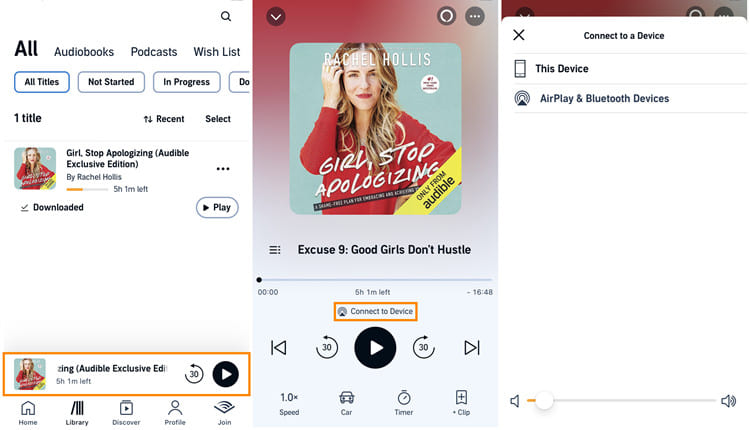
Step 3. From the Now Playing screen, tap "Connect to Device".
Step 4. Ensure "This Device" is connected, not AirPlay or any Bluetooth device.
On Computer:
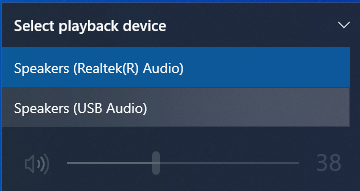
Click the "Speaker" icon in the system tray to verify audio is outputting to the correct speakers, not a disconnected headset.
If above basic troubleshooting tips fail to restore your Audible audio, the problem is likely related to Audible's app settings, downloads, or account configuration. Follow below advanced fixes.
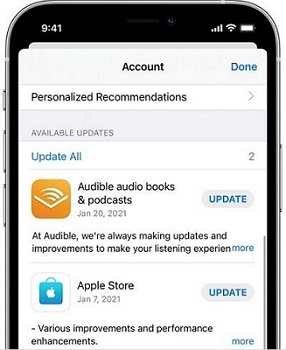
An outdated Audible app can cause compatibility and playback issues. In the updated Audible versions, they would always get some bug fixed, improve audio handling, and OS compatibility. So, install the latest version of Audible App and fix Audible not playing sound caused by known software bugs.
Step 1. Open the App Store (iPhone/iPad) or Google Play Store (Android).
Step 2. Tap your profile icon and go to "Manage Apps & Device" or "Updates."
Step 3. Find the Audible app in the list of available updates, tap "Update".
Sometimes, a corrupted settings file may also cause the Audible app not playing sound. Don't worry. Resetting the app refreshes its internal settings without deleting your downloads and account. Here's how:
Step 1. Open the Audible app on your iPhone or Android.
Step 2. Go to "Settings" > "Help and Support".
Step 3. Tap on "More" and select "Reset Application" option.

Step 4. Tap "Reset" and confirm your action.
Step 5. After resetting, please completely close the Audible app and then reopen the Audible app.
Check if the Audible plays sound correctly. If it still fails, please try the following methods.
Incomplete or corrupted downloads often result in Audible playing with no sound. In such case, you need to delete the downloaded audiobooks from your device and re-download them.
Step 1. In the Audible app, go to your Library.
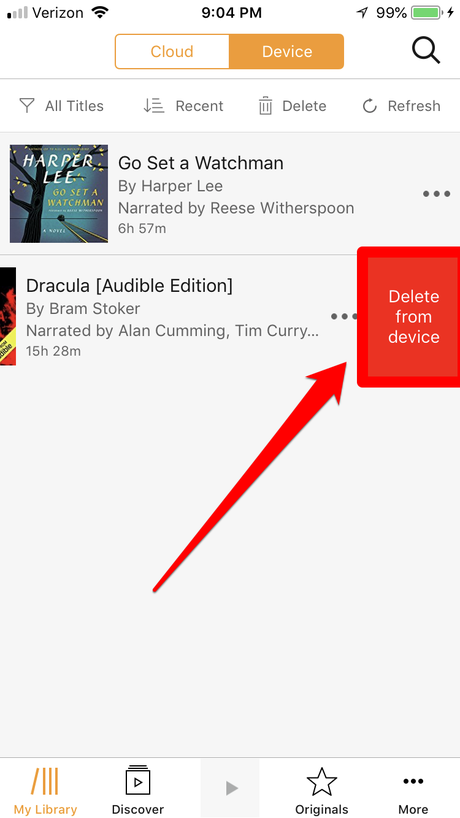
Step 2. Find the affected audiobook and tap the three-dot menu (⋯) next to it.
Step 3. Select "Remove from Device" or "Delete Download".
Step 4. Once removed, tap the "Cloud download" icon or the book cover again to re-download it.
Step 5. After downloading, open the audiobook and play it to check if the sound problem has been resolved.
When the Audible app or web player is overwhelmed with too many cache data, it will get corrupted, leading to various issues, including no sound problems. Therefore, clear the Audible cache and data can be an effective way to fix the issue.
On Android:
Step 1. Go to Settings > Apps > Audible.
Step 2. Tap on "Storage" > "Clear Cache" (and Data if needed)
Step 3. When finishing, close the Settings and reopen Audible app.
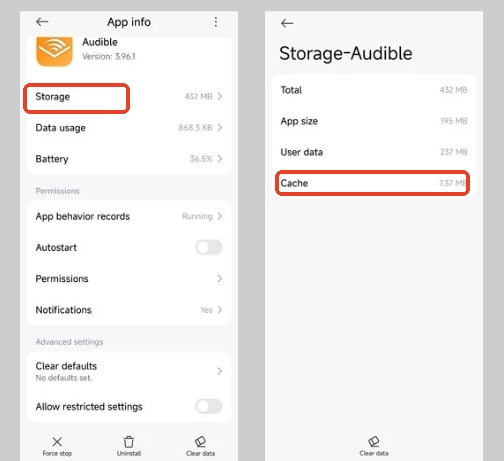
For iOS users, you need to delete the Audible app and reinstall it, move to the FIX 10.
Another possible cause leading to Audible playing but no sound may be with your Audible account or the specific audiobook's licensing on Amazon's servers. Make sure you're logged into the correct Audible account and the audiobook is fully purchased or downloaded on your device.
Step 1. Go to Audible website and sign in with your account.
Step 2. Hover over or click on "Hello, [Your Name]" in the top navigation bar.
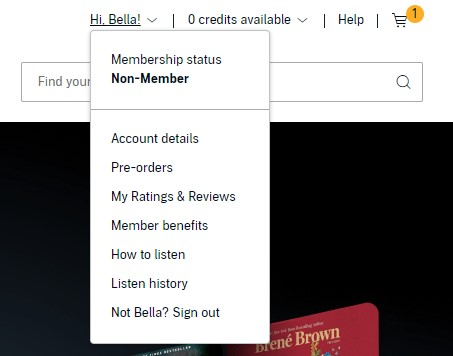
Step 3. Access "My Account" or "Account Details".
Step 4. On your Audible membership page, carefully check the these: your membership status, payment method, and credits & library access.
To Check audiobook compatibility:
Step 1. Open the Audible App or Audible Web Player on your device.
Step 2. Log into your Audible account and navigate to the home page or library.
Step 3. Find the problematic audiobook in your library. Click "Play" to stream it directly in the browser.
Step 4. If a particular audiobook still has problems, it may be incompatible with your device or damaged.
If Audible still has no sound, reinstalling the app can be a good idea to fix the playback problem. This removes corrupted components and resets system permissions. Below are the detailed steps to fix Audible not playing sound by uninstalling and reinstalling the app.
On iPhone/iPad:
Step 1. On the home screen, find the Audible app icon.
Step 2. Press and hold the Audible app icon.
Step 3. Tap "Remove App" or the "X" that appears in the corner of the icon.
Step 4. Then, go to the App Store on your iPhone.
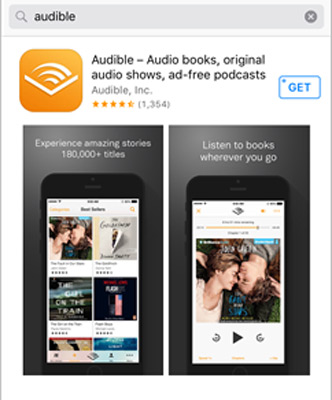
Step 5. In the search bar, type "Audible", then tap "Install" or "Get" from the result.
On Android Phone or Tablet:
Step 1. Open your Android device's Settings app.
Step 2. Navigate to Apps & notifications > See all apps. Find and tap on Audible.
Step 3. On the App info page, tap the "Uninstall" button.
Step 4. Then open the Google Play Store app, type "Audible" in the search bar.
Step 5. Tap the "Install" button. Wait for the download and installation to complete.
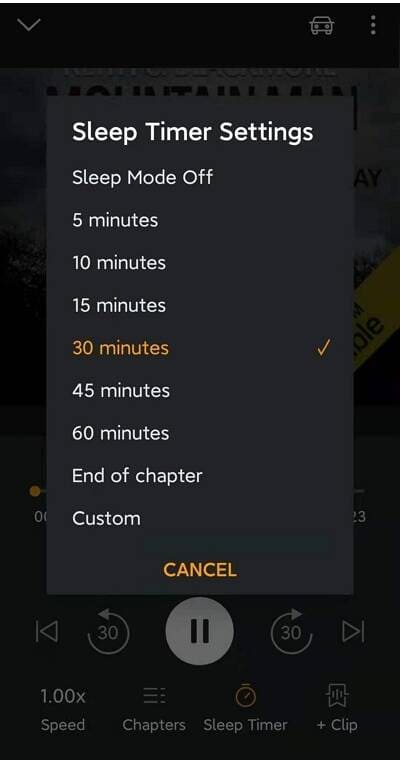
If Audible stops playing sound after a few seconds, a sleep timer may be enabled on your device. To fix no sound on Audible, try to disable or extend the timer to prevent silent pauses.
Step 1. Play an audiobook in the Audible app on your phone.
Step 2. Tap the player screen to bring up controls. Look for the "Timer" or "Sleep" icon.
Step 3. Tap it and ensure it is set to "Off" or "End of Chapter" instead of a specific minute countdown.
Modern operating systems have aggressive battery and background app management that can mistakenly stop Audible. These settings are key to fix Audible no sound on iPhone/Android. Follow below methods to have a try.
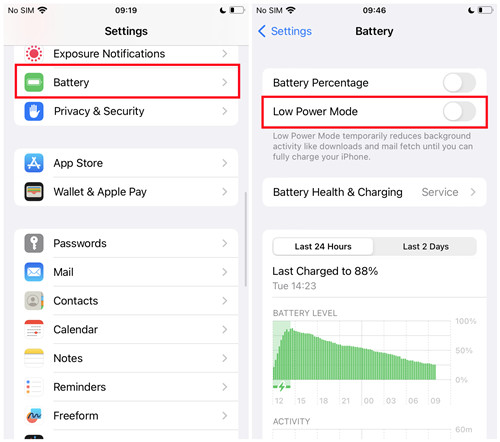
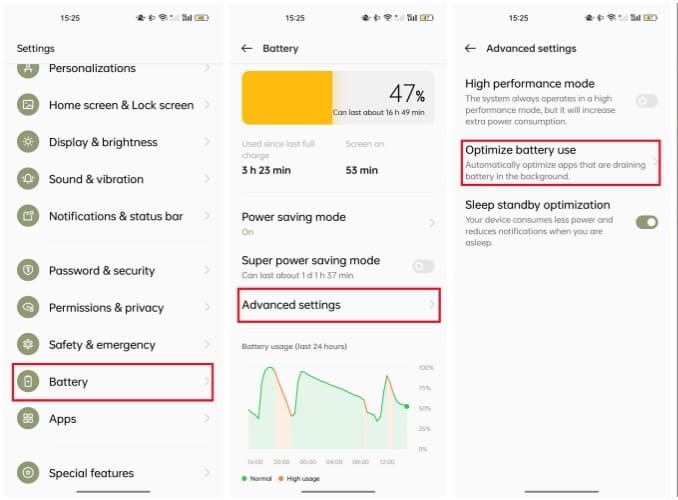
Both iOS and Android have battery optimization features that can limit background activity for apps like Audible to save power. You ought to disable battery saving for Audible to prevent playback interruptions and fix Audible no sound issues caused by system power management.
On iPhone: Go to Settings > Battery > Low Power Mode (Off)
On Android: Go to Settings > Battery > Advanced settings > Optimize battery use (Off)
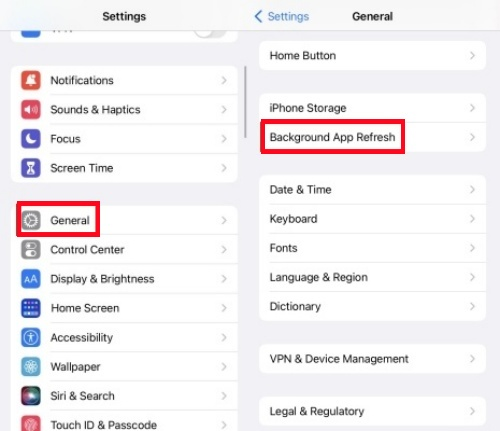
iOS may suspend Audible when running in the background. To fix Audible no sound on iPhone. enable background app refresh to keep audio active.
Step 1. Go to Settings > General > Background App Refresh.
Step 2. Ensure Background App Refresh is turned ON globally (at the top).
Step 3. Scroll down, find Audible in the list, and ensure its switch is turned ON (green).
Some unknown bugs or device's default settings can be main reasons causing Audible app to stop playing normally. If Audible has no sound on one device, try another phone, tablet, or desktop to check if the problem also exists on other devices.
If you have tried all mentioned methods above but still find Audible playing but not sound, or you want to permanently get rid of playback errors like Audible Keeps crashing/stopping, the ultimate solution is by converting Audible audiobooks to MP3 outside Audible platforms. Here, a powerful third-party tool - UkeySoft Audible Converter can bring you assistance.
UkeySoft Audible Converter is a professional tool designed to remove Audible DRM and convert Audible from AA/AAX audiobooks into MP3, M4B, AAC, WAV, FLAC, or other universal formats without quality loss. Unlike above troubleshooting, this solution eliminates Audible app no sound problems forever by getting them outside the Audible app or web player. After conversion, you can easily import the converted audiobooks to iTunes, WMP, VLC, QuickTime, MusicBee and other media players for smooth offline playback!
More Features: The software preserves ID3 tags metadata and chapter info. Plus, it allows users to split the large audiobooks into small parts by time or chapter, making it ideal for users who want offline listening on MP3 player, iPod, car systems, etc. Even better, it runs at 700X faster speed to batch convert multiple Audible audiobooks at once without wasting much of your time.
Great Features of UkeySoft Audible Converter:
Now, let's see how to fix Audible not playing sound by converting Audible books to MP3 with UkeySoft Audible Converter.
Step 1. Add Audible Files to UkeySoft
Download UkeySoft Audible Converter on your Windows or Mac computer. Install and launch the program. Then drag and drop the downloaded AA/AAX files to its interface or click "Add" button to Audible audiobooks.
Step 2. Set Output Parameters
Click on the "Options" button to adjust the output settings. Tap "General", select MP3 as your desired format. You can also adjust the bitrate and sample rate.
If you need to cut the long audiobooks, turn to "Advanced" tab.
Step 3. Convert Audible Audiobooks to MP3
Click the "Convert" button. The software will begin removing DRM and converting your Audible audiobooks to plain MP3 audio files This process is very fast, up to 700X.
Step 4. Get Output MP3 Audible Files
Once conversion is complete, click "History" button to find the new DRM-free MP3 files in the output folder.
Step 5. Play Audible Audiobooks with Windows Media Player
You can now play these Audible audiobooks directly on your computer with any other medis player. You have permanently fixed the no sound audio from Audible App by leaving the app behind!
When you find Audible book playing but no sound comes out, no worry at all! You can try above 15 methods to fix Audible no sound issues on iPhone, Android, desktop, or car systems. For complete freedom and flawless playback, converting Audible audiobooks to MP3 by UkeySoft Audible Converter is the best choice. In this way, you can play your audiobooks on any media player, transfer them to any device, and completely bypass Audible playback errors.

Sorry the comment has been closed.






















Porducts
Solution
Copyright © 2026 UkeySoft Software Inc. All rights reserved.


 English
 Arabic
 Chinese (Simplified)
 Chinese (Traditional)
 Croatian
 Czech
Czech Danish
 Dutch
Dutch Estonian
 Finnish
 French
 German
 Greek
Greek Hebrew
 Hindi
Hindi Hungarian
 Indonesian
 Italian
 Japanese
 Kazakh
 Korean
 Malay
Malay Norwegian
 Polish
 Portuguese
 Romanian
 Russian
 Slovenian
 Spanish
 Swedish
 Thai
Thai Turkish
 Ukrainian
 Vietnamese











![7 Best FREE Apple Music Converters [2026 Updated]](https://www.ukeysoft.com/wp-content/uploads/2019/04/best-apple-music-converter.jpg)












































![Top 10 Christmas Songs to MP3 Download [Spotify]](https://www.ukeysoft.com/wp-content/uploads/2023/01/christmas-songs-to-mp3.jpg)













































































































Comments are off!