 ✕
✕
✕
✕
By Justin SabrinaUpdated on April 22, 2026
Audible is an excellent platform for enjoying audiobooks on the go. It also allows to download Audible audiobooks on computers, Android or iOS devices for offline playback. However, some unexpected Audible download errors will probably occur to stop your path. If you're facing the frustrating issue of an Audible book not downloading, you're not alone. In this guide, we'll walk you through all workable solutions to fix Audible book not downloading issues, whether on Android, iOS, or Windows devices. Easily get you back on favorite audiobooks!
CONTENTS
If your Audible app is not downloading books, the issue usually stems from a few common causes. One major reason is problems within the Audible application itself. Bugs, outdated versions, or corrupted app data can lead to persistent audible download errors. Another common cause is network instability or slow internet speed. To download Audible audiobooks, you need a stable network connection. Furthermore, improper download settings or a lack of free storage space can leave you unable to download Audible books.
Audible books not downloading is not a complicated problem to deal with. Below are the most effective solutions to resolve the problem across all devices. Let's dive in!
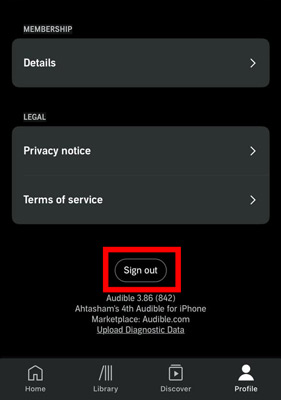
To fix Audible app not downloading books, sign out your Amazon or Audible account on your device and then sign in. Usually, signing out and back into your Audible app can refresh your account connection and fix temporary syncing issues. This simple method often resolves minor Audible download or playback errors quickly.
A weak or unstable network can prevent Audible from downloading audiobooks since it could not connect to the server. Switch between Wi-Fi and mobile data or reset your router to ensure a stable connection. This can help you solve the problem of Audible books not downloading.
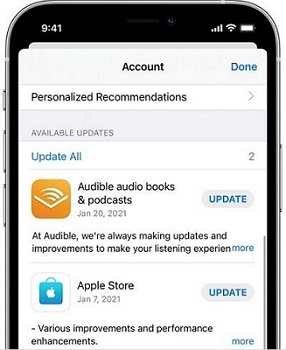
Using an outdated version of the Audible app can lead to compatibility issues and persistent audible download errors. To fix Audible book not downloading issues, check your app store (Google Play Store, Apple App Store, or Microsoft Store) for available updates. Install the latest version and restart the Audible app.
If the Audible app not downloading audiobooks problem persists, reinstalling the app can be an effective solution. First, uninstall the Audible app from your device. Then reinstall it from the official app store and log back into your account. This process gives you a clean version of the app, which can normally get the issue fixed.
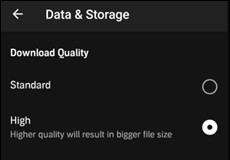
Download quality settings can impact both speed and success rates, especially if your internet connection is unstable. If you are experiencing Audible books not downloading on Android, iOS, or Windows devices, you can change the download quality of Audible, lower quality is more recommended.
For iOS/Android App:
Step 1. Open the Audible app on your device, tap the "Profile" icon.
Step 2. Tap the "Gear" icon (Settings), select "Data & Storage".
Step 3. Under "Download Quality", switch from "High" to "Standard", or vice versa.
For Windows App:
Step 1. Open the Audible Windows app, tap the "Menu" button.
Step 2. Select "Settings", tap "Downloads".
Step 3. Tap the button under "Download format" to change the setting.
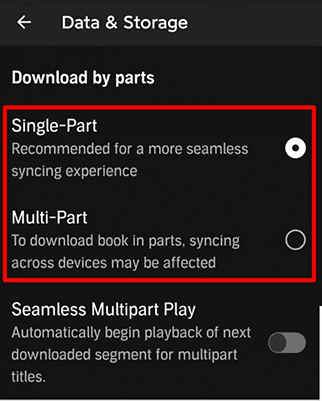
For audiobooks longer than 12 hours, Audible allows you to download the title as either a single large file or as multiple smaller parts. When your device is limited by available storage, the "Download by Parts" feature is useful. So, you can try to enable this feature to resolve the issue of Audible books not downloading, especially for large audiobooks.
On iOS or Android:
Step 1. Open the Audible app on your iOS or Android device.
Step 2. Tap the "Profile" icon in the upper-left corner, then tap the "Gear" icon (Settings).
Step 3. Android users should select "Downloads", while iOS users ought to tap "Data & Storage".
Step 4. Find and enable the "Download by Parts" option.
On Windows:
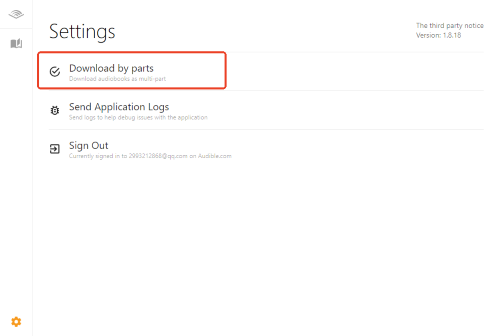
Step 1. Launch the AudibleSync app and go to the "Menu", tap on it.
Step 2. Click on "Settings" icon in the left bottom corner.
Step 3. Select the "Download by parts" and turn it on.
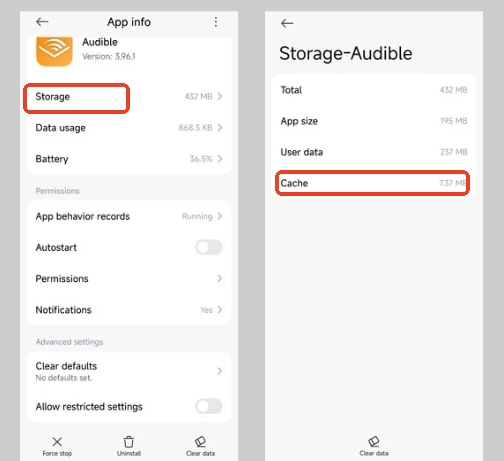
Audible app will automatically load cache data to help it load faster. However, when this cache becomes corrupted or simply too large, it can directly cause an audible download error. Therefore, trying to clear the Audible app cache can be helpful in getting rid of the issue.
On Android:
Step 1. Go to Settings, select "Apps" or "Apps & notifications".
Step 2. Find and tap "Audible", select "Storage".
Step 3. Tap "Cache", and then tap "Clear Cache".
On iOS:
iOS does not offer a direct "Clear Cache" button for individual apps. You can go to "Settings", find and delete the Audible app to clear cache data, then reinstall it.
On Windows:
Step 1. Open the Audible app on your Windows computer.
Step 2. From the My Library screen, tap the Menu (three horizontal lines).
Step 3. Tap "Help & Support". Tap the three dots in the upper right corner.
Step 4. Tap "Reset Application", then tap "OK" to confirm.
If the methods above haven't resolved the problem, here are a few more quick checks to perform:
● Close and restart your Audible app - A simple restart can resolve temporary glitches that prevent your Audible app not downloading books.
● Check or increase the free space on your device - Go to your device's storage settings, and delete unused apps, photos, or files to ensure sufficient storage is available.
● Update your device - Install the latest operating system updates for your phone, tablet, or Windows to fix compatibility issues affecting Audible downloads.
● Contact Audible support for help - Reach out to official support if you're still unable to download Audible books after trying all solutions.
Typically, all Audible audiobooks come in AA or AAX formats, which are protected by DRM (Digital Rights Management). This means you can only play them within authorized apps like the Audible app or iTunes. If you frequently encounter the Audible book not downloading/playback issue or wish to get rid of the error permanently, converting Audible books to MP3 for streaming off the Audible app is also a rational solution. To reach this goal, you can utilize a professional Audible to MP3 converter. Here you meet UkeySoft Audible Converter.
UkeySoft Audible Converter is a powerful desktop tool designed to help users bypass Audible restrictions and enjoy audiobooks freely. It not only helps you remove DRM from Audible, but also allows you to convert AA/AAX files into widely compatible formats like MP3, M4A, FLAC, AAC, OGG, WAV, M4B, AIFF, or AC3. This way, you can transfer and listen to Audible books on any device or player. Say goodbye to Audible App!
One of the biggest advantages of UkeySoft is its ability to split a large Audible book into chapters or smaller files. This is especially helpful if you want to skip chapters you don't like, or have limited storage space on your portable devices. Additionally, the software supports batch conversion and works at up to 700X super faster, enabling you to convert multiple audiobooks at once. It also preserves original audio quality and retains important metadata such as chapter information, artist, and title, ensuring a seamless listening experience after conversion.
More Features of UkeySoft Audible Converter:
Step 1. Add Audible AA/AAX Files
Download, install and open UkeySoft Audible Converter software on your Windows PC or Mac. You don't need to authorize your Audible account. You can drag and drop your downloaded Audible AA or AAX files from local folder into the UkeySoft interface.
Or, click the "Add" button at the top left of the converter window. Browse to the location of your Audible AA/AAX files, select them, and click "Open".
Step 2. Change Output Parameters
After your books are loaded, hit on the "Options" button to open the settings window. You can tap "Advanced" tab to adjust output format (MP3 is recommended), and audio quality settings.
Click the "General" tab and select "Split by equal parts", or "Split by chapters" to create separate MP3 files for each chapter – ideal for easier navigation.
Step 3. Convert Audible AA/AAX Books to MP3
When everything is ready, simply press on the "Convert" button. UkeySoft will remove DRM and convert the AA or AAX files to MP3 at high speed.
Step 4. Find Output MP3 Audible Files
After conversion finishes, hit on the "History" button to check the converted Audible books. Hit on the blue folder icon to navigate to the folder where your MP3 Audible books are stored.
The problem of the Audible book not downloading is a real turn-off for many people. Whether the problem is caused by app glitches, network issues, or insufficient storage, the solutions above can help you quickly fix Audible book not downloading issues. If you continue facing problems of Audible app not downloading or playback, or want complete freedom over your audiobooks, using a professional tool UkeySoft Audible Converter is the ultimate solution. It helps you convert Audible books to MP3 or other formats for offline listening anywhere. With it, you can permanently avoid audible download errors! Give it a try right now.

Sorry the comment has been closed.






















Porducts
Solution
Copyright © 2026 UkeySoft Software Inc. All rights reserved.


 English
 Arabic
 Chinese (Simplified)
 Chinese (Traditional)
 Croatian
 Czech
Czech Danish
 Dutch
Dutch Estonian
 Finnish
 French
 German
 Greek
Greek Hebrew
 Hindi
Hindi Hungarian
 Indonesian
 Italian
 Japanese
 Kazakh
 Korean
 Malay
Malay Norwegian
 Polish
 Portuguese
 Romanian
 Russian
 Slovenian
 Spanish
 Swedish
 Thai
Thai Turkish
 Ukrainian
 Vietnamese











![7 Best FREE Apple Music Converters [2026 Updated]](https://www.ukeysoft.com/wp-content/uploads/2019/04/best-apple-music-converter.jpg)












































![Top 10 Christmas Songs to MP3 Download [Spotify]](https://www.ukeysoft.com/wp-content/uploads/2023/01/christmas-songs-to-mp3.jpg)













































































































Comments are off!