 ✕
✕
✕
✕
By Justin SabrinaUpdated on June 10, 2026
Roku TVs and Roku Streaming Players have become some of the most popular streaming devices for home entertainment. While Roku offers seamless access to services like Netflix, Hulu, YouTube, Spotify, Apple Music, and Amazon Music, many audiobook enthusiasts still wonder whether they can play Audible on Roku TV directly.
Unfortunately, there is currently no official Audible app available for Roku devices. The good news is that there are several alternative methods that allow you to get Audible audiobooks on Roku. This article covers 4 methods on how to play Audible on Roku TV, including using a USB drive, Plex, screen mirroring, or a streaming device. Let's dive into each method in details!
CONTENTS
Unlike Fire TV, Android TV, or Apple TV, Roku does not provide an official Audible app or dedicated Audible channel. However, most Roku devices have a built‑in Roku Media Player that can play music and audio files from a USB drive or network share. Because Audible audiobooks are protected by DRM and stored in AA/AAX formats, Roku devices cannot recognize or play them directly. Typically, Roku Media Player commonly supports MP3, AAC, FLAC, WAV, and M4A audio formats. To get Audible audiobooks on Roku TV, you'll need to convert Audible files into Roku-supported formats like MP3 before importing them into Roku Media Player.
UkeySoft Audible Converter is an expert in removing Audible DRM protection and converting your audiobooks to various formats. It supports to convert Audible AA and AAX books into MP3, WAV, M4B, M4A, AAC, FLAC, AC3, OGG, and AIFF formats, while keeping ID3 tags and chapter info intact. With advanced acceleration technology, the software delivers up to 700X faster conversion speed and supports batch processing to save valuable time.
Additionally, UkeySoft Audible Converter allows users to customize output bitrate up to 320kbps and sample rate up to 48,000Hz, ensuring a premium offline listening experience. You can also split large audiobooks into smaller sections, preserve chapter information, and keep complete ID3 metadata for better audiobook management. After conversion, you can easily transfer Audible books to USB drive for offline streaming on your Roku TVs, Roku Streaming Players, and other smart or non-smart TVs.
Key Features of UkeySoft Audible Converter:
Step 1. Fire Up UkeySoft Audible Converter
Download and install UkeySoft Audible Converter from the above button. Launch the software on your Windows PC or Mac. The interface is clean and user‑friendly.
Step 2. Two Ways to Add Audible AA/AAX Audiobooks
You have two easy ways to add your Audible audiobooks:
Way 1. Drag & Drop: Simply drag Audible AA or AAX files from your local folder and drop them directly into the UkeySoft interface for instant importing.
Way 2. Manually Add: Click the "Add" button and browse your computer to locate the Audible audiobooks you wish to convert. Select the files and import them into the converter.
Step 3. Define Output Settings
Click the "Options" button to open the settings window. Tap "Advanced" tab, choose MP3 as the output format for maximum Roku compatibility. You can also choose M4A or AAC if you prefer. Set the bitrate to 320kbps for the best quality, and sample rate to 48000 Hz.
Step 4. Split Audiobooks (Optional)
If your audiobook is several hours long, tap "General" tab, you can use the built-in splitting feature to divide it by chapter, time duration, or specific segments for easier playback management.
Step 5. Begin Conversion of Audible to MP3
After completing all settings, click the "Convert" button. UkeySoft Audible Converter will start removing DRM protection and converting Audible books into Roku-supported MP3 or other audio formats at high speed.
Step 6. Get Output Audiobooks
Once the conversion process finishes, click the "History" button or navigate to the output folder and locate your converted Audible MP3 audiobooks. They are ready to be copied to any device, no expiration, no playback restrictions.
Step 7. Transfer Audible MP3 Files to a USB Drive
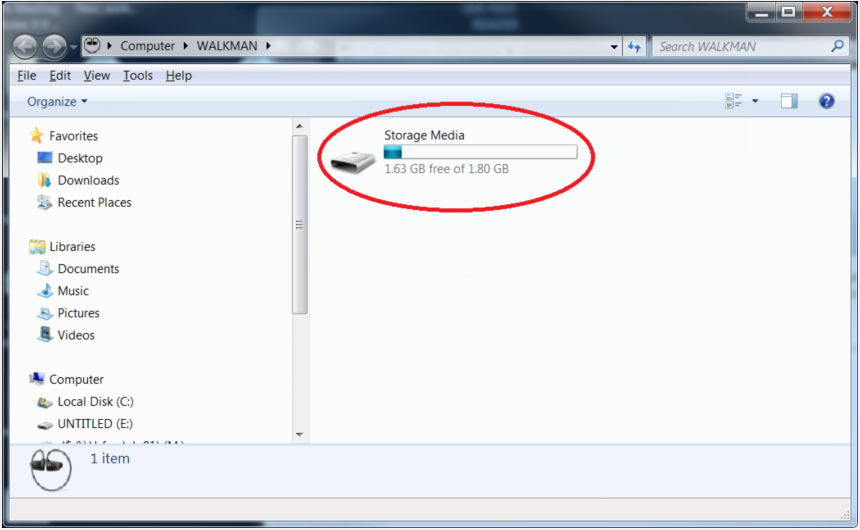
Now, insert a USB flash drive (formatted as FAT32 or exFAT) into your computer. Copy the converted MP3 audiobook files onto the USB drive. Safely eject the drive after the transfer is complete.
Step 8. Play Audible on Roku TV via USB Drive
Plug the USB drive into your Roku TV or Roku Streaming Player. On your Roku remote, press the Home button, then navigate to Roku Media Player, open it.
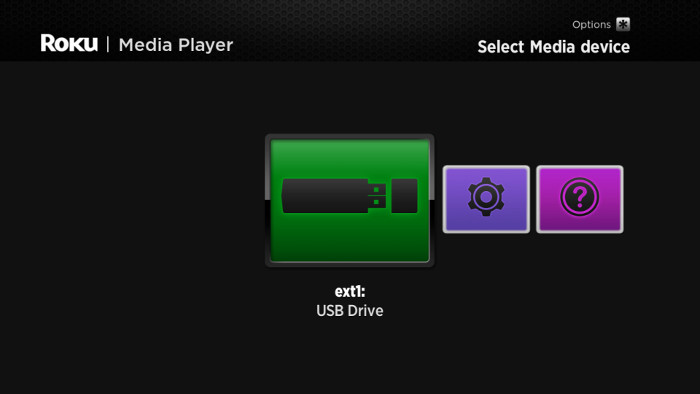
You can browse the audiobook MP3 files stored on the USB device, and select any audiobook to start playing!
Plex is a popular media server that lets you stream your personal media collection to any device, including Roku. After converting Audible audiobooks to MP3 files using UkeySoft Audible Converter, you can upload them to Plex and easily play your Audible audiobooks on Roku TV. Please follow these steps:
Step 1. Install Plex Media Server
Download and install Plex Media Server on your Windows or Mac computer.
Step 2. Create a Plex Account
Sign up for a Plex account and log into the media server dashboard.
Step 3. Create an Audiobooks Library
Add a new library and select "Music" as the content type for audiobook organization. Import the converted MP3 Audible audiobooks into the Plex library folder.
Step 4. Install Plex Channel on Roku
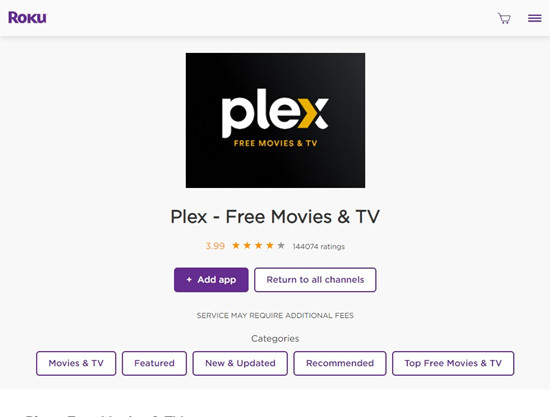
Go to the Roku Channel Store and add the Plex channel to your Roku device. Open it and sign into your Plex account.
Step 5. Stream Audible Audiobooks
On your Roku, navigate to your music library and find the audiobook files. Select an audiobook and press "Play".
Note: This method requires your computer to be on and running Plex Media Server. To listen to Audible on your Roku without internet or Wi-Fi, you can try the Method 1, play Audible books on Roku TV via USB drive.
Screen mirroring lets you cast your iPhone, iPad, or Android device's screen on your Roku TV over your local Wi-Fi network. When you play an audiobook through the Audible mobile app, the audiobook can be mirrored to Roku TV.
Preparation: Connect your Roku and iPhone/Android to the same Wi-Fi network.
On iPhone/iPad (AirPlay):
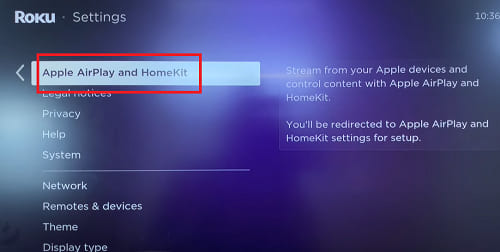
Step 1. Power on your Roku, go to "Settings", select "Apple AirPlay and Home", enable the "AirPlay".
Step 2. Swipe down on your iPhone to open "Control Center", tap "Screen Mirroring", and select your Roku TV.
connect iPhone to Roku
Step 3. Then open the Audible app on your iPhone, and play any audiobook. The audiodiobook will come through your TV automatically.
On Android (Screen Mirror):
Step 1. Enable screen mirroring from your Android's notification panel.
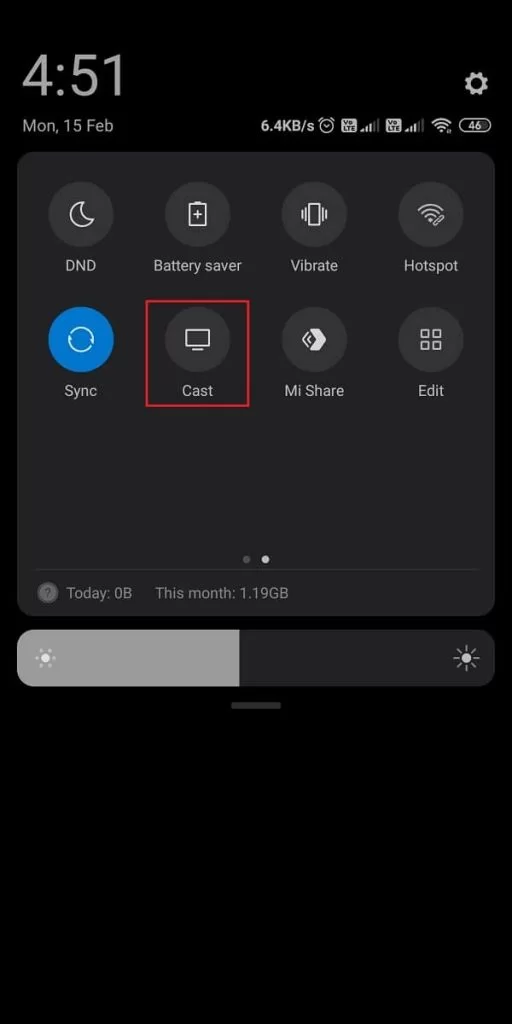
Step 2. Select your Roku device from the list.
Step 3. Launch the Audible app, then play any audiobook.
Tips: If your iMac, MacBook, Windows PC or laptop support AirPlay or screen mirror features, you may also refer to the steps above to set up and connect.
To play Audible on Roku-connected TV, you can consider connecting an additional streaming device. For example, the Amazon Fire TV family (including the Fire TV Stick and Fire TV Cube) support the Audible app natively. Here's how to get and play Audible on Roku TV using Fire TV Stick.
Step 1. Connect the Fire TV Stick to an available HDMI port on your Roku TV.
Step 2. Complete the Fire TV setup process.
Step 3. Download and install the Audible app from the Amazon App Store.
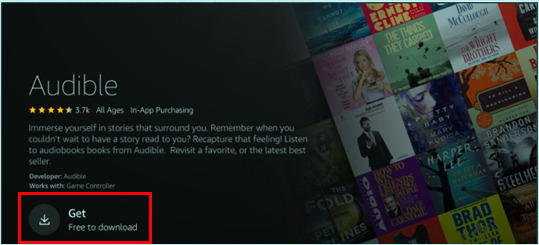
Step 4. Sign in with your Amazon account. Open your Audible library.
Step 5. Select any audiobook and begin playback. You'll then stream the audiobook on your Roku TV through the Fire Stick.
Is There an Audiobook App for Roku?
No. There is no native Audible app or Spotify audiobook app available on the Roku platform. Users who want to get Audible audiobooks on Roku can rely on alternative solutions such as Roku Media Player, Plex, screen mirroring, external streaming devices, or USB drive.
Can I Listen to My Audible Books on My Roku TV?
Yes. Even though Audible does not officially support Roku, you can still listen to Audible on Roku using several proven methods listed above, such as Roku Media Player, Plex, screen mirroring, external streaming devices, or USB drive. The most reliable approach is converting Audible books to MP3 and transferring them to USB drive, then you can play Audible books offline on your Roku TV through USB drive.
How to Stream Audible on Roku?
To stream Audible on Roku, you can use screen mirroring or AirPlay, or set up a Plex media server after converting your Auduible audiobooks to MP3 files. These methods let you stream your Audible audiobooks across your Roku device with Wi-Fi connection.
Roku TV is fantastic for music, audiobook, and video streaming. Although there is currently no official Audible application available for Roku devices, there are still several practical ways to play Audible on Roku TV and Roku Streaming Players. You can play Audible on Roku via USB drive, choose Plex streaming, use screen mirroring, or an external streaming device. To get a smooth offline playback, the best solution is to convert Audible books to MP3 by using UkeySoft Audible Converter. This way, you can save high-quality Audible audiobooks to USB drive and enjoy offline streaming on your Roku TV, Roku Streaming Players, smart TVs, car players, and much more.
Happy listening on your Roku TV!

Sorry the comment has been closed.






















Porducts
Solution
Copyright © 2026 UkeySoft Software Inc. All rights reserved.


 English
 Arabic
 Chinese (Simplified)
 Chinese (Traditional)
 Croatian
 Czech
Czech Danish
 Dutch
Dutch Estonian
 Finnish
 French
 German
 Greek
Greek Hebrew
 Hindi
Hindi Hungarian
 Indonesian
 Italian
 Japanese
 Kazakh
 Korean
 Malay
Malay Norwegian
 Polish
 Portuguese
 Romanian
 Russian
 Slovenian
 Spanish
 Swedish
 Thai
Thai Turkish
 Ukrainian
 Vietnamese











![7 Best FREE Apple Music Converters [2026 Updated]](https://www.ukeysoft.com/wp-content/uploads/2019/04/best-apple-music-converter.jpg)












































![Top 10 Christmas Songs to MP3 Download [Spotify]](https://www.ukeysoft.com/wp-content/uploads/2023/01/christmas-songs-to-mp3.jpg)













































































































Comments are off!