 ✕
✕
✕
✕
By Justin SabrinaUpdated on June 10, 2026
As a free and open-source media player, VLC Media Player offers better playback controls, customizable audio settings, subtitle support, equalizer features, and compatibility across desktop and mobile devices. Therefore, many users want to import Audible files to VLC player for better management and much more flexibility. Can VLC play Audible files? How do you get VLC to play Audible on desktop and mobile? Keep reading, here you will find the answers and solutions.
CONTENTS
Many users wonder whether they can directly play Audible on VLC Media Player. The answer is No. When you download a book from Audible, the file comes with Digital Rights Management (DRM) protection and is save in encoded .AA or .AAX format. As a result, you can only access and play AA/AAX audiobooks on authorized devices using the Audible app, Audible Cloud Player, or iTunes.
Meanwhile, VLC Media Player does not support DRM-protected Audible files. It supports almost all common audio formats, including MP3, AAC, FLAC, WAV, WMA, OGG, AIFF, and Vorbis. In order to add and play Audible files on VLC, you need to remove the DRM protection and convert Audible AA/AAX files into a VLC‑compatible format such as MP3 or AAC. In the next part, we'll introduce the best tool for this task - UkeySoft Audible Converter.
To convert Audible for VLC player, you need a professional Audible Audiobook converter. UkeySoft Audible Converter is a versatile tool that can help you unlock Audible DRM protection and convert Audible audiobooks from AA/AAX to MP3, WAV, M4B, M4A, AC3, AAC, FLAC, OGG, or AIFF. The output quality is outstanding: you can choose up to 320kbps bitrate and 48,000Hz sample rate, for MP3, delivering the best listening experience. It also preserves all ID3 tags (title, author, narrator, cover art) and chapter information, ensuring your audiobook remains well-organized!
Adopting advanced technology, the software works at a blazing 700X faster conversion speed and supports batch conversion, making it easy to process entire audiobook libraries within minutes. Better still, it allows users to split large audiobooks into smaller segments by chapter, time, or into equal segments for easier playback on VLC, WMP, iTunes, and portable devices like MP3 player, phone, tablet, car player, etc.
Key Features of UkeySoft Audible Converter:
Here are the simplified steps to convert Audible Audiobooks to MP3 using UkeySoft Audible Converter:
Step 1. Launch UkeySoft Audible Converter
First, download and install UkeySoft Audible Converter on your Windows or Mac computer. After installation, launch the software and access the main interface.
Step 2. Add Audible AA/AAX Files to UkeySoft
You have two easy ways to import your Audible files to the converter:
Way 1. Drag & Drop: Simply select your .AA or .AAX files from your computer's folder and drag them directly into the UkeySoft window. The software automatically recognizes them.
Way 2. Manually Add: Click the "Add" button located at the top left. Browse your folders, select the desired AA/AAX files, and click "Open".
Step 3. Configure Output Settings
Click the "Options" button to modify the output audio parameters. Choose "Advanced" tab, select MP3 as your output format – it's the most compatible with VLC and almost all devices. Next, set the bitrate to 320kbps and sample rate to 48,000 Hz for the best quality.
Switch to "General" tab. If your Audible books are lengthy, UkeySoft offers three splitting methods. It allows you to split audiobooks into smaller parts by chapter, time, or file size.
Step 4. Convert Audible Books to MP3
After all settings are configured, click the "Convert" button to start removing DRM and converting Audible AA/AAX files to MP3 format for VLC player. The software will process audiobooks at high speed while preserving original audio quality and metadata.
Step 5. Get Your Output Audiobooks
Once the conversion is complete, hit on the click the "History" button, or navigate to the output folder and access your converted Audible audiobooks. The DRM-free Audible MP3 files are now ready for playback on VLC Media Player and any device you prefer!
After converting Audible books into MP3 or AAC formats, you can easily import and play Audible on VLC Media Player without any limitations. Below are detailed steps for desktop, iOS, and Android devices.
How to Play Audible on VLC Media Player on Desktop
Step 1. Install and launch VLC Media Player on your computer.
Step 2. Click "Media" and select "Open File" on Windows. For Mac, go to "File" and choose "Open File", "Open Multiple Files", or "Open Folder" option.
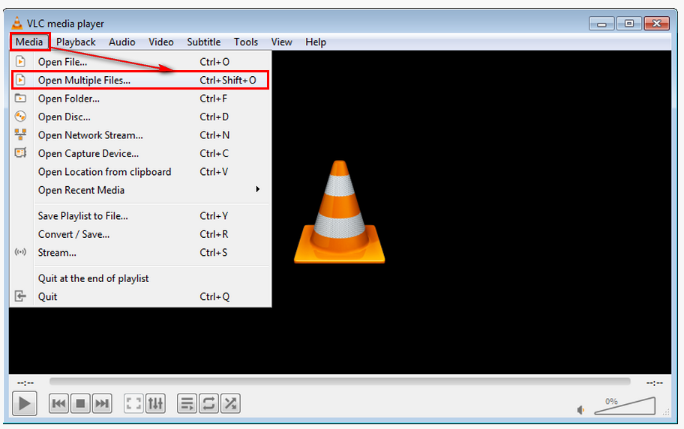
Step 3. Browse to the folder containing your converted Audible audiobooks, select the desired MP3 files, and click "Open".
Step 4. VLC Media Player will instantly begin playback. After that, you can easily play Audible books on desktop using VLC player!
How to Listen to Audible on VLC on iPhone/iPad
Step 1. First, transfer the converted Audible MP3 files from computer drive to your iPhone or iPad using: iTunes, Finder, AirDrop, iCloud Drive, Dropbox, or even Google Drive.
For example, using iTunes/Finder: Connect your device to a computer, open iTunes (or Finder on Mac Catalina+), click the Device icon, then click "Apps" in the left panel, select VLC, and drag your MP3 files into the "VLC Documents" area.
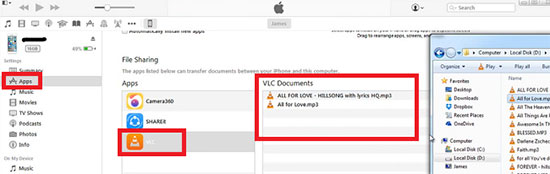
Step 2. Open VLC on your iPhone or iPad and find the transferred audiobook files in your VLC library.
Step 3. Tap the audiobook file to start listening. VLC supports background playback, sleep timers, and playback speed adjustment for convenient audiobook listening.
How to Play Audible Books on VLC Android
Step 1. Download VLC Media Player from Google Play Store for your Android phone or tablet.
Step 2. Connect your Android phone/tablet to the computer using a USB cable and transfer the converted Audible MP3 files into your device storage.
Step 3. Launch VLC for Android, tap "Audio", navigate to the folder where you stored the MP3 audiobooks.
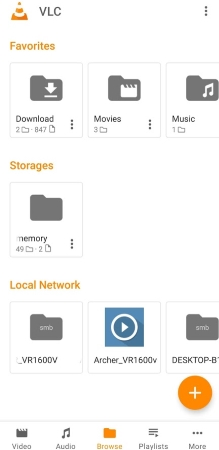
Step 4. Select your Audible audiobook and start playback immediately.
Although VLC Media Player cannot directly open DRM-protected Audible AA or AAX files, you can still successfully play Audible on VLC by converting Audible audiobooks into VLC-compatible formats like MP3 or AAC. With the professional tool - UkeySoft Audible Converter, you can easily convert your Audible audiobooks to MP3 or other formats with lossless sound quality. Now you gain the freedom to play Audible on VLC on any platform: Windows, Mac, Linux, iOS, and Android! If you want flexible offline audiobook playback and enhanced listening controls, quickly download this great tool!

Sorry the comment has been closed.






















Porducts
Solution
Copyright © 2026 UkeySoft Software Inc. All rights reserved.


 English
 Arabic
 Chinese (Simplified)
 Chinese (Traditional)
 Croatian
 Czech
Czech Danish
 Dutch
Dutch Estonian
 Finnish
 French
 German
 Greek
Greek Hebrew
 Hindi
Hindi Hungarian
 Indonesian
 Italian
 Japanese
 Kazakh
 Korean
 Malay
Malay Norwegian
 Polish
 Portuguese
 Romanian
 Russian
 Slovenian
 Spanish
 Swedish
 Thai
Thai Turkish
 Ukrainian
 Vietnamese











![7 Best FREE Apple Music Converters [2026 Updated]](https://www.ukeysoft.com/wp-content/uploads/2019/04/best-apple-music-converter.jpg)












































![Top 10 Christmas Songs to MP3 Download [Spotify]](https://www.ukeysoft.com/wp-content/uploads/2023/01/christmas-songs-to-mp3.jpg)













































































































Comments are off!