 ✕
✕
✕
✕
By Justin SabrinaUpdated on May 28, 2026
Spotify is one of the world's most popular streaming music platforms, offering millions of songs, podcasts, and more than 200,000 audiobooks for free. But some of your favorite Audible audiobooks might even not be available on Spotify. In order to keep all audio entertainment in one place without switching between multiple platforms, some many Audible listeners are seeking for a way to add Audible audiobooks to Spotify. However, Audible books are protected by DRM (Digital Rights Management), which prevents them from being played outside the Audible app or iTunes.
This means you can't directly use Audible books on Spotify, even if you've download them onto your devices. Fortunately, there is still an effective solution. By converting Audible books into Spotify-supported audio formats such as MP3, you can still import your Audible books into Spotify for easier library management and a more convenient listening. Check out this post to get the easy guide!
CONTENTS
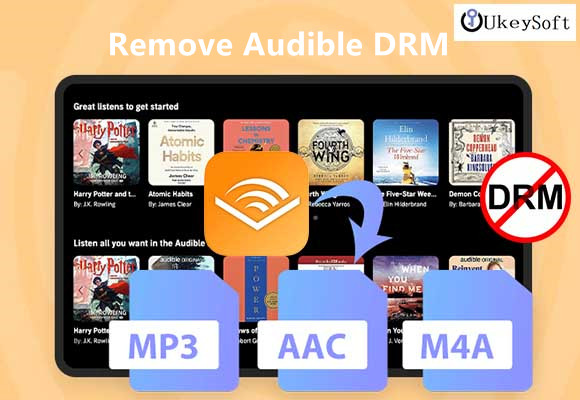
As mentioned above, your downloaded Audible audiobooks are saved in DRM-protected AA or AAX format. These encrypted audiobook files can not be read or playable through Spotify or any other streaming apps, media players. Currently, Spotify only supports importing local audio files in formats such as: MP3, M4A, M4R, M4B, etc. To add Audible audiobooks to Spotify, you need a professional tool that removes DRM and converts AA/AAX files to a Spotify-compatible format like MP3. That's why UkeySoft Audible Converter comes into play.
UkeySoft Audible Converter is an all-in-one Audible DRM Removal, Audible Audiobook Converter, as well as Audible Audiobook Splitter. It helps users unlock Audible DRM and convert Audible audiobooks into common audio formats like MP3, M4A, M4B, WAV, AC3, AAC, FLAC, OGG, or AIFF for unrestricted offline playback. What's more, it allows users to customize output bitrate up to 320kbps and sample rate up to 48,000Hz for better listening quality.
The software supports up to 700X faster conversion speed with batch conversion capability, making it easy to process multiple audiobooks simultaneously. Better yet, UkeySoft empowers users to split large audiobooks by chapter or time, while keeping complete ID3 tags and chapter information intact. After conversion, you can freely transfer converted Audible audiobooks to Spotify, Apple Music, VLC, WMP, or portable MP3 players, USB drives, smartphones, tablets, and other media devices for offline playback anytime.
Key Features of UkeySoft Audible Converter:
Step 1. Launch UkeySoft Audible Converter
First, download and install UkeySoft Audible Converter on your Windows or Mac computer. Launch the software to enter the main interface and prepare for audiobook conversion.
Step 2. Add Audible AA/AAX Files in Two Ways
You can add Audible AA/AAX files to UkeySoft program in two ways:
Drag & Drop: Simply drag your Audible AA/AAX files from your computer folder into the UkeySoft window. The software will immediately recognize them.
Manually Add Files: You can also click the "Add" button to browse your local folders and manually import Audible audiobooks into the software.
Step 3. Change Output Settings
Next, click on the "Options" button to adjust the output settings. Here, choose MP3 as the output format for Spotify compatibility. You can also customize output bitrate, sample rate, output folder, and more according to your listening preferences before conversion.
If your Audible audiobook is very long, you can split it by chapter, time duration, or equal parts for easier playback and management inside Spotify. Please switch to the "General" tab for more settings.
Step 4. Start to Convert Audible Books to MP3
Click the "Convert" button to start removing DRM protection and converting Audible audiobooks into Spotify-supported MP3 files at high speed.
Step 5. FGet Output Audiobooks in MP3 Format
After conversion is complete, click the "History" button or open the output folder to locate your converted MP3 Audible audiobooks, ready for Spotify importing.
After converting Audible books into MP3 files, you can now upload Audible books to Spotify on your PC or Mac with ease.
Step 1. Open the Spotify desktop player on your Windows or Mac computer and log into your Spotify account.
Step 2. On Windows, go to "Edit" and click "Preference" tab to reach a new window.
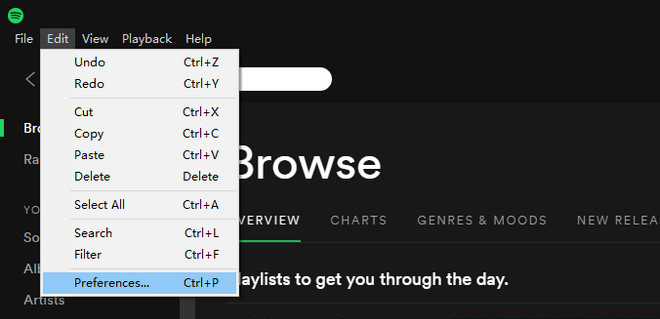
On Mac, click your profile picture in the top right, then click "Settings".
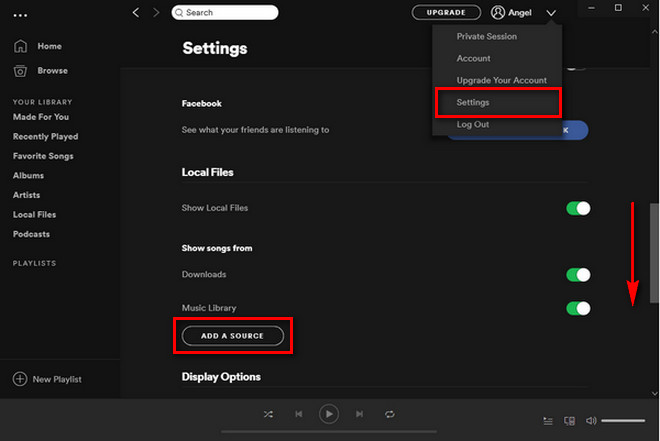
Step 3. Scroll down to the "Local Files" section and enable the 'Show Local Files" option.
Step 4. Next, click "Add a Source", browse and select the folder where your converted Audible MP3 audiobooks are stored.
Step 5. Spotify will automatically scan and import the audiobook files into your local library.
Step 6. After importing, click "Your Library" and open "Local Files" to view your uploaded Audible audiobooks inside Spotify.
Step 7. Now you can stream, organize, and listen to Audible books in Spotify without Internet connection!
Tips: You can also create an Audible audiobooks playlist for better management and navigation. If you have Spotify Premium, you may sync these imported Audible audiobooks to your mobile for offline listening.
How to Get Audible Books on Spotify?
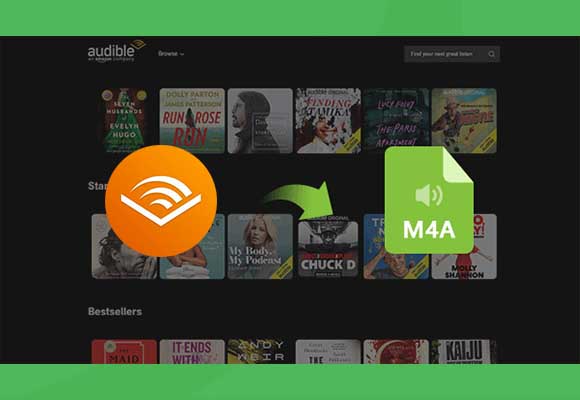
Spotify and Audible are two different streaming services. Spotify does not directly support Audible AA or AAX files. To get Audible books on Spotify, you need to first convert Audible audiobooks into MP3 or M4A format using UkeySoft Audible Converter or other tools, then import the converted audiobooks into Spotify Local Files.
Can You Link Audible to Spotify?
No, there is no official integration or direct linking between Audible and Spotify. The only way to upload Audible books to Spotify is to convert your Audible books to MP3 (using UkeySoft Audible Converter), and then manually import them into Spotify desktop app.
How to Import Your Audible Books into Spotify on iPhone?
One method is to convert Audible books into MP3 files on your computer, upload them into Spotify desktop through Local Files, then sync the audiobook playlist to your iPhone with Spotify Premium. Another method is to transfer the converted Audible MP3 audiobooks to your iPhone via iTunes, then play these audiobooks on your iPhone through Spotify app.
In short, Audible audiobooks cannot be directly uploaded into Spotify. Fortunately, with professional tools like UkeySoft Audible Converter, users can easily convert Audible DRM-protected AA and AAX audiobooks into Spotify-supported MP3 files for flexible offline listening. After conversion, you can import your Audible books into Spotify, organize audiobooks alongside music playlists, and enjoy a smooth offline listening experience across computers, smartphones, tablets, and other devices. You no longer need to switch between apps!

Sorry the comment has been closed.




Porducts
Solution
Copyright © 2026 UkeySoft Software Inc. All rights reserved.


 English
 Arabic
 Chinese (Simplified)
 Chinese (Traditional)
 Croatian
 Czech
Czech Danish
 Dutch
Dutch Estonian
 Finnish
 French
 German
 Greek
Greek Hebrew
 Hindi
Hindi Hungarian
 Indonesian
 Italian
 Japanese
 Kazakh
 Korean
 Malay
Malay Norwegian
 Polish
 Portuguese
 Romanian
 Russian
 Slovenian
 Spanish
 Swedish
 Thai
Thai Turkish
 Ukrainian
 Vietnamese


![7 Best FREE Apple Music Converters [2026 Updated]](https://www.ukeysoft.com/wp-content/uploads/2019/04/best-apple-music-converter.jpg)





























![Top 10 Christmas Songs to MP3 Download [Spotify]](https://www.ukeysoft.com/wp-content/uploads/2023/01/christmas-songs-to-mp3.jpg)

















































Comments are off!