 ✕
✕
✕
✕
By ChesterUpdated on January 07, 2026
Android Auto helps you enjoy your favorite apps like Spotify while driving, all on your car screen. But when Spotify is not working on Android Auto, many drivers feel frustrated. Problems such as missing apps, playback errors, or sudden crashes are very common. This article is designed to help you fix Spotify not working on Android Auto easily. We will explain both basic and advanced solutions to fix Spotify not working in different cases. In addition, we introduce a permanent solution so you can listen to music smoothly on every trip.
CONTENTS
Most of the time, Spotify works fine on Android Auto. But sometimes, Spotify may suddenly stop working or not show up on the car screen. This can happen for several reasons. Below are the most common causes of Spotify not working on Android Auto.
⚠️ Battery Saving Settings
Many Android phones use battery saving features to limit apps running in the background. When the phone screen is off, the system may stop Spotify to save power. This can cause Spotify to pause, crash, or disappear from Android Auto.
⚠️ App Cache Problems
Spotify and Android Auto save temporary files to load faster. Over time, these files can become damaged or conflict with updates, which may cause Spotify to stop working.
⚠️ Connection or Hardware Problems
Android Auto needs a stable wired or wireless connection. A damaged USB cable, a low quality cable, or a bad USB port can cause Spotify to stutter, disconnect, or not play.
⚠️ Outdated Apps or System
If Android, Spotify, or Android Auto is not updated, they may not work properly together.
In the next section, we will show you how to fix Spotify not working or not showing on Android Auto.
Some common problems users face when using Spotify with Android Auto include:
Below, we will share some effective solutions to fix these issues. Before trying the fixes, make sure Spotify is set up correctly with Android Auto. Follow these steps:
Step 1. Make sure you have installed the latest versions of both the Spotify app and the Android Auto app from the Google Play Store. Also, check that your Android phone is running Android 6.0 or higher.
Step 2. Connect your Android phone to your car using a USB cable. If your car supports wireless Android Auto, turn on Bluetooth and WiFi on your phone and connect through your car's system settings.
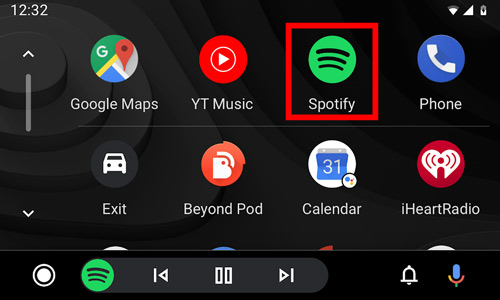
Step 3. After connecting, the Android Auto screen should appear on your car display automatically. Find and tap the Spotify icon to open it.
Step 4. Check that your car's audio volume is turned up and that the mute option is turned off.
After completing these steps, Spotify may start working normally on Android Auto. If the problem continues, try the solutions below to fix it.
🛠 Fix 1. Restart Devices and Check the USB Cable
Sometimes, Spotify does not work on Android Auto due to temporary connection problems. Restarting your phone, the Spotify app, and your car system can fix these small glitches. Close the Spotify app, turn off your Android phone, wait a few seconds, and turn it back on. Turn your car off and restart the infotainment system as well. Also, try using a high quality and certified USB cable, as a poor cable can cause connection issues.
🛠 Fix 2. Check and Reconnect Your Internet Connection
Spotify needs a stable mobile data or WiFi connection to work with Android Auto. If the signal is weak, songs may not load, may stop playing, or the app may crash. Try turning your internet connection off and back on, or switch to a stronger network.
🛠 Fix 3. Update Android, Spotify, and Android Auto
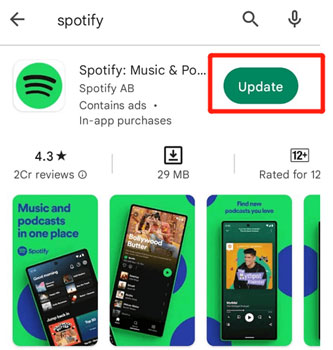
An outdated phone system can cause Spotify to stop working on Android Auto. Make sure your Android device is updated to the latest version. Also, update both Spotify and Android Auto from the Google Play Store. After updating, reconnect your phone to your car and test Spotify again.
🛠 Fix 4. Force Stop the Spotify App
Force stopping Spotify can refresh the app and fix errors. Go to Settings > Apps > Spotify, then tap Force Stop to fully close the app.
🛠 Fix 5. Clear Spotify and Android Auto Cache
Damaged cache files may cause Spotify to stop working on Android Auto. To clear Spotify cache, open Spotify, go to Settings, and tap Clear Cache.
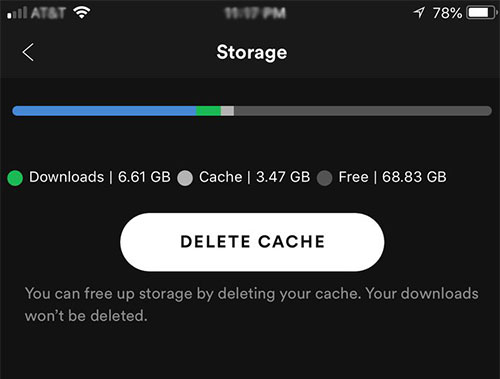
For Android Auto, go to Settings > Apps > Android Auto > Storage & Cache, then tap Clear Cache.
🛠 Fix 6. Turn Off Battery Optimization for Spotify
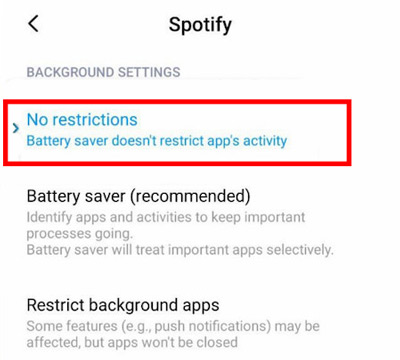
Battery saving settings may stop Spotify from running in the background. To avoid this, go to Settings > Apps > Spotify > Battery, then set it to No Restrictions. This allows Spotify to play smoothly on Android Auto.
🛠 Fix 7. Enable Spotify Autostart Permission
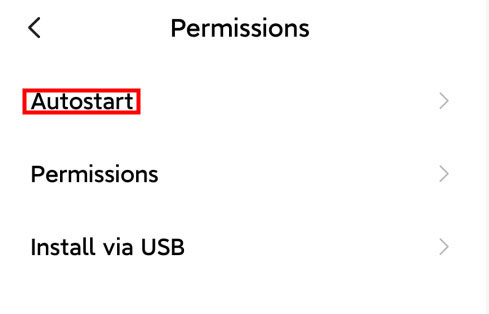
On some phones like Samsung or OnePlus, Spotify needs permission to start automatically. Go to Settings > Apps > Spotify, find Autostart or Allow app to start, and turn it on.
🛠 Fix 8. Enable Device Broadcast Status in Spotify
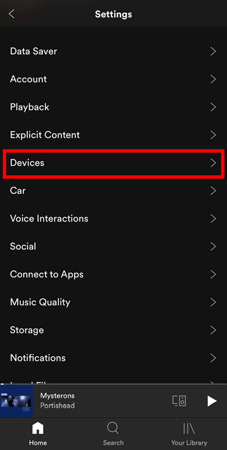
Spotify uses Device Broadcast Status to share playback info with your car. Open Spotify, go to Settings > Devices, and turn on Device Broadcast Status.
🛠 Fix 9. Check Microphone Permission
Android Auto needs microphone access for media and voice controls. Go to Settings > Apps > Android Auto > Permissions and set Microphone to Allow or Allow while using the app.
🛠 Fix 10. Set Spotify as the Default Music App
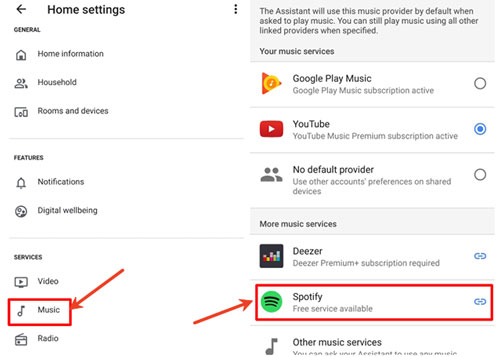
Setting Spotify as your default music service can help it work better with Android Auto. Open Google Assistant > Settings > Services > Music, then select Spotify.
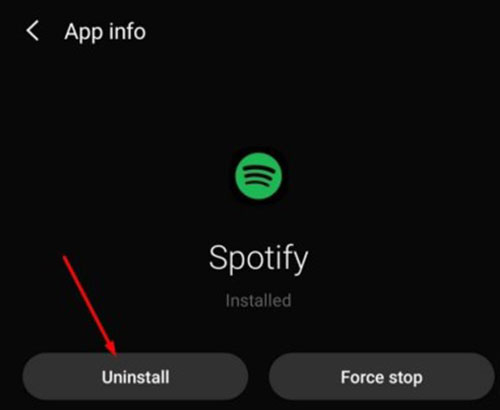
🛠 Fix 11. Reinstall Spotify and Android Auto
If nothing works, reinstalling both apps may fix hidden software problems. Uninstall Spotify and Android Auto, then download and install them again from the Google Play Store.
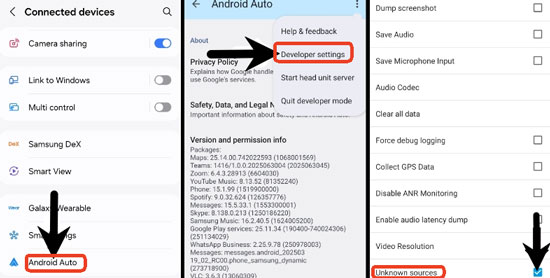
🛠 Fix 12. Enable Unknown Sources in Android Auto
Allowing unknown sources may help Android Auto recognize Spotify correctly. Open Android Auto > Settings > About, tap Version 10 times to enable developer mode. Then open Developer settings and turn on Unknown sources. Finally, force stop both apps and reconnect your phone to your car.
If the common solutions still cannot fix Spotify not working on Android Auto, you still have several reliable alternatives. One simple option is to connect your phone directly to your car using Bluetooth or a USB cable and play Spotify from your phone screen. Even if Android Auto is not working properly, this method allows you to continue listening to your music while driving.
Another easy option is to store local music files for offline playback. You can save MP3 files to a USB drive and plug it into your car's USB port. Many drivers keep a USB drive or small music player with their favorite songs as a backup. This helps fix Spotify not working on Android Auto and lets you enjoy music without interruptions on every drive.
To make this easier, you can use UkeySoft Spotify Music Converter help you fix Spotify not working by downloading and converting Spotify songs, playlists, albums, and podcasts into common audio formats, such as MP3, M4A, AAC, FLAC, WAV, and AIFF. These files can be played offline on phones, tablets, car systems, or USB drives without any limits.
What's more, this tool works for both Spotify Free and Premium users. With the built-in Spotify web player, you only need to add the tracks, choose your preferred output format, and start the conversion. After converting, simply transfer the Spotify music to a USB drive or your mobile phone, you can then play Spotify in your car offline without restrictions.
👍 Key Features of UkeySoft Spotify Music Converter
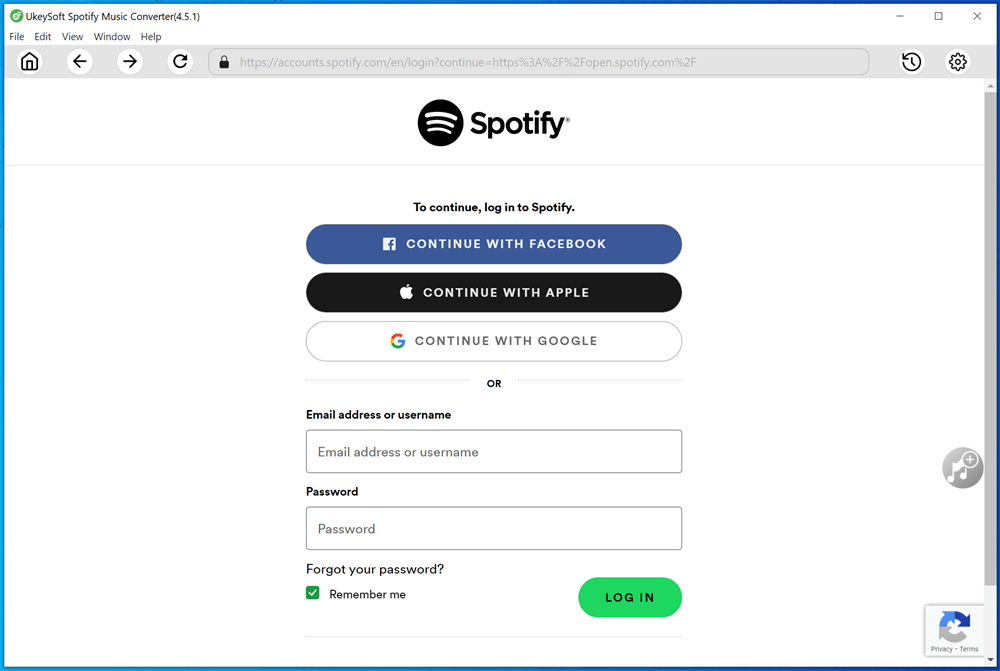
Step 1. Open the Spotify Converter and Sign In
UkeySoft Spotify Music Converter works on both Windows and Mac. Download and install the correct version on your computer. After installation, open the program and sign in to your Spotify account.
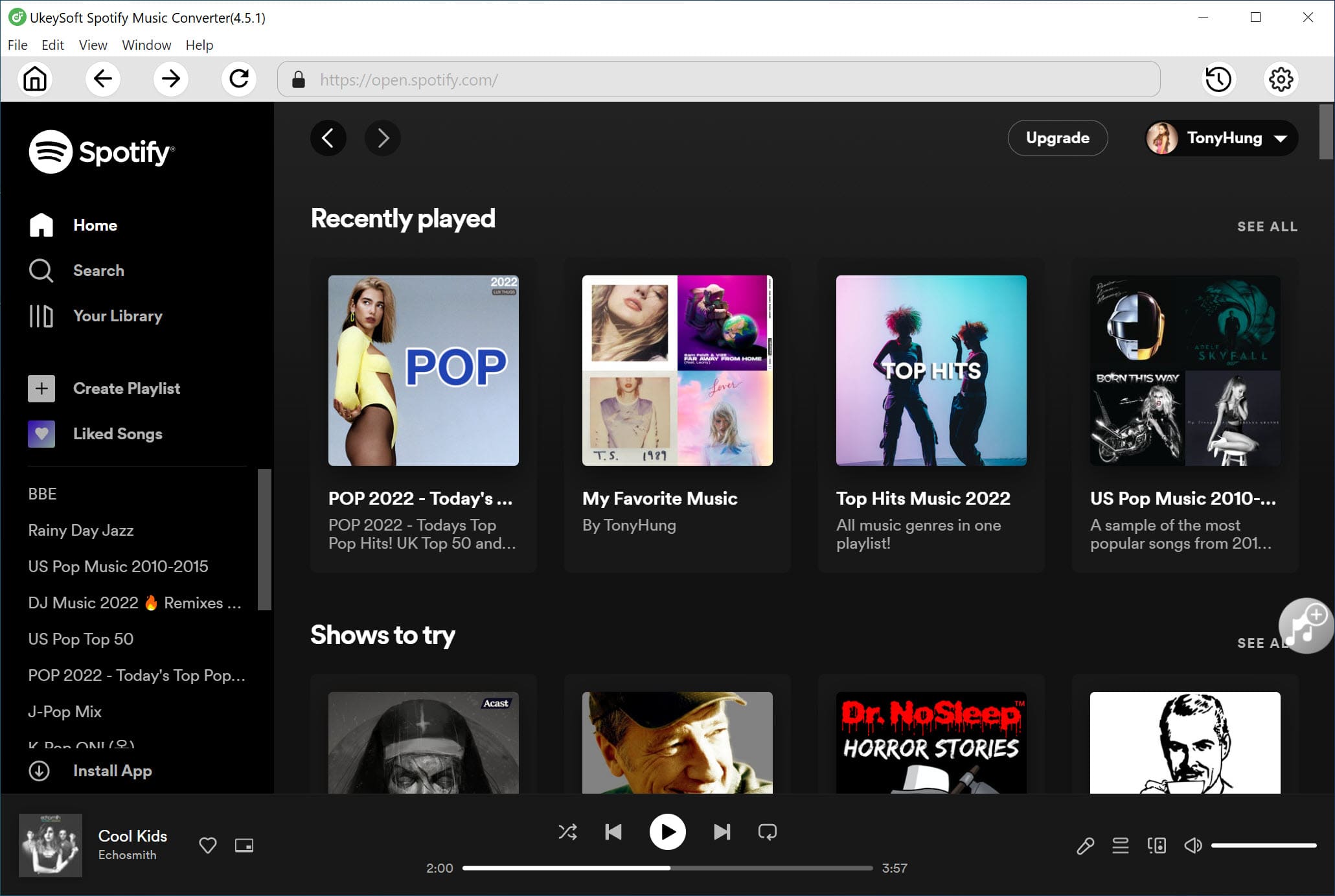
Once logged in, you can browse, search, and play music directly in the built in Spotify web player.
Step 2. Select the Output Format
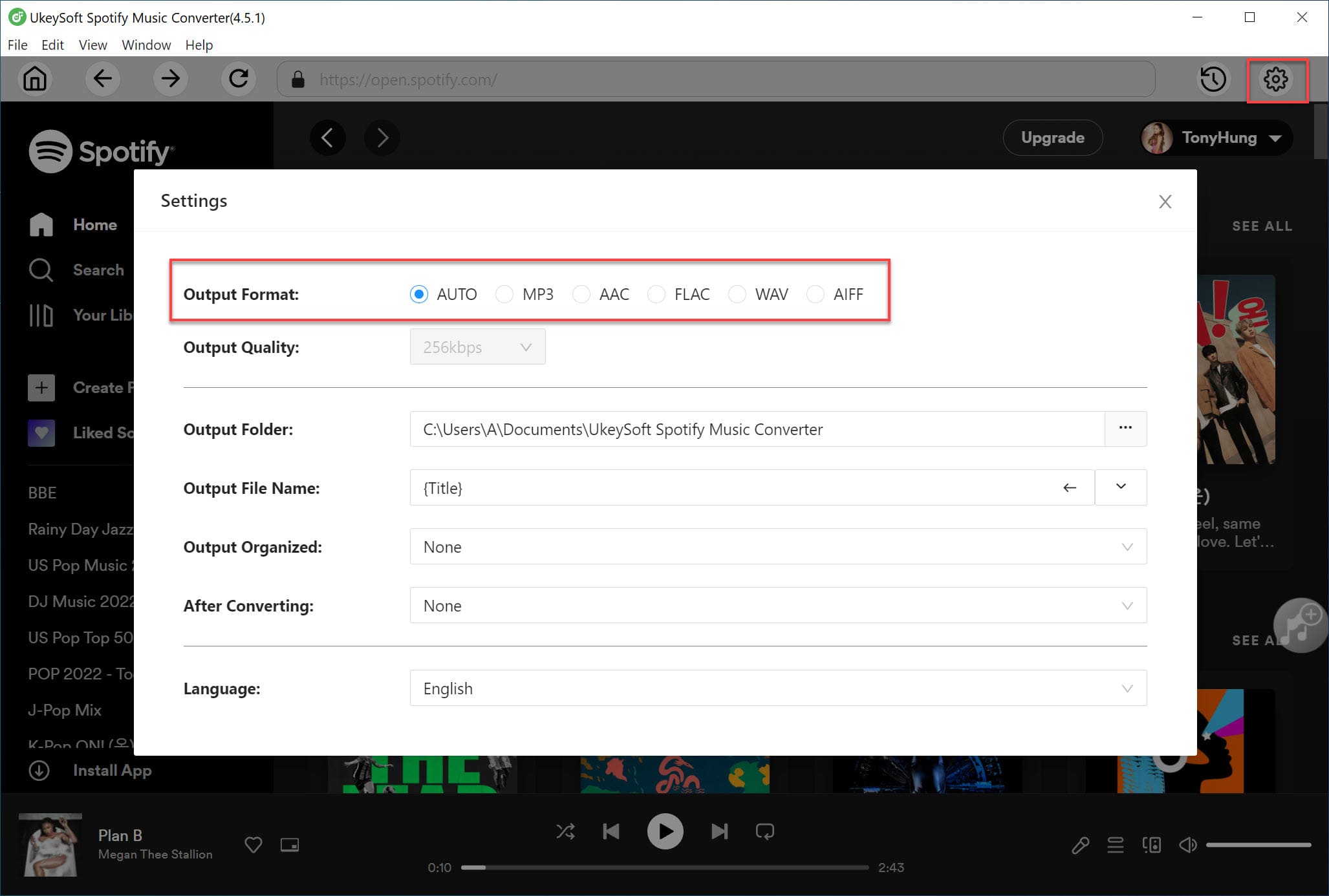
Click the Settings icon in the top right corner. You can choose from MP3, M4A, WAV, FLAC, AIFF, or AAC. The default format is lossless M4A. Since Android Auto supports MP3 on most devices, MP3 is recommended.
Step 3. Add Spotify Songs, Albums, or Playlists
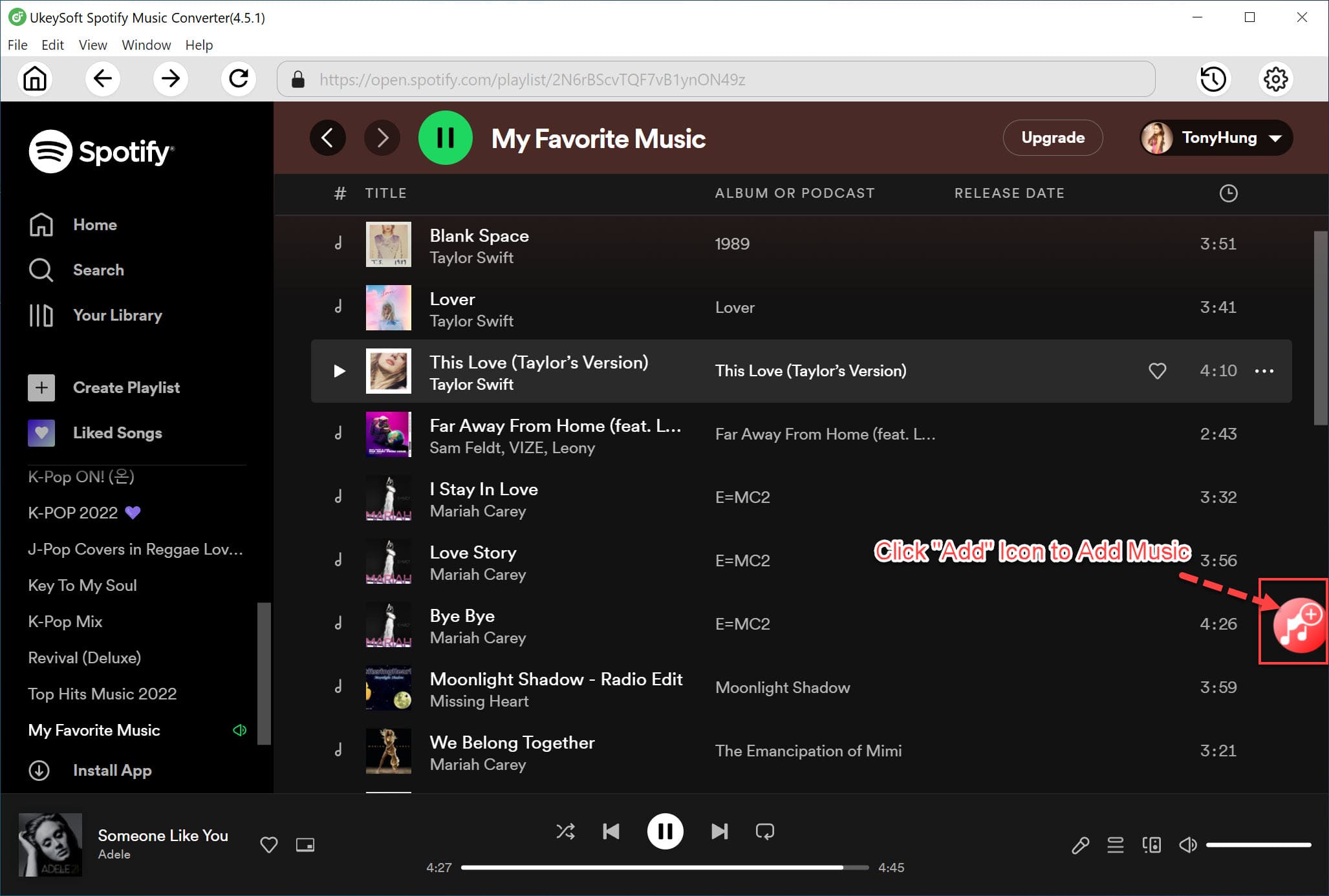
Use the built in Spotify web player to find the playlist or album you want to convert. Click the Add button to import the content. The program will automatically analyze the playlist and add all tracks to the conversion list.
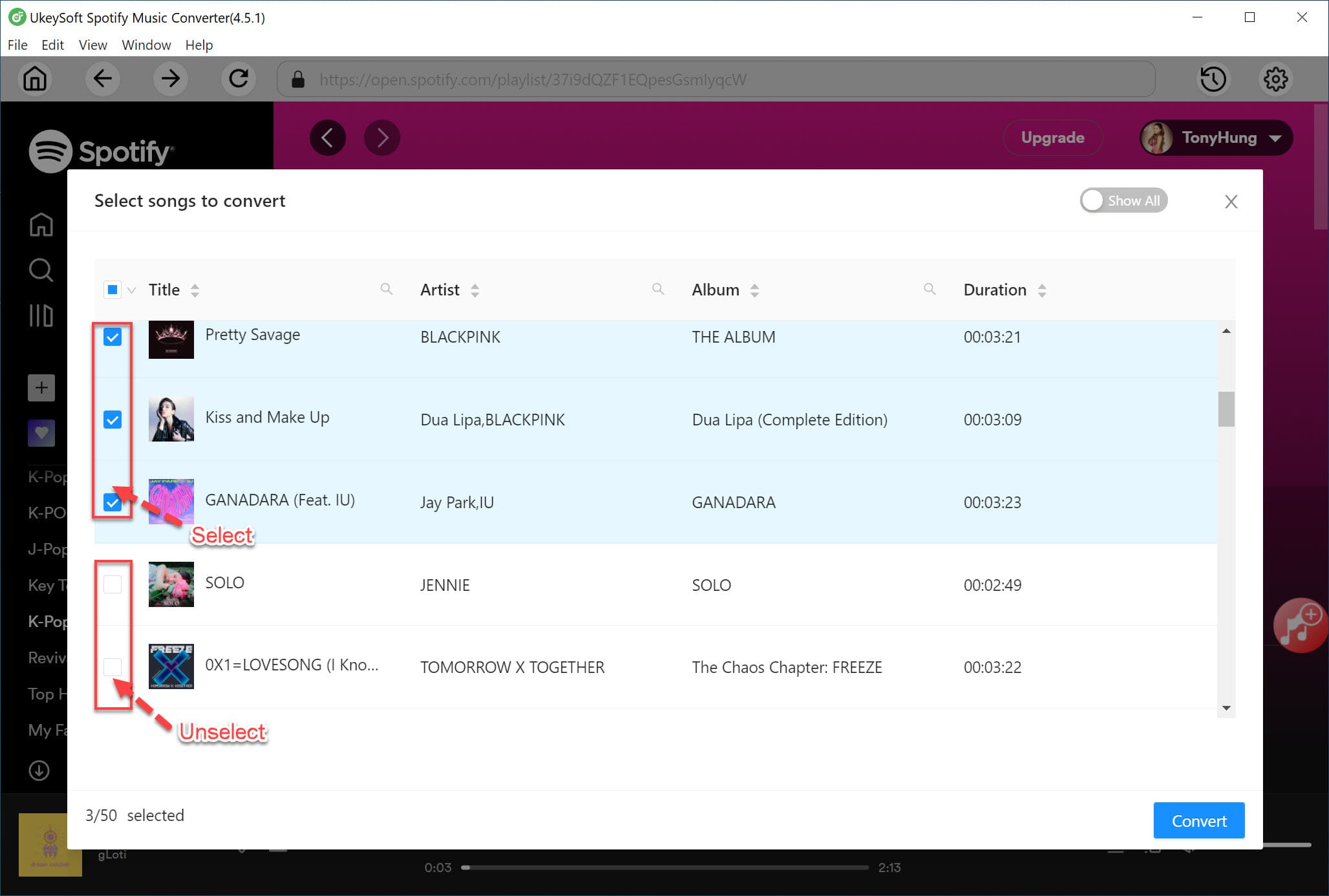
All songs are selected by default. You can deselect any tracks you do not want.
Step 4. Convert Spotify Music to MP3
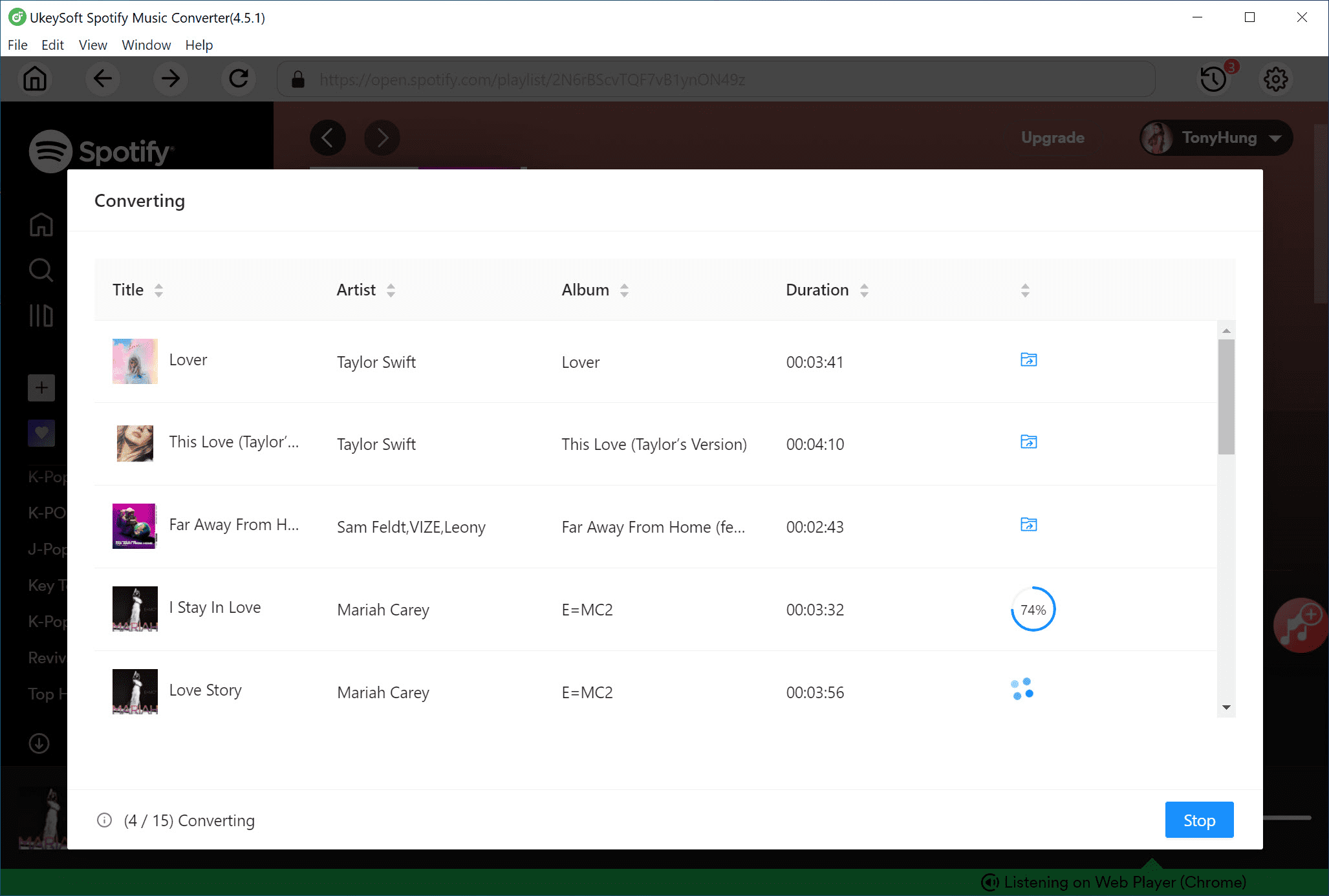
Click the Convert button to start converting Spotify songs or playlists to MP3 or another selected format at high speed.
Step 5. Check the Converted Files
After the conversion is complete, click Output Folder to open the saved location. Your Spotify music will be available as MP3 files.
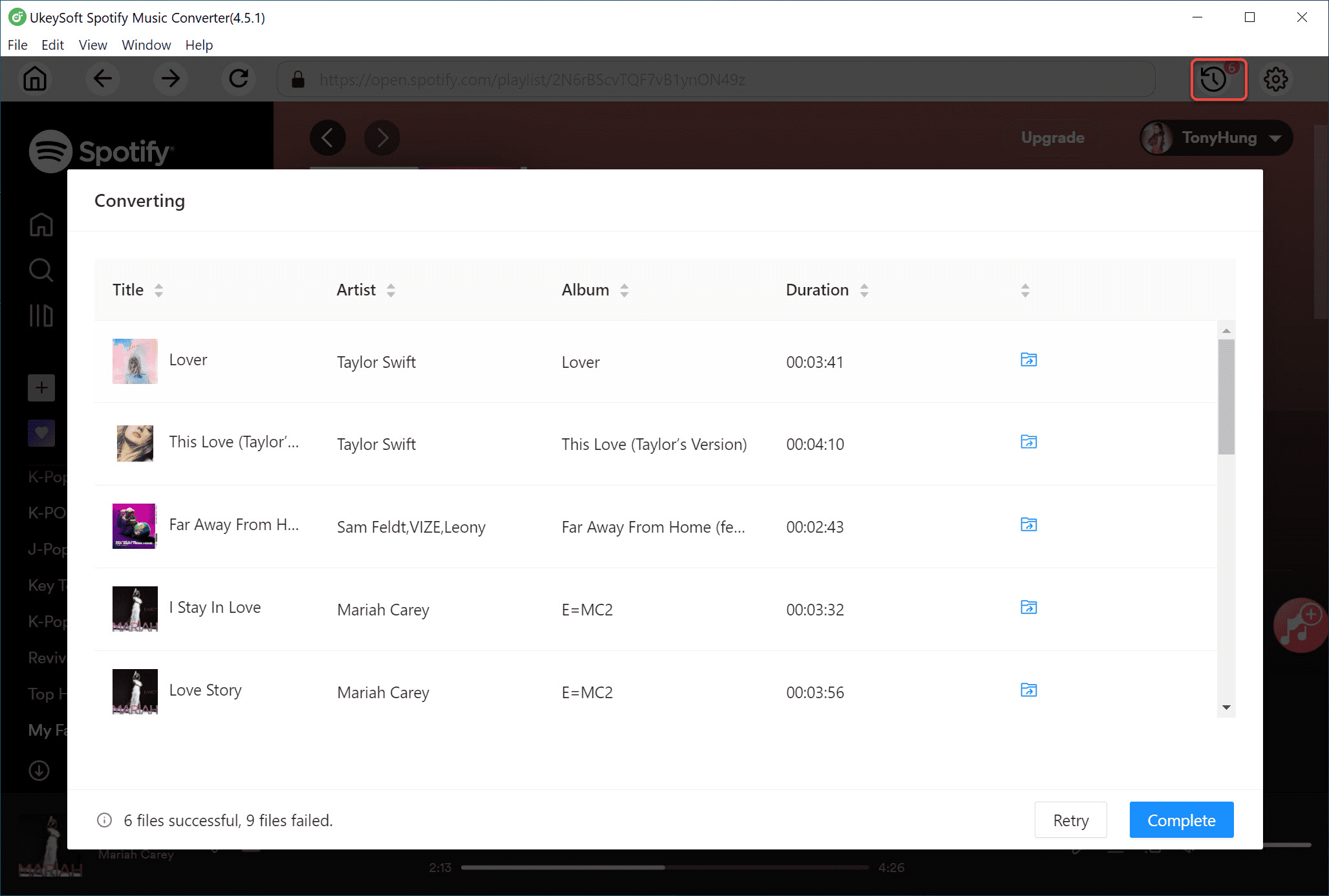
You can now transfer the converted Spotify songs to a USB drive or your phone and play Spotify in your car offline without any limits.
Q1. Why is Spotify not showing on my car screen with Android Auto?
This usually happens when Spotify is turned off in Android Auto launcher settings. Open the Android Auto app on your phone, go to Customize launcher, and make sure Spotify is enabled.
Q2. Can I use Spotify on Android Auto with a free account?
Yes. Spotify Free works with Android Auto, but you will hear ads and have some playback limits. Upgrading to Spotify Premium gives you a better listening experience.
Q3. Can I control Spotify with voice commands on Android Auto?
Yes. You can say Hey Google, play a song on Spotify, and Google Assistant will play it for you.
Q4. How do I stop Spotify from playing automatically on Android Auto?
Open Android Auto settings and turn off Start music automatically. You can also disable Media Audio in your car's Bluetooth settings or turn off Autoplay in Spotify's playback settings.
Q5. Why can't I see Spotify lyrics on Android Auto?
For safety reasons, Android Auto does not show lyrics on the car screen.
After reading this guide, you should be able to fix Spotify not working on Android Auto by using the solutions above. If the problem still continues, you can reach out to Spotify or Android Auto support for more help. For a completely stable listening experience, the best option is to play Spotify music offline in your car. With UkeySoft Spotify Music Converter, you can download Spotify songs to MP3 or other common formats and save them to a USB drive. This lets you fix Spotify not working and enjoy unlimited offline music while driving without any interruptions.

Sorry the comment has been closed.










![7 Best FREE Apple Music Converters [2026 Updated]](https://www.ukeysoft.com/wp-content/uploads/2019/04/best-apple-music-converter.jpg)



















Porducts
Solution
Copyright © 2026 UkeySoft Software Inc. All rights reserved.


 English
 Arabic
 Chinese (Simplified)
 Chinese (Traditional)
 Croatian
 Czech
Czech Danish
 Dutch
Dutch Estonian
 Finnish
 French
 German
 Greek
Greek Hebrew
 Hindi
Hindi Hungarian
 Indonesian
 Italian
 Japanese
 Kazakh
 Korean
 Malay
Malay Norwegian
 Polish
 Portuguese
 Romanian
 Russian
 Slovenian
 Spanish
 Swedish
 Thai
Thai Turkish
 Ukrainian
 Vietnamese



























![Top 10 Christmas Songs to MP3 Download [Spotify]](https://www.ukeysoft.com/wp-content/uploads/2023/01/christmas-songs-to-mp3.jpg)


































































































































Comments are off!