 ✕
✕
✕
✕
By Justin SabrinaUpdated on April 23, 2026
Mureka AI has become a popular platform for creating and enjoying unique songs. Simply provide text prompts, select genres, moods, and instruments, it will generates a unique, royalty-free track within seconds. It's well known that most streaming platforms like Spotify and Apple Music provide DRM-protected music content, prohibiting use on unofficial apps and unauthorized devices. Therefore, many creators use Mureka AI music for YouTube videos, podcasts, games, presentations, and social media content. For me, I prefer to to create background music for my TikTok videos!
However, the platform's free tier typically only allows streaming. To download a song from Mureka AI, you need to subscribe to its Pro($9/month), Premier ($27/month). Afterwards, you are allowed to download music from Mureka AI in MP3 or high-quality WAV format. What if you don't have a subscription? Is it possible to download song from Mureka Ai without subscribing? The answer is positive! In this post, we will show you two proven methods to download songs from Mureka AI for offline listening. Keep reading!
CONTENTS
If you are a paid subscriber, Mureka AI offers native download options on both its mobile app and web interface. These are the simplest ways to download songs from Mureka AI legally and directly. Below we will show you the detailed steps to download music on Mureka AI App and Web Player.
1.1 Download Song on Mureka AI App (iOS/Android)
Step 1. Download and install the Mureka AI app from the Apple App Store or Google Play Store.
Step 2. Open the Mureka AI app on your mobile device, and sign in to your paid Mureka AI account.
Step 3. You can either create a new AI song by entering a text prompt or browse your library of previously generated tracks.
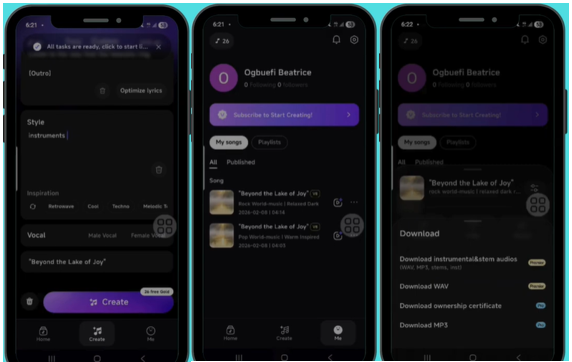
Step 4. Go to "My songs", tap the three dots next to the song title. Look for an option labeled "Download WAV", "Download MP3", Tap it.
1.2 Download Song on Mureka AI Web (Browser)
If you prefer using a browser, you can also download a song from Mureka AI web version.
Step 1. Open your preferred web browser (Chrome, Edge, Firefox, Safari) and go to the official Mureka AI website.
Step 2. Log in to your active account.
Step 3. Navigate to your music library, select the song you want to download.
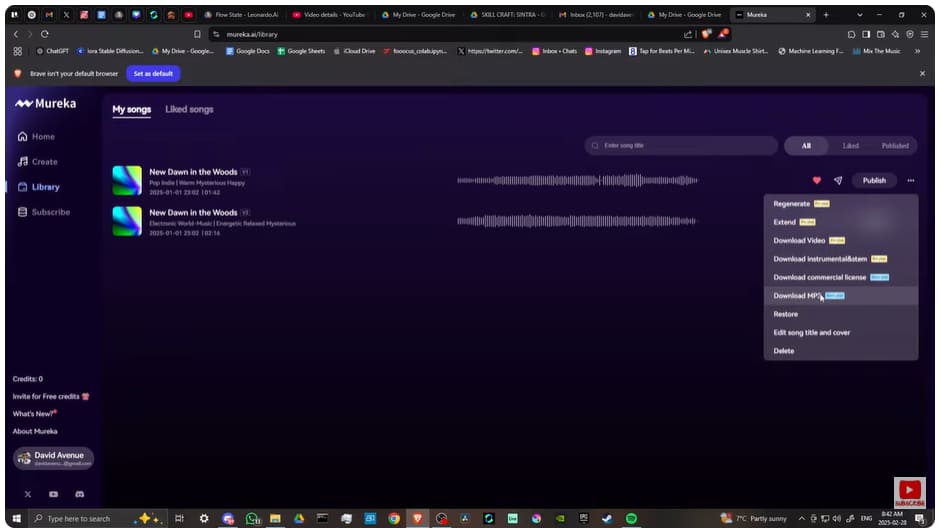
Step 4. Click the three dots and select "Download MP3" option.
For Mureka AI free users, if you want to download songs from Mureka AI for free, you can utilize an audio recorder. Here we highly recommend the UkeySoft Screen Recorder.
UkeySoft Screen Recorder is a full-featured audio recorder, video recorder, format converter, and video editor. It can capture everything playing on your computer screen, including music, video, movies, microphone input, and system sounds, etc. It captures the exact audio output from Mureka AI's web player, saving it in MP3, M4A, or WAV formats. You can use it to rip songs from Mureka AI as MP3 320kbps files. For videos on Mureka AI, it supports MP4, FLV, AVI, MOV, and more formats, with HD 1080p resolution.
Unlike traditional online recording tools, UkeySoft is lightweight, has no lag, and features a user-friendly interface. Additionally, it also includes advanced built-in tools such as a video editor and audio converter, allowing you to trim, enhance, and convert your recordings effortlessly.
Explore More Features of UkeySoft Screen Recorder:
Step 1. Launch UkeySoft Screen Recorder
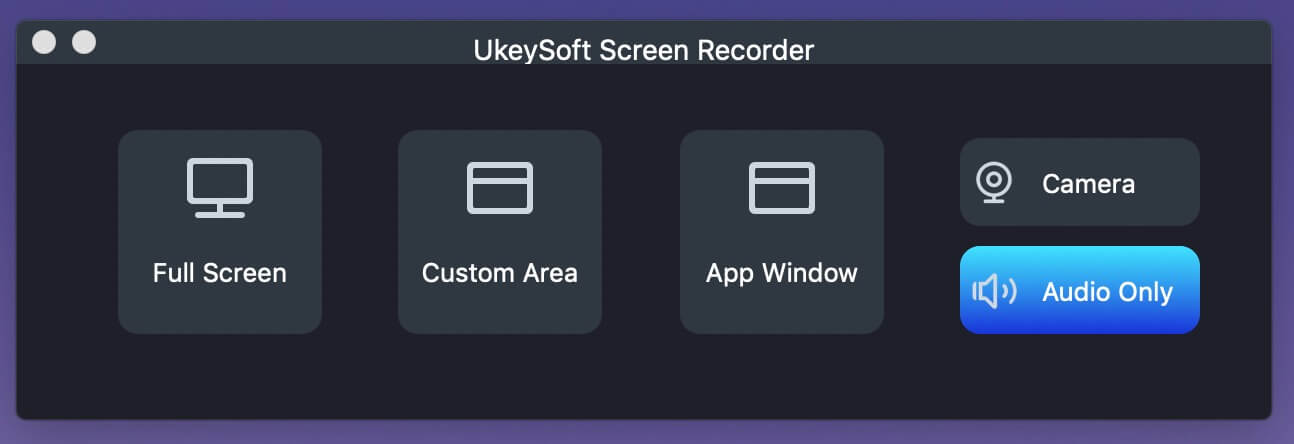
Download and install UkeySoft Screen Recorder on your computer. Launch the program after installation. Mac users should click "Audio Only" function.
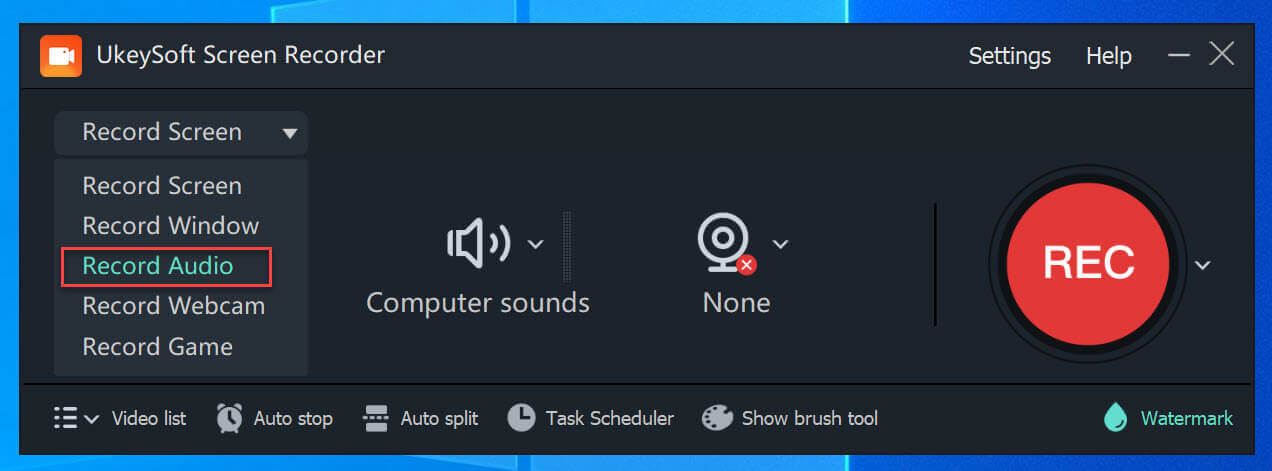
On Windows, you need to select "Screen Recorder" in the main interface, and then choose "Record Audio" mode.
Step 2. Select Audio Recorder Mode
Next, find and click on the "Audio" icon, select "System Audio" option. This captures the music playing from Mureka AI.
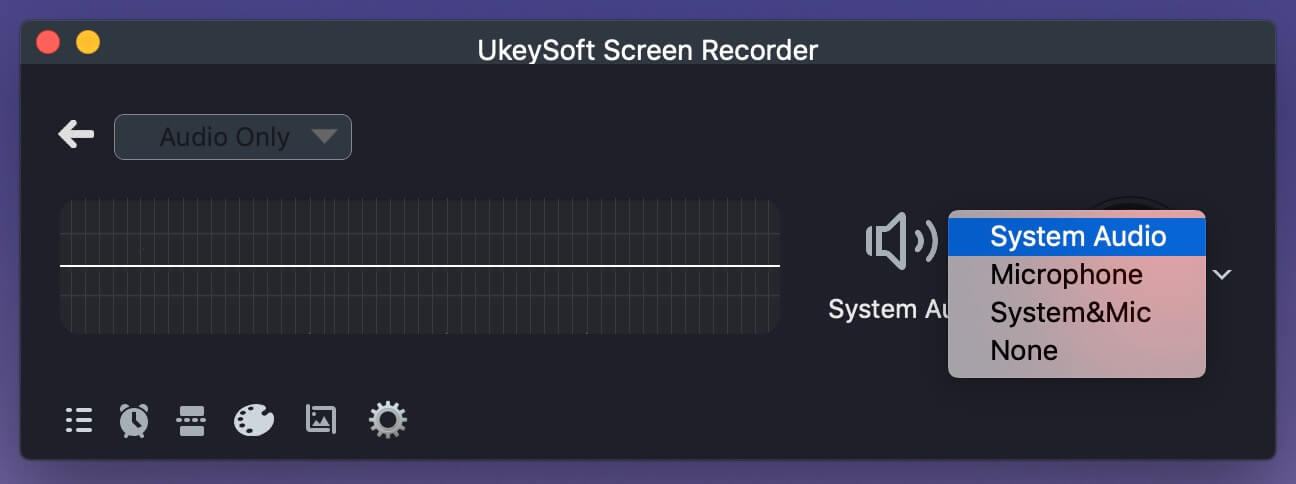
Step 3. Customize Output Parameters
Before recording the Mureka AI music, you need to customize the audio parameters. Hit on the "Gear", tap "General" tab, select MP3 audio format, and High audio quality.
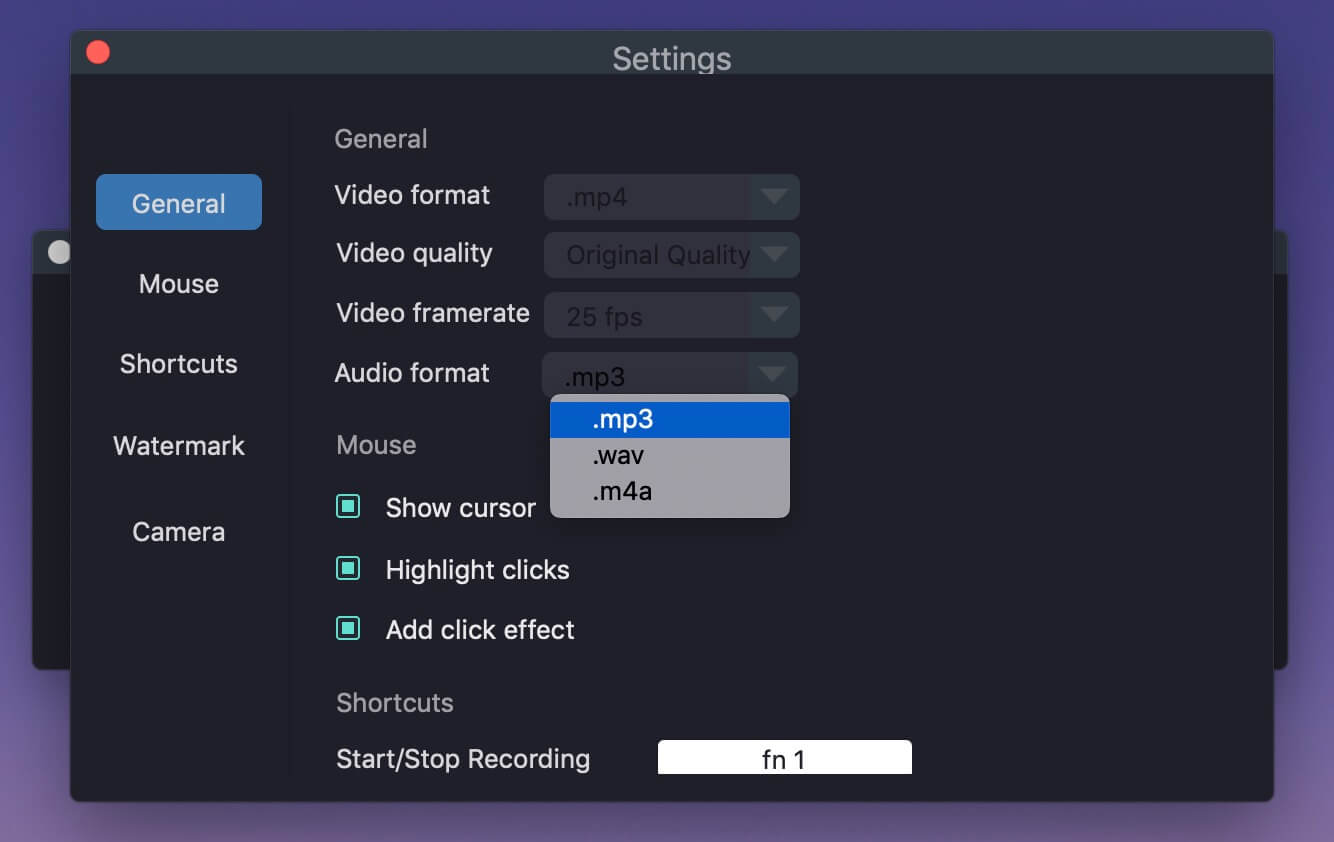
Step 4. Play the Song on Mureka AI
Open Mureka AI in your browser, You can choose to log in or not log in to your account. Find and play the song you want to record.
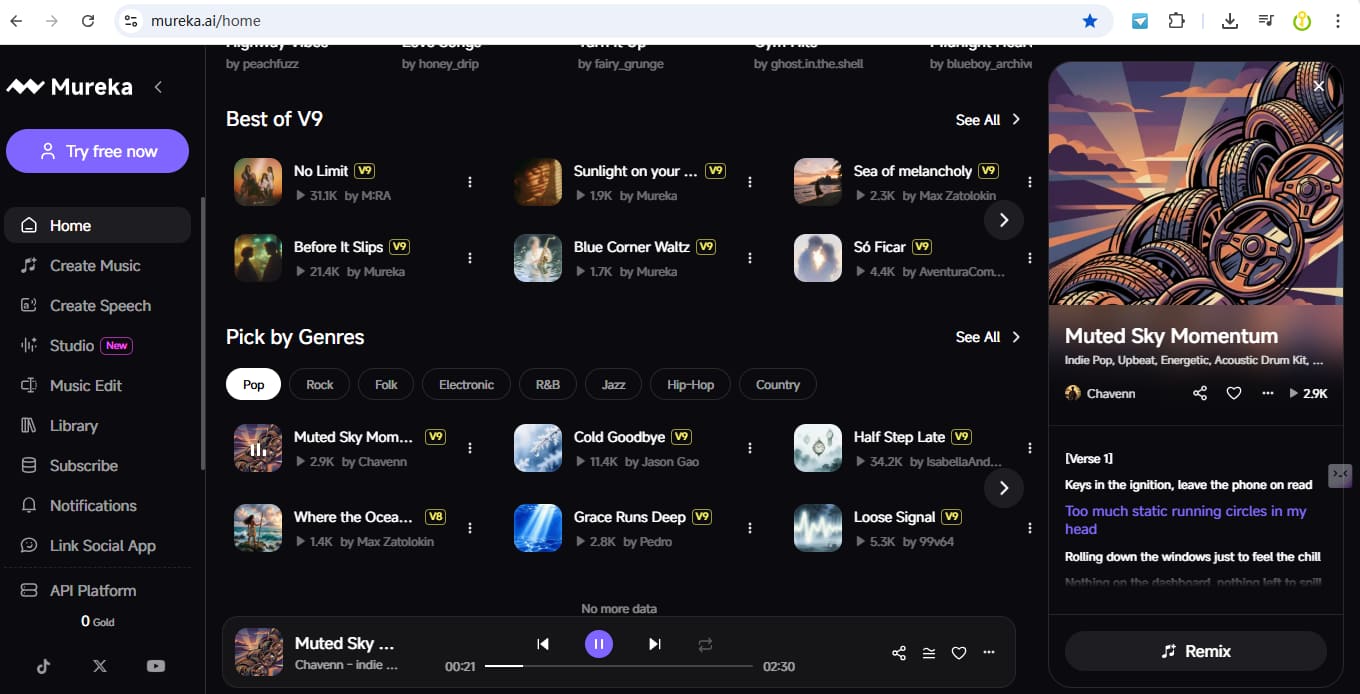
Step 5. Start Recording Song on Mureka AI
Click the "REC" button to start recording. The tool will capture the Mureka AI music in real time. During the recording, do not play any other video or audio.
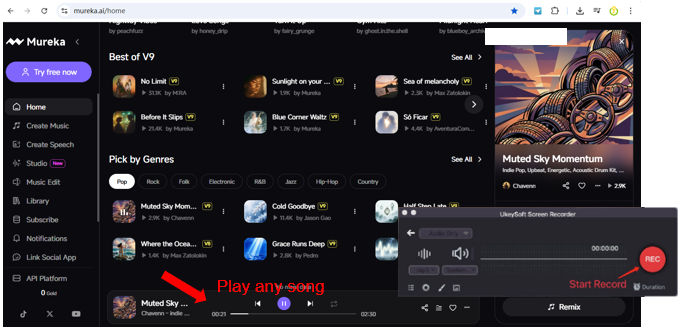
Step 6. Stop and Save Mureka AI Music as MP3 File
Once the song finishes, click the "Stop" button and click "Save" to export the Mureka AI music as an MP3 file.
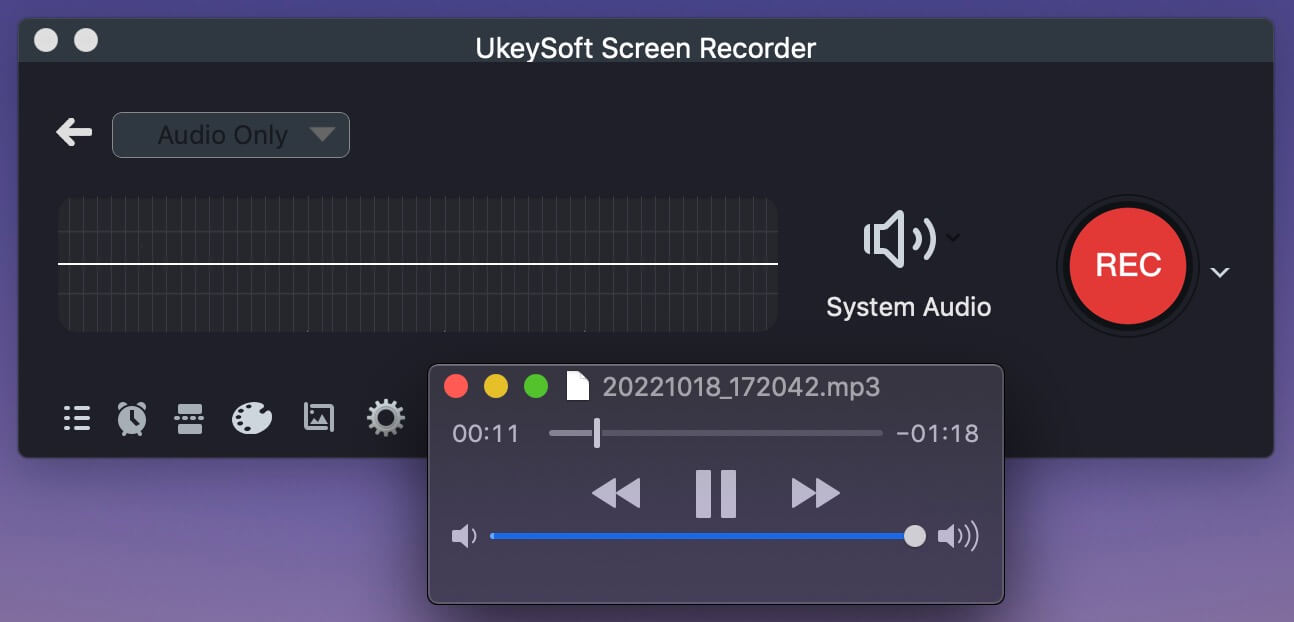
Click "History" icon to find the recorded Mureka AI music files, and use the built-in player to enjoy these high-quality Mureka AI music on your Mac without network!
To sum up, this article provides you with two easy ways to help download a song from Mureka AI with or without subscription. For a superior, permanent solution, UkeySoft Screen Recorder offers better service than the official Mureka AI app. It captures the exact audio stream from Mureka AI's web player at up to 320kbps MP3 quality. Plus, you can use it to record music from Apple Music, Spotify, YouTube, Pandora, Deezer, or any other streaming service, making it a versatile tool for any music lover. This powerful recorder offers a free trial, download it right now!

Sorry the comment has been closed.










![7 Best FREE Apple Music Converters [2026 Updated]](https://www.ukeysoft.com/wp-content/uploads/2019/04/best-apple-music-converter.jpg)



















Porducts
Solution
Copyright © 2026 UkeySoft Software Inc. All rights reserved.


 English
 Arabic
 Chinese (Simplified)
 Chinese (Traditional)
 Croatian
 Czech
Czech Danish
 Dutch
Dutch Estonian
 Finnish
 French
 German
 Greek
Greek Hebrew
 Hindi
Hindi Hungarian
 Indonesian
 Italian
 Japanese
 Kazakh
 Korean
 Malay
Malay Norwegian
 Polish
 Portuguese
 Romanian
 Russian
 Slovenian
 Spanish
 Swedish
 Thai
Thai Turkish
 Ukrainian
 Vietnamese



























![Top 10 Christmas Songs to MP3 Download [Spotify]](https://www.ukeysoft.com/wp-content/uploads/2023/01/christmas-songs-to-mp3.jpg)


































































































































Comments are off!