 ✕
✕
✕
✕
By Justin SabrinaUpdated on May 09, 2026
If songs or albums are missing from your Amazon Music Library, they are not always gone for good. Common causes include licensing changes, expired subscriptions, regional restrictions, corrupted cache files, outdated app versions, or account syncing issues.
Whether you're experiencing Amazon Music missing songs, playlists disappearing, or downloaded queue not working, this post gathers 9 of the most effective solutions to help you get missing Amazon Music songs back. Additionally, we also introduce a powerful tool called UkeySoft Amazon Music Converter to enhance your listening experience. Let's explore!

CONTENTS
If you are logged into the wrong Amazon account, your Amazon Music Unlimited subscription or Prime membership has expired, your Amazon Music library may not load correctly or may not display completely. You should check your membership account before making any further fixes. You can follow below simple steps:
Step 1. Navigate to Amazon website, sign in your Amazon account. Go to "Account & Lists".
Step 2. Select "Memberships & Subscriptions". Confirm your current plan and renewal date.
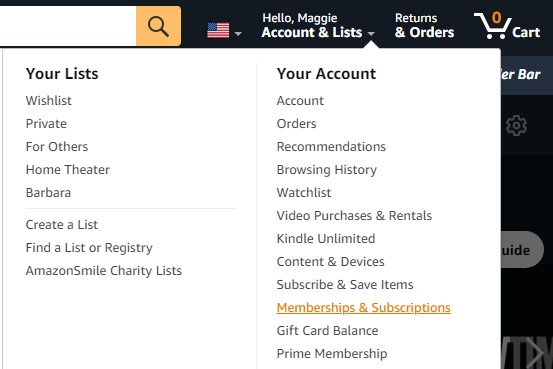
As mentioned earlier, regional restrictions can lead to the Amazon Music missing albums issue. For instance, some songs available in the US catalog might be restricted in the UK, Germany, Korean, or Japan. To solve Amazon Music missing songs, go to Amazon website, check your Amazon account settings and confirm your country/region is correct.
Sometimes, a simple re-login can refresh your account data and fix Amazon Music missing songs. To do that, go the the Amazon Music web player or open the Amazon Music app on your devices, tap on your "Profile" icon, then select "Log Out". Afterwards, log in to your Amazon account again.
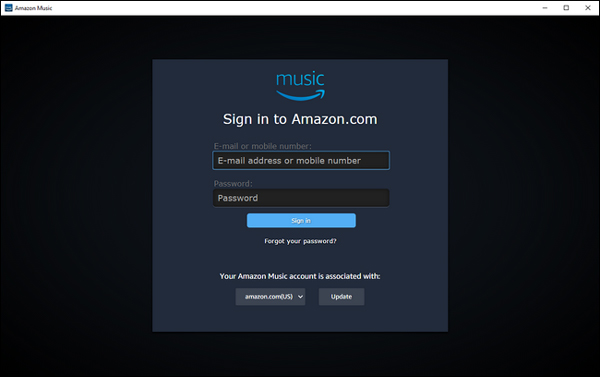
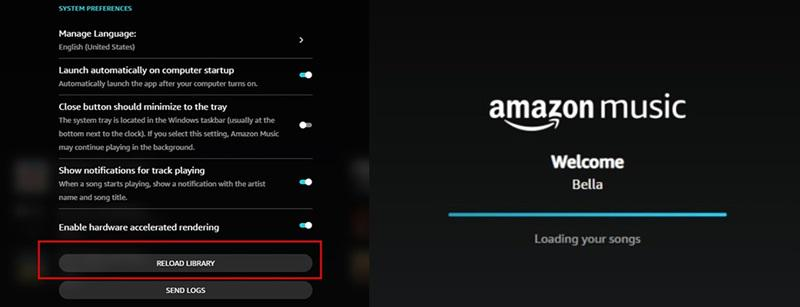
Refreshing your library is another effective way to fix Amazon Music missing songs in library section. When your library doesn't sync properly, songs may appear missing even though they are still linked to your account. Performing a manual refresh can quickly resolve Amazon Music missing song issues quickly, especially after adding new content, updating your subscription, or experiencing inconsistencies across multiple devices.
On Desktop Software:
Step 1. Open Amazon Music desktop app.
Step 2. Click your profile icon in the top-right corner.
Step 3. Select "Settings" from the dropdown menu.
Step 4. Go to "Library", scroll down to the bottom, and click "RELOAD LIBRARY" button.
On Mobile App:
Step 1. Open the Amazon Music app, navigate to "My Music" or "Library" section.
Step 2. Pull down from the top of the screen and release.
Step 3. Wait for content to reload, then relaunch Amazon Music app.
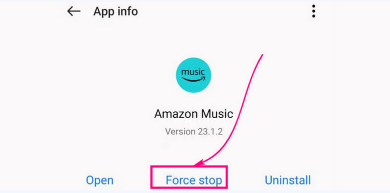
If the app is running in the background with bugs, it may cause the Amazon Music missing songs or albums issue. In such case, you need to force stop the Amazon Music app completely and relaunch it to refresh the system process. Here's how to do it:
On Android:
Step 1. Go to "Settings", select "Apps".
Step 2. Find and select "Amazon Music".
Step 3. Select "App Info", and tap "Force stop".
Step 4. Afterwards, restart the Amazon Music app.
On iPhone:
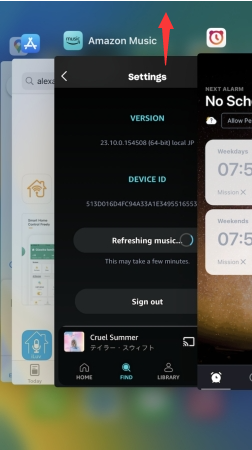
Step 1. Swipe up from the bottom of the screen.
Step 2. Find the Amazon Music app, swipe it away to close.
Step 3. Then, open the Amazon Music app again.
On Windows: Open Task Manager (Ctrl + Shift + Esc), locate Amazon Music under "Apps" or "Background Processes," right-click and select "End Task," then relaunch the application.
On Mac: Open Finder, find and select the "Activity Monitor", search for "Amazon Music," select the process, click the "X" button in the toolbar, choose "Force Quit," and restart the app.
If the above methods fail to fix Amazon Music missing songs, the issue may stem from the app itself. The Amazon Music app stores cache data to enhance speed and performance, but over time, excessive cache can become corrupted and lead to playback or library issues. Clearing cache removes these temporary files without affecting downloads, playlists, or account data, making it a useful method to solve Amazon Music missing song issues. The specific details are as follows.
On Android Devices:
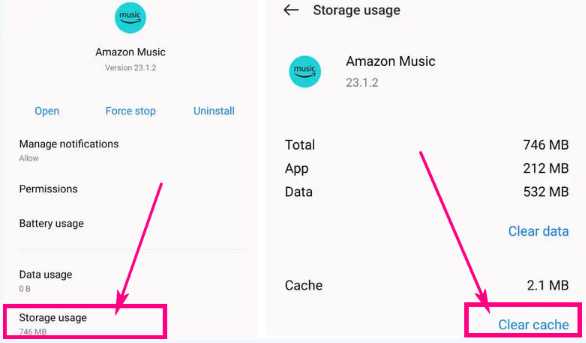
Step 1. Open device "Settings", go to "Apps".
Step 2. Tap "Amazon Music". Select "Storage usuage".
Step 3. Tap "Clear Cache". Wait for confirmation.
On iOS Devices:
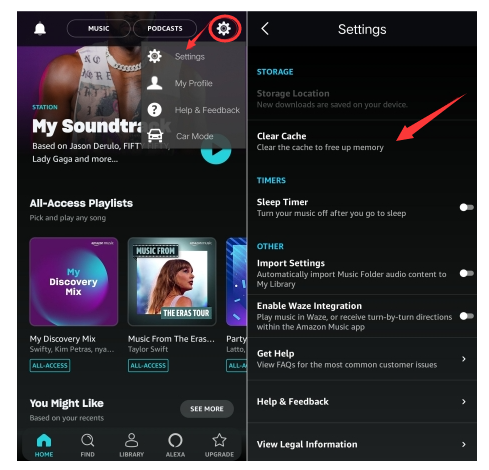
Step 1. Open Amazon Music app, click on "Gear" icon.
Step 2. Select "Settings", and tap "Clear Cache".
Alternatively, you can go to device Settings, find and select Amazon Music app, uninstall the app, then reinstall it. This will help you clear the cache and data.
On Windows: Go to this path: C:\Users\[YourUsername]\AppData\Local\Amazon Music\Cache, clear the cache and restart the app.
On Mac: Quit Amazon Music (Cmd + Q). Open Finder, select "Go", then "Go to Folder" (Cmd + Shift + G). Type ~/Library/Caches/Amazon Music/ and press "Enter". Delete all files in this folder (Cmd + A, then Cmd + Delete) Clear Trash, relaunch Amazon Music.
Outdated software is another major reason behind Amazon Music missing songs or albums. Amazon, Android, and Apple often releases new versions to fix known bugs and glitches. In most cases, updating the Amazon Music app and device system can help resolve Amazon Music missing song issues.
Update the Amazon Music App: Go to the App Store, search for Amazon Music, and click "Update" button.

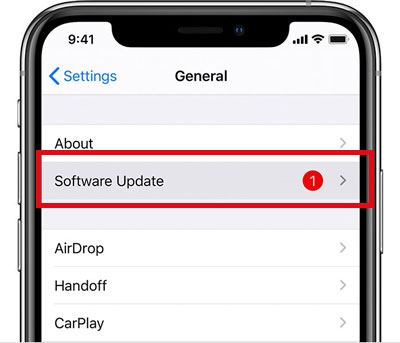
Update the Device Operating System: Open your device Settings, select "Software Update". If update available, tap "Download and Install", and then restart your device.
Situation: "My Amazon Music playlist just deleted half of the songs for no reason". - from Amazon Music user on Reddit.
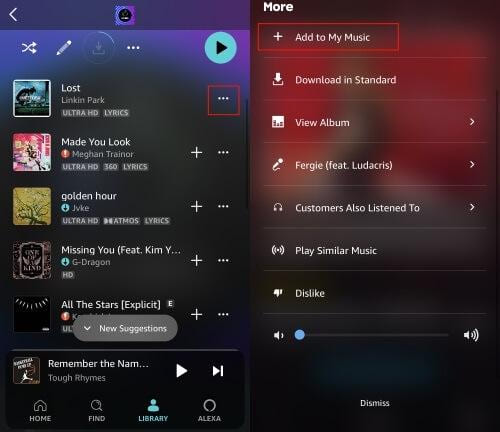
Sometimes, songs disappear due to licensing updates or accidental removal. To fix Amazon Music playlist disappeared, you can manually to re-add the missing songs to your Amazon Music playlist or library. Follow the steps below to do so:
Step 1. In Apple Music app or web player, search for the missing song or album.
Step 2. Tap the three dots, and select "Add to Library".
Step 3. Add to playlist if needed. After that, refresh your library.
If none of the above methods can solve Amazon Music missing songs problem, or you want a permanent solution for playback and download issues, the best solution is to download or convert Amazon Music to MP3. Since all Amazon Music tracks are DRM-protected, you don't truly own the downloads, and they may disappear once your subscription ends. By converting Amazon Music tracks to MP3, you can resolve Amazon Music missing song issues and keep your music accessible forever. Here you can utilize this powerful desktop tool - UkeySoft Amazon Music Converter.
UkeySoft Amazon Music Converter is well designed to help users download and convert Amazon Music tracks, albums, playlists and podcasts into MP3, AAC, M4A, WAV, FLAC, and AIFF formats. It preserves original audio quality with lossless output and supports up to 10X faster conversion speed. The software also includes a free music manager to organize downloaded tracks efficiently.
With its built-in Amazon Music web player, you can browse, search, and download songs directly without installing additional apps such as Amazon Music App. After conversion, you can permanently save the Amazon songs, and add them into any other players like iTunes, WMP, VLC, Music Bee for offline listening and management. No need to worry Amazon Music missing songs at all!
More Features of UkeySoft Amazon Music Converter:
Step 1. Launch UkeySoft Amazon Music Converter
Download and launch UkeySoft Amazon Music Converter on your Windows or Mac computer. You will need to log into your Amazon Music account within the built-in web player to access your full music library securely.
Step 2. Configure Output Settings
Click the settings gear icon (top-right corner) to access output preferences. Select MP3 as your output format. Adjust output quality to 320kbps for lossless audio, choose your preferred output folder, and enable "Organize by Artist/Album" for automatic folder creation.
Step 3. Add Amazon Music Songs/Playlists/Albums
On the home page, search or browse your favorite songs, albums, or playlists. Then open them and click the "+" icon in the right side.
Once added the songs to the download queue successfully, select specific tracks you want to convert.
Step 4. Convert Amazon Music Songs to MP3
Click on the "Convert" button to let the tool start converting your selected Amazon Music tracks to MP3 at high speed while preserving original quality and metadata information. The conversion progress bar shows real-time status for each track.
Step 5. Access the Output Amazon MP3 Songs
Upon completion, click on the "History" icon to check the output Amazon songs. You can listen to these Amazon Music songs with the built-in music player. And enjoy them offline on any device without restrictions or subscription limitations.
Amazon Music missing songs or albums is a common phenomenon that many users may encounter. Don't worry, this problem is easy to solve. The proven fixes above can help you quickly get your missing Amazon Music songs back. To permanently keep your favorite Amazon songs, UkeySoft Amazon Music Converter can be a reliable option. It enables you to download and convert Amazon Music tracks, playlists, albums and podcasts to high-quality MP3 or other formats at 10X fast speed. This ensures you keep your music collection forever, and enjoy uninterrupted listening anytime, anywhere!

Sorry the comment has been closed.























Porducts
Solution
Copyright © 2026 UkeySoft Software Inc. All rights reserved.


 English
 Arabic
 Chinese (Simplified)
 Chinese (Traditional)
 Croatian
 Czech
Czech Danish
 Dutch
Dutch Estonian
 Finnish
 French
 German
 Greek
Greek Hebrew
 Hindi
Hindi Hungarian
 Indonesian
 Italian
 Japanese
 Kazakh
 Korean
 Malay
Malay Norwegian
 Polish
 Portuguese
 Romanian
 Russian
 Slovenian
 Spanish
 Swedish
 Thai
Thai Turkish
 Ukrainian
 Vietnamese










![7 Best FREE Apple Music Converters [2026 Updated]](https://www.ukeysoft.com/wp-content/uploads/2019/04/best-apple-music-converter.jpg)













































![Top 10 Christmas Songs to MP3 Download [Spotify]](https://www.ukeysoft.com/wp-content/uploads/2023/01/christmas-songs-to-mp3.jpg)












































































































Comments are off!