 ✕
✕
✕
✕
By Justin SabrinaUpdated on March 12, 2026
Many users prefer listening to music on their smartwatches while running, cycling, or hiking. Garmin smartwatches with onboard music storage have become increasingly popular. YouTune Music does offer a Wear OS version for its app, which makes it easy to stream music and even downloading playlists for offline listening on a compatible Garmin smartwatch.
In this article, you'll get two simple methods to transfer YouTube Music to Garmin watch with or without a Premium subscription. In addition, in cased your Garmin watch doesn't support YouTune Music app integration, don't worry, you can still get YouTube Music on your Garmin watch with the help of 4kFinder YouTune Music Converter, without the YouTube Music app!
CONTENTS
Since 2024, many Garmin devices have been able to install the YouTube Music app. In short, if your Garmin watch is one of the models that supports YouTube Music app, you can easily install the YouTube Music app from your watch or smartphone. However, keep in mind that if you use your Garmin watch to stream YouTube Music content, you need to connect your watch with a Bluetooth headphones.
Preparation to Transfer YouTube music to Garmin watch:
Before you start, make sure you have the following requirements ready.
Tips: You can check this list to see if your Garmin device is compatible with the YouTube Music app.
1.1 How to Install YouTube Music on a Garmin Watch
There are two main ways to install the YouTube Music app on a Garmin smartwatch.
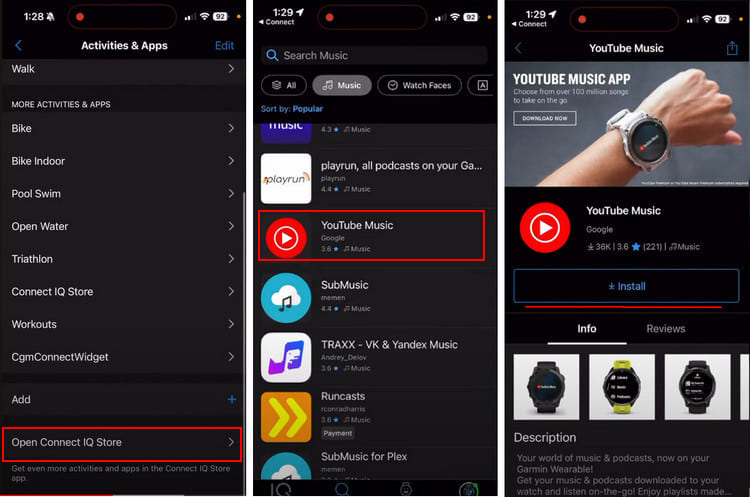
From Your Smartphone:
Step 1. Launch the Connect IQ Store app (formerly Connect IQ app) on your smartphone
Step 2. Search for YouTube Music, tap on "Install".
Step 3. Accept the permission requests and wait for the installation to complete.
From Your Garmin Watch:
Step 1. Connect your Garmin watch to a stable Wi-Fi.
Step 2. Press START on your watch, select Connect IQ Store.
Step 3. Browse the available apps and locate YouTube Music.
Step 4. Select "Install" and wait for the download to finish.
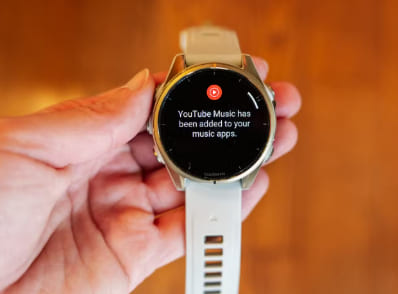
After installation, the YouTube Music app will appear in the music section of your Garmin watch.
1.2 How to Set Up YouTube Music on Garmin Watch
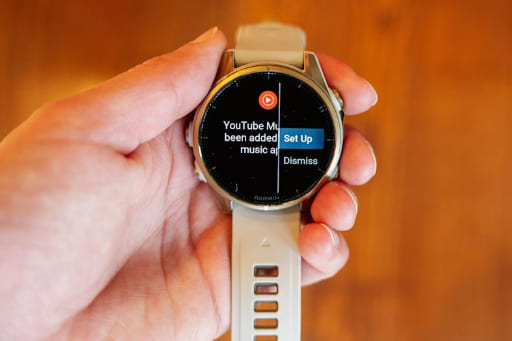
Step 1. Open the YouTube Music app on your Garmin watch, select "Set Up".
Step 2. A pairing code will appear on the watch screen.
Step 3. On your smartphone or computer, open a browser and go to youtube.com/activate.
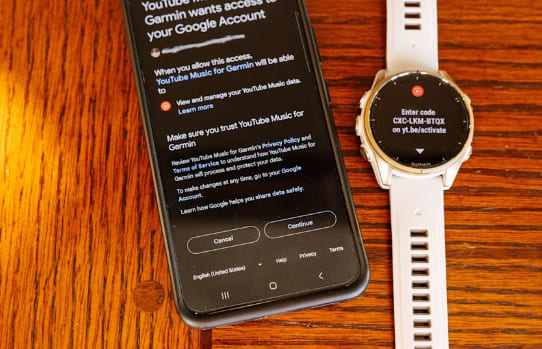
Step 4. Sign in to your YouTube Premium or YouTube Music Premium account and enter the code.
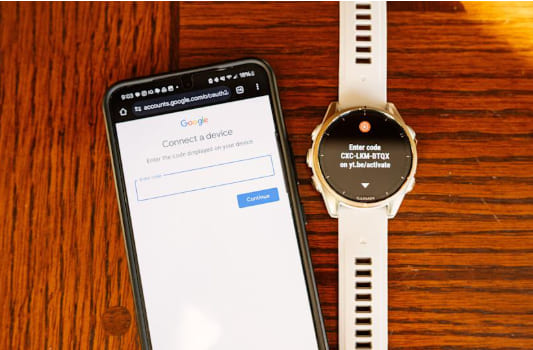
Step 5. Approve the permission request to connect your watch. Once the process is complete, your watch will be linked to your YouTube Music library.
1.3 How to Download YouTube Music Playlists on Garmin Watches
Step 1. Open the YouTube Music app on your Garmin watch.
Step 2. Browse your playlists, liked songs, and albums.
Step 3. Tap on the playlist you want to save for offline listening.
Step 4. Scroll down and tap the "Download" button
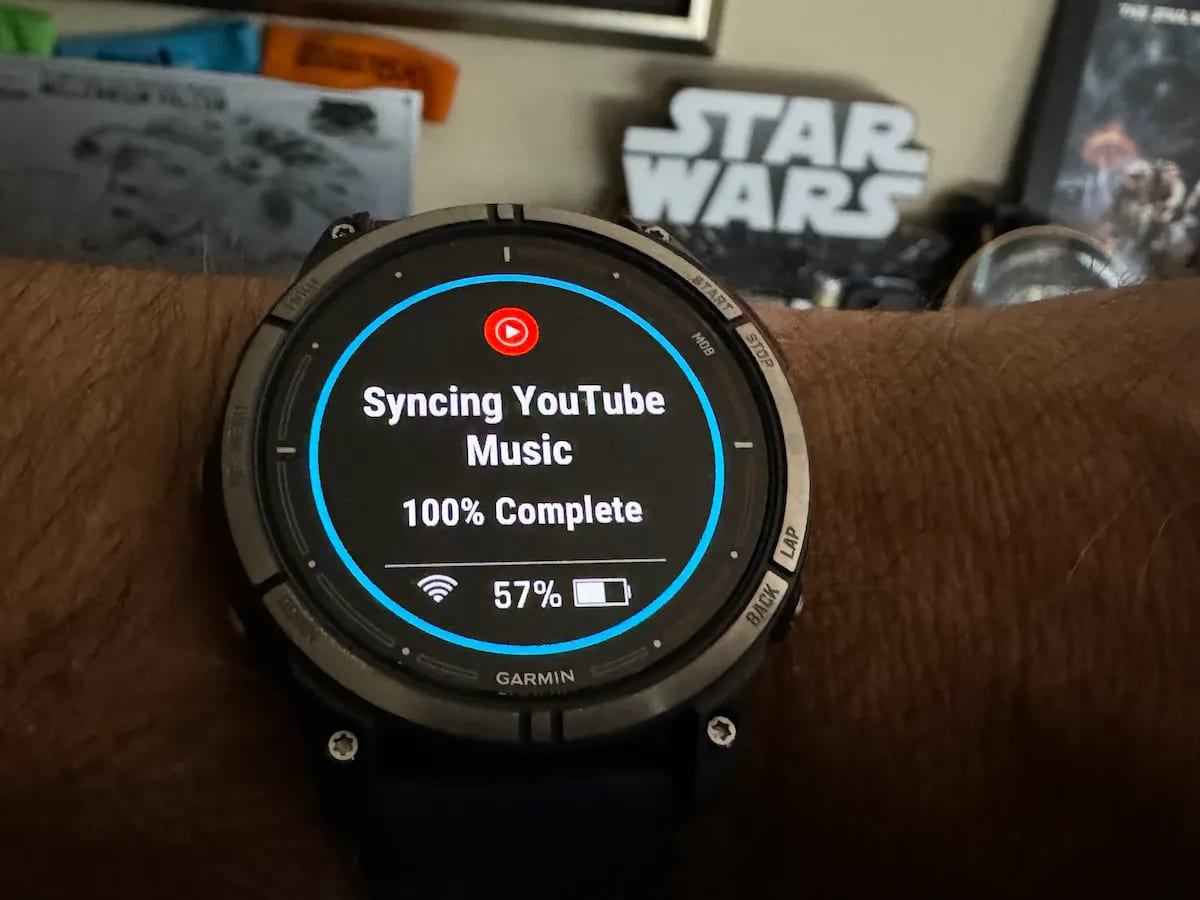
Step 5. Once downloaded, you can play YouTube Music on Garmin watch through Bluetooth headphones without needing a smartphone.
Although the official YouTube Music app works well on Garmin watches, it has several limitations. First, you must have a YouTube Music Premium subscription to add YouTube Music to your Garmin watch. Second, the music on your watch becomes inaccessible once your subscription expires. Moreover, some older Garmin watches do not allow to add YouTube Music to Garmin watch. In this part, we will introduce another alternative method, working for both YouTube Music free and premium users, supporting all models and series of Garmin watches. You can get YouTube Music songs on your Garmin watch by using a third-party tool.
Fortunately, Garmin smartwatches support multiple audio formats including MP3, AAC (.m4a), WAV, and M4B. By converting YouTube Music to MP3 format, you can transfer YouTube Music to Garmin watch and enjoy offline playback on any Garmin model without subscription restrictions.
4kFinder YouTube Music Converter can surely be the best helper to do this. It is a powerful desktop application designed to help users download songs, playlists, albums and MVs from YouTube Music without Premium account. It lets you download and convert YouTube Music to MP3, M4A, AAC, WAV, FLAC, AIFF standard audio formats with customized quality (up to 320Kbps, 512kbps and 640kbps).
Unlike traditional online YouTube Music downloaders, 4kFinder offers 10X faster speed to batch convert entire playlists or albums at once. It also preserves ID3 tags for all YouTube Music downloads and features a built-in music manager to let offline music management more conveniently. After conversion, you could transfer YouTube Music songs to all models of Garmin watches or other portable devices, and enjoy offline playback anytime, anywhere.
Main Features of 4kFinder YouTube Music Converter
Step 1. Launch 4kFinder and Log In Account
Download and install 4kFinder YouTube Music Converter on your Mac or Windows PC. Launch the software and log in to your YouTube Music free account to access your playlists, albums, and saved songs for conversion.
Alternatively, you can skip the login step and browse the YouTube Music library directly online.
Step 2. Customize Output Settings
Open the settings panel by clicking the Gear icon at the upper right corner. Choose your preferred output format such as MP3. You can also adjust the audio quality (320kbps), output file name, and output folder to ensure the downloaded songs are optimized for Garmin watch playback.
If you set AUTO M4A or AAC as the output format, you can adjust the output quality to 640kbps. This ensures the best listening experience of YouTube Music.
Step 3. Add YouTube Music Songs
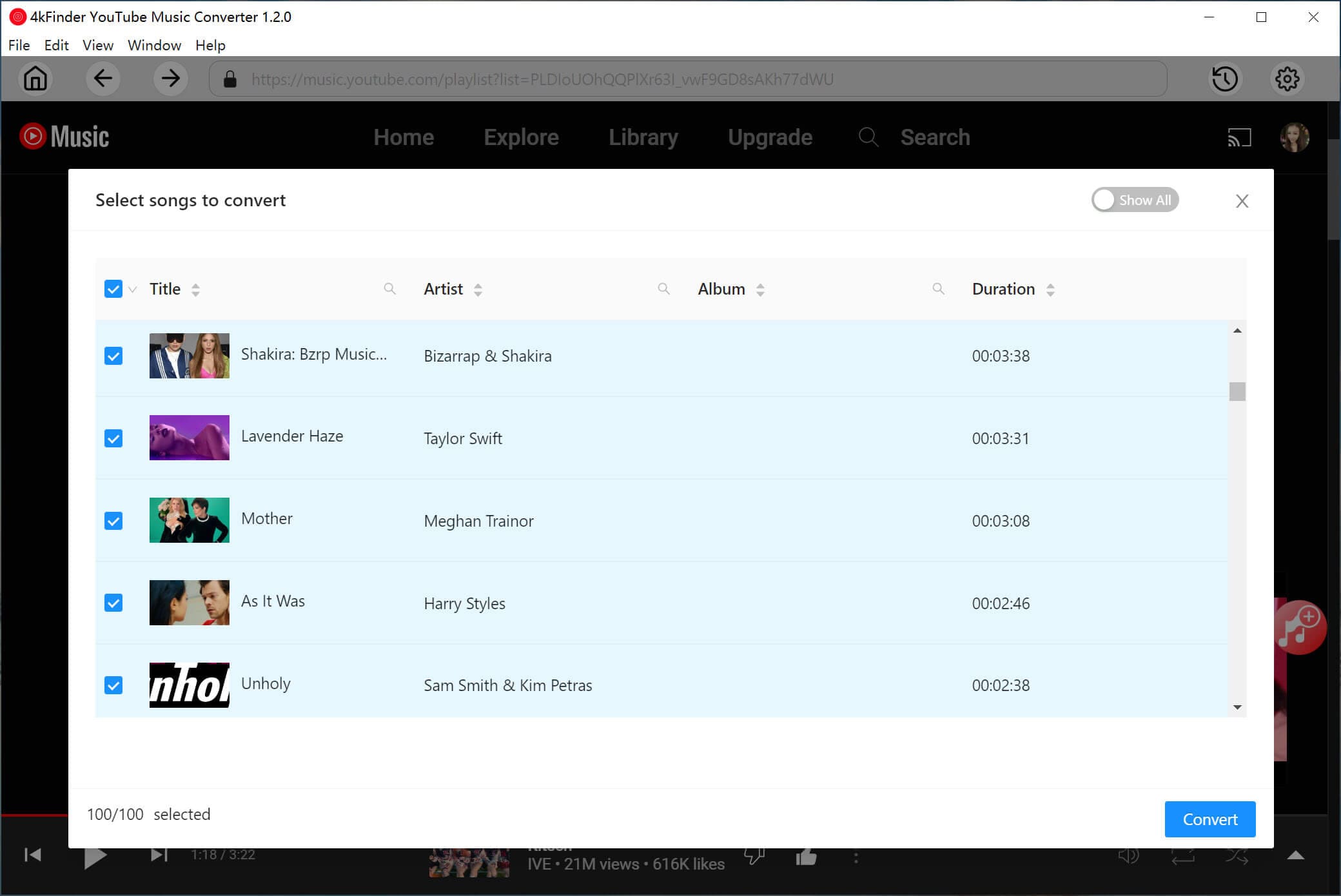
Browse and open your playlists, albums, MVs, or individual songs. Click the "Add to list" button to add them to the conversion list.
Choose the specific tracks or entire playlists you want to convert. This allows you to prepare your favorite songs before transferring them to your Garmin watch.
Step 4. Convert YouTube Music to MP3/AAC/M4A
Click the "Convert" button to start downloading and converting YouTube Music tracks to MP3, AAC, or M4A format you set. The software will process the selected songs and save them local audio files on your computer.
Step 5. Get Output YouTube Music Files
Once the conversion finishes, hit on the "History" icon at the upper right corner. You can check your converted YouTube Music songs. Click the blue folder icon to open the output folder to locate the downloaded YouTube Music files that are ready for transfer to your Garmin watch.
Step 1. Import YouTube Music MP3 Files to iTunes
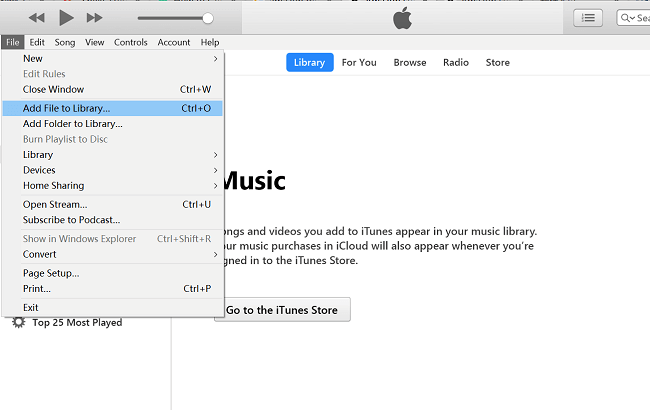
First, you need to add the converted YouTube Music MP3 songs to your iTunes or Music library.
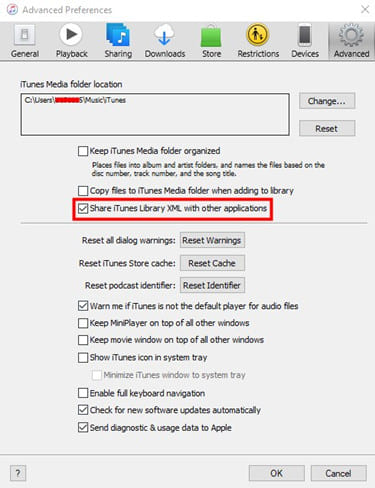
Afterwards, go to "Edit" > "Preferences" > "Advanced", and check the option "Share iTunes Library XML with other applications", then click OK.
Step 2. Connect Garmin Watch to Garmin Express App
Connect your Garmin watch to your computer using a USB cable and launch Garmin Express app to manage music files and device synchronization.
Step 3. Sync Converted YouTube Music to Garmin Watch
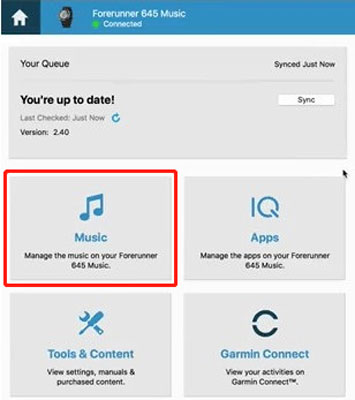
Open the "Music" section in Garmin Express app.
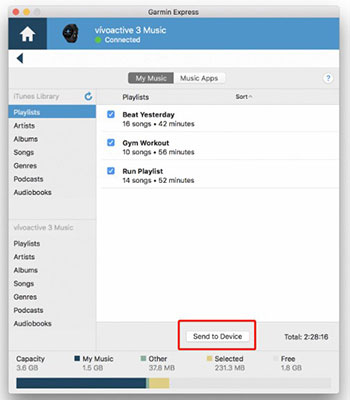
Choose the playlist containing your converted songs, and click "Send to Device" to transfer YouTube Music to Garmin watch.
Step 4. Play YouTube Music on Garmin Watch Offline
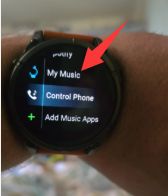
After syncing is complete, you can select "My Music" on your Garmin watch, and listen to YouTube music directly from your Garmin watch.
Can You Use YouTube Music on Garmin Without Premium?
No, the official YouTube Music app on Garmin requires a YouTube Music Premium or YouTube Premium subscription to download songs for offline listening.
However, by converting YouTube Music songs to MP3 using 4kFinder YouTube Music Converter, you can still transfer YouTube Music songs to Garmin watch and enjoy offline playback without a Premium subscription.
Can I Put YouTube Music on Garmin Watch?
Yes. You can either install the YouTube Music app on compatible Garmin watches or convert YouTube Music tracks to MP3 files with 4kFinder and transfer them to the watch using Garmin Express.
Why is My Garmin Not Syncing YouTube Music?
If your Garmin watch fails to sync YouTube Music, check that your internet connection is stable and your Premium subscription is active. Also ensure your watch has enough storage space and sufficient battery power before starting the sync process.
As YouTube Music is also compatible with Garmin watches, streaming YouTube Music on Garmin watch is an easy task. But you need to subscribe to Premium plan, and you will lose access to all music after subscription ends. The best solution is to use 4kFinder YouTube Music Converter to get your favorite playlists downloaded as MP3 files offline and transfer to any Garmin watch or smartwatch. 4kFinder YouTube Music Converter supports all subscription tiers of YouTube Music, even withou a YouTube account!

Sorry the comment has been closed.

















Porducts
Solution
Copyright © 2026 UkeySoft Software Inc. All rights reserved.


 English
 Arabic
 Chinese (Simplified)
 Chinese (Traditional)
 Croatian
 Czech
Czech Danish
 Dutch
Dutch Estonian
 Finnish
 French
 German
 Greek
Greek Hebrew
 Hindi
Hindi Hungarian
 Indonesian
 Italian
 Japanese
 Kazakh
 Korean
 Malay
Malay Norwegian
 Polish
 Portuguese
 Romanian
 Russian
 Slovenian
 Spanish
 Swedish
 Thai
Thai Turkish
 Ukrainian
 Vietnamese










![7 Best FREE Apple Music Converters [2026 Updated]](https://www.ukeysoft.com/wp-content/uploads/2019/04/best-apple-music-converter.jpg)













































![Top 10 Christmas Songs to MP3 Download [Spotify]](https://www.ukeysoft.com/wp-content/uploads/2023/01/christmas-songs-to-mp3.jpg)


















































































































Comments are off!