 ✕
✕
✕
✕
By Justin SabrinaUpdated on January 14, 2026
For YouTube Music lovers, streaming beautiful songs or excellent live performances is at the heart of their experience. However, as with any streaming service, issues can sometimes arise. Whether you're experiencing problems on your iPhone, Android device, or web player, there are several methods to resolve common YouTube Music problems. So, why is YouTube Music not working?
Actually, YouTube Music not working issues may result from different causes such as a poor network connection, server outages, outdated app versions, subscription problems, or device-specific glitches. Hence, we will provide you with 11 effective methods to resolve issues with the YouTube Music not working on your iPhone, Android device, or web player.
CONTENTS
Normally, YouTube Music streaming relies on a stable and smooth network connection. When you mobile devices or desktops are connecting to a poor network, YouTube Music will not play music for you. So, to fix YouTube Music not working, first you need to check your network connection. You can switch between Wi-Fi and mobile data to check if the issue is related to your network connection.
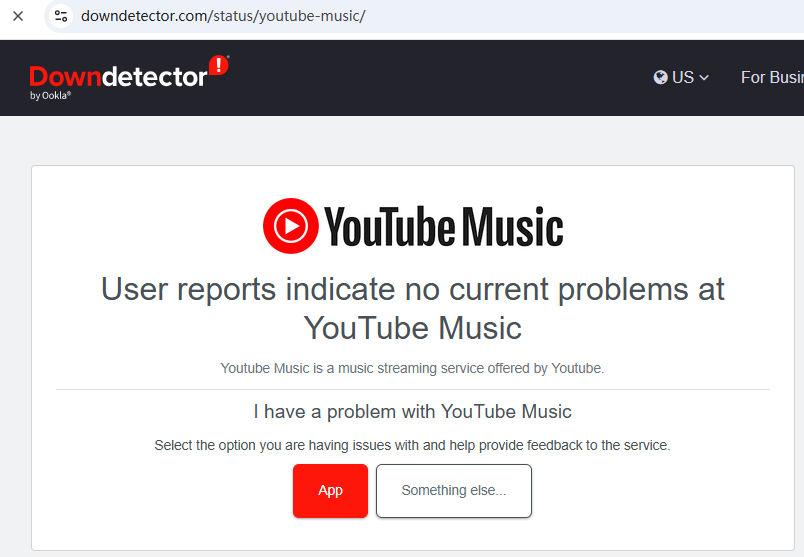
Occasionally, YouTube Music servers may go down for maintenance or experience outages, leading to issues with playback or logging in. Before troubleshooting further, visit a website like DownDetector to check the current status of YouTube Music.
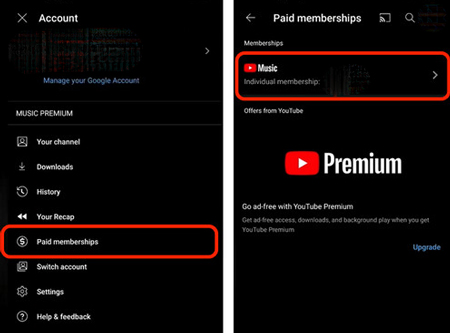
Another method to fix YouTube Music not working is to check your subscription. If you're using YouTube Music Premium, ensure that your subscription is active. An expired subscription may result in a loss of premium features, such as offline listening and ad-free playback.
Step 1. Open the YouTube Music app or website.
Step 2. Go to Accounts > Paid memberships.
Step 3. If the subscription is inactive, renew it through the YouTube Music website or app.
A failed login or invalid account is frequently the root cause of YouTube Music not working properly. Sometimes, a simple logout and re-login can fix account synchronization issues and resolve various problems.
Step 1. Open the YouTube Music app or website.
Step 2. Go to Account Settings. Tap on Sign Out or Logout.
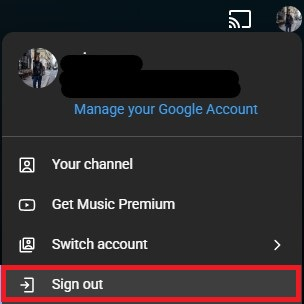
Step 3. Close the YouTube Music app and restart it.
Step 4. Log back in with your username and password.
YouTube Music allows Premium subscribers to switch between the audio and video formats of the song during playback. If YouTube Music is not working properly with videos, switching to audio-only mode can help conserve bandwidth and avoid interruptions.
- Open the YouTube Music app on your mobile.
- Play a song and tab "Song audio-only playback".
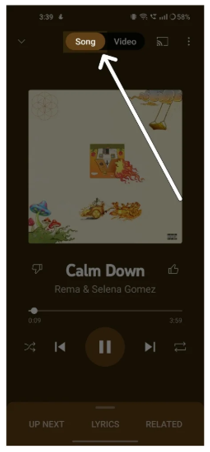
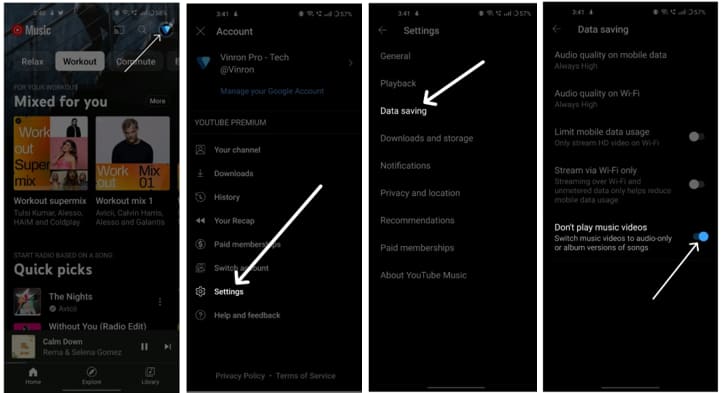
- To disable music video playback mode, tap on the Profile icon.
- Tap on Settings > Data saving, enable "Don't play music videos" option.
If you're experiencing YouTube Music not working issues related to sound or no audio output, the issue could be with your Bluetooth connection. Make sure you are not connected to a Bluetooth device while streaming music on YouTube Music app or web player. Disconnect or turn off Bluetooth devices that might resolve the issue.
If YouTube Music is not working on iPhone or Android, it could be because your mobile device is restricting background data or app data usage. YouTube Music requires mobile data or Wi-Fi connection to play the music, unless you download YouTube Music to listen to offline.
To fix YouTube Music not working/playing issue, you can enable the background data usage of the app.
On Android:
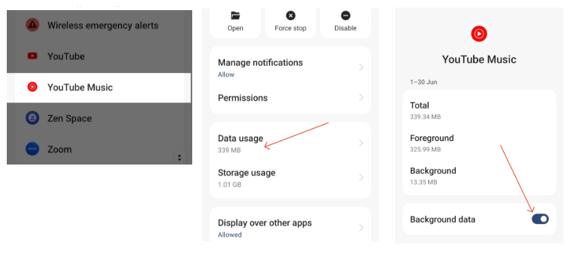
Step 1. Go to Settings on your Android phone or tablet.
Step 2. Navigate to Apps and then to YouTube Music.
Step 3. Tap "Data usage", and enable "Background data", and make sure the app is allowed to use mobile data when running in the background.
On iPhone:
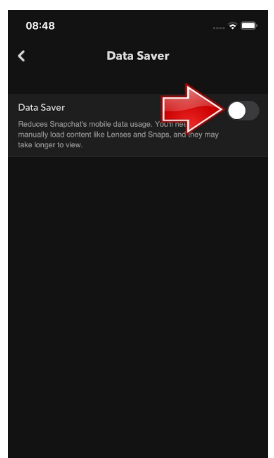
Step 1. Go to Settings > Network and Internet.
Step 2. Choose "Data Saver", uncheck the "Data Saver" option to allow apps to use background data.
Step 3. Then, turn back to "Mobile network" and "App data usage", here choose the YouTube Music, and turn on "Background data".
When the YouTube Music app stops working or freezes, forcing a restart can help resolve common issues. You can force YouTube Music app to restart on your devices by following below steps:
First, close the YouTube Music app completely.
For Android, tap Recent Apps and swipe away YouTube Music.
For iPhone, swipe up or double-tap the Home button, and swipe away the app.
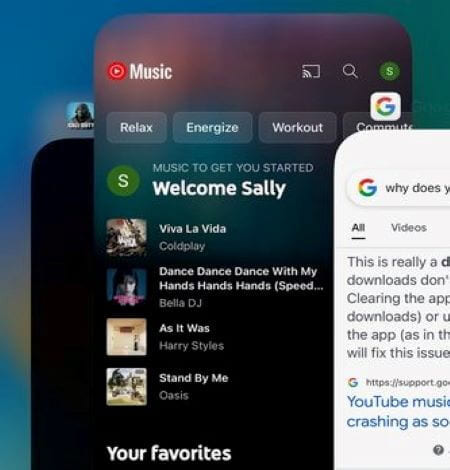
After a few seconds, reopen the YouTube Music app to see if the issue is resolved.
Your YouTube Music app stores temporary data (cache) to load faster. This cache can become corrupted over time, leading to various issues such as app crashes, freezes, and playback errors. A good news is that you can fix them by clearing YouTube Music cache data.
For Android Users:
Step 1. Go to "Settings" on your Android device.
Step 2. Open "Apps" and select "YouTube Music".
Step 3. Tap "Storage" and choose "Clear Cache".
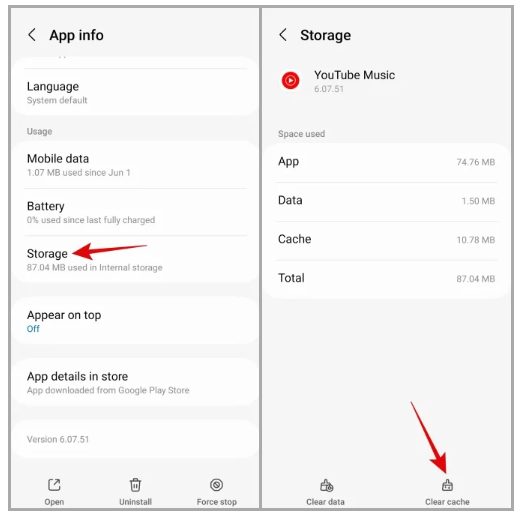
Reopen the YouTube Music app and check if the issue is resolved.
For Web Users:
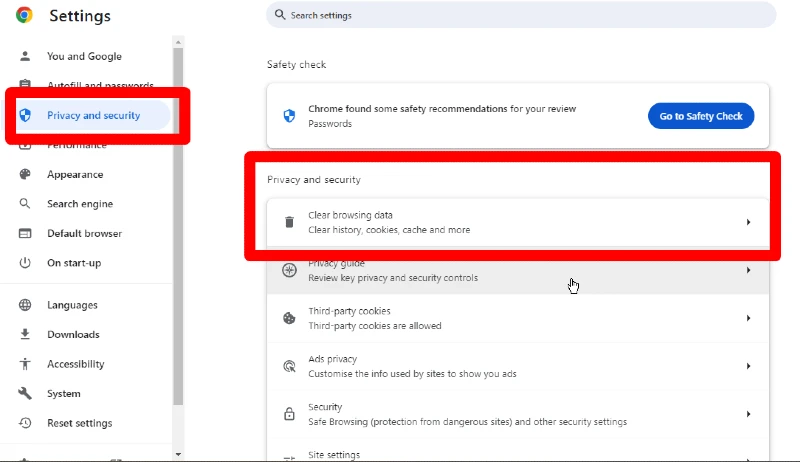
If you get used to listen to YouTube Music in the web player, to fix YouTube Music not working on web player, try to clear the browser cache.
Step 1. Open the browser you use to listen to YouTube Music songs.
Step 2. Go to "Settings" > "Privacy & Security", and select "Clear Browsing Data".
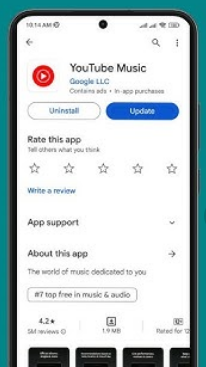
Outdated app versions can cause YouTube Music to not work properly. Ensure your YouTube Music app is updated to the latest version to fix bugs and improve performance.
Step 1. Go to the App Store (iPhone) or Google Play Store (Android).
Step 2. Search for YouTube Music.
Step 3. If an update is available, tap "Update".
If the above method can't help you solve YouTube Music app not working problem, another method is to uninstall it and reinstall YouTube Music. This can fix any deeply rooted issues within the app itself.
Step 1. Uninstall YouTube Music from your device.
Step 2. Restart your phone or tablet.
Step 3. Reinstall the app from the App Store or Google Play Store.
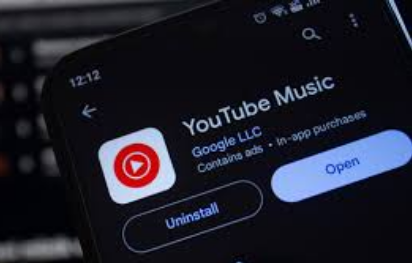
Step 4. Log back in and check if the issue is resolved.
If you've tried all the 10 methods mentioned above but none of them work, or you look for ways to permanently get rid of YouTube Music app issues or playback errors, the best solution is to download YouTube Music to MP3 for offline playback in other players. Here, you need help from a third-party YouTube Music downloader - 4kFinder YouTube Music Converter.
4kFinder YouTube Music Converter is an all-in-one tool designed to help users download, convert, play and manager YouTube Music safely and effortlessly. Whether you are a free or Premium user, it lets you download your favorite tracks, albums, artists, music videos from YouTube Music to your Windows or Mac computer without Premium. It is capable of converting YouTube Music songs to MP3, FLAC, WAV, AAC, M4A, or AIFF formats for compatibility with all devices and players. Better yet, 4kFinder can preserve lossless 320kbps quality to give your the best offline listening experience.
After conversion, you can play and manage the downloaded YouTube music with its built-in music player & music manager, or import the YouTube music files to any other music players! Therefore, you don't have to worry about YouTube Music not working due to connection issues or app errors.
More Features of 4kFinder YouTube Music Converter
Here's how to permanently fix YouTube Music not working by downloading YouTube music as MP3 offline using 4kFinder YouTube Music Converter.
Step 1. Launch 4kFinder and Log In
Download and open 4kFinder YouTube Music Converter on your Windows or Mac. It includes a dedicated browser for easy searching, browsing, and playlist access within the software. You can choose to log in to your YouTube Music account to sync your library, or you can access the online library directly without logging in.
Step 2. Set MP3 as the Output Format
Click the "Gear" icon at the upper right corner. Choose MP3 as your output format and select your desired audio quality (e.g., 320kbps for best quality). You can also customize the output folder and file naming rules.
Step 3. Select YouTube Music Songs
Browse YouTube Music, or go directly to your playlists, albums, or liked songs, click the "Add to list" icon to load the items.
Before downloading, check and confirm your selected YouTube Music tracks in the download queue.
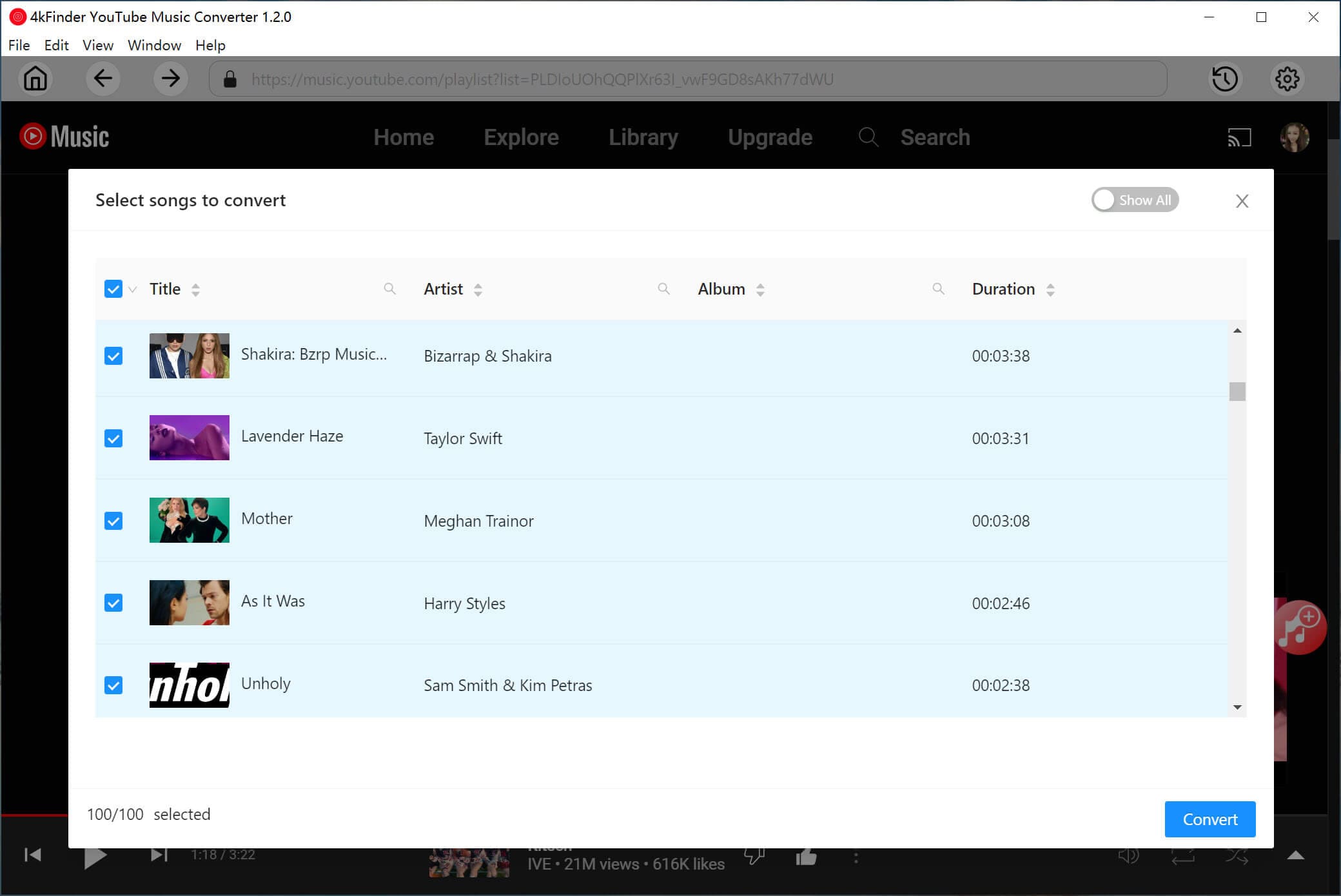
Step 4. Convert YouTube Music to MP3
Now, simply press on the "Convert" button. 4kFinder will begin processing your selected YouTube Music songs, and converting them into MP3 files while preserving all metadata.
Step 5. Listen to YouTube Music Offline Outside YouTube Music App
Once complete, click the "History" icon, you can now enjoy these YouTube music with 4kFinder's built-in music player! Also, you may import these YouTube songs to iTunes, WMP, VLC or other players for playback.
Whether you're experiencing issues with YouTube Music on Android, iPhone, or the web player, the methods in this guide will help you quickly fix YouTube Music not working issue and restore your music streaming experience. If you want to get a more smooth and stable offline experience, the best solution is to download YouTube Music to MP3 offline using 4kFinder YouTube Music Converter. With this tool, you can download and enjoy YouTube Music without any issues.

Sorry the comment has been closed.

















Porducts
Solution
Copyright © 2026 UkeySoft Software Inc. All rights reserved.


 English
 Arabic
 Chinese (Simplified)
 Chinese (Traditional)
 Croatian
 Czech
Czech Danish
 Dutch
Dutch Estonian
 Finnish
 French
 German
 Greek
Greek Hebrew
 Hindi
Hindi Hungarian
 Indonesian
 Italian
 Japanese
 Kazakh
 Korean
 Malay
Malay Norwegian
 Polish
 Portuguese
 Romanian
 Russian
 Slovenian
 Spanish
 Swedish
 Thai
Thai Turkish
 Ukrainian
 Vietnamese










![7 Best FREE Apple Music Converters [2026 Updated]](https://www.ukeysoft.com/wp-content/uploads/2019/04/best-apple-music-converter.jpg)













































![Top 10 Christmas Songs to MP3 Download [Spotify]](https://www.ukeysoft.com/wp-content/uploads/2023/01/christmas-songs-to-mp3.jpg)


















































































































Comments are off!