 ✕
✕
✕
✕
By Justin SabrinaUpdated on January 06, 2026
Offering a massive library of songs, albums, remixes, and exclusive content, YouTube Music allows users to listen to music for free with a network connection. However, it will be challenging for iPhone users to enjoy their favorite YouTube Music tracks offline with a free account.
Don't worry! Save YouTube Music on iPhone without upgrading subscriptions, no matter what your intention is, this article will guide you how to download YouTube Music to iPhone. You can explore three easy ways to get YouTube Music downloaded on iPhone with or without Premium. Let's dive in!
CONTENTS
Can you download music from YouTube Music to iPhone? Of course! It supports two subscription plans to download music offline. One is the YouTube Premium, another is the YouTube Music Premium. To download YouTube Music songs to iPhone for offline listening, you need to install the latest version of YouTube Music app to your iOS device in advance.
Here's how to download YouTube Music on iPhone:
Step 1. Open the YouTube Music app on iPhone.
Step 2. Sign in with your Google account that has an active YouTube or YouTube Music Premium subscription.
Step 3. Tap your profile picture and go to "Settings" > "Downloads & Storage".
Step 4. Select "Audio Quality" and choose "High" or "Always High".
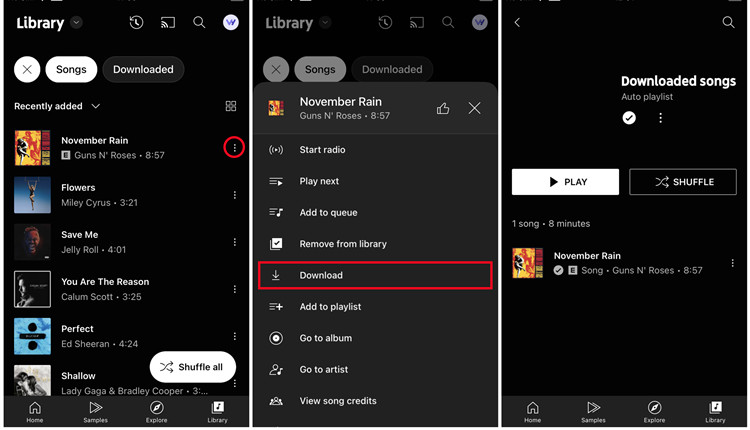
Step 5. Tap "Library", find the song, album, or playlist you want.
Step 6. Tap on the three dots next to the song title and select "Download" option.
Step 7. After that, you can access downloaded YouTube Music songs in the "Library" > "Downloads" section.
Tips: YouTube Music not downloading on iPhone? Here's the fixes!
Limitations of Downloading YouTube Music to iPhone with Premium
While the official download feature is convenient, it has several drawbacks:
To bypass above download limits and save YouTube Music to iPhone permanently, the best solution is to download and convert YouTube Music to AAC or MP3. Here you can ask a third-party tool for help.
4kFinder YouTube Music Converter is a powerful desktop tool designed to help users download YouTube Music to iPhone without Premium by converting songs into iPhone-compatible formats such as MP3, AAC, and M4A. This tool is quite easy to operate. There's no need to install the YouTube Music app or copy URLs manually. 4kFinder YouTube Music Converter integrates a built-in YouTube Music web player, allowing you to browse, search, and select tracks directly inside the software.
One of the biggest advantages of 4kFinder is audio quality. It supports M4A and AAC up to 640kbps, MP3 up to 320kbps, which are higher than original YouTube Music 256kbps. This gives you the best offline listening experience on your iPhone and other devices! Additionally, 4kFinder allows you to classify output songs automatically by artist, album, or date, ensuring your output music library stays organized.
More Features of 4kFinder YouTube Music Converter
Step 1. Run 4kFinder and Log In
Install and launch 4kFinder YouTube Music Converter on your Windows or Mac computer. In the built-in browser, click "Sign In" and log into your YouTube Music free or premium account. Alternatively, you can access the library directly without logging in.
Step 2. Set MP3 or AAC as the Output Format
Access the settings window by clicking the Gear icon. Choose MP3, AAC, or M4A as your format (all are perfectly supported by iPhone). Select your desired audio quality (640kbps) and set an output folder.
If you set AAC as the output format, you can adjust the output quality to 640kbps.
Step 3. Select YouTube Music Songs
Return to the home page. Open a song, album, podcast, music video or playlist page, click the "Add to list" icon to load the items.
Select the tracks you want in the pop-up converting list and confirm.
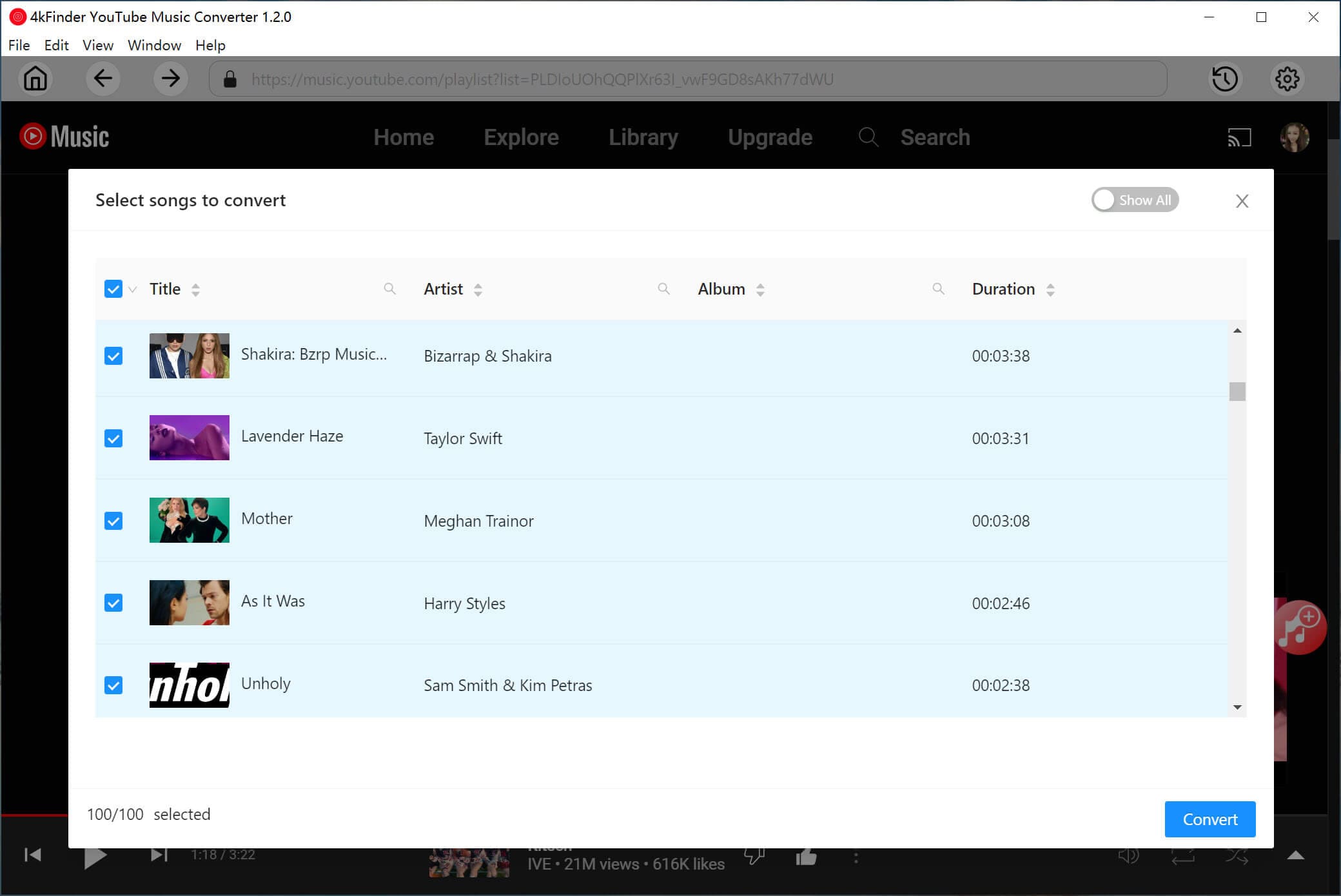
Step 4. Convert YouTube Music to MP3/AAC
Next, press on the "Convert" button. 4kFinder will now download and convert your selected YouTube Music content into the chosen audio format. With 10X speed, the software processes YouTube Music tracks quickly while maintaining original quality.
Step 5. Find the Output YouTube Music Files
Once finished, click the "History" icon, and then click "Blue Folder" icon to access your converted YouTube Music files from the output folder.
Step 1. Import Converted YouTube Music AAC/MP3 Files to iTunes/Music
Open iTunes on Windows or macOS Mojave and earlier. For macOS Catalina and later version, please launch Music app.
Click "File", choose "Add File to Library..." or "Add Folder to Library...".
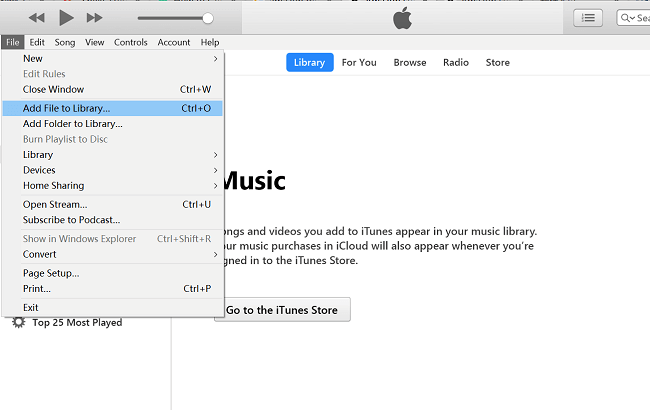
Import the converted YouTube Music AAC, M4A or MP3 files to iTunes or Music library.
Step 3. Transfer Converted YouTube Music AAC/MP3 Files to iPhone
Now, connect your iPhone to your computer via USB cable.
Open iTunes or Finder app on your computer.
Select your iPhone in iTunes/Finder, then click "Music" in the left sidebar.
Ensure "Sync Music" is checked. You can choose to sync your entire library or selected playlists/artists.
Click "Recently Added" or other options in Playlist section.
Then, click the "Apply" button to transfer the YouTube Music songs to your iPhone.
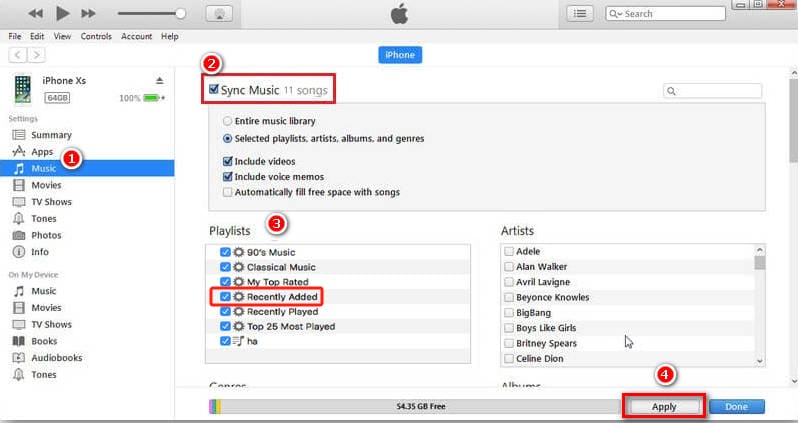
When finished, disconnect your iPhone and computer. The YouTube Music songs will appear in the Apple Music app on your iPhone.
If you don't want to install a third-party software, online tools like YTMP3 offer a quick way to download YouTube music to iPhone directly. This online YouTube to MP3 converter works directly in your browser, supports both desktop and mobile devices. It can analyze the links of YouTube music videos and convert them to downloadable common MP3 files. After that, you can enjoy your favorite YouTube songs on iPhone using the built-in Music app.
Note: YTMP3 cannot help you download entire playlists or albums from YouTube Music to iPhone. And its lossy audio quality and unstable performance are also effect the experience. And the experience is further impacted by lossy audio quality and generally unstable performance. By comparison, I recommend you use 4kFinder YouTube Music Converter, which is able to download and convert your full YouTube Music library to high-quality MP3/AAC audios at 10X faster speed.
Here's a step-by-step guide for you to learn how to download and convert YouTube music videos to MP3 on iPhone.
Step 1. Open Safari on your iPhone, visit the YTMP3 website.
Step 2. Open the YouTube app or website, choose a music video you are interested in and copy its URL.
Step 3. Paste the copied URL into the link into the conversion box, tap "Convert" button.
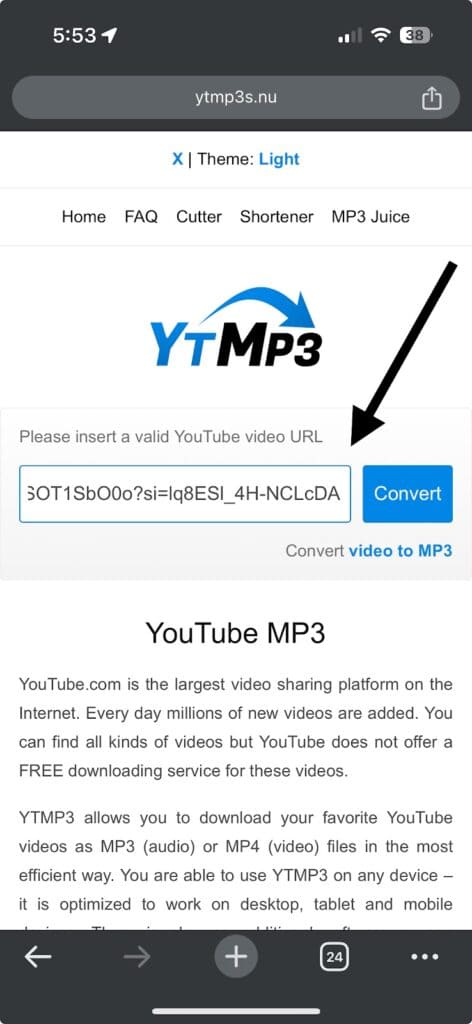
Step 4. After processing (which can be slow), tap the "Download" link. The MP3 file will download to your iPhone's "Files" app.
Above, we've showed you how to download songs from YouTube Music to your iPhone in 3 simple ways. YouTube Music Premium subscribers can download music directly within the mobile app. This official way is convenient and safe. Alternatively, users can download YouTube Music to iPhone for free using an online tool, but it only extract lossy audio from YouTube music video by pasting URLs.
Overall, the best way to download YouTube Music to MP3 to iPhone effortlessly is by using 4kFinder YouTube Music Converter. It supports batch adding and downloading entire playlists and albums with simple clicks. Plus, it offers lossless audio quality (selectable 320kbps, 512kbps or 640kbps), mainstream formats (MP3, M4A, AAC, FLAC, WAV, AIFF), and stable conversion experience, making it the ultimate way to save YouTube Music to iPhone.

Sorry the comment has been closed.

















Porducts
Solution
Copyright © 2026 UkeySoft Software Inc. All rights reserved.


 English
 Arabic
 Chinese (Simplified)
 Chinese (Traditional)
 Croatian
 Czech
Czech Danish
 Dutch
Dutch Estonian
 Finnish
 French
 German
 Greek
Greek Hebrew
 Hindi
Hindi Hungarian
 Indonesian
 Italian
 Japanese
 Kazakh
 Korean
 Malay
Malay Norwegian
 Polish
 Portuguese
 Romanian
 Russian
 Slovenian
 Spanish
 Swedish
 Thai
Thai Turkish
 Ukrainian
 Vietnamese










![7 Best FREE Apple Music Converters [2026 Updated]](https://www.ukeysoft.com/wp-content/uploads/2019/04/best-apple-music-converter.jpg)













































![Top 10 Christmas Songs to MP3 Download [Spotify]](https://www.ukeysoft.com/wp-content/uploads/2023/01/christmas-songs-to-mp3.jpg)


















































































































Comments are off!