 ✕
✕
✕
✕
By Justin SabrinaUpdated on January 05, 2026
With the rapid growth of high-resolution audio devices and lossless streaming services, more YouTube Music lovers look for ways to convert YouTube Music to FLAC files. While YouTube Music offers millions of tracks, albums, and exclusive releases, it still limits offline playback to its own app and uses compressed audio formats. It doesn't let you download FLAC songs from YouTube Music, even you have a Premium subscription.
FLAC is superior for high-quality listening. In this article, we'll walk you through the best solution to download YouTube Music to lossless FLAC songs, and provide a complete step-by-step tutorial using a professional YouTube Music to FLAC converter.
CONTENTS
Even for the Premium subscribers, they don't have the ability to stream FLAC music on YouTube Music. When subscriptions ends, you will lose all your YouTube Music downloads. To break the restrictions on YouTube Music, the best solution is to rely on a professional YouTube Music to FLAC converter to convert YouTube Music to FLAC, thus you can enjoy flawless playback on FLAC-supported players and devices.
When it comes to converting YouTube Music to FLAC lossless audio, 4kFinder YouTube Music Converter is widely recognized as the most reliable and efficient option for both YouTube Music Free and Premium users. With it, all users are able download music videos, singles, playlists, and albums from YouTube Music to local computer folder. It not only can convert YouTube Music to FLAC lossless audio, but also supports other audio formats like MP3, AAC, WAV, M4A, or AIFF. Plus, it performs 10X converting speed for the fastest downloads.
How does it works?
Unlike online YouTube music converters that are often filled with ads, deliver lossy audio and slow speed, or fail to convert entire playlists, 4kFinder has an built-in YouTube Music web player to greatly improves stability and efficiency. Instead of copying URLs or switching between apps, you simply open 4kFinder YouTube Music Converter (no login required), browse the music library online, and choose multiple song and MVs, or entire albums and playlists for batch conversion.
Key Features of 4kFinder YouTube Music Converter
Below is a detailed step-by-step tutorial showing how to convert YouTube Music to FLAC files using 4kFinder YouTube Music Converter. You can click above Download button to get the software downloaded on your computer in advance.
Step 1. Launch 4kFinder YouTube Music Converter
After installation, launch the 4kFinder YouTube Music Converter on desktop. You'll see an embedded YouTube Music web player on the main interface. Log in to your YouTube Music free/premium account to access your playlists, albums, and saved tracks securely.
Tips: Don't worry, this software is 100% safe and reliable. If you are still concerned, you can skip the login step and directly access, browse, and search for songs online.
Step 2. Set FLAC as the Output Format
Before adding songs, open the Settings menu by clicking the "Gear" icon. The default output format is M4A, please select FLAC as the output format. You can also customize output file name, output quality and more settings as needed. Ensure the best output quality for YouTube Music to FLAC lossless conversion.
Step 3. Add YouTube Music Songs/Playlists/Albums/MVs
Browse or search for the tracks, albums, music videos, or playlists you want to convert. You can add content by clicking the "Add to list" icon.
4kFinder YouTube Music Converter supports adding multiple songs or entire playlists at once, making it easy to convert YouTube Music to FLAC files in bulk. Once added the songs successfully, check and confirm your target songs.
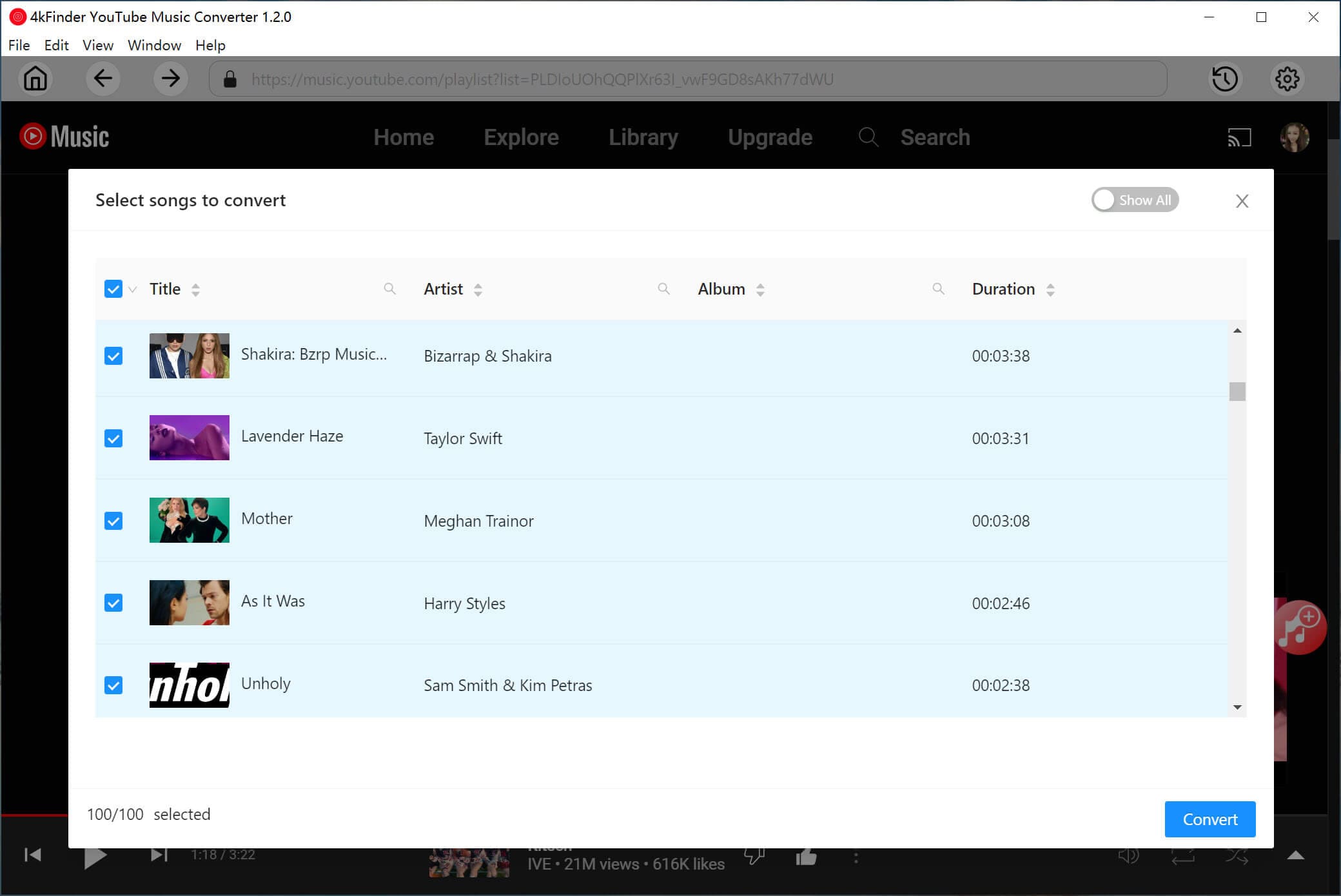
Step 4. Start Converting YouTube Music to FLAC
Once your selections are confirmed, click "Convert" button. The software will begin downloading and converting YouTube Music tracks to FLAC files simultaneously. The conversion process runs smoothly in the background, maintaining stable performance even with large playlists. During the process, don't use the YouTube Music app or web player.
Step 5. Find the Output FLAC YouTube Music Files
After conversion, click the "History" icon at the upper right corner. You can listen to these lossless FLAC YouTube music with 4kFinder's built-in music player!
Click "Blue Folder" icon to locate your FLAC YouTube Music files. These files are permanently saved on your computer and can be transferred to any FLAC-supported device or player without restrictions.
Is FLAC Actually Better Than MP3?
Yes. FLAC is a lossless audio format, while MP3 is lossy. When you convert YouTube Music to FLAC lossless audio, it preserves the original quality of sound without compression. If you choose to convert YouTube Music to MP3, the highest audio quality will only reach 320kbps. For audiophiles who care about sound quality, FLAC is the best option.
Which Music Player Supports FLAC?
Many players support to play FLAC audio files, including VLC, Foobar2000, JRiver, MediaMonkey, Poweramp, and most modern hi-fi systems and DACs. Once converting YouTube Music to FLAC files, you can import the FLAC files to these players for listening.
Can I Convert an Entire YouTube Music Playlist to FLAC?
Yes. 4kFinder YouTube Music Converter supports batch conversion, allowing you to convert full playlists and albums to FLAC in batches at up to 10X faster speed.
How to Upload FLAC to YouTube Music?
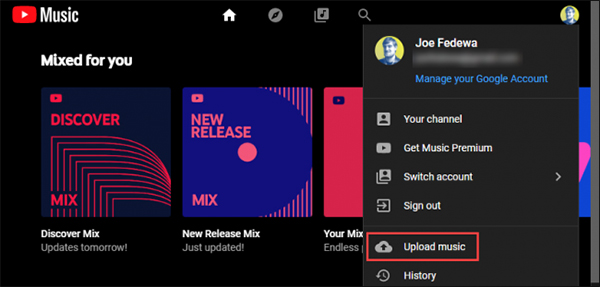
To upload FLAC files to YouTube Music, open YouTube Music Web, go to Library > Upload Music, and select your converted FLAC files from local folder. Uploaded tracks can be streamed and accessed from your account across devices.
While YouTube Music offers an enormous music library, it only allows users to stream music content within the official app in compressed audio format with encryption. But thanks to 4kFinder YouTube Music Converter, an awesome YouTube Music FLAC converter, both free and premium users can convert YouTube Music to lossless FLAC songs for permanent offline playback. This tool is not only helpful for convert YouTube Music to FLAC, but also works for mainstream audio formats including MP3, AAC, M4A, WAV and AIFF. 4kFinder software offers a free trial, you can get it right now to explore its features!

Sorry the comment has been closed.

















Porducts
Solution
Copyright © 2026 UkeySoft Software Inc. All rights reserved.


 English
 Arabic
 Chinese (Simplified)
 Chinese (Traditional)
 Croatian
 Czech
Czech Danish
 Dutch
Dutch Estonian
 Finnish
 French
 German
 Greek
Greek Hebrew
 Hindi
Hindi Hungarian
 Indonesian
 Italian
 Japanese
 Kazakh
 Korean
 Malay
Malay Norwegian
 Polish
 Portuguese
 Romanian
 Russian
 Slovenian
 Spanish
 Swedish
 Thai
Thai Turkish
 Ukrainian
 Vietnamese










![7 Best FREE Apple Music Converters [2026 Updated]](https://www.ukeysoft.com/wp-content/uploads/2019/04/best-apple-music-converter.jpg)













































![Top 10 Christmas Songs to MP3 Download [Spotify]](https://www.ukeysoft.com/wp-content/uploads/2023/01/christmas-songs-to-mp3.jpg)


















































































































Comments are off!