 ✕
✕
✕
✕
By Justin SabrinaUpdated on September 01, 2021
What is Voice Memos and how to convert iPhone voice memos to MP3? Voice Memos, the built-in audio voice recorder app on the iPhone can help users to capture your own voice, meetings, songs, interviews, speech clips or other sounds you want to listen to handily. It is a favorite tool for musicians and writers because it not only records their thoughts quickly but also makes it easy to edit, crop or add on their recorded audio.
Therefore, these voice memos are significant, and you may want to transfer voice memos to the computer either to free up iPhone storage space or to back up these important files. iPhone saves voice memos as M4A files. Even if you have backed up voice memos, these special file formats cannot be recognized by most applications or devices. Converting iPhone voice memos to MP3 looks like a better way out. But how? How can you convert voice memos from M4A to MP3 on iPhone? Here we will share a few practical tips on how to convert voice memos to MP3 for playback on any device or app.
CONTENTS
iTunes' built-in audio converter helps you convert voice memo M4A files to MP3. iTunes is available on both Mac and Windows. The following is a step-by-step guide to convert voice memos to MP3.
Step 1. Open up iTunes and connect iPhone to your computer.
Step 2. Go to the "Music" section where your voice memos can be found.
Step 3. Click on the "Edit" button on the menu bar, select "Preferences" > "General". When the window pops up, select “Import Settings”.
Step 4. As you can see, here you can select what file type you will be converting to such as WAV, MP3, AIFF, AAC, and Apple Lossless. Choose "MP3 Encoder". After that, click on "OK" to save the settings.
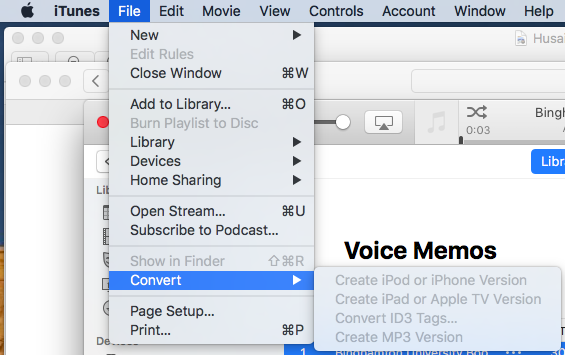
Step 5. Select a voice memo, or press command/shift key and click to select multiple voice memos in iTunes library, then go to “File” > “Convert” >” Create MP3 Version”.
UkeySoft Video Converter is especially suitable for users who do not want to convert iPhone voice memos to MP3 using iTunes. Its powerful compatibility allows you to convert video and audio to any format for playback on any portable players, such as iPhone, iPad, Samsung, Nokia, Motorola, LG and more smartphones, tablets, TVs, players, etc. In addition, it is also an excellent video editor that helps you personalize your video by cutting, cropping, trimming and rotating, merging; adding effects, music, watermarks and subtitles; changing the speed of the video; customizing video parameters, such as frame size, width, height, and bitrate before conversion. If you want to convert voice memos to MP3 using UkeySoft Video Converter, please follow the steps:
Step 1. Install UkeySoft Video Converter
To start with, please free download and install the UkeySoft Video Converter software on your Mac or Windows PC. You need to make sure that you have transferred the voice memo file to your computer.
Step 2. Add Voice Memo Files
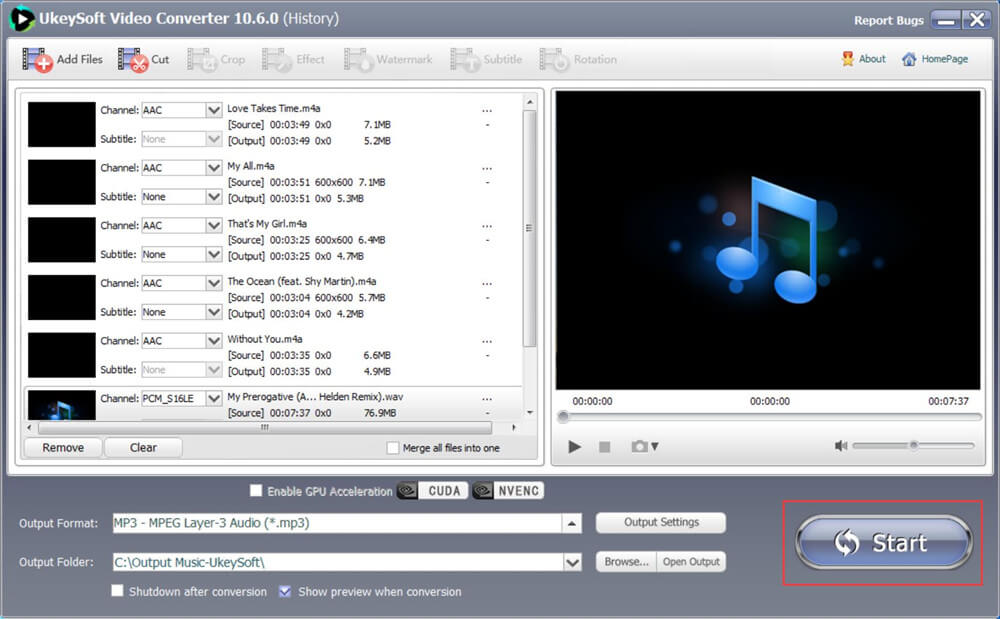
Launch it and click on the "Add File" button on the top left corner, browse and select voice memo files you want to convert to MP3. You can also directly drag and drop all voice memo filesfrom your computer into the converter.
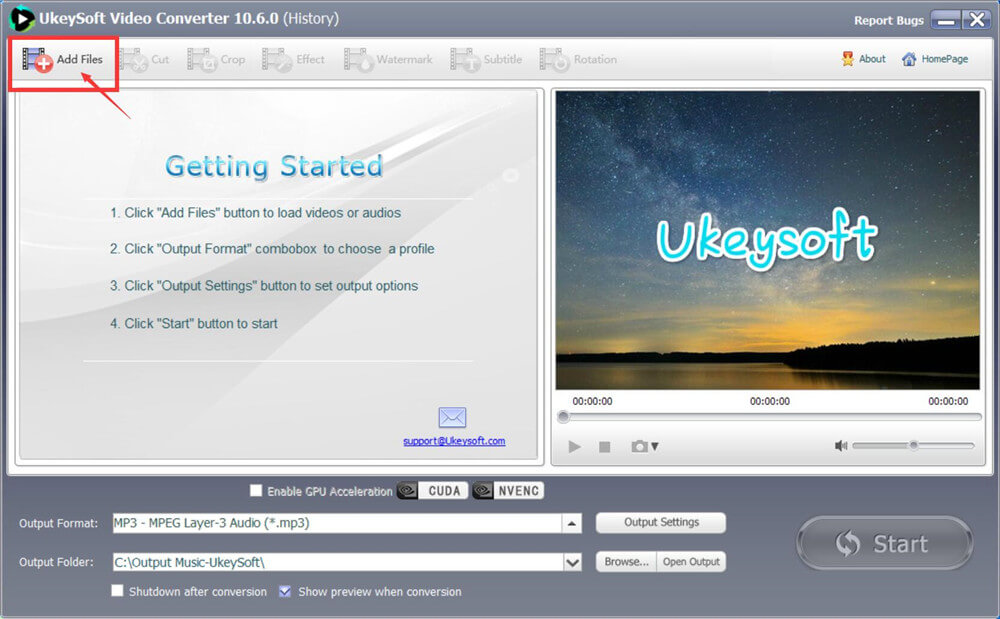
Step 3. Choose MP3 as Output Format
Press the "Output Format" button at the bottom and it will list all the video/audio formats and devices to which you can convert voice memos. Select the "MP3" in the “Common Audio” directory to convert voice memos to MP3.
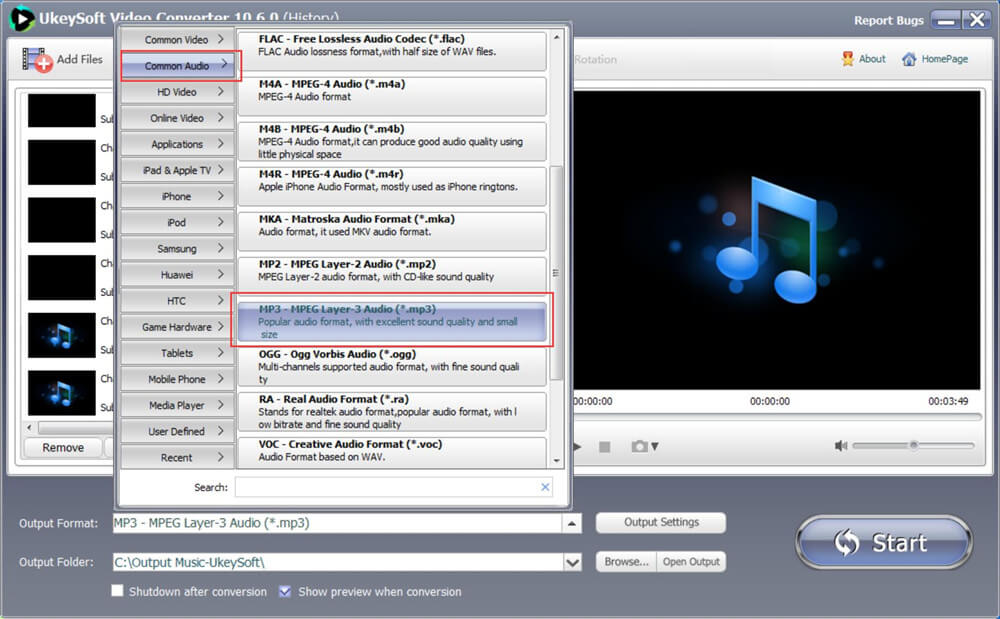
As the image shows, you can also convert audio to M4R, WAV, OGG, WMA, RA, VOG and more. In the Output Settings option, this video converter enables you to change MP3 bitrate, normalize audio, change audio channels from Stereo to Mono, etc.
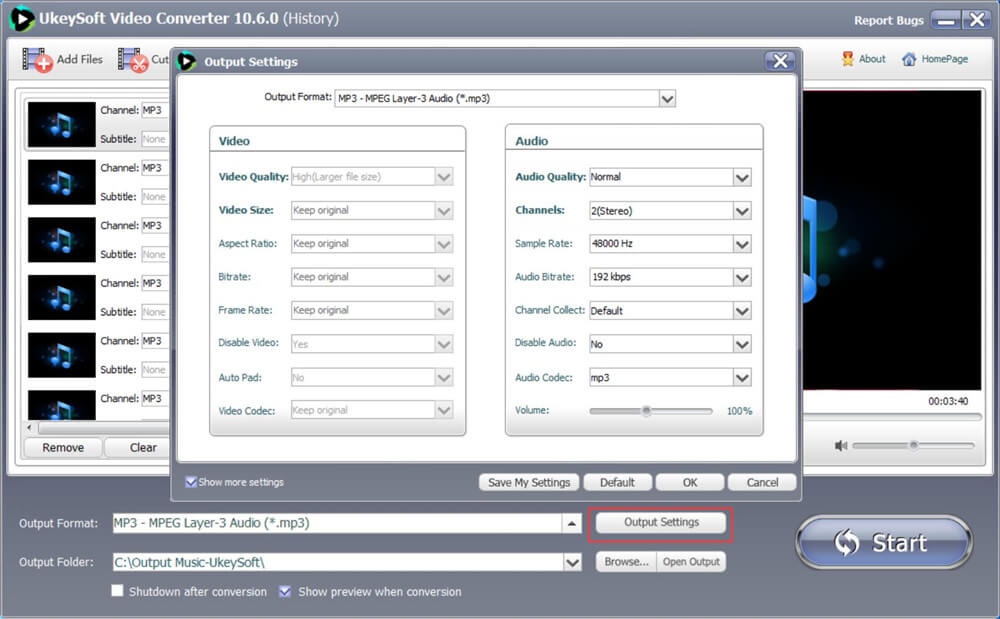
Step 4. Convert Voice Memos from M4A to MP3
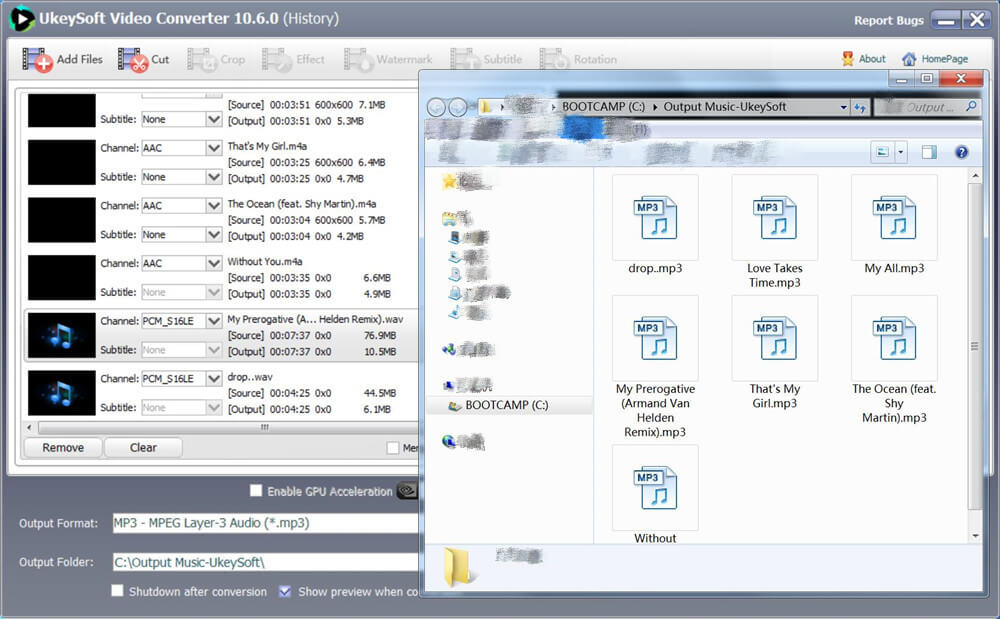
Finally, click on the Start button to start converting voice memos from M4A to MP3. Your MP3 audio file will be automatically saved on the PC. Open the "Open Output" button to locate the corresponding folder.
Many websites allow converting video and audio files online. Here we have selected VLC player for your reference.
Step 1. Open the VLC media player on your computer.
Step 2. From the main VLC window, select Media from the menu bar at the top and choose "Convert / Save". Or you can use the keyboard shortcut Control + R.
Step 3. Click on Add to select voice memo files that you want to convert to MP3.
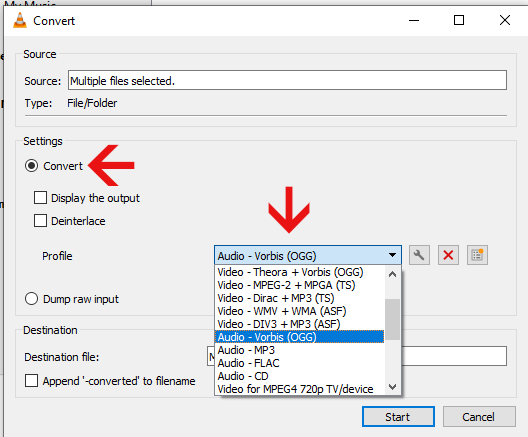
Step 4. Tap on "Convert / Save" button at the lower-right corner of the window, you can also press Ctrl+O, next choose "Audio - MP3".
Step 5. Once you have everything set to your liking, select destination file and add file name to your audio, then click the "Start" button to begin converting voice memos to MP3.

Prompt: you need to log in before you can comment.
No account yet. Please click here to register.

Convert incompatible video/audio files,edit video and enhance video quality.


Porducts
Solution
Copyright © 2026 UkeySoft Software Inc. All rights reserved.


 English
 Arabic
 Chinese (Simplified)
 Chinese (Traditional)
 Croatian
 Czech
Czech Danish
 Dutch
Dutch Estonian
 Finnish
 French
 German
 Greek
Greek Hebrew
 Hindi
Hindi Hungarian
 Indonesian
 Italian
 Japanese
 Kazakh
 Korean
 Malay
Malay Norwegian
 Polish
 Portuguese
 Romanian
 Russian
 Slovenian
 Spanish
 Swedish
 Thai
Thai Turkish
 Ukrainian
 Vietnamese











![7 Best FREE Apple Music Converters [2026 Updated]](https://www.ukeysoft.com/wp-content/uploads/2019/04/best-apple-music-converter.jpg)













































![Top 10 Christmas Songs to MP3 Download [Spotify]](https://www.ukeysoft.com/wp-content/uploads/2023/01/christmas-songs-to-mp3.jpg)































































































































No comment yet. Say something...