 ✕
✕
By Justin SabrinaUpdated on November 18, 2026
Captions and subtitles help make your videos accessible to a wider audience. Whether you want to add subtitles to YouTube videos, or or put subtitles to a movie before sharing it, there are several ways to get the job done. With the right tools, you can add subtitles to videos and movies in just a few minutes. In this guide, we'll guide you how to import external subtitles (.srt) to a video by using a professional video editing tool. In addition, we'll share a simple method to download videos with subtitles for offline viewing!
CONTENTS
UkeySoft Video Converter is a versatile video converter, editor, and upscaler, available on both Windows and Mac computers. It not only allows you to convert video and audio files into different formats, but also lets you upscale videos from HD to 4K for better viewing experience. What's more, this tool empowers you to personalize movies with subtitles, watermarks, logos, and text.
The built-in subtitle editor supports importing external subtitle files in common formats like .srt and .ass. So you can easily add subtitles to videos and movies. Once imported, you can adjust the font, font style, size, and even subtitle effects and positioning.
Step 1. Add Video to UkeySoft Video Converter
To begin with, download and install the UkeySoft Video Converter for your Windows or Mac. Then launch the program, click the "Add Files" option to import movie or video clip you want to edit.
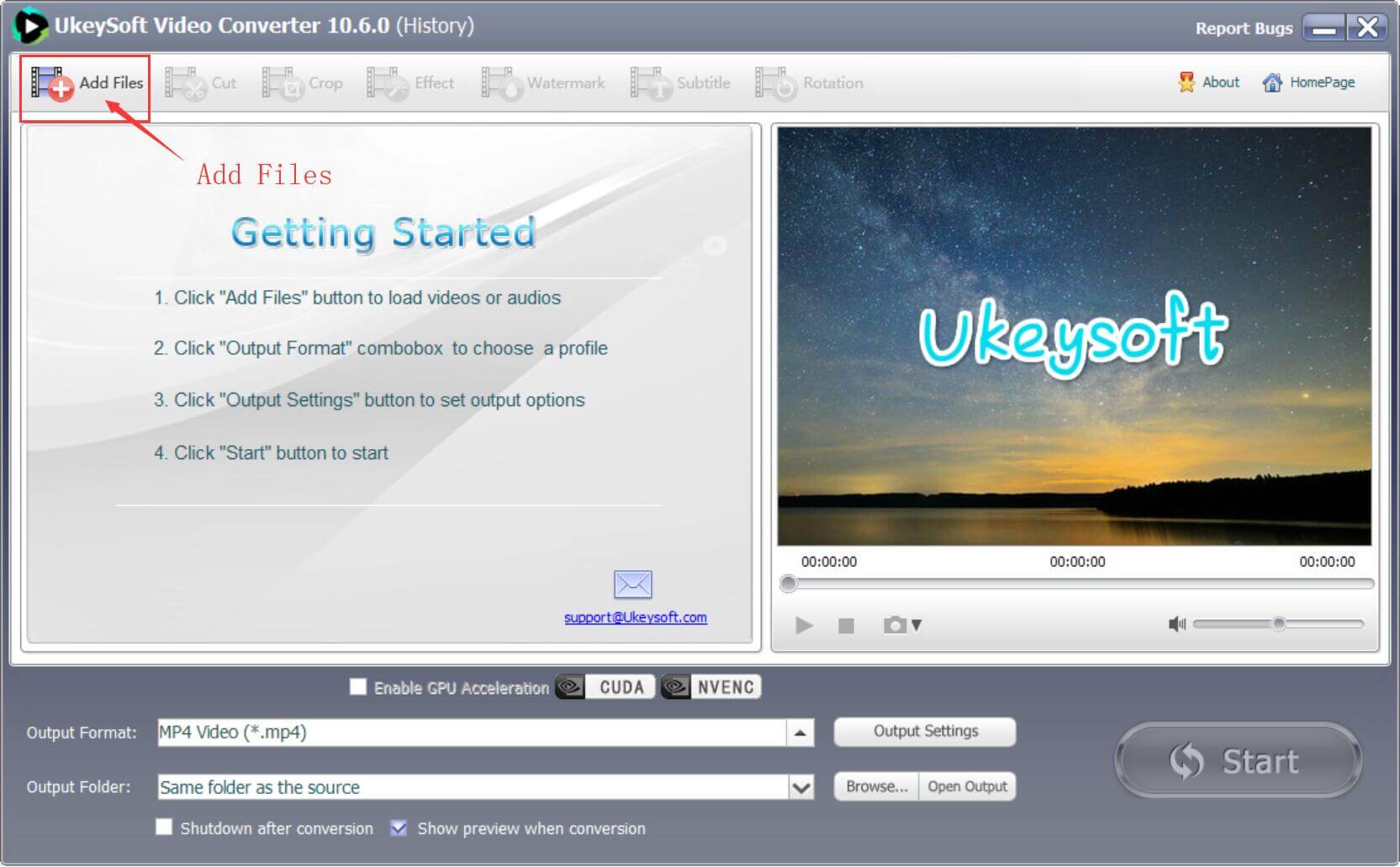
Step 2. Import Your Subtitles
Locate the "Subtitle "option in the top toolbar and open its editing window. Import your prepared SRT or ASS subtitle file.
Step 3. Customize Subtitles
Once loaded, you can drag the subtitle text directly in the preview window to reposition it on the screen, and adjust the font, size, and encoding settings.
Step 4. Choose an Output Format
After finalizing your subtitle settings, click the "Output Format" button. Select your preferred video format, such as MP4 or MKV, depending on the devices or media players you plan to use.
Step 4. Adjust Video and Audio Settings
Click "Output Settings" to configure the output parameters. You can modify the video resolution, bitrate, file size, and audio quality to suit your requirements.
Step 5. Export the Video
Once everything is configured, press on "Start" button to begin the conversion. The software will process your video, merge the subtitle track, and save the output file to your designated folder.

Step 6. Check Your Subtitled Video
When the process completes, click "Open Output" to locate the final video file. You can now play the video with your preferred subtitles!
If you primarily watch movies and TV shows on streaming platforms and want a smooth, uninterrupted offline viewing experience, you can consider using a third-party tool to save videos locally.
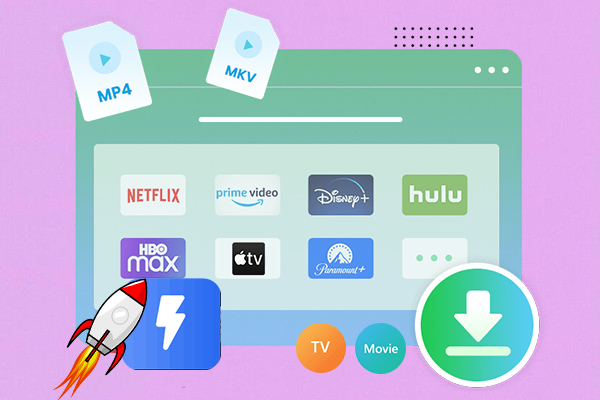
iMovieTool All-in-One Video Downloader supports major OTT platforms, including Netflix, Amazon Prime Video, Disney+, Hulu, Max, Paramount+, YouTube, and Apple TV+. This tool can help you download movies and TV episodes in MP4 or MKV format, while preserving original audio tracks and video quality (up to FHD 1080p). The batch download feature lets you queue multiple episodes or entire seasons at once, saving you much time.
It is also a powerful subtitle downloader, which allows you to download subtitles as soft subtitles, hard subtitles, or external files. Meanwhile, it lets you save audio tracks and subtitles in different languages. After downloading, you can watch your downloaded movies and TV shows with subtitles using a compatible media player.
Step 1. Install and Launch iMovieTool
Download and install iMovieTool All-in-One Video Downloader on your Windows or Mac computer. Open the program and select the streaming platform you subscribe to, such as Netflix, Disney+, or Amazon Prime Video, etc.
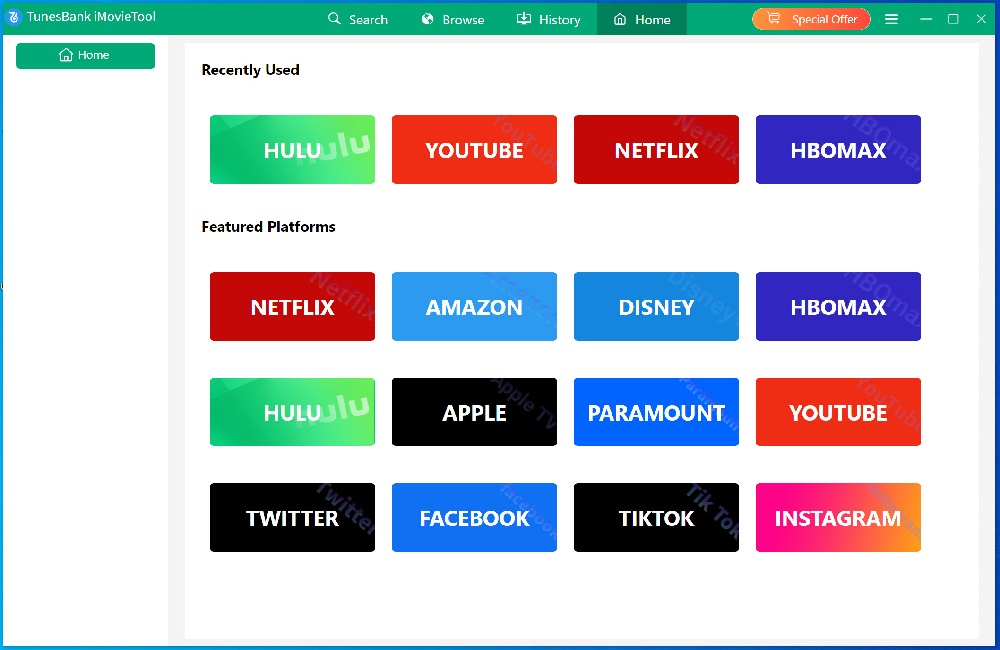
Step 2. Sign In to Your Streaming Account
For example, here we choose Netflix platform. Then, log in with your Netflix account using the built-in browser.
https://www.ukeysoft.com/wp-content/uploads/2022/06/launch-netflix-video-downloader.jpg
Step 3. Modify the Output Settings
Search for Your Desired Movie or Show
Here, you can adjust parameters such video format, video quality, video codec, audio track, subtitle language, and subtitle format.
https://www.ukeysoft.com/wp-content/uploads/2022/06/netflix-video-downloader-settings.png
Step 4. Search for Movies or TV Shows
Enter the movie or TV show title in the search bar. Alternatively, copy the video's URL from Netflix website or app, and paste it into iMovieTool's search field. Once the program finds the content, select the movie or episodes you want to download.
https://www.ukeysoft.com/wp-content/uploads/2022/06/search-netflix-video.png
Step 5. Customize Settings for a Single Video
Before downloading, click the "Gear" icon next to your selected movie or TV episode to open its individual settings window.
000
Here, you can customize the video resolution, audio language, and subtitle preferences.
000
Look for the "Subtitles are saved as:" option and select your preferred format: Soft subtitles, External subtitles, or Hard subtitles.
000
Step 6. Start Downloading Netflix Videos with Subtitles
After customizing the settings, click the "Download" button to start downloading.
000
If you select a TV series, you can choose individual episodes or multiple episodes for batch downloading.
000
Step 7. Get Downloaded Videos with Subtitles
Once the process is complete, open the "History" section to find your downloaded Netflix videos. You can now watch your downloaded movies with subtitles using other media players!
000
Whether you want to import subtitles to your own video project or build a personal collection of captioned movies, choosing the right tool makes the process much easier. The advanced video editor - UkeySoft Video Converter provides a reliable, feature-rich way to add subtitles and captions to videos while allowing you to customize their appearance freely. For streaming fans, iMovieTool All-in-One Video Downloader lets you download movies and TV shows from supported platforms and save subtitles as separate SRT or ASS files. Both tools offer free trials, so you can discover which tool best meets your needs!

Sorry the comment has been closed.

Convert incompatible video/audio files,edit video and enhance video quality.

Porducts
Solution
Copyright © 2026 UkeySoft Software Inc. All rights reserved.


 English
 Arabic
 Chinese (Simplified)
 Chinese (Traditional)
 Croatian
 Czech
 Danish
 Dutch
 Estonian
 Finnish
 French
 German
 Greek
 Hebrew
 Hindi
 Hungarian
 Indonesian
 Italian
 Japanese
 Kazakh
 Korean
 Malay
 Norwegian
 Polish
 Portuguese
 Romanian
 Russian
 Slovenian
 Spanish
 Swedish
 Thai
 Turkish
 Ukrainian
 Vietnamese






































































































Comments are off!