By ChesterUpdated on December 17, 2025
Summary
Are you looking for ways to fix Spotify black screen problems? This article shares complete solutions for different devices, including computers, mobile phones, and the Spotify web player. It also introduces an ultimate way to enjoy Spotify music offline without any issues.
Spotify is a popular music streaming service that lets you listen to millions of songs on Windows, Mac, Android, and iOS. However, many users have reported a Spotify black screen problem, especially on MacBook, and similar issues are often discussed on Reddit.
Why does Spotify show a black screen and how can you fix it? A Spotify black screen is not only caused by an outdated app. Although there is no official quick fix, there is no need to worry. This article shares easy ways to fix Spotify black screen on Windows/Mac/iOS/Android and get Spotify working normally again.
CONTENTS
Part 1. How to Fix Spotify Black Screen on Windows/Mac
Next, let’s look at different ways to fix Spotify black screen on Mac and Windows. You can try these methods one by one by following the steps below.
Solution 1. Check Your Network and Restart Spotify
A weak or disconnected network is a common reason for Spotify black screen. When the internet is unstable, Spotify may show a black screen without any warning.
On Windows
Step 1. Click Start and open Settings.
Step 2. Go to Network and Internet Status and make sure you are connected.
Step 3. Reopen Spotify and check if the issue is fixed.
On Mac
Step 1. Go to System Preferences and open Network.
Step 2. Make sure the network status shows green.
Step 3. Restart Spotify and see if it works normally.
Solution 2. Delete the Spotify AppData Folder
Corrupted cache or temporary files can cause Spotify to load incorrectly and show a black screen. Deleting these files may solve the problem.
On Windows
Step 1. Fully close Spotify.
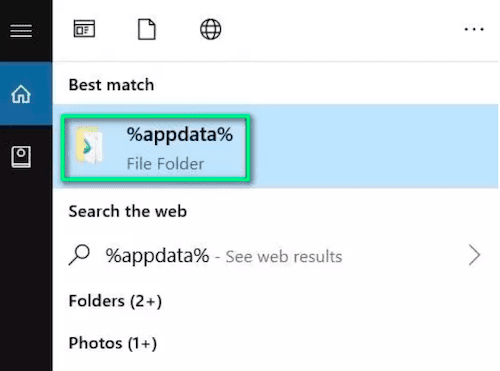
Step 2. Press Start, type %appdata%, and press Enter.
Step 3. Find and delete the Spotify folder.
Step 4. Restart Spotify.
On Mac
Step 1. Quit Spotify.
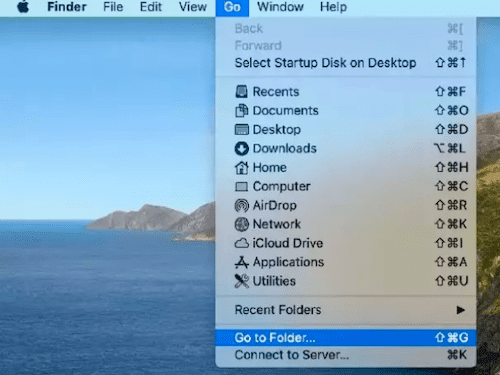
Step 2. Open Finder and click Go, then Go to Folder.
Step 3. Enter ~/Library/Application Support/Spotify and click Go.
Step 4. Delete the Spotify folder.
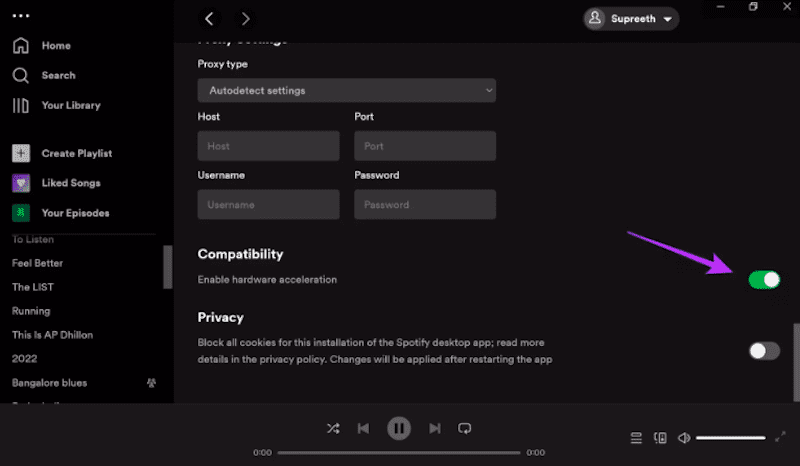
Solution 3. Turn Off Hardware Acceleration
Hardware acceleration can cause display problems on some computers. Disabling it often helps fix Spotify black screen.
Step 1. Open Spotify on Mac or Windows.
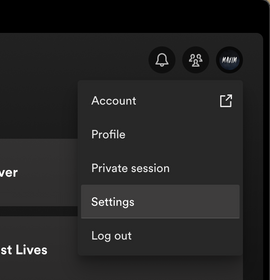
Step 2. Click your profile picture and go to Settings.
Step 3. Scroll down to Compatibility.
Step 4. Turn off Enable hardware acceleration.
Step 5. Restart Spotify.
Solution 4. Close Extra Spotify Processes
Running multiple Spotify processes can cause conflicts and lead to a black screen.
On Windows
Step 1. Press Ctrl Shift Esc to open Task Manager.
Step 2. Find Spotify under Processes.
Step 3. Click End Task.
On Mac
Step 1. Open Activity Monitor.
Step 2. Select Spotify from the list.
Step 3. Click Stop and choose Quit.
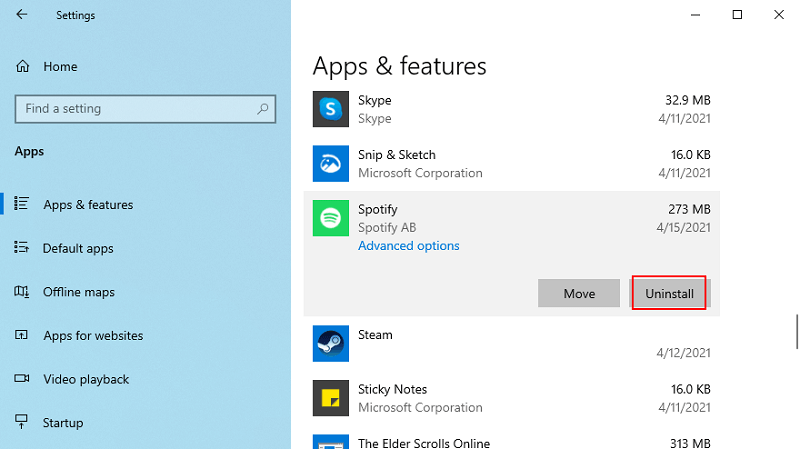
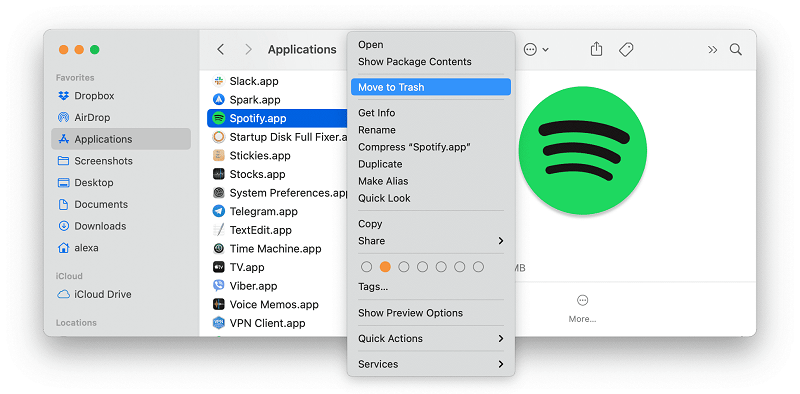
Solution 5. Uninstall and Reinstall Spotify
If the problem continues, reinstalling Spotify can remove broken files and reset the app.
On Windows
Step 1. Open Control Panel.
Step 2. Go to Programs and Uninstall a program.
Step 3. Find Spotify and uninstall it.
Step 4. Reinstall Spotify from the Microsoft Store.
On Mac
Step 1. Open Applications and find Spotify.
Step 2. Drag Spotify to the Trash.
Step 3. Empty the Trash.
Step 4. Reinstall Spotify from the official website.
Solution 6. Check Firewall or Antivirus Settings
Step 1. Your firewall or antivirus software may block Spotify and cause a black screen.
Step 2. Open your firewall or antivirus settings.
Step 3. Add http://spclient.wg.spotify.com to the allowed list.
Solution 7. Run Spotify as Administrator on Windows
Step 1. Running Spotify with admin rights can fix permission issues.
Step 2. Right click the Spotify icon.
Step 3. Select Run as administrator.
Step 4. Click Yes if prompted.
Solution 8. Open Spotify in Safe Mode on Mac
Step 1. Safe Mode runs Spotify with fewer settings and helps avoid conflicts.
Step 2. Close Spotify.
Step 3. Hold the Shift key and click the Spotify icon.
Step 4. Keep holding Shift until Spotify fully opens.
Note
After trying any solution, always restart Spotify to check if the Spotify black screen problem is fixed.
Part 2. How to Fix Spotify Black Screen on Android/iOs
This part explains how to fix Spotify black screen problems on mobile devices, including Android and iOS.
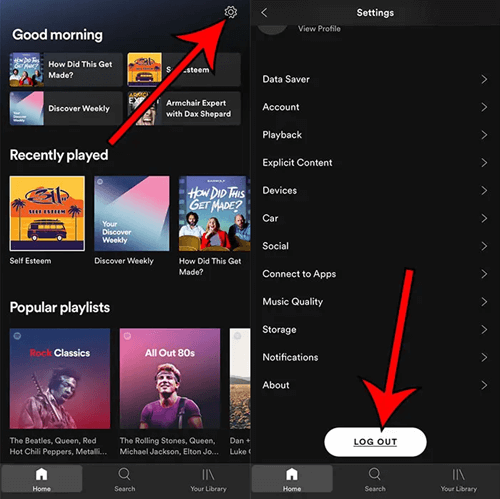
Solution 1. Log Out and Log Back In
Step 1. If you see a Spotify black screen on your phone, the easiest fix is to log out and sign in again.
Step 2. Open the Spotify app on your Android or iOS device.
Step 3. Go to the Home screen and tap the Settings icon.
Step 4. Scroll down and tap Log out.
Step 5. Log back into your Spotify account.
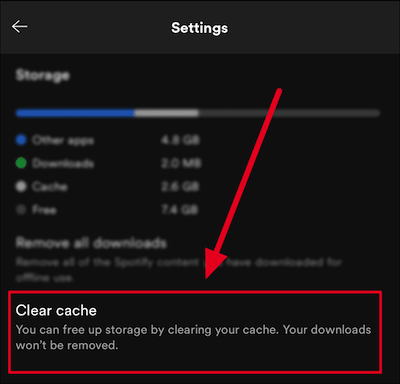
Solution 2. Clear Spotify Cache
Step 1. Cached files may become corrupted and cause Spotify to show a black screen. Clearing the cache can help.
Step 2. Open Spotify on your phone.
Step 3. Tap Home and go to Settings, then Storage.
Step 4. Tap Delete cache.
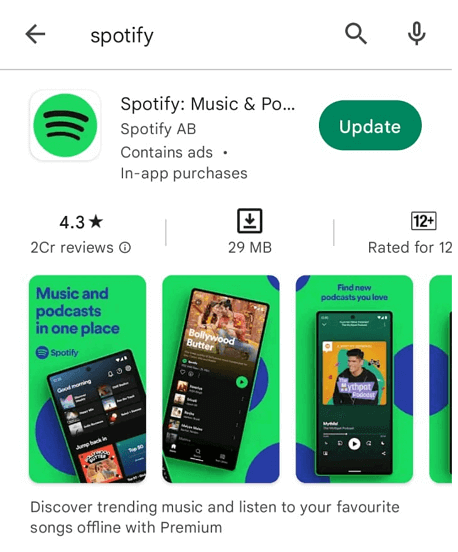
Solution 3. Update the Spotify App
Step 1. Using an old version of Spotify may cause bugs, including a black screen.
Step 2. Open the Play Store on Android or the App Store on iOS.
Step 3. Search for Spotify.
Step 4. Tap Update if available and install the latest version.
Solution 4. Free Up Phone Storage
Low storage space can cause apps to load slowly or show a black screen. Delete unused apps, photos, or videos to free up space and improve performance.
Solution 5. Uninstall and Reinstall Spotify
Reinstalling Spotify can remove corrupted files and fix the black screen issue.
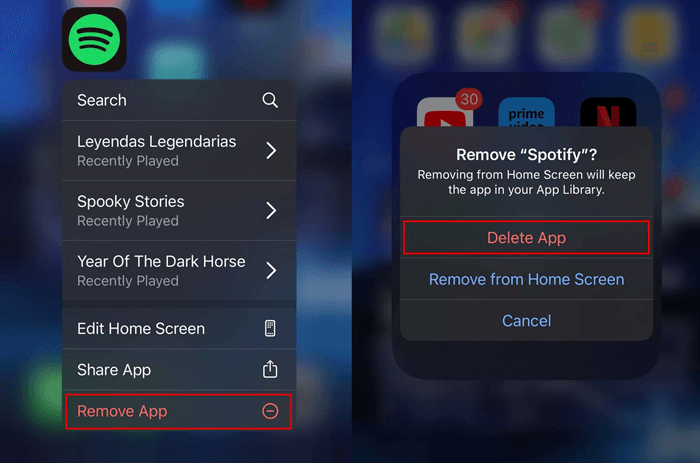
On iOS
Step 1. Press and hold the Spotify app icon.
Step 2. Tap Remove App and confirm.
Step 3. Open the App Store and reinstall Spotify.
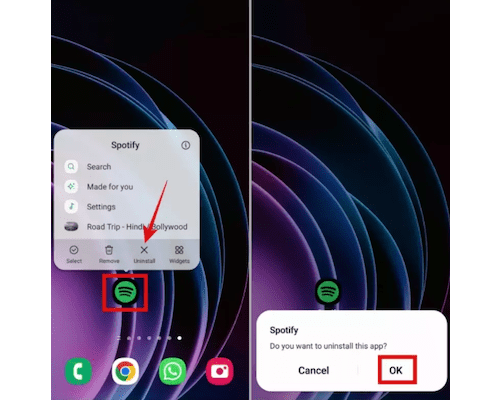
On Android
Step 1. Press and hold the Spotify app icon.
Step 2. Tap Uninstall and confirm.
Step 3. Reinstall Spotify from the Google Play Store.
Note
After trying each method, restart Spotify and log in again to check if the Spotify black screen issue is fixed.
Part 3. How to Fix Black Screen on Spotify Web Player
This section explains how to fix Spotify black screen problems when using Spotify in a web browser. You can try the methods below one by one.
Solution 1. Reopen the Browser
If Spotify shows a black screen in your browser, start by closing and reopening the browser. A quick refresh often fixes temporary loading issues. This method also works for other web players like YouTube or Netflix.
Solution 2. Update Your Browser
An outdated browser may not work properly with the Spotify web player. Check for updates and install the latest version. After updating, restart the browser and open Spotify again to see if the issue is fixed.
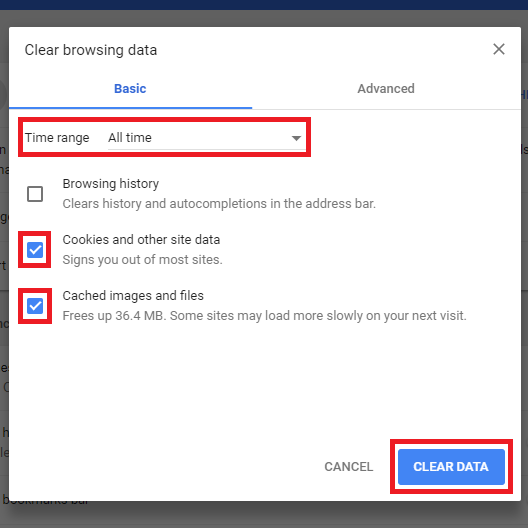
Solution 3. Clear Browser Cache and Cookies
Old cache files and cookies can cause display problems on websites like Spotify.
Step 1. Using Chrome as an example
Step 2. Open Chrome and click the three dots in the top right corner.
Step 3. Go to More Tools and choose Clear browsing data.
Step 4. Select a time range and check Cookies and other site data and Cached images and files.
Step 5. Click Clear data.
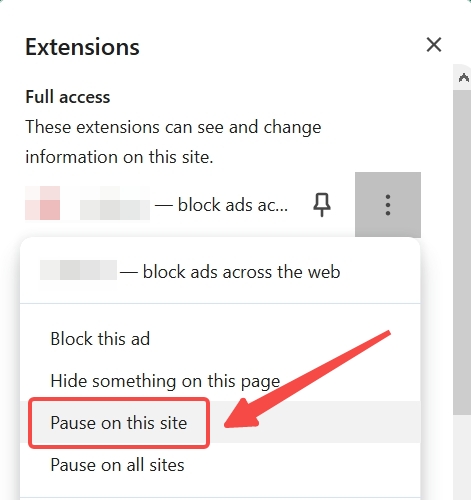
Solution 4. Disable Browser Extensions
Some browser extensions may conflict with Spotify and cause a black screen. Try turning off extensions and then reopen Spotify. You can enable them one by one to find which extension causes the problem.
Solution 5. Check Ad Blockers
Ad blockers may block parts of Spotify’s web player and cause a black screen. Turn off your ad blocker temporarily and check if Spotify works. If it does, add Spotify to the ad blocker whitelist to avoid the issue in the future.
Ultimate Way to Fix Spotify Black Screen Issue [Best]
The methods above may fix the problem for now, but they do not always provide a permanent solution. To prevent Spotify songs from being lost, offline backup of Spotify songs is the best way. So how to back up Spotify songs offline easily with one click? That's where UkeySoft Spotify Music Converter comes into play.
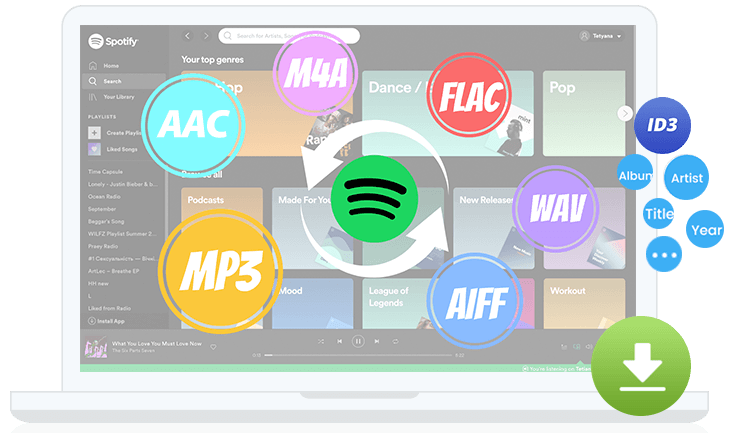
UkeySoft Spotify Music Converter is a powerful tool that allows you to download and convert Spotify songs, playlists, and albums to various formats, such as MP3, M4A, AAC, FLAC, WAV, and AIFF. With UkeySoft’s built-in player, you can browse and download Spotify music directly for free, and enjoy them offline without needing an internet connection, helping you enjoy your songs without worrying about Spotify black screen problems again.
UkeySoft Spotify Music Converter
- Download songs, playlists, and albums from Spotify for free.
- Convert Spotify music to MP3, M4A, AAC, FLAC, WAV, and AIFF.
- Preserve original audio quality and ID3 tags.
- Download Spotify music at 16X in batches.
- Fix Spotify black screen issue.
- Equipped with built-in Spotify web player, no need to install Spotify app.
- Keep Spotify tracks permanently for offline playback on any device.
- Compatible with Windows and Mac.
Tutorial: How to Download Spotify Music for Offline Listening
Step 1. Open Spotify Converter and Sign In
UkeySoft Spotify Music Converter works on both Windows and Mac. Download the correct version and install it on your computer. After installation, open the program and log in to your Spotify account, either Free or Premium.
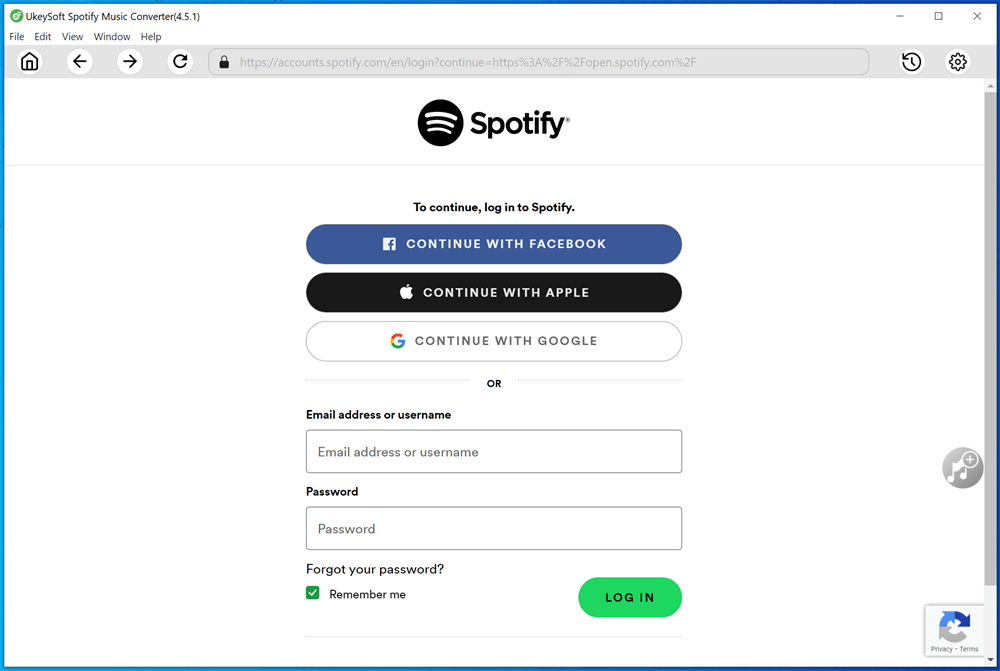
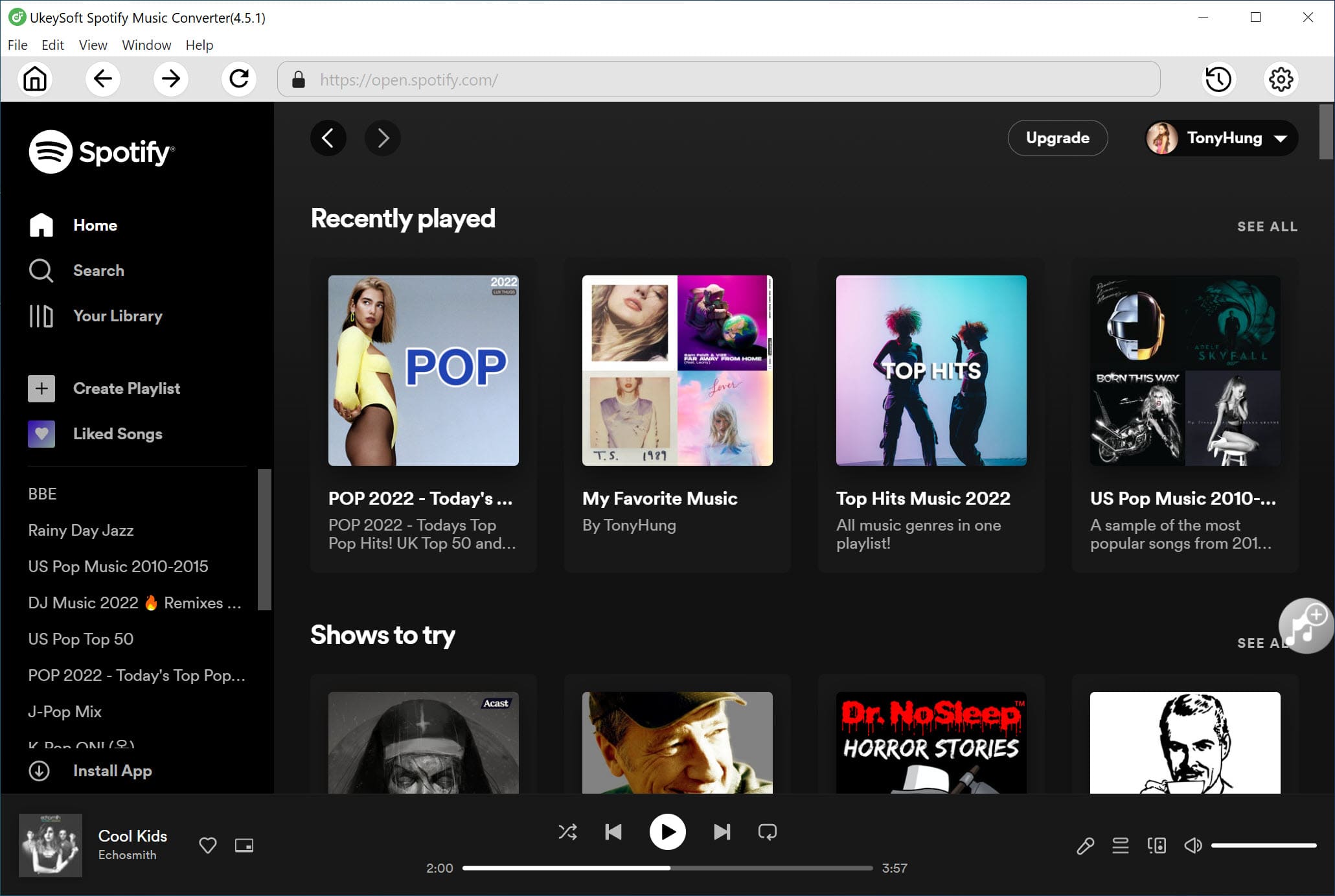
Once logged in, you can browse, search, and play music directly using the built in Spotify web player.
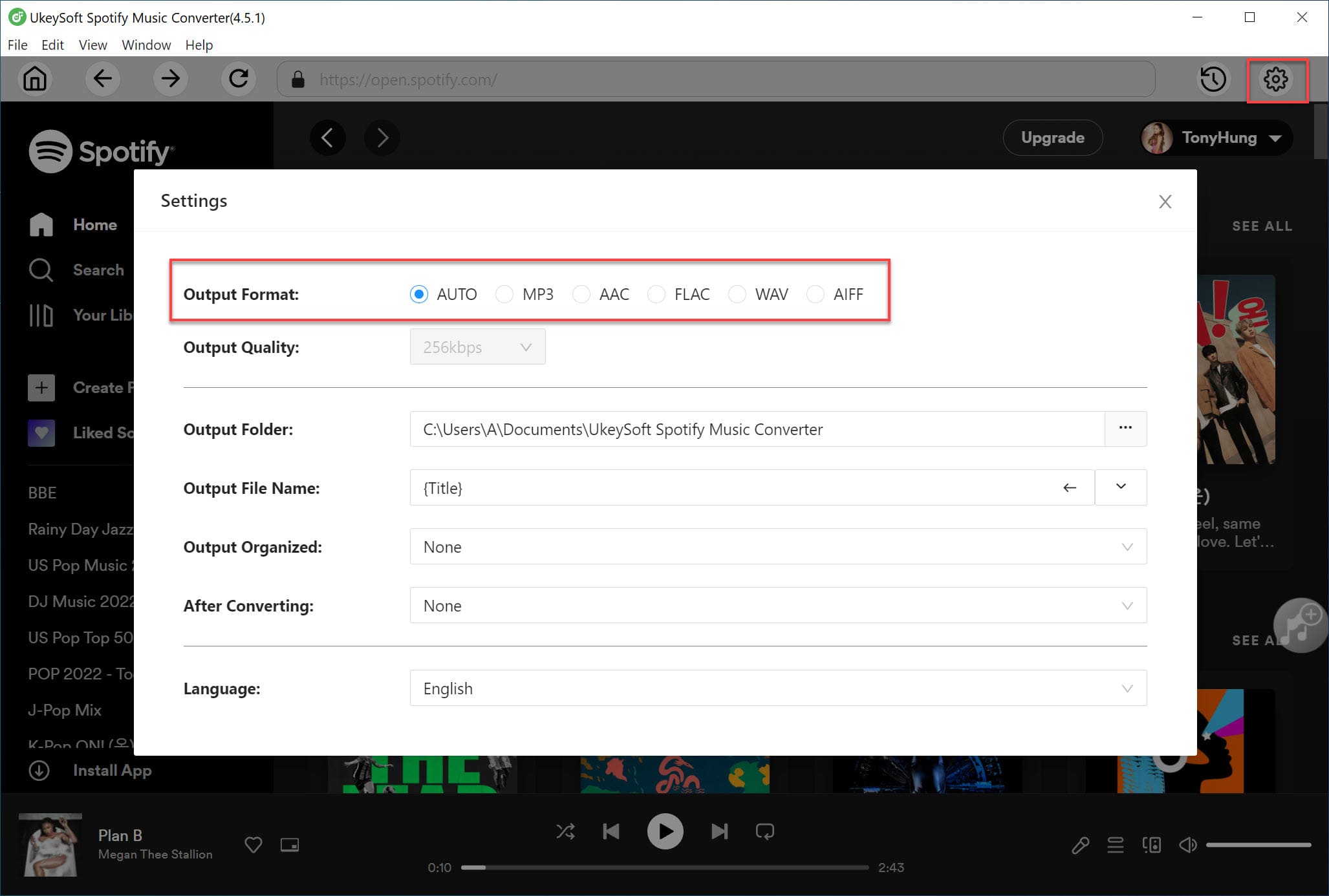
Step 2. Select an Output Format
Click the Settings icon in the top right corner. You can choose from MP3, M4A, WAV, FLAC, AIFF, and AAC. The default format is M4A for lossless quality, but MP3 is recommended since it works with most devices and players.
Step 3. Add Spotify Songs Playlists or Albums
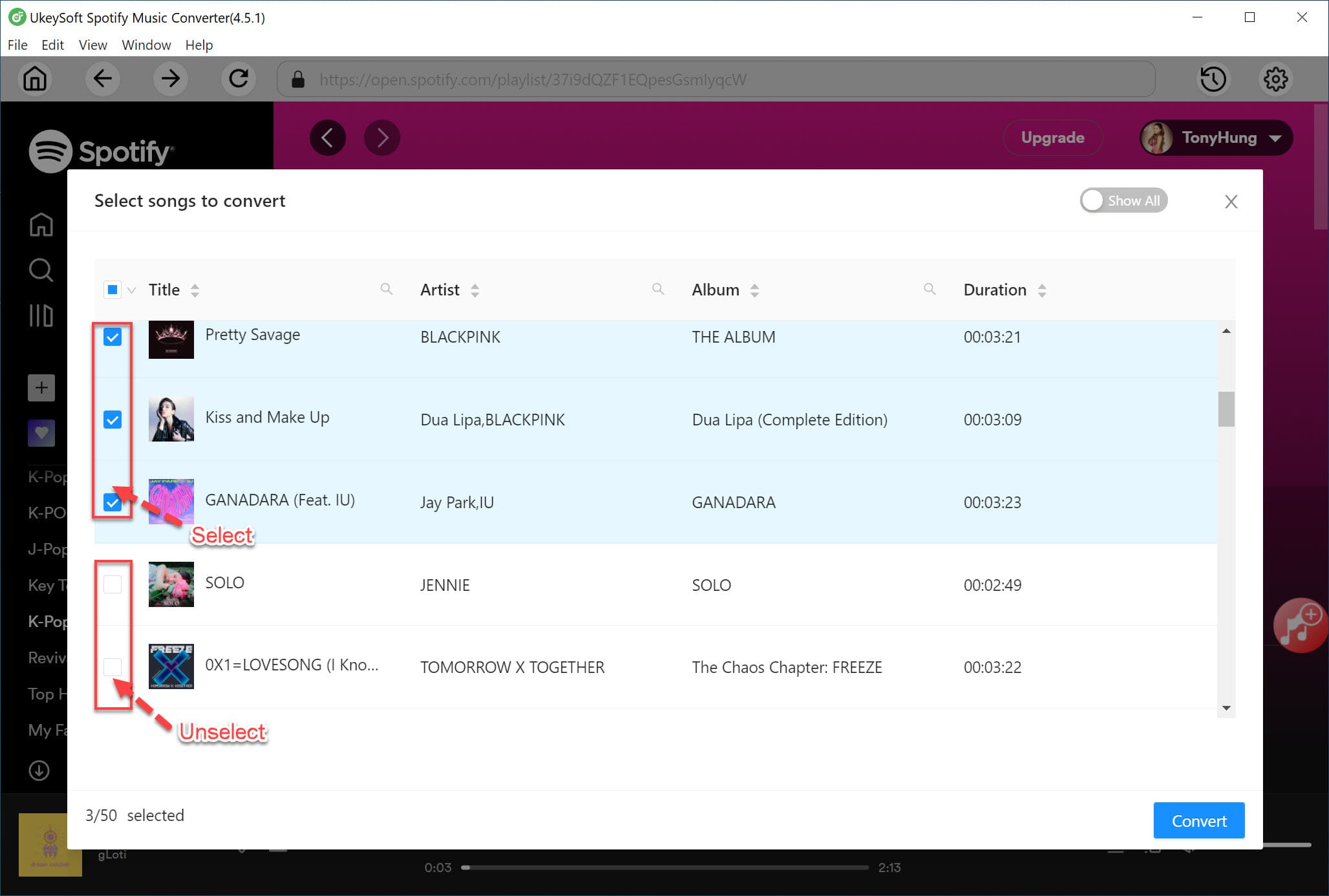
Use the built in Spotify player to open the playlist or album you want. Click the plus icon to add it to the conversion list. The program will automatically load all tracks.
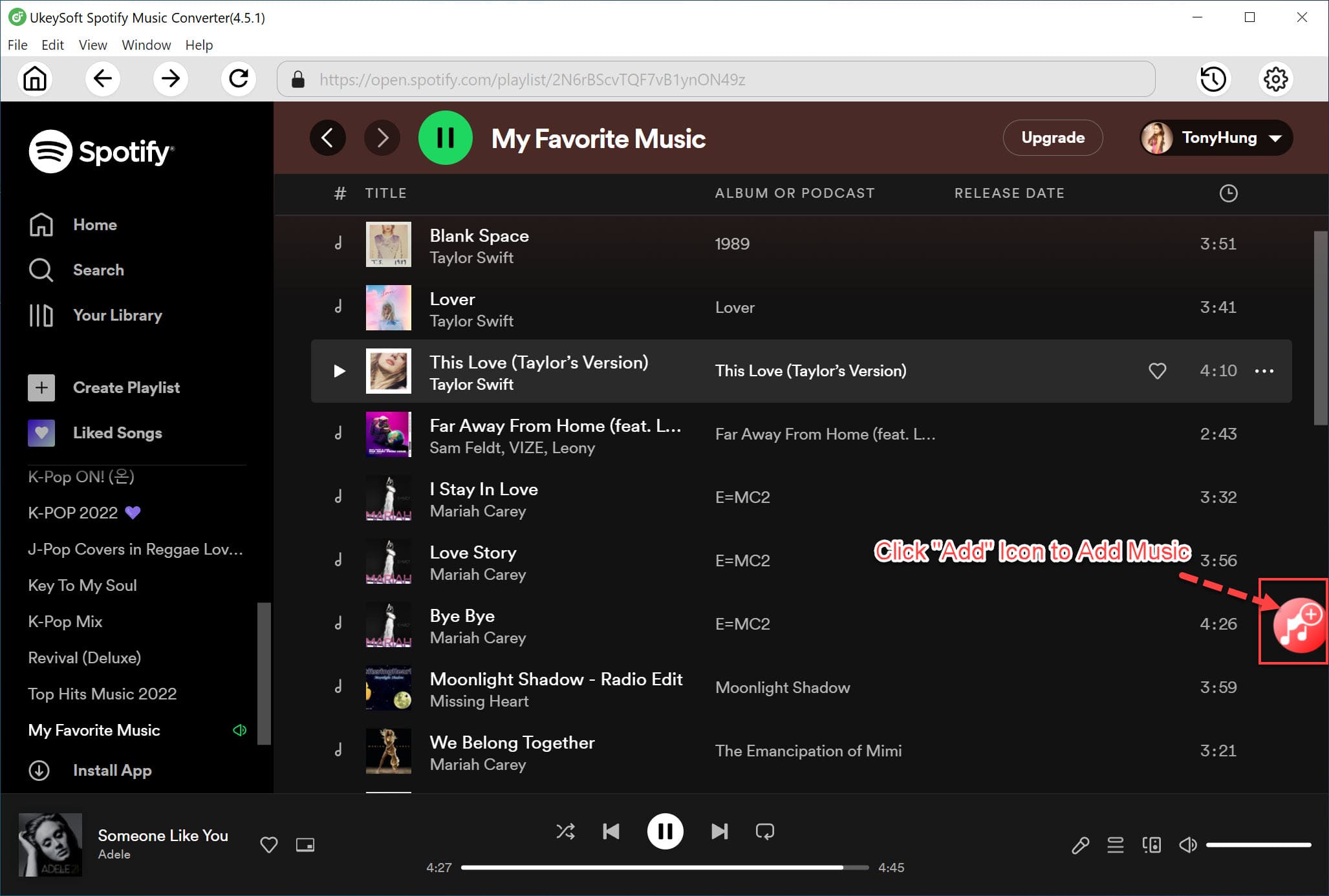
All songs are selected by default, and you can uncheck any tracks you do not want.
Step 4. Start Converting Spotify Music
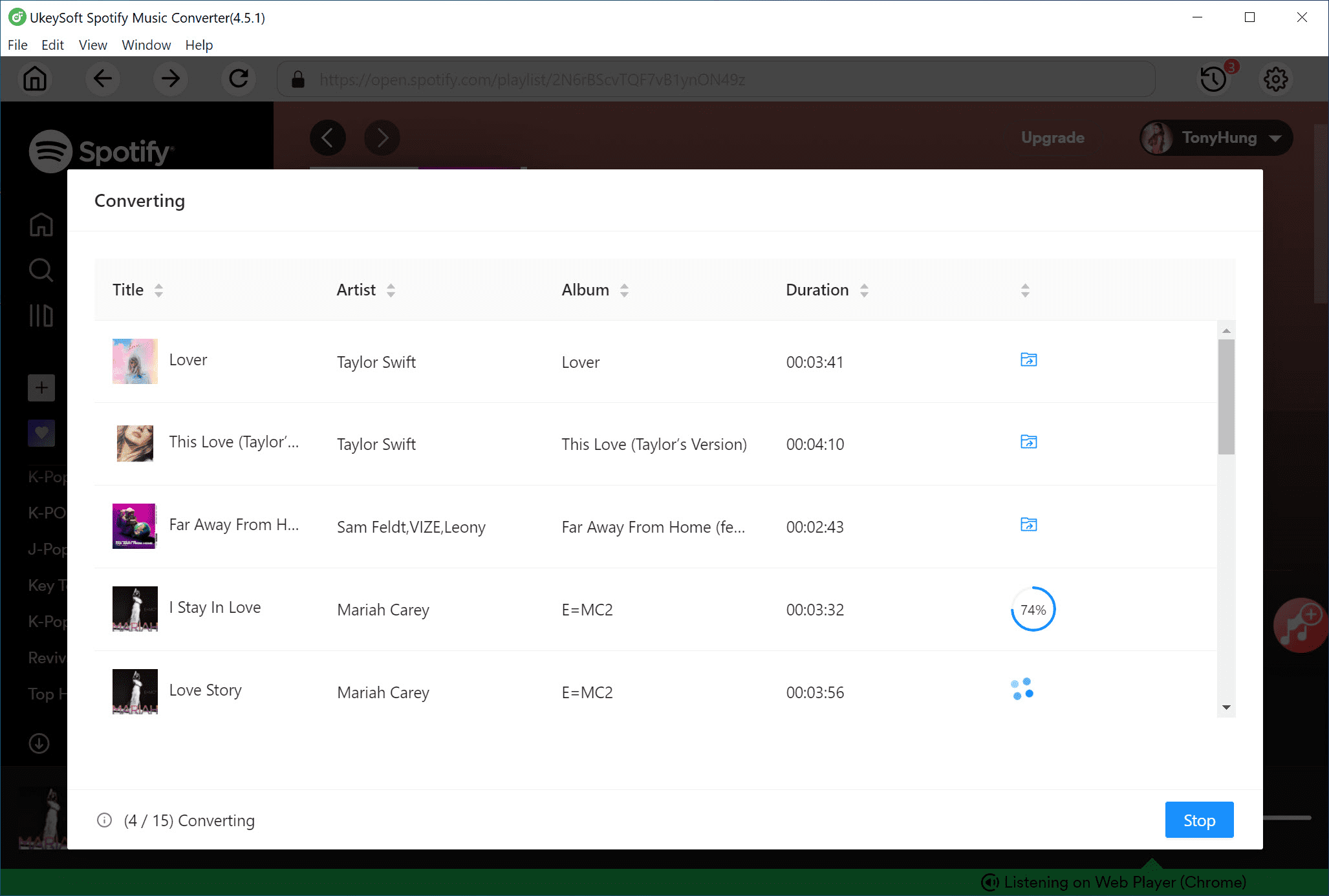
Click the Convert button to begin converting Spotify songs or playlists to MP3 or another selected format. The conversion runs at up to 16X speed.
Step 5. View Your Converted Songs
After conversion is complete, click Output Folder to view your files. You will get DRM free Spotify songs saved on your computer. These files can be played offline or transferred to Android, iOS, Linux, or other devices.
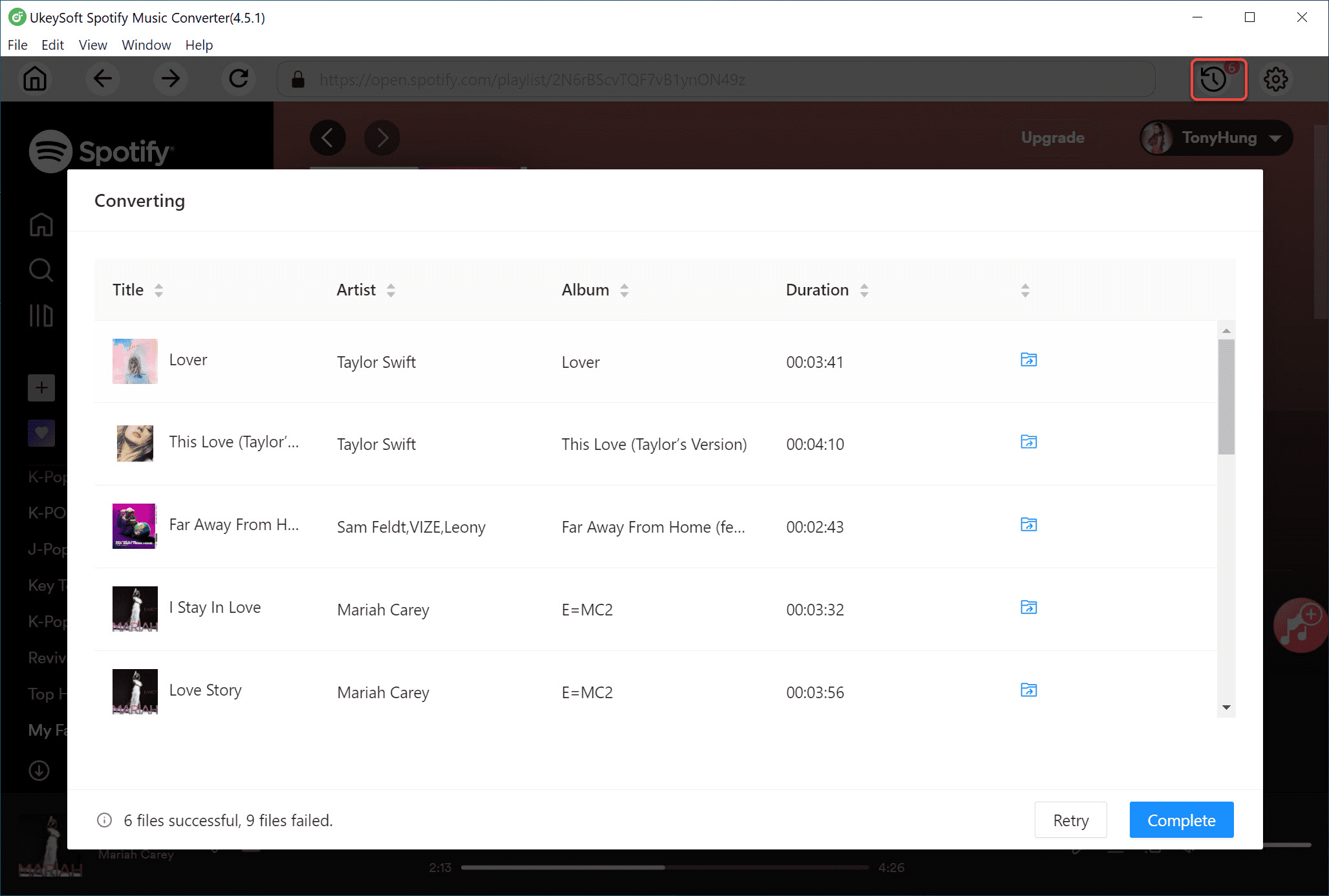
Once saved locally, you can listen to Spotify music without opening the Spotify app and avoid issues like Spotify black screen errors.
Conclusion
Through this article, we shared several practical ways to fix Spotify black screen problems on computers, mobile devices, and the Spotify web player. When a Spotify black screen appears, start by checking your network, then review your app settings and device status. Useful solutions include updating Spotify, clearing cache files, and reinstalling the app.
If you want to avoid Spotify black screen issues altogether, UkeySoft Spotify Music Converter offers a reliable way to download Spotify music for offline listening. By saving your songs locally, you can fix Spotify black screen concerns and enjoy your favorite tracks anytime without interruptions or streaming limits.
Tip: System Requirements:
Windows 7 or later on 64bit required

Chester has always had great enthusiasm for writing, programming and web development. He likes writing about software and technology, his works are featured on some tech blogs or forums like Tom's Hardware, CNET, etc.
 English
 Arabic
 Chinese (Simplified)
 Chinese (Traditional)
 Croatian
 Czech
Czech Danish
 Dutch
Dutch Estonian
 Finnish
 French
 German
 Greek
Greek Hebrew
 Hindi
Hindi Hungarian
 Indonesian
 Italian
 Japanese
 Kazakh
 Korean
 Malay
Malay Norwegian
 Polish
 Portuguese
 Romanian
 Russian
 Slovenian
 Spanish
 Swedish
 Thai
Thai Turkish
 Ukrainian
 Vietnamese








Comments are off!