By
Justin SabrinaUpdated on July 24, 2026
Summary
If you're having trouble with the Spotify Web Player and need some troubleshooting tips, this complete guide provides expert methods, troubleshooting tips to help you fix Spotify Web Player not working issue. Plus, this guide will also introduce a powerful
Spotify music downloader to free download Spotify music for offline playback.
The Spotify web player is an easy way to give users instant access to millions of songs without installing the app. Whether you're using Chrome, Safari, Firefox, or Edge, the Spotify Web Player allows you to stream music instantly, access playlists, and use Spotify from anywhere. However, it sometimes may display "The Spotify web player not working". Don't be upset. This article includes everything you need to know about why Spotify Web Player is not working, and provides 10 easy ways to fix it. Just keep reading.
CONTENTS
Part 1. Simple and Quick Fixes Before You Go Further
There are several reasons why Spotify Web Player is not working properly, such as browser issues, cached data, playback restrictions, outdated software, network conflicts, or even temporary Spotify-side glitches. Try these fast checks before diving into advanced solutions. Most Spotify users fix the Spotify Web Player not working issue with these basics.
● Check Your Internet Connection: A slow or unstable connection can immediately cause Spotify Web Player not working problems, preventing songs from loading or playing. Make sure your Wi-Fi or Ethernet connection is strong and stable before streaming.
● Log Out and Log Back In: If you've logged in the Spotify web player but it didn't work, try to sign out of Spotify Web Player, wait a few seconds, then sign back in to re-sync your session.
● Restart Your Browser: Sometimes the browser simply needs a fresh restart to clear blocked scripts or temporary issues responsible for Spotify Web Player not working. Close all tabs, Relaunch and open Spotify web player again.
● Check Browser Compatibility: Spotify Web Player does not support outdated or unsupported browsers. Ensure you're using a supported browser like Chrome, Firefox, Edge, or Opera.
● Disable VPN: Spotify may block known VPN IP addresses. Turn off your VPN and reload Spotify Web Player.
News:
UkeySoft also released an all-in-one music converter that allows you to download and convert music from various music platforms, including Spotify, Apple Music, Amazon Music, Deezer, Tidal, Pandora, YouTube Music, and Audible. To get a better music listening and downloading experience, don't miss it!
Part 2. 10 Ways to Fix Spotify Web Player Not Working
If you tried above simple fixes and the Spotify web player is still not working, below are the top 10 fixes to fully solve Spotify Web Player not working problem on any device or browser.
Fix 1. Update Your Browser
Sometimes, the Spotify Web Player is not working because of an outdated browser. Spotify updates its web player frequently, and older browser versions may not support new playback components or protected content requirements. Whether you use Chrome, Firefox, Safari, or Edge, installing the latest update can resolve Spotify Web Player not working issues instantly.
On Chrome:
Step 1. Click the three dots menu, go to Help > About Google Chrome.

Step 2. Chrome will auto-check for updates. Update the browser if necessary.
Step 3. Then restart the browser and reopen Spotify Web Player.
On Firefox:
Step 1. Open the menu > Help > About Firefox.

Step 2. Select More troubleshooting information.
Step 3. Firefox will check for updates. Restart Firefox an reopen Spotify web player.
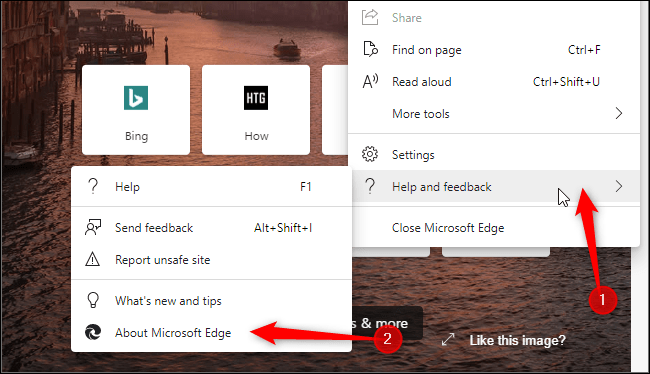
On Edge:
Step 1. Click on the three dots at the top-right corner, select "Help and feedback".
Step 2. Find and select "About Microsoft Edge" option.
Step 3. Open the window and tap "Checking for updates" to finish the update.
On Safari:
Step 1. Go to Apple menu > System Settings > General > Software Update.
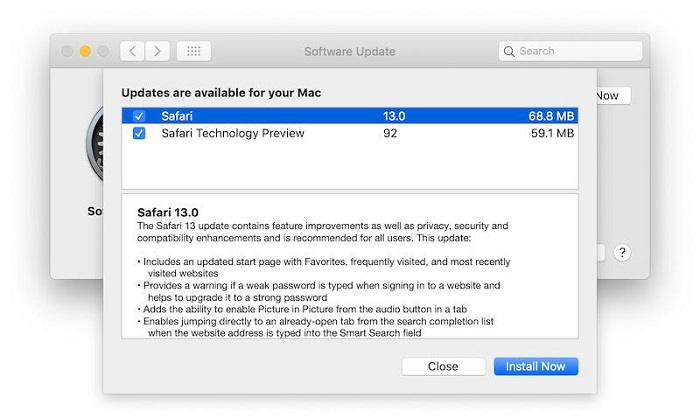
Step 2. After complete updating it, restart Safari and reopen Spotify web player.
Fix 2. Open Spotify Web Player in a Private Window
Certain cached sessions or conflicting extensions may cause the Spotify Web Player not working problem. Therefore, you may consider using a private window can avoid cached data and disable extensions by default. This allows Spotify Web Player to load cleanly.
To open Spotify Web Player in a private/incognito window, you can go to the browser Menu (three dots or three horizontal lines), and select "New Incognito Window".
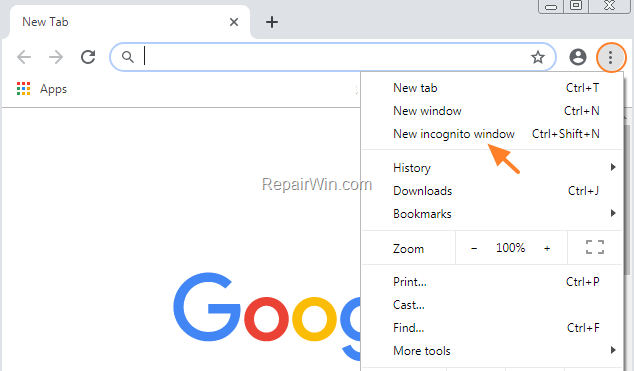
Or, use the shortcut to open it as well. Follow below steps:
Chrome/Edge: Press Ctrl+Shift+N (Windows) or Cmd+Shift+N (Mac).
Firefox: Press Ctrl+Shift+P (Windows) or Cmd+Shift+P (Mac).
Safari: Press Cmd+Shift+N to open a Private Window.
Then, navigate to open.spotify.com, log in, and test playback.
Fix 3. Clear Browser Cache and Cookies
There is another simple way to fix the "Spotify web player not working" issue. Clearing browser data will remove bad cookies, expired tokens, and broken player settings. Here is how to do that:
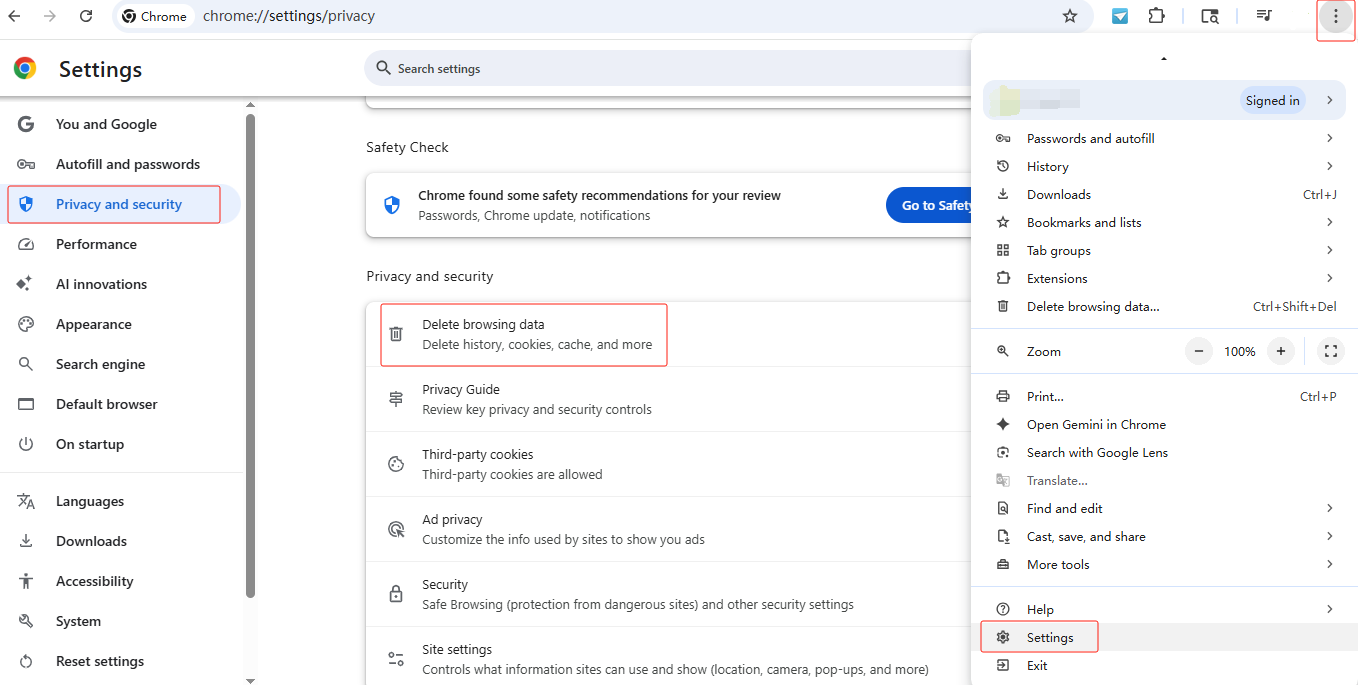
On Chrome:
Tap on the Menu (three dots) > Settings > Privacy and security > Delete browseing data.
On Firefox:
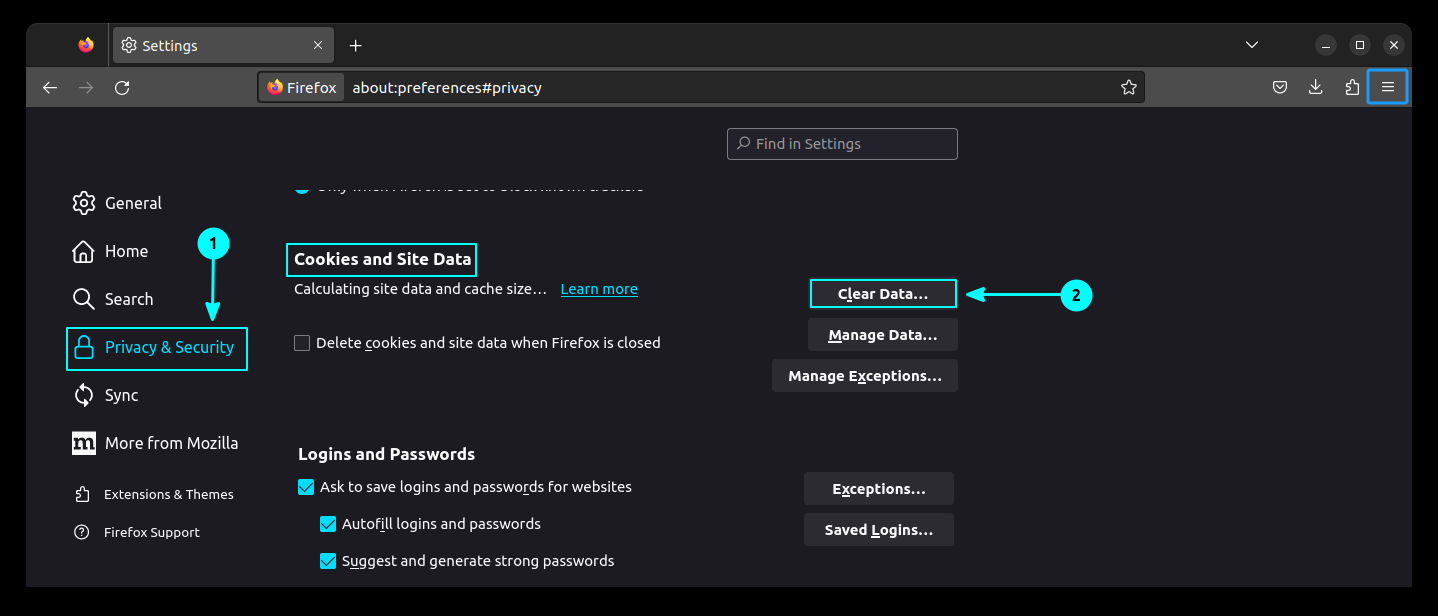
Go to the Menu (three lines) > Settings > Privacy & Security > Cookies and Site Data > Clear Data > Clear Now.
On Edge:
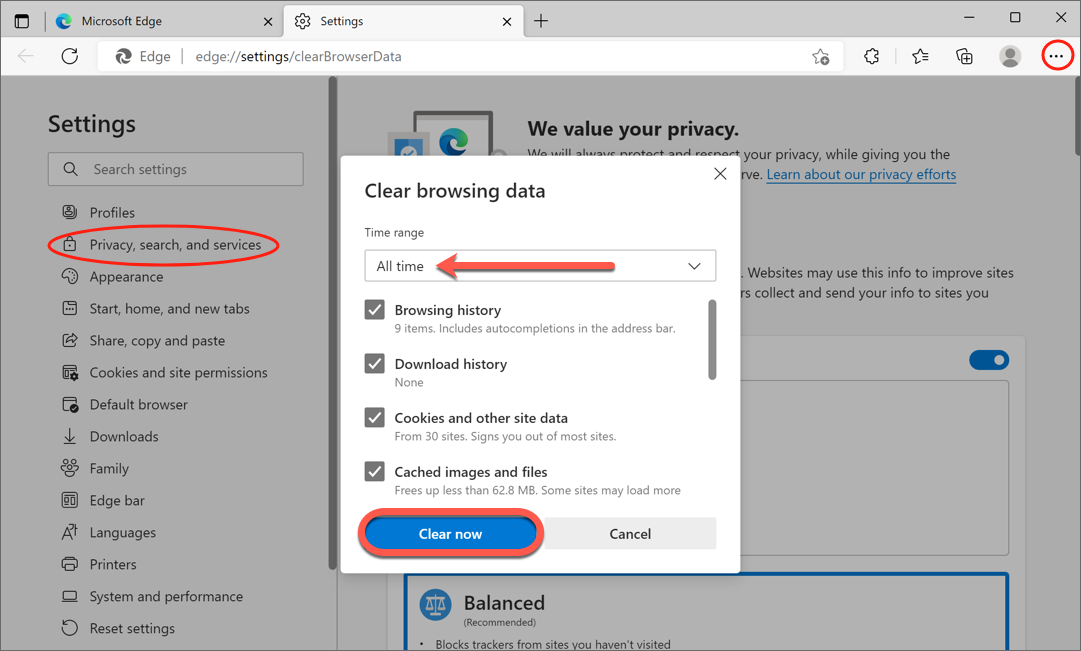
Go to Settings and more (...) > Settings > Privacy, search, and services > Clear browsing data > Clear now.
On Safari:
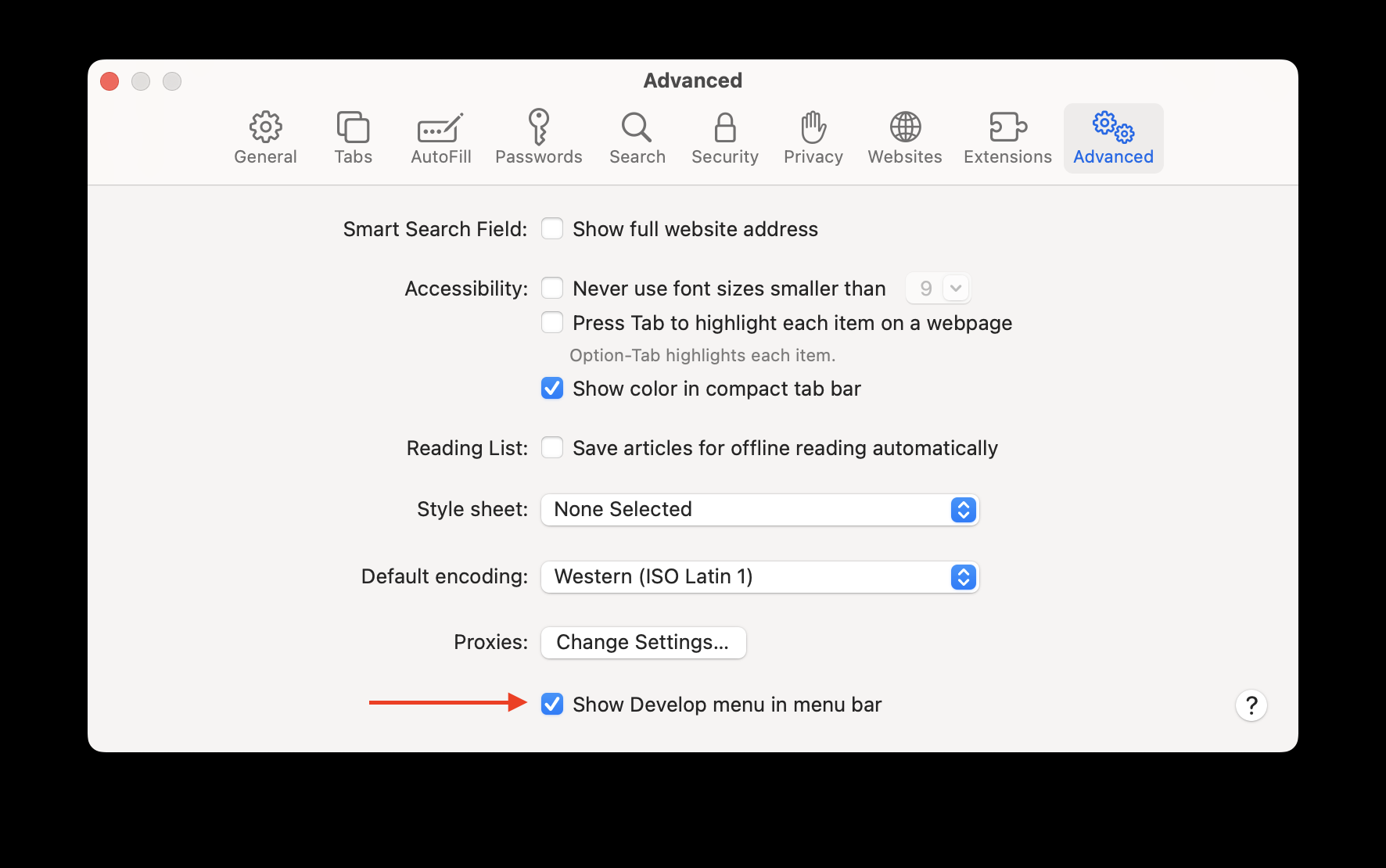
Go to Safari > Preferences > Advanced. Enable "Show Develop menu in menu bar".
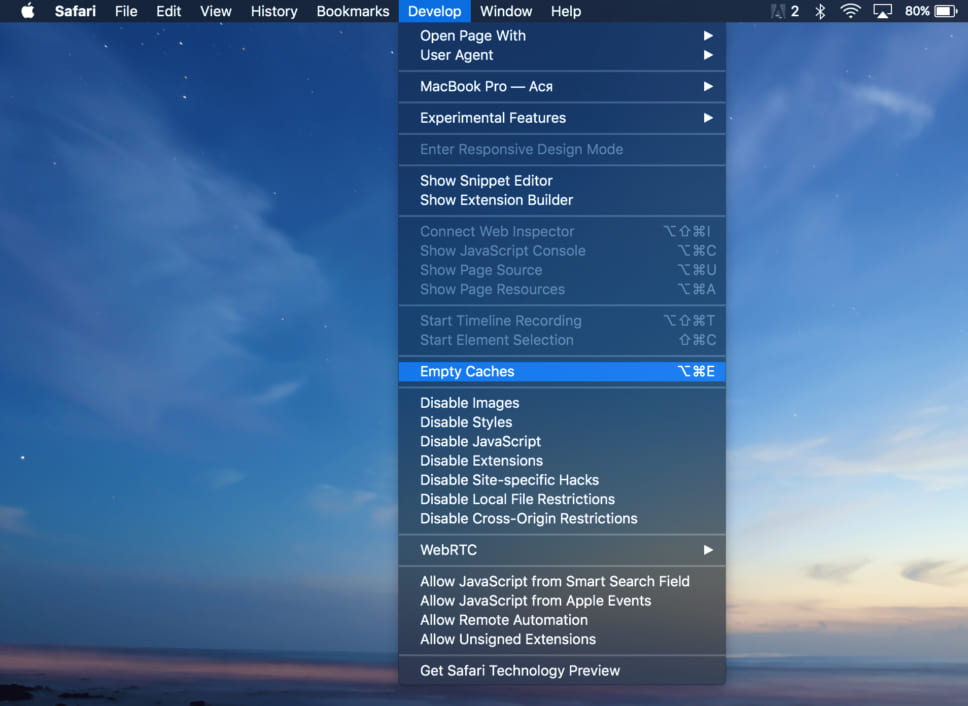
From the new Develop menu, select "Empty Caches".
Extra Tip: If issues persist, try flushing your DNS cache On Windows, open Command Prompt as Admin and type ipconfig /flushdns. On Mac, open Terminal and type sudo dscacheutil -flushcache; sudo killall -HUP mDNSResponder.
Fix 4. Disable Spotify Ad Blockers
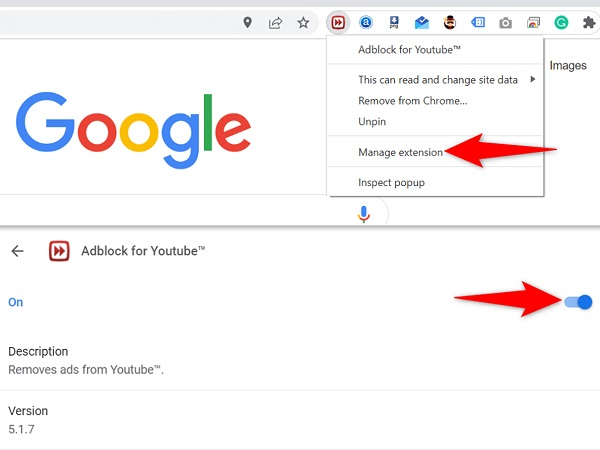
Many Spotify Free users want to remove ads on Spotify while streaming in the web player, so some of them use an Spotify ad blocker. However, Spotify actively detects and blocks such users. So, you can manually disable the ad blocker if you find that the Spotify web player failed to load songs.
Step 1. Open your browser extensions page.
Step 2. Locate any ad blockers (AdBlock, AdGuard, uBlock, etc) in the top-right corner, and right-click on it.
Step 3. Select "Manage extension". Disable the ad-blocker extension.
Step 4. Restart your browser, and refresh Spotify Web Player.
Fix 5. Disable Browser Extensions
If disabling ad blocker doesn't work, the next step is to disable browser extensions, such as VPN tools, downloaders, privacy tools, script blockers, cookie managers, or privacy add-ons. These extensions can interfere with the web player's functionality. Therefore, you ought to go to your browser's extensions page, toggle off all extensions. Afterward, restart your browser and test the Spotify Web Player.
Fix 6. Reset and Clean Up the Browser
When simpler cache clearing isn't enough, a browser reset restores all settings to default, removes corrupted files, and fixes deep configuration issues. To maintain smooth operation, reset and clean up your browser. This will be helpful to resolve Spotify web player not working issue.
On Chrome:
Go to Settings > Reset and clean up > Restore settings to their original defaults. Click Reset settings.

On Firefox:
Go to Menu (☰) > Help > More Troubleshooting Information. Click Refresh Firefox. This removes extensions and customizations while keeping essential data.

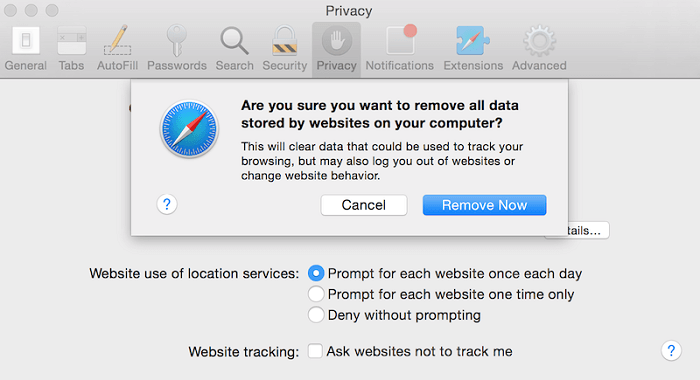
On Safari:
Go to the Safari menu > Preferences > Privacy > Manage Website Data... > Remove All > Remove Now.
Fix 7. Use a Different Browser
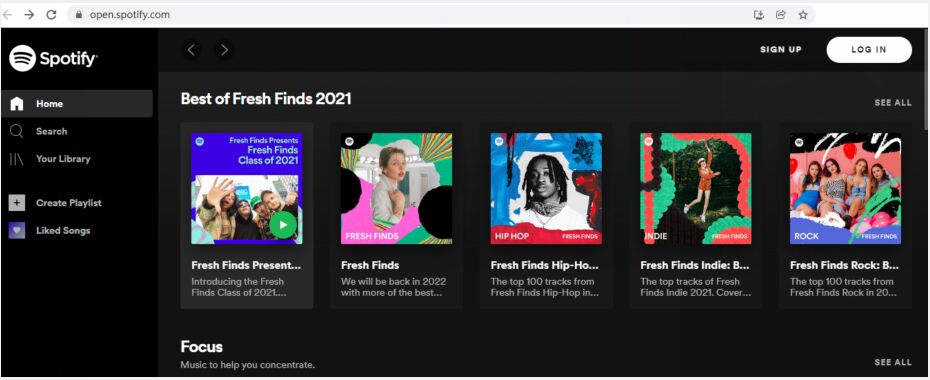
The Spotify Web Player is available on Safari, Chrome, Firefox, Edge, and more. When you found that Spotify web player pages not loading, you can switching to another browser to confirm whether the Spotify Web Player not working issue is browser-specific.
Fix 8. Set Up Spotify Connect
If the Spotify web player loads but buttons not responding, or music not playing at all, using Spotify Connect can bypass playback restrictions. Spotify Connect allows you to switch playback between devices (including phone, tablet, smart speaker, computer,etc.) and restore playback functionality. To fix the web player not working issue, make sure the Spotify Connect feature is set up correctly.
Step 1. Open Spotify Web Player on your device.
Step 2. Click the Device icon at the bottom right.
Step 3. Choose your web browser in the list, such as Microsoft Edge or Google Chrome in the image below.
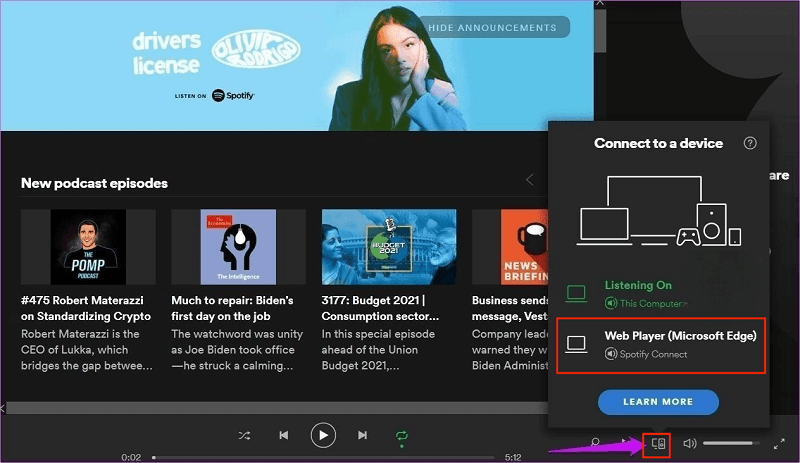
Note: Disconnect other active devices that may interrupt playback. Then, Spotify will play song in your choosed web browser.
Fix 9. Enable Playback of Protected Content
As we all know, Spotify's streaming content is DRM-protected. When streaming music on Spotify web player, make sure that the specific setting is enabled in your browser. If disabled, you'll see a blank or error player.
To Enable DRM on your browser, follow these steps:
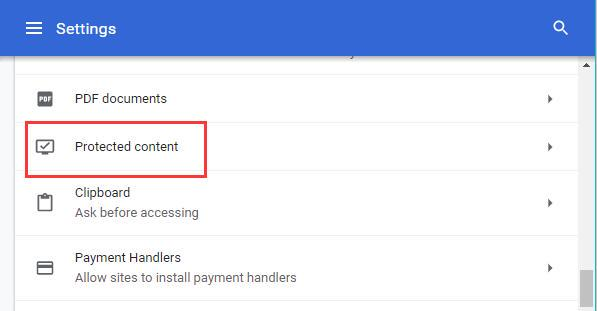
On Chrome:
Go to Menu > Settings > Content > Protected content. Enable "Allow site to play protected content".
On Firefox:
Go to Settings > General. Scroll to Digital Rights Management (DRM). Enable "Play DRM-controlled content".
Alternatively, click on "Enable DRM" in the yellow warning bar when you are unable to play music in Spotify web player.

On Microsoft Edge:
Click More options button > Settings > Cookies and site permissions > Protected content IDs. Enable "Allow sites to play protected content".
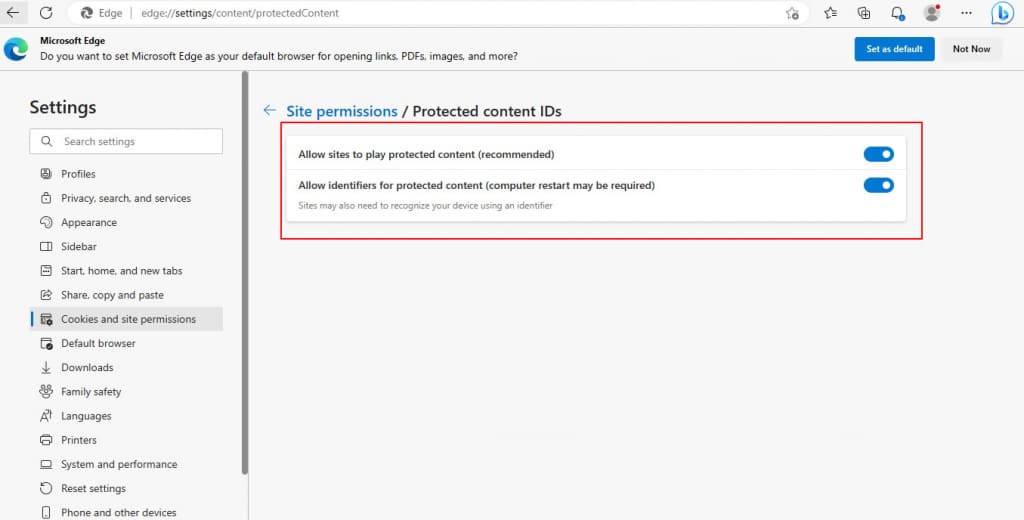
Reload Spotify after enabling DRM.
Fix 10. Switch to the Spotify App
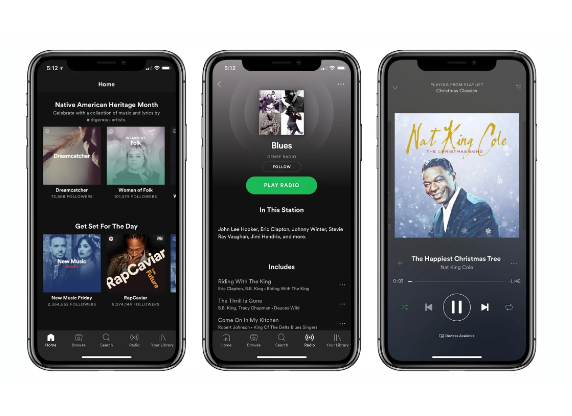
If above all troubleshooting tips fail to solve spotify web player not working problem, you can switch to the Spotify desktop player or mobile app to enjoy Spotify music tracks. Compared to the Spotify web player only offers online streaming, the Spotify app provides smoother performance, and even offline downloads for Premium subscriptions. Simply go to the App Store, or Google Play Store, download and install the Spotify app on your mobile devices or computes.
Part 3. Best Way to Enjoy and Download Songs from Spotify Web Player
While Spotify Web Player is convenient, it comes with limitations such as browser errors, playback restrictions, DRM protection, and slow performance. If you're tired of the Spotify Web Player not working problem, why not consider using the Spotify web player alternative?
UkeySoft Spotify Music Converter stands out as one of the best Spotify music downloaders. It gives you the same or even better service as Spotify Web Player by integrating with the official Spotify web player. Once logged in to a Spotify Free account, you can browse, stream, search, choose, and download Spotify songs directly inside the program! Say goodbye to the Spotify web player and Spotify app!
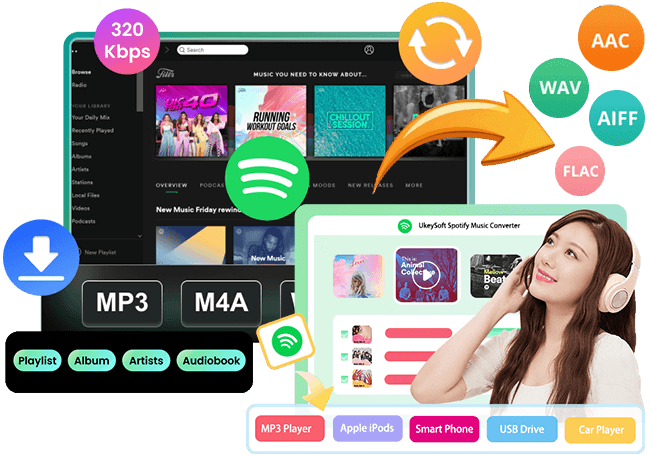
Main Features: The software allows both Spotify Free and Premium users to download songs, albums, playlists and podcasts from Spotify to MP3 files with 320kbps high quality. It also supports M4A, AAC, FLAC, WAV, or AIFF audio formats. The downloaded Spotify songs can be played on any music player or device, so you don't have to worry about Spotify Web Player not working issues anymore.
UkeySoft Spotify Music Converter
- Built-in Spotify Web Player: browse and search directly inside the program.
- Download songs, albums, playlists, and podcasts from Spotify without Premium.
- Convert Spotify music to MP3, M4A, AAC, WAV, FLAC, AIFF at high quality.
- Preserve original audio fidelity and all ID3 tags metadata for each song.
- Up to 16X faster download speed and supports batch conversion.
- Built-in music player, music manager for easy playback and management.
How to Download Music from Spotify Web Player to MP3?
Tip: System Requirements:
Windows 7 or later on 64bit required
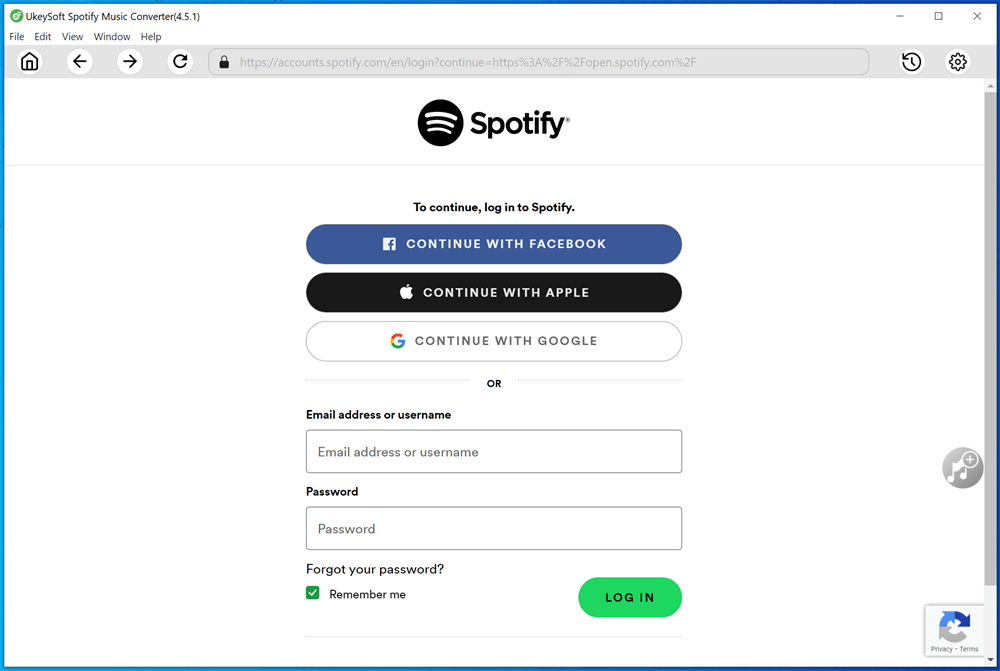
Step 1. Log In to Spotify Account on UkeySoft
Download and install the UkeySoft Spotify Music Converter on your Windows or Mac. Launch it, log into your Spotify free/premium account within the program, and browse music using its built-in interface.
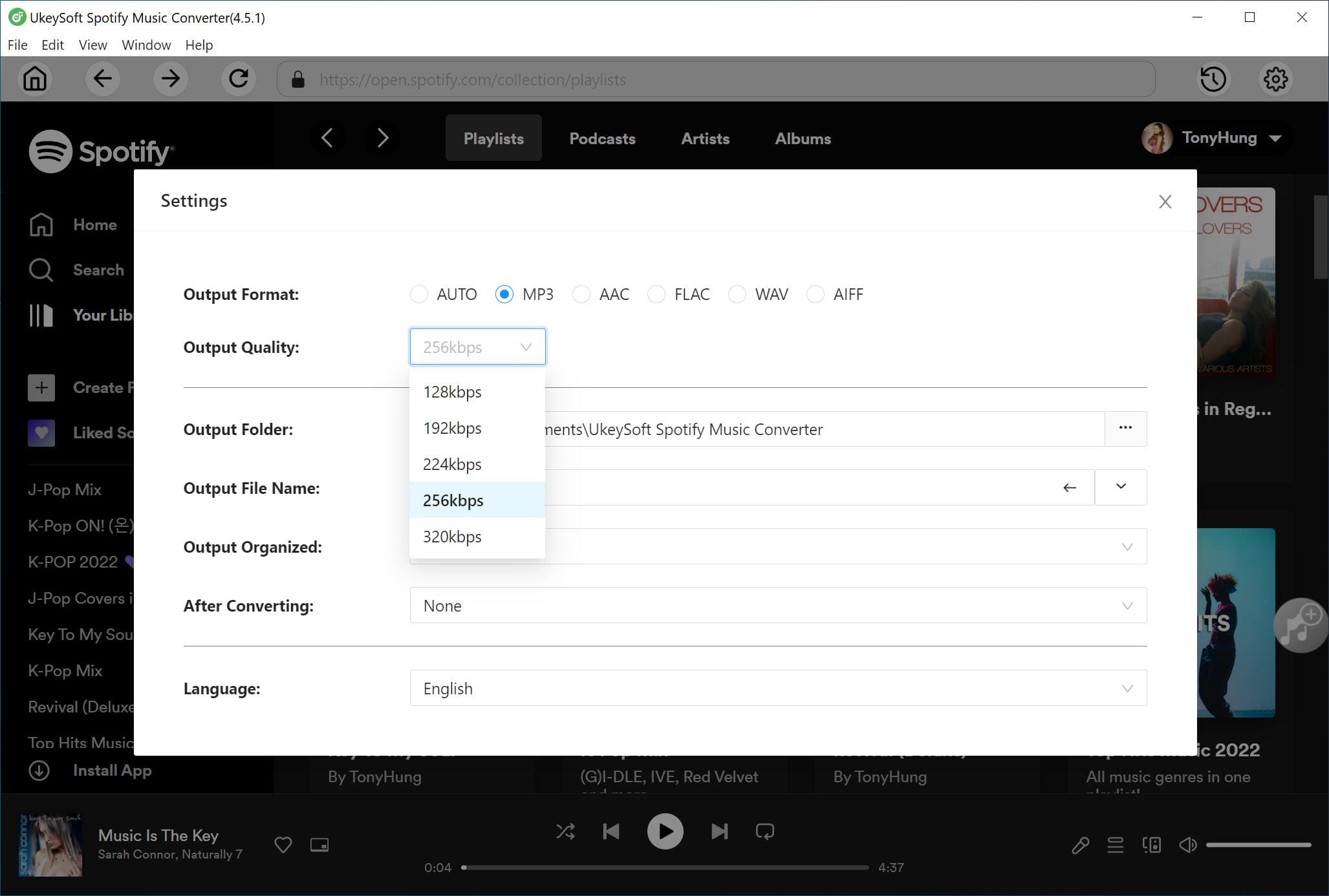
Step 2. Customize Output Settings
Click on "Gear" icon at the upper right corner. Choose your output format (MP3, M4A, FLAC, AAC, WAV, or AIFF), output quality, output folder, and output file name, etc.
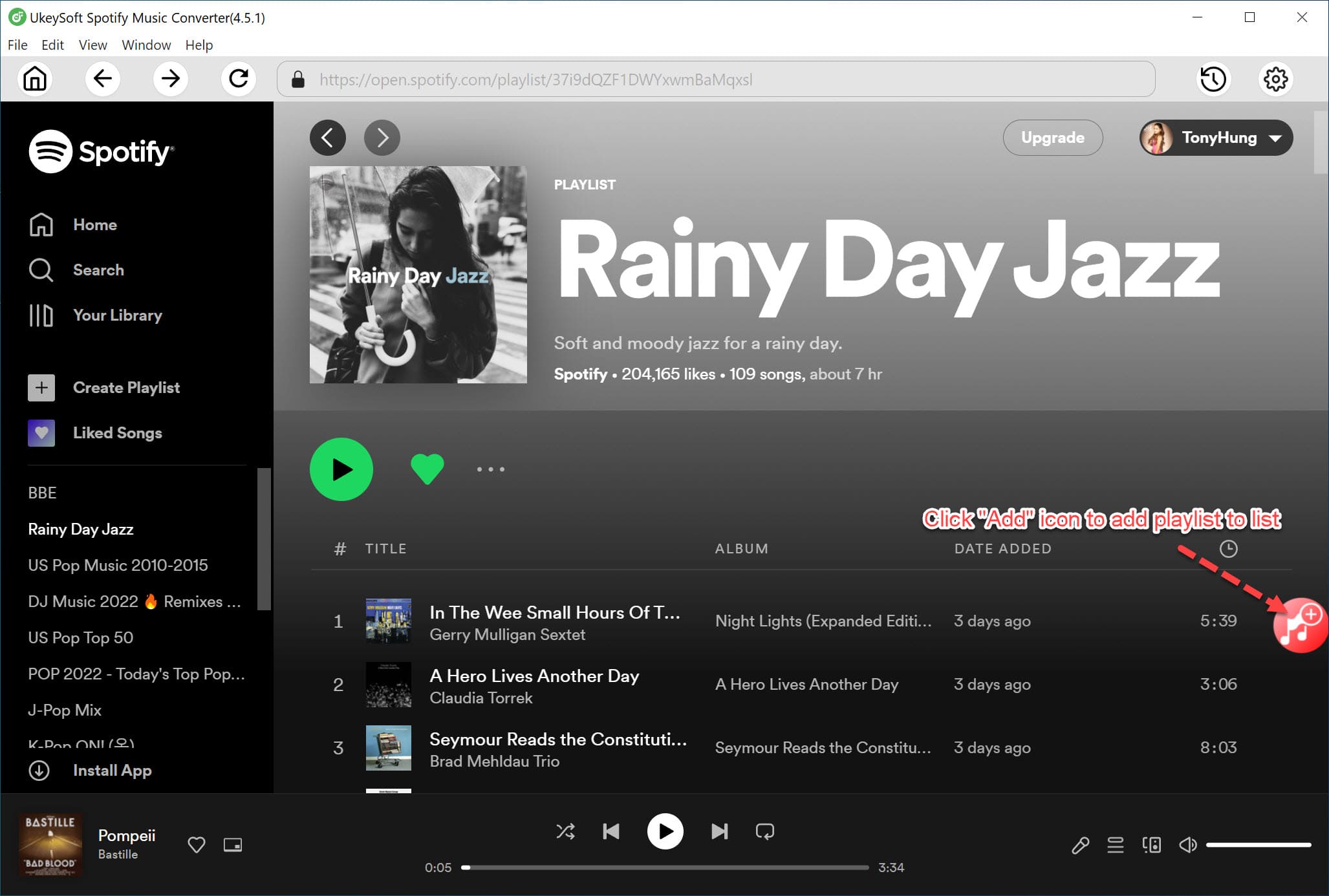
Step 3. Search and Add Spotify Songs
Navigate through the built-in Spotify Web Player. Choose the songs, albums, or playlists you want, and click "+" icon to add them to the software's conversion list.
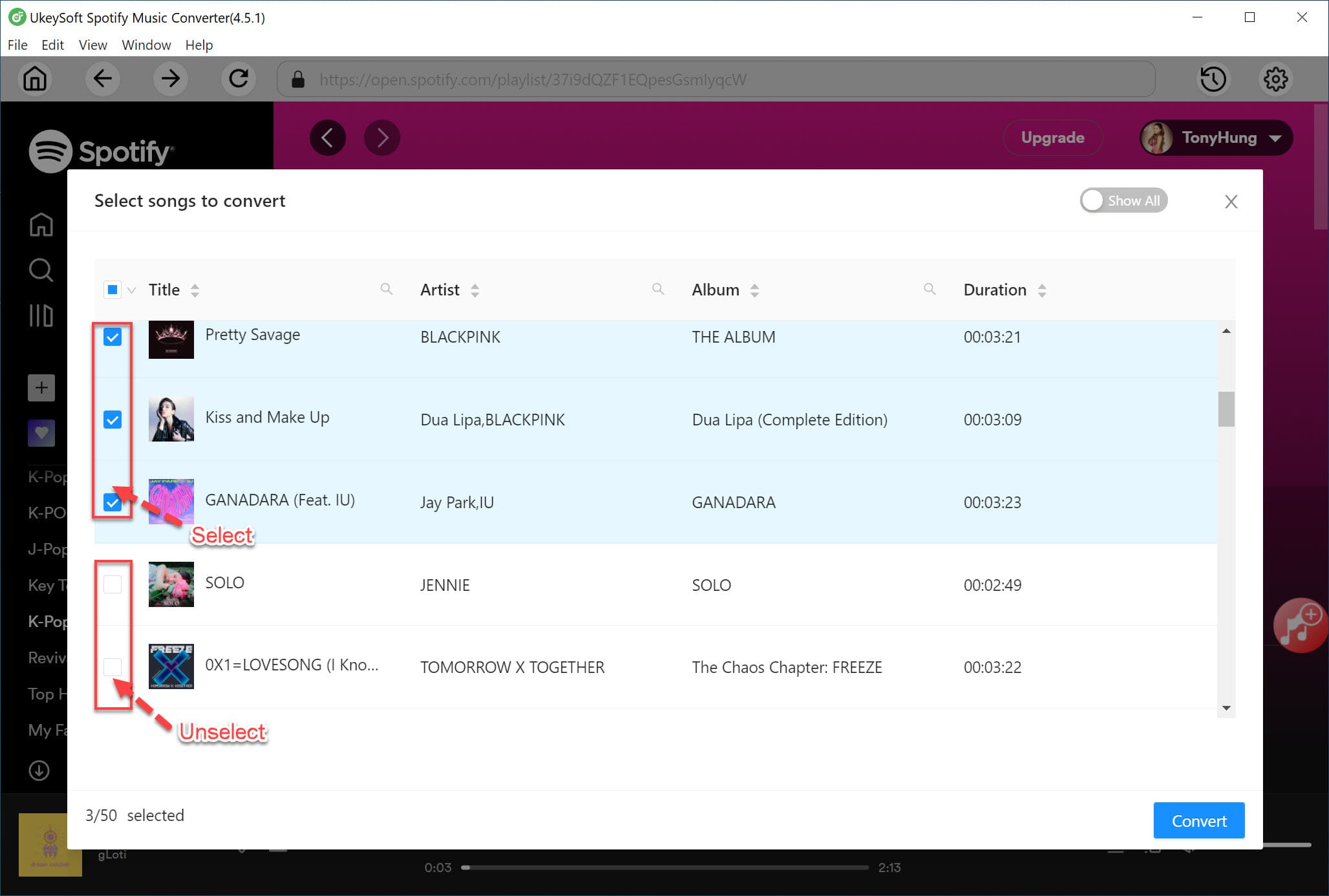
Once added Spotify songs successfully, double check and confirm and target songs.
Step 4. Start Downloading Music from Spotify Web Player
Click the "Convert" button. UkeySoft Spotify Music Converter will download and convert the Spotify tracks into MP3 files.
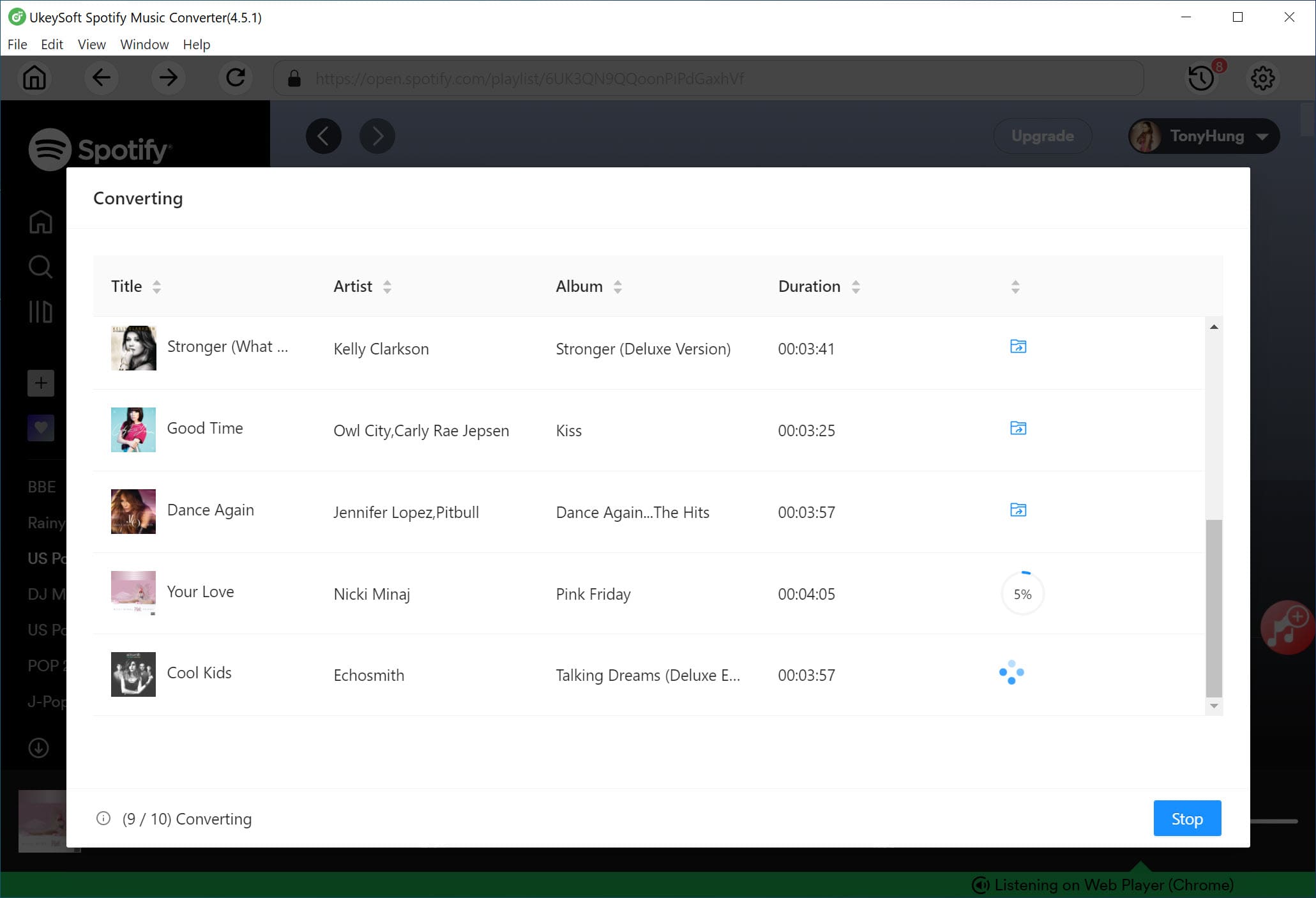
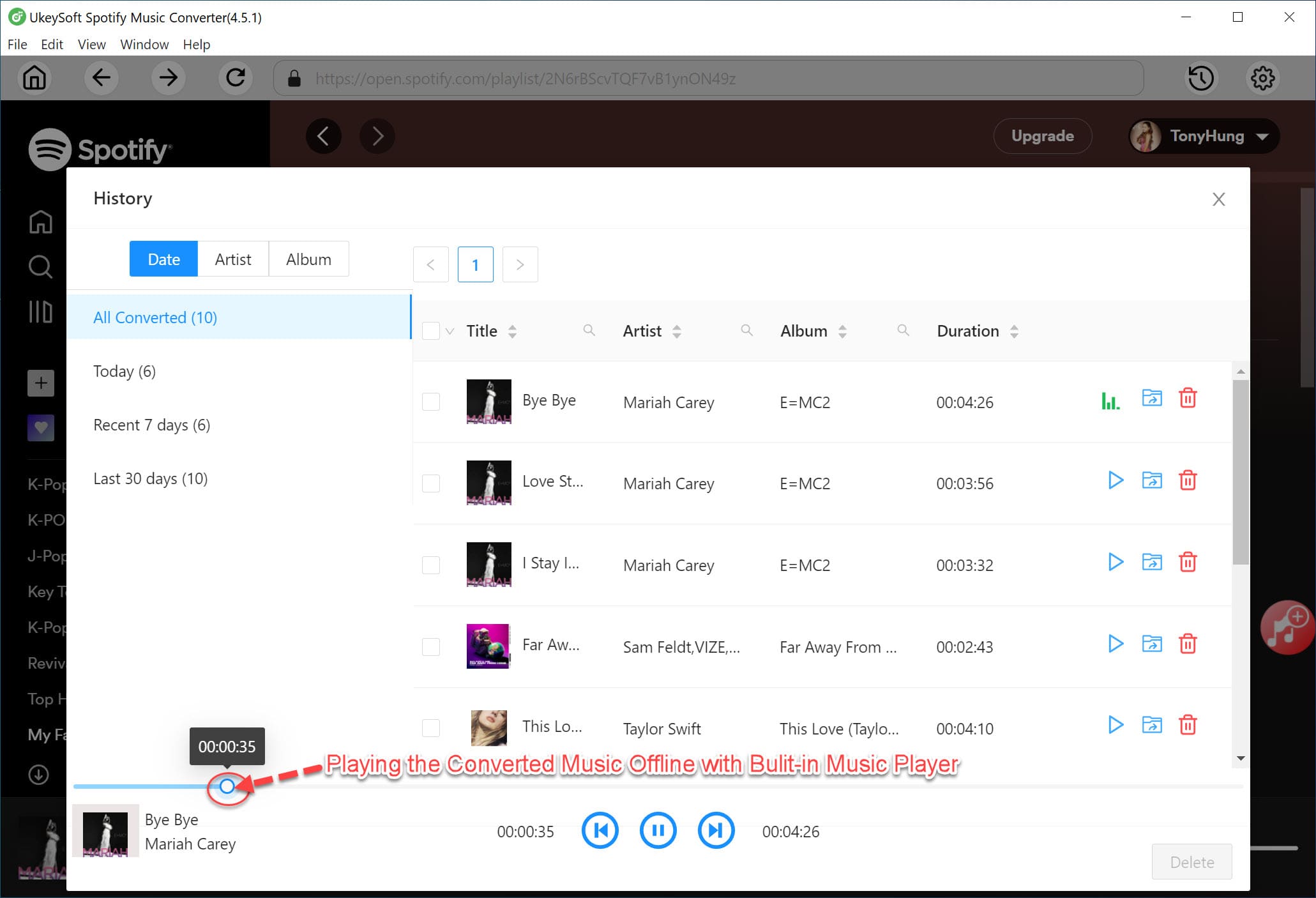
After conversion, click the "Clock" icon or open the output folder to get the output Spotify songs. You can now enjoy your local Spotify music music offline using the built-in music player, without worrying about Spotify Web Player not working issues again!
Part 4. FAQs About Spotify Web Player
1. Does Spotify Web Player work on Chrome?
Yes. Spotify Web Player supports Chrome (running Chrome 80 or above), but browser cache, extensions, or outdated versions can cause Spotify web player not working issues. So, it is necessary to updated Chrome and clear cache data, cookies, etc.
2. Why does the Spotify Web Player stop playing music?
It could be due to poor internet, corrupted cache, disabled DRM, VPN interference, outdated browser, or extensions blocking Spotify scripts. To fix it, refer to above solutions.
3. Why does the Spotify Web Player keep freezing?
Freezing occurs due to poor network, overloaded cache, conflicting extensions, low system memory, or even browser bugs. Clearing data or switching browsers typically can fix the issue.
4. Can you download songs on Spotify Web Player?
No. Spotify only lets you stream music content through the Spotify web player. To download Spotify songs, you need to use the Spotify desktop app or mobile app, with a Premium account. But, you may also utilize a third-party tool like UkeySoft Spotify Music Converter. The software has embedded the Spotify web player, which allows you to download songs, albums, playlists and podcasts from built-in Spotify web player without Premium, and Spotify app!
Part 5. Final Words
Overall, the Spotify Web Player not working problem can happen for many different reasons, but nearly all issues can be fixed using the steps in this guide. From updating the browser to clearing cache, enabling DRM, or disabling extensions, these solutions will help you fully fix Spotify Web Player not working issues on any browser. You can also try the ultimate guide, by using the third-party tool - UkeySoft Spotify Music Converter. It provides a built-in Spotify Web Player inside the program, allows to download Spotify songs & playlists to MP3 320kbps with a Free account. S, you can keep Spotify music forever and enjoy them offline anytime, anywhere!
Fix Spotify Web Player Not Working

Justin Sabrina has always had great enthusiasm for writing, programming and web development. He likes writing about software and technology, his works are featured on some tech blogs or forums like Tom's Hardware, CNET, etc.
 English
 Arabic
 Chinese (Simplified)
 Chinese (Traditional)
 Croatian
 Czech
Czech Danish
 Dutch
Dutch Estonian
 Finnish
 French
 German
 Greek
Greek Hebrew
 Hindi
Hindi Hungarian
 Indonesian
 Italian
 Japanese
 Kazakh
 Korean
 Malay
Malay Norwegian
 Polish
 Portuguese
 Romanian
 Russian
 Slovenian
 Spanish
 Swedish
 Thai
Thai Turkish
 Ukrainian
 Vietnamese







Comments are off!