By
ChesterUpdated on July 24, 2026
Summary
What is Spotify AI DJ mode and how do you use it? In this article, we’ll explain everything you need to know about Spotify’s AI DJ. Plus, we’ll show you a simple way to download your Spotify playlists as MP3 files, so you can listen offline anytime, anywhere, without any restrictions.
Spotify keeps getting better at helping you find music you love—with personalized playlists like Discover Weekly, Daily Mix, and On Repeat, all based on your listening habits. Now, there’s something new and even more exciting: Spotify’s AI DJ.
Think of it like your own personal DJ who knows your taste in music and plays songs just for you. It’s like having a smart music buddy who picks the perfect tracks to match your mood and style. With AI DJ, Spotify uses advanced tech and personalization to take your music experience to the next level. In this guide, we’ll show you everything you need to know about Spotify’s AI DJ. Let’s jump in!
CONTENTS
Part 1. What is Spotify's AI DJ?
What is Spotify's AI DJ?
Spotify’s AI DJ is a smart feature that creates a personalized music experience just for you. It uses Spotify’s advanced tech and AI from OpenAI to recommend songs based on your taste. It even talks to you with a realistic voice, like a real DJ who knows your favorite music.
How Does It Work?
AI DJ looks at what you listen to—your favorite artists, songs, and genres—and puts together a playlist you’ll probably love. The more you use it, the better it gets at understanding your taste. You can even give feedback to help it improve your mix.
Where Can You Find It?
AI DJ is available for Spotify Premium users in countries like the U.S., Canada, the UK, and Ireland. To use it, make sure you have a Premium account and open the Spotify app on your iPhone or Android. Once you’ve started using it on mobile, you can also listen to it on your computer.
How to Use It Best?
For the smoothest listening, turn on the Crossfade feature in Spotify settings. This makes the songs blend into each other, keeping the vibe going while AI DJ keeps the music flowing. It’s a great way to enjoy a nonstop, custom-made playlist.
Part 2. How to Use AI DJ on the Spotify Mobile App
To begin, you can turn on AI DJ using the Spotify app on your Android or iPhone. Here’s how:
Step 1.
Open the Spotify app on your phone.
Step 2.
On the home screen, tap on Music at the top under your Music Feed.
Step 3.
Find the DJ card and tap Play.
Step 4.
Spotify will then start playing a mix of songs just for you—some from your library, others newly picked based on your taste.
Step 5.
What makes AI DJ special is that it also talks to you, giving cool info and fun facts about the music and artists you're hearing.
Step 6.
Not feeling the current mix? Just tap the DJ icon in the bottom right to switch things up—Spotify will move you to a different artist, genre, or vibe.
Part 3. How to Access AI DJ on Spotify Desktop
Once AI DJ is available in your library, you can continue listening on your computer. Here’s how to use it on Windows or Mac:
Step 1.
Open the Spotify desktop app.
Step 2.
In the left-hand menu, scroll through your library and find DJ.
Step 3.
Click on DJ to start playing your personalized mix.
Step 4.
Want to switch things up? Click the DJ button in the bottom right corner. The DJ will offer new songs based on your listening habits.
Step 5.
To stop using AI DJ, just play any other music from your library or a different playlist.
Part 4. What to Do if AI DJ Isn’t Showing Up
Normally, you can find the AI DJ in the Music Feed at the top of the Spotify mobile app’s home screen. But if it’s not showing up, here are a few possible reasons:
It’s Not Available in Your Country Yet
AI DJ is currently only available in certain regions like the U.S., Canada, UK, and Ireland. If you’re outside these countries, the feature might not be available just yet.
You Need a Premium Account
AI DJ is only for Spotify Premium users. If your account is from a supported country but you still don’t see it, make sure your subscription is active. You can double-check your account type in your Spotify Account Overview.
Outdated App Version
Make sure you’re using the latest version of the Spotify app. Go to the App Store (iOS) or Google Play Store (Android) and update Spotify if needed.
Still Not Showing Up? Try These Fixes:
Enable AI DJ in Settings:
Step 1.
Open the Spotify app on your phone.
Step 2.
Tap the Settings icon (top right).
Step 4.
Look for AI DJ and make sure the toggle is turned on.
Log Out and Back In:
Step 1.
Open the Spotify app.
Step 3.
Scroll down and tap Log out.
Step 4.
Log back in with your Premium account.
Step 5.
Check if the Music Feed at the top of the homepage now shows AI DJ.
Part 5 Common Questions About Spotify AI DJ
Q1. Is Spotify AI DJ available for everyone?
No, AI DJ is only available to Spotify Premium users in the U.S., Canada, UK, and Ireland for now.
Q2. Can I use AI DJ offline?
No, you need an internet connection to use AI DJ. It streams music and adjusts based on your listening, so it won’t work offline.
Q3. Does AI DJ work with all kinds of music?
AI DJ works with many genres, but how well it works depends on your listening history. It’s made to recommend music you’ll like, but it may not be perfect for every genre or person.
Q4. Can I use AI DJ with podcasts or audiobooks?
No, AI DJ is only for music. It doesn’t work with podcasts or audiobooks, but Spotify still gives you personalized suggestions for those separately.
Bonus Tip: Easy Way to Download Spotify Playlists to MP3 [Hot]
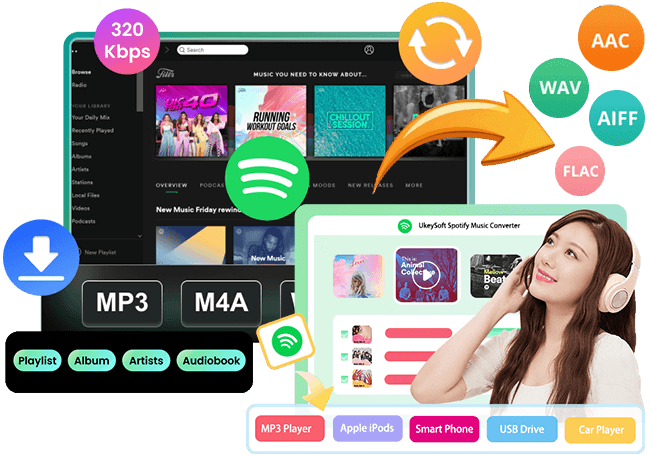
Want to save your favorite Spotify songs, albums, and playlists even without a Premium account? UkeySoft Spotify Music Converter is the all-in-one tool you need. It works as a Spotify to MP3 converter, playlist downloader, and even a built-in music player. Whether you're using Spotify Free or Premium, this powerful software lets you download music in bulk and convert it to popular formats like MP3, M4A, WAV, FLAC, AAC, or AIFF for easy offline listening.
Furthermore, UkeySoft also supports batch downloads and runs up to 16X faster by default. Plus, your downloaded songs keep all the important details such as title, artist, album, and cover art. It’s also worth to mention its built-in Spotify web player, you can browse, download, and play music in one place, there is no need to install the Spotify app. In all in, UkeySoft is a simple and convenient way to enjoy your favorite music anytime, anywhere.
UkeySoft Spotify Music Converter
- Download songs/playlist/albums from Spotify with Free account.
- Convert Spotify playlist to MP3, M4A, AAC, FLAC, WAV, AIFF.
- Retain Spotify songs with original music quality and ID3 tags.
- Batch download Spotify songs at 16x faster speed.
- Built-in Spotify web player, no need to install Spotify app.
- Play Spotify tracks offline on any device.
- Works seamlessly on Windows and Mac.
Tutorial: How to Download Spotify Playlists to MP3
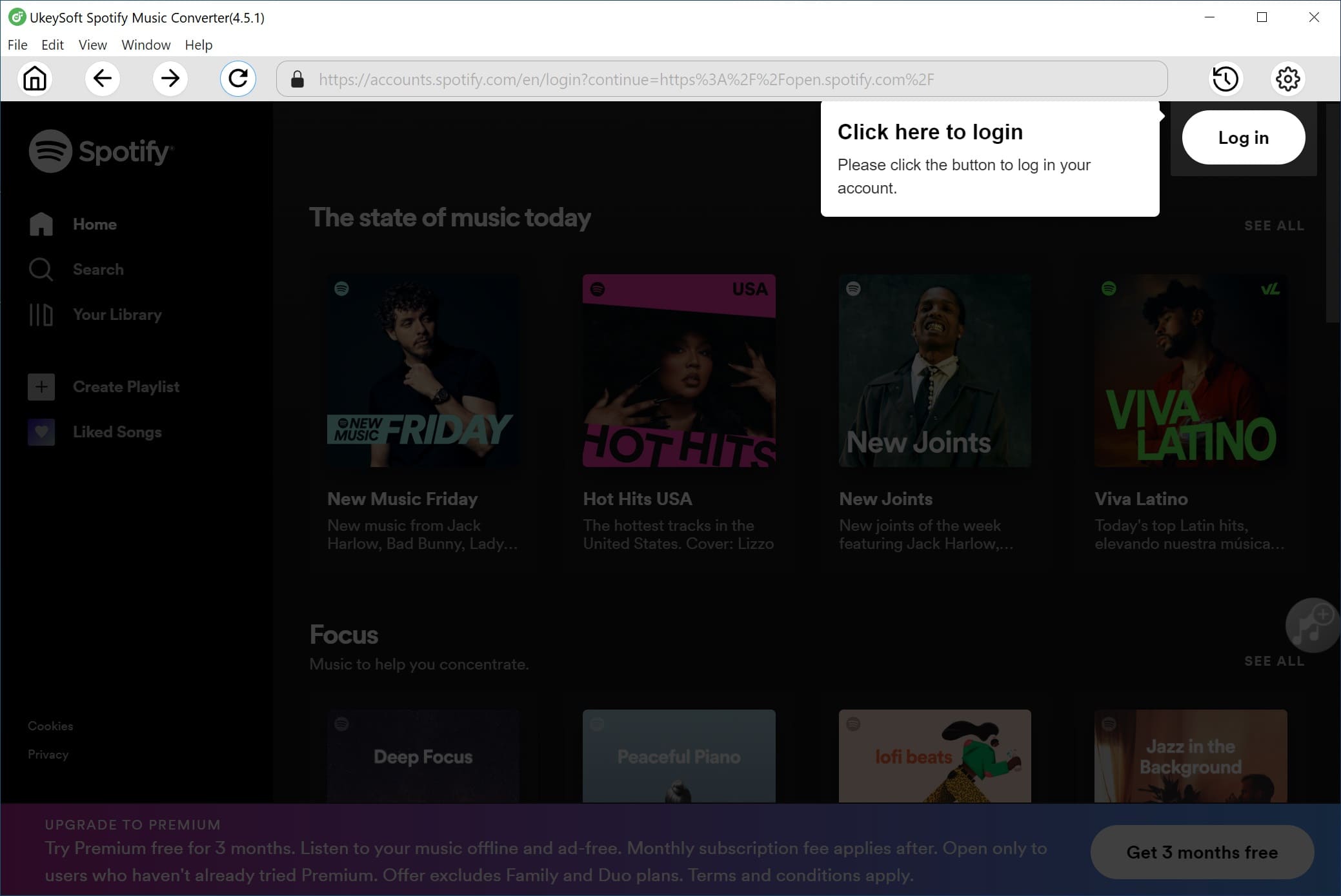
Step 1. Open UkeySoft and Sign in to Spotify
Download and install UkeySoft Spotify Music Converter for Windows or Mac. Once installed, launch the program and log in to your Spotify account through the built-in web player.
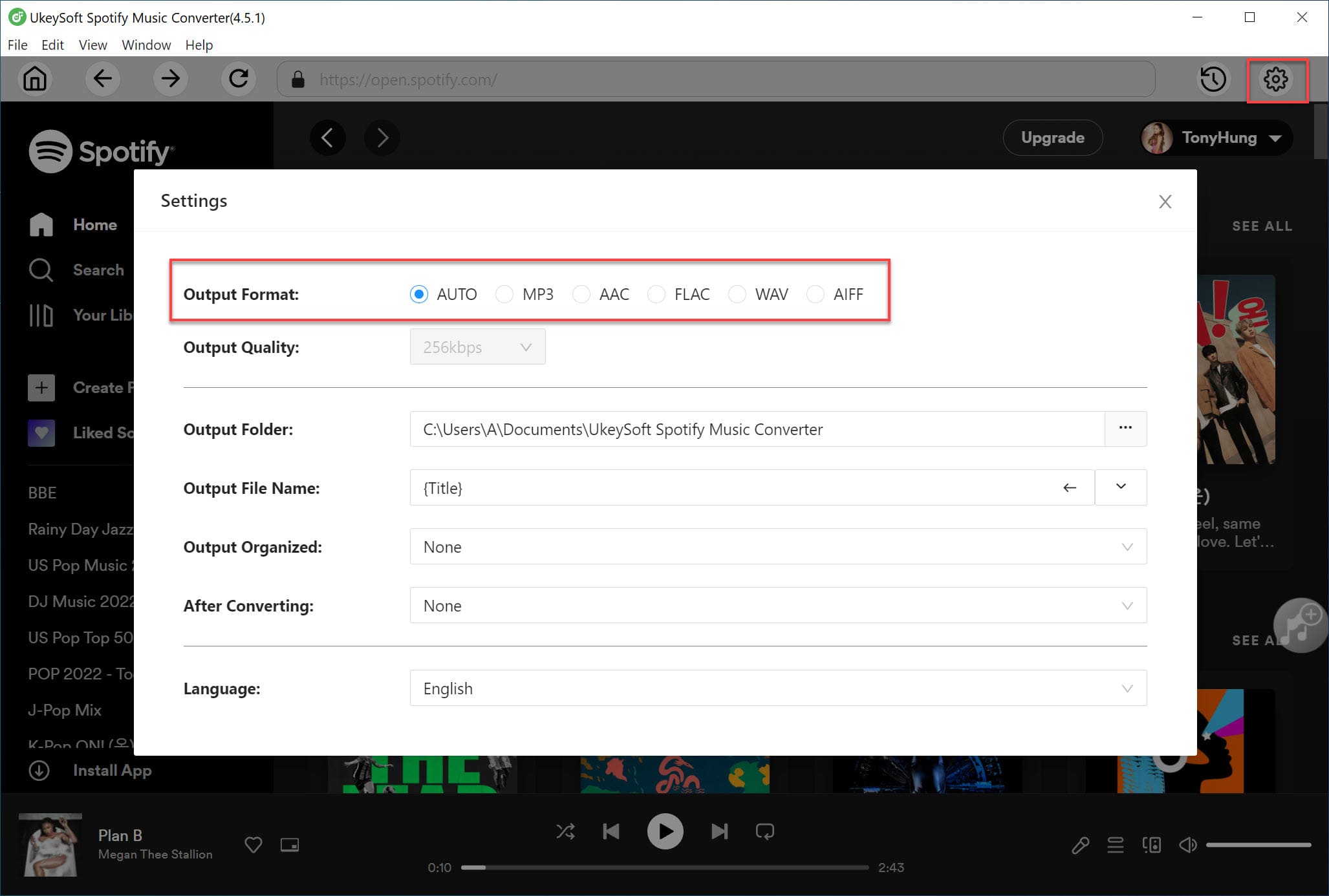
Step 2. Set Output Format to MP3
Click the gear icon (Settings) in the top-right corner. From there, choose MP3 as your output format. You can also adjust other settings like quality, sample rate, and output folder if needed.
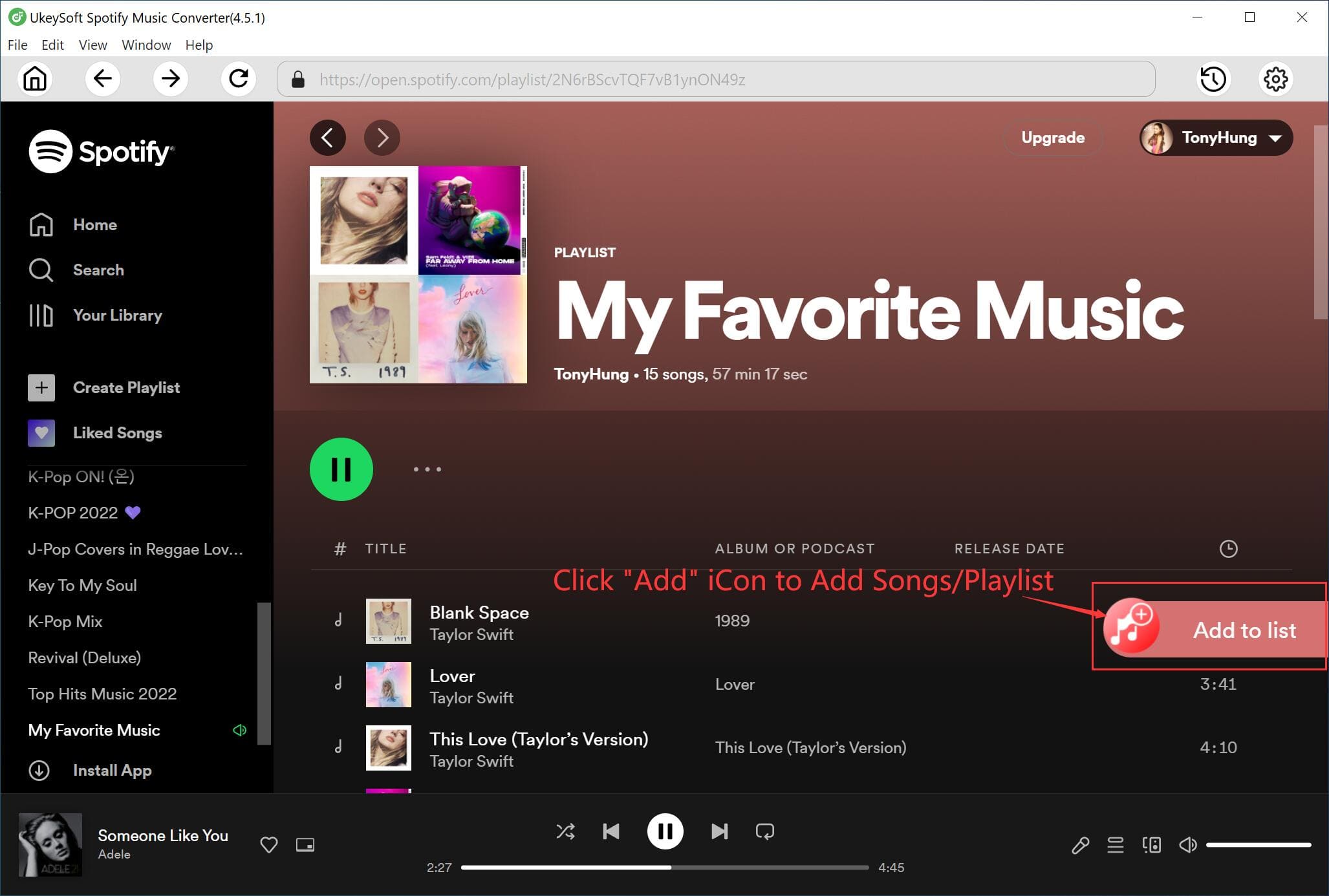
Step 3. Add Spotify Songs, Albums, or Playlists
Browse and open the playlist or album you want to download. Then click the “+” icon. UkeySoft will automatically load and list all the songs for conversion.
You can uncheck any songs you don’t want to include.
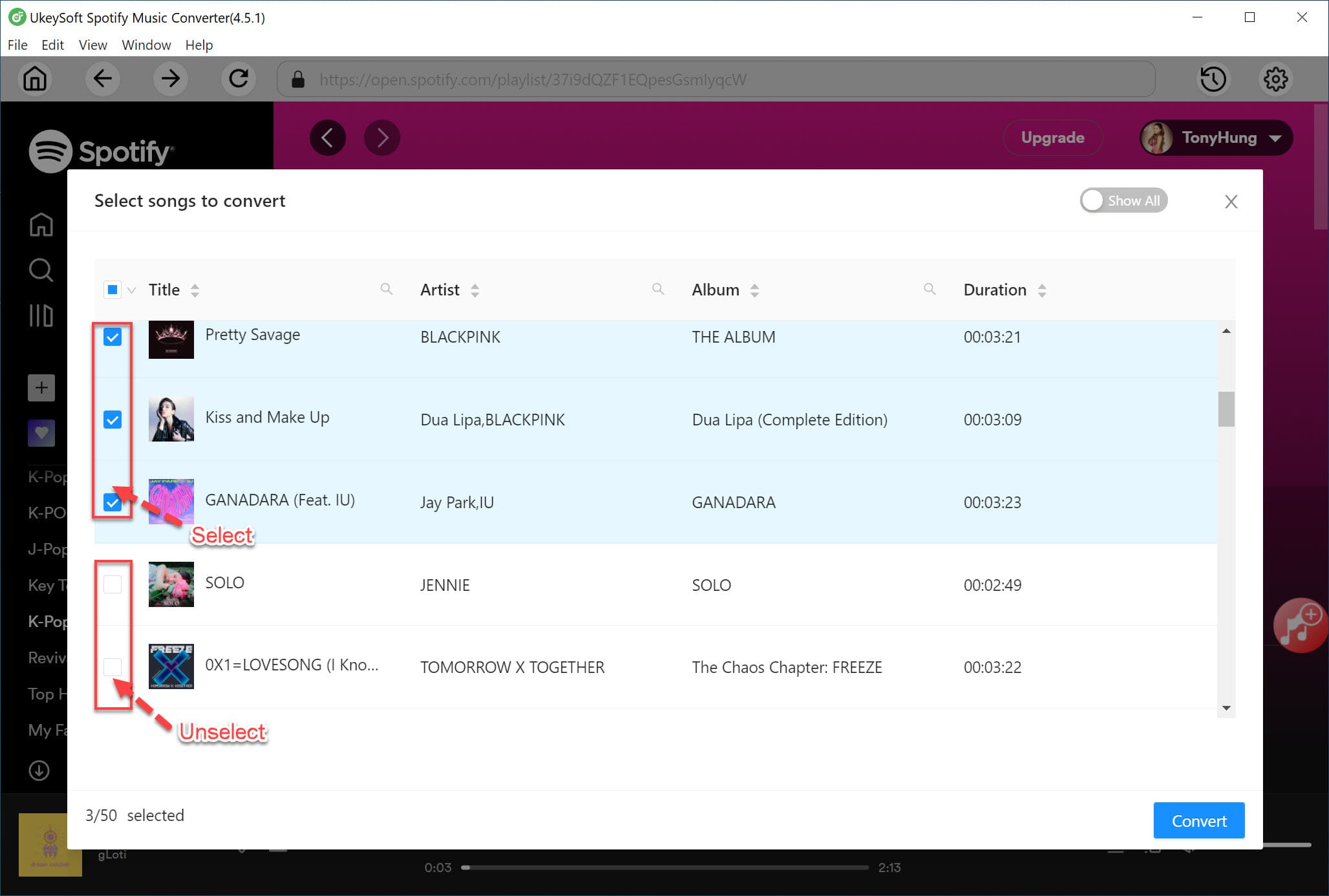
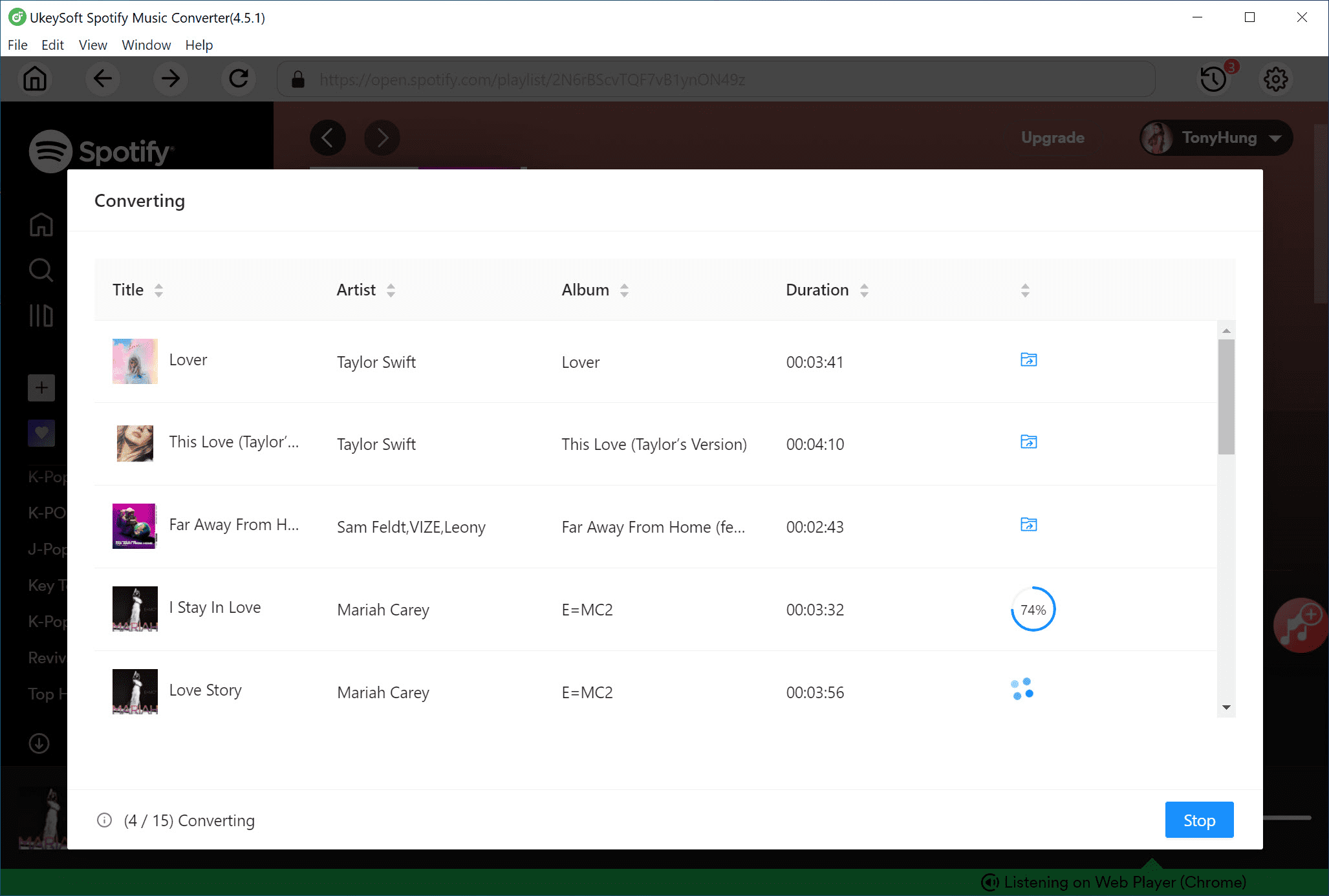
Step 4. Convert Spotify Music to MP3
Click the Convert button to start downloading your selected Spotify tracks. UkeySoft converts music at up to 16X speed, so the process is quick and smooth.
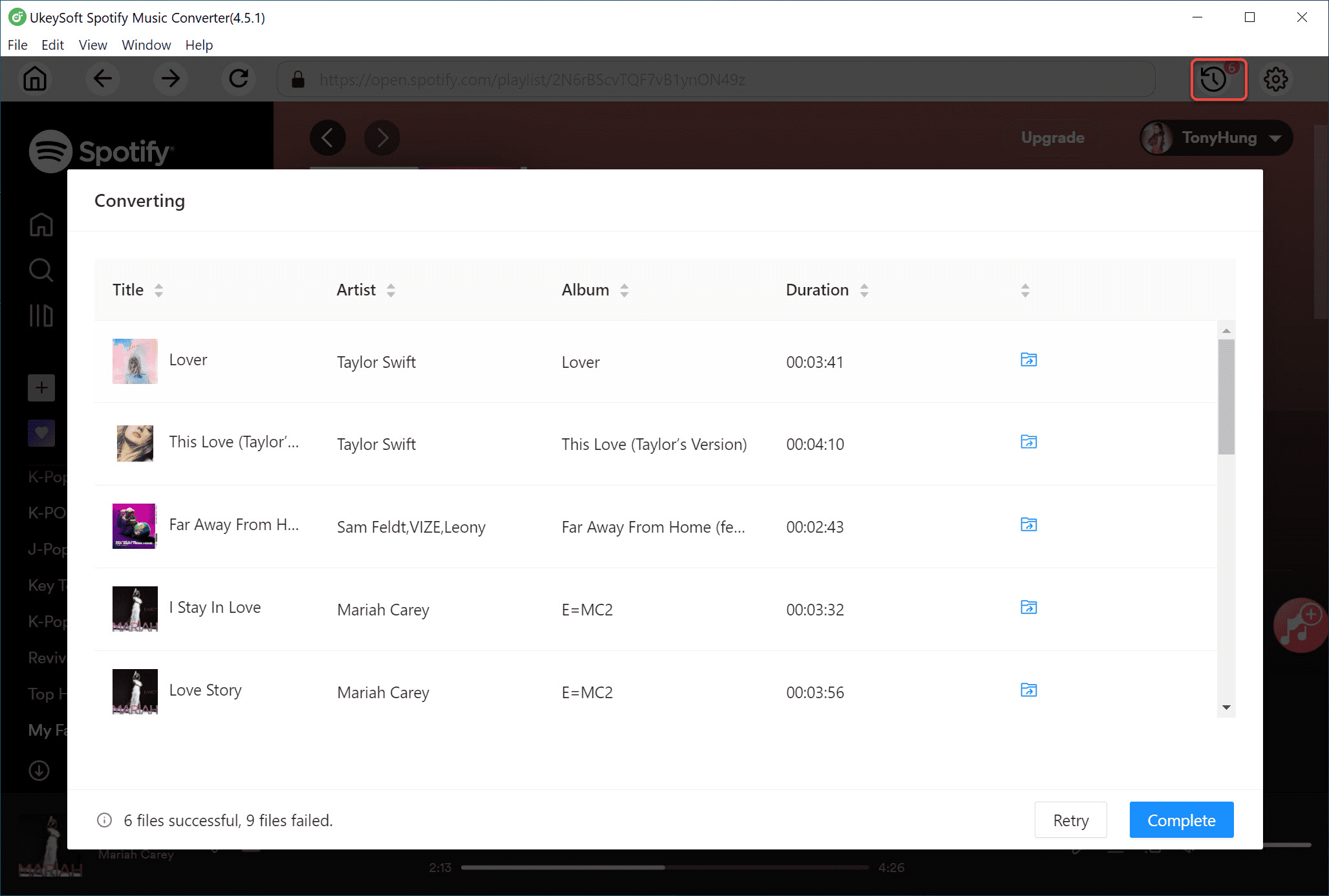
Step 5. Find Your Downloaded Songs
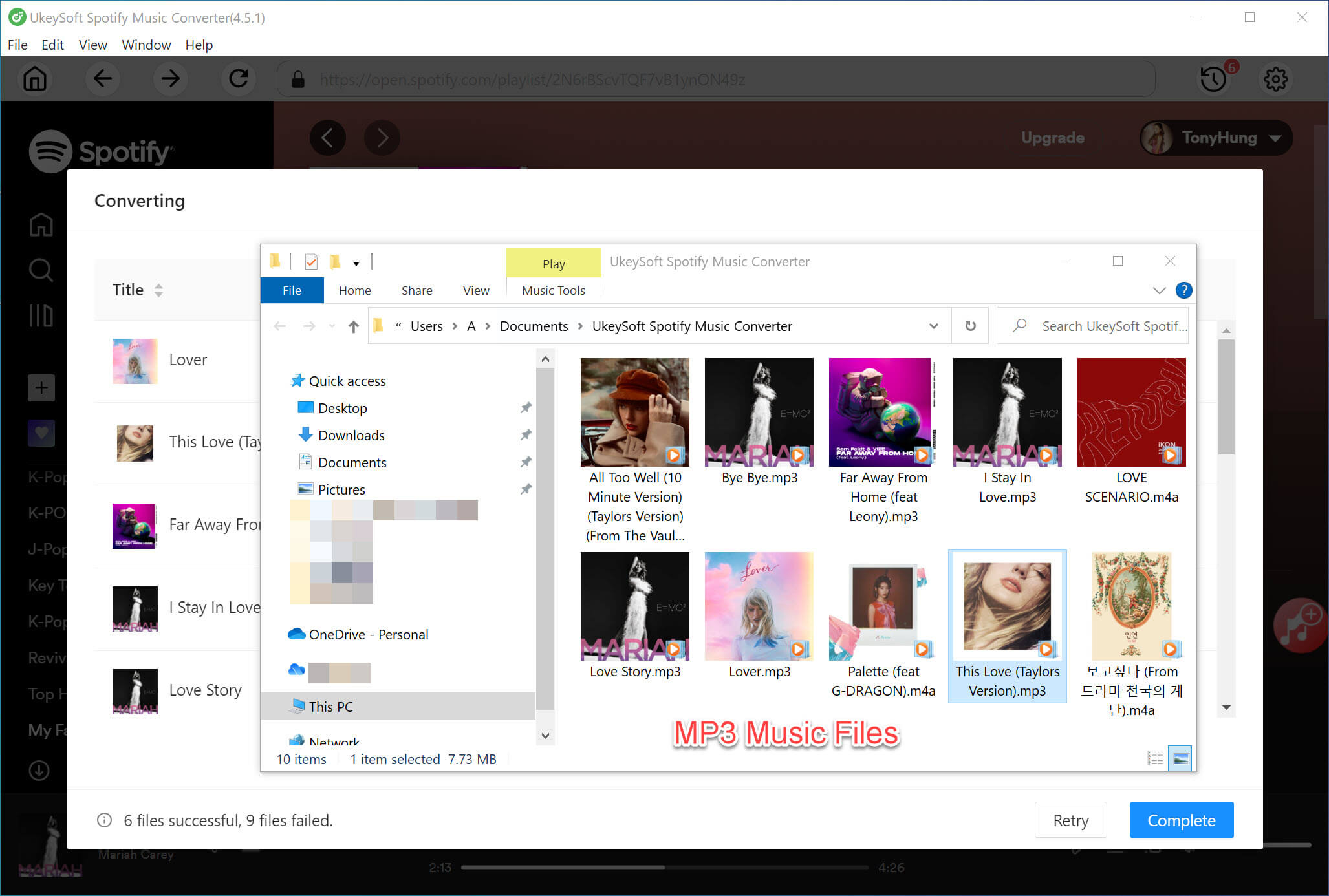
Once the conversion is done, click “Output Folder” to open the location where your MP3 files are saved.
Now you can enjoy your Spotify music offline without needing the Spotify app. Play your songs on any device—like MP3 players, iPhones, Android phones, PS4, USB drives, and more!
Conclusion
Spotify's AI DJ uses smart tech to learn your music taste and play nonstop mixes made just for you and perfect for any mood or moment. If you find a playlist you love and want to keep it, UkeySoft Spotify Music Converter lets both Free and Premium users download songs, albums, and playlists as MP3 files for offline listening. It’s easy to use and works without the Spotify app or internet. Just pick your tracks, convert them, and enjoy your music anytime, anywhere!
Note
The free trial version of UkeySoft Spotify Music Converter allows you to convert the first 3 minute of each audio. You can buy the full version to unlock this limitation.
Tip: System Requirements:
Windows 7 or later on 64bit required

Chester has always had great enthusiasm for writing, programming and web development. He likes writing about software and technology, his works are featured on some tech blogs or forums like Tom's Hardware, CNET, etc.
 English
 Arabic
 Chinese (Simplified)
 Chinese (Traditional)
 Croatian
 Czech
Czech Danish
 Dutch
Dutch Estonian
 Finnish
 French
 German
 Greek
Greek Hebrew
 Hindi
Hindi Hungarian
 Indonesian
 Italian
 Japanese
 Kazakh
 Korean
 Malay
Malay Norwegian
 Polish
 Portuguese
 Romanian
 Russian
 Slovenian
 Spanish
 Swedish
 Thai
Thai Turkish
 Ukrainian
 Vietnamese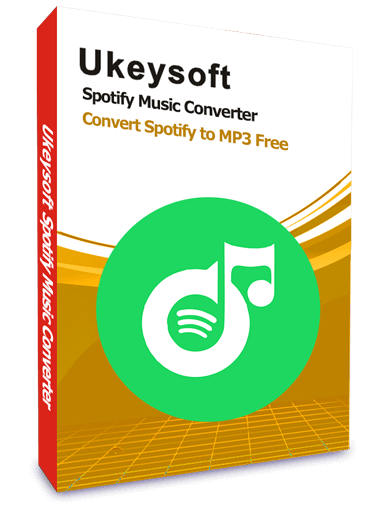




Comments are off!