By
Justin SabrinaUpdated on July 31, 2026
Summary
Want to achieve Spotify Premium plan cancellation? This post will guide you on two ways to easily cancel Spotify Premium on the official app and website! You can even keep Spotify songs forever even without a Premium account!
"How do I cancel my Spotify Premium subscription?"
Spotify Premium offers a great music experience like ad-free, offline streaming, high quality and unlimited skips, etc. If you are new to Spotify, you are able to get Spotify Premium for free and enjoy 1-month Premium features without paying! But you might want to cancel your Spotify Premium subscription for some reasons, such as saving bills, switching to another music platform, or your Spotify Premium free trial has expires, etc.
But no matter the reason, this article is all you need! Here we'll show you the detailed guide on how to cancel Spotify Premium through official app and web player. Remember, if you cancel your Spotify Premium plan, the downloaded music tracks will be removed from your devices, and offline playback function will no longer be available. Don't worry, you will get a powerful Spotify music downloader, which enables you to download high-quality Spotify music without Premium! Let's get started!
CONTENTS
Part 1. Cancel Spotify Premium on Spotify App
To cancel Spotify subscriptions, the simplest way is through the Spotify app on your iPhone, iPad, or Android. It's important to note that unsubscribing from Spotify Premium will mean losing all Premium features, such as ad-free music, offline downloads, and unlimited skips. If this doesn't bother you, you can follow below steps to cancel Spotify Premium directly through the Spotify app.
Step 1.
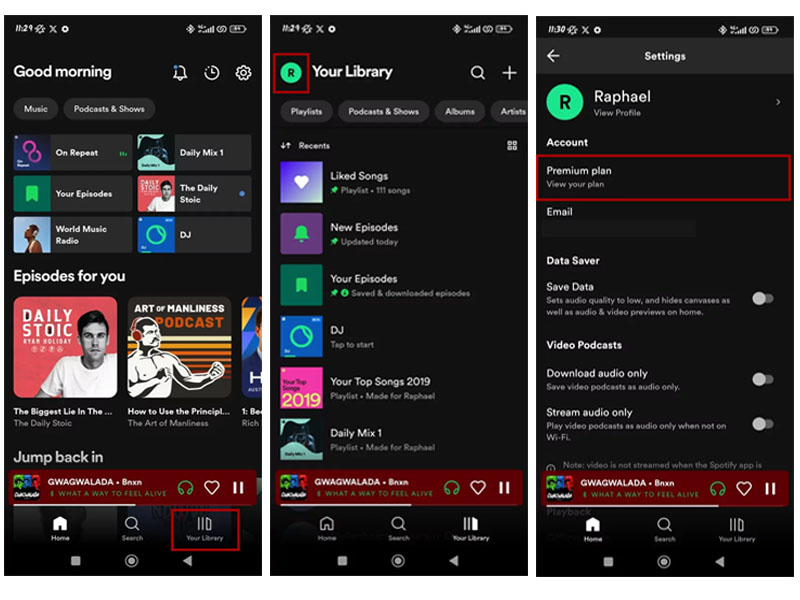
Open the Spotify app on your Android or iOS device. Tap "Your Library" at the bottom of screen.
Step 2.
Tap your name icon in the upper left corner and select "Premium plan" option.
Step 3.
Tap "See available plans" to view your plan details.
Step 4.
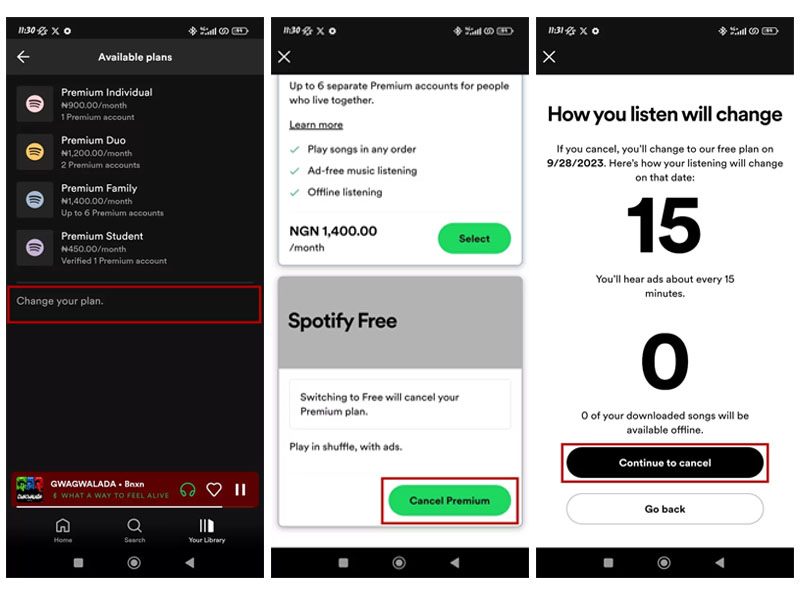
Tap "Change your plan" at the bottom. Scroll down and click "Cancel Premium".
Step 5.
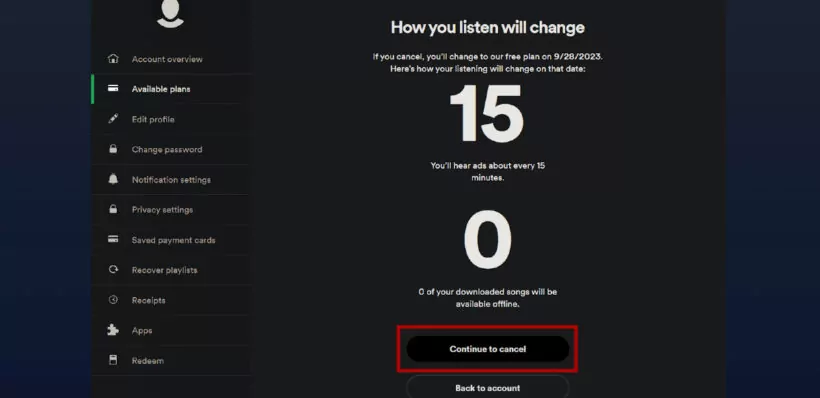
Click "Continue to cancel" and confirm your decision by selecting Yes.
Part 2. Cancel Spotify Premium on Spotify Web Player
Question: "How do I cancel Spotify without the app?"
Answer: If you're on your computer and prefer listening to Spotify the Spotify Web Player, you can also cancel Spotify Premium from your browser. In fact, the process for Spotify cancellation is identical to the Spotify mobile app. Let's check the steps below:
Step 1.
Open your browser and go to the Spotify website. Log in to your Premium account.
Step 2.
Click on Profile at the top-right corner and choose "Account" from the dropdown.
Step 3.
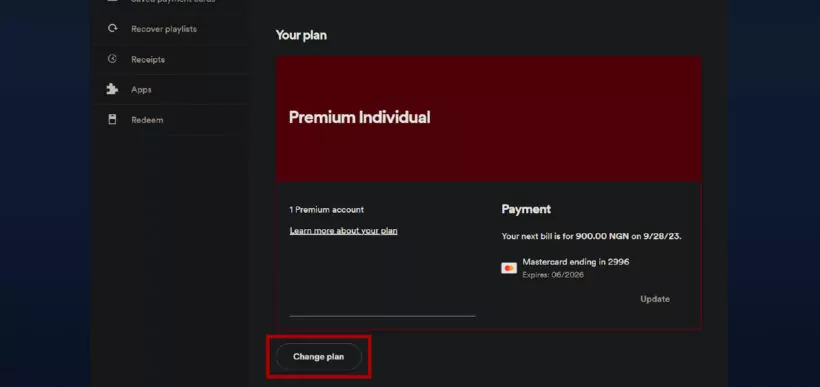
On the "Account Overview" page, scroll down to "Your Plan", and click "Change Plan".
Step 4.
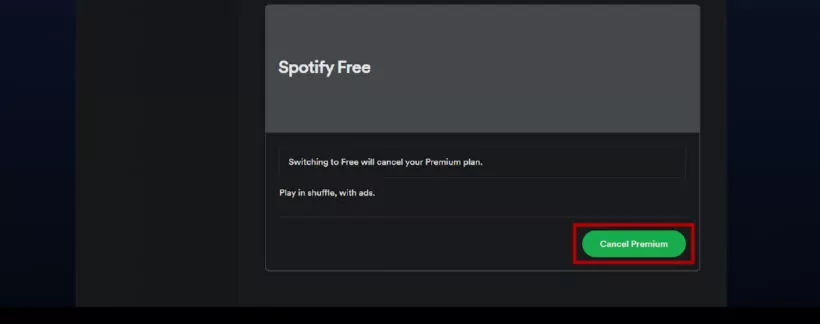
Select "Cancel Premium" in the page.
Step 5.
Click "Continue to cancel" to confirm your cancellation.
Part 3. Bonus: Keep Spotify Songs Forever After Cancelling Premium
As we mentioned above, once your subscription ends, you won't be able to skip any ads, download any single, access 320kbps high quality, and more. Instead, your account will drop back to the free tier, with basic features. To enjoy all Spotify Premium features without paying a monthly subscription, you can consider using a third-party Spotify music converter.
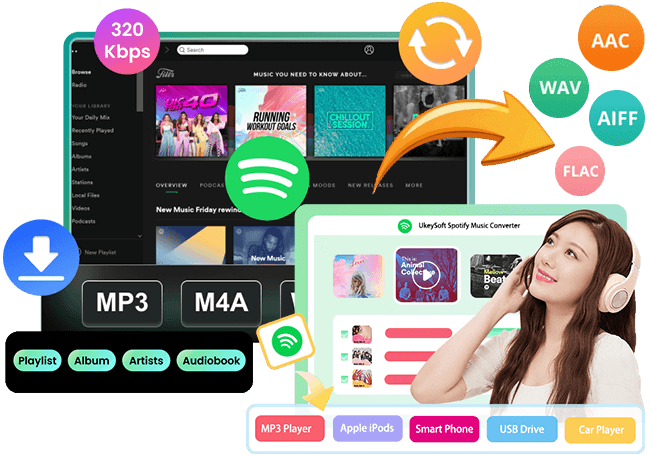
Here you meet UkeySoft Spotify Music Converter. This handy tool is well designed for all Spotify users, including Spotify Free or Premium. It allows you to download Spotify music in high-quality MP3 format (up to 320kbps) without a Premium subscription. Distinguished from other brands, the software integrates with the official Spotify web player, enabling your to access the whole music library without having the Spotify app. In addition to MP3, it also offers multiple audio formats output, such as M4A, FLAC, AAC, WAV or AIFF. You can freely choose your preferred audio format, audio quality and output file name for your added Spotify songs/playlists/albums/podcasts! After which, you can still enjoy Spotify Premium benefits on your devices, like offline playback, ad-free listening, unlimited skips and more as you do on Spotify app!
UkeySoft Spotify Music Converter
- Built-in a Spotify web player to direct access the music library.
- Download Spotify songs playlists, albums, and podcasts without Premium.
- Multiple audio formats output including MP3, M4A, AAC, WAV, FLAC, AIFF.
- Keep full ID3 tags like title, cover, genre, album, artwork, artist, etc.
- Batch download Spotify songs/albums/playlists with up to 16X faster speed.
- Save Spotify music with lossless music quality, up to 320kbps bitrate.
- Save Spotify music forever with Premium and enjoy offline playback everywhere.
Step-by-Step Guide to Download Spotify Music for Free:
Tip: System Requirements:
Windows 7 or later on 64bit required
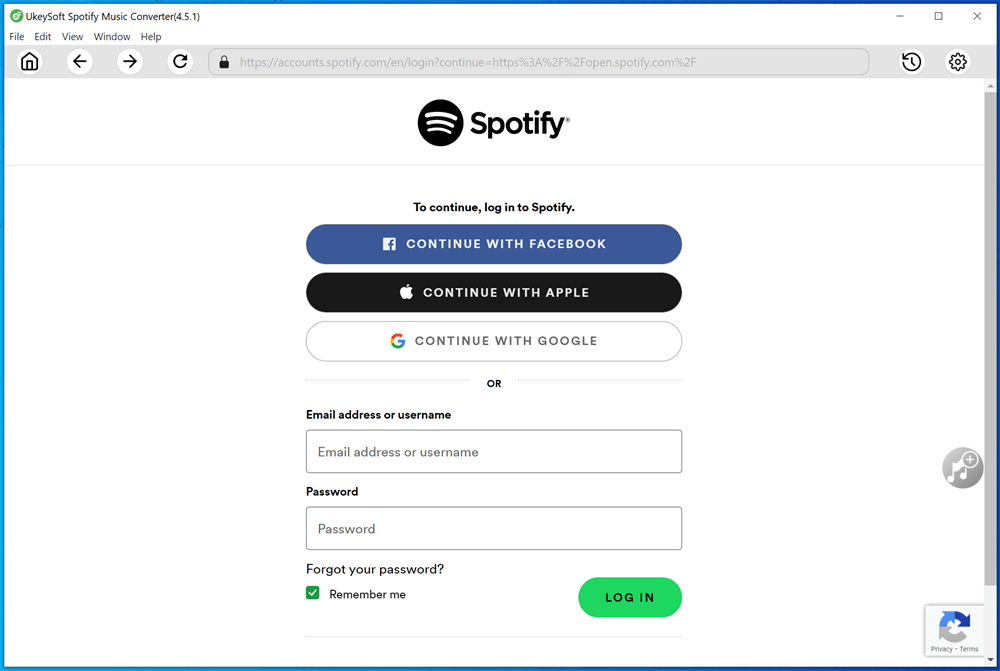
Step 1. Log In to Spotify Free Account On UkeySoft
After installing the UkeySoft Spotify Music Converter on your computer, open the program and log in to your Spotify free account within the program.
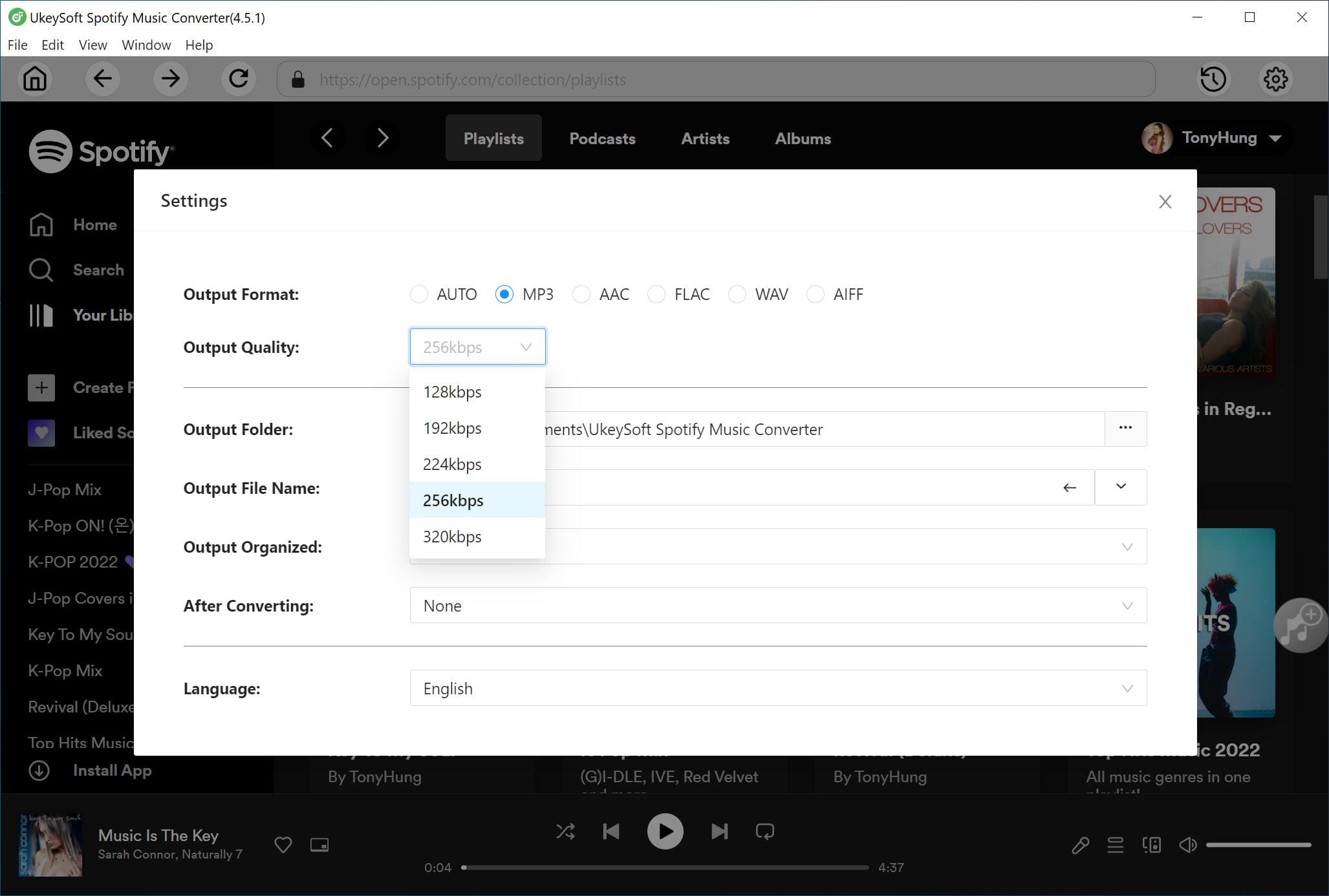
Step 2. Define Output Settings
Click the "Gear" icon to open the settings window and define the output audio paramenters. Select the output format (MP3, AAC, WAV, FLAC, etc.), output quality (up to 320kbps and 640kbps), and set the output folder.
Step 3. Add Spotify Songs/Playlists to Download
Choose the songs or playlists you want to download, and click the "+" icon in the right side.
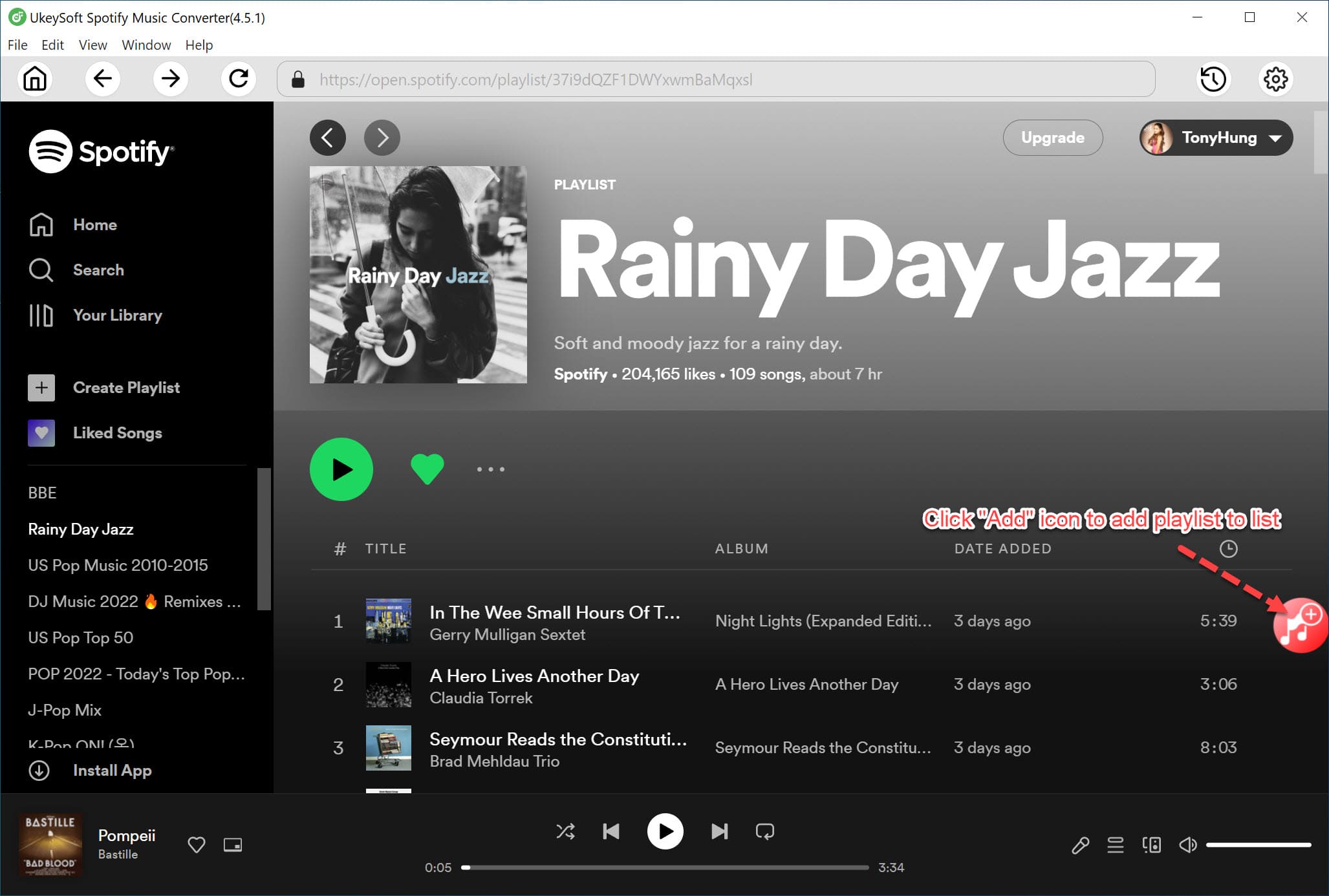
Once added the Spotify songs successfully, you'd better double check and confirm the selected Spotify songs you need.
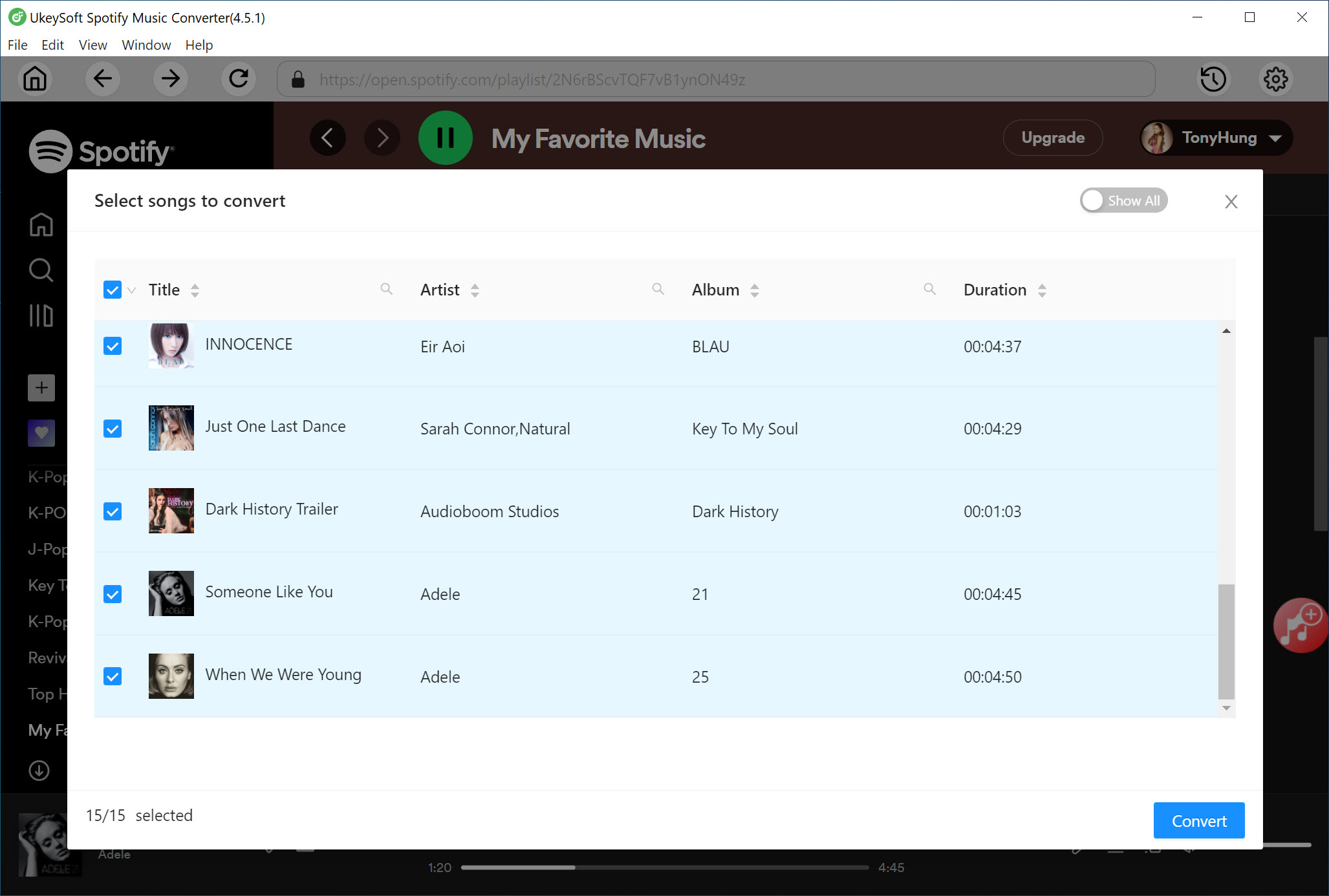
Step 4. Start Downloading Spotify Music for Free
Next, simply press on the "Convert" button to download and convert your selected Spotify songs to MP3 with high bitrate. The program runs at up to 16X faster, just wait a few minutes.
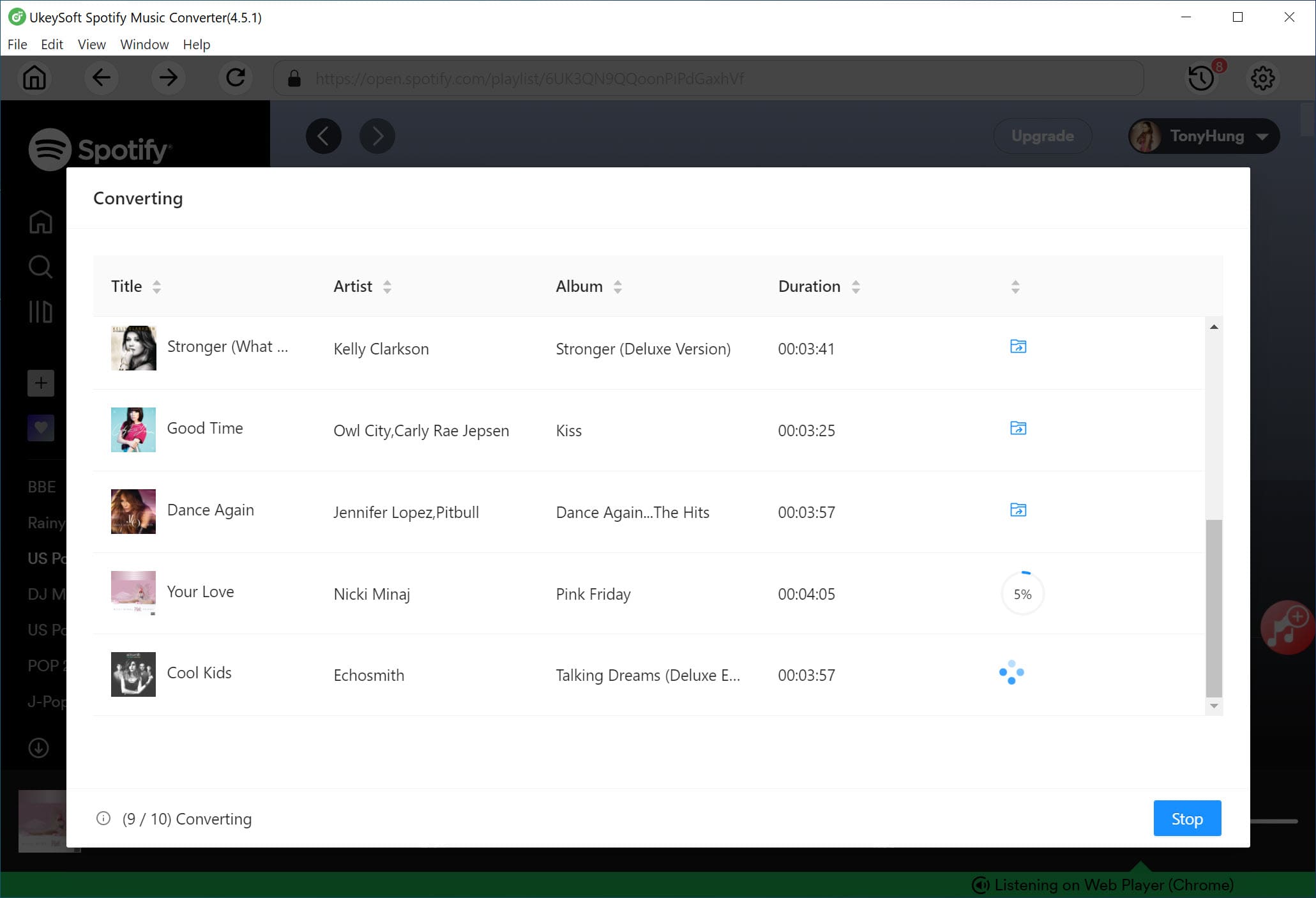
Step 5. Get the Output Spotify MP3 Files
Once completed, you can click the "History" to get output Spotify songs. You can now access to high-quality Spotify music files and enjoy offline playback for free.
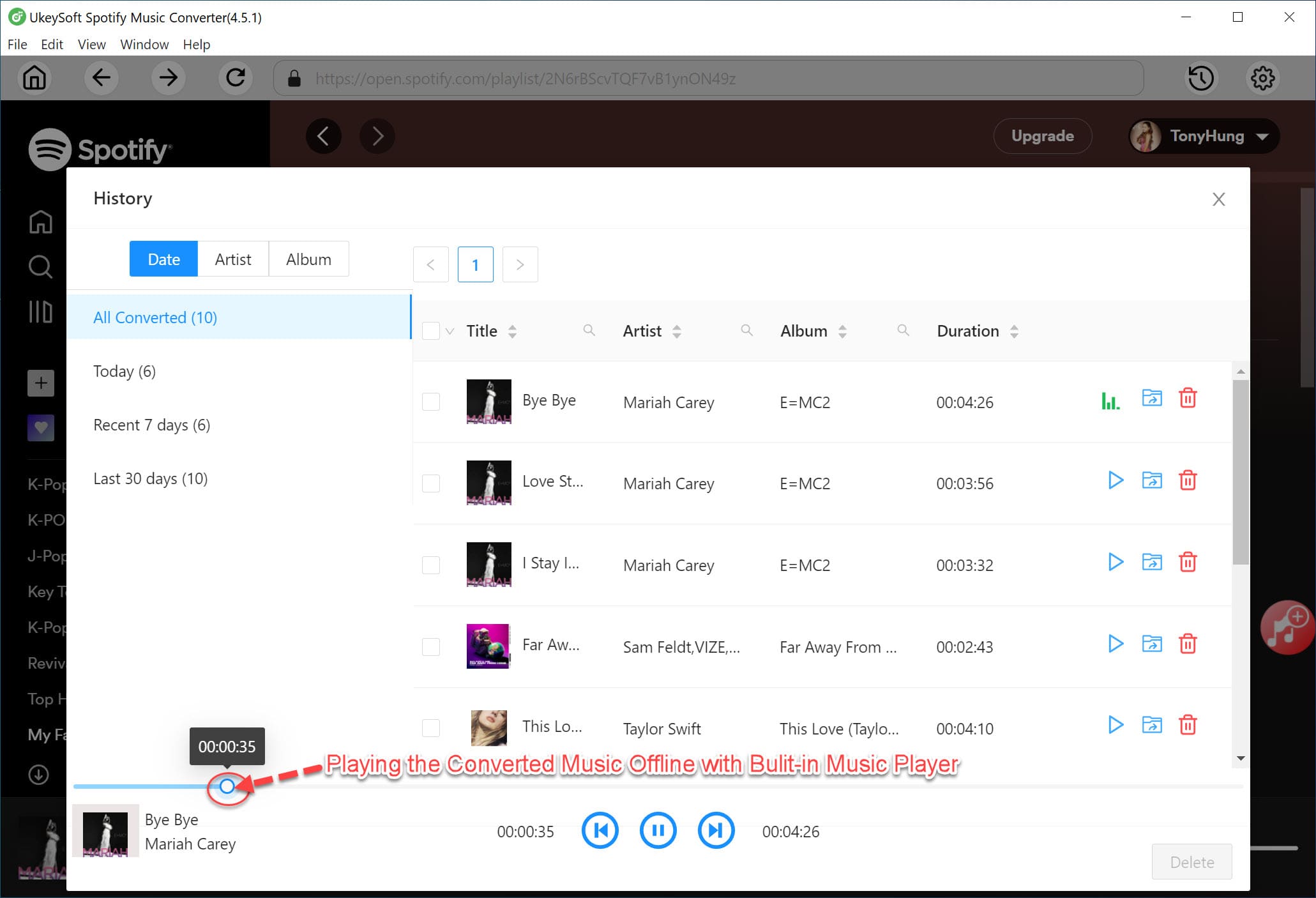
Part 4. FAQs About Spotify Premium
Q1. How do I cancel my Spotify after a free trial?
Answer: To cancel your Spotify Premium after a free trial, you can open your Spotify app or through the Spotify website. Simply follow the steps outlined above to unsubscribe from Spotify Premium.
Q2. How do I cancel Spotify without the app?
Answer: You can cancel Spotify Premium using a web browser on your computer by logging into your Spotify account and following the cancellation steps in your account settings. For more details, please return to Part 2.
Q3. How do I stop automatic payments on Spotify?
Answer: To stop automatic payments on Spotify, cancel your subscription from the Account Overview page on the Spotify website or app.
Q4. Can you instantly cancel Spotify Premium?
Answer: Yes, you can cancel your Spotify Premium subscription instantly. After canceling, you'll continue to have access to Premium features until the end of your billing cycle. From there, your account will revert to the free version.
Q5. Can you still use Spotify Premium after canceling?
Answer: You can use Spotify Premium features until the end of your current billing cycle after canceling. But if you want to enjoy Spotify Premium features for free lifetime, we suggest that you use a third-party tool like UkeySoft Spotify Music Converter. It allows you to download any music content from Spotify to your computer without a Premium account.
Conclusion
In short, cancelling Spotify Premium is a simple process whether you're using the mobile app, web player, or desktop version. If you want to keep Spotify songs forever without a subscription, try the UkeySoft Spotify Music Converter. It provides a fantastic way to download your Spotify music library without a Premium account, and export the music files as MP3s. Even if you cancel your Spotify Premium, you can still listen to high-quality Spotify music on any device offline without network!

Spotify Music Converter

Justin Sabrina has always had great enthusiasm for writing, programming and web development. He likes writing about software and technology, his works are featured on some tech blogs or forums like Tom's Hardware, CNET, etc.
 English
 Arabic
 Chinese (Simplified)
 Chinese (Traditional)
 Croatian
 Czech
Czech Danish
 Dutch
Dutch Estonian
 Finnish
 French
 German
 Greek
Greek Hebrew
 Hindi
Hindi Hungarian
 Indonesian
 Italian
 Japanese
 Kazakh
 Korean
 Malay
Malay Norwegian
 Polish
 Portuguese
 Romanian
 Russian
 Slovenian
 Spanish
 Swedish
 Thai
Thai Turkish
 Ukrainian
 Vietnamese









Comments are off!