-- Explore 10 ways to troubleshoot SoundCloud not working issues, and download SoundCloud music to MP3 to ensure a smooth offline listening experience.
The reason why SoundCloud is not working may be a weak connection, outdated app, server outage, cached data, browser settings, or regional availability. This guide provide 10 tested and effective solutions to fix SoundCloud not working issue cross iPhone, Android, PC, and Mac and enjoy a smooth music playback experience.
SoundCloud is a great platforms for free streaming and discovering music, podcasts, and audio content from creators around the world. During daily use, you might find that songs won't play, the app keeps crashing, tracks won't load, or playlists get stuck buffering. There are several reasons why SoundCloud isn't working, from SoundCloud's servers and the SoundCloud app itself to your device, or even regional restrictions.
If you are searching for reliable solutions to fix SoundCloud not working, you have come to the right place. In this post, we've sorted out top 10 fixes to resolve SoundCloud music not working issues. In addition, we'll also introduce the best alternative to SoundCloud App, called UkeySoft SoundClound Music Converter. It can help you download SoundCloud music to MP3 320kbps audios for offline listening in other music players and apps freely!
A poor or unstable internet connection is one of the most common reasons SoundCloud songs won't play. Before diving into more complex fixes, verify that your Wi-Fi or mobile data is working properly. What to do:
Open other apps such as YouTube, Netflix, Facebook, to check if it loads normally.
Switch between Wi-Fi and mobile data to see whether playback improves.
Restart your router if your Wi-Fi connection is slow or unstable.
Turn Airplane Mode on briefly, then turn it off to refresh your mobile connection.
If you're using a VPN or proxy, temporarily disable it and test SoundCloud again.
Fix 2 Check SoundCloud Server Status
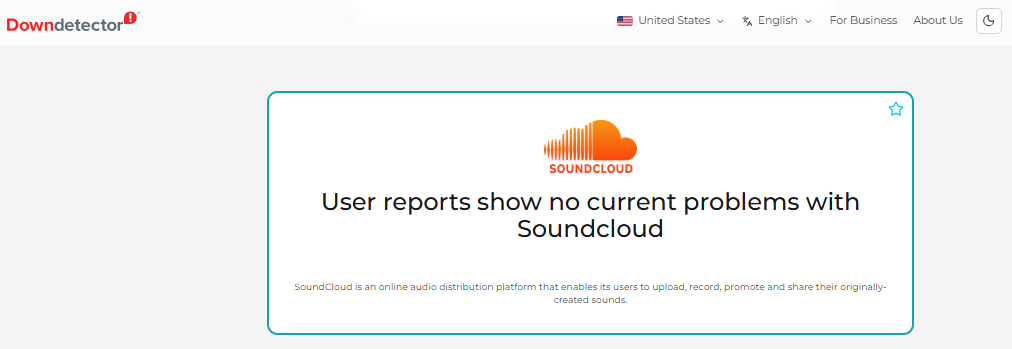
After ensuring your Internet connection is up to snuff, the next step is to check SoundCloud server status. Sometimes, SoundCloud experiences outages that prevent users from loading tracks, accessing their accounts, or streaming music. Therefore, you can look at SoundCloud's official Twitter or status page for any announcements. Or, you can go to a service like Downdetector to check whether SoundCloud is currently down.
If SoundCloud does indeed go down, there's nothing you can do except wait for the service to be restored.
Fix 3. Force Restart the SoundCloud App
If SoundCloud freezes, stops responding, or refuses to play tracks, the app may have encountered a temporary error. Force-restarting can refresh the session and clear any temporary data. Follow below steps to force close and reopen SoundCloud App on different devices.
On iPhone:
Swipe up from the bottom of the screen and pause to open the app switcher.
Find the SoundCloud app preview and swipe it upward to close it.
Wait a few seconds, then reopen SoundCloud from your home screen.
On Android:
Open your device's Settings and go to "Apps" or "Applications."
Find SoundCloud in the list and tap on it.
Tap "Force Stop" and confirm. Then reopen SoundCloud and test a track.
On Windows PC:
Close the SoundCloud app or browser tab.
If it remains unresponsive, press Ctrl + Shift + Esc to open Task Manager.
Select the relevant app or browser process and click "End task".
Reopen the app or visit the SoundCloud website again.
On Mac:
Press Option + Command + Esc to open the Force Quit window.
Select the browser that you're using to access SoundCloud. Click "Force Quit".
Reopen the browser and visit SoundCloud website to check whether playback works.
Fix 4 Log Out and Log Back In
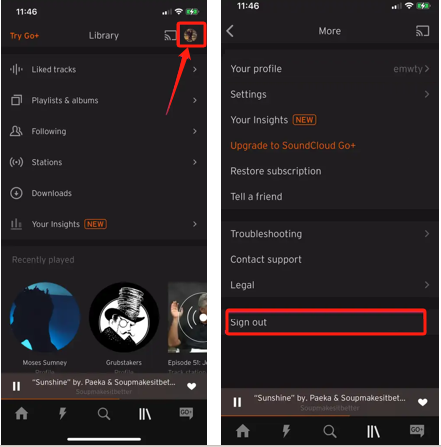
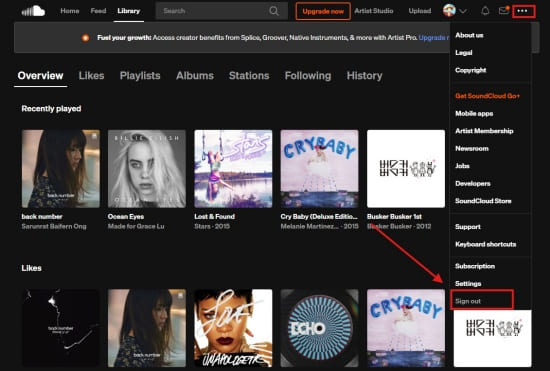
Sometimes, invalid login sessions or account authentication issues could be the major cause of SoundCloud not working properly. To resolve this problem, sign out of your SoundCloud account on your device, and then sign back in to refresh your session and restore normal functionality.
Log Out SoundCloud Account in App:
Log Out SoundCloud Website On Web Browser:
Fix 5 Update the SoundCloud App
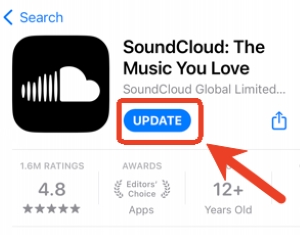
An outdated version of SoundCloud may contain bugs or compatibility issues, leading to SoundCloud music not working. Uninstalling and reinstalling the application to give it a fresh start can have amazing effects. Here's how to update SoundCloud Music on iPhone, Android, and Windows PC.
On iOS: Open the App Store, tap your profile icon, and scroll down to see available updates. Find SoundCloud and tap "Update."
On Android: Open the Google Play Store, tap your profile icon, and select "Manage apps & device." Find SoundCloud and tap "Update."
On Windows PC: Go to the Microsoft Store, search for SoundCloud, and click "Update" if a new version is available.
Fix 6 Uninstall and Reinstall the SoundCloud App
To fix SoundCloud app not working, you can entirely remove the SoundCloud app from your phone or tablet, then install the app again and sign in. Reinstalling the application can replace damaged files and provide a fresh installation. You can follow below steps to have a try.
Uninstall SoundCloud from your device by long-pressing the app icon and selecting "Uninstall" or "Remove."
Restart your device to clear any lingering processes.
Open the App Store or Google Play Store and search for SoundCloud.
Download and install the latest version.
Sign in and test whether songs play normally.
Tip: For Windows PC, go to the Microsoft Store, search for SoundCloud, and click "Uninstall," then reinstall it from the same page.
Fix 7 Clear SoundCloud Cache
SoundCloud stores temporary data to help the app load content efficiently. Over time, cached data may become corrupted or contribute to app problems. So clearing the cache can help fix SoundCloud music not working, especially when the app freezes, loads slowly, or repeatedly fails to play tracks.
On Android:
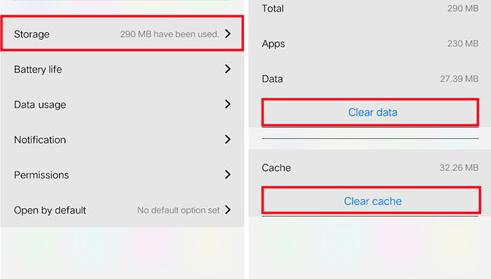
Open Settings and select Apps, select SoundCloud. Tap "Storage" or "Storage & cache".
Tap "Clear Cache". Tap "Clear Data" if you need to log out and reset the app completely.
Reopen SoundCloud and test playback.
On iPhone:
Check SoundCloud's settings for a storage or cache-clearing option if one is available. Alternatively, uninstalling and reinstalling the app will also clear the cache.
On Windows/Mac:
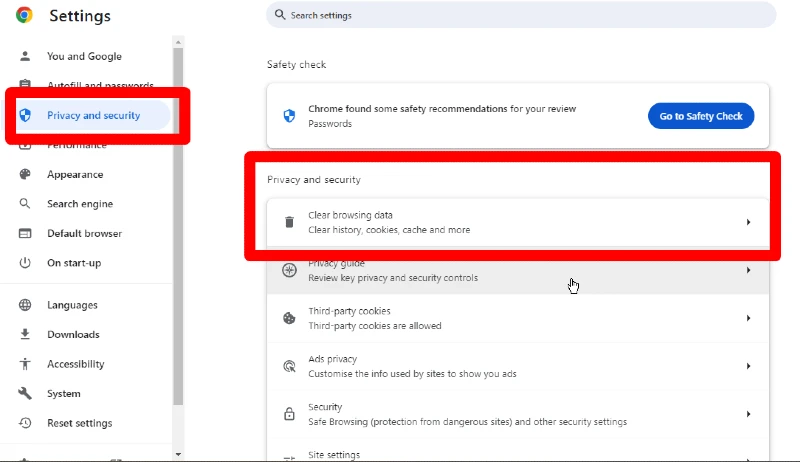
If you use SoundCloud in a web browser, you need to clear your browser's saved data.
Fix 8. Switch Between the SoundCloud Web Player and App
When the SoundCloud App is not working on Android, iPhone, or other devices, you can try streaming through the SoundCloud website instead. Conversely, if the SoundCloud web player won't load, switch to the official SoundCloud app. This helps you determine whether the issue is specific to one platform or affects SoundCloud more broadly.
Fix 9 Check SoundCloud's Regional Availability
SoundCloud is not available in every country due to licensing restrictions and government regulations. If you are traveling or using a VPN, you may encounter access issues that prevent SoundCloud from working properly.
Verify availability: Check whether SoundCloud is officially available in your current country or region.
Disable VPN: If you are using a VPN, try disabling it and accessing SoundCloud directly. Some VPN servers are blocked by SoundCloud.
Try a different server: If you must use a VPN, try connecting to a server in a country where SoundCloud is fully accessible.
Fix 10 Contact SoundCloud Support
If you've tried all the troubleshooting methods above but SoundCloud still won't load or play tracks, contact the official support team. They can provide personalized assistance and check for account-specific issues.
Browse the FAQ section to see if your issue is covered.
If not, submit a support ticket describing your problem in detail, including your device, operating system, app or browser version, and any error messages you have seen.
Tips: Download and Play SoundCloud Offline With Other Players
Still having problems with SoundCloud not playing songs? Say goodbye to SoundCloud app and web player! You can use an alternative for listening to SoundCloud offline through other music players or apps! All you need is a professional third-party tool.
UkeySoft SoundCloud Music Converter is one-stop SoundCloud music downloader, music converter, web player, music player, and music manager! It supports all SoundCloud accounts, including free trial, free, Go, and Go+. With it, users can easily download tracks, albums, playlists, and podcasts from built-in SoundCloud Web Player to computer folder. What's more, it can convert SoundCloud music to MP3, M4A, WAV, FLAC, and other formats with up to 320kbps quality for premium listening experience. The downloaded SoundCloud music files can be transferred, added, played in VLC, Windows Media Player, iTunes, MusicBee, and any other music apps, players, and devices!
Verdict: UkeySoft SoundCloud Music Converter helps you permanently fix SoundCloud not working, not loading, not playing, keep crashing issues! Give it a try right now!
Video Guide: How to Download SoundCloud Music to MP3 for Offline Listening
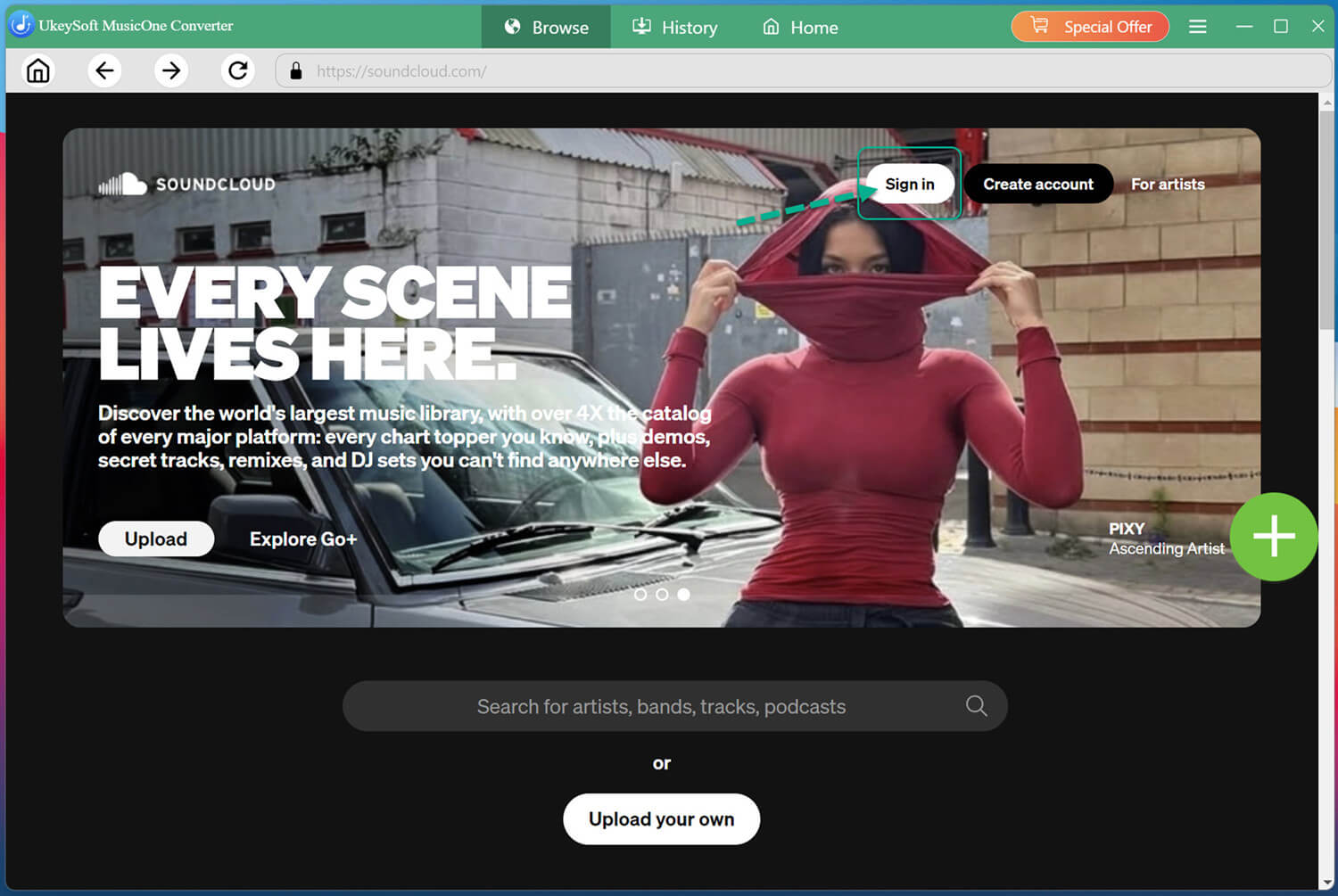
Download and open UkeySoft SoundCloud Music Converter. Log in with your free account to access your music library within the built-in web player.
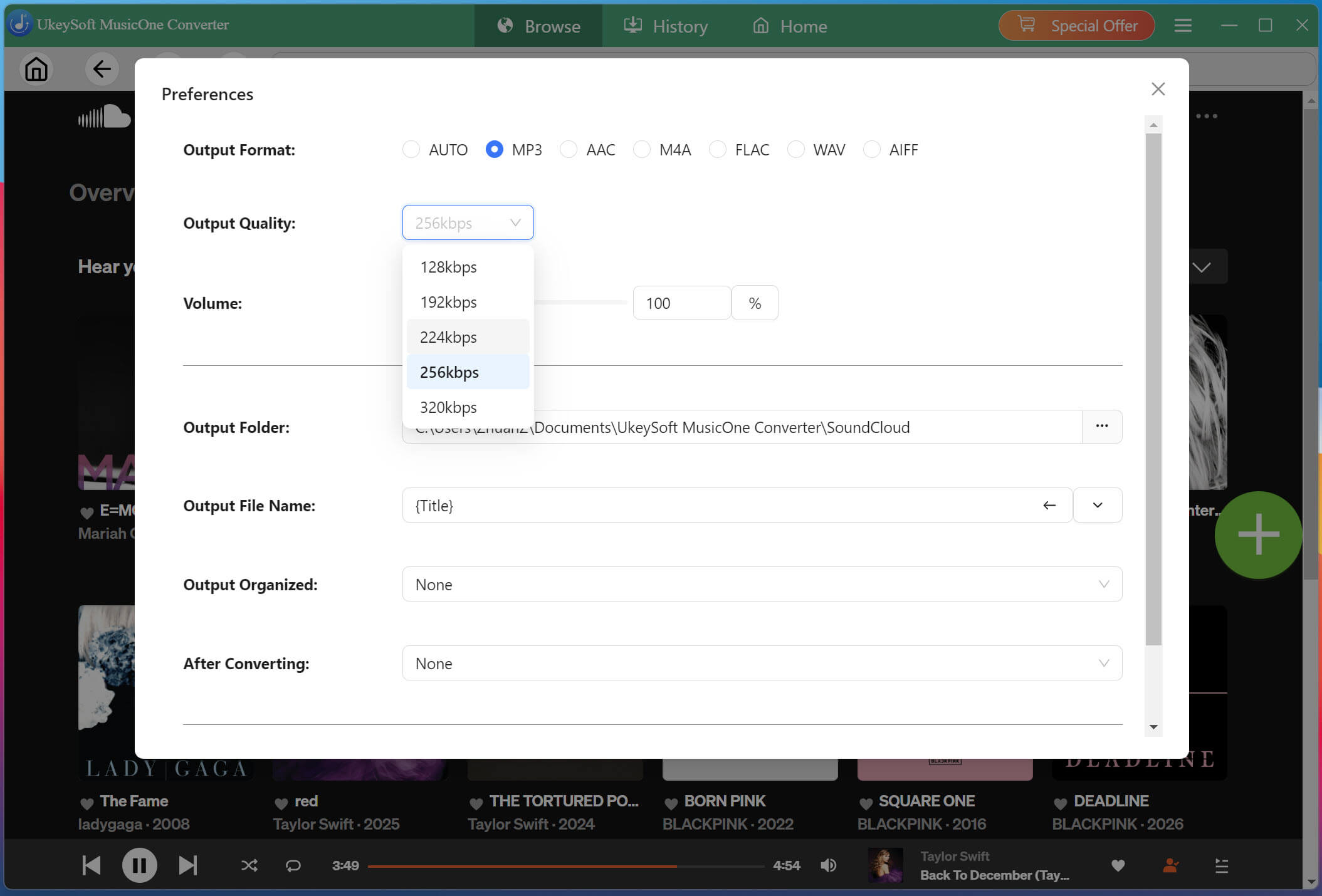
Click "Menu" and select "Preferences." Here you can choose your preferred output format, output quality, output folder, etc. For best quality, select MP3 at 320kbps or lossless formats like FLAC.
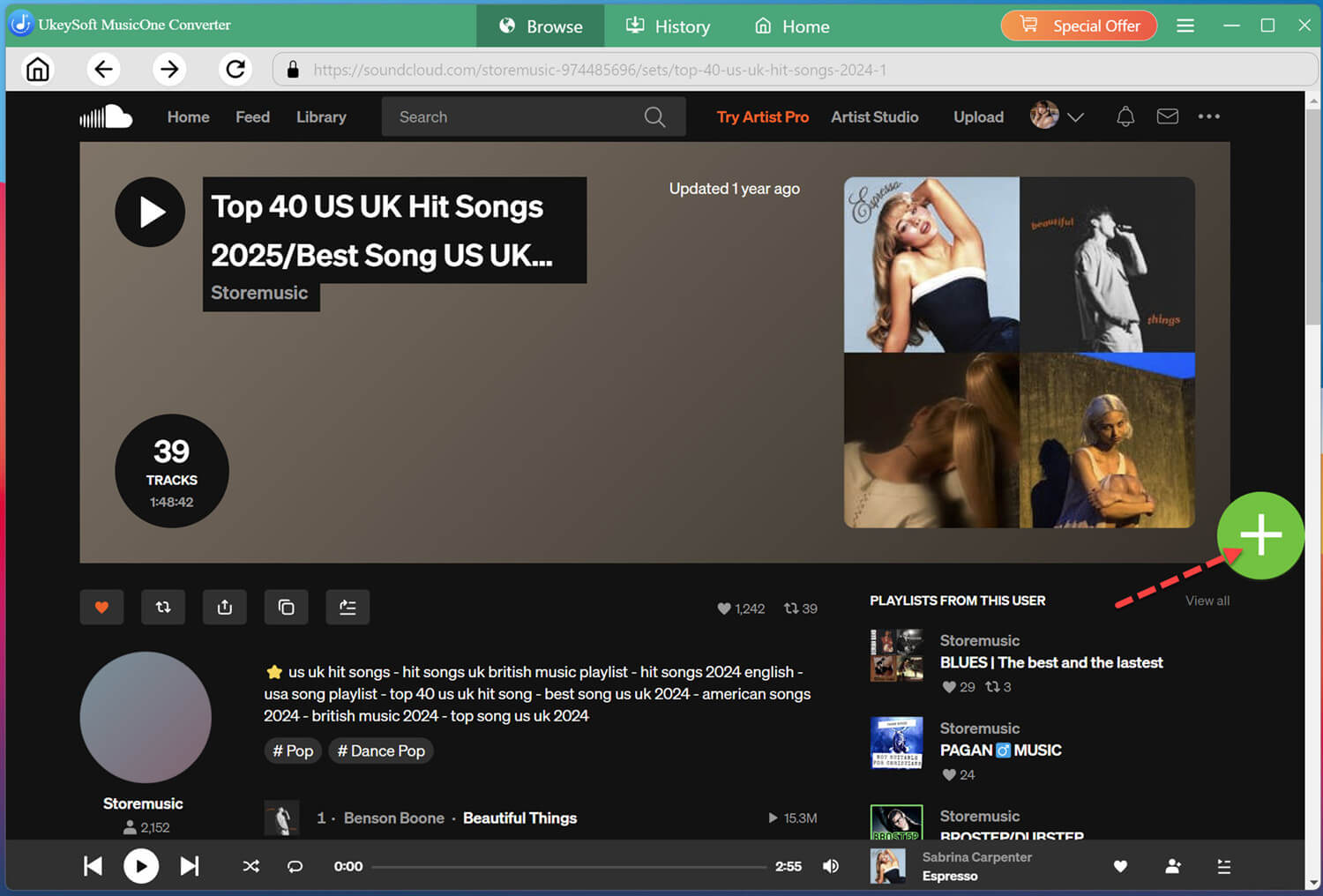
Open the tracks, playlists, or albums, click "+" icon in the right side. Once added, select the songs you want to save.
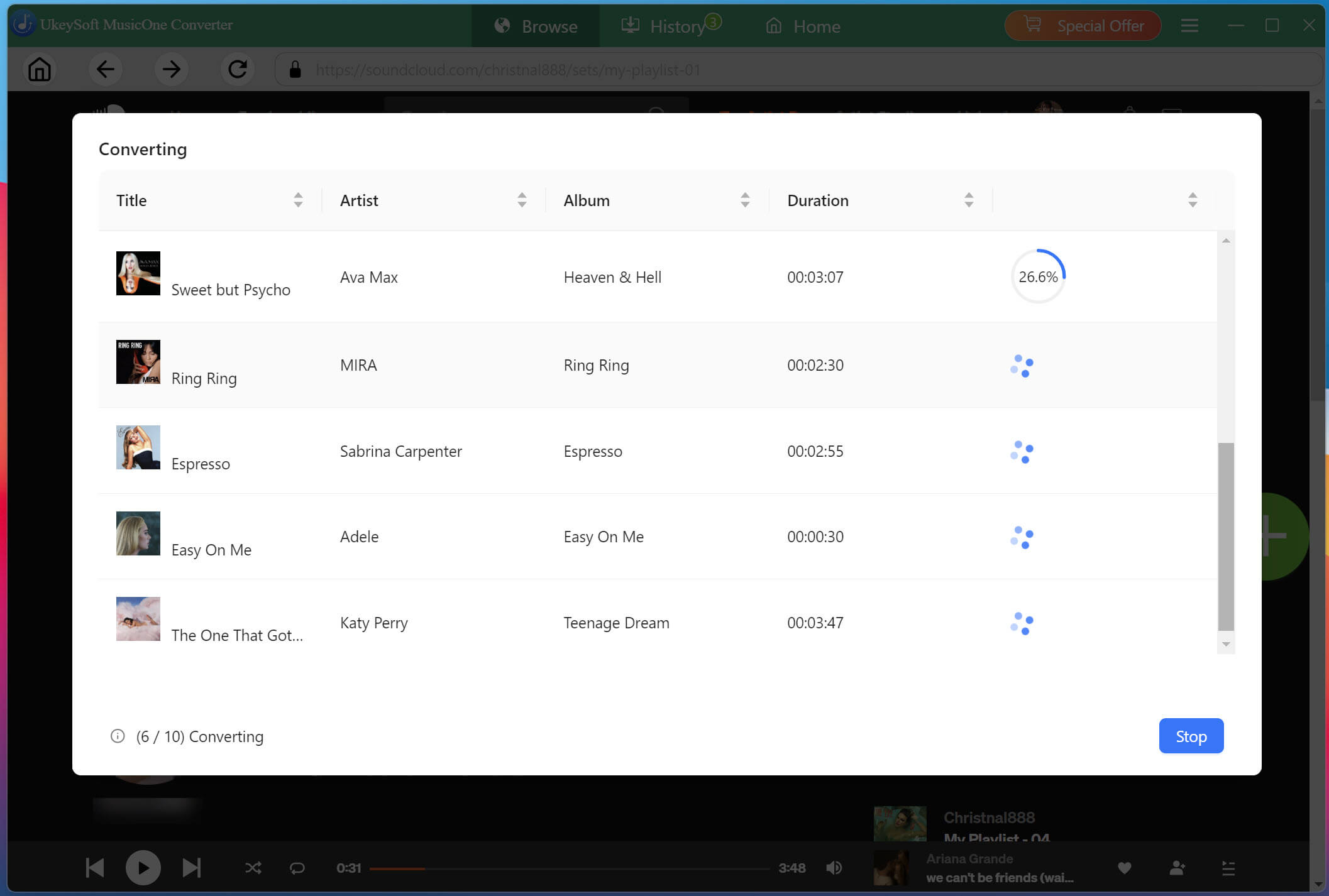
Click "Convert" button to start the download and conversion process. The software will process your tracks quickly, with up to 16X speed.
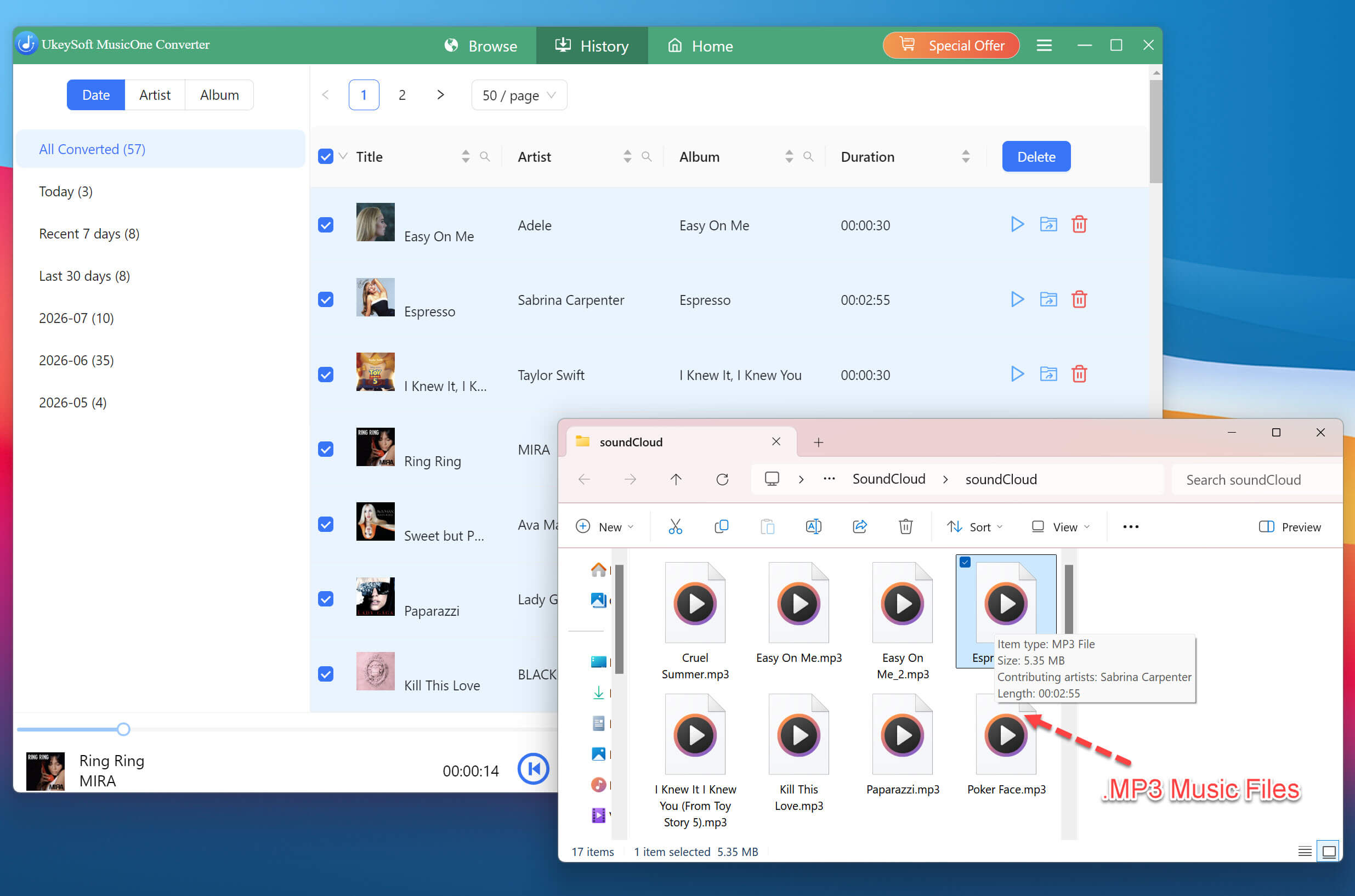
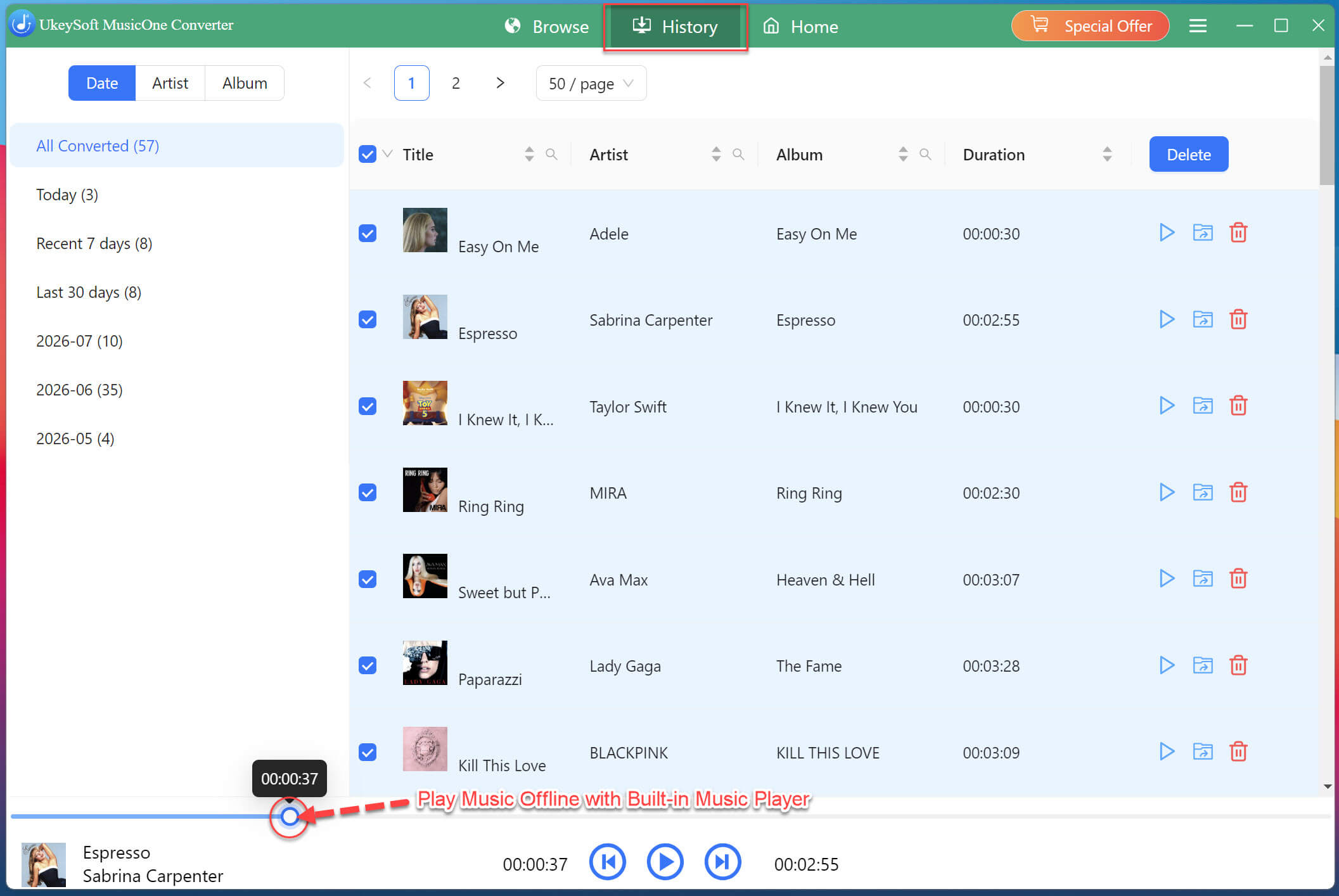
When the process finishes, go to the "History" section and click the folder icon to locate all downloaded SoundCloud songs. You can add these SoundCloud music files to other players such as iTunes, VLC Media Player or Windows Media Player. Also, you may transfer your SoundCloud music to an MP3 player, smartphone, USB drive, or external hard drive for playback anywhere.
Or, use UkeySoft's integrated music player to listen to your downloaded tracks directly.
The Bottom Line
Now, with the 10 solutions listed above, you can manually solve the problem of SoundCloud not working. To permanently get rid of the issues, you can utilize the desktop software UkeySoft SoundCloud Music Converter. By downloading SoundCloud music to MP3, you can transfer and play SoundCloud music offline with other media players without relying on the SoundCloud app! You can take your downloaded SoundCloud music anywhere, enjoy a smooth offline playback!
Justin Sabrina has always had great enthusiasm for writing, programming and web development. He likes writing about software and technology, his works are featured on some tech blogs or forums like Tom's Hardware, CNET, etc.
 English
 Arabic
 Chinese (Simplified)
 Chinese (Traditional)
 Croatian
 Czech
Czech Danish
 Dutch
Dutch Estonian
 Finnish
 French
 German
 Greek
Greek Hebrew
 Hindi
Hindi Hungarian
 Indonesian
 Italian
 Japanese
 Kazakh
 Korean
 Malay
Malay Norwegian
 Polish
 Portuguese
 Romanian
 Russian
 Slovenian
 Spanish
 Swedish
 Thai
Thai Turkish
 Ukrainian
 Vietnamese








Comments are off!