By
Justin SabrinaUpdated on July 24, 2026
Summary
Spotfiy Jam session allows to listen to music with friends or family together. This article will guide you how to create a Jam session on Spotify and share your favorite music tracks with others in real time. You can even get a powerful
Spotify music downloader to download songs from Spotify Jam without Premium.
Spotify has become a global leader in the music streaming industry, offering millions of songs at your fingertips. People can discover and listen to songs, artists, albums, playlists, and podcasts for free! One of its coolest features is the ability to listen to music with friends in real-time, known as Spotify Jam sessions. What is Spotify Jam? How doe it work? How to Start a Spotify Jam? How to listen to Spotify with friends? Check out this post, you will find the answers and solutions. You may even learn how to download songs from Spotify Jam without needing a Premium account!
CONTENTS
Part 1. What is Spotify Jam? How Does it Work?
Spotify Jam sessions, also known as Group Sessions, makes Spotify music-sharing more social and convenient. It allows multiple users to listen to the same music together in real time, no matter where they are. It's like having a virtual listening party where everyone's syncing up their Spotify app.
One user can start a Spotify Jam session on the app, and others can join in using a unique invite link or scanning a QR code. Once the session begins, everyone can control the playlist, skip tracks, pause, or even add songs to the queue. This can be a real game-changer for long-distance music lovers who want to connect virtually over a shared playlist.
Part 2. How to Start a Jam Session on Spotify App?
Whether you're using your phone or desktop, it's easy to initiate a Group Session and invite friends to listen to music with you. In this section, we'll walk you through how to start a Jam on Spotify mobile app and desktop player, and share your favorite music with your friends!
Note: To start and host a Jam on Spotify, Premium subscription is needed. To join a Spotify Jam, both Free and Premium accounts are supported.
2.1 How to Start a Jam Session on Spotify Mobile App?
Step 1.
Open the Spotify app on your Android or iOS device, sign in with your Premium account.
Step 2.
Go to your library, and play any track you want to share.
Step 3.
Hit "Connect" icon on the "Now Playing" bar, and choose "Start a Jam".
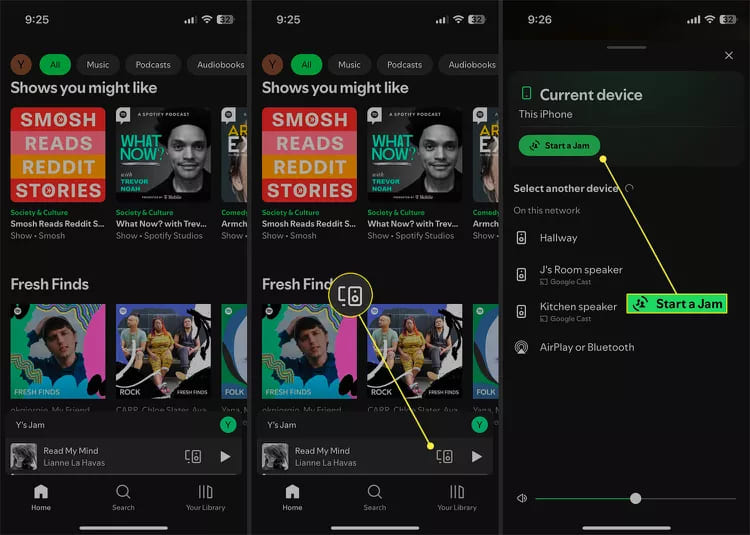
Step 3.
Tap on "Invite Friends" and select "Select link" to share the link or QR code with your friend or family via Messages, Mail, WhatsApp, Facebook Messenger, or even WeChat.
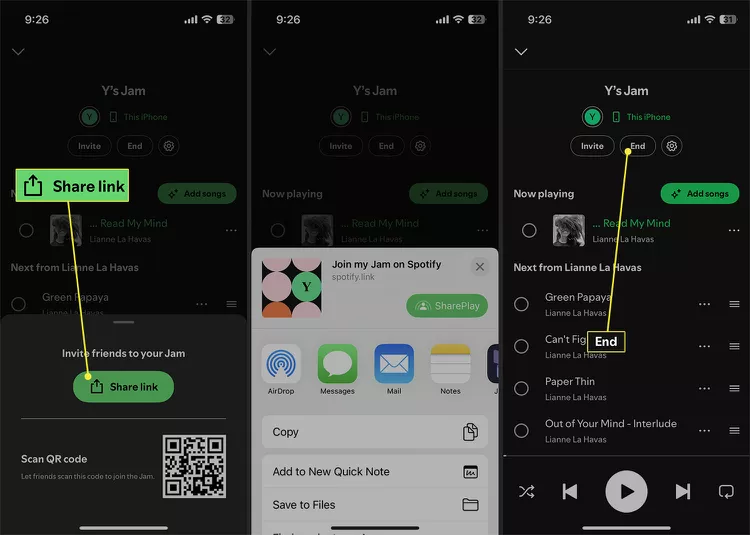
Step 4.
Once your friends click on the link, they will be able to join your Jam session. To end the Jam, click "End" button.
2.2 How to Start a Jam Session on Spotify Desktop Player?
If you prefer listening to music on a desktop or laptop, you may also start a Spotify Jam session right from your computer. Here's how:
Step 1.
Open the Spotify desktop app on your Mac or Windows computer, laptop.
Step 2.
Choose a song, playlist, or album to play, and right click on it.
Step 3.
Select "Start a Group Session" option, and share the link to others.
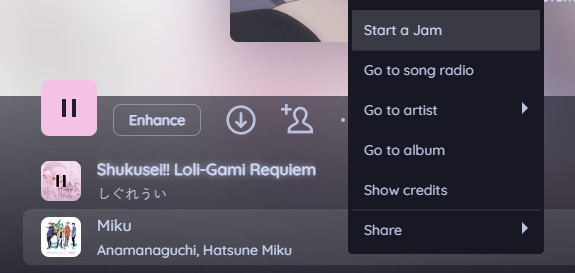
Step 4.
Afterward, you can listen to Spotify with friends on desktop.
Whether you're hanging out with friends or want to share a Spotify playlist, your favorite tunes, this Spotify Ham feature lets you collectively enjoy your favorite playlists. Now you know how to start a Spotify Jam session on the mobile and desktop app. The process is simple, and it's a great way to listen to music on Spotify with friends, whether you're near or far.
Part 3: Bonus: Download Songs in Spotify Jam Without Spotify Premium
With a Spotify Premium account, you are able to start a Jam and download Spotify songs for offline listening. However, if you are the Spotify Free tiers, you can only streaming ad-supported tracks online. For another, users won't be able to enjoy Spotify Premium features once subscription ends. Here's a better way to download Spotify music without Premium.
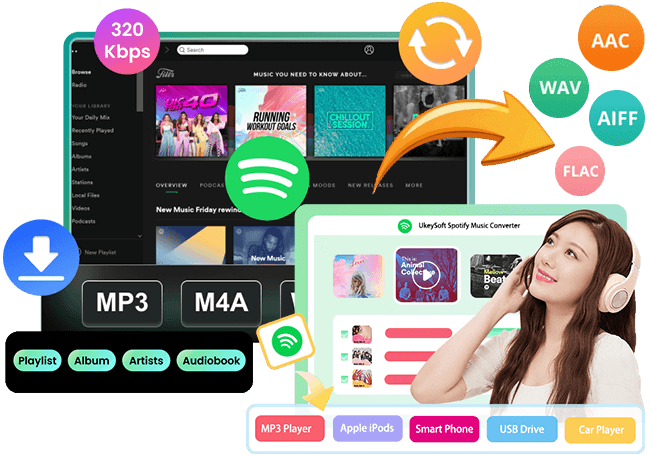
UkeySoft Spotify Music Converter is desktop software, well designed for downloading songs, playlists and podcasts from Spotify without Premium. It enables you to download your favorite Spotify Jam music to MP3, M4A, FLAC, AAC, WAV or AIFF audio formats. To ensure the best listening experience, it will save Spotify music at 320kbps. Thus, you can offline listen to Spotify music on any device, and share these Spotify music with your friends or family!
More Features of UkeySoft Spotify Music Converter:
- No Premium: You can download any music from Spotify even if you're using a free Spotify account.
- Popular Formats: Download and convert Spotify music to plain MP3, FLAC, AAC, M4A, WAV or AIFF formats, which are playable on any device, app or player!
- High Quality: Convert Spotify music to high-quality MP3 files at 320kbps for the best listening experience.
- Batch Conversion: Download multiple songs, albums, or playlists from Spotify web player at once to save time.
- Preserve Metadata: It retains all metadata, including song title, cover, artwork, artist, and album info, during the conversion process.
- No Spotify App Needed: The program has integrated with the Spotify web player, making it easy to access and download any Spotify streaming media content.
How to Download Spotify Music to MP3 with UkeySoft?
Step 1. Open Spotify Music Converter
Download and and install UkeySoft Spotify Music Converter on your computer (either Windows or Mac). Open the app and log in to your account.
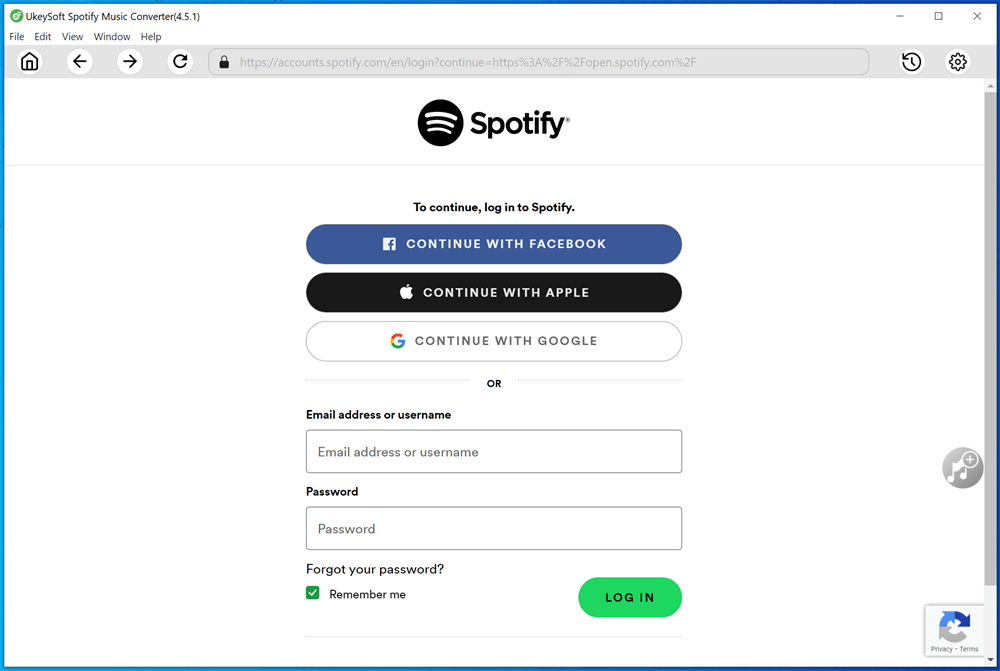
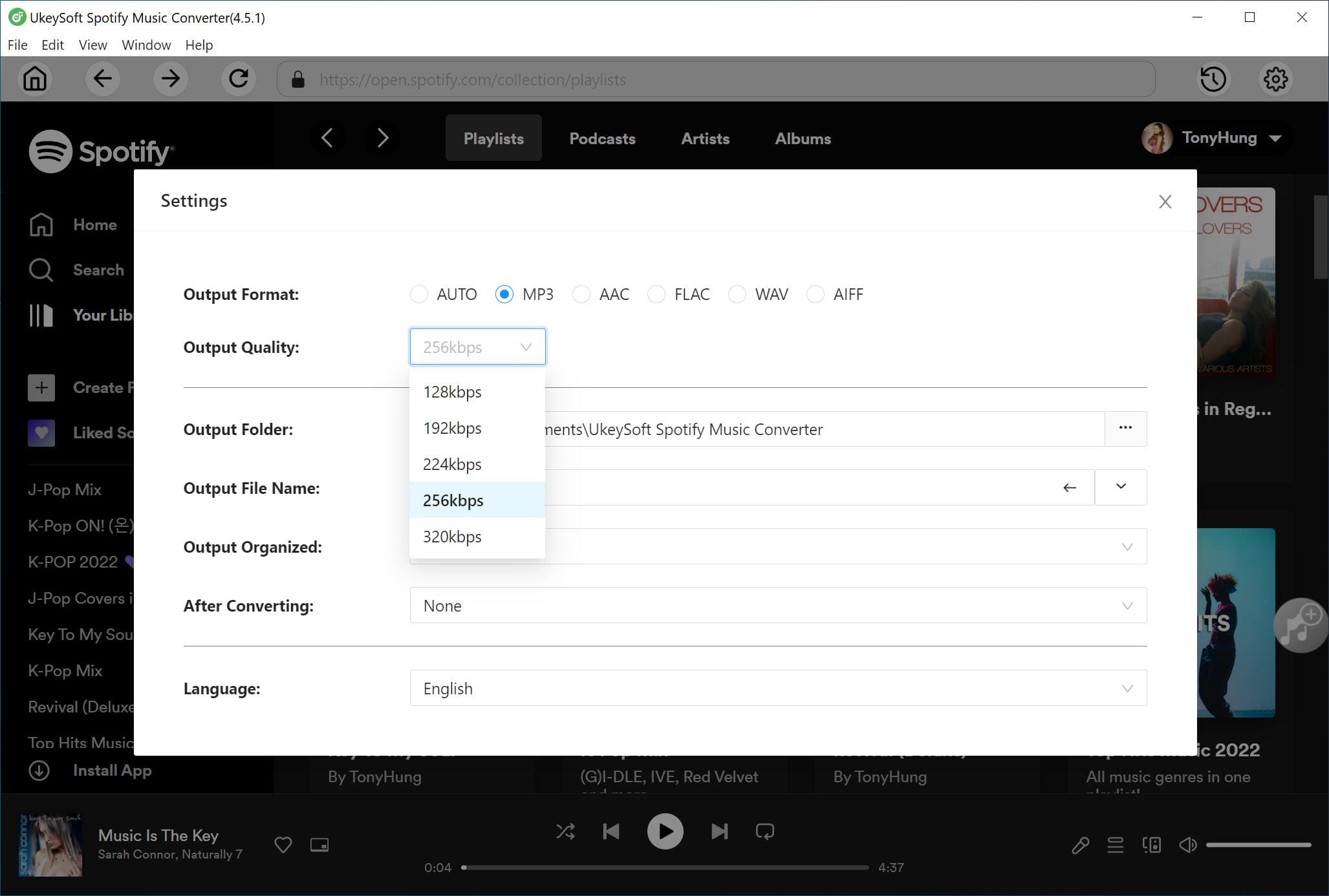
Step 2. Define Output Settings
Click "Gear" icon to select the output format, output quality, output folder and more parameters.
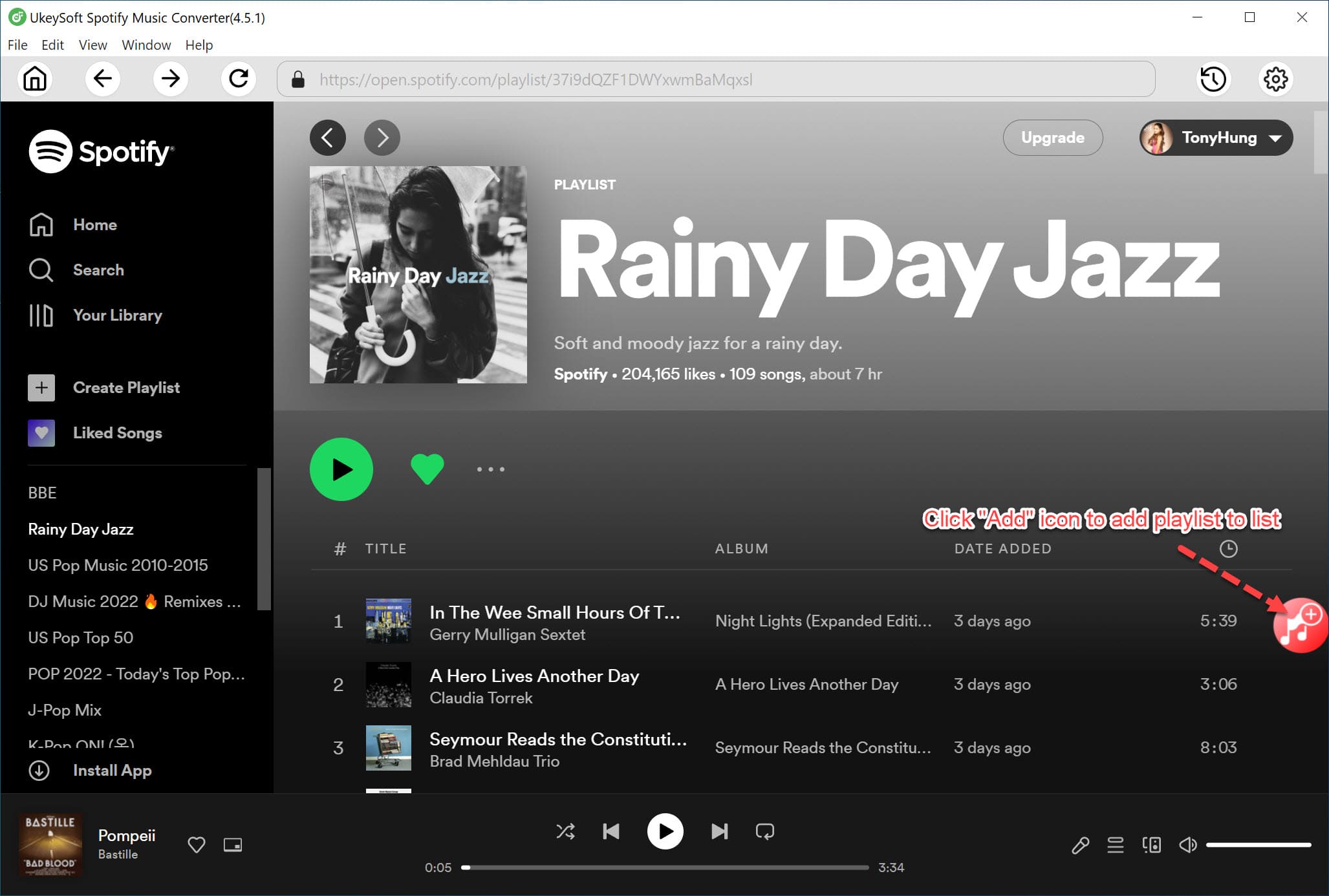
Step 3. Add Spotify Songs
Browse the Spotify music library and chooe any song, album or playlist, click "Add to list" button.
Step 4. Start Downloading Spotify Music to MP3
Click the "Convert" button, and UkeySoft will start downloading and converting your Spotify tracks to MP3 format.
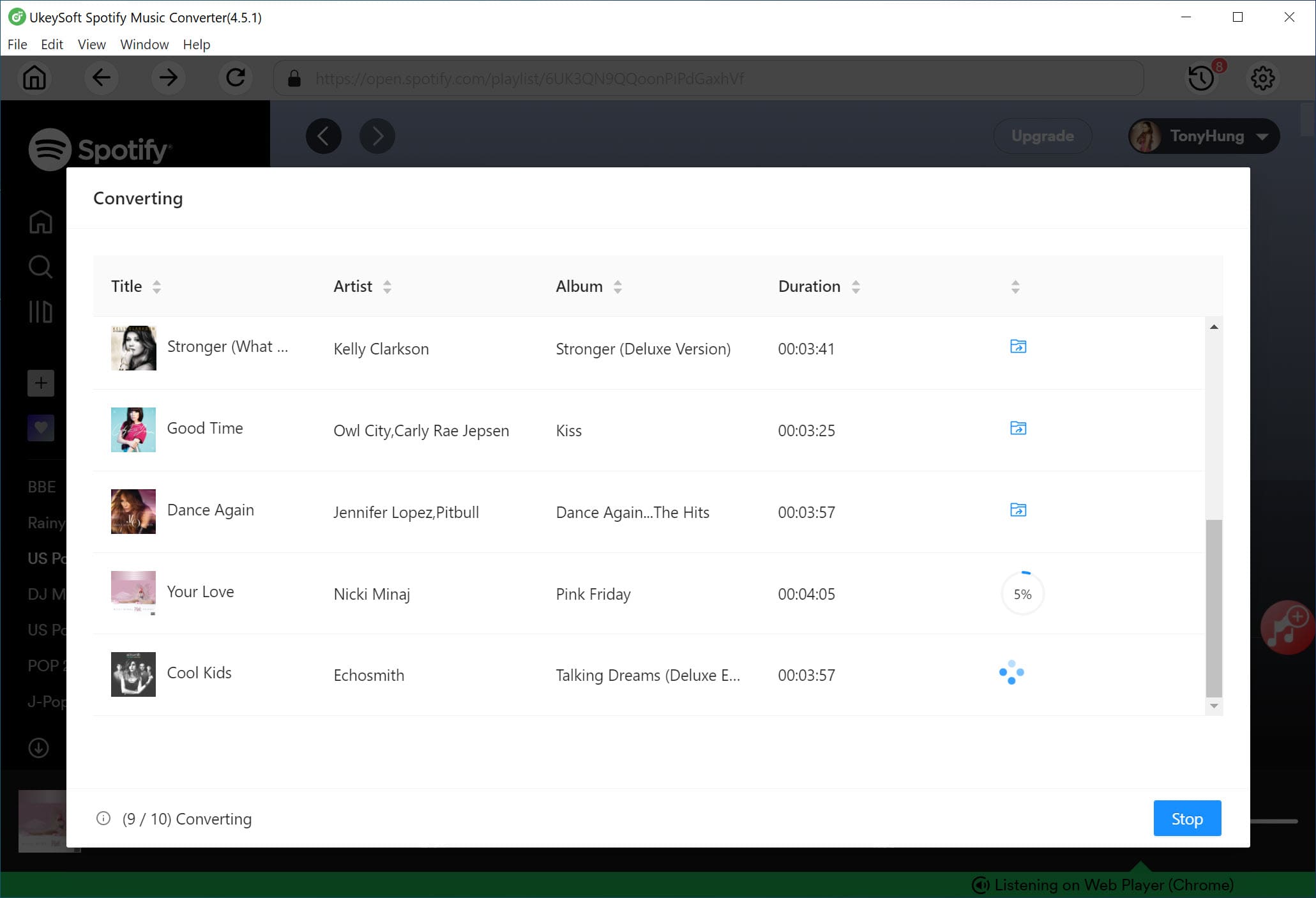
Once the conversion is complete, you can click "History" icon to listen to Spotify music offline on the software!
Also, you may transfer the MP3 Spotify music files to your phone, tablet, or any device and others to enjoy offline.
Part 4: FAQs About Spotify Jam
How do I Invite Friends to a Spotify Jam?
Once you start a Jam on Spotify app, you can share a link or QR code to your friend.
How to Remove Friends from a Spotify Jam?
Only the host of the Spotify Ham can remove friends. Go to the list of participants and tao on the person you want to remove, you will find a button "Remove from Jam", click on it.
How to Remove a Song from a Spotify Jam?
You can end the Jam in the Spotify app. Alternatively, you may open the queue, choose the circles to the left of the songs you want to remove, and remove it.
Why isn't My Jam Working on Spotify?
If Spotify Jam isn't working, you can try to Check device permissions, or restart your device, log out of Spoify and reinstall the Spotify app, or even clear cached data in Spotify app.
Conclusion
Spotify Jam sessions bring people together through the power of music. You can easily start a Spotify Jam session on the official app and listen to Spotify with friends in real time! If you want a better listening experience and keep the party going offline, the third-party tool like UkeySoft Spotify Music Converter helps you download and save your Spotify Jam music without a Premium account. Try it out!

Spotify Music Converter

Justin Sabrina has always had great enthusiasm for writing, programming and web development. He likes writing about software and technology, his works are featured on some tech blogs or forums like Tom's Hardware, CNET, etc.
 English
 Arabic
 Chinese (Simplified)
 Chinese (Traditional)
 Croatian
 Czech
Czech Danish
 Dutch
Dutch Estonian
 Finnish
 French
 German
 Greek
Greek Hebrew
 Hindi
Hindi Hungarian
 Indonesian
 Italian
 Japanese
 Kazakh
 Korean
 Malay
Malay Norwegian
 Polish
 Portuguese
 Romanian
 Russian
 Slovenian
 Spanish
 Swedish
 Thai
Thai Turkish
 Ukrainian
 Vietnamese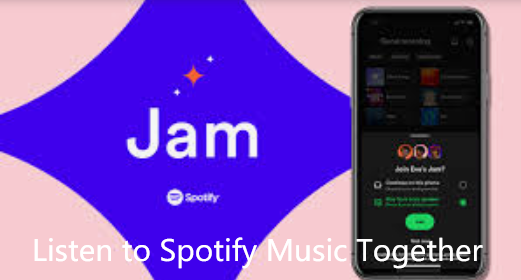







Comments are off!