To download SoundCloud songs to USB, you first need to save the SoundCloud songs as MP3, WAV, FLAC, or other compatible formats on your computer. There are two main situations:
● Songs with an official download option: If an artist or uploader has enabled downloads, you can download the available file directly from SoundCloud and then copy it to your USB drive.
● Songs without a Free download option: For streaming music, you may need a third-party tool like UkeySoft SoundCloud Music Converter to download and convert music from SoundCloud library into MP3 or another common audio format before you transfer SoundCloud music to USB drive.
SoundCloud is a popular platform for discovering music, remixes, podcasts, DJ sets, and tracks from independent artists around the world. While listening online is convenient, you may sometimes want to save SoundCloud music to USB drive so you can play them in your car, on a home stereo, game console, smart TV, smart speaker, or another device without relying on internet connection.
Generally, USB flash drives can store and play common MP3 audio files, but the challenge is that not every SoundCloud track can be downloaded as MP3 or other normal audio file. No worry, here you will obtain the about SoundCloud to USB solution. In this guide, we'll show you how to download SoundCloud music to USB drive for permanent storage and flexible playback!
Process 1: How to Download SoundCloud Music to MP3?
Before you can put SoundCloud music on a USB drive, you need to obtain local MP3 audio files. Let's look at both available approaches.
1.1 Directly Download MP3 Music From SoundCloud Website
SoundCloud allows free downloads for selected music tracks, even without a SoundCloud Go or Go+ account. Normally, if the artist has enabled downloads, you may see a Download file option for the track. The downloaded file's format depends on what the uploader has made available, so you should not assume every track will be MP3, AAC, or WAV. If you are in luck to download SoundCloud music to MP3 for free, you can then easily transfer the MP3 files to your USB drive for storage or playback!
Visit SoundCloud in your web browser and sign in to your account.
Search for the song you want to download and open its track page.
Click the "More" button represented by the three-dot icon.
If the uploader has enabled downloads, select "Download file".
Locate the downloaded audio file on your computer, usually in the "Downloads" folder.
Note:
The official option is available only for eligible tracks, so it isn't suitable if you want to download an entire SoundCloud playlist that doesn't provide downloadable files.
1.2 Download All Music & Playlists From SoundCloud to MP3
Only a few SoundCloud tracks are allowed to download MP3s freely. SoundCloud uses DRM protection technology to encode its music content, so even SoundCloud Go or Go+ subscribers, they cannot transfer any songs downloaded through the SoundCloud mobile app to a USB drive. If you want to download all your SoundCloud library to a USB drive at once, a desktop software can make the process much easier.
UkeySoft SoundCloud Music Converter is a safe and reliable tool to download SoundCloud songs, playlists, and albums to a computer in common formats such as MP3, M4A, FLAC, AAC, WAV, and AIFF. It supports SoundCloud free and paid accounts, offers batch downloading, preserves music metadata, and can output MP3 at up to 320kbps. With advanced technology, the conversion speeds of up to 16X, making it convenient and efficient for users who want to prepare a large music collection for USB playback.
Key Features of UkeySoft SoundCloud Music Converter
Download music with SoundCloud free and paid accounts.
Built-in web player, music player and music manager.
Download SoundCloud tracks, playlists, albums, and podcasts.
Export SoundCloud music to MP3, AAC, WAV, M4A, FLAC, AIFF.
Convert SoundCloud music to MP3 up to 320 kbps.
Batch download multiple SoundCloud songs, full albums and playlists.
Preserve original ID3 tags like cover artwork, title, genre, etc.
Process downloads at speeds up to 16X faster with simple operation.
Transfer and play SoundCloud music on any MP3 player and device.
How to Download and Convert SoundCloud Music to MP3 with UkeySoft?
Log In to SoundCloud Account in UkeySoft
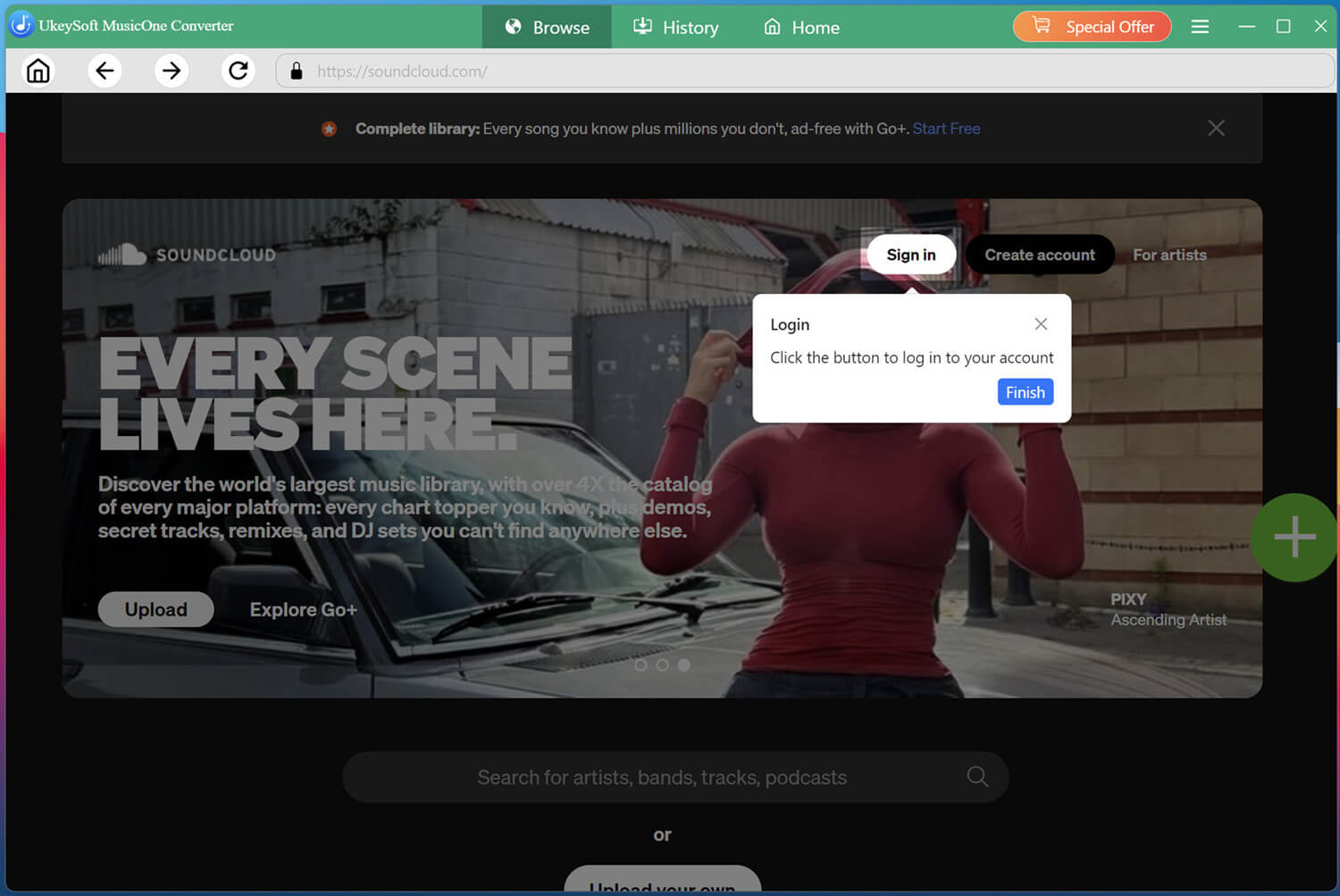
Install and launch UkeySoft SoundCloud Music Converter on your computer, select SoundCloud from the supported services.
Next, you need to sign in through its built-in web player using your SoundCloud free or paid account.
Choose Output Settings
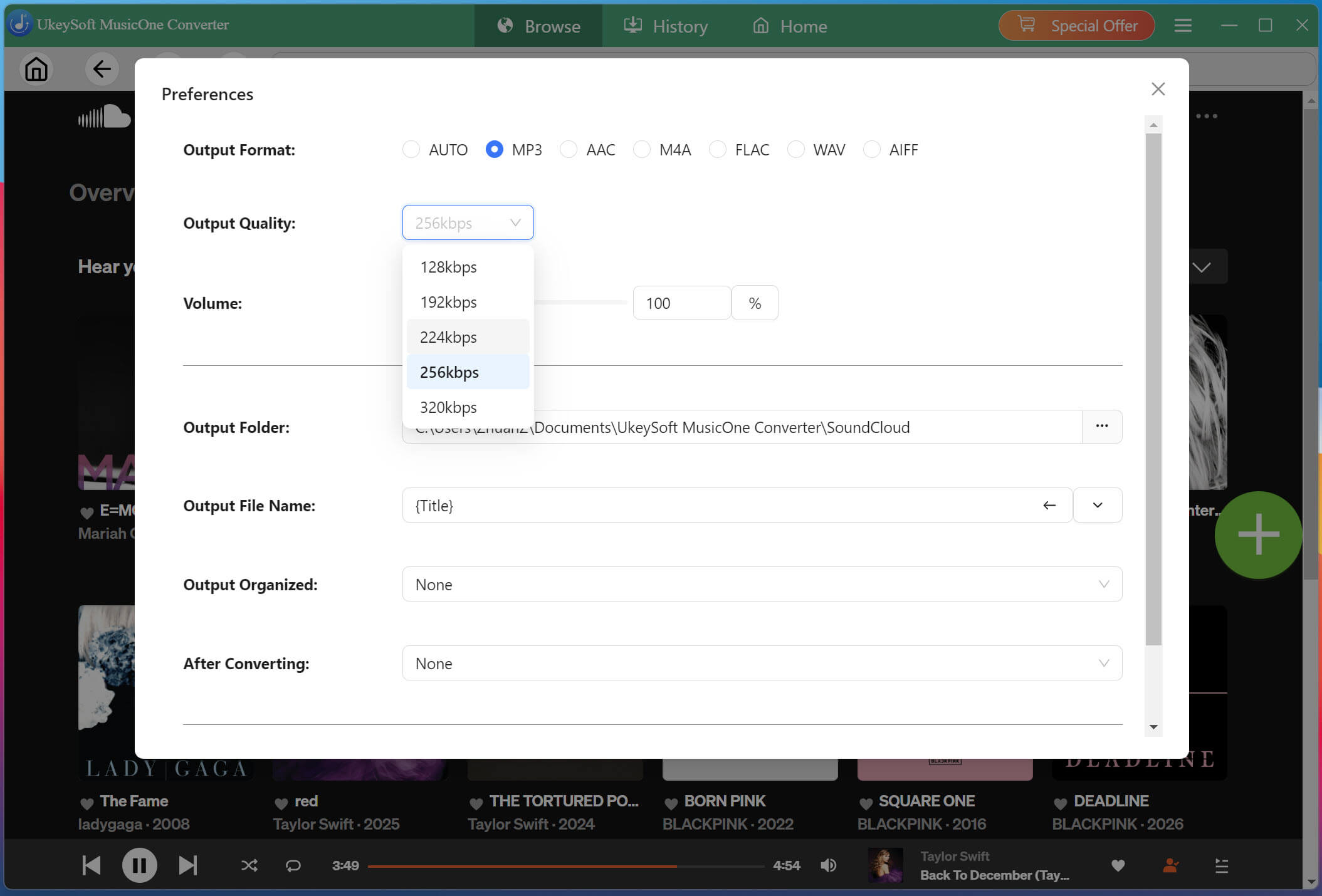
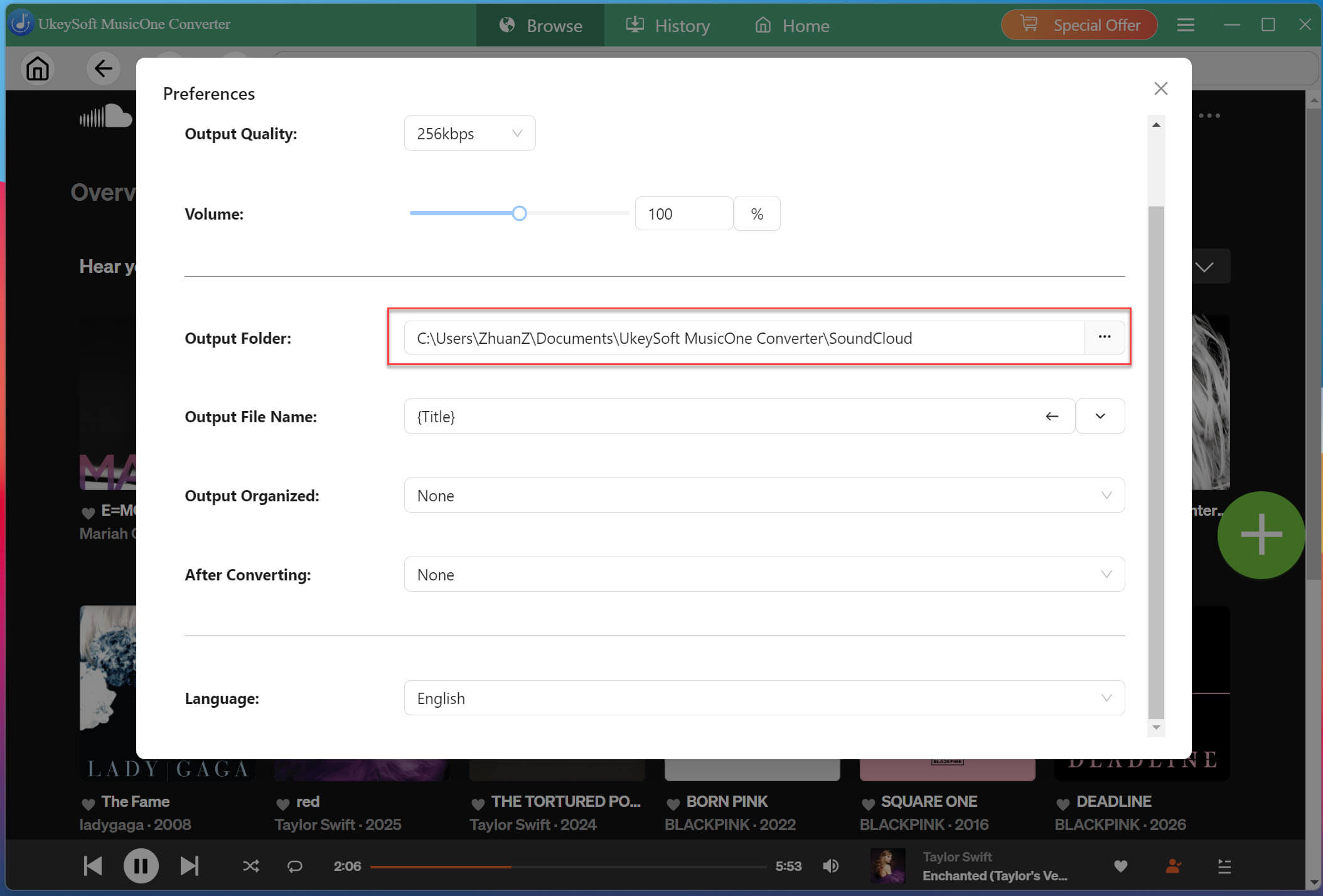
Go to the "Menu" bar and click, then select "Preferences" option. From where you can also customize the output format, output quality, output folder, output file name, and organization options. For maximum compatibility when you download SoundCloud music to USB stick, MP3 is generally the safest choice because many car stereos, portable speakers, TVs, and media players support it.
To download songs from SoundCloud to a USB drive directly, plug the drive into your computer, then set it as the output folder in the settings window.
Search and Add SoundCloud Songs/Albums/Playlists
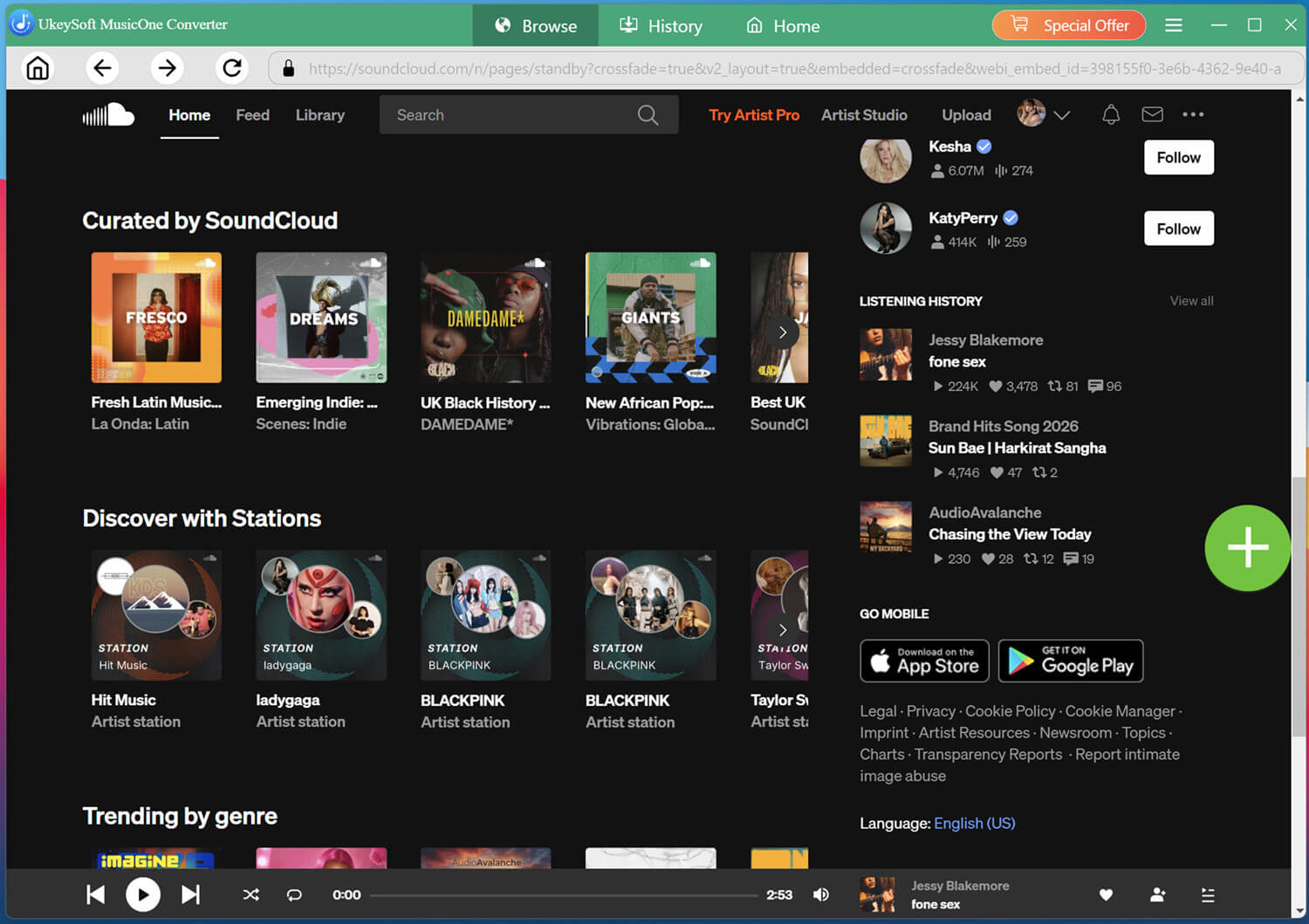
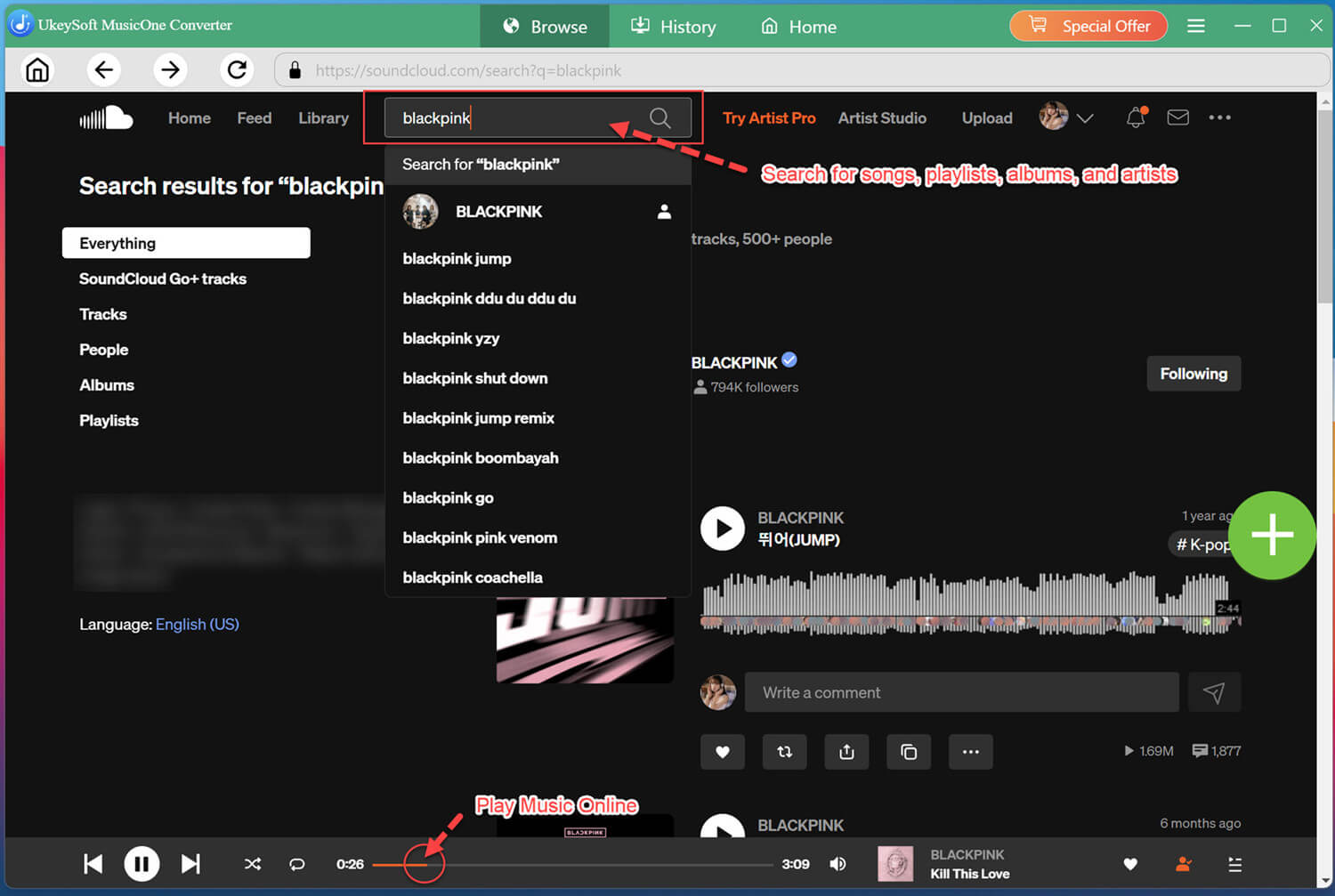
Use the built-in SoundCloud web player to browse your library, search for an artist, or open a playlist or album.
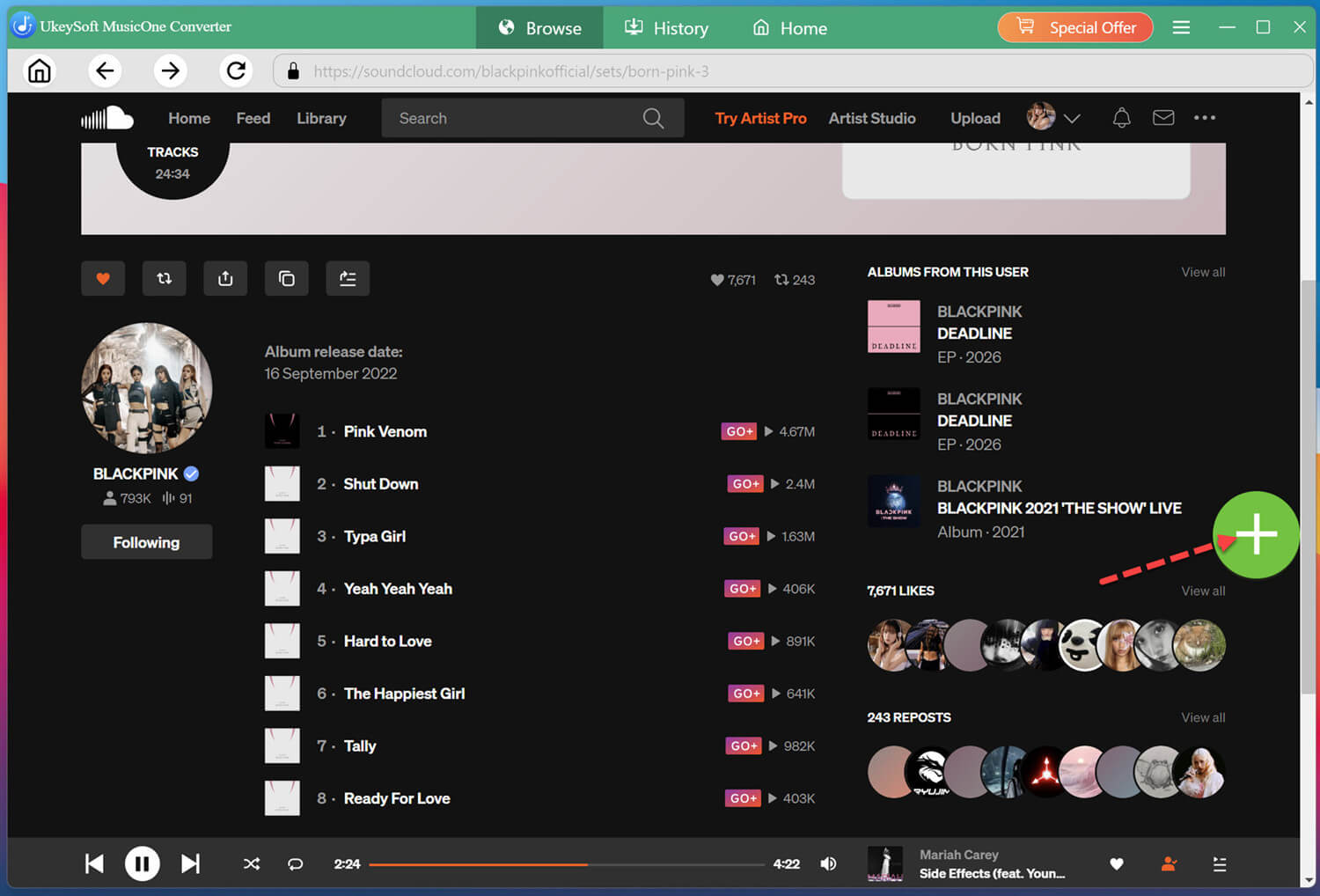
For example, here we open BLACKPINK's album BORN PINK. Click the + button to add the full album to the conversion list.
Choose SoundCloud Songs to Download
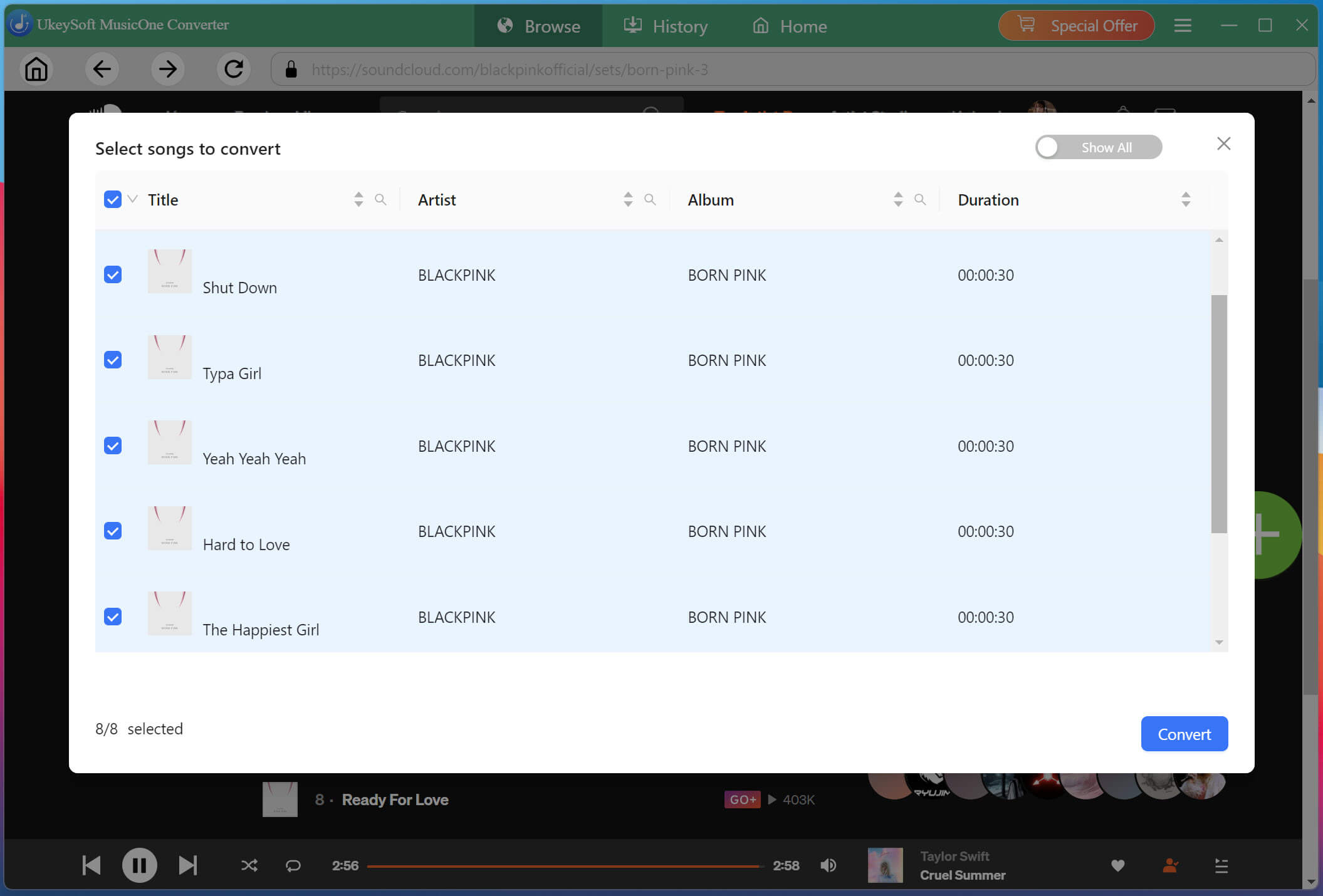
Select individual songs or choose all music tracks when preparing an entire album or playlist.
Begin Download SoundCloud Songs to USB
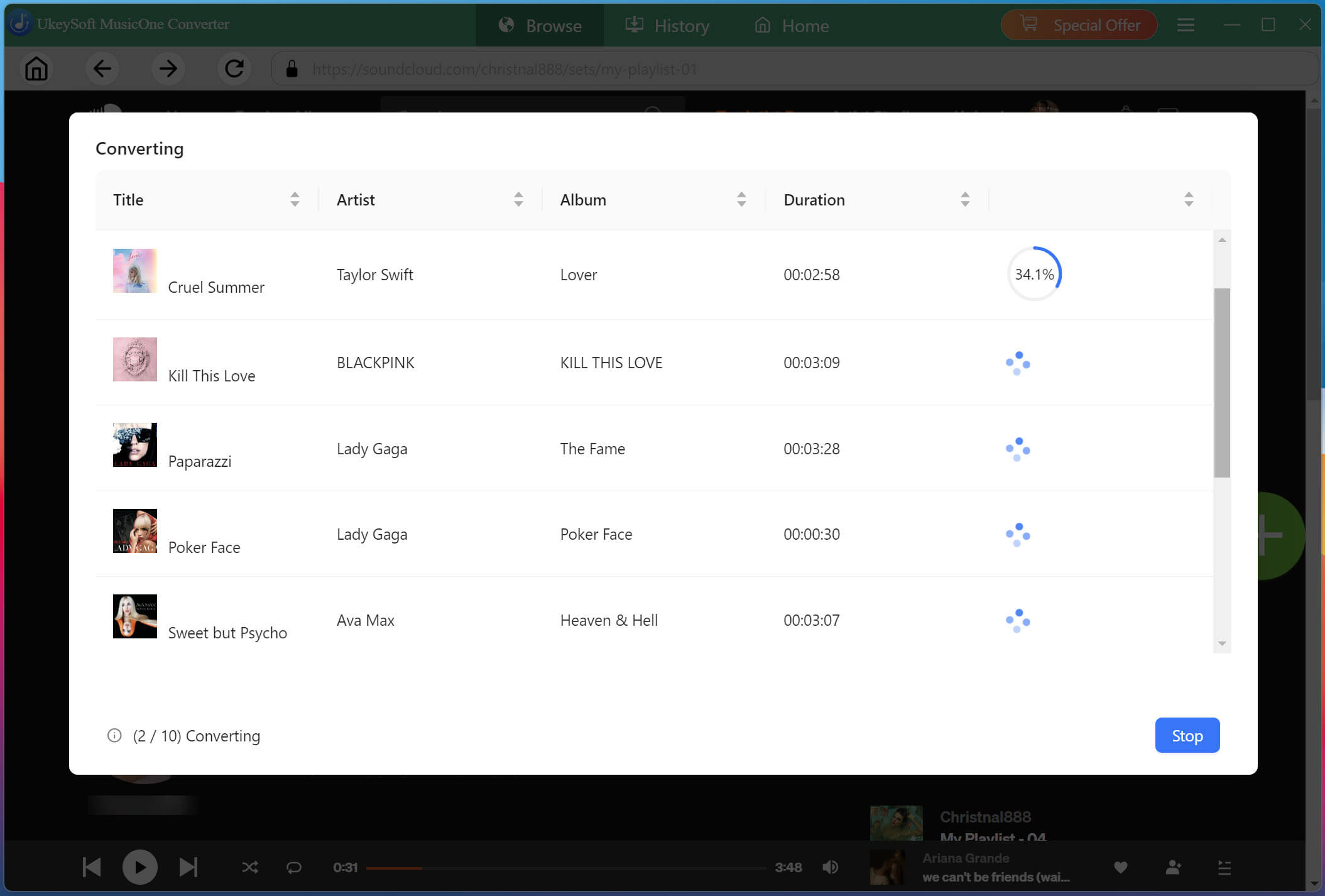
After confirming your selections and output settings, hit on the "Convert" button to start processing. UkeySoft will save the converted SoundCloud audio to your selected local output folder.
Find Downloaded SoundCloud Songs
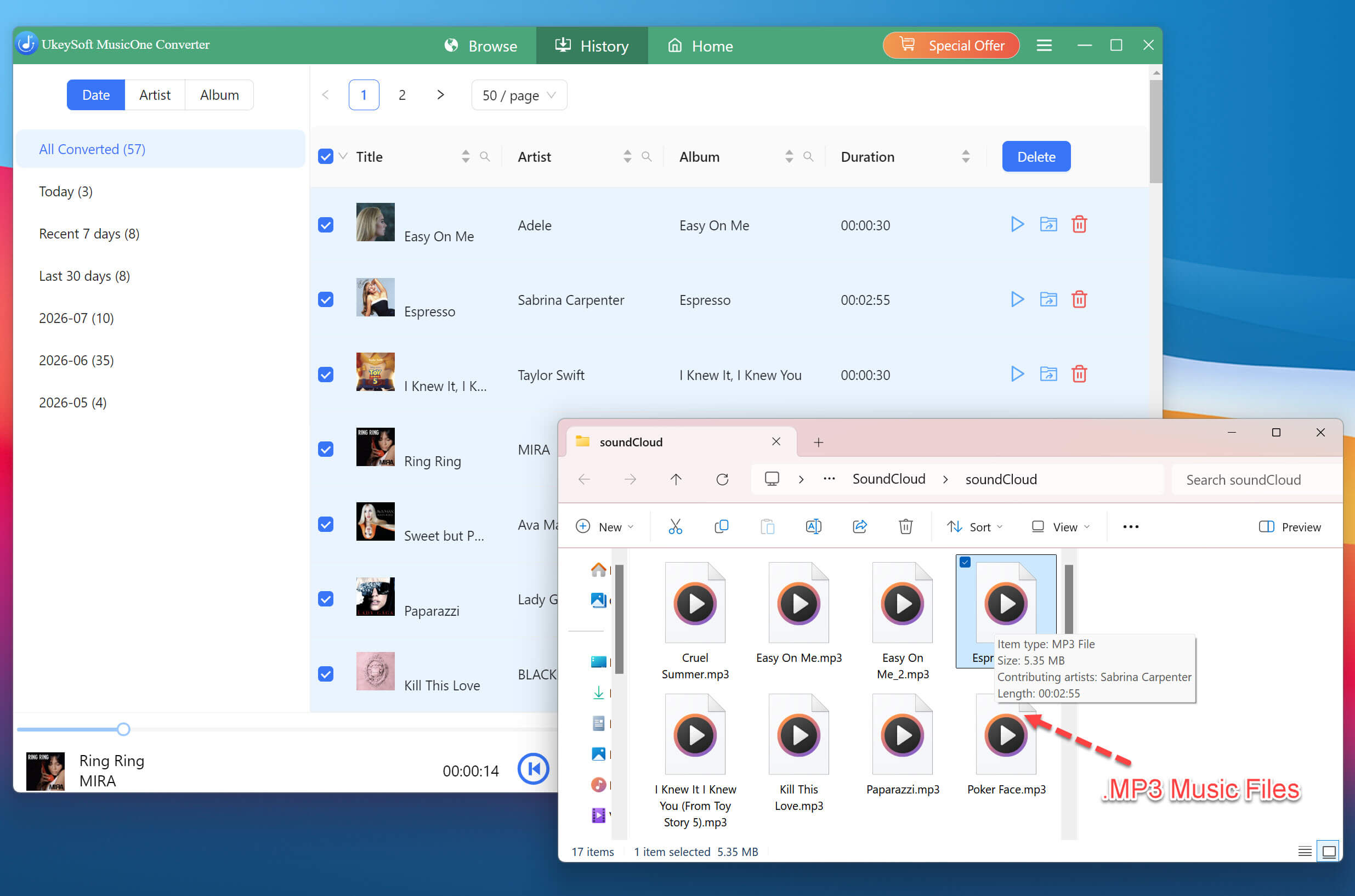
When conversion finishes, move to the "History" section and click the folder icon beside a track. As you can see, your downloaded SoundCloud MP3 files will appear in the destination folder. The next step is to copy SoundCloud songs to USB drive!
Process 2: How to Transfer SoundCloud Music to USB Drive?
Once the SoundCloud songs have been downloaded as MP3s to your computer, you can now follow below guide to transfer SoundCloud songs to a USB drive on Windows or Mac.
On Windows PC (Use File Explorer):
Preparation: Format the USB Drive if Necessary
If your car stereo or audio device only reads FAT32 and your USB drive isn't formatted that way (or is over 32GB), reformat it to FAT32. Otherwise, skip this step.
Insert your USB flash drive into an available USB port of your PC.
Press Windows + E to open File Explorer.
Select This PC from the left navigation panel and locate your USB drive under Devices and drives.
Open your USB drive, create a folder such as SoundCloud Music.
Open the output folder containing your downloaded SoundCloud MP3 music files.
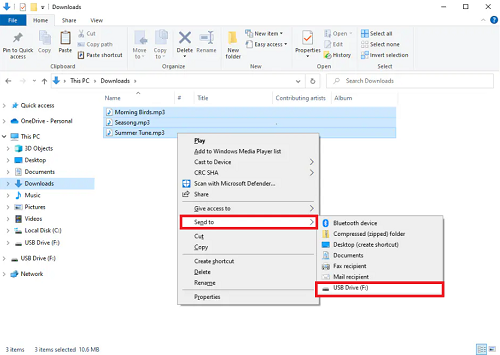
Select the songs you want to transfer, right-click the selected files and choose Send to, then USB Drive.
You can also drag and drop the files directly from your computer's music folder into the USB drive.
On Mac (Use Finder):
Preparation: Format the USB Drive if Necessary
● If the USB drive is new or formatted with a file system that isn't convenient for your devices, open Disk Utility on your Mac.
● Select the USB drive, click Erase, and choose exFAT if you want broad compatibility between Mac and Windows computers.
● Keep in mind that formatting erases the existing contents of the USB drive, so back up important files first.
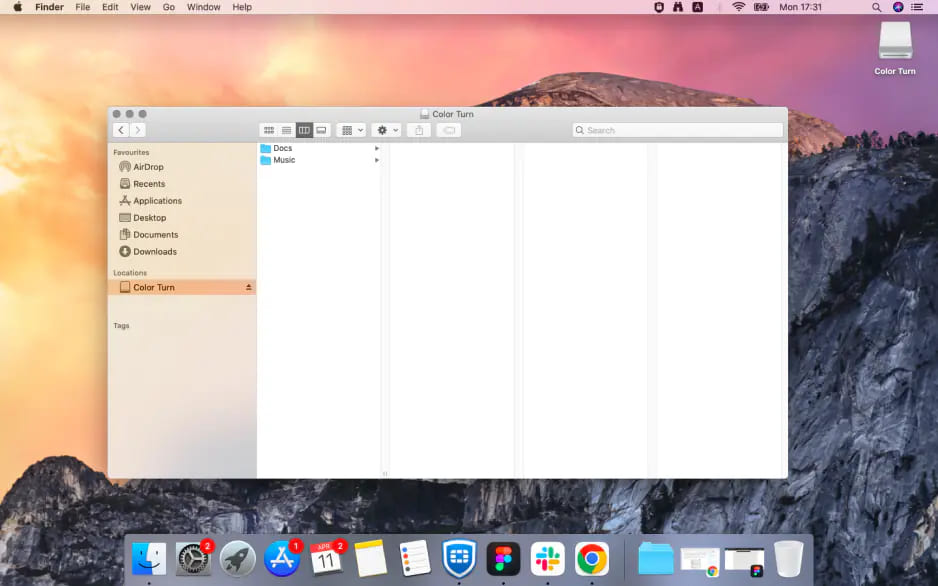
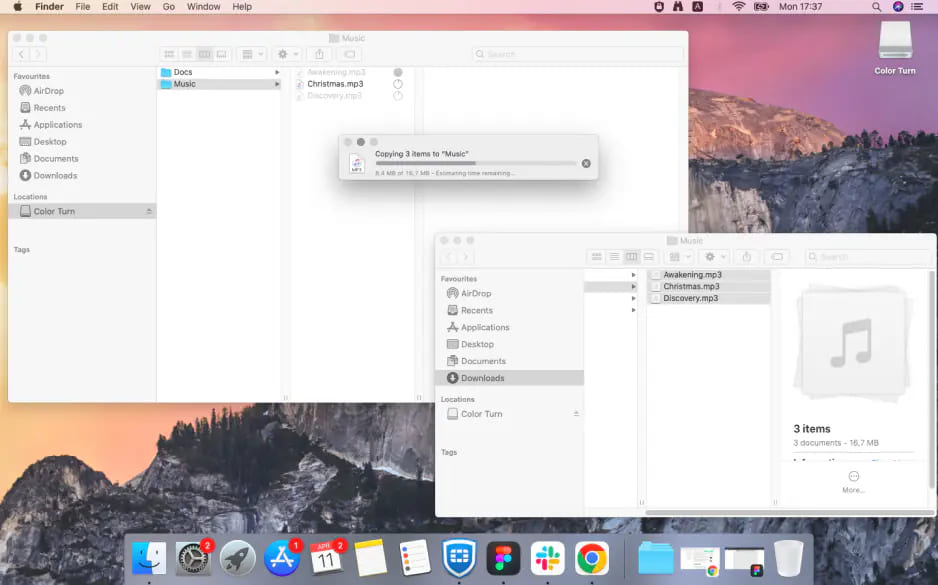
After formatting, connect the USB drive to your Mac. It should appear in Finder under Locations.
Open the folder where UkeySoft or your browser saved the SoundCloud MP3 music files.
Select the SoundCloud songs you want to move, then drag them into the USB drive window.
You can also use Command + C to copy the songs and Command + V to paste them into the USB folder.
After the transfer finishes, click the eject icon next to the USB drive in Finder.
FAQs About SoundCloud Music to USB Drive
Is it legal to download songs from SoundCloud to a USB drive?
It depends on the track, your rights, and how you download it. Whether you download songs from the official SoundCloud website, a third-party SoundCloud music downloader, or online tools, and save them to a USB drive, please ensure that they are used only for personal collection and listening, and that commercial use, distribution, etc., are prohibited.
How to load a SoundCloud playlist onto a USB drive?
SoundCloud does not let you download or save SoundCloud playlists to a USB drive. Instead, you can download a full SoundCloud playlist to MP3 using a desktop software such as UkeySoft SoundCloud Music Converter. Afterward, connect your USB drive, and copy the downloaded SoundCloud MP3 files into it.
Conclusion
To sum up, whether you want to download SoundCloud tracks, playlists, albums, artists, or podcasts, you can now download and export them to your USB drive in MP3 format with the help of UkeySoft SoundCloud Music Converter. Only in a few clicks, you can easily play SoundCloud music on USB-only devices such as car stereos, smart TVs, smart speakers, game consoles, soundbars, or media players! Even if you cancel your SoundCloud Go or Go+ subscription, you can still keep these SoundCloud songs and enjoy them freely!
Justin Sabrina has always had great enthusiasm for writing, programming and web development. He likes writing about software and technology, his works are featured on some tech blogs or forums like Tom's Hardware, CNET, etc.
 English
 Arabic
 Chinese (Simplified)
 Chinese (Traditional)
 Croatian
 Czech
Czech Danish
 Dutch
Dutch Estonian
 Finnish
 French
 German
 Greek
Greek Hebrew
 Hindi
Hindi Hungarian
 Indonesian
 Italian
 Japanese
 Kazakh
 Korean
 Malay
Malay Norwegian
 Polish
 Portuguese
 Romanian
 Russian
 Slovenian
 Spanish
 Swedish
 Thai
Thai Turkish
 Ukrainian
 Vietnamese







Comments are off!