Downloading SoundCloud music to an MP3 player isn't hard. This article will show you how to download songs from SoundCloud as MP3 files and transfer them to any MP3 player for offline playback.
SoundCloud is a popular music streaming platform, offering rare tracks, independent artists, and exclusive content. Users can easily access its music content through the official website or mobile app. However, traditional MP3 players usually do not support Wi-Fi connections or app installation, making it difficult to directly access SoundCloud music on a lightweight MP3 player. Since SoundCloud music is designed primarily for online streaming and its streaming music content are DRM-protected, so you cannot simply copy songs from SoundCloud and play SoundCloud music on MP3 player.
So, how to download songs from SoundCloud to MP3 player? In other words, how to download SoundCloud music to MP3 or other formats for traditional MP3 players? In this guide, we will show you how to download SoundCloud music to MP3 player using a professional SoundCloud music downloader. Wether you need to build an offline music collection or simply listen to SoundCloud music on MP3 player, this guide covers all you need.
The answer is yes and no. A few artists or uploaders enable download buttons, allowing users to download music in MP3, WAV, AAC, or other formats. However, most SoundCloud streaming music content is encrypted AAC (with DRM) format. Even if you've downloaded music in the SoundCloud mobile app, you cannot freely copy them to an MP3 player.
Part 2. Download SoundCloud Music to MP3 via Third-Party Tool
To play SoundCloud music on MP3 player, you generally need to convert or download SoundCloud songs to MP3 files.
UkeySoft SoundCloud Music Converter provides a convenient desktop solution. It can download SoundCloud tracks, playlists, and albums and convert them into regular MP3, M4A, AAC, FLAC, WAV, or AIFF audio files for local storage. This makes it possible to transfer SoundCloud songs to any MP3 player, smartphone, tablet, and devices.
As one of the best SoundCloud MP3 downloaders, UkeySoft also offers customizable audio settings, allowing you to freely adjust the output format and output quality. Even for the SoundCloud free users, you can download music from SoundCloud to MP3 at 320kbps to get the excellent listening experience.
Key Features of UkeySoft SoundCloud Music Converter
Work with SoundCloud Free, Go, and Go+ accounts.
Download SoundCloud songs to high-quality 320kbps MP3s.
Convert SoundCloud music to MP3, M4A, AAC, FLAC, WAV, AIFF.
Batch download multiple SoundCloud playlists and albums.
Keep downloaded SoundCloud music playable permanently.
Customize output quality, output format, output file name.
Provide 16X fast conversion with simple user-friendly controls.
Transfer and play SoundCloud music on any device or player.
Built-in music player and music manager to enhance experience.
How to Download and Convert SoundCloud Music to MP3 with UkeySoft?
Log In to UkeySoft SoundCloud Music Converter
To begin with, download and install UkeySoft SoundCloud Music Converter on a computer running Windows OS or macOS. Then, launch the program and sign in to your SoundCloud account.
Once signed in, you can browse your SoundCloud library and prepare your favorite tracks for downloading.
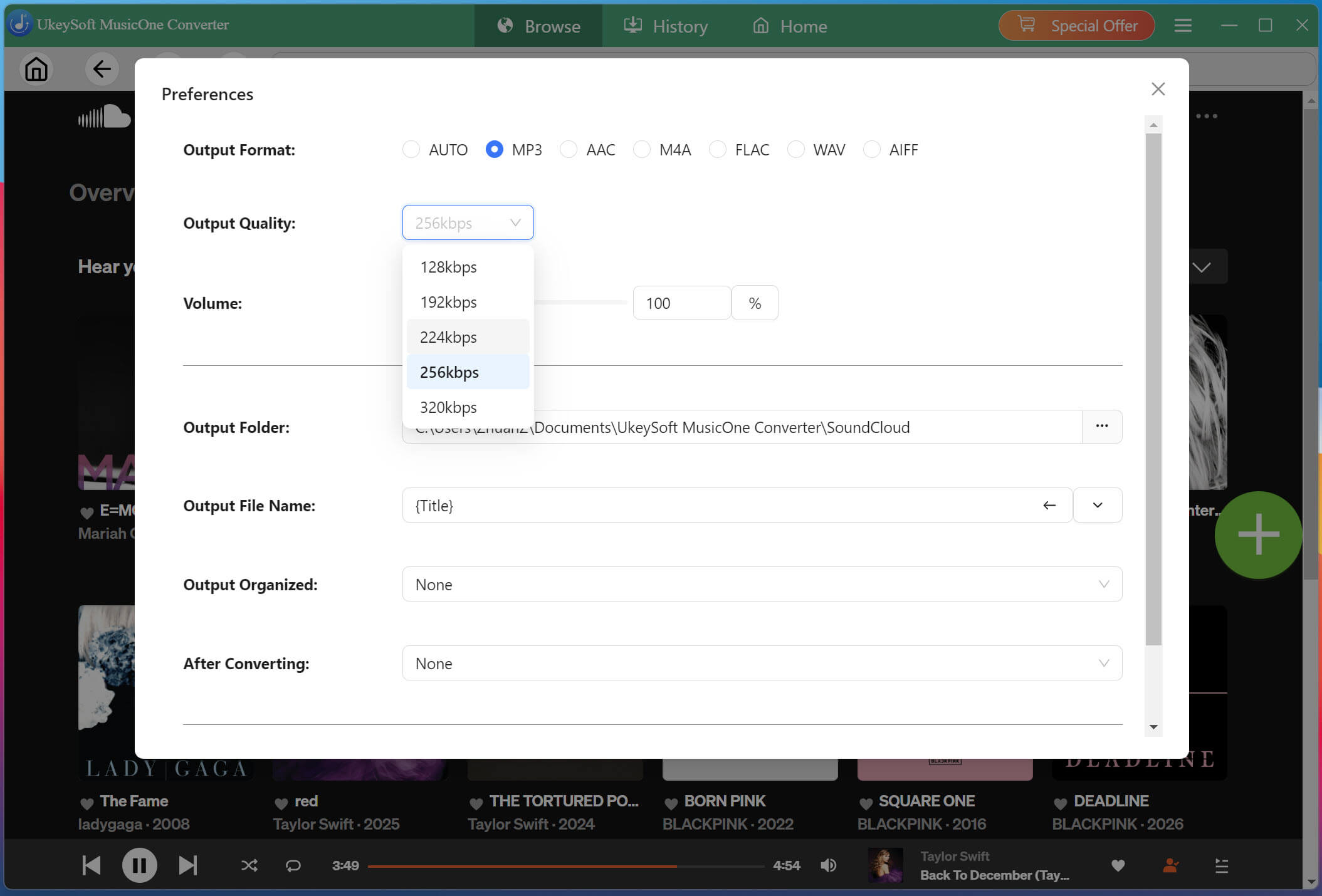
Customize Output Settings
Click "Menu" and select "Preferences" to customize your download settings. You can choose the desired output format (MP3), audio quality (320KBPS), and destination folder before converting SoundCloud tracks for offline playback.
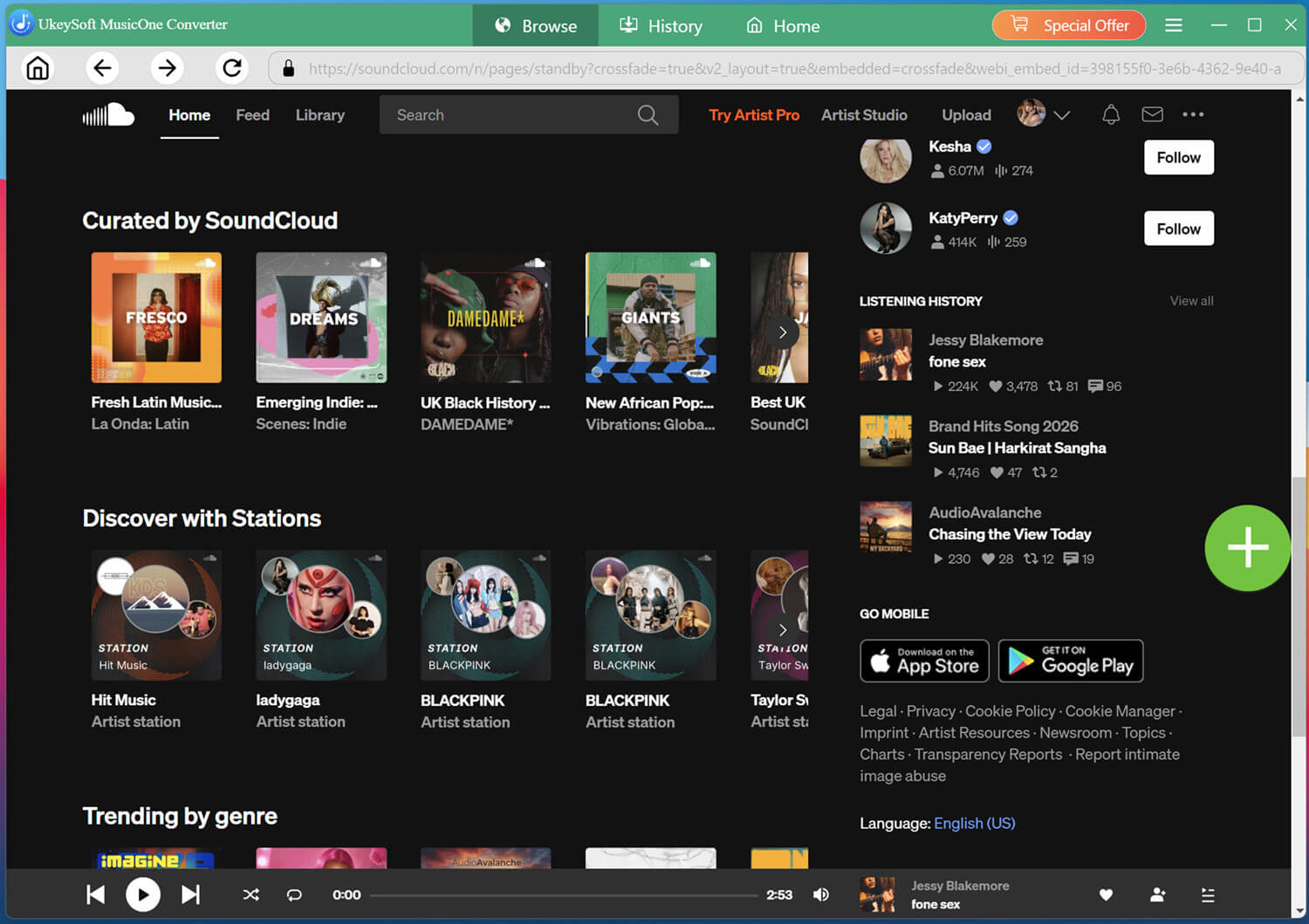
Browse, Open, Add SoundCloud Songs
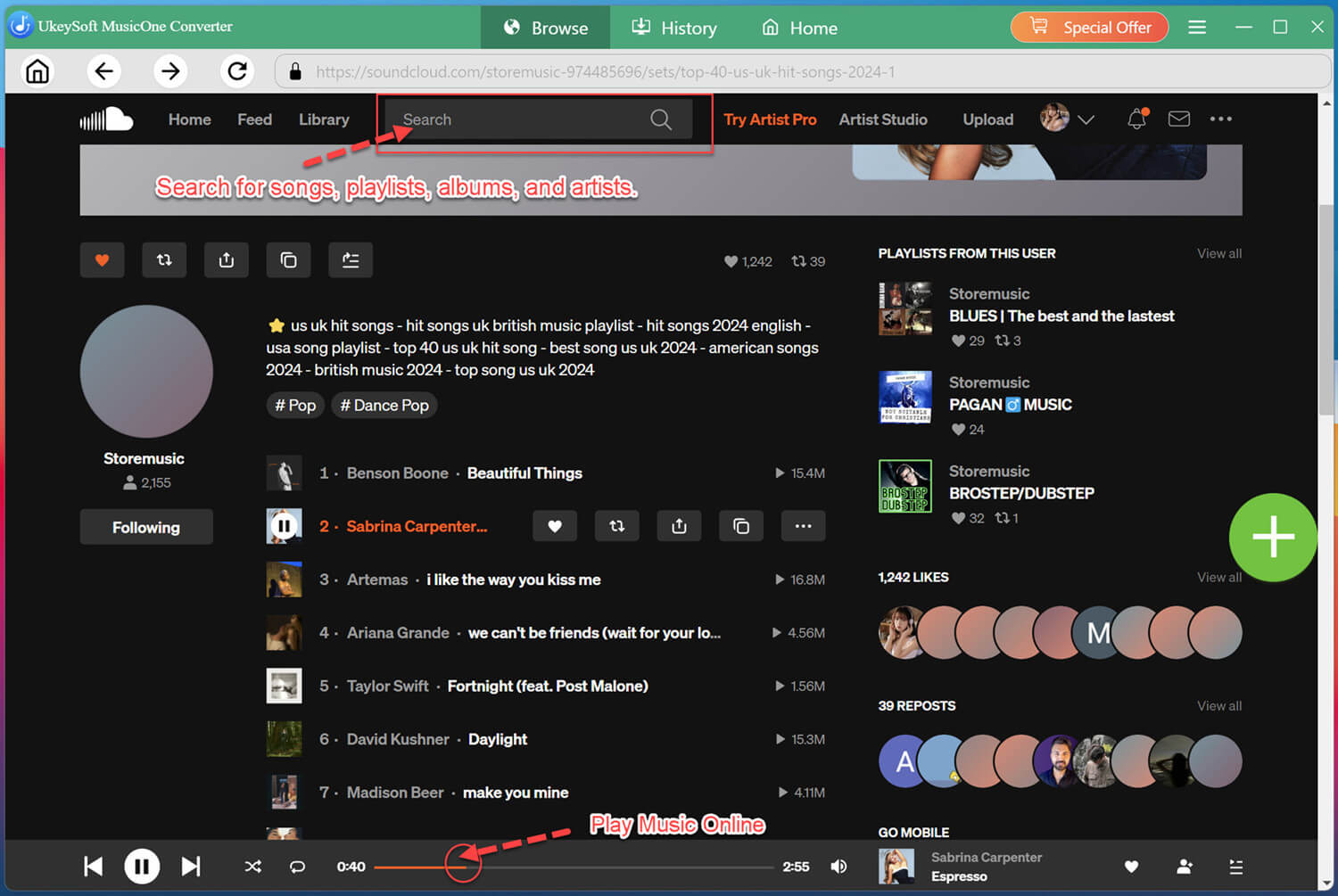
Browse SoundCloud within the converter, you can search for your favorite artist, album, playlist, or song in the search box.
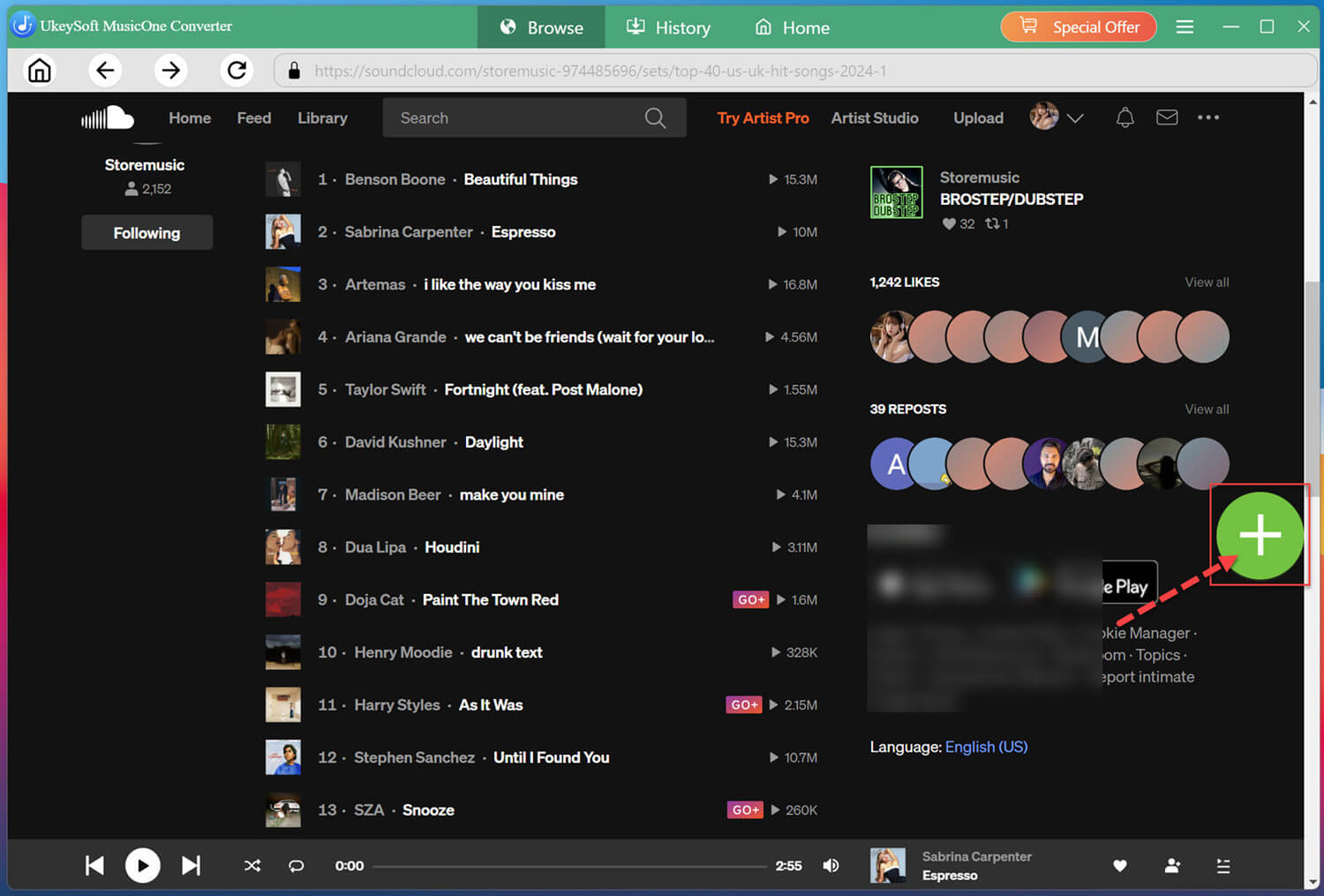
Open your favorite tracks or playlists, and click "+" button to add selected songs to the download list for processing.
Select Target SoundCloud Songs
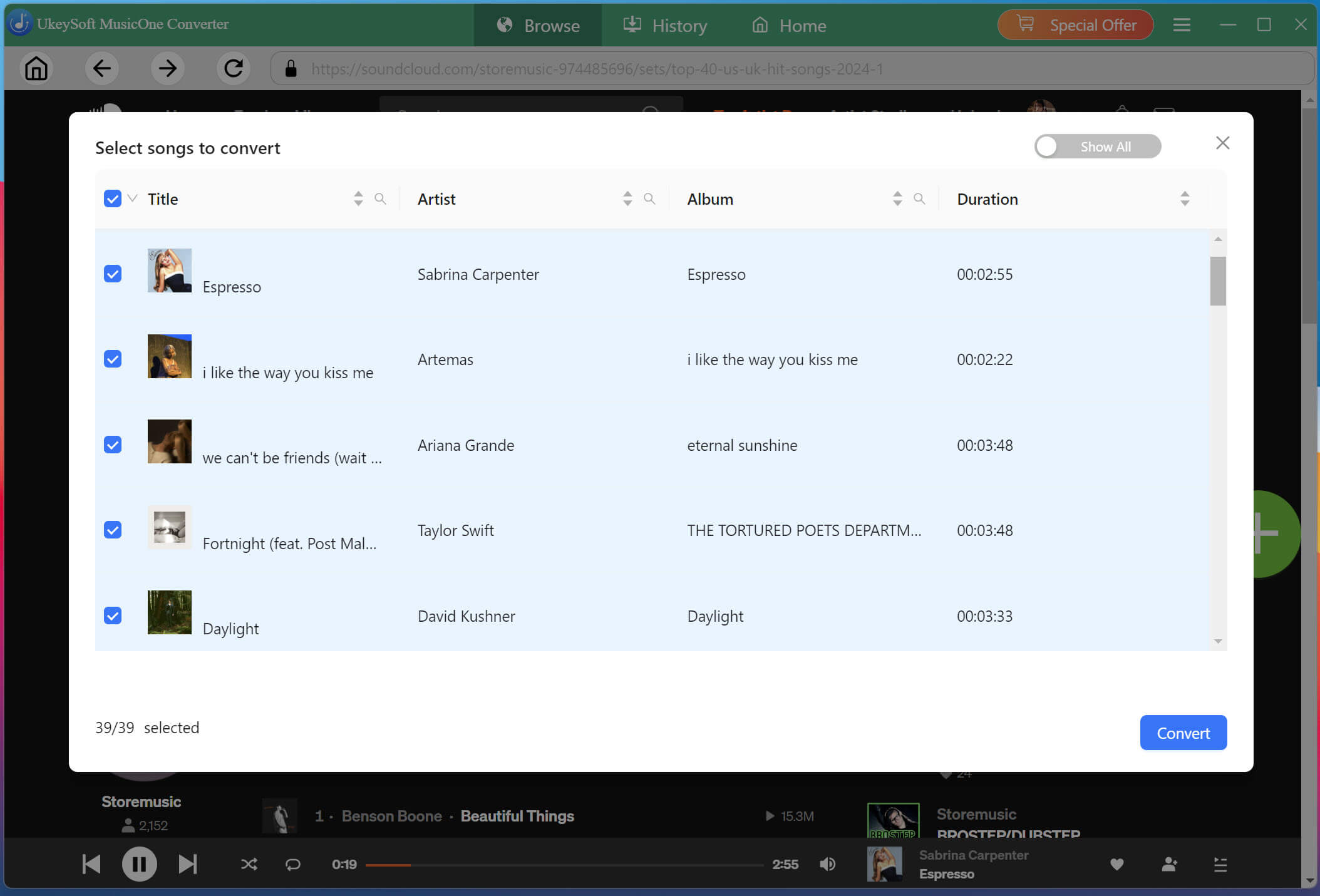
Review the added songs and select the tracks you want to save. You can tick "Select All" for batch downloads at once.
Start Downloading SoundCloud Music to MP3
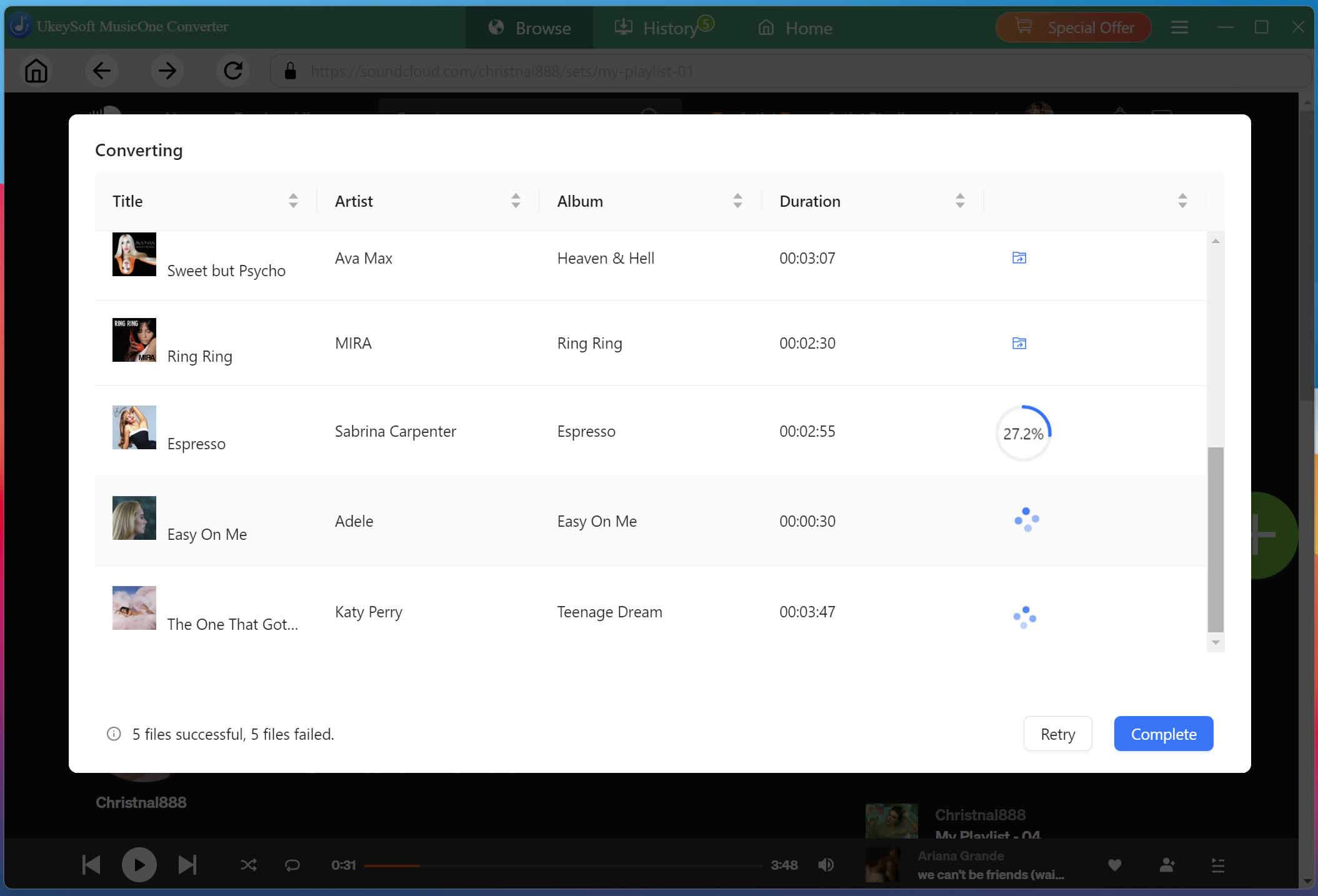
Click "Convert" button to start converting selected SoundCloud songs into MP3 or other format you set. UkeySoft SoundCloud Music Converter will process the tracks and save them as local audio files.
Get and Access Downloaded SoundCloud Songs
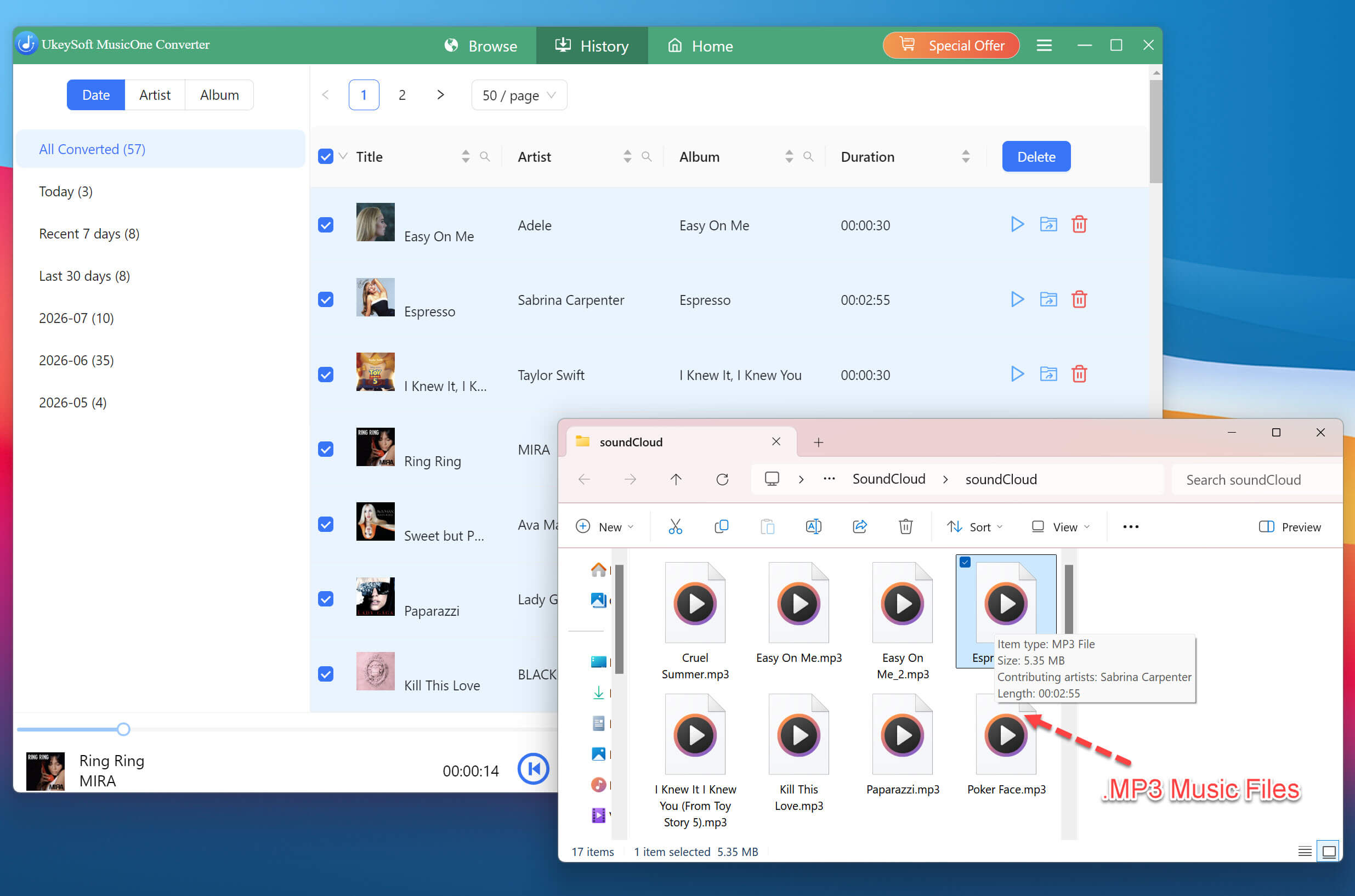
After downloading finishes, move to the "History" section or open the output folder to find your saved SoundCloud music files. You can transfer them to other devices and enjoy playback anytime.
Part 3. How to Transfer SoundCloud Songs to MP3 Player?
Once you have downloaded SoundCloud songs as MP3 files with UkeySoft SoundCloud Music Converter, you can easily transferr them to any MP3 player, including Sony Walkman MP3 player, SanDisk MP3 player, Zune, Activo CT10, FiiO M11/M15, PSP, PS3, PS4, PS5, iPod Nano, iPod Shuffle, iPod Classic, iPod Touch, etc.
For Windows: Use File Explorer
If you use Windows, File Explorer is the easiest way to transfer your downloaded SoundCloud music to your MP3 player.
Step 1. Connect your MP3 player to the Windows computer using a compatible USB cable.
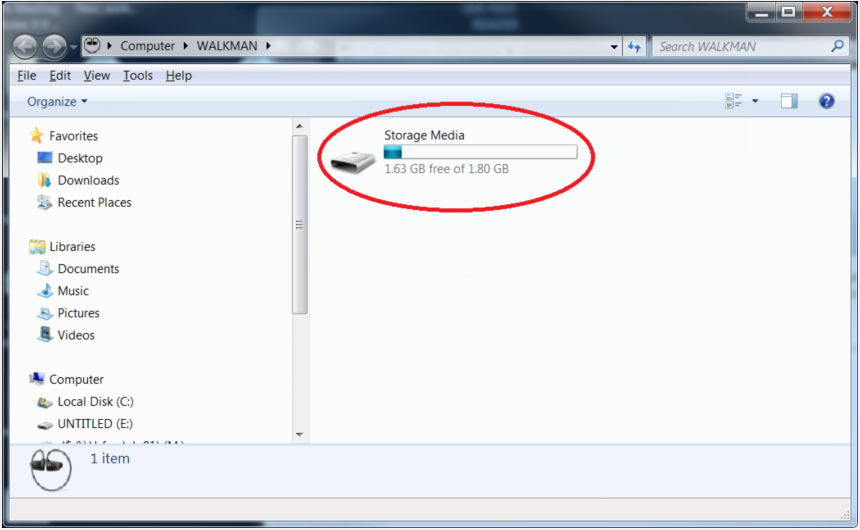
Step 2. Wait for Windows to recognize the device. Open File Explorer and select "This PC" from the left navigation panel.
Step 3. Locate your connected MP3 player under the list of available drives. Open it to view its folders.
Step 4. Open the folder containing your downloaded SoundCloud MP3 files in another File Explorer window.
Step 5. Select the downloaded SoundCloud songs you want to transfer. Drag and drop them into the MP3 player's Music folder.
You can also right-click the selected SoundCloud MP3 music files, choose Copy, open the destination folder, and select Paste.
Step 6. Wait for the transfer to finish. Then safely eject the MP3 player before disconnecting the USB cable.
For Mac: Use Finder App
On newer versions of macOS, you can generally use Finder to access compatible external MP3 players that appear as connected storage devices.
Step 1. Connect the MP3 player to your Mac using its USB cable.
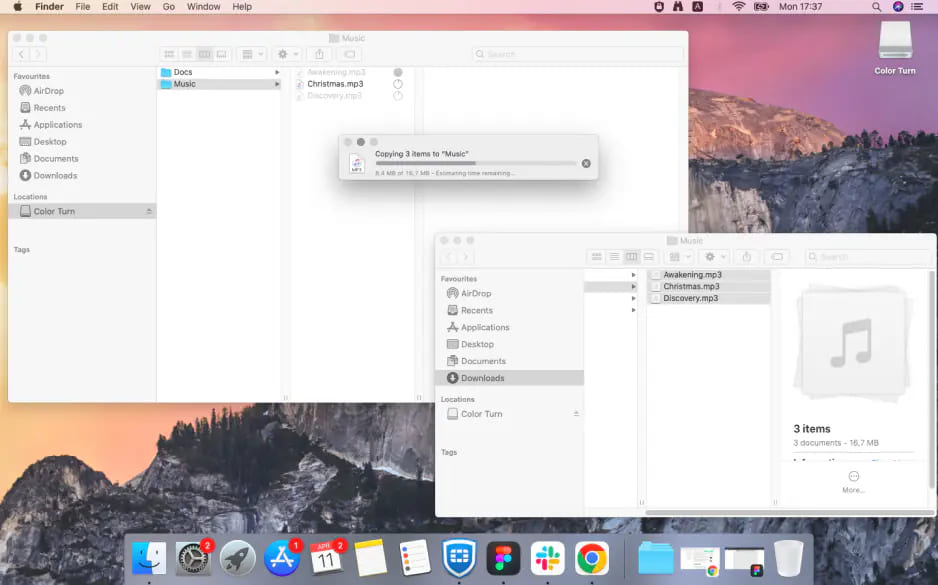
Step 2. Open Finder and check the sidebar under Locations for the connected device.
Step 3. Open the MP3 player's storage and locate its Music folder or another appropriate destination.
Step 4. Open the output folder containing the SoundCloud MP3 music files downloaded with UkeySoft.
Step 5. Drag the selected SoundCloud MP3 files into the MP3 player's music folder and wait for the transfer to complete. Eject the device from Finder safely.
For iPod Devices: Use iTunes or Music App
For iPod devices, you can use iTunes on Windows or the Music app on Mac to transfer your downloaded SoundCloud MP3 files to your iPod Nano/Shuffle/Classic/Touch.
Step 1. Add Downloaded SoundCloud MP3 Files to iTunes/Music
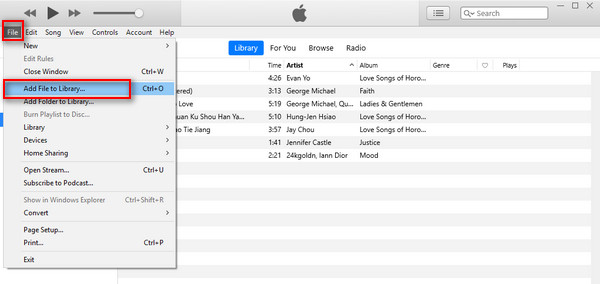
Open iTunes on your Windows computer. Click "File", select "Add File to Library...", then click "Import" to add downloaded SoundCloud MP3 files to your iTunes library.
For Mac users, open Music app, click "File" in the top menu bar, select "Import". Choose your downloaded SoundCloud MP3 files or folder and click "Open".
Step 2. Connect iPod to Computer
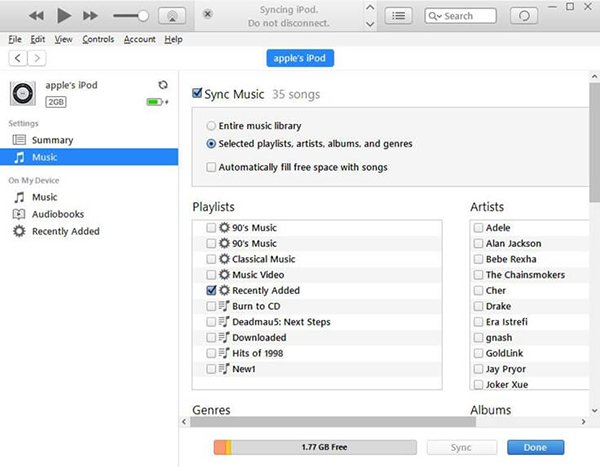
Connect your iPod Nano, Shuffle, Classic, Touch to your computer using a USB cable. Wait for iTunes or Music to recognize your device. Select your iPod from the device list.
Step 3. Sync SoundCloud MP3 Files to your iPod
In iTunes, open the Music section under your iPod settings. Enable music syncing, choose the songs or playlists you want to transfer, and click Apply or Sync.
On Mac, use Finder to select your iPod, choose the Music tab, and sync the selected tracks.
Step 4. Safely Disconnect Your iPod
After the synchronization process finishes, eject your iPod from iTunes, Finder, or the Music app.
Part 4. Conclusion
Now that you know how to download songs from SoundCloud to MP3 player for playback, it's necessary to use a third-party SoundCloud music downloader. UkeySoft SoundCloud Music Converter is probably the best tool you can rely on. Its powerful functionality makes it easy to download high-quality 320kbps MP3 music from SoundCloud on your MP3 player with a Free account. Hit on the Download button to build your music collection offline and transfer SoundCloud songs to MP3 player easily!
Justin Sabrina has always had great enthusiasm for writing, programming and web development. He likes writing about software and technology, his works are featured on some tech blogs or forums like Tom's Hardware, CNET, etc.
 English
 Arabic
 Chinese (Simplified)
 Chinese (Traditional)
 Croatian
 Czech
Czech Danish
 Dutch
Dutch Estonian
 Finnish
 French
 German
 Greek
Greek Hebrew
 Hindi
Hindi Hungarian
 Indonesian
 Italian
 Japanese
 Kazakh
 Korean
 Malay
Malay Norwegian
 Polish
 Portuguese
 Romanian
 Russian
 Slovenian
 Spanish
 Swedish
 Thai
Thai Turkish
 Ukrainian
 Vietnamese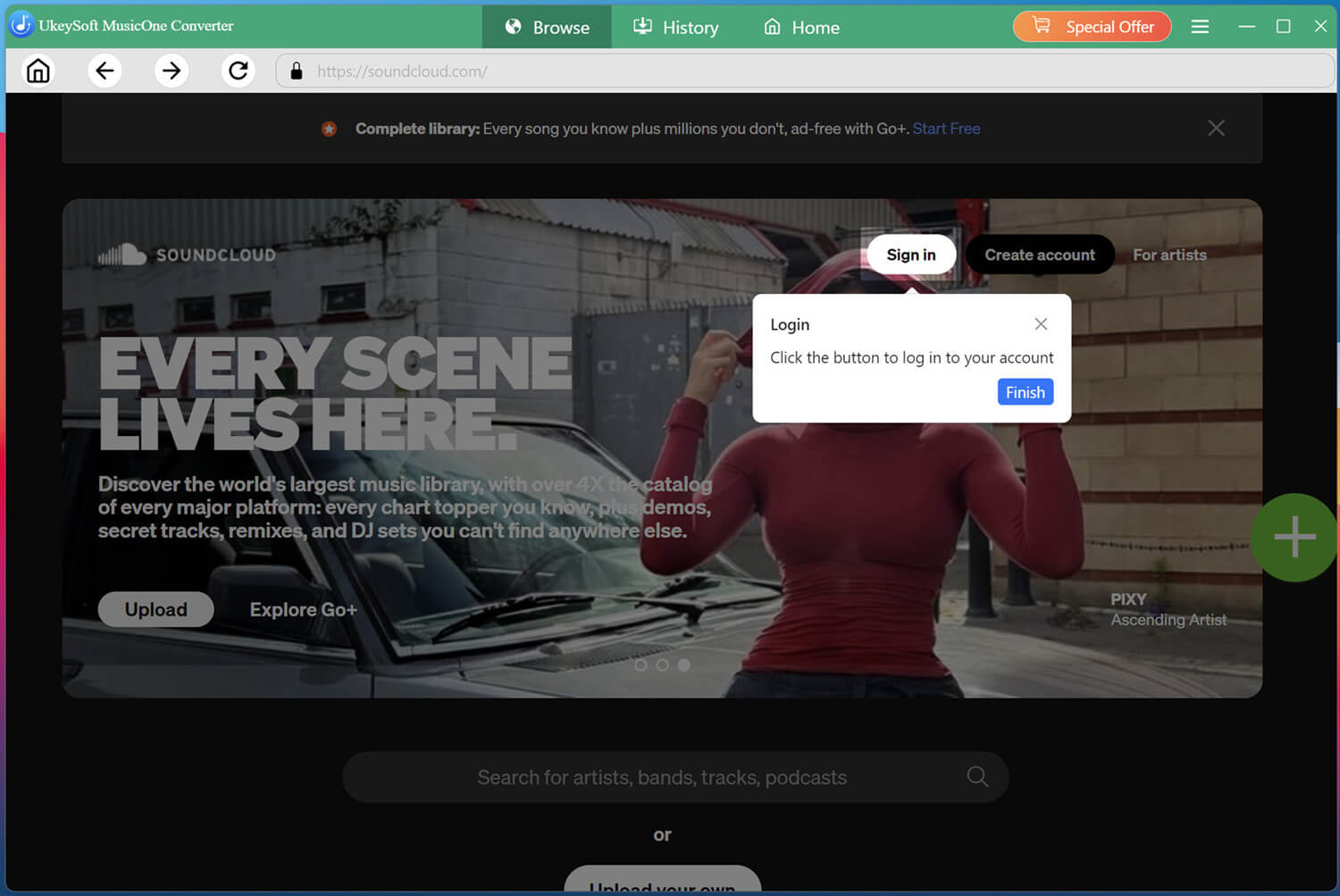







Comments are off!