By
Justin SabrinaUpdated on July 24, 2026
Summary
This article explains Apple Music lossless audio and how to set up Apple lossless audio on Max to enhance your streaming experience. You can also learn how to save Apple Music lossless tracks on Mac permanently!
Apple Music is one of the most popular music streaming service that offers lossless tracks on compatible devices. Apple Music offers Lossless Audio feature to deliver the best streaming experience at no extra charge. If you own a MacBook or iMac and have an active Apple Music subscription, you can't miss this article. Here we will guide you how to set up lossless audio on Macbook or iMac. Additionally, you will get extra tips to download Apple Music Lossless on your Mac for offline listening.
CONTENTS
What is Apple Music Lossless Audio?
Apple Music Lossless Audio refers to audio files compressed without losing their original quality. Unlike traditional audio compression removes some data to reduce file size, the lossless audio retains all the original audio information, offering superior sound quality.
Apple Music provides two types of lossless formats:
Lossless: Up to 24-bit/48 kHz quality.
Hi-Res Lossless: Up to 24-bit/192 kHz quality (requires an external DAC for Mac).
With Apple Music Lossless Audio, you can experience your favorite tracks with richer detail, deeper bass, and crystal-clear sound.
Apple Music Lossless: What Devices are Supported?
Apple Music subscribers can listen to lossless audio tracks on these supported Apple devices, including:
- iPhone: (running iOS 14.6 or later)
- iPad: (running iPadOS 14.6 or later)
- Mac: (running macOS 11.4 or later)
including MacBook Air (2018 and later), MacBook Pro (2018 and later), iMac (2018 and later), Mac mini (2018 and later)
- Apple TV: (running tvOS 14.6 or later)
- HomePod: (running HomePod 15 software)
- HomePod mini: (running HomePod 15 software)
- Apple CarPlay (with Apple lightning to 3.5mm connection)
- Android: (with the latest version of the Apple Music app)
Note: Up to now, there's still no lossless playback on any model of AirPods earbuds/headphones yet.
How to Enable Apple Music Lossless Audio on MacBook or iMac?
You will need an active Apple Music subscription to access the lossless audio settings. Follow these simple steps to turn on Lossless Audio on Apple Music on your MacBook or iMac:
Step 1. Open the Music App on your MacBook or iMac.
Step 2. In the top-left corner, click "Music" > "Settings" (or Preferences in older macOS versions).
Step 3. In the Settings window, select the "Playback" tab.
Step 3. Tick the box for "Lossless Audio" under Audio Quality.
Step 4. Choose "Lossless (ALAC up to 24-bit/48 kHz)" option on both Streaming and Download section.
Step 5. Then click "OK" button to save your preferences.
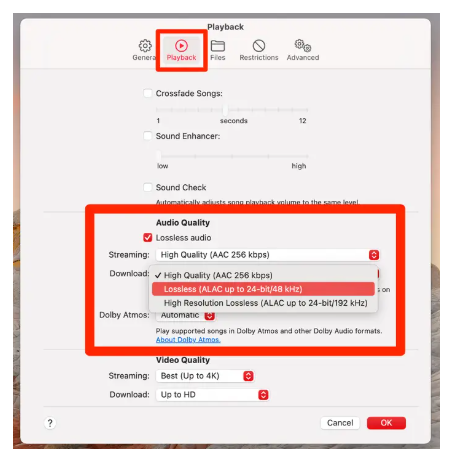
Once enabled, you can enjoy Apple Music Lossless Audio on your MacBook or iMac at ease!
Bonus: Download Apple Music as Lossless Audios on Mac
While Apple Music allows streaming lossless audio, it also lets you download Apple Music tracks in lossless audio. However, it's important to note that Apple use FairPlay DRM to encrypt its music content. This means you can only access them within the Apple Music app. When your Apple Music subscription ends, you will lose access to your music library. Luckily, there are plenty of tools like UkeySoft Apple Music Converter that can help you download Apple Music tracks onto your Mac as local audios.
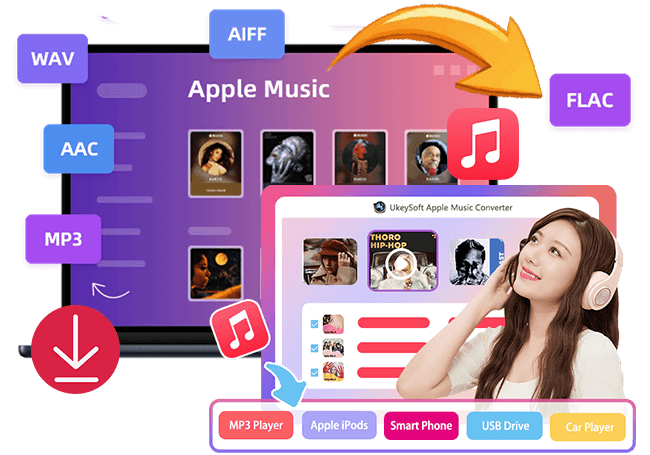
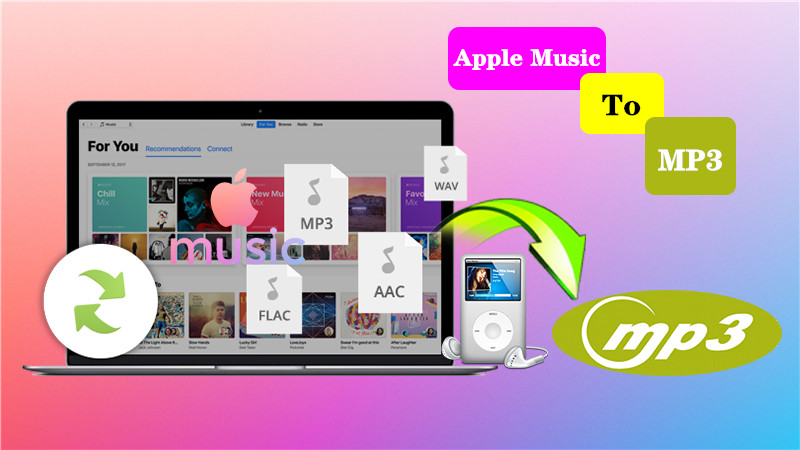
The dedicated software has integrated with the official Apple Music app. Moreover, it also empowers advanced DRM decryption technology to unlock the protection of all Apple Music songs, then download them to your iMac, Macbook, Windows PC or laptop without the Apple Music app. UkeySoft Apple Music Converter can convert Apple Music songs/playlists/albums/artists to regular audio formats like MP3, M4A, AAC, WAV, FLAC, or AIFF to make the downloads compatible with all devices and players!
The program will remain lossless audio quality, at up to 640kbps in maximum to save Apple Music files, delivering the best listening experience! Using it, you can easily save lossless Apple Music audios on your Mac permanently, and listen to Apple Music offline on your Mac using other media players like iTunes, VLC, QuickTime, etc.
UkeySoft Apple Music Converter
- Remove DRM from Apple Music and save Apple Music on Mac/PC locally.
- Use the in-built Apple Music Web Player to access music library.
- Convert Apple Music to MP3, AAC, FLAC, M4A, WAV, AIFF at 16X speed.
- Customize the output qualities of Apple Music downloads to Lossless audio.
- Allow to download entire Apple Music playlists or albums in bulks.
- Saves all ID3 tags and metadata, and organize output songs freely.
- Offline listen to Apple Music in lossless quality on any device and player.
Tips: System Requirements:
Windows 7 or later on 64bit required
Guide: How to Download Apple Music on Mac in Lossless AAC Audios?
Step 1. Open UkeySoft Apple Music Converter
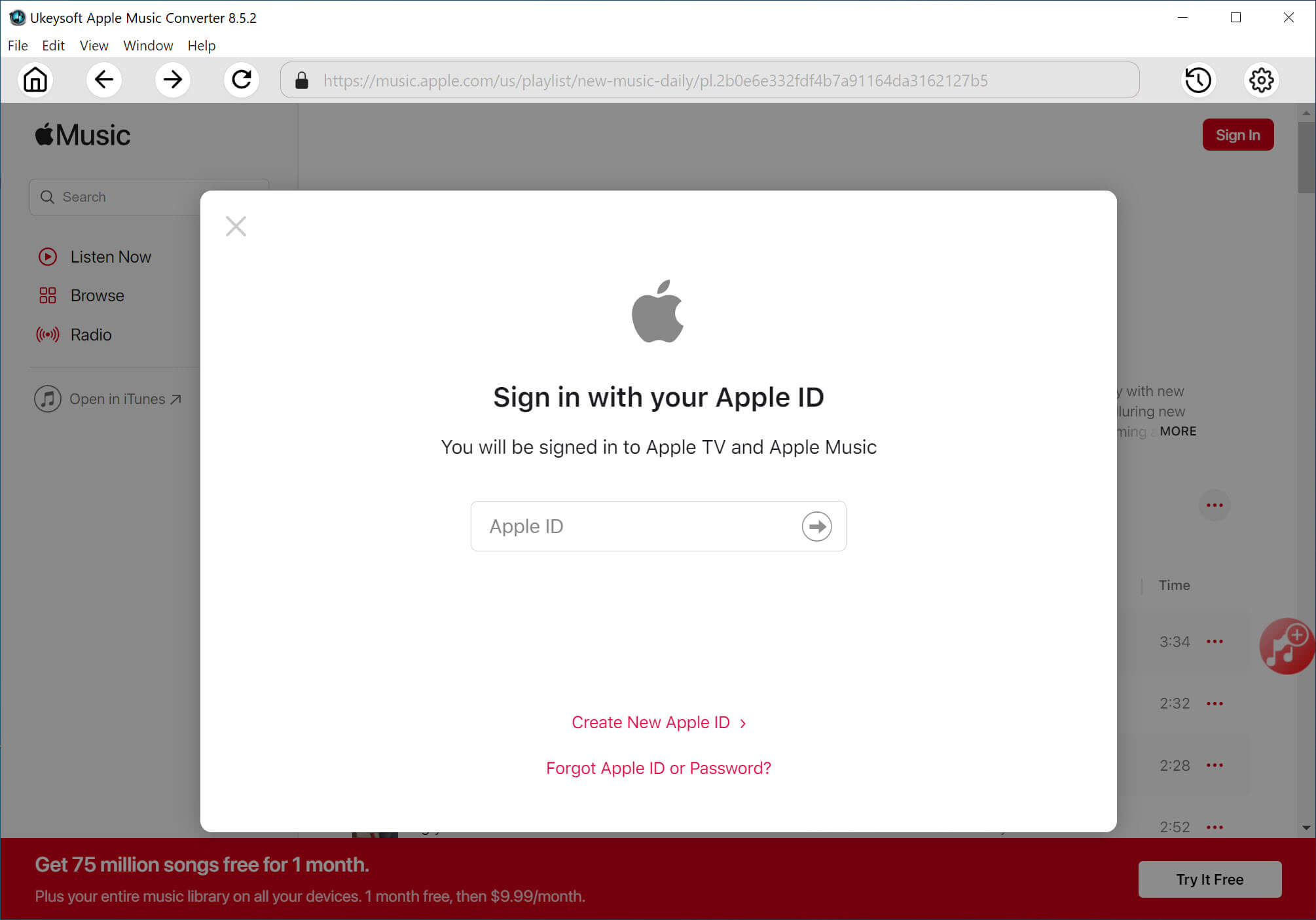
To get started, free download UkeySoft Apple Music converter on your iMac or Macbook. Then install and open the software. To enjoy its feature, you need to log in to your Apple ID on the software.
Step 2. Choose Lossless AAC Audio
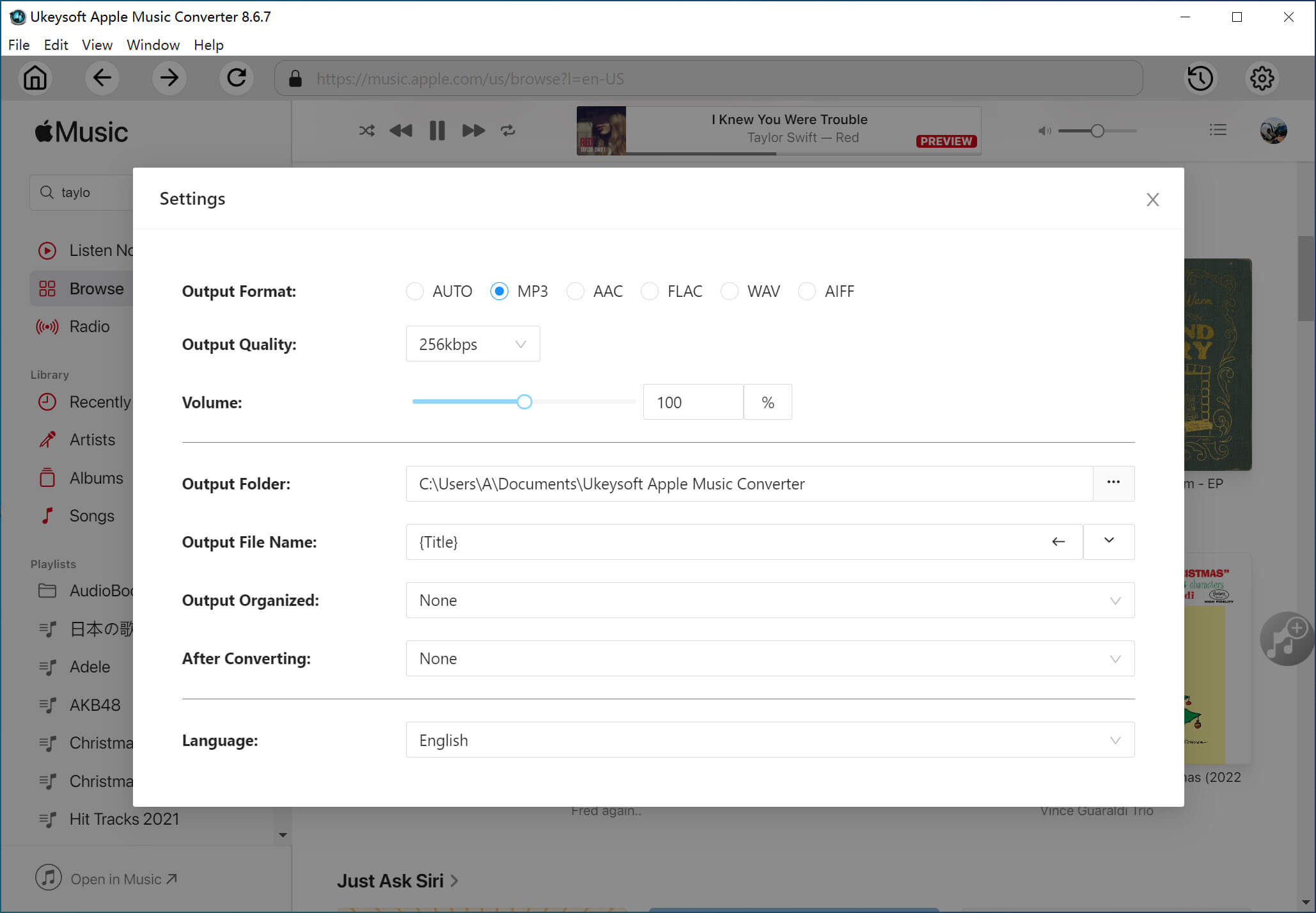
The default output format of the software is M4A, which can reach 640kbps high bitrate. You may also open the settings window by clicking the "Gear" icon so as to define the output settings. You can select AAC or M4A format to your Apple Music downloads.
Step 3. Add Apple Music Song/Playlist/Album
Navigate to the song, playlist or album you want to save it to your Mac. Then click the red "+" button in the right side to import it to the converting list.
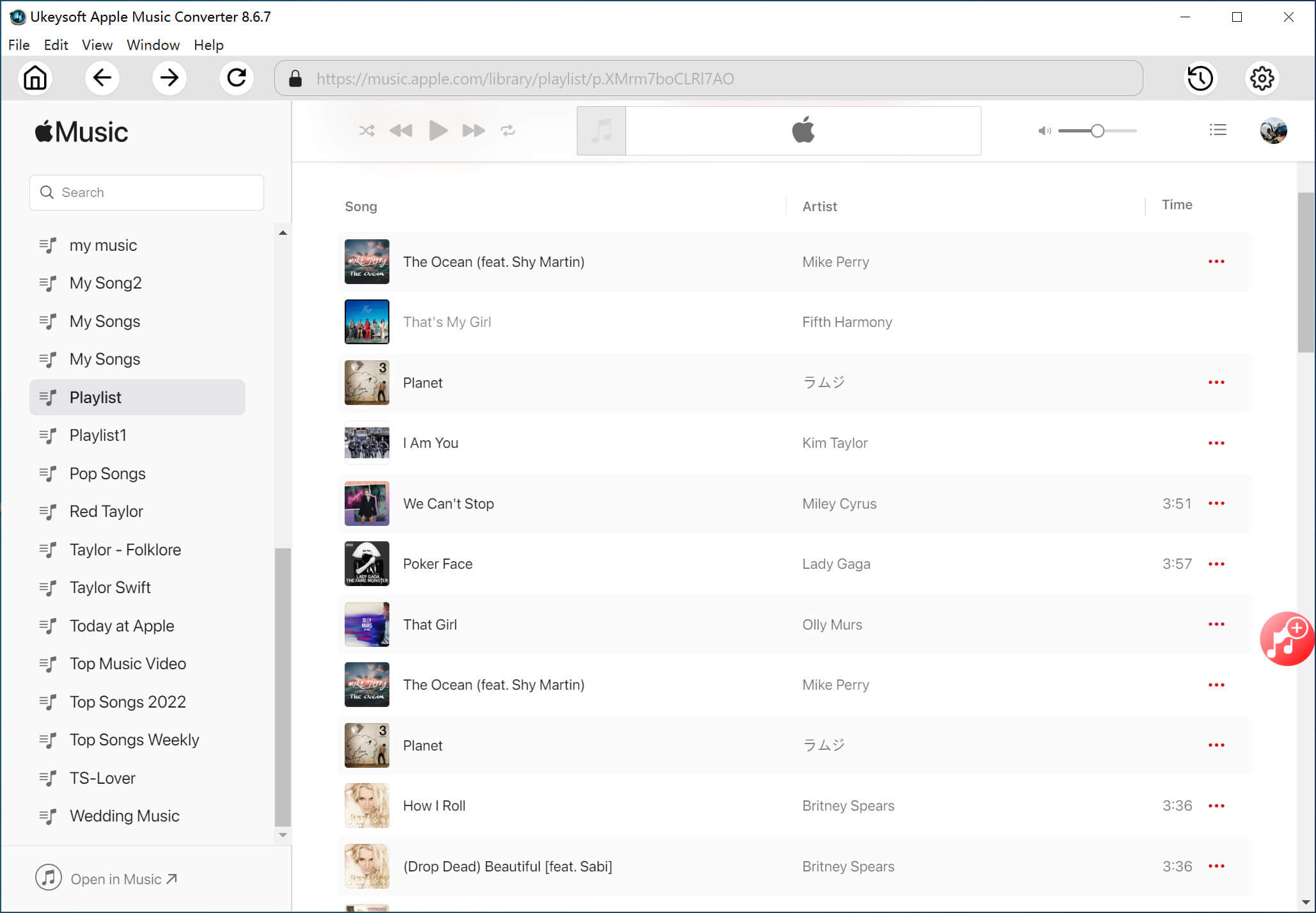
After adding all the music tracks, check and confirm the target songs again. You can deselect the tracks you don't want to download.
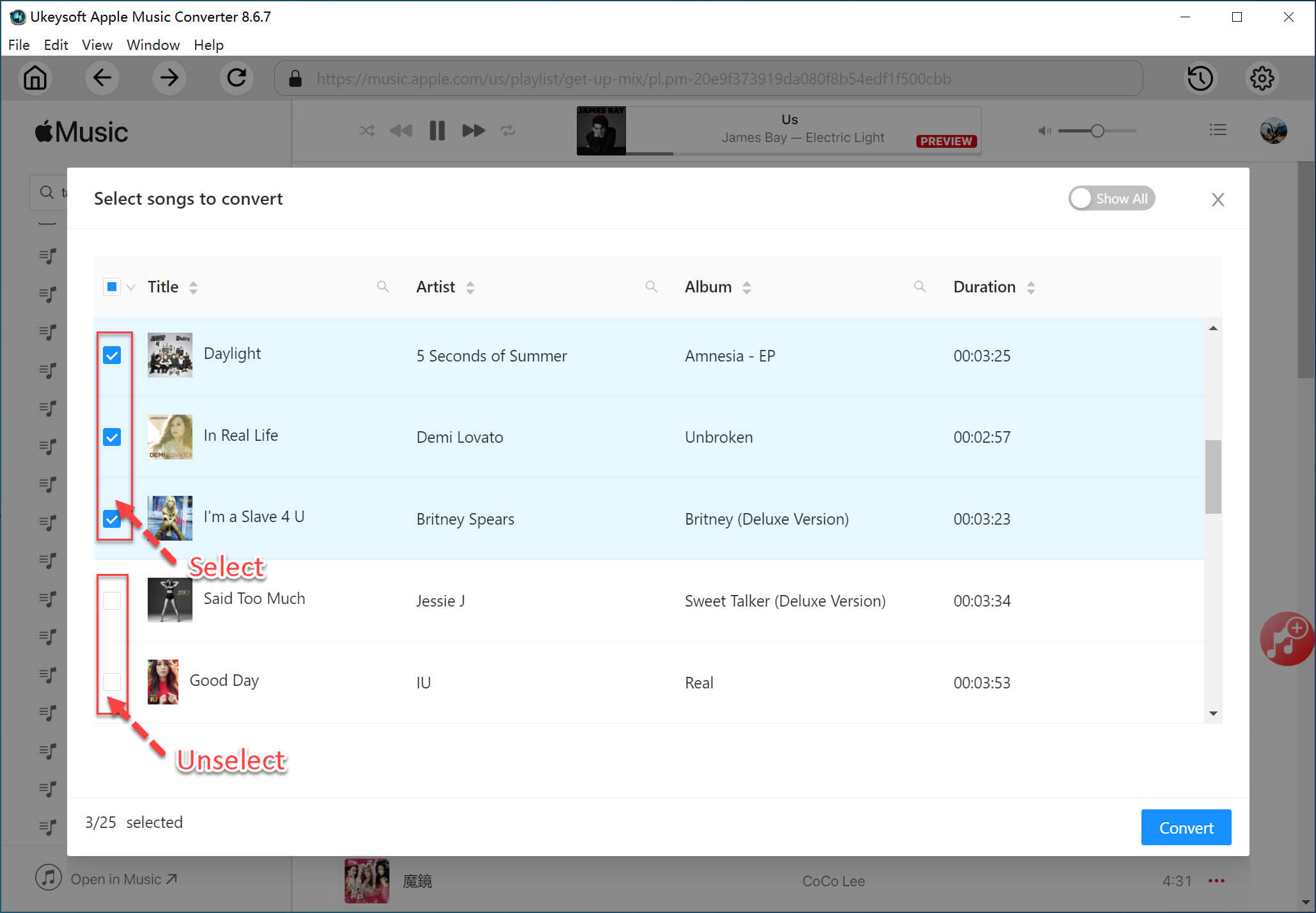
Step 4. Download Apple Music to Lossless AAC on Mac
Now hit on the "Convert" button, it will immediately download and convert your selected Apple Music songs to lossless AAC audios.
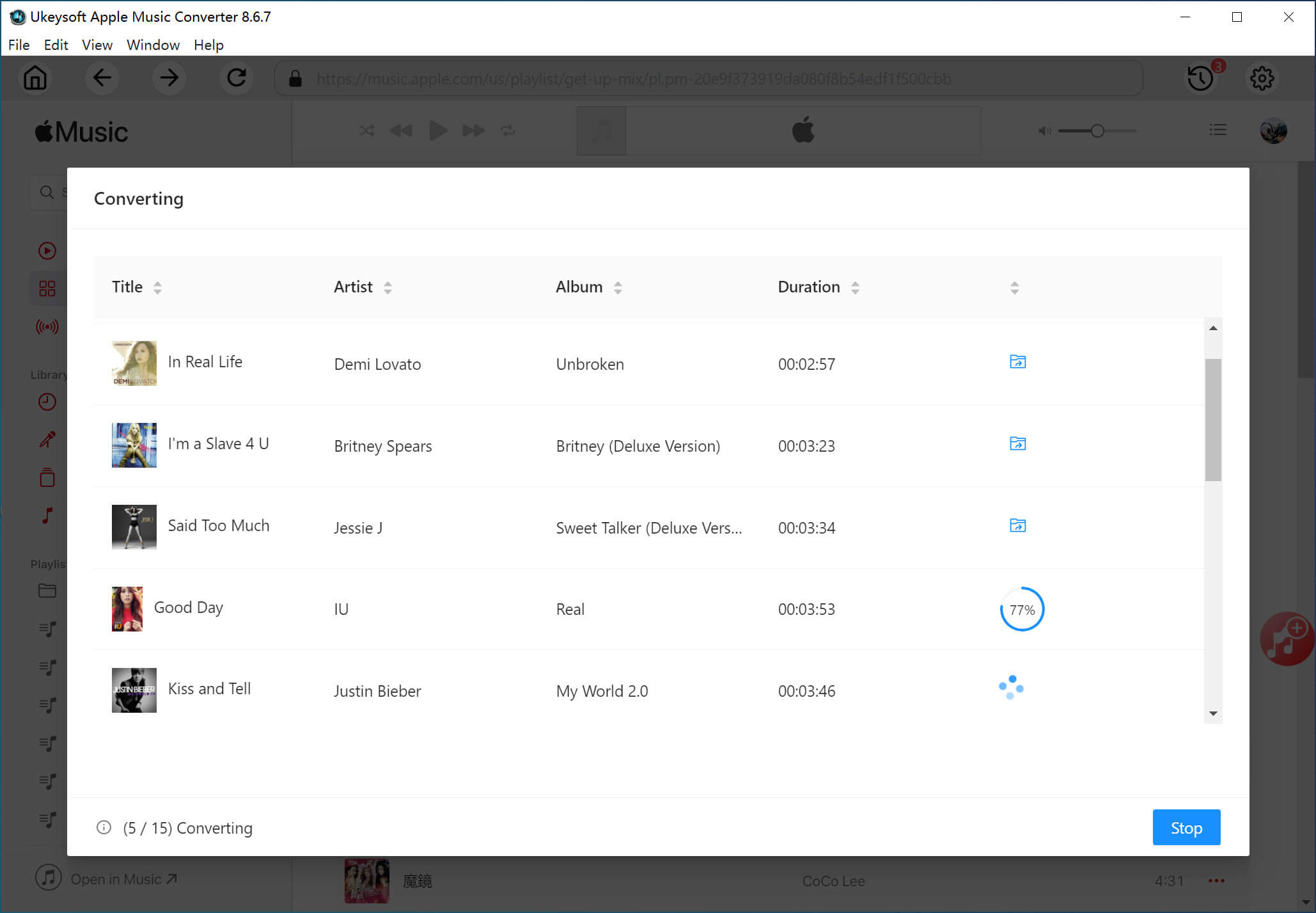
Wait for the download to complete. Then click the "Clock" icon to get the downloaded Apple Music songs. Now all the Apple Music songs has been saved on your Mac computer and you can enjoy your lossless music audio right now!
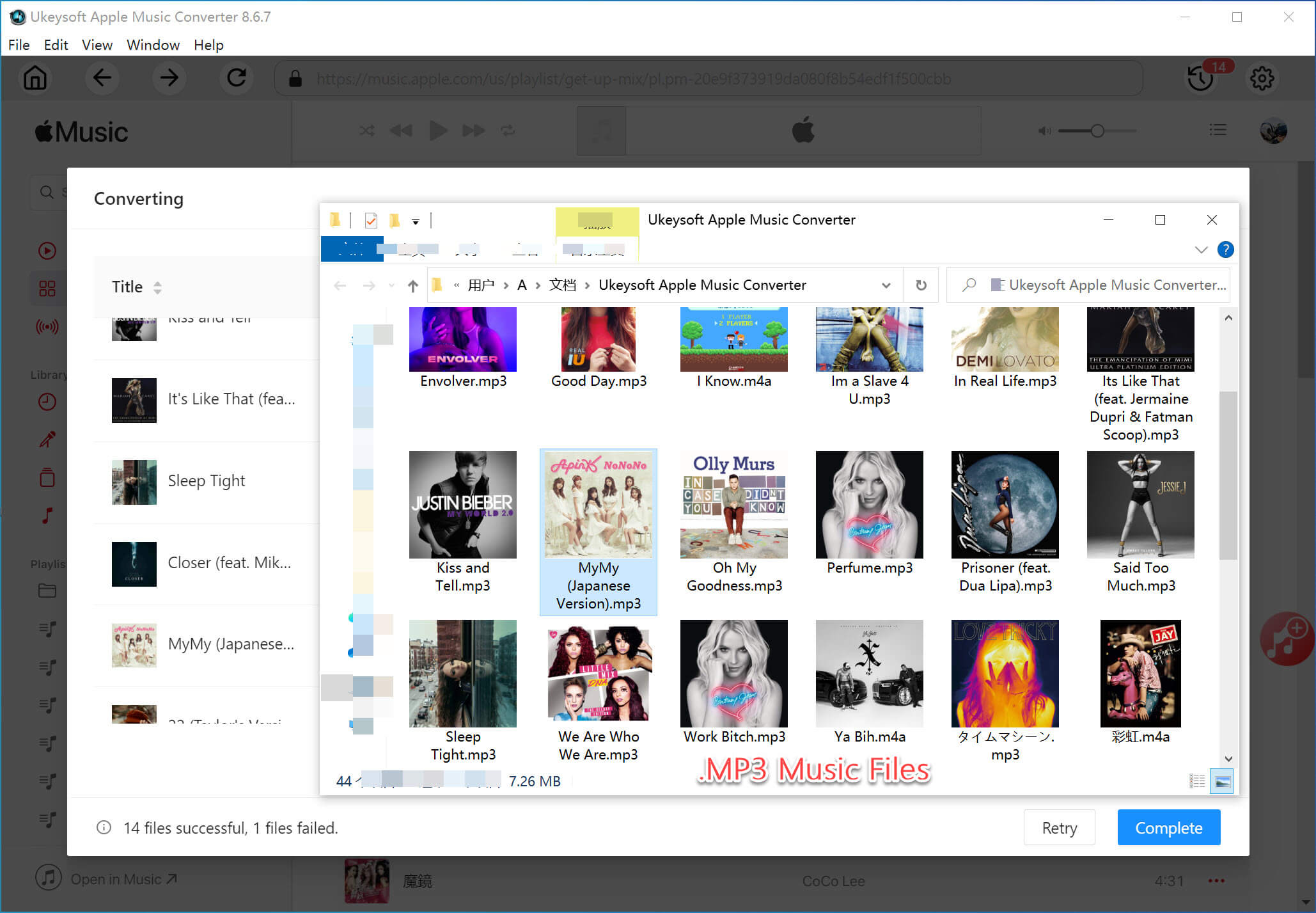
Conclusion
In short. Apple Music Lossless Audio is available on iPhone, iPad, Mac, Apple TV 4K, HomePod (Mini) and Android. Here you've learned how to enable Apple Music Lossless Audio on your MacBook or iMac. By following this guide, you can quickly set up lossless audio and enjoy crystal-clear sound on your iMac or Macbook. For those who want to save Apple Music on Mac forever, tools like UkeySoft Apple Music Converter offer a reliable solution. It can help you unlock DRM and download Apple Music tracks on Mac in common AAC, MP3, FLAC, WAV and other formats with lossless audio quality. Enhance your music journey today by unlocking the full potential of Apple Music Lossless Audio on your Mac!
Apple Music Lossless Audio on Mac

Justin Sabrina has always had great enthusiasm for writing, programming and web development. He likes writing about software and technology, his works are featured on some tech blogs or forums like Tom's Hardware, CNET, etc.
 English
 Arabic
 Chinese (Simplified)
 Chinese (Traditional)
 Croatian
 Czech
Czech Danish
 Dutch
Dutch Estonian
 Finnish
 French
 German
 Greek
Greek Hebrew
 Hindi
Hindi Hungarian
 Indonesian
 Italian
 Japanese
 Kazakh
 Korean
 Malay
Malay Norwegian
 Polish
 Portuguese
 Romanian
 Russian
 Slovenian
 Spanish
 Swedish
 Thai
Thai Turkish
 Ukrainian
 Vietnamese







Comments are off!