Ukeysoft Apple Music Converter Apple Music Converter

 Guide Tips

  • Part 1. How to Register UkeySoft Apple Music Converter
  • Part 2. How to Convert Apple Music to MP3 / M4A / AAC / WAV / FLAC / AIFF
  • Part 3. Video Tutorial
  • Part 4. Built-in Music Manager & Player Introduced
  • Part 5. Customize Output Audio Parameters
  • Part 6. More Settings

Part 1. How to Register UkeySoft Apple Music Converter


UkeySoft Apple Music Converter offers the free trial for users to experience the full features, but it is only available for 30 days. If you want to keep in using the software to download Apple Music tracks after the free trial ends, registered its premium subscription is required. How to purchase and activate the register UkeySoft Apple Music Converter? Here's the guide in detail you should read.

Step 1. Install and Launch UkeySoft Apple Music Converter

Click the below "Try It Free" button to download the UkeySoft Apple Music Converter installation package, the program fully compatible with the latest Windows and macOS.


Free Version:

1. Convert the first 3 minutes of each music files.

2. Batch convert 3 music files at a time.

3. Free trial version for users to experience the full features within 30 days.

Full Version:

1. Unlock all restrictions.

2. Convert a full songs and batch conversion feature.

3. Enjoy free lifetime update and technical support.

After installing the program, please double click the icon and launch it.


Step 2. Buy A License for UkeySoft Apple Music Converter

After launching the trial version of UkeySoft Apple Music Converter, a registration window would pop up immediately and ask you to activate the full version of the software, you can close this activation window and try the software before buying. The trial version allows you convert the first 3 minutes of each song. If you want to convert a full song/audio and use its batch conversion feature, you need to buy a license code and activate the program to unlock the restrictions.
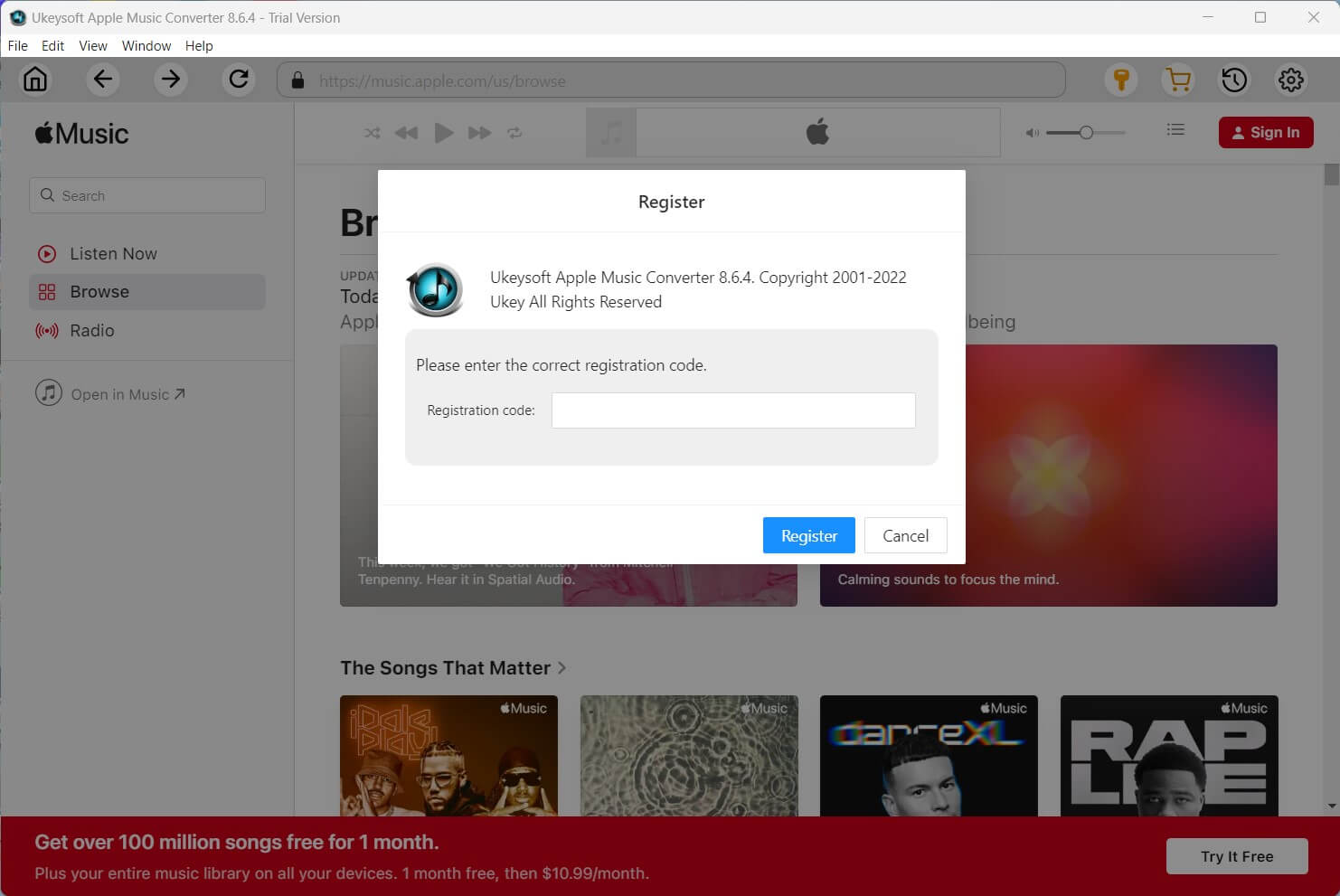
register amc windows

Step 3. Receive Your License Key in Email

For users who haven't purchased a license, please tap the "Buy" icon and it will guide you to the purchasing page, please select a registration plan according to your need and buy a license key.

Step 4. Register UkeySoft Apple Music Converter

After purchasing successfully, the licensed code will be sent to your email automatically within minutes, please check your Email box and you will received the license key in it. Just back to UkeySoft Apple Music Converter and hit the "Register" icon on the top screen bar, the program will pop up a Register window, then copy and paste your license code into the blank register bar to activate the software.
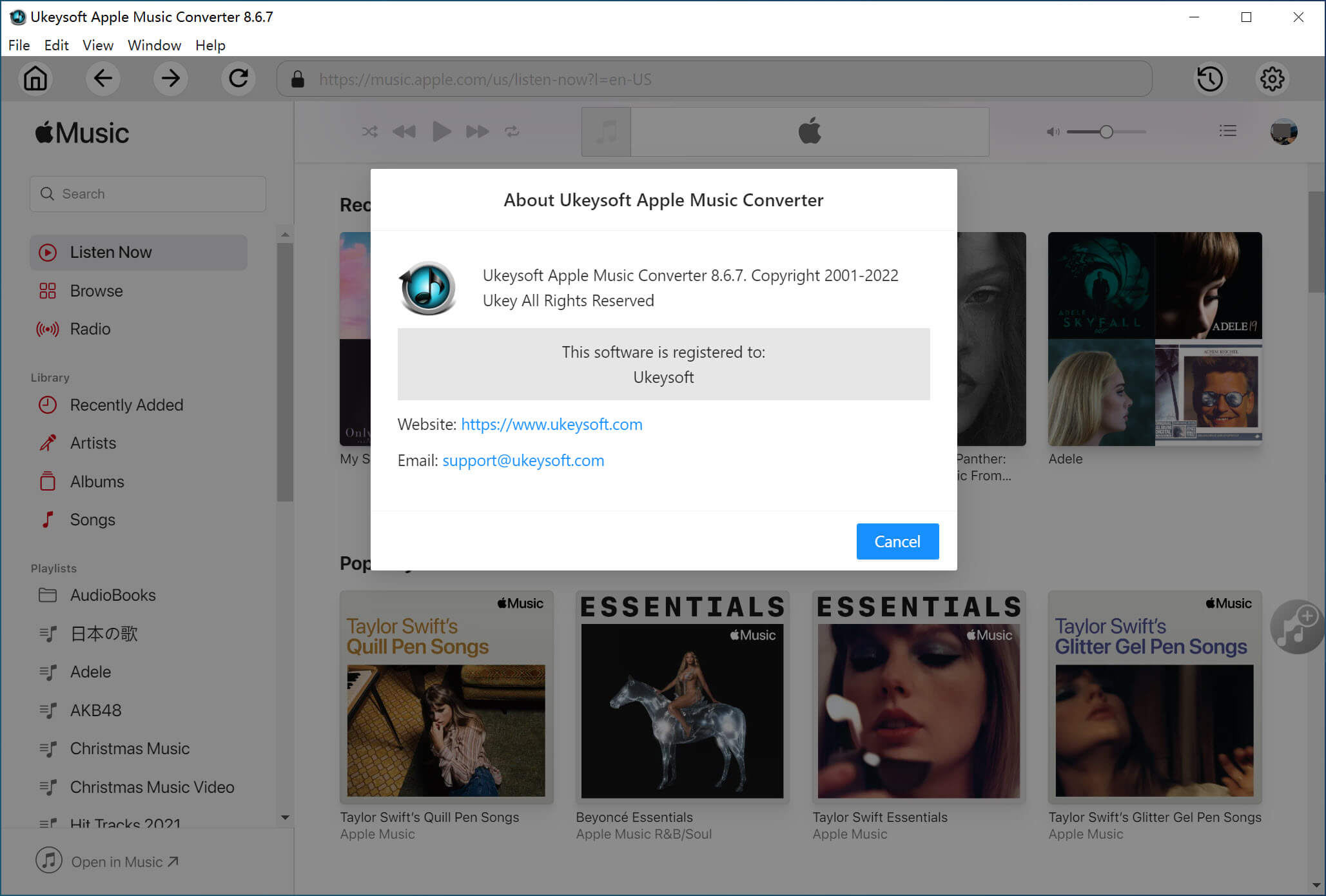
about apple music converter

Note: If you failed receive license key, please view your Spam section in the mailbox and check whether it's sent to the Spam section. If you fail to register the program, please contact our UkeySoft Support Team immediately via email, we’re happy to help you out.

Step 5. Access Apple Music Library and Search, Play, Convert and Download Songs

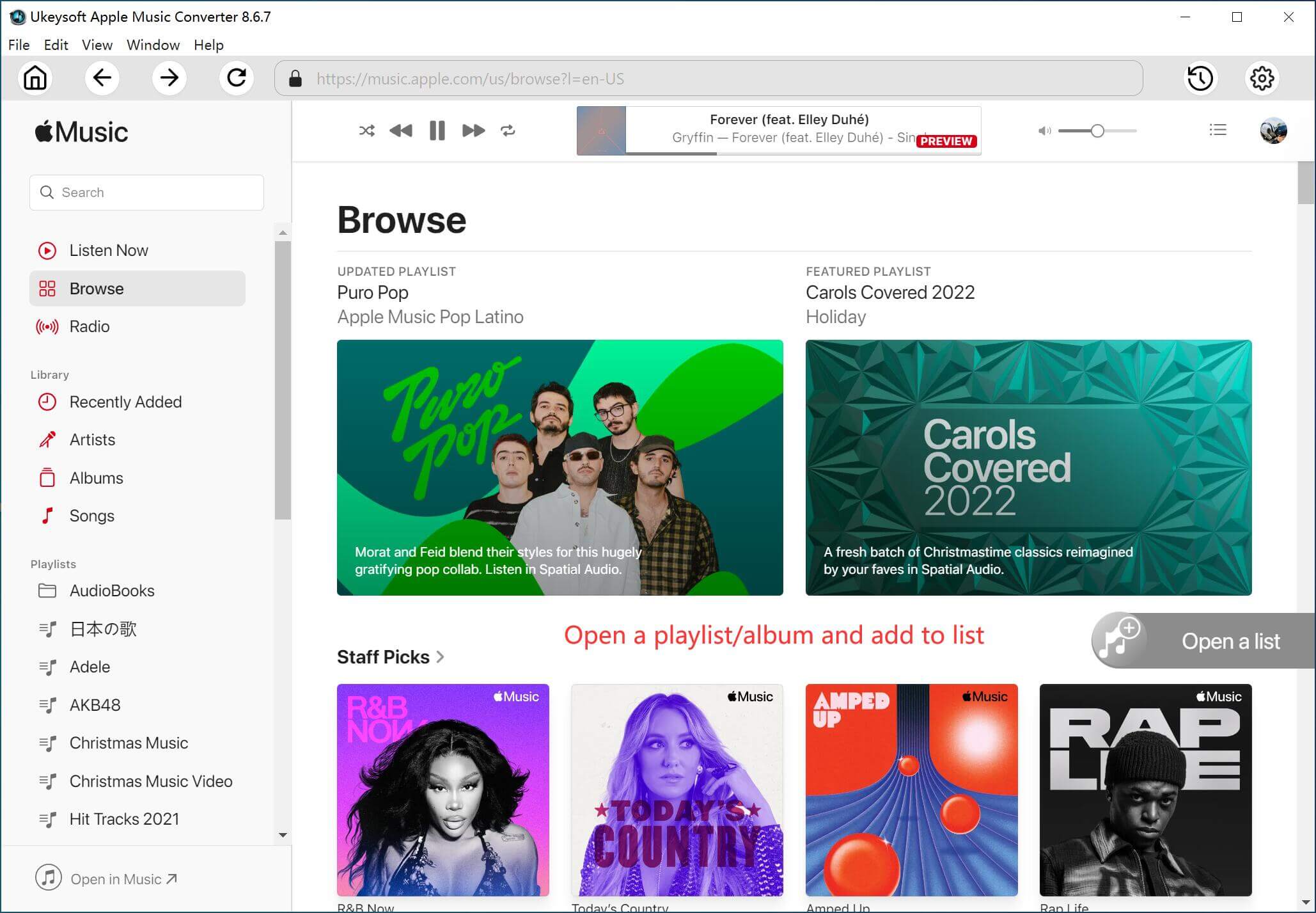
For the latest version of UkeySoft Apple Music Converter, there is a built-in Apple Music web player in the program, compare with the older version(V.6.9.1), it no longer requires to sync with iTunes to process the music conversion anymore!
access apple music

Just sign in with your Apple ID, you can access 100 million Apple Music tracks with its built-in music web player in the program now. UkeySoft Apple Music Converter is a must-have tool that all music fans need to own one, you can access, search, play, download and convert music in a place. Very convenient, efficient and easy to use!

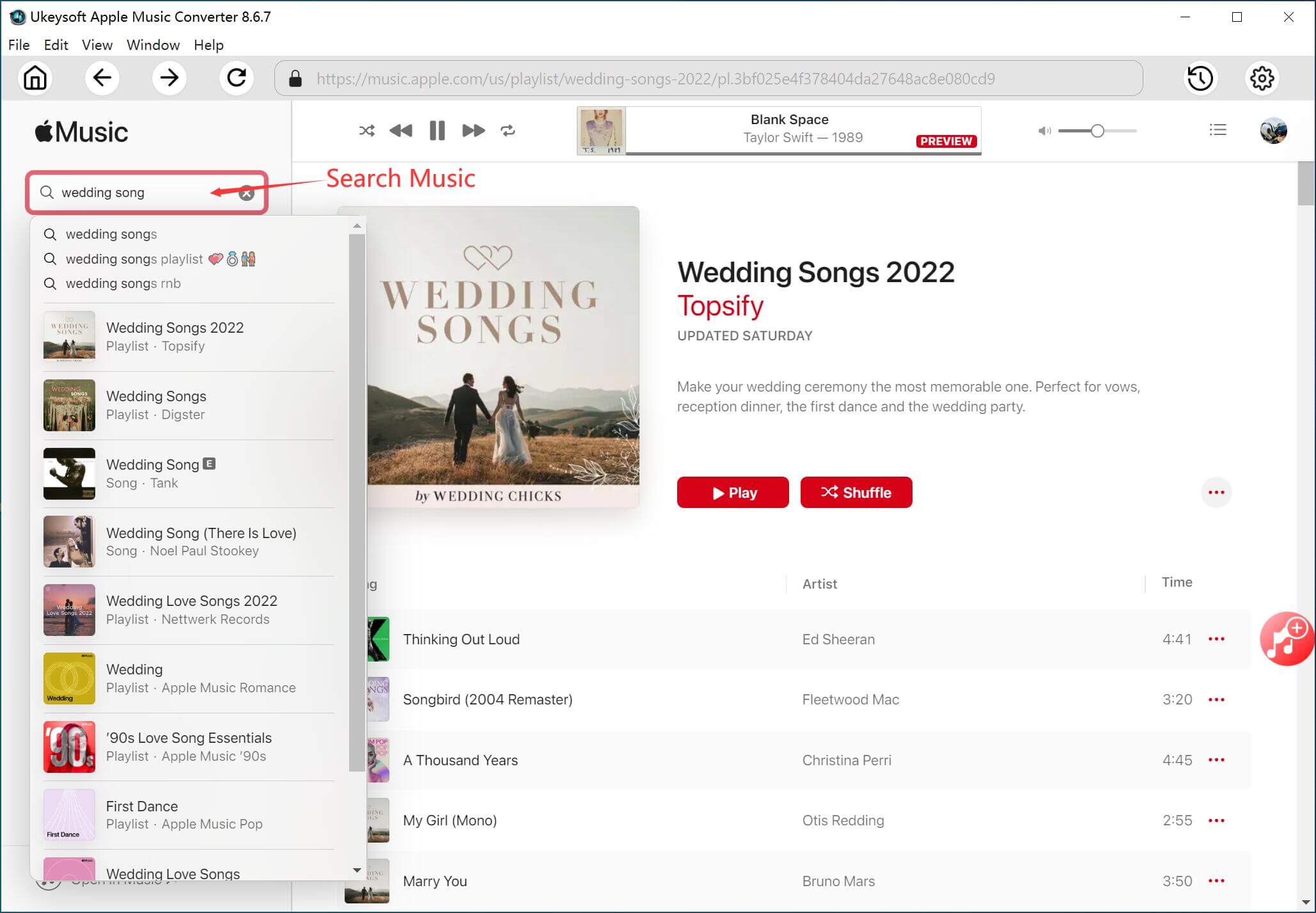
Search Tracks, Playlist, Artist and Albums in Apple Music
search apple music tracks

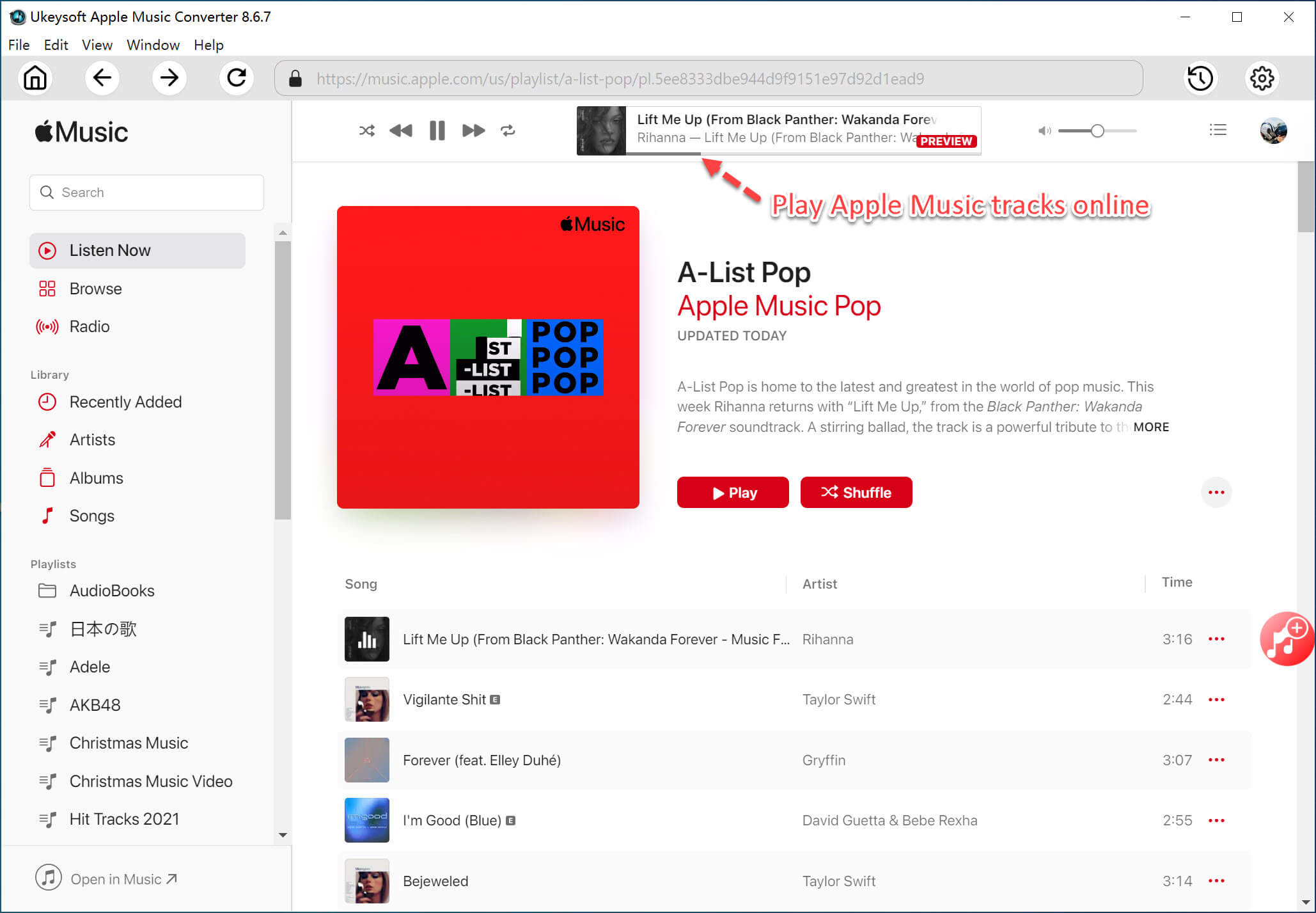
Play Apple Music Tracks Online

play apple music online

Let’s go to part 2 and learn how to download and convert Apple Music songs to MP3, M4A, etc. So that you’re able to keep Apple Music songs forever and playing on any devices offline.
Part 2. Convert Apple Music to MP3 / M4A / AAC / WAV / FLAC / AIFF

Once you have installed UkeySoft Apple Music Converter and want to experience the full features of it, follow the guide to convert Apple Music to MP3/M4A/AAC/WAV/FLAC/AIFF with ease.

Step 1. Launch UkeySoft Apple Music Converter

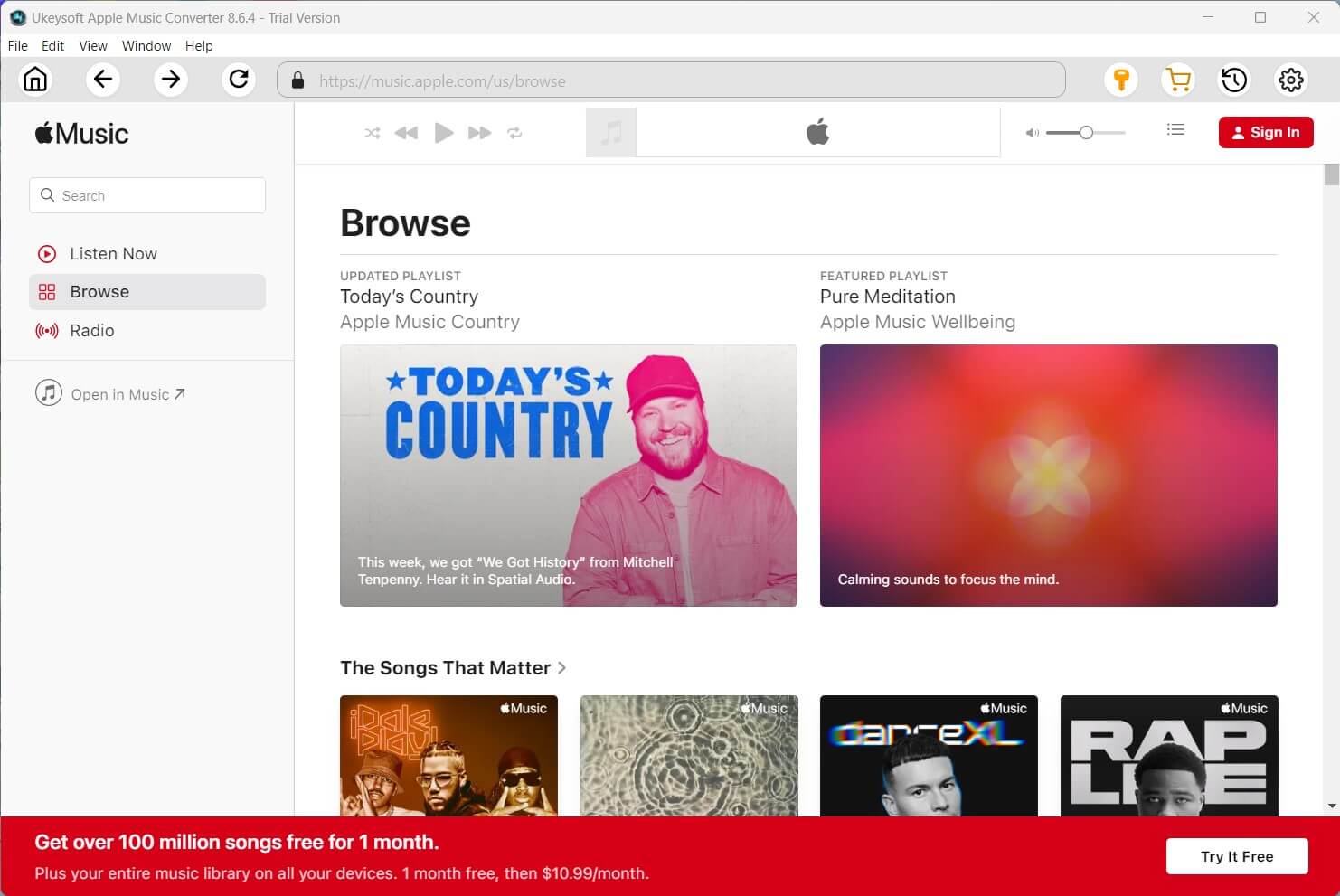
First of all, download, install and run UkeySoft Apple Music Converter on your computer, you can see a built-in web player in the program.

Apple Music converter windows interface

Tips: The Apple Music Web player comes preinstalled, so you don't need to install the Apple Music app or iTunes.

Step 2. Log in Apple Music Account to Access the Download Feature

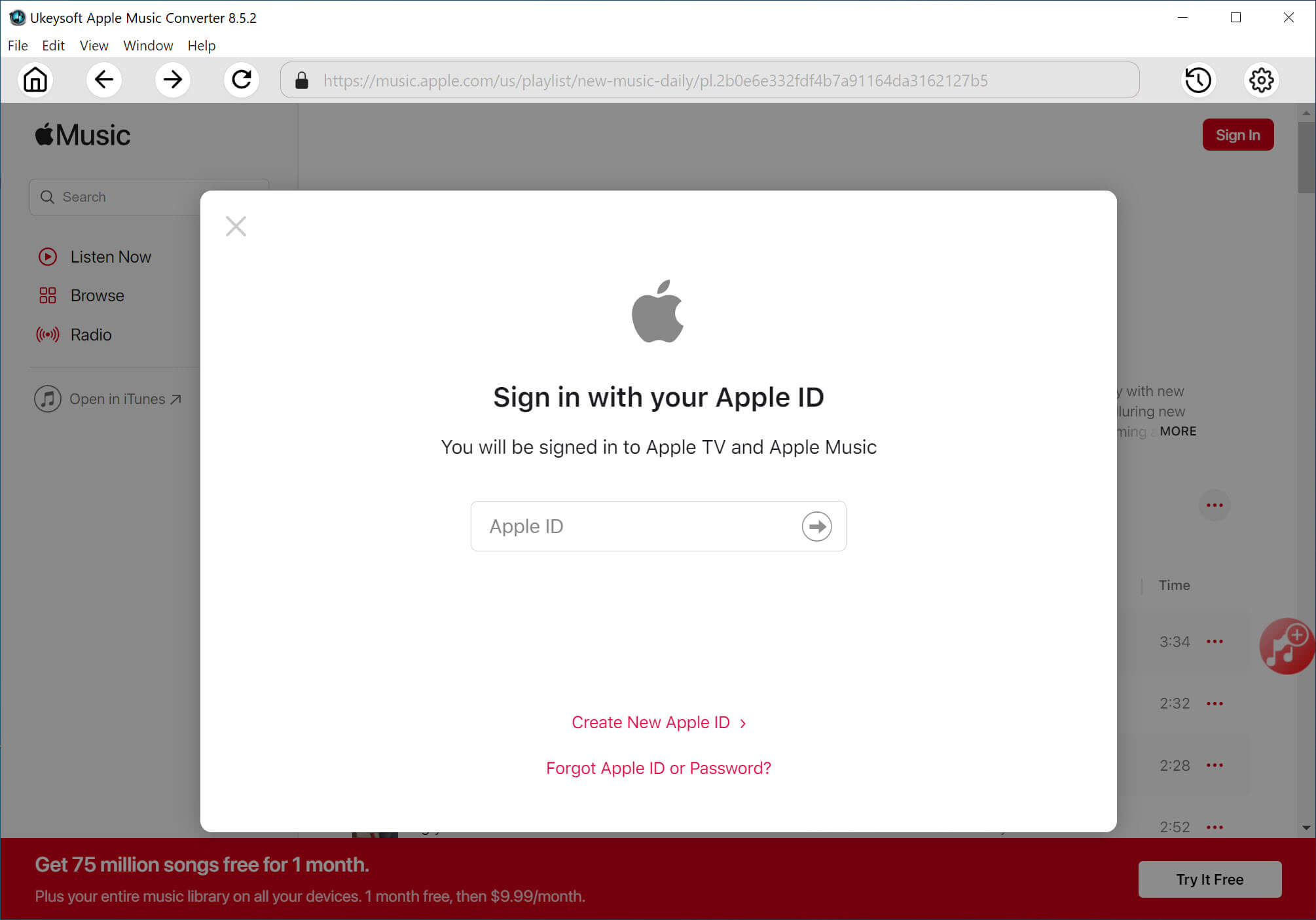
Follow the instruction to log in with your Apple ID (An Apple ID that you have Apple Music subscription).

apple   music converter web player

Tips: If you subscribe to Apple Music, you can access your music library, including your playlists, on any device that has the Apple Music app and Apple Music web player.

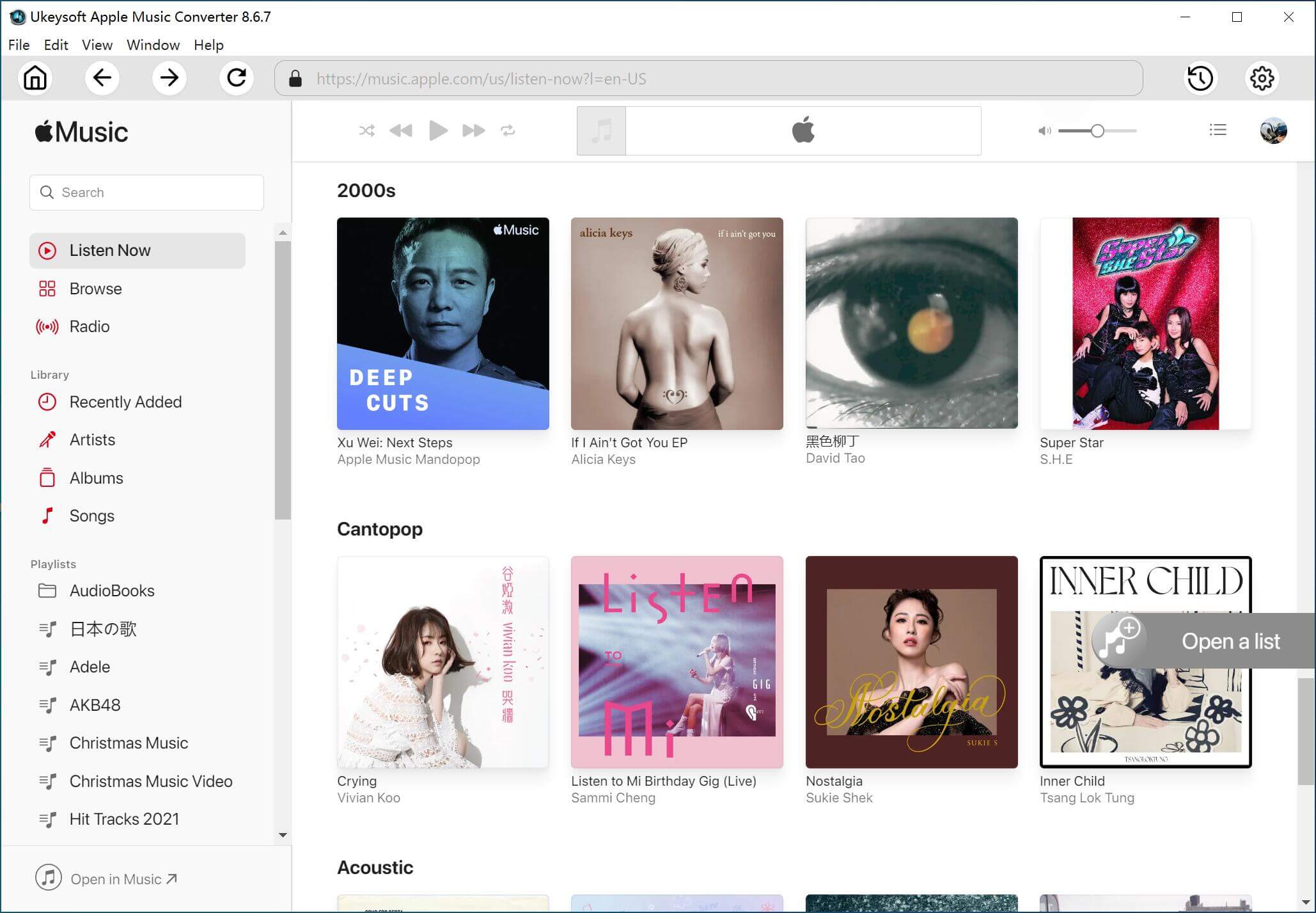
Once the login completes, you are able to browse and listen to Apple Music tracks/playlist/albums online. In addition, you can also access and search any songs or album you desire via the search function provided by the Apple web player.

browse apple music tracks

Step 3. Choose Output Format

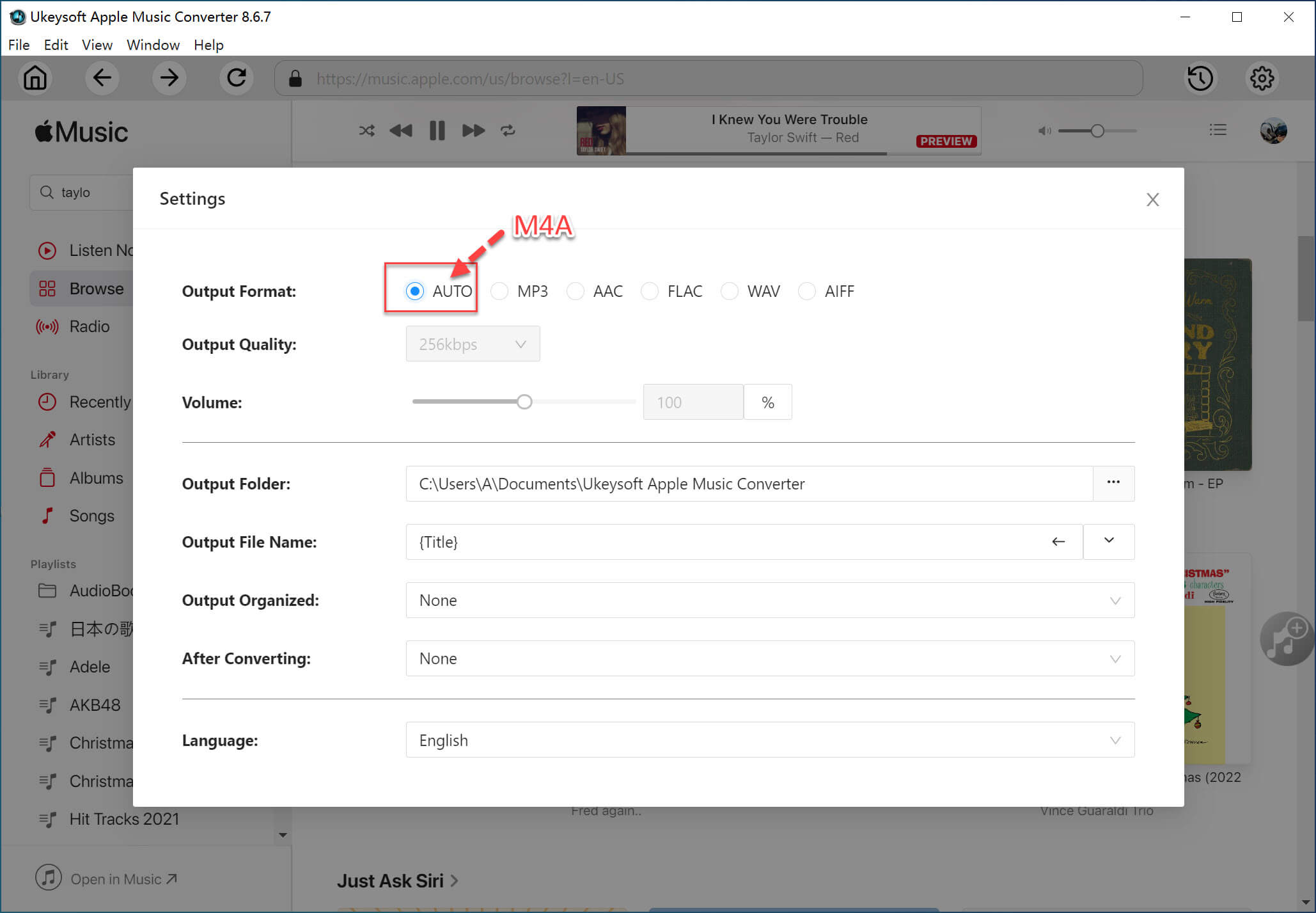
The default format is M4A in 256kbps, if you want to change output format, please click “Gear” icon, the program will pop up a new setting windows. UkeySoft Apple Music Converter supports 6 output formats, including M4A(default), MP3, AAC, FLAC, WAV, AIFF.

output format

Step 4. Search and Add Apple Music Songs and Albums to Download

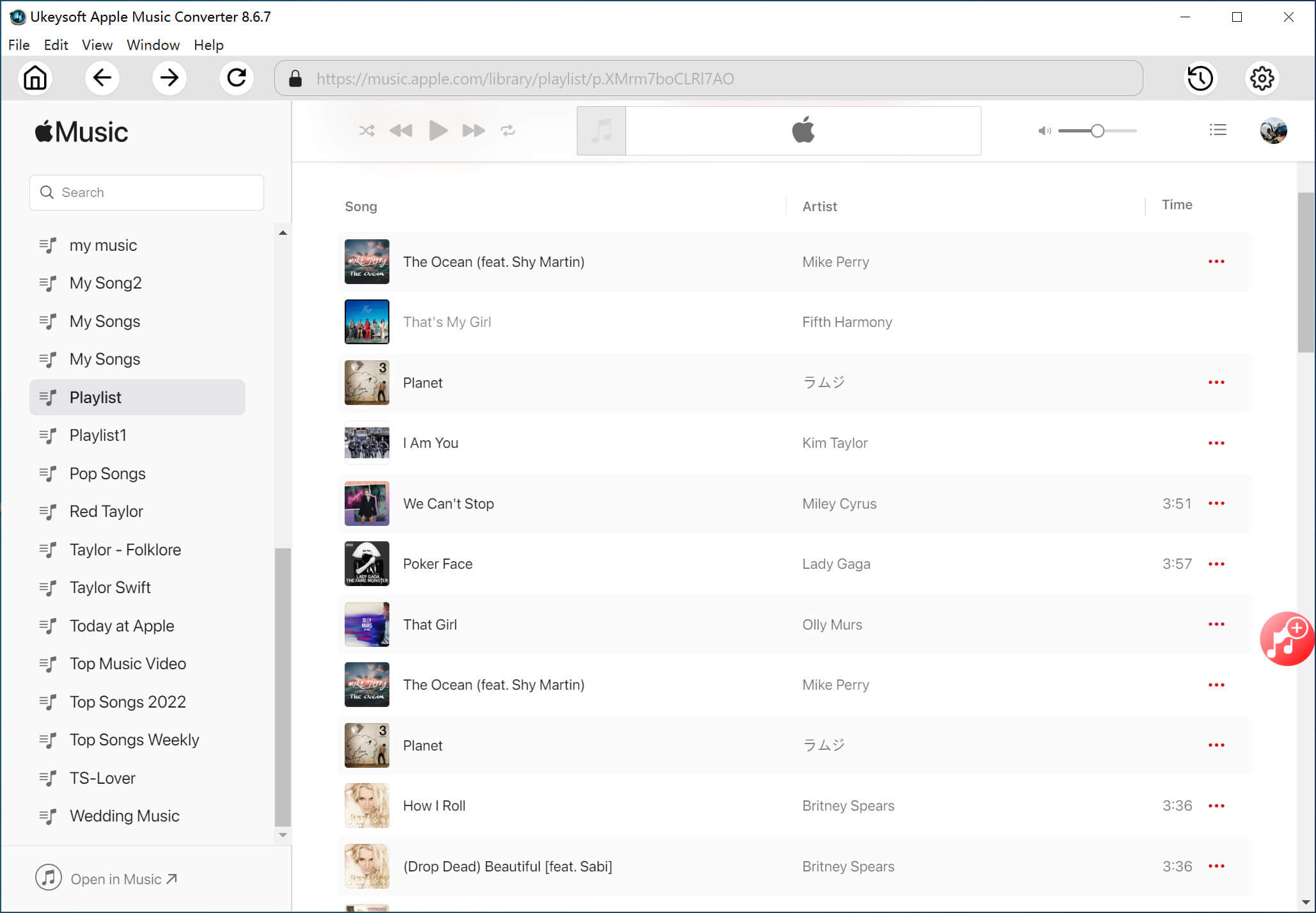
Now, you can access any Apple Music tracks, playlist or album, please open a playlist, artist, or album that you want to download. In addition, you are able to use the search function to find a playlist or albums you desire to download offline.

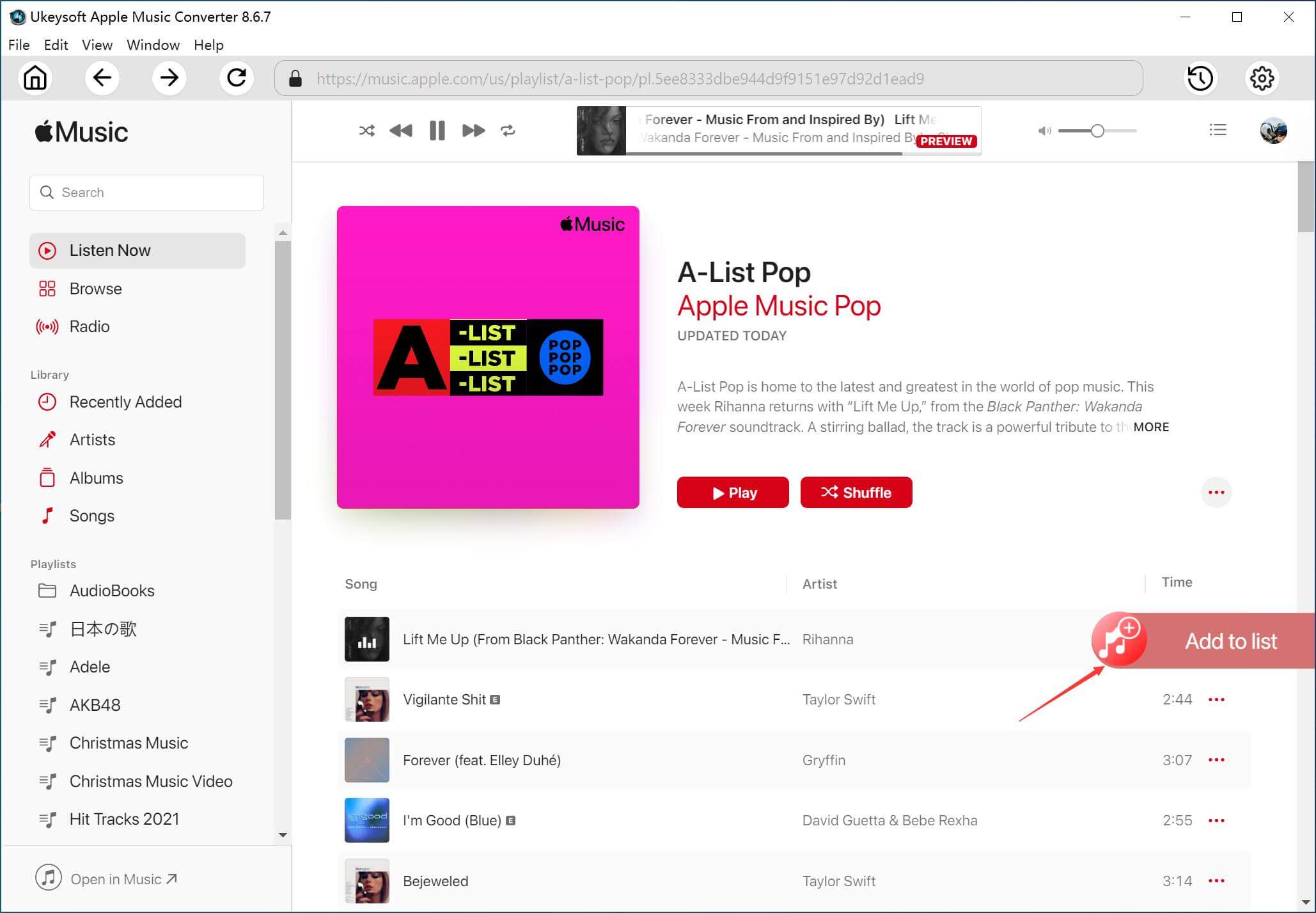
Add Apple Music Playlist/Albums to List: If you have turned on iCloud Music Library and synced your playlist to Apple Music, you will find all of your created playlist appear in the left place of the web music player, please select a playlist that you desire to convert, then click the "Add to List" button to add all tracks of this playlist into the list.

playlist abum

Add iTunes Playlist/Music to List: If you have turned on iCloud Music Libraryand synced your playlist to Apple Music, you will find all of your created playlist appear in the left place of the web music player, please select a playlist that you desire to convert, then click the "Add to List" button to add all tracks of this playlist into the list.

itunes music playlist amc

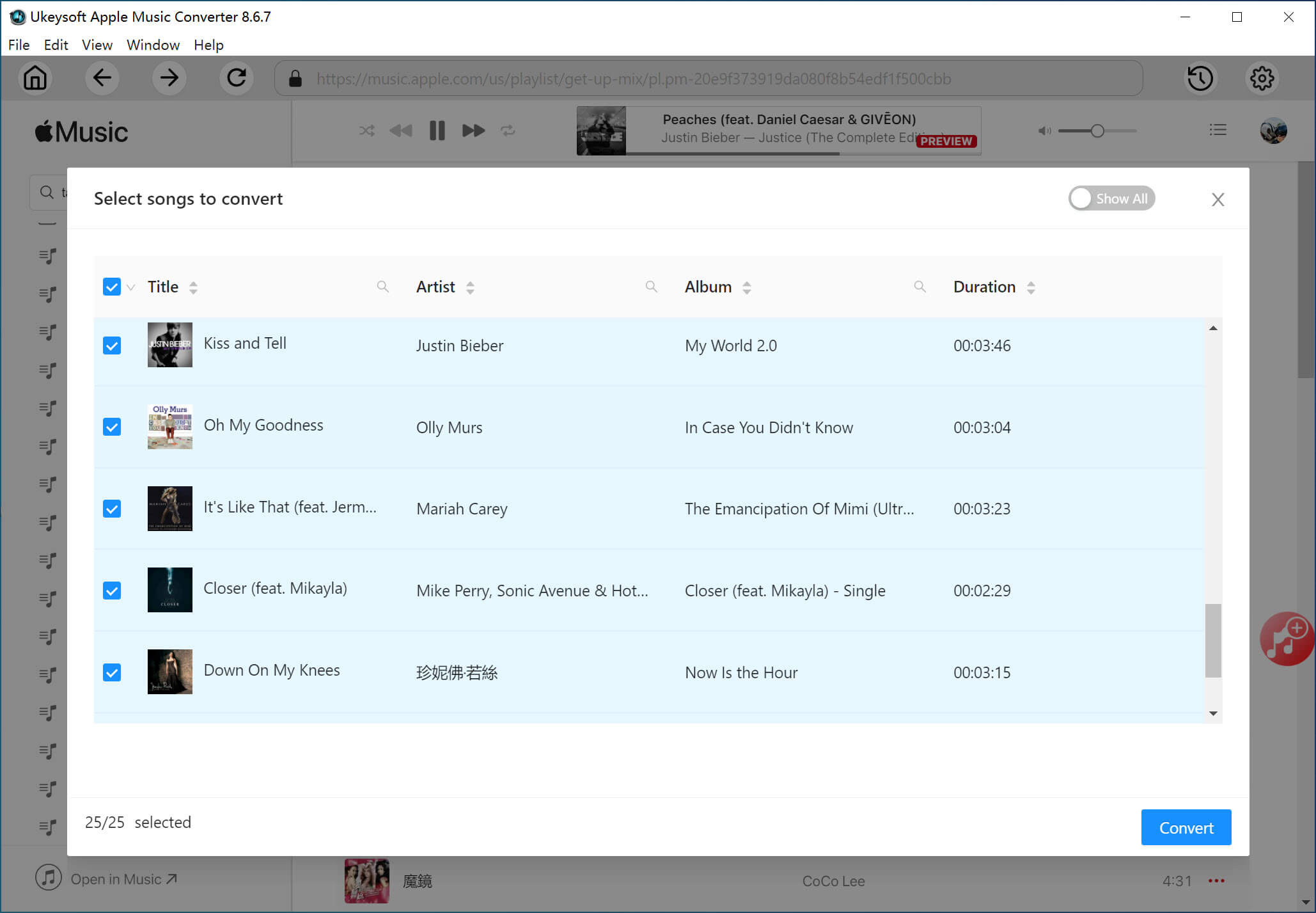
Step 5. Select Apple Music Songs to Download

All songs in the playlist or album are selected by default.

select all songs

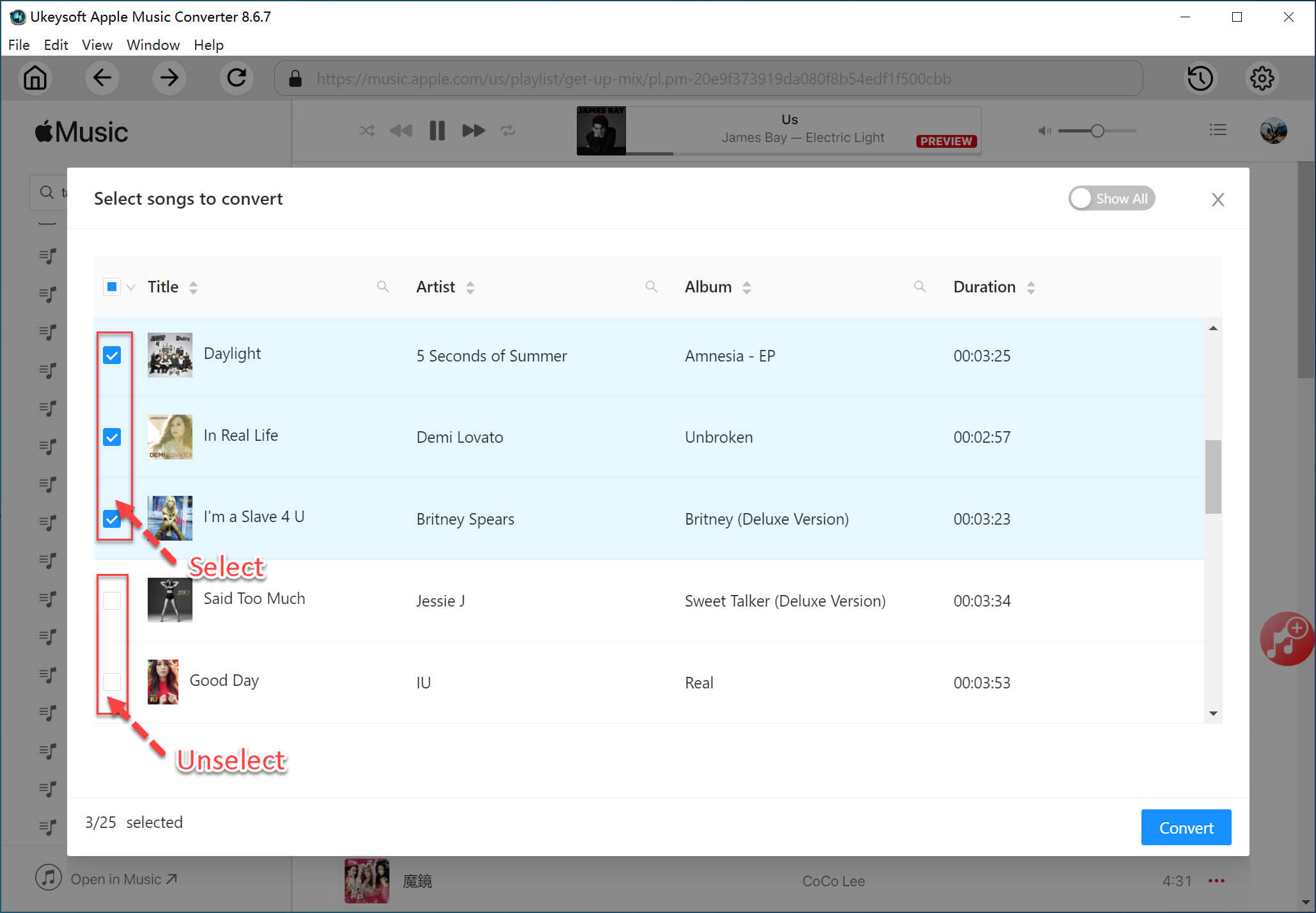
Uncheck the songs you don't want to download if there are any.

select unselect tracks

Step 6. Start Download Apple Music to MP3/M4A/WAV/FLAC

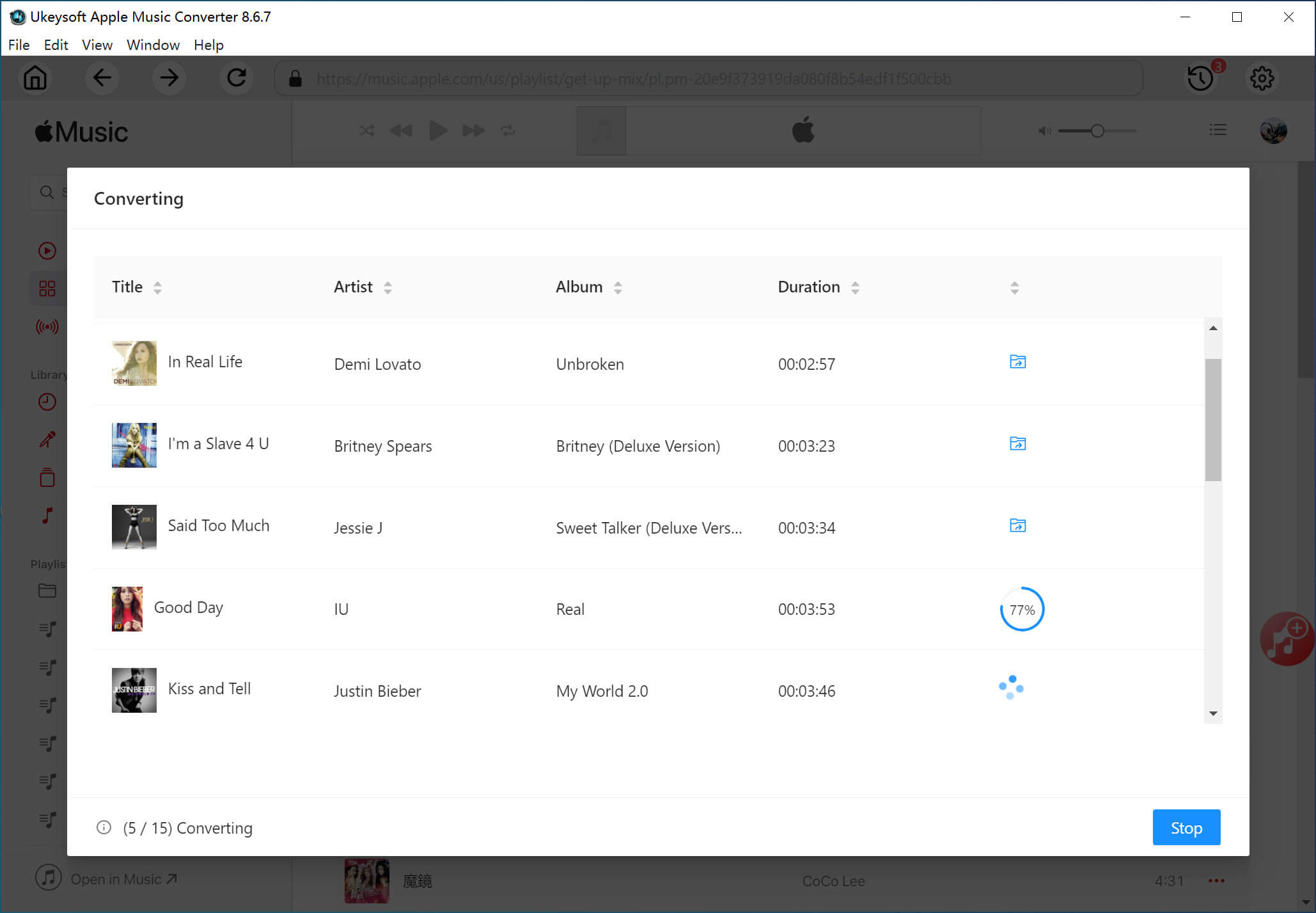
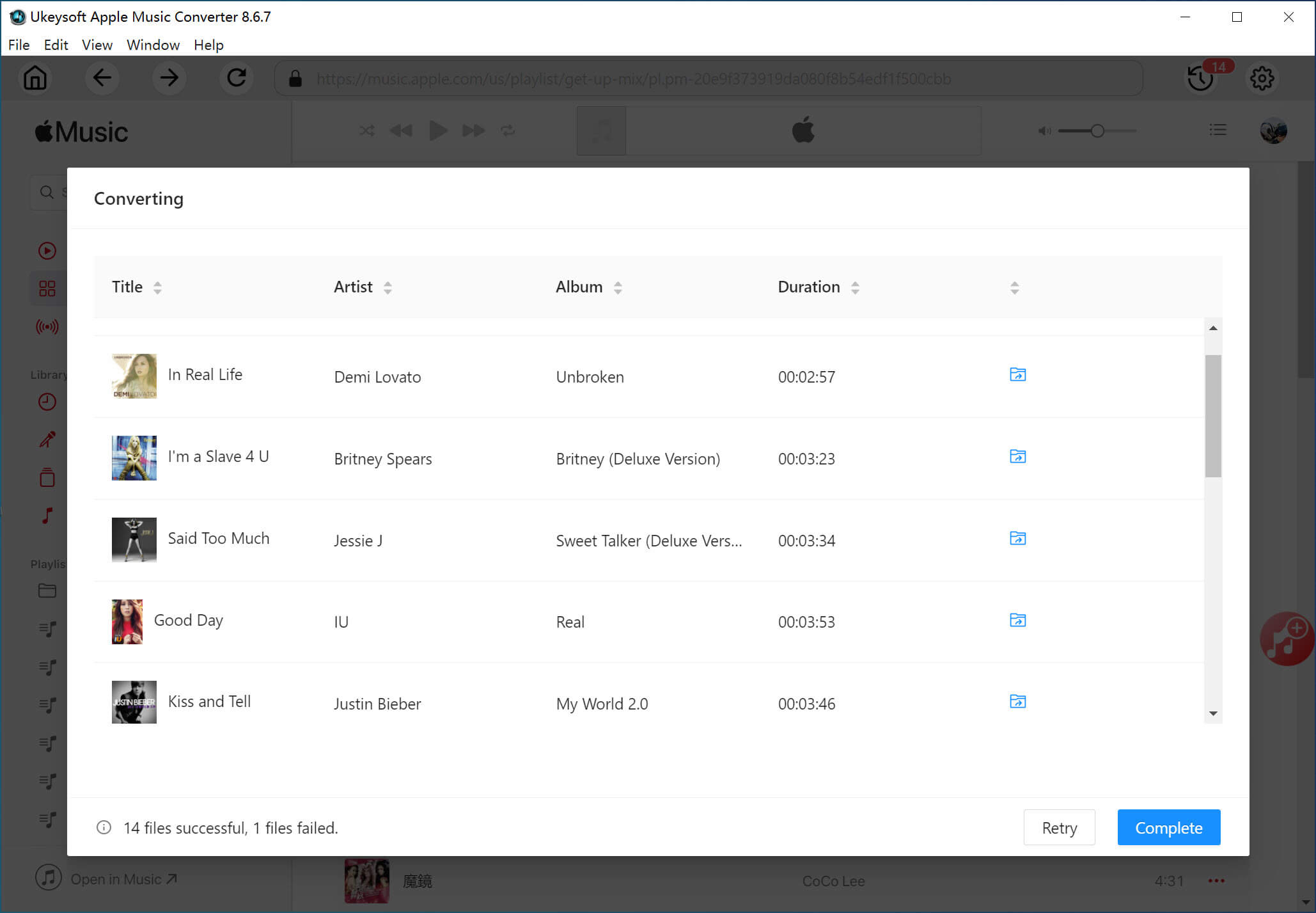
To convert the selected songs to MP3 or other DRM-free music files, just click the "Convert" button start converting Apple Music to MP3/M4A/FLAC/WAV/AIFF. During conversion process, please don’t play music in Apple Music or iTunes, or other devices with the same Apple ID. Otherwise, the conversion process will fail.

convert apple music to mp3

Once the download completes, you can see a blue "output folder" icon behind each converted songs, please click “Open Output File” option to get the DRM free Apple Music songs or iTunes songs in MP3 format.

conversion finished

Step 7. Check the Output Apple Music Songs

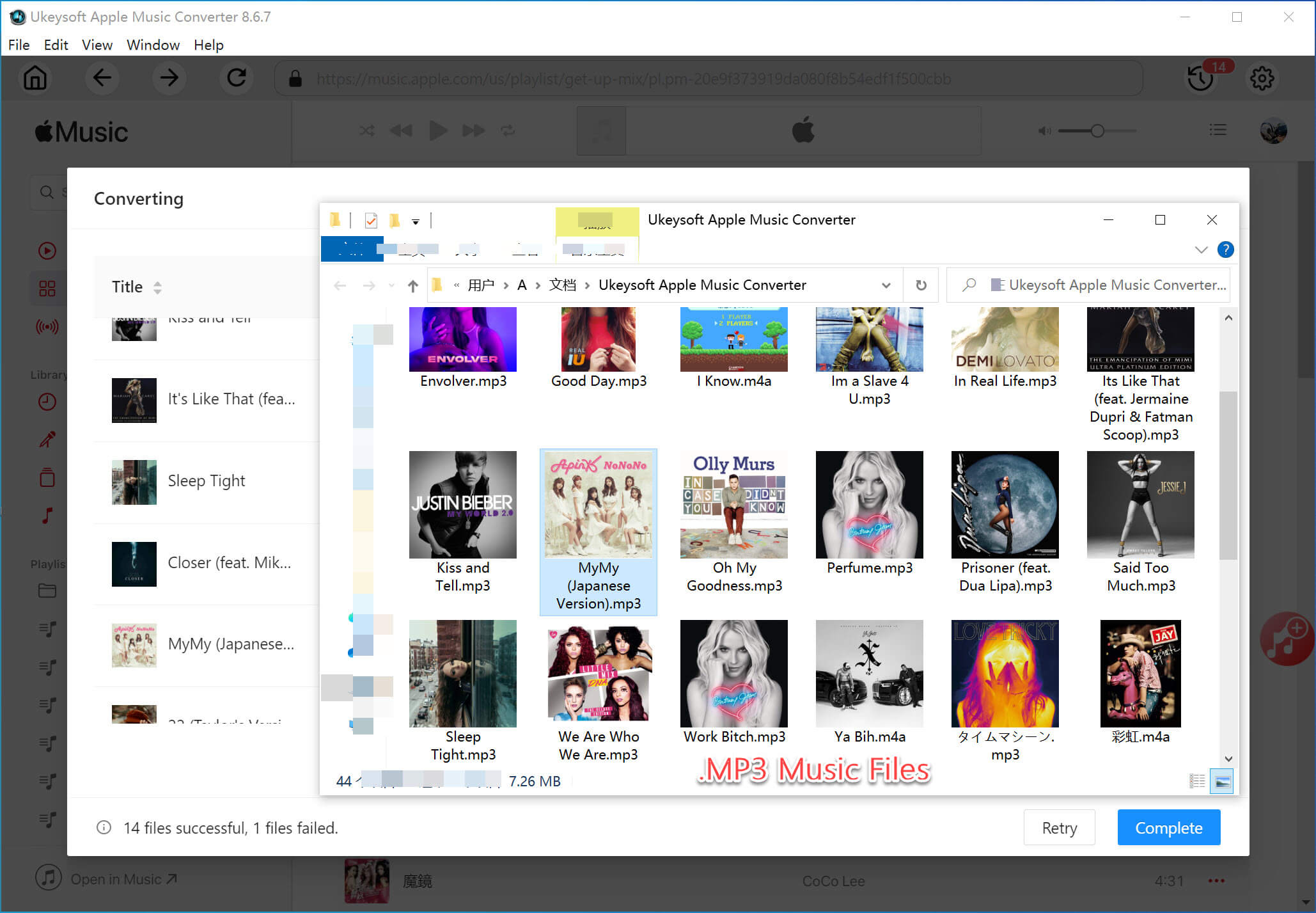
When the music conversion is done, click “Folder” icon to quickly locate the output Apple Music songs, you can see all downloaded songs are .mp3 format. Now, you can directly play them without iTunes, or transfer them to MP3 player for listening offline.

get apple music mp3 file

Step 8. Manager and Play the Downloaded Songs (Built-in Music Player)

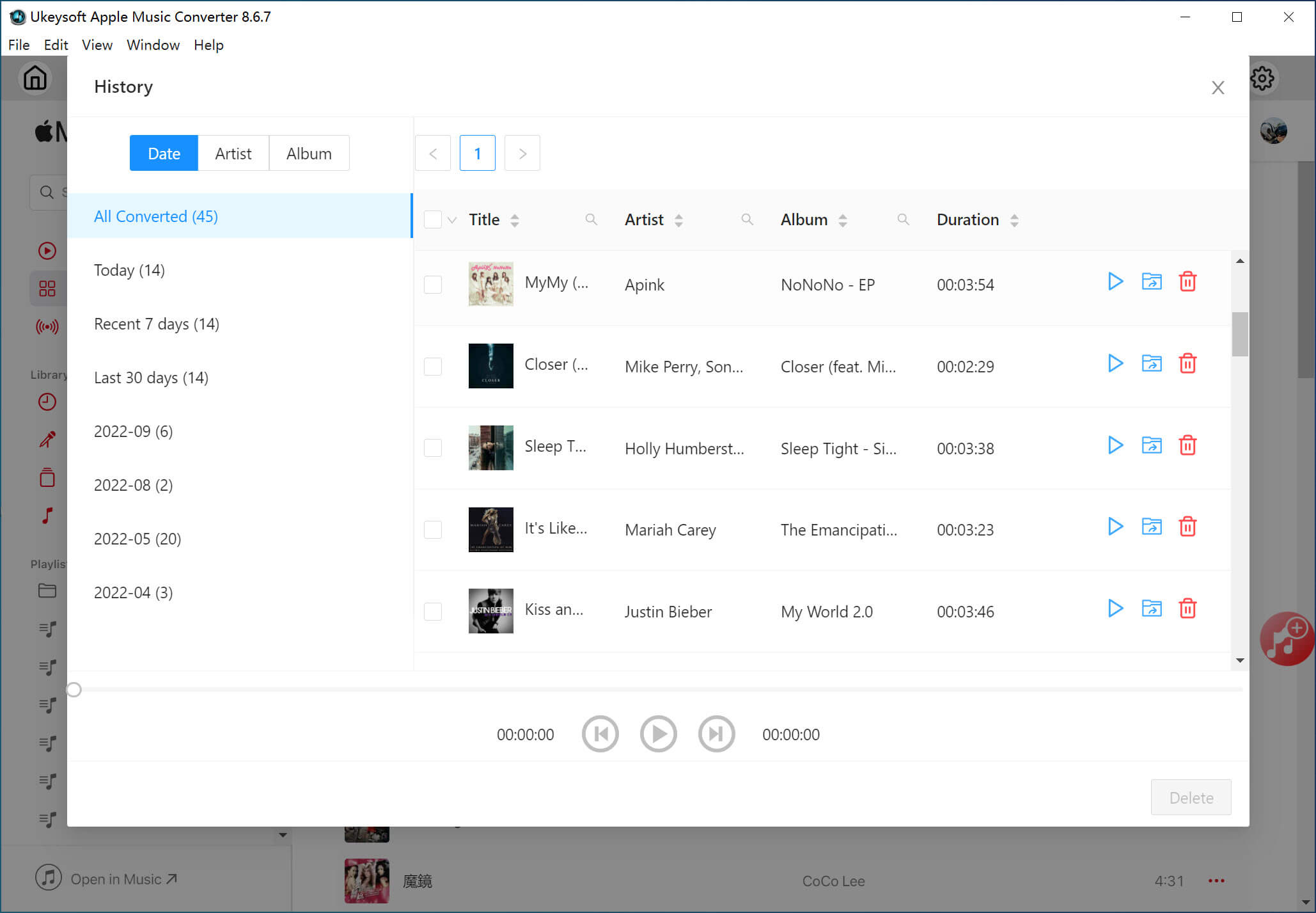
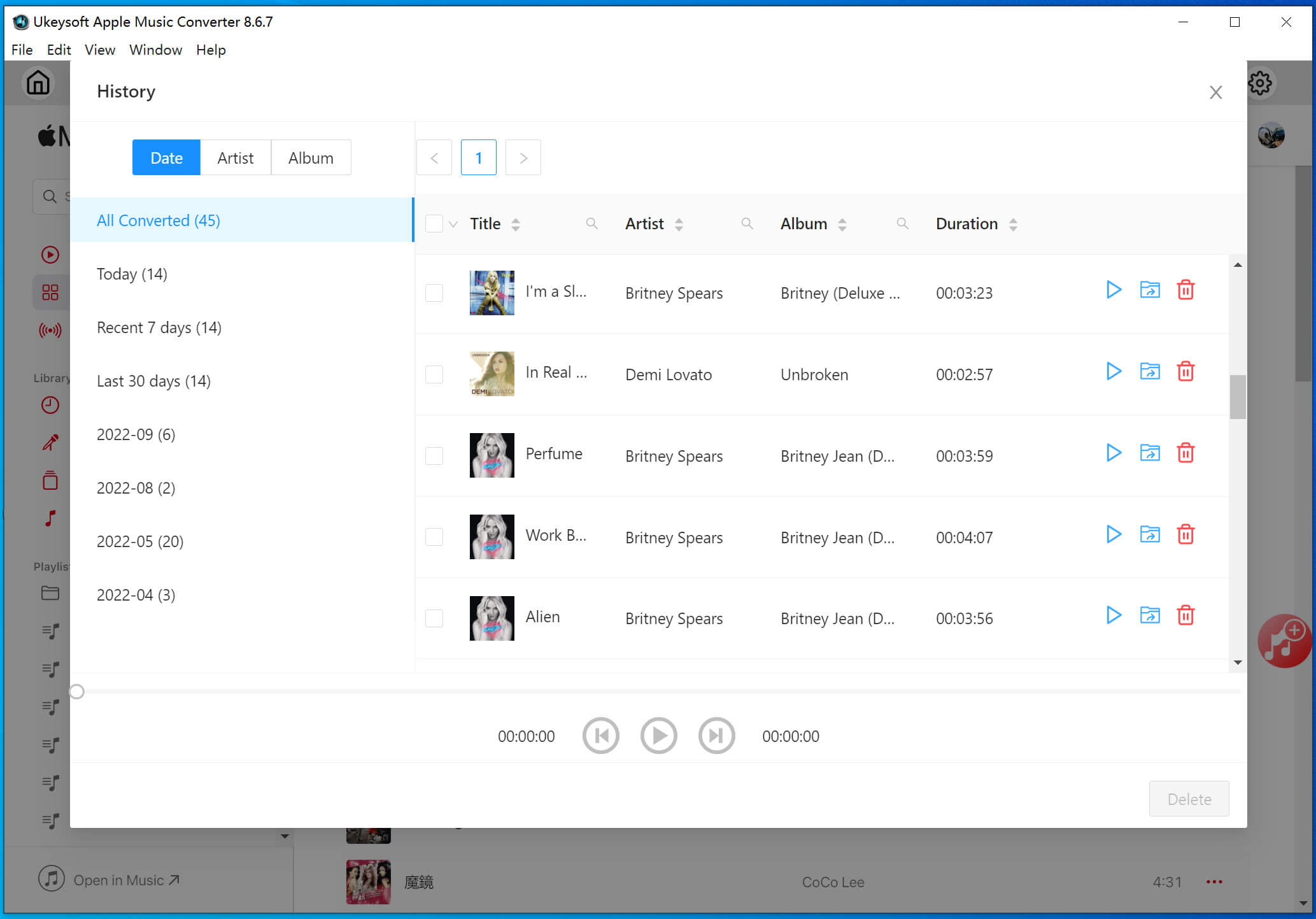
Click “History” icon to open the built-in Music Manager, here you are able to check all the converted Apple Music songs, all music are sorted by converted date, artist or album.

amc apple music manager

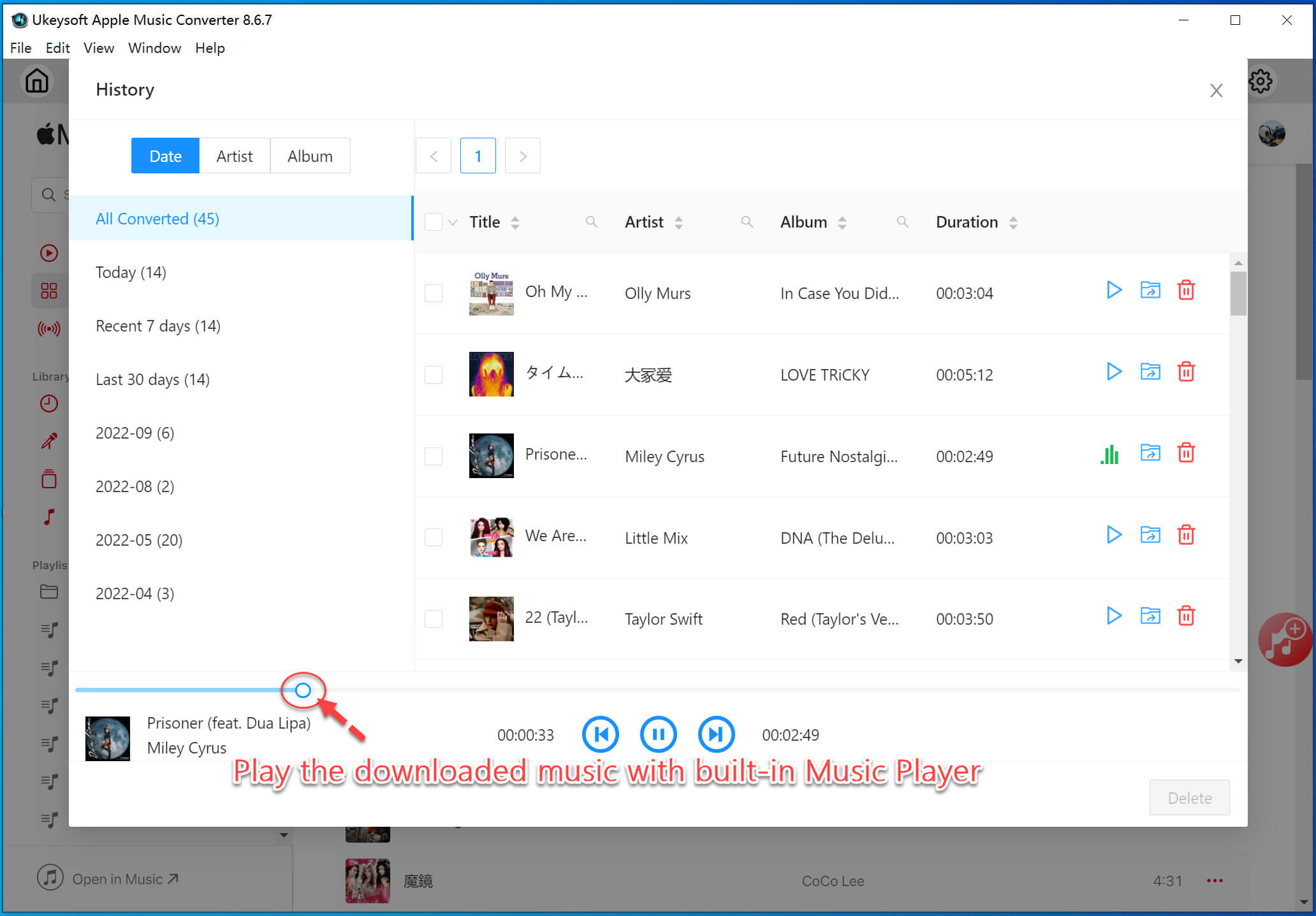
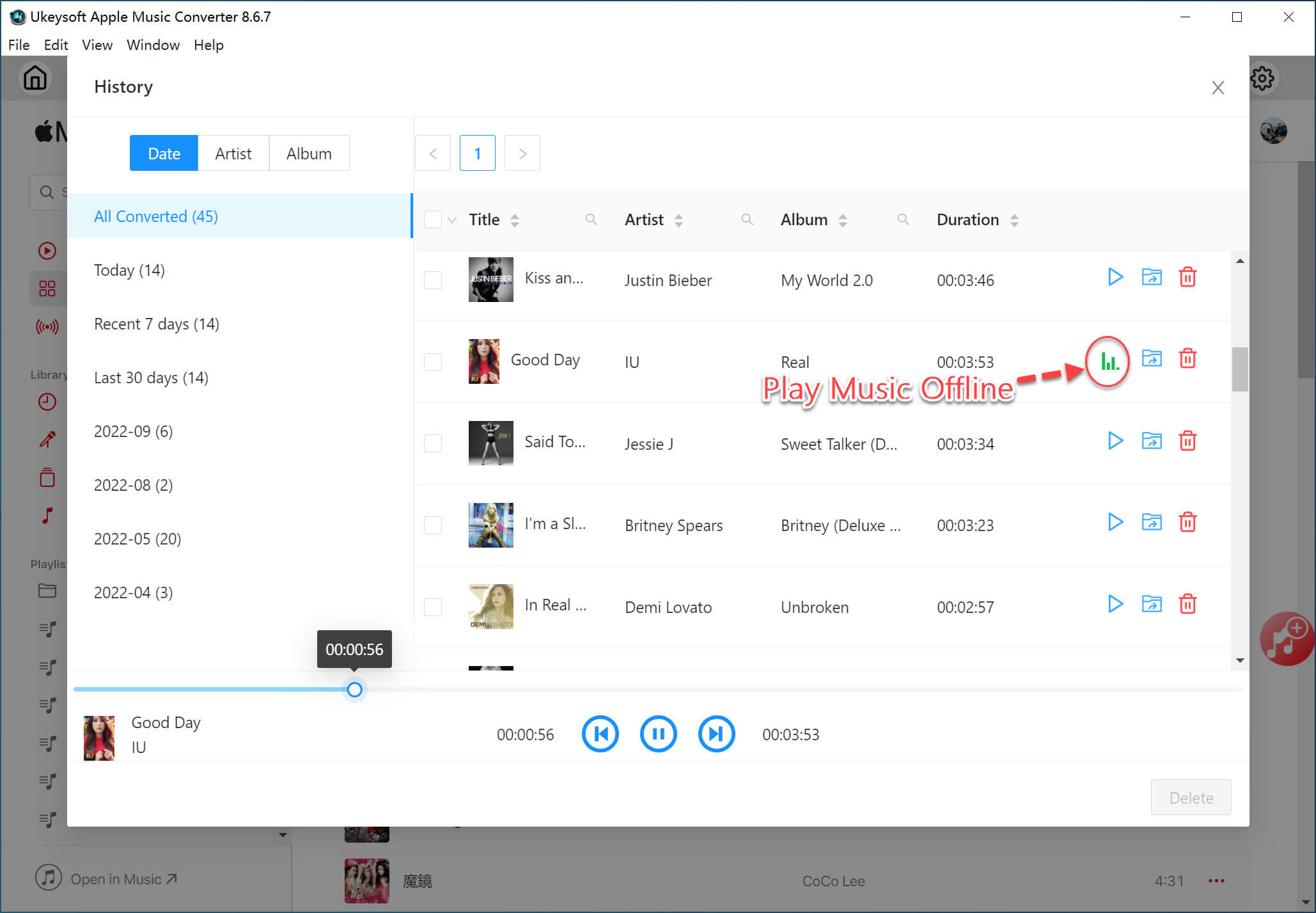
Play the Converted Apple Music Offline with Built-in Music Player

amc play music

Part 3. Video Tutorial

Part 4. Built-in Music Manager & Player

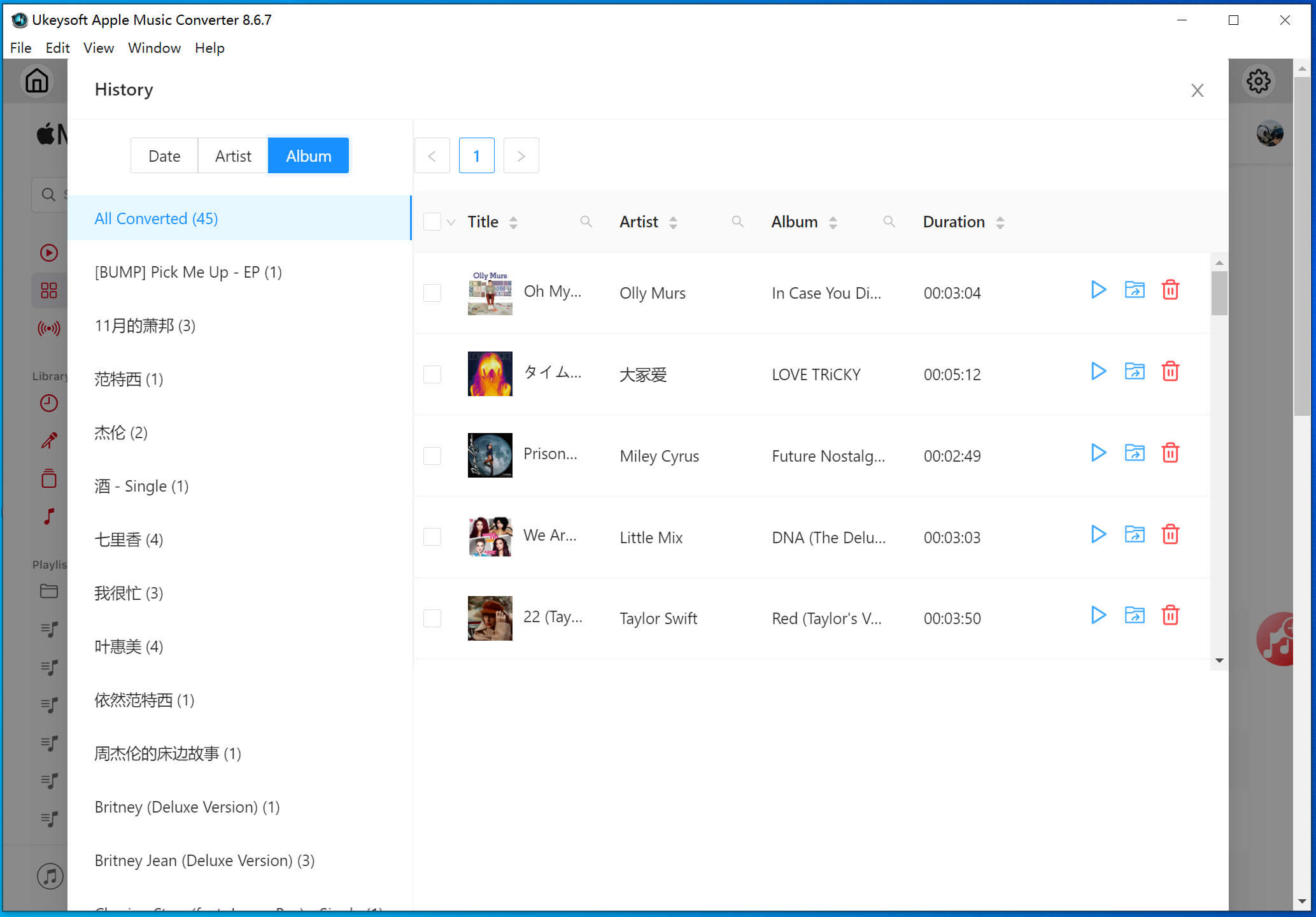
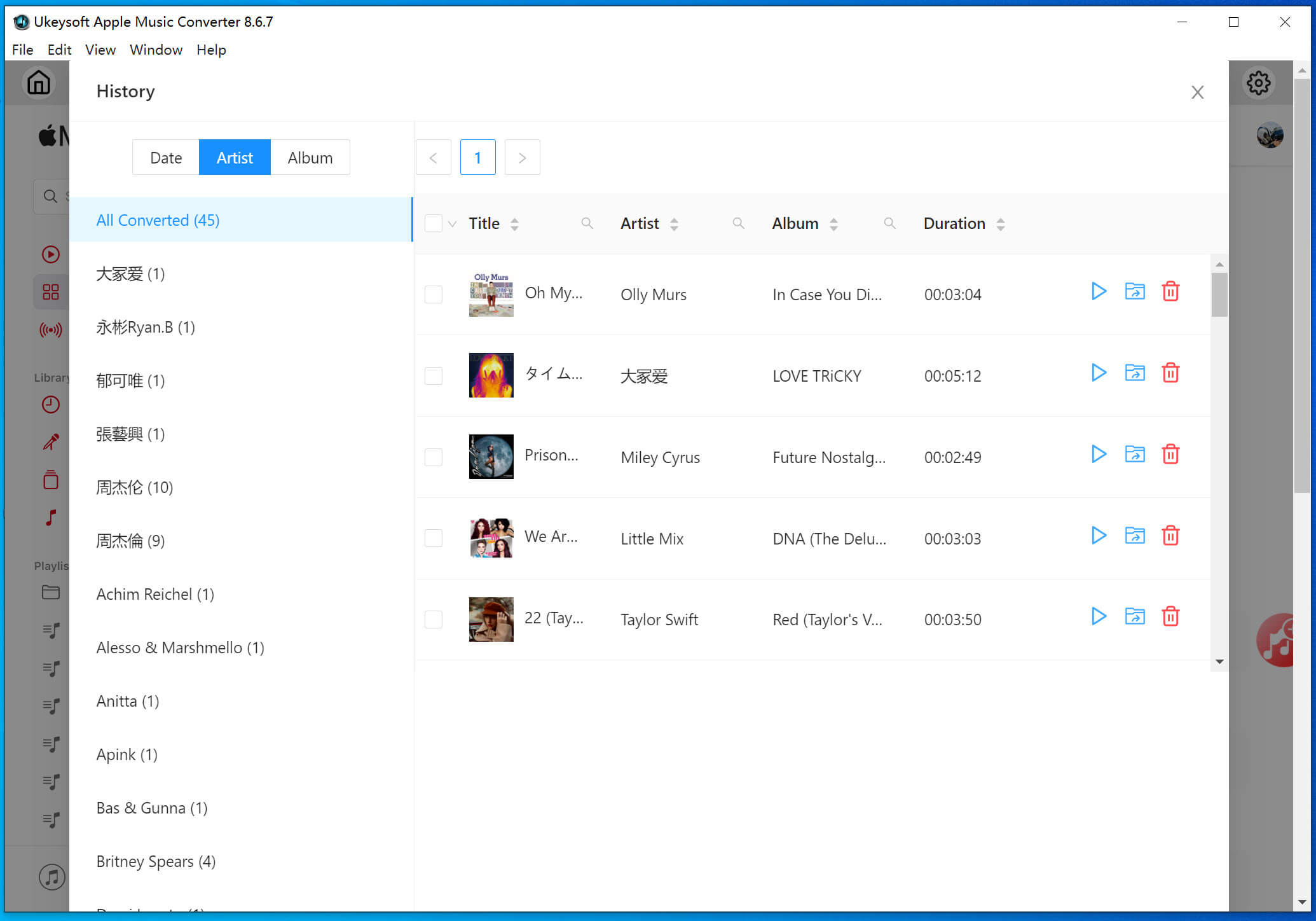
Compared with other brands of Apple Music Converter, UkeySoft has a built-in music manager, which is convenient for our users to manage the music library easily. Click the "History" icon to launch the built-in music manager and player, and the program has automatically sort the converted Apple Music songs by Date, Album and Artist.

1. Sort the Converted Apple Music Songs

Sort the converted Apple Music songs by Date:

Sort the converted Apple Music songs by Album:

Sort the converted Apple Music songs by Artist:

2. Play the Converted Apple Music Offline

There is a built-in Music Player in UkeySoft Apple Music Converter, you not only can download and convert Apple Music tracks, but also play the downloaded offline with its built-in Music Player, no need to install other extra app.

You can enjoy downloaded Apple Music songs even after cancelling the subscription, or transfer them to any MP3 player(Sony Walkman, Sandisk, etc.), iPod nano, iPod classic, iPod shuffle, iPhone, iPad, iPod, Android phones, PSP, PS3, PS4, Garmin, Samsung, Android tablet, Xbox one, Apple Watch, Fitbit Wearables & Smartwatches, etc. for offline listening without limitations. Enjoy your music life!

Part 5. How to Customize Audio Parameters

UkeySoft Apple Music Converter is a all-in-in music player, download and converter for Apple Music users, it’s a must-have tool for all Apple Music users. Just login your Apple account, you can access, play, download Apple Music songs, playlist and albums on computer. After download music from Apple Music with UkeySoft Apple Music Converter, you are able to play Apple Music on any devices, or put Apple Music songs on USB drive, SD card, external hard drive, etc.

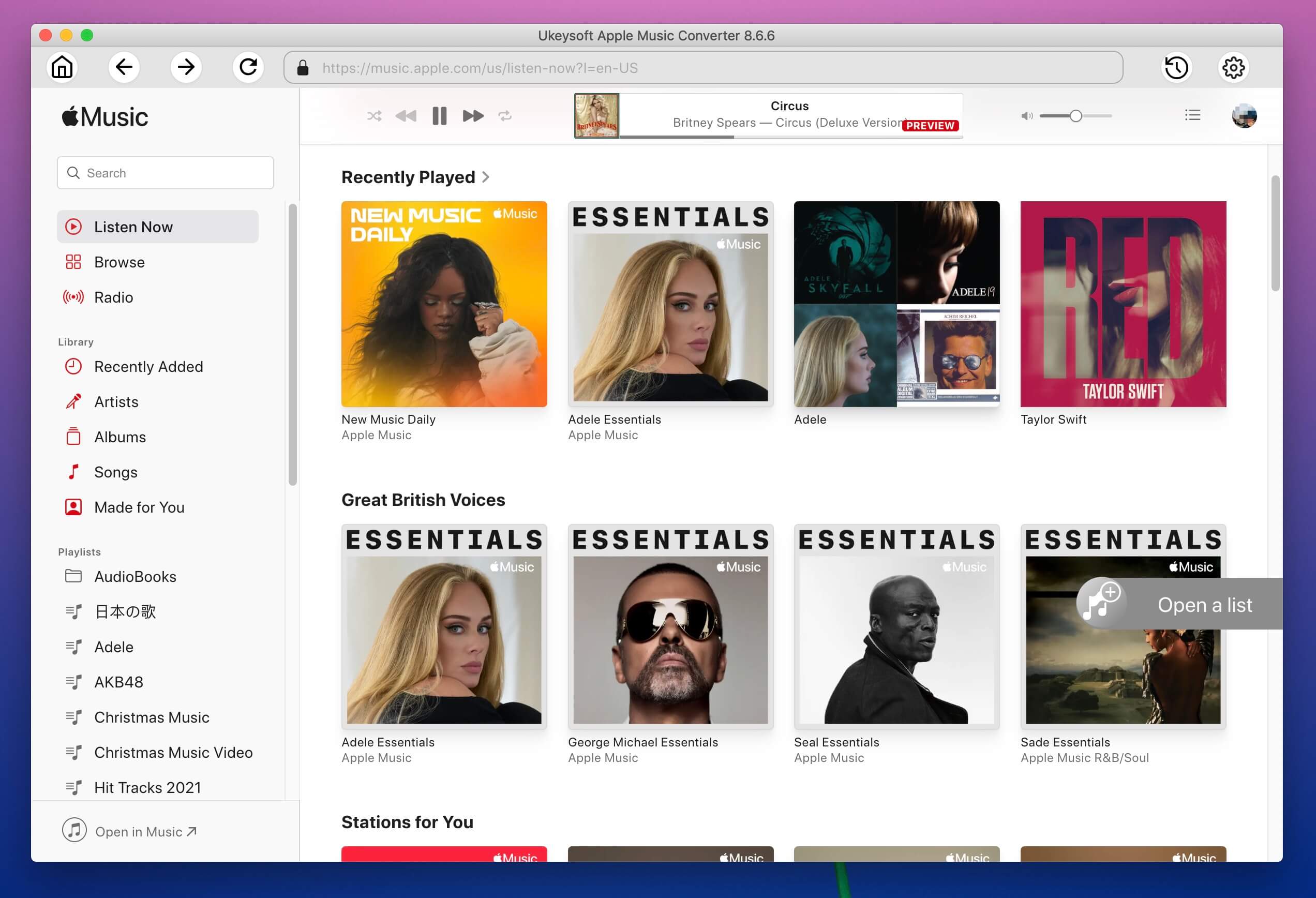
mac amc access apple music

You can also adjust the parameters according to your own needs, like output format, output folder, bitrate and sample rate. Please click the "setting" icon in the top-right corner of the interface, the program will pop up a setting windows, please set up it before converting Apple Music songs.

1.Adjust Output Format

UkeySoft Apple Music Converter supports convert Apple Music to MP3, M4A(Auto), AAC, FLAC, AIFF or WAV, please select your desired audio format. Download Apple Music songs, albums and playlists to MP4, MP3, AAC, FLAC, WAV, AIFF with original audio quality (up to 320 kbps).

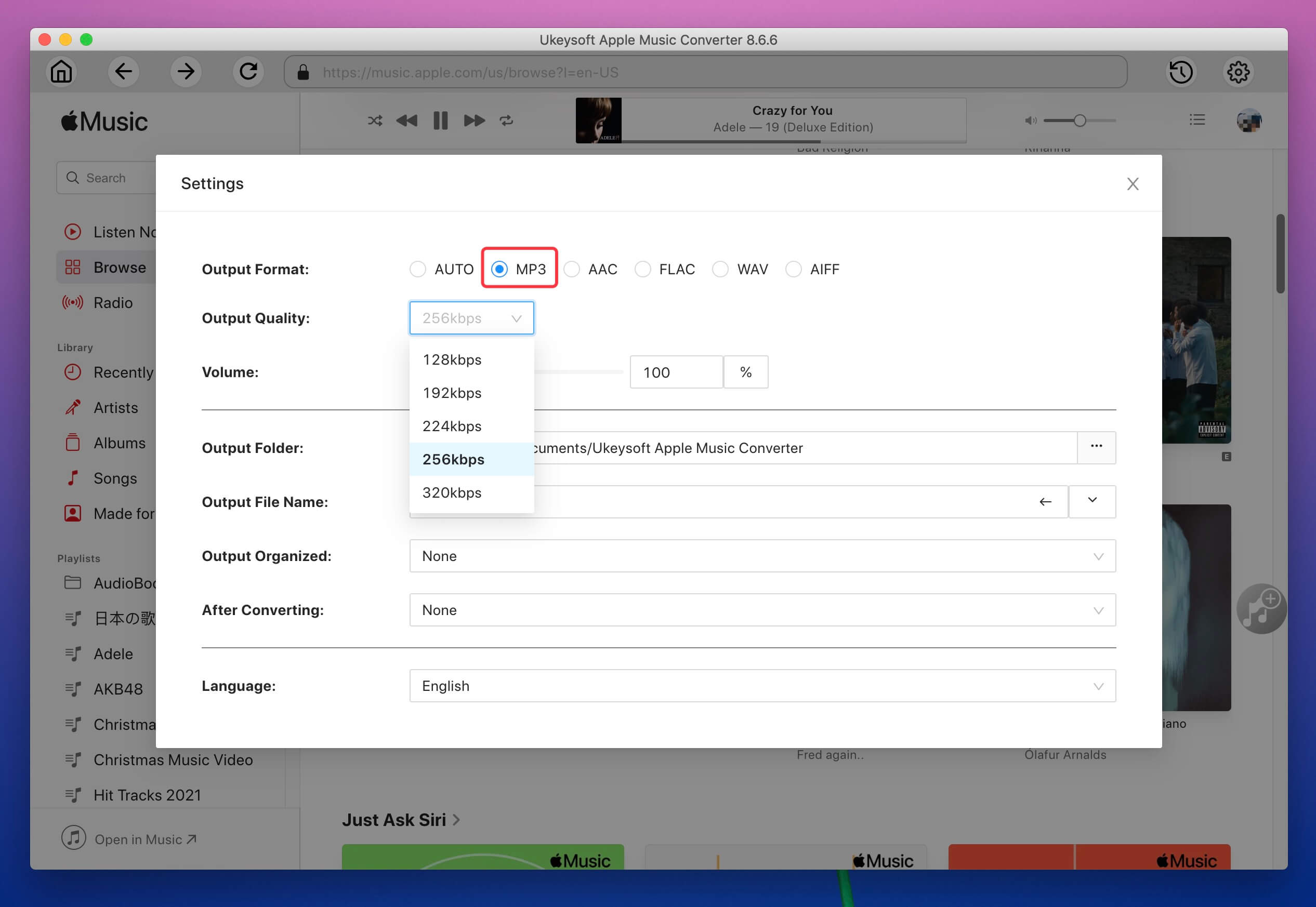
MP3 output format: The MP3 is the most common format that most devices or players are compatible with, the output MP3 audio quality up to 320 Kbps, 48 kHz.

select output profile

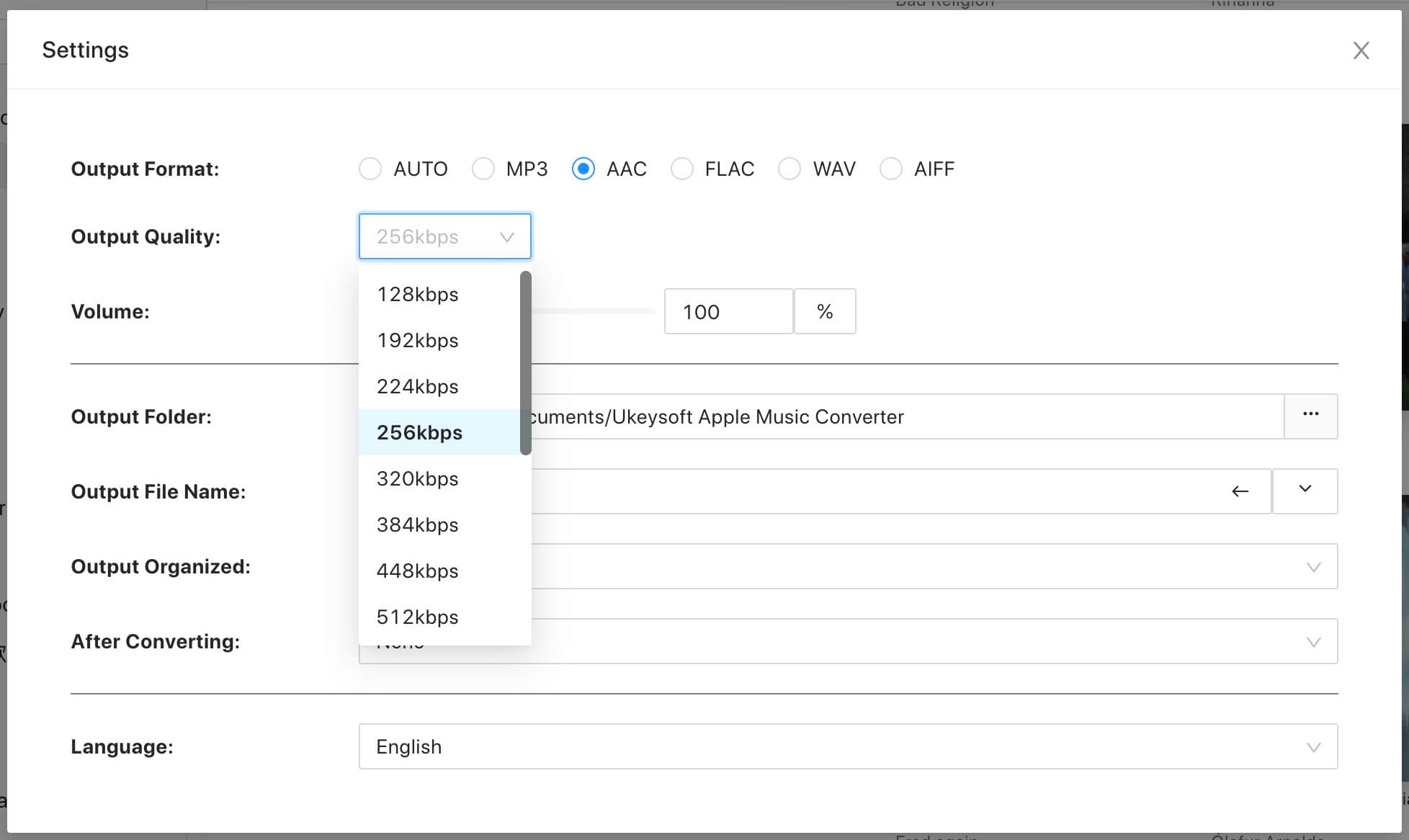
AAC output format: If you need to get the best audio quality, the AAC is the best output format, you can convert Apple Music songs to AAC in 512 kbps.

aac output quality

2.Adjust Output Quality

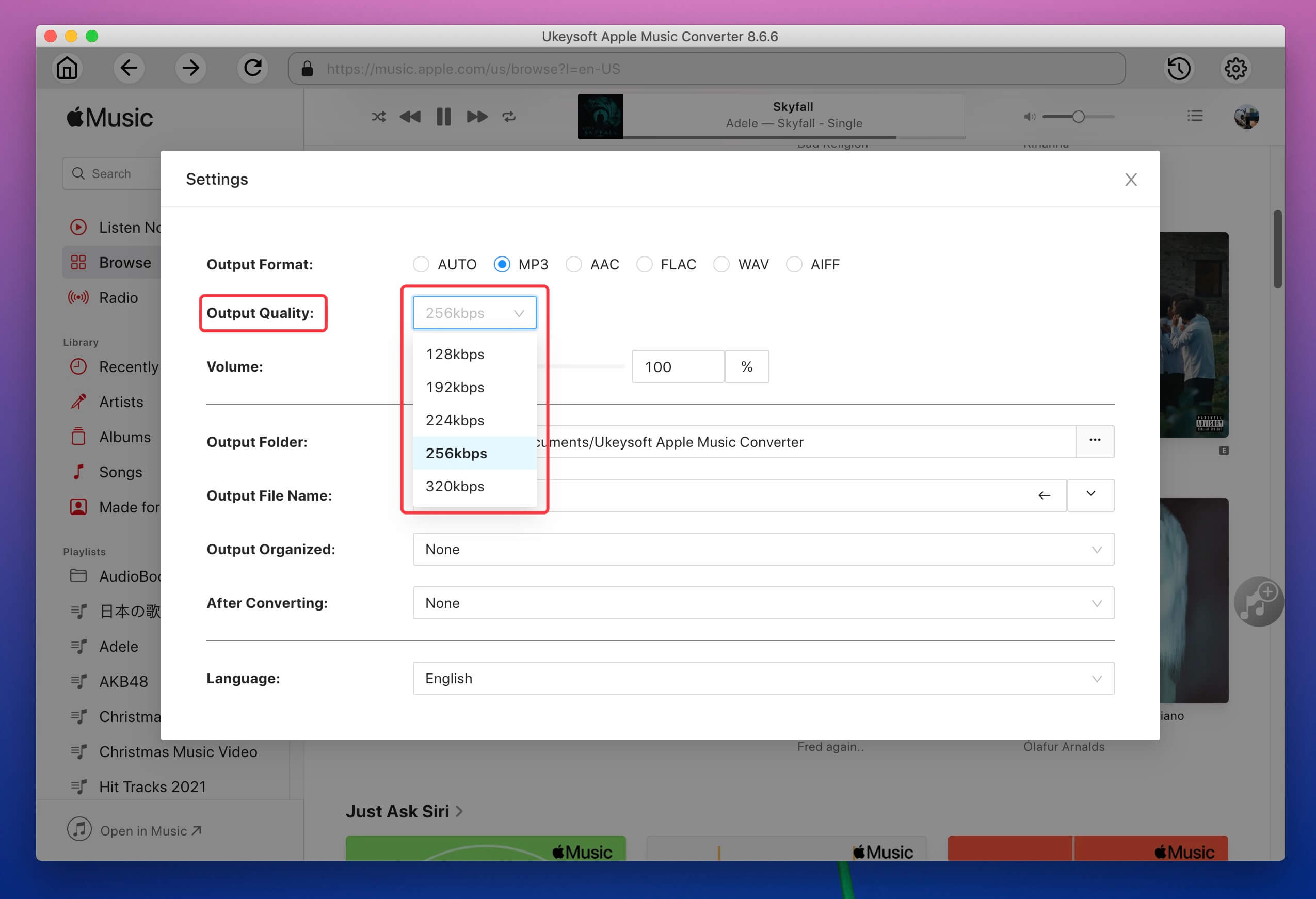
UkeySoft Apple Music Converter allows you to customize the output audio quality, the program can keeps Apple Music original sound quality in up to 256 Kbps MP3 audio (best at 320 Kbps, 48 kHz).

mp3 quality

Part 6. More Settings

This part helps you efficiently learn how to use the basic settings of UkeySoft Apple Music Converter.

1. Multiple Language Supported

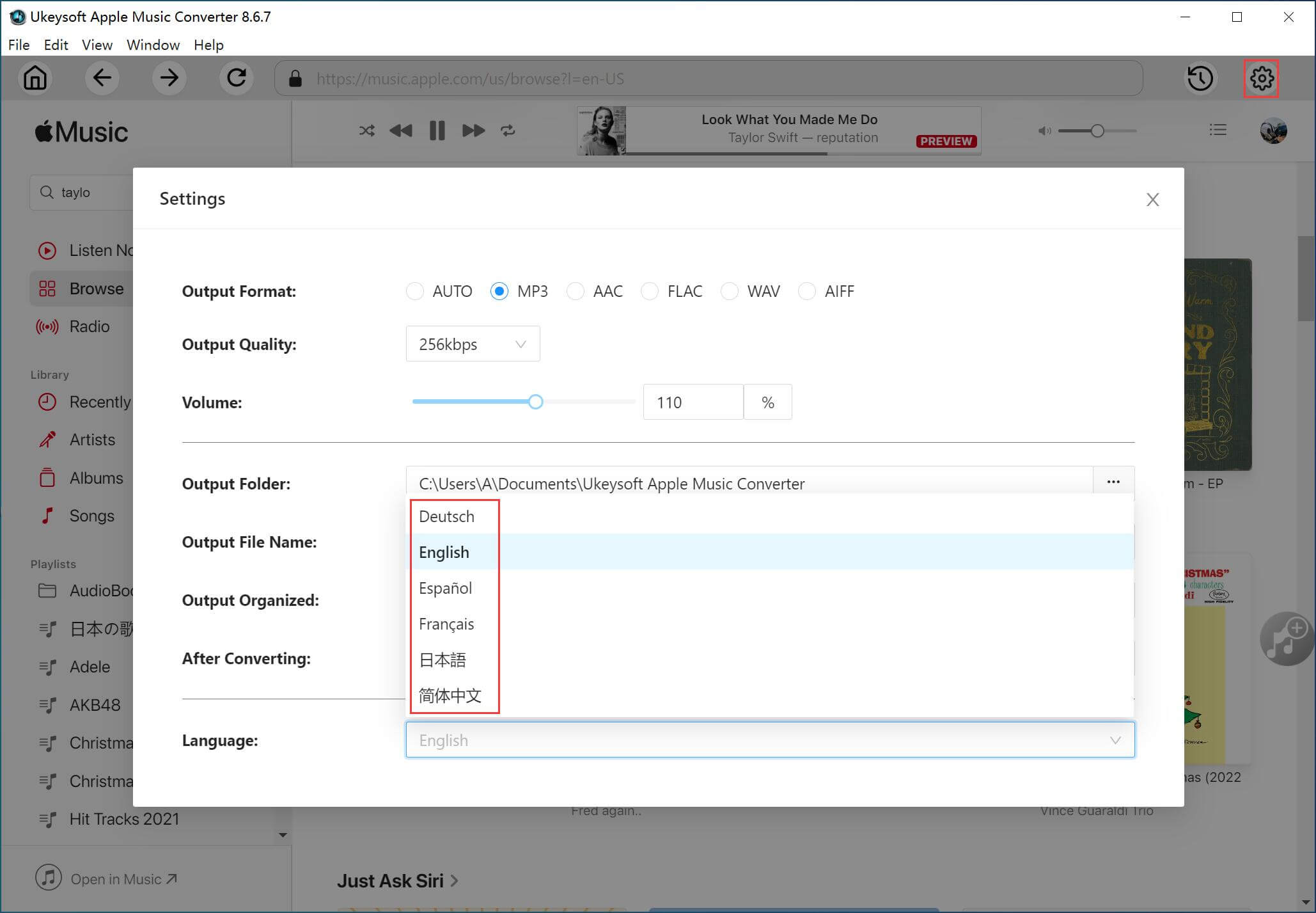
To better meet requirements of users from all over the world, we have released multilingual version of UkeySoft Apple Music Converter. The interface languages include: English, Deutsch, Español, Français, 日本語, 简体中文.

If you want to change the display language, please click “Gear” icon, the program will pop up a setting windows, here you can choose a display language you want.

view audiobooks mp3 format

2. Change the Output Folder

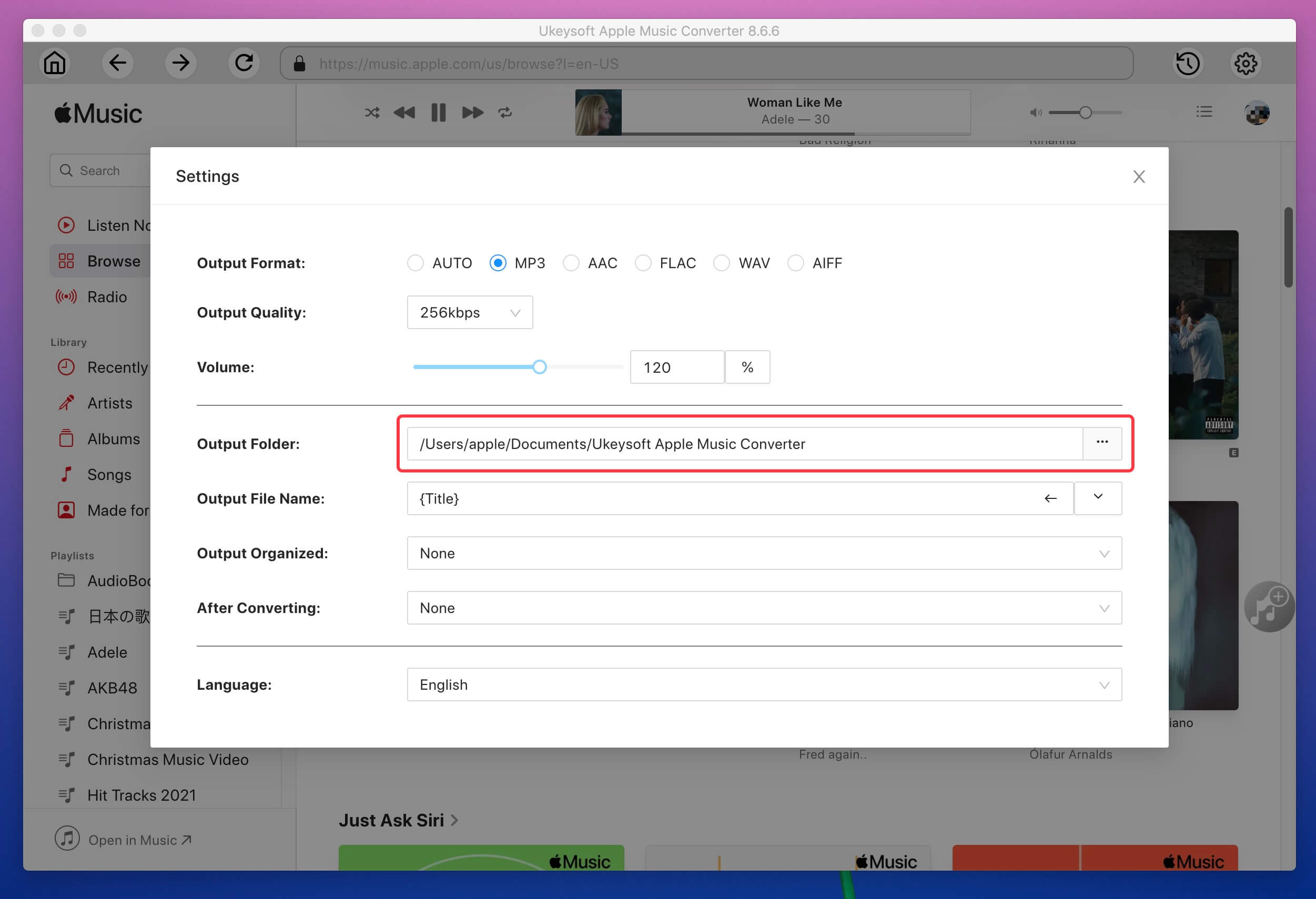
In the setting windows, you can change the default output folder under "Output Folder" option, then set other output folder to save the converted songs on Mac. Please don't set other external USB flash drive as output path, otherwise, the conversion will fail.

select-music-output-folder

3. Rename Output Songs

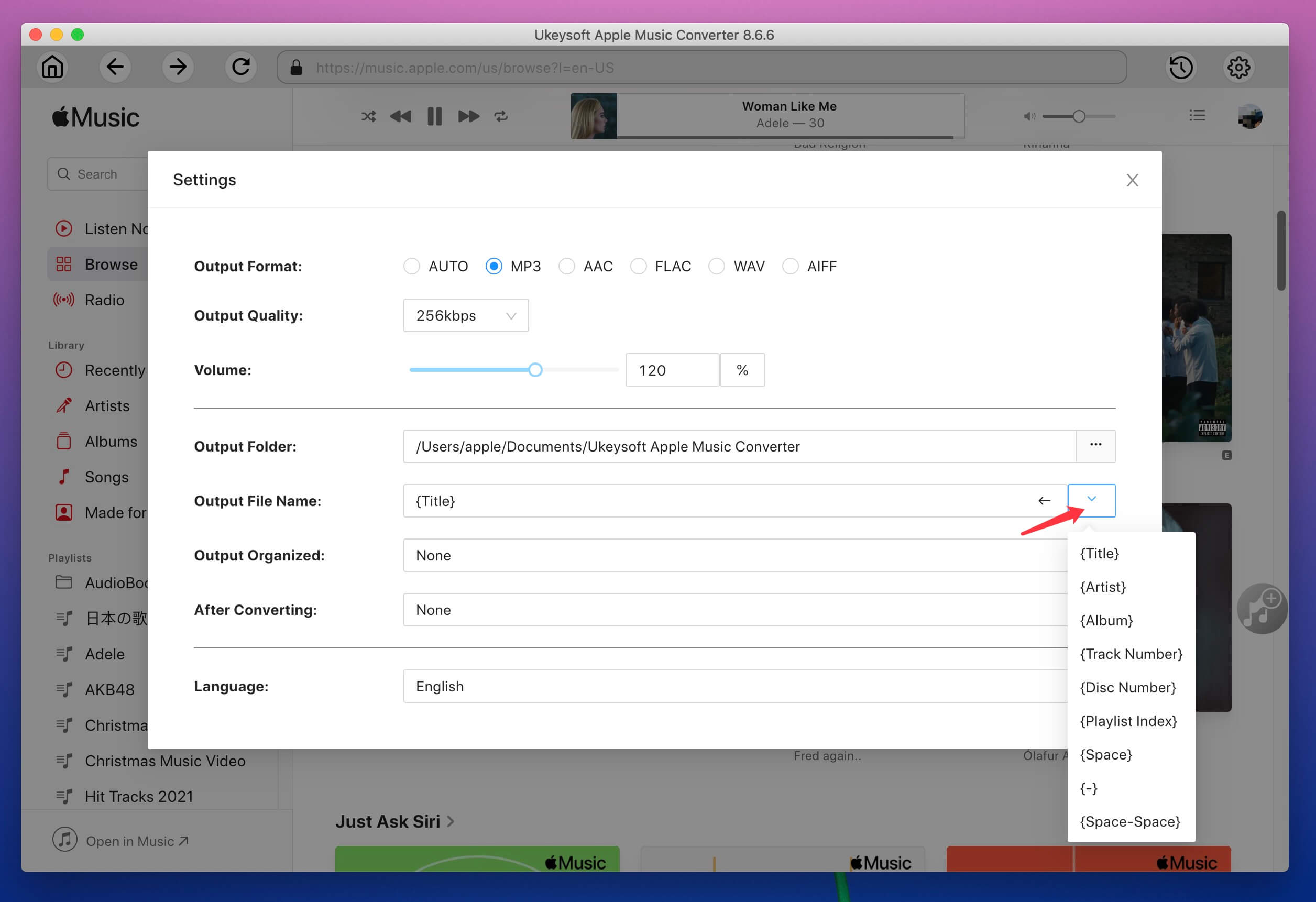
The program will Identify and generate ID3 tags like title, artist, album, genre, cover. For your preference, you are able to rename the songs with the combination of Playlist Index, Title, Artist, or Album.

mac-amc-output-file-name

4.Volume

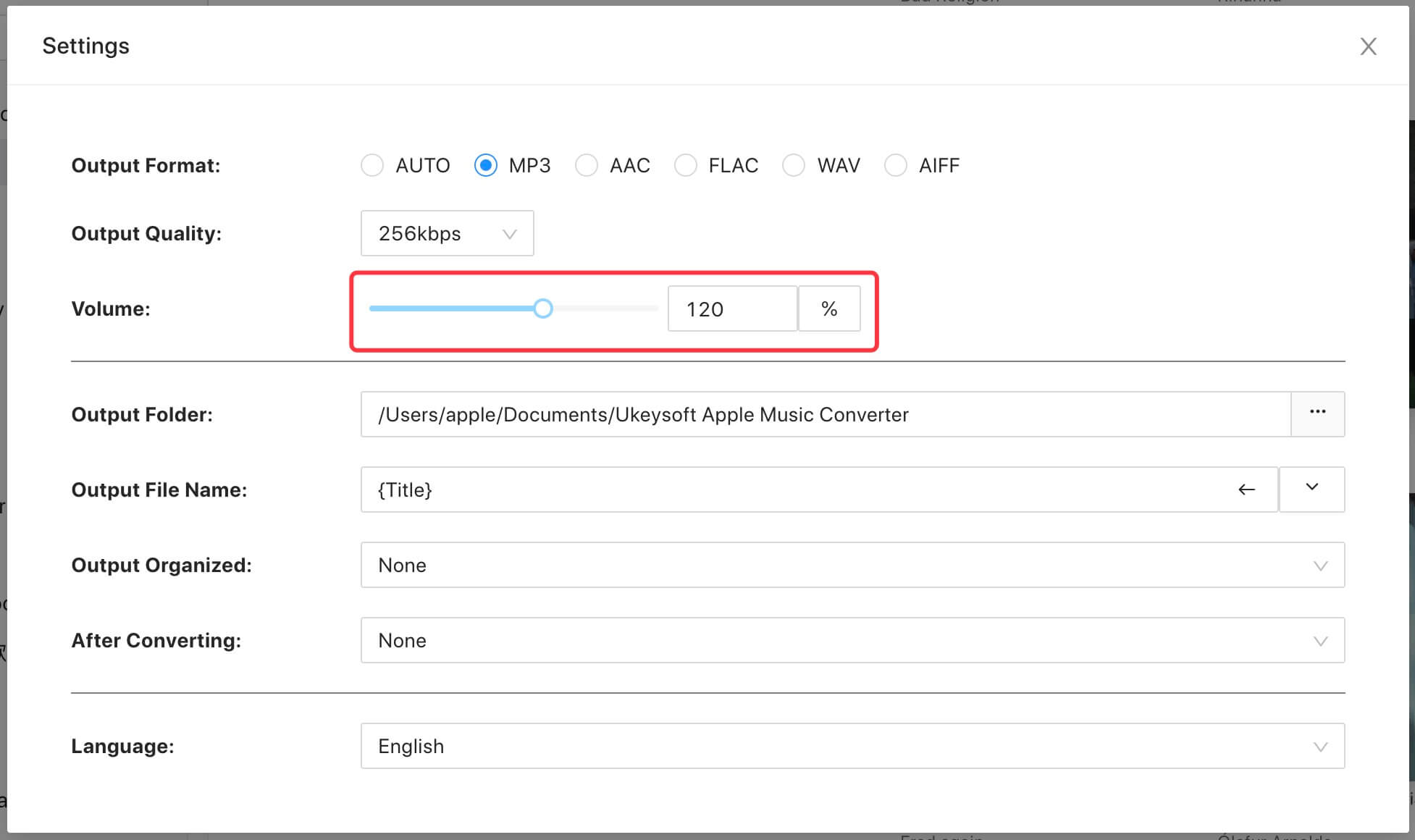
If the output volume does not suit your needs, you can also adjust the output volume by dragging the scroll bar. amc-adjust volume

5.Output Organized

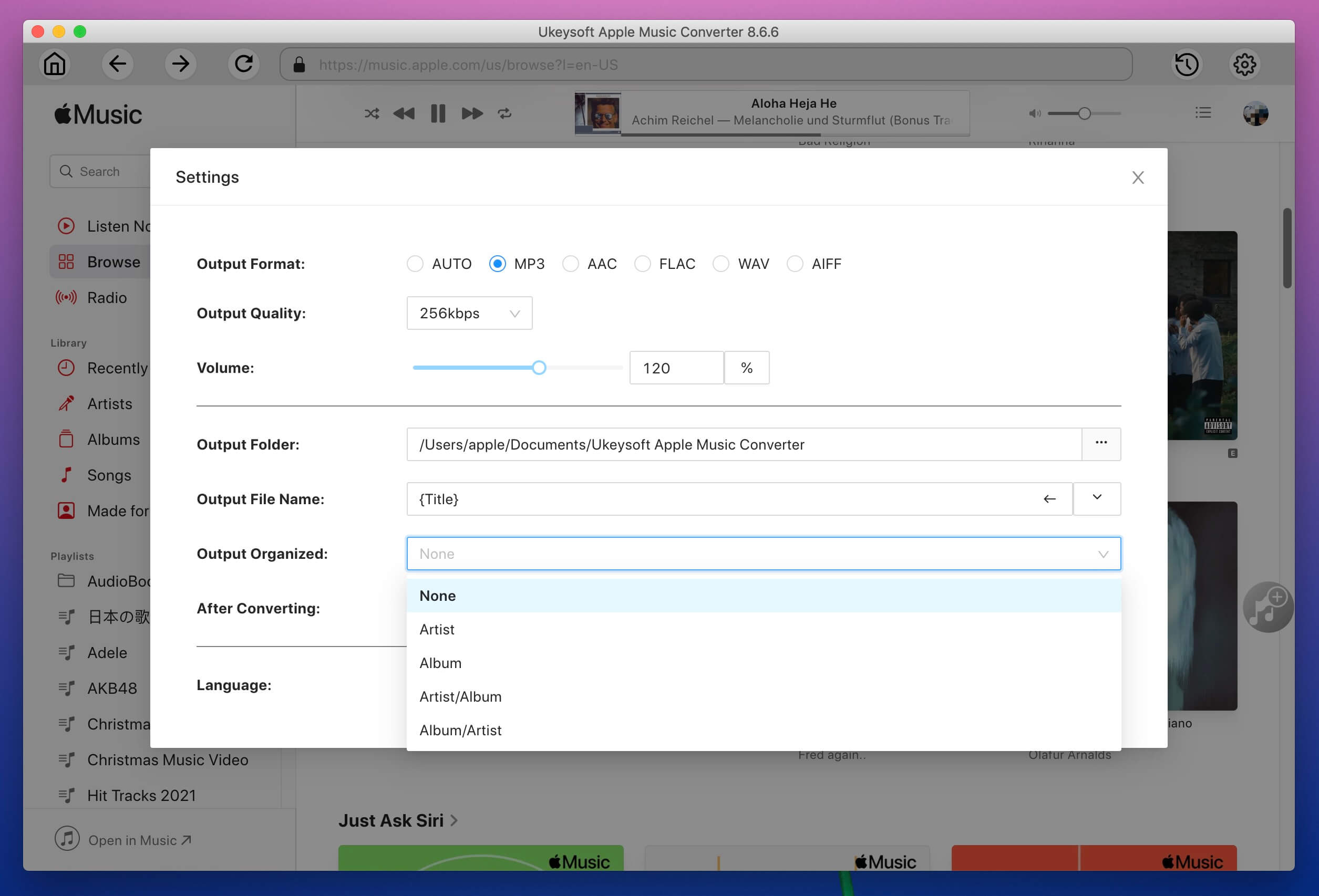
To better manage your music library, you can organize the output Apple Music songs by Artist, Album, Artist/Album, Album/Artist. mac-amc-output-organized

6.What to Do after Converting Finished

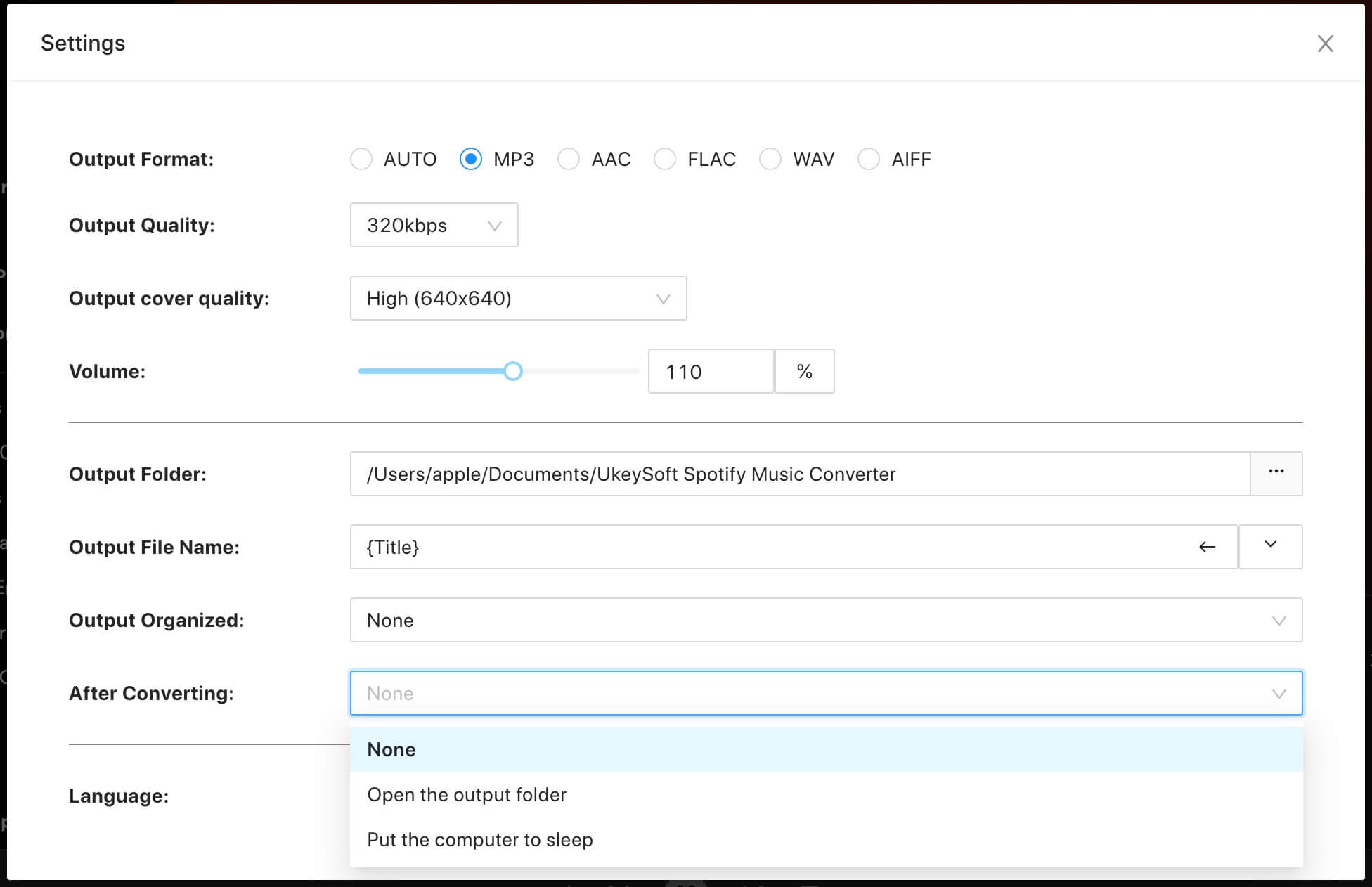
You can set "Open the output folder" or "Put the computer to sleep" or "Do nothing" after converting finished. This is a very convenient setting for users who convert a large number of songs at once, maybe it takes a long time to complete the conversion, "Put the computer to sleep" is a very convenient setting.

setting after converting

Apple Music Converter FAQs

  • “Can’t be opened because Apple cannot check it for malicious software”

    >When you install the software on Mac computer, if it tips‘Cannot check for malicious software’ error on macOS Catalina. Please go to Finder, locate the UkeySoft Apple Music Converter and Control-click on the app and choose Open in pop-up right menu. and in the dialog that appears, click Open. Enter your admin name and password when prompted.

  • Why it stuck on 0% conversion progress when I start converting Apple Music songs?

    UkeySoft only supports convert those songs that iTunes/Apple Music application can playing, make sure those song can playable with iTunes/Apple Music application. If you can't play those songs with iTunes, our software can't convert them, please try to convert a song that iTunes can playing.

  • Why is the conversion progress not responding for long time?

    During converting, the iTunes/Apple Music application plays the Apple Music tracks in the background (muted), so you'd better not using iTunes/Apple Music application until the whole conversion process complete, please wait patiently.

  • Can not recognize the end of the track and stuck at e.g. 99.5%

    If UkeySoft does not recognize the end of the track and stuck at e.g. 99.5% conversion process, you need to skip to the end of each converted MP3 by clicking the “UP or Next” operating on iTunes before doing any converting.

  • UkeySoft control my computer after launching the software?

    Our software won't control your computer. When convert starts, mouse will automatically move to iTunes/Apple Music application, and click Play, Stop, Play in order to get music information and download, convert the track. If the automatic clicking process is interrupted, music download may fail and "unknown error" may appear. Our software won't control your computer when converting the music, please don’t worry! So we recommend you not to use mouse when running Apple Music Converter to convert songs.

  • How to add Apple Music tracks to UkeySoft Apple Music Converter?

    You don't need to download songs to your computer first, just add songs, albums or playlists to your iTunes Library or Apple Music application’s library. After running UkeySoft, it will launch iTunes/Apple Music application and load all your Apple Music tracks & playlists automatically.

Copyright © 2026 UkeySoft Software Inc. All rights reserved.