By
Justin SabrinaUpdated on July 24, 2026
Summary
Do you want to download music from Amazon Music to iPad? This post offers 2 easy ways to help you save Amazon Music songs to iPad with or without subscription. You can even download Amazon Music as MP3 files for free, and keep them on your iPad forever.
Amazon Music offers several ways to access its massive music library. When you go out, streaming Amazon Music on your iPad can be great entertainment. However, you may face the challenge of unstable Wi-Fi connections or insufficient mobile data. Whether you're commuting, traveling, or saving mobile data, it's a good idea to download Amazon Music to iPad for offline listening.
In this guide, we'll walk you through two practical methods to download music from Amazon Music to iPad, from the official Amazon Music app to professional Amazon music downloader. Plus, if you don't have an Amazon Music subscription, don't worry! Keep reading, and we'll also guide you how to download Amazon Music on iPad for free, and keep them forever. Let's explore!
CONTENTS
Part 1. Download Amazon Music to iPad Directly (via Official App)
The most straightforward way to download Amazon Music on iPad is by using the official Amazon Music app. Amazon allows subscribers to download songs, playlists, and albums for offline listening, whether using an Amazon Prime membership account, or standalone Amazon Music Unlimited. This is very convenient, once downloaded, you can listen to Amazon Music offline on your iPad.
Here's how to download Amazon Music to iPad for offline playback:
Step 1.
Install the Amazon Music app from the App Store.
Step 2.
Open the app and sign in with your Amazon account.
Step 3.
Search for the song, album, or playlist you want.
Step 4.
Tap the "Download" icon next to the music, and wait until the download completes.
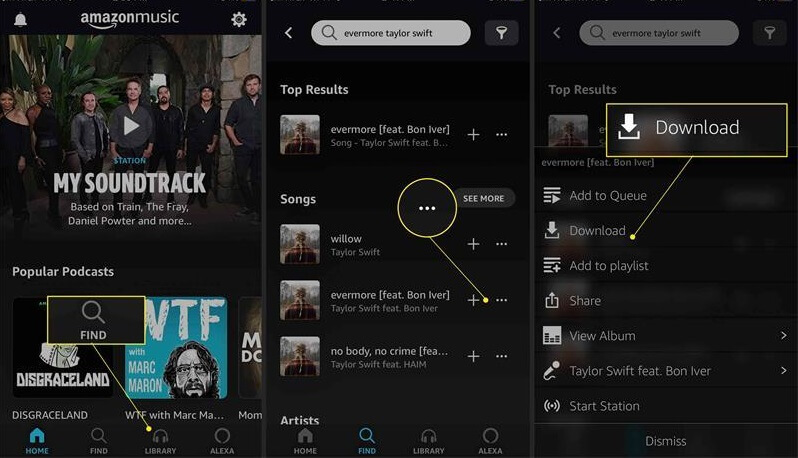
Once downloaded, you can switch to Offline Mode in the app and enjoy Amazon Music without an internet connection. While convenient, the official method comes with several drawbacks:
- To download Amazon Music to iPad for offline listening, you must have Amazon Music Prime or Amazon Music Unlimited.
- Amazon Music downloads are encrypted and DRM-protected, which cannot be transferred, shared, or backed up.
- The downloaded music can only be played inside the Amazon Music app.
- All Amazon Music downloads will become unavailable if your subscription ends.
To truly own your favorite Amazon Music tracks on iPad and enjoy without limitations, the best option is converting Amazon Music to MP3. Keep reading.
Part 2. Download Amazon Music to iPad and Keep it Forever (MP3 Files)
If you want to download Amazon Music to iPad for free and enjoy flexible offline playback, one of the best Amazon Music downloaders - UkeySoft Amazon Music Converter is an excellent choice. It helps you download Amazon Music tracks to your iPad permanently and play them with any music app.
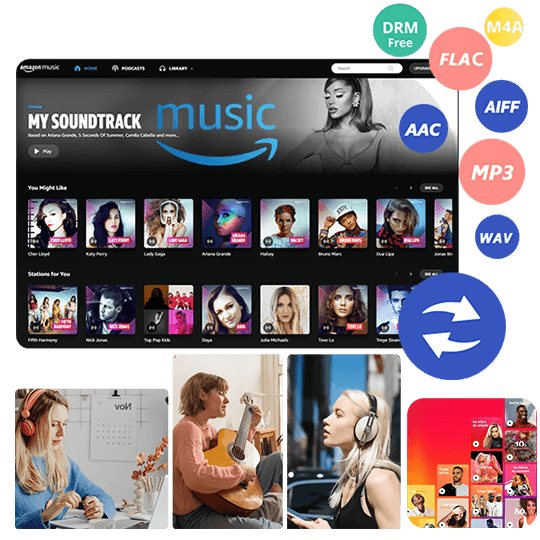
With its integrated Amazon Music web player, you can unlock all Amazon Music content including Amazon Music Prime, Unlimited, or HD, and download Amazon Music tracks, playlists, albums or podcasts for free, even with an Amazon Music Free account. It enables you to download and convert Amazon Music songs to MP3, M4A, AAC, WAV, FLAC, or AIFF formats, making them playable on iPad, iPhone, iPod and more devices. The downloaded Amazon songs can be preserved in Amazon Music lossless as 320 Kbps MP3 audio, 640 Kbps AAC/M4A audio.
Another standout feature is 16X speed and batch download features. You can add an entire playlist or album with one click, and perform batch conversion at once. It also preserves ID3 tags, including song title, artist, album, artwork, and genre, helping you keep your music library organized on your iPad.
UkeySoft Amazon Music Converter
- Download all music content from Amazon Music Free, Prime & Unlimited
- Built-in Amazon Music web player, no Amazon Music app needed
- Download Amazon Music songs, playlists, albums, podcasts for free
- Convert Amazon Music songs to MP3, AAC, M4A, WAV, AIFF, FLAC
- Preserve original audio quality and full ID3 tags metadata
- Preset the parameters and organize output file names by ID3 tags
- Save Amazon Music songs to iPad, iPhone, iPod, USB, MP3 player
How to Convert Amazon Music to MP3 and Sync to iPad?
Step 1. Launch UkeySoft Program and Log in Amazon Account
Install and launch UkeySoft Amazon Music Converter on your Windows PC or Mac computer, or laptop. Log in to your Amazon Music account inside the software. It supports Amazon Music Free, Prime Music and Music Unlimited account.
![launch amazon music converter]()
Step 2. Choose MP3 Format for Amazon Songs
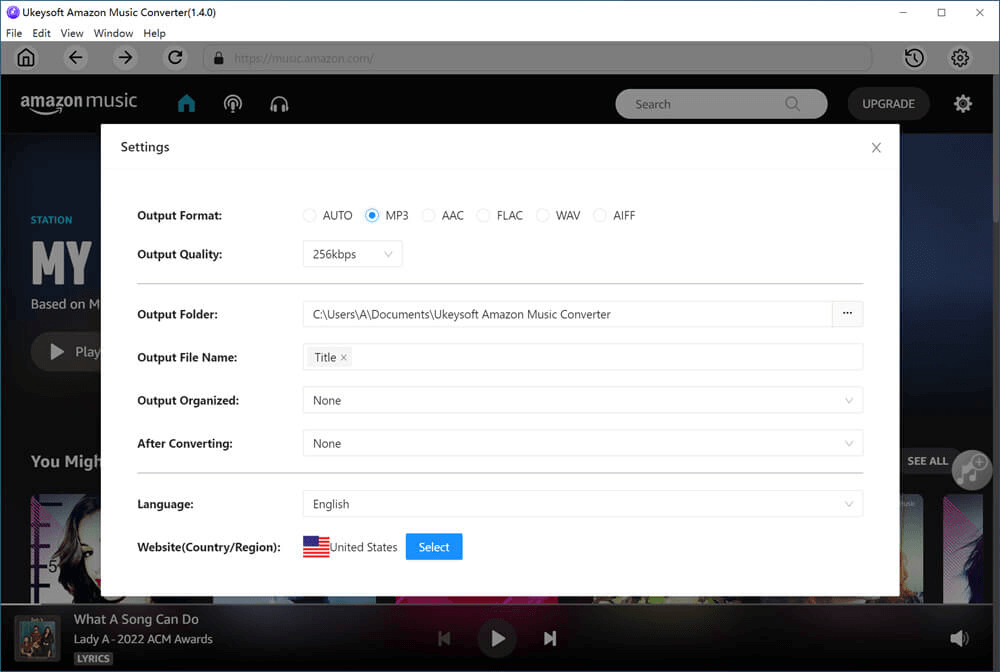
Go to the settings window by clicking the "Gear" icon at the upper right corner. Choose MP3 as the output format and adjust output quality, output folder, and other settings.
Step 3. Choose Amazon Songs/Playlists/Albums
Turn to the main interface after above settings. Select songs, albums, or playlists to download, and click the red "+" icon to load the song items.
![add amazon music songs]()
Once added, check and confirm your target Amazon songs. If you add an album or playlist, it will automatically load all songs in the album/playlist.
![select amazon music songs]()
Step 4. Convert Amazon Music to MP3
Click on the "Convert" button to to start downloading and converting your Amazon songs to into MP3 audios. It works at up to 16X faster speed, just wait a few minutes.
![convert amazon music to mp3]()
Step 5. Get Output Amazon Music MP3 Files
After conversion, click the "Clock" icon to access the well downloaded Amazon songs and enjoy them with the built-in music player directly.
![play amazon music songs offline]()
Then, go to the output folder by clicking the "Blue Folder" icon. From where you can get your MP3 Amazon Music files. Ready to transfer these Amazon songs to your iPad.
![output amazon music files]()
Step 6. Sync Amazon Songs to iPad via iTunes
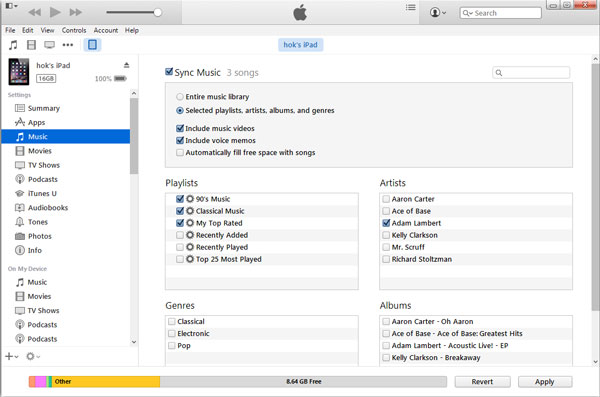
After conversion, import the Amazon Music MP3 files in your iTunes library. Then connect iPad with PC/Mac using iTunes or Finder. Click on your iPad device icon, and select "Music" in the left panel. Then click "Sync Music" > "Selected playlists, artists, albums, and genres" > "Recently Added" > "Done".
Step 7. Listen to Amazon Music on iPad Offline
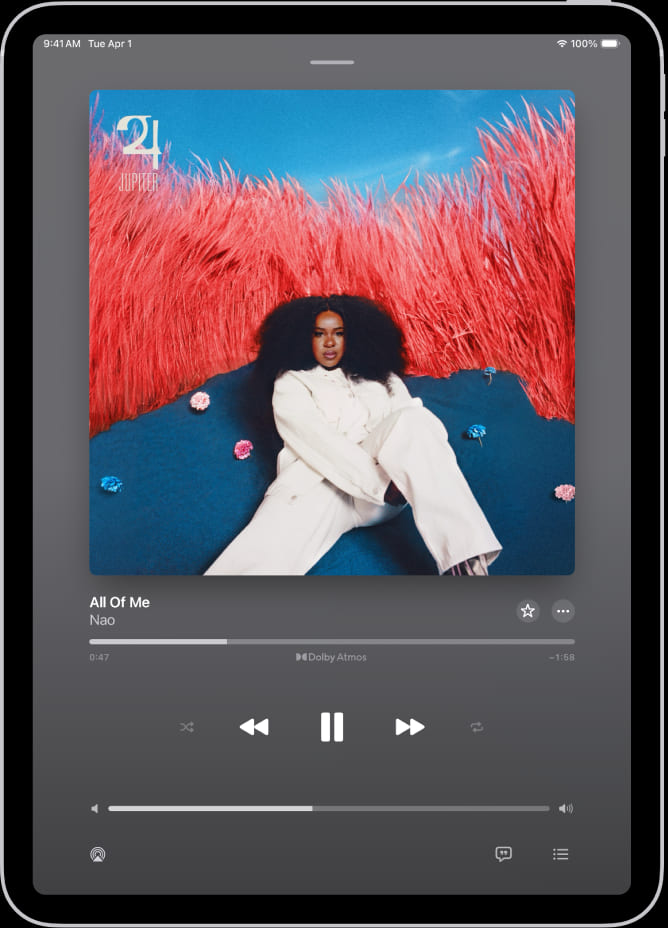
You can now open the Music app on your iPad, and listen to these downloaded Amazon Music offline permanently.
Part 3. FAQs About Downloading Amazon Music on iPad
Is Amazon Music Free on iPad?
Yes, Amazon Music Free is available on iPad, but it includes ads interruption and does not support offline downloads. To download Amazon Music on your iPad, you need to subscribe to Amazon Prime membership, or Amazon Music Unlimited.
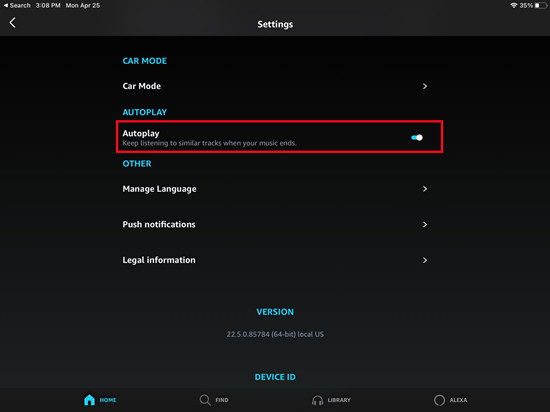
How to Enable AutoPlay on Amazon Music on iPad?
Open the Amazon Music app, click on the gear icon, go to Settings. Find and toggle "AutoPlay" on. Once enabled, it will automatically play similar music when your queue ends.
How to Download Purchased Amazon Music on iPad?
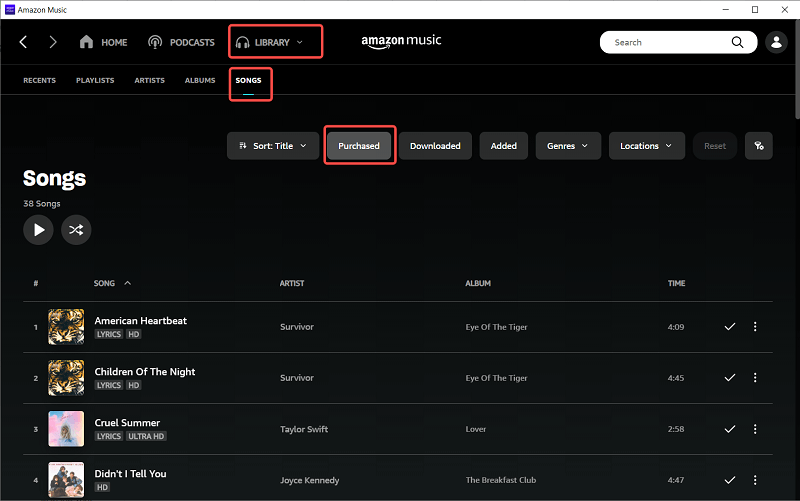
Amazon Music not only offers streaming music, but also offers digital music for purchase as MP3 downloads. If you have any purchased Amazon Music songs or albums, you can download them onto your iPad as MP3 files, which can be transferred to iPad via iTunes or Finder.
Open Amazon Music app on iPad. Tap "Library" > "Songs" > Purchased", tap the "Three Dots" icon next to the song and choose "Download".
Where Do Amazon Music Downloads Go on iPad?
As mentioned earlier, the Amazon Music downloads are DRM-encrypted. The Amazon Music tracks you download on your iPad are simply cached files. The official downloads are stored inside the Amazon Music app. Go to Amazon Music app, tap "Library" > "Downloaded" > "Songs".
Part 4. The Bottom Line
In short, it's a piece of cake to download Amazon Music on iPad with an subscription account. And it's possible to download Amazon Music to iPad as MP3 for free with a third-party Amazon Music downloader. Overall, if you want to truly own your Amazon music and listen without limitations, the best option is to download Amazon Music to MP3 using UkeySoft Amazon Music Converter. With it, you can download and save Amazon Music tracks on iPad with Free account, keep them forever, and enjoy uninterrupted listening anytime, anywhere.
Download Amazon Music on iPad

Justin Sabrina has always had great enthusiasm for writing, programming and web development. He likes writing about software and technology, his works are featured on some tech blogs or forums like Tom's Hardware, CNET, etc.
 English
 Arabic
 Chinese (Simplified)
 Chinese (Traditional)
 Croatian
 Czech
Czech Danish
 Dutch
Dutch Estonian
 Finnish
 French
 German
 Greek
Greek Hebrew
 Hindi
Hindi Hungarian
 Indonesian
 Italian
 Japanese
 Kazakh
 Korean
 Malay
Malay Norwegian
 Polish
 Portuguese
 Romanian
 Russian
 Slovenian
 Spanish
 Swedish
 Thai
Thai Turkish
 Ukrainian
 Vietnamese







Comments are off!