
Youtube Music Converter Youtube Music Converter

 Guide Tips

  • Part 1. Install and Register UkeySoft YouTube Music Converter
  • Part 2. How to Convert YouTube Music to MP3/WAV/FLAC/M4A
  • Part 3. Video Tutorial
  • Part 4. How to Customize the Output Audio Parameters
  • Part 5. Built-in Music Manager & Player

Part 1. How to Install and Register UkeySoft YouTube Music Converter


Step 1. Download and Install the UkeySoft MusicOne Converter

Download the latest version of UkeySoft MusicOne Converter for Windows or Mac from below DOWNLOAD button. It supports Windows 11/10/8.1/8/7 (32 bit or 64 bit), and Mac OS X 10.9 or higher. Follow the on-screen instructions to complete the installation.


Step 2. Select YouTube Music Service

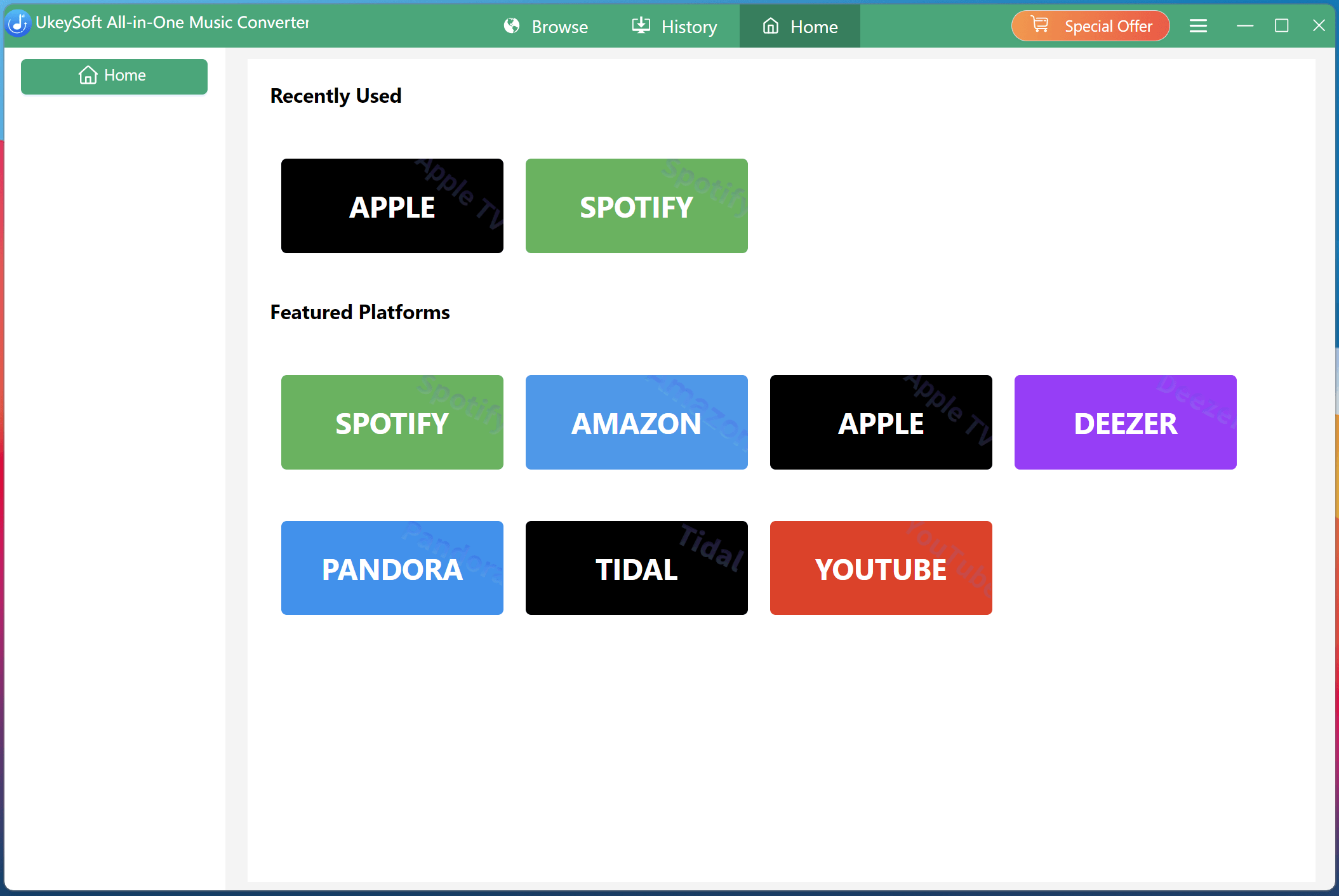
Fire up UkeySoft MusicOne Converter on your desktop. As you can see, the converter supports multiple streaming platforms in one program. Select “YOUTUBE” from the homepage, you'll then enter the UkeySoft YouTube Music Converter.
youtube spotify converter

Step 3. Purchase the License Key

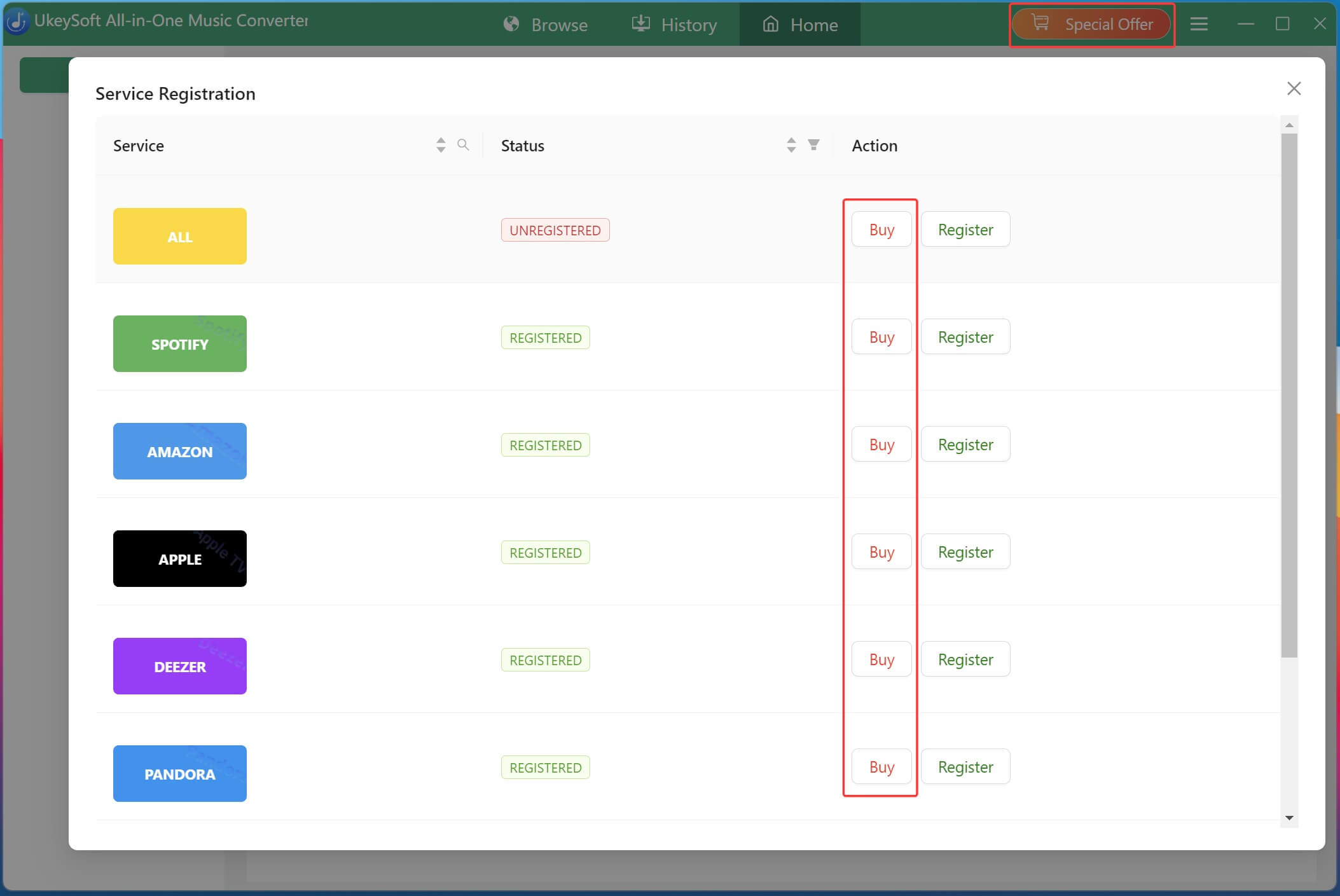
To unlock all features, you need to purchase a subscription plan or lifetime license. Click on the "Special Offer" option at the upper right corner. In the pop-up window, scroll down until you see YOUTUBE. Then click "Buy" button.
youtube spotify converter

Step 4. Activate UkeySoft YouTube Music Converter

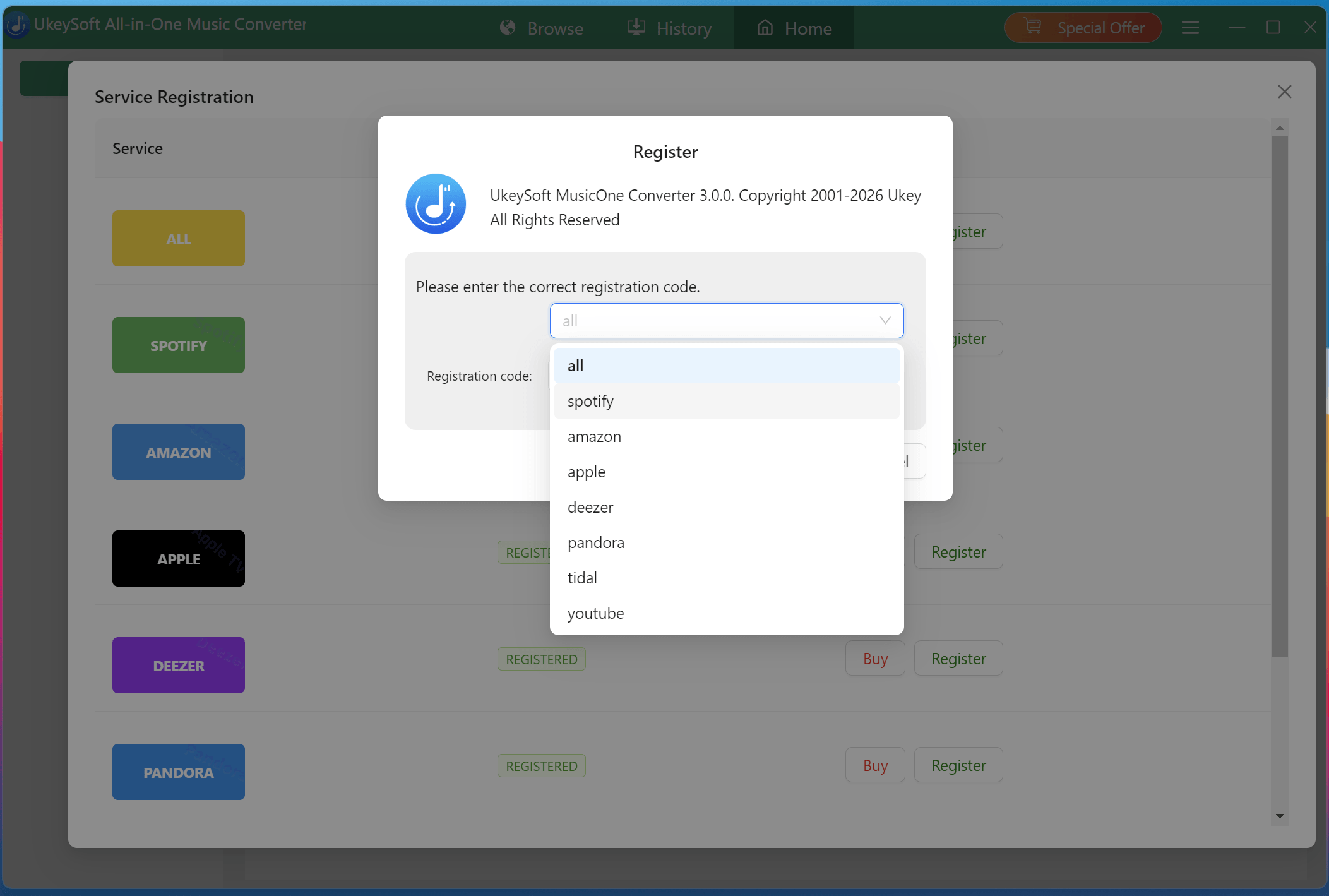
After completing your order, you'll receive a registration email containing your license key for software activation. Click the "Register" button next to YOUTUBE. In the small window, select "youtube" option, then enter your registered code, then click "Register". Once activated, you can download unlimited YouTube Music content without restrictions.
youtube spotify converter

Also, you may test its free trial version before purchasing the software. Skip the registration, turn back to the home page, click "Try" button. Access the built-in YouTube Music web player, sign in with your account. The free trial version lets you convert the first three minutes of each track.

Step 5. Choose Your Preferred Language (Optional)

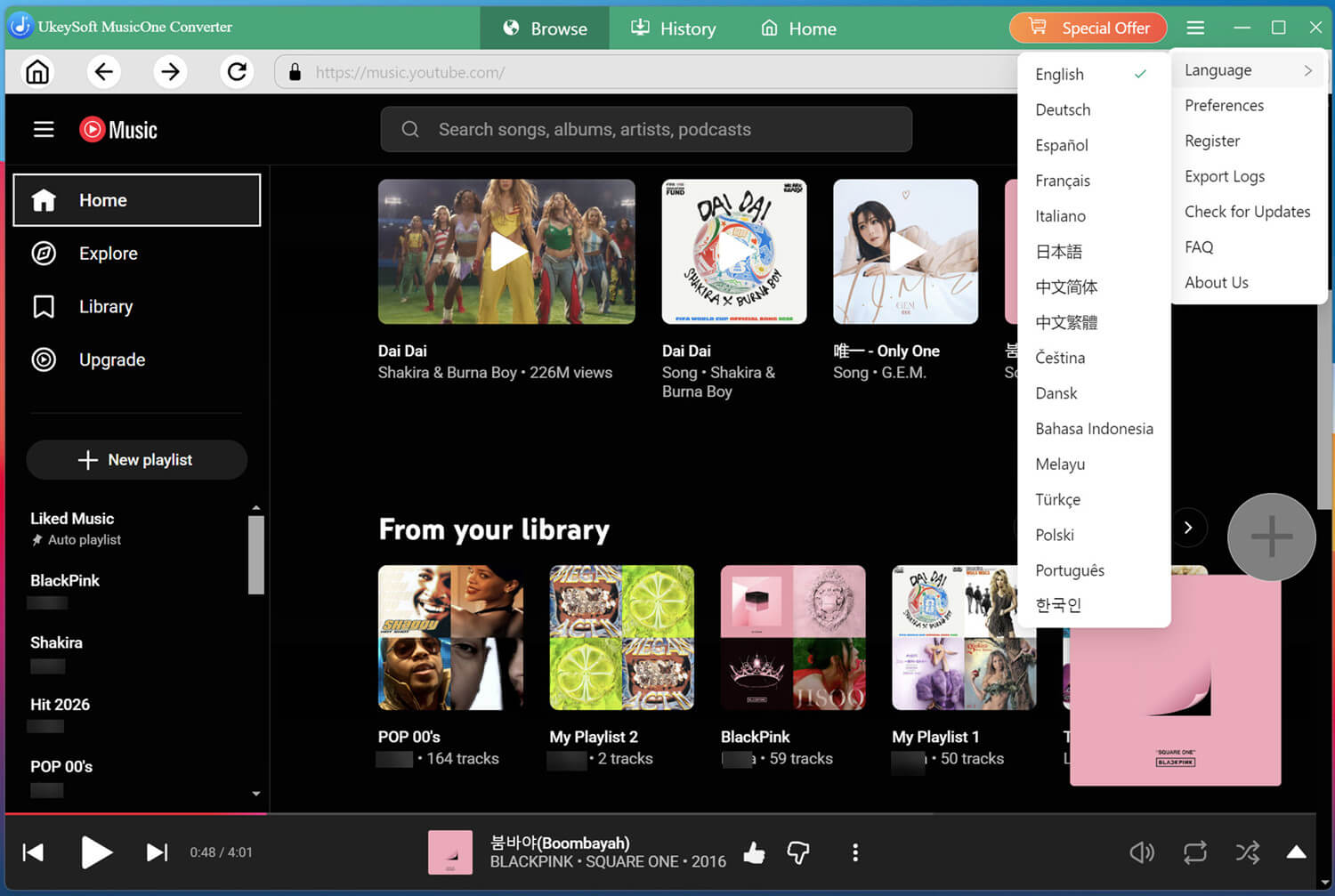
UkeySoft YouTube Music Converter supports multiple interface languages, including English, Deutsch, Español, Français, Italiano, Japanese, Simplified Chinese, Traditional Chinese, Čeština, Dansk, Bahasa Indonesia, Malayu, Türkçe, Polski, Português, and Korean, etc., making it easy for users worldwide to enjoy a localized experience.
youtube spotify converter

The default user language is English, hit on the "Menu" (three horizontal lines) at the upper right corner, select "Language" option, pick your preferred language.
Part 2. How to Convert YouTube Music to MP3/WAV/FLAC/M4A

Step 1. Log In to Your YouTube Music Account

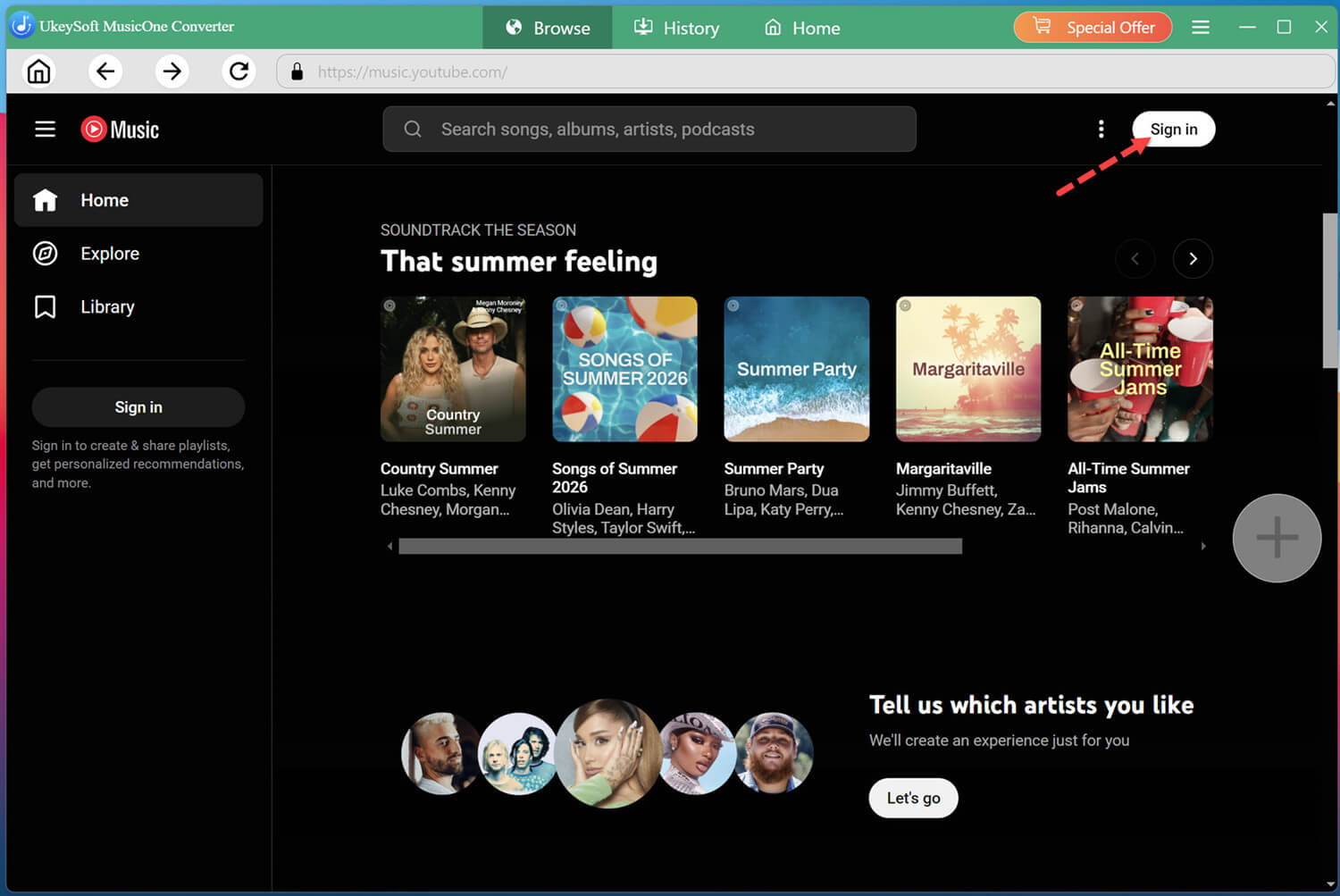
Download and launch UkeySoft YouTube Music Converter on your computer. Click "Sign in" button at the upper right corner.

youtube Music Converter Interface

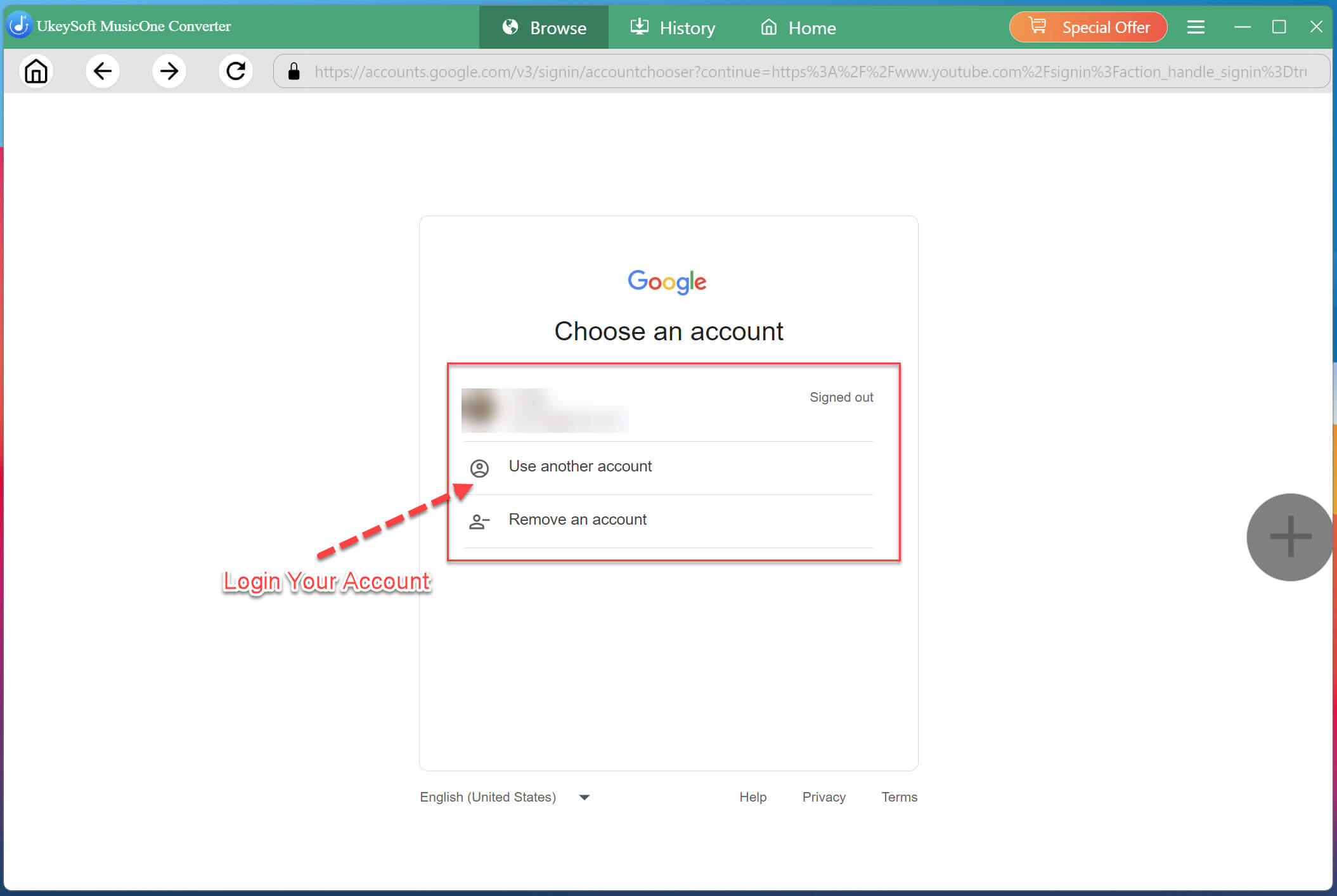
Log in to your YouTube Music Free or Premium account to access your personal library, playlists, liked songs, albums, and artists.

youtube Music Converter

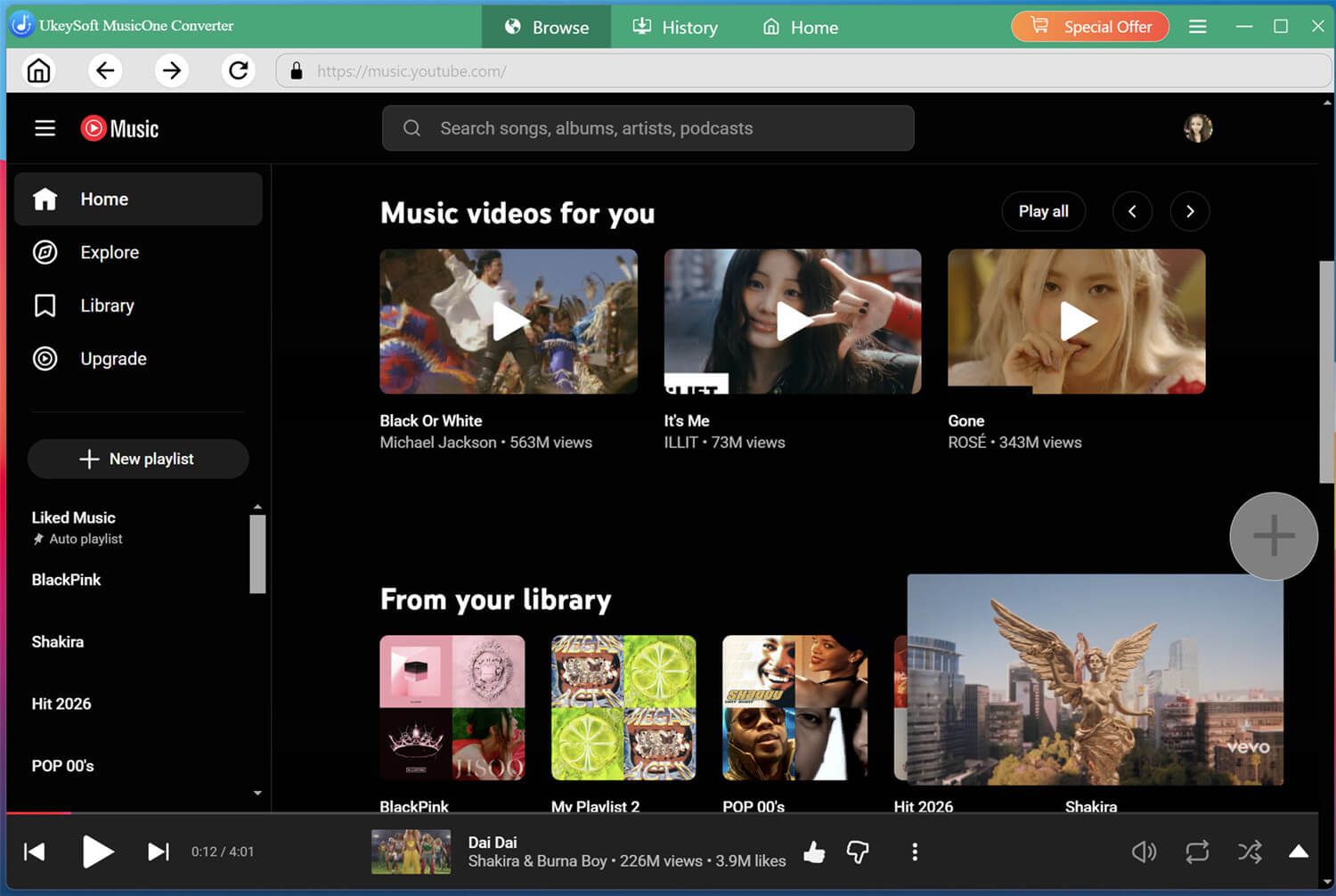
Once signed in, you can browse your library, stream music online, access your created playlists, and search for any song, album, artist, podcast, and music video directly.

youtube Music Converter

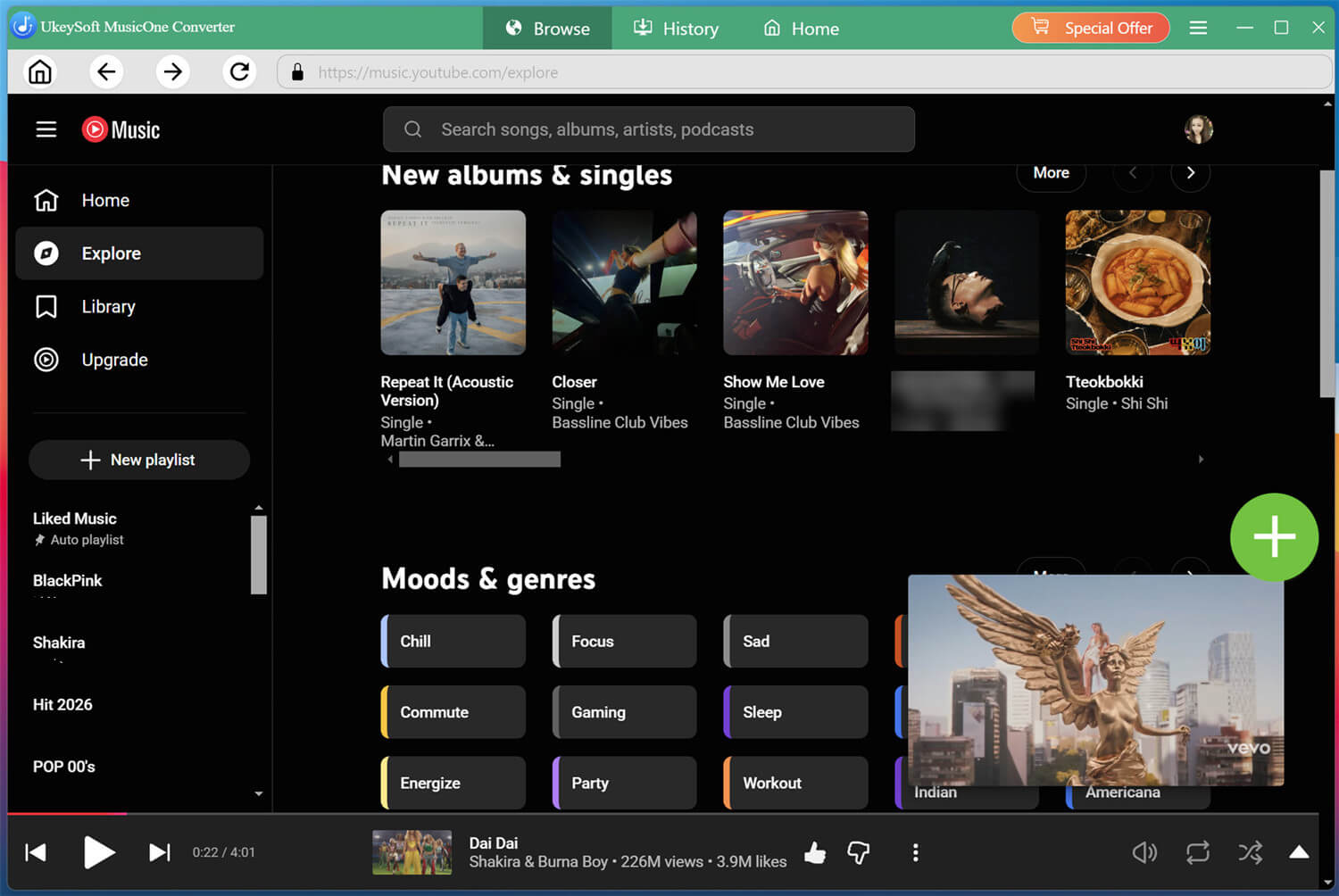
You may also access and stream new albums and singles on the software online!

youtube Music Converter

Step 2. Customize Output Settings

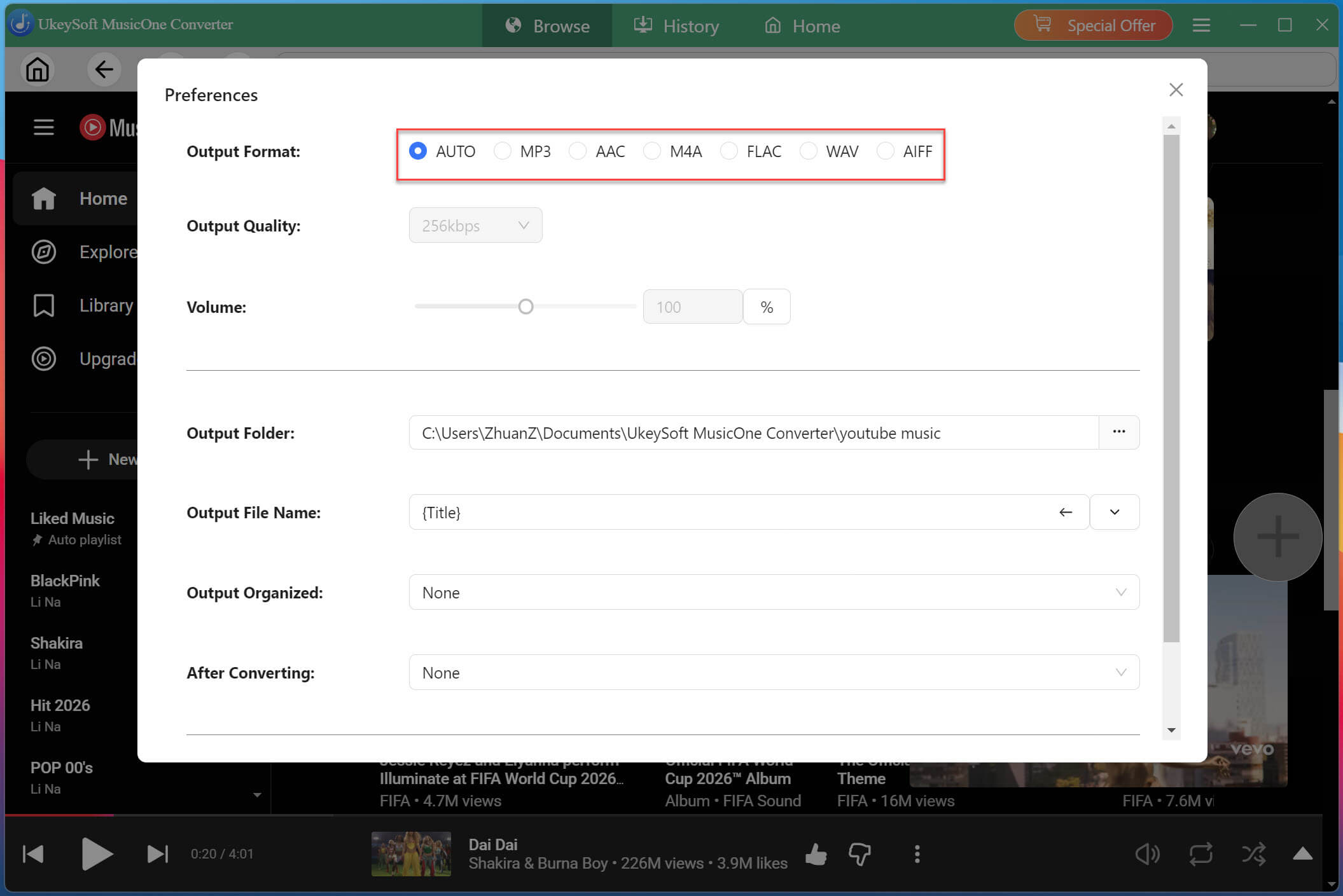
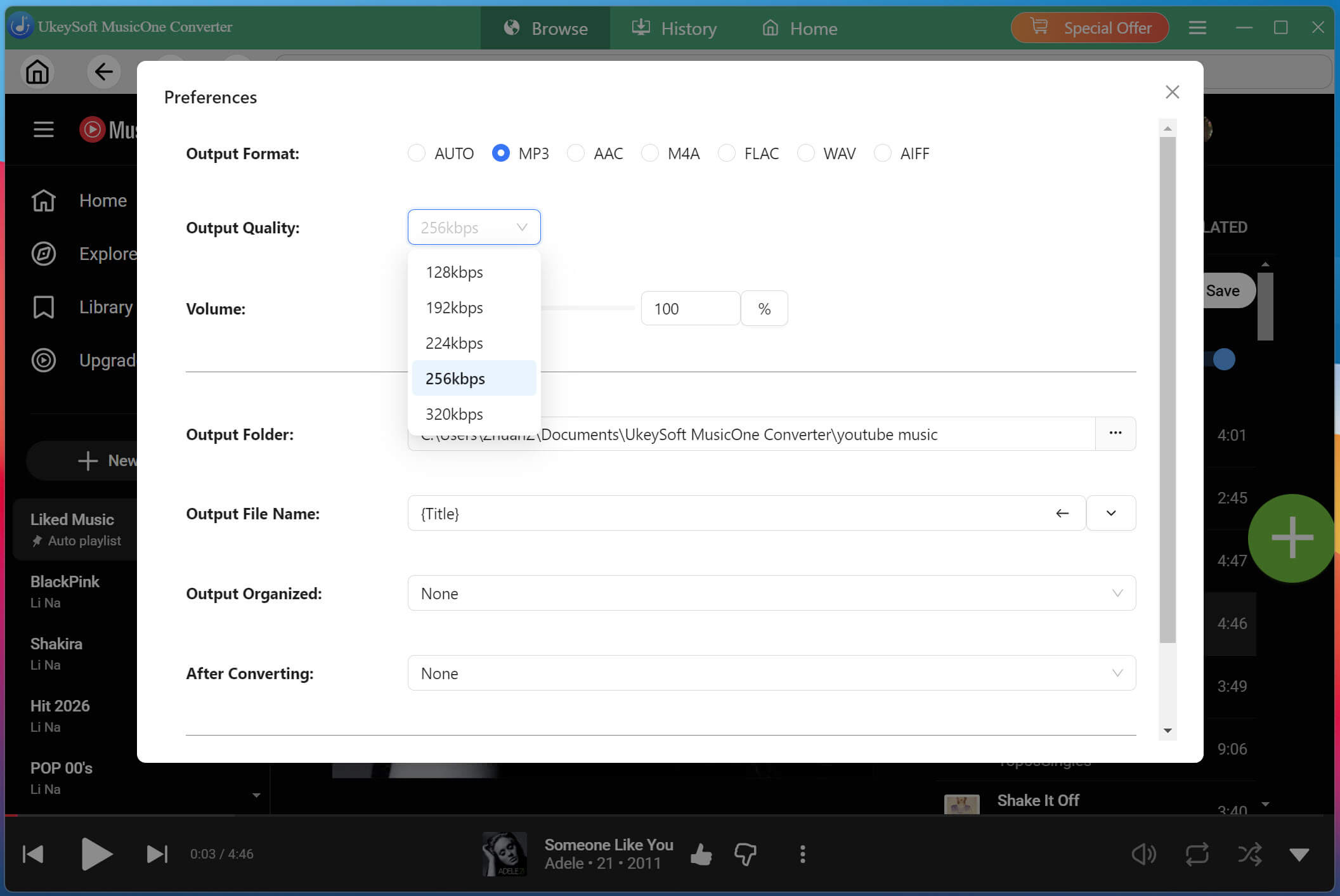
Click the "Menu" icon at the upper right corner, and select Preferences to customize your download settings. Here you can choose the output format (AUTO M4A, MP3, AAC, M4A, FLAC, WAV, AIFF), output quality, output folder, output file name, and more.

youtube Music Converter

Step 3. Add Songs, Albums, Playlists, MVs & Podcasts to Download

Browse or search for the songs, albums, playlists, podcasts, or music videos you'd like to download.

youtube Music Converter

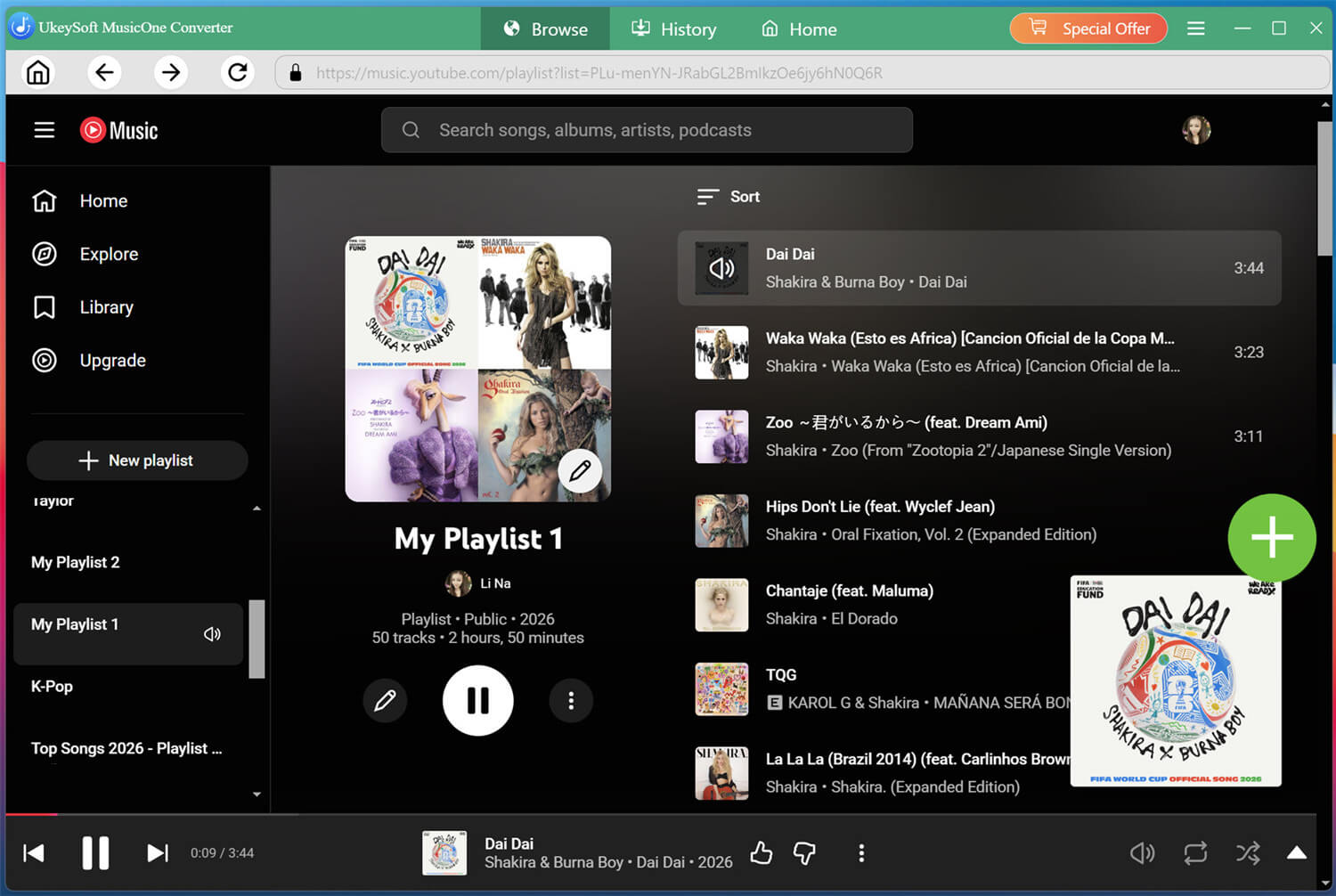
Open one of your own YouTube Music playlists, or any desired music content, click the green "+" icon in the right side. UkeySoft will automatically detect and import all available tracks.

youtube Music Converter

Step 4. Select YouTube Music Songs

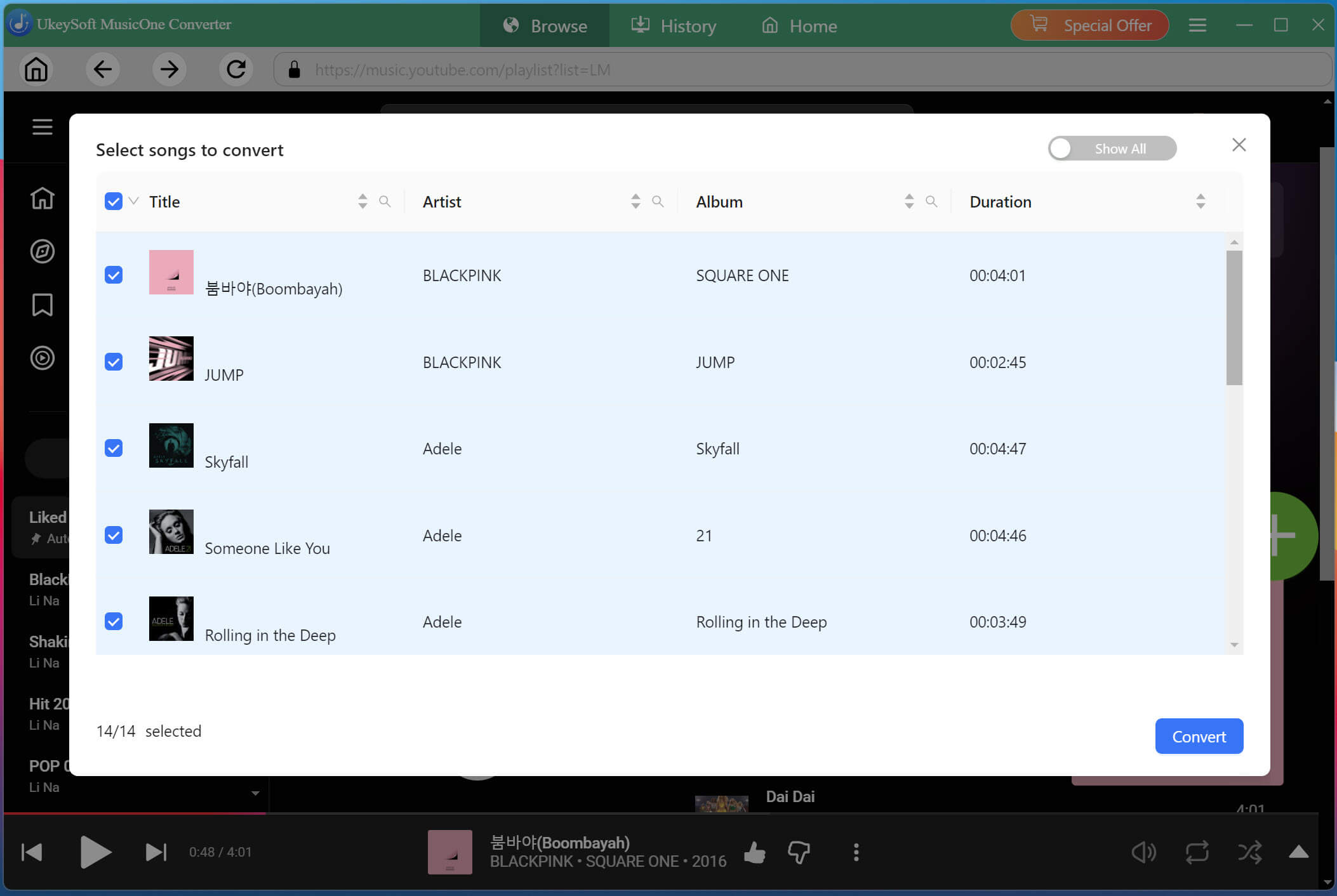
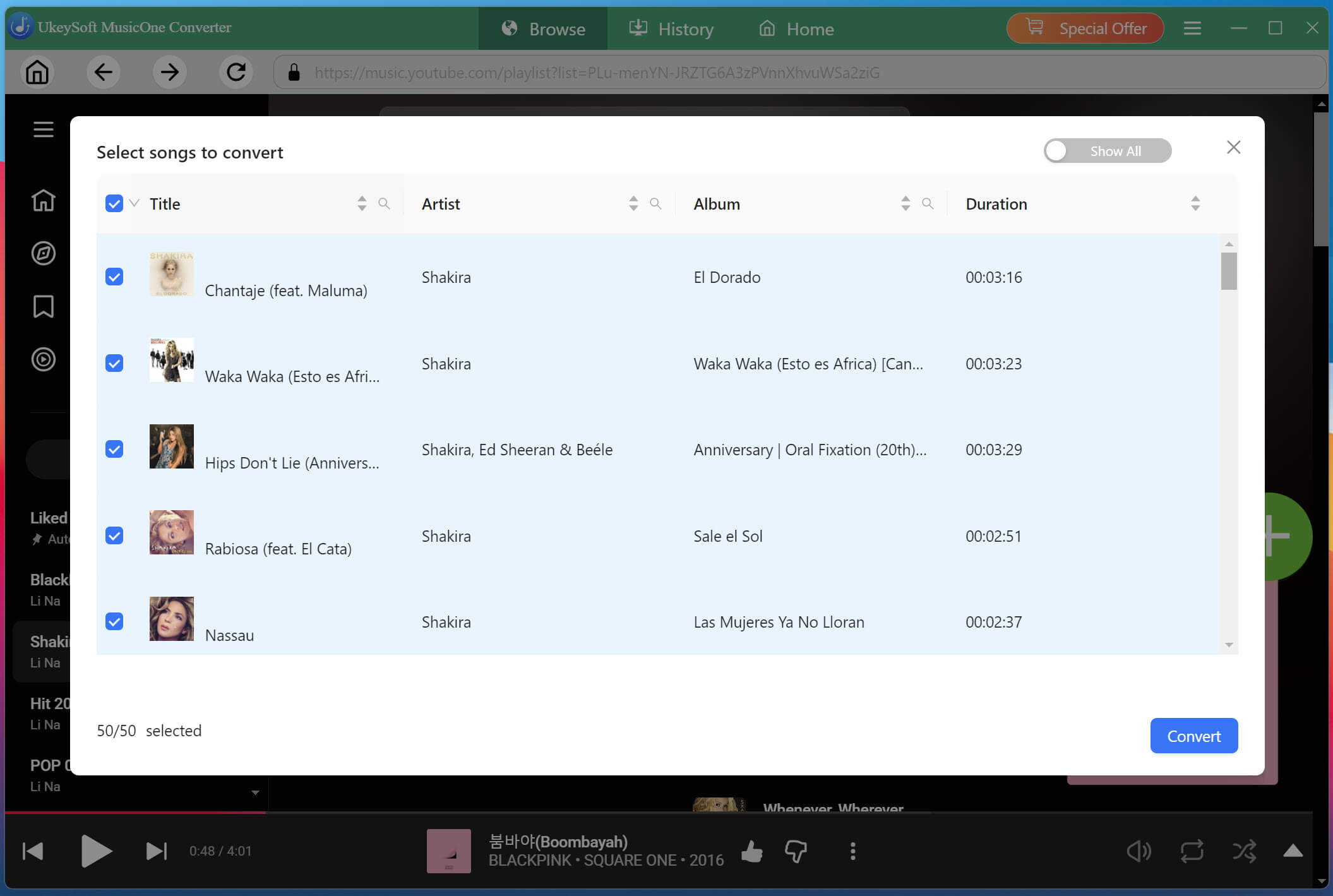
After the content is loaded, choose the songs you want to convert in the "Pending Converting" list.

youtube Music Converter

You can tick the checkbox of "Title" to choose all tracks at once, or manually select specific songs.

youtube Music Converter

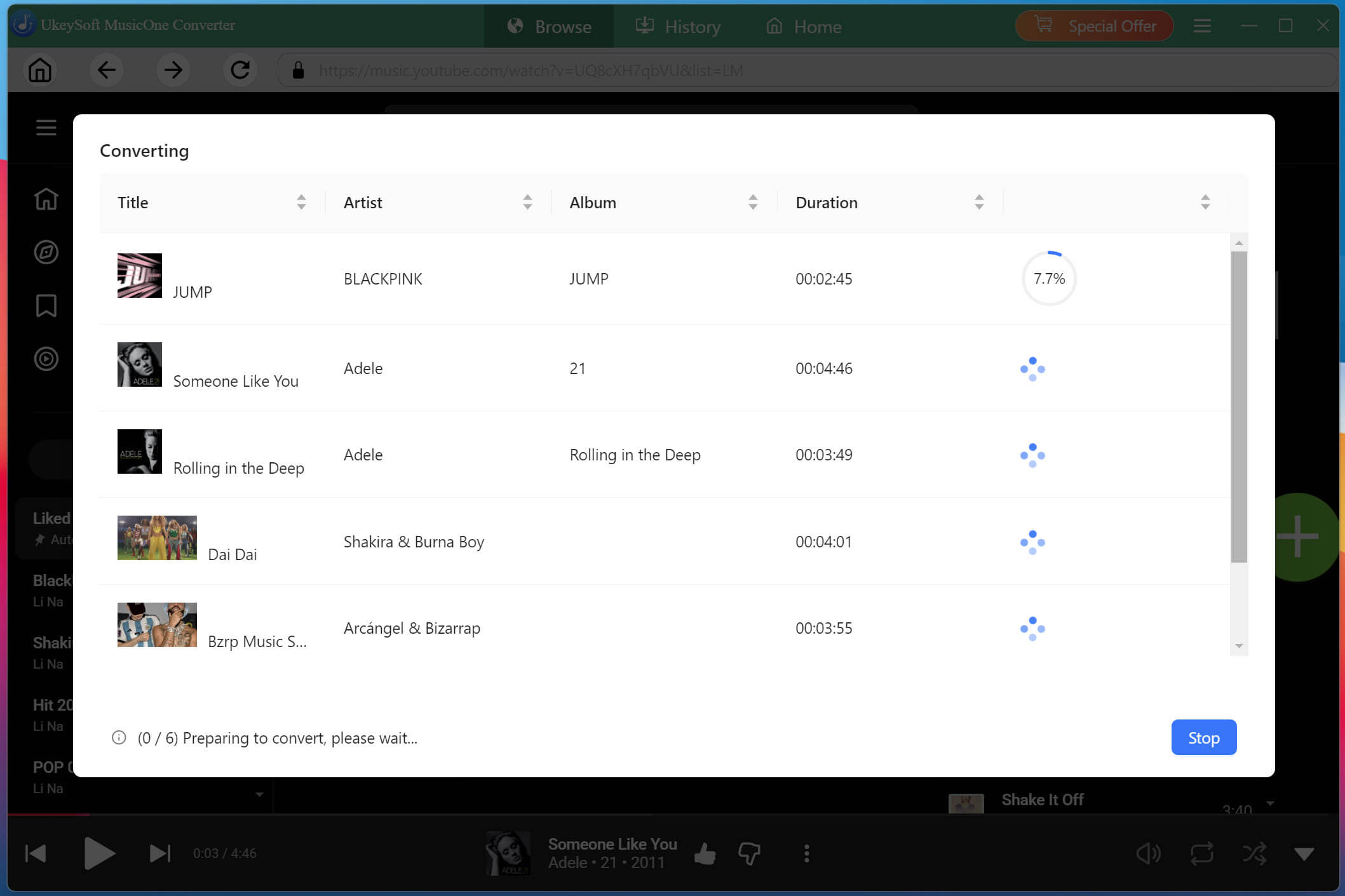
Step 5. Start Converting YouTube Music to MP3

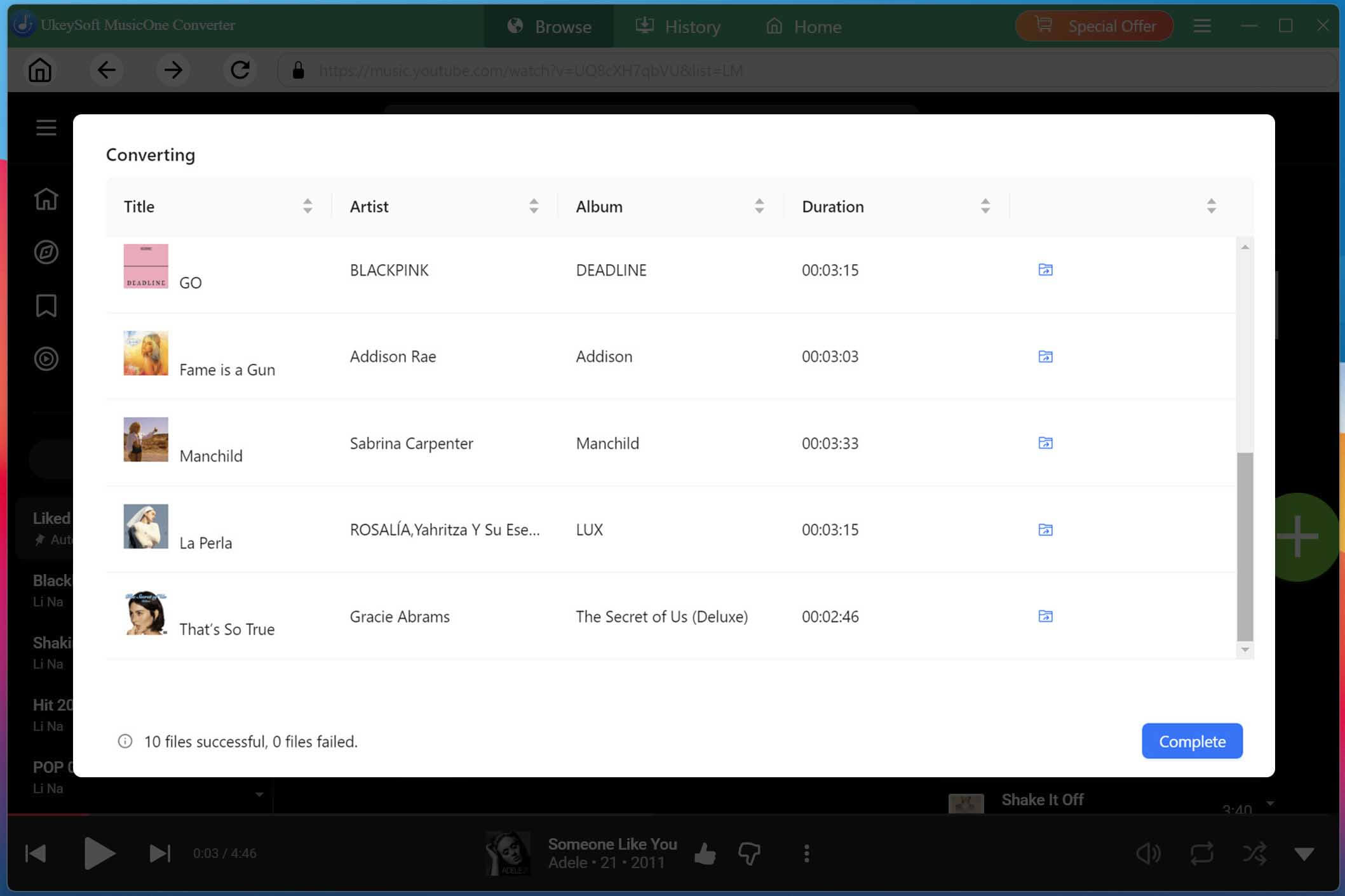
Click the "Convert" button to begin downloading and converting YouTube Music to MP3, M4A, WAV, FLAC, AIFF, or other selected formats. You can view the real-time progress of the YouTube music conversion.

youtube Music Converter

Step 6. View All Music Downloaded History

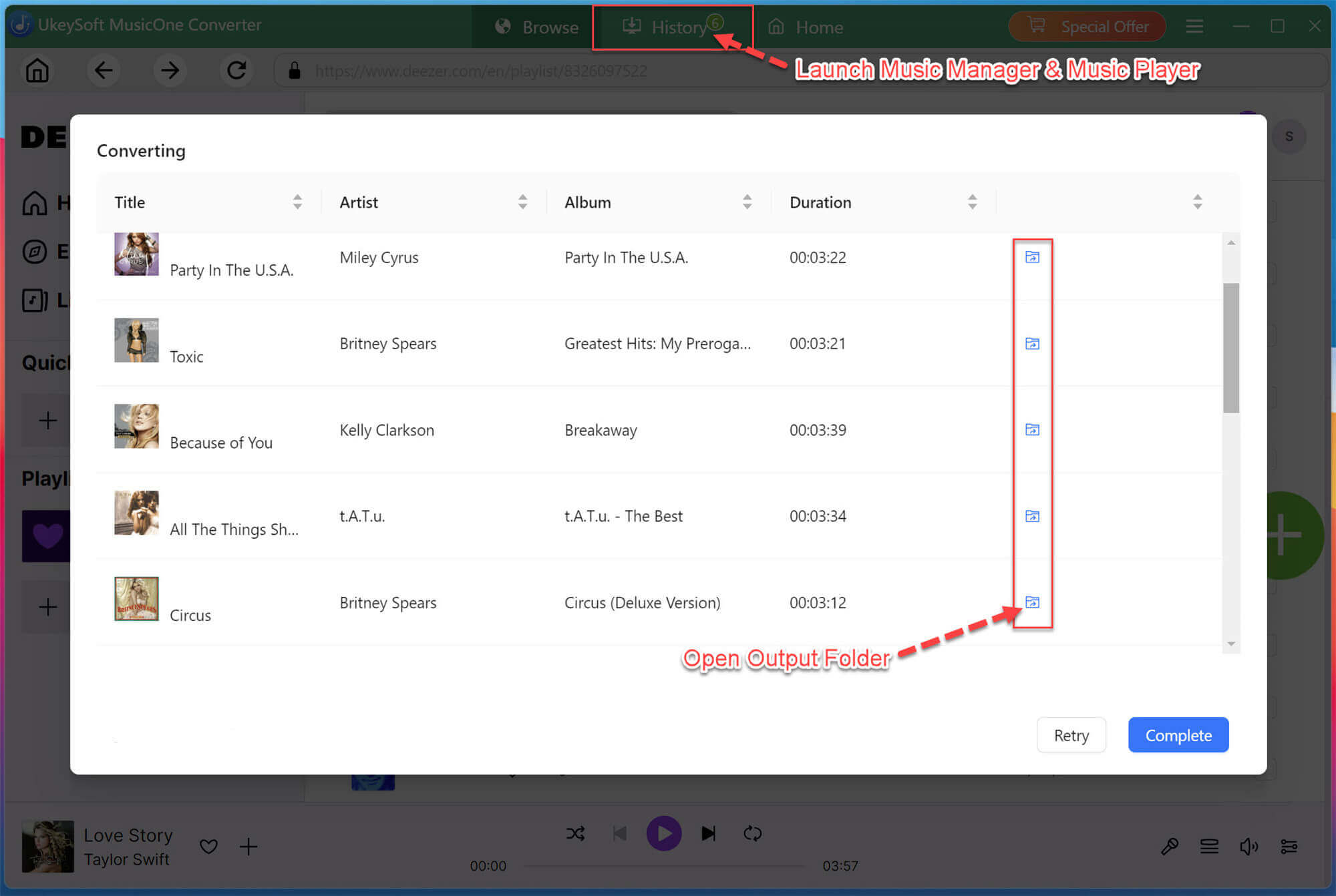
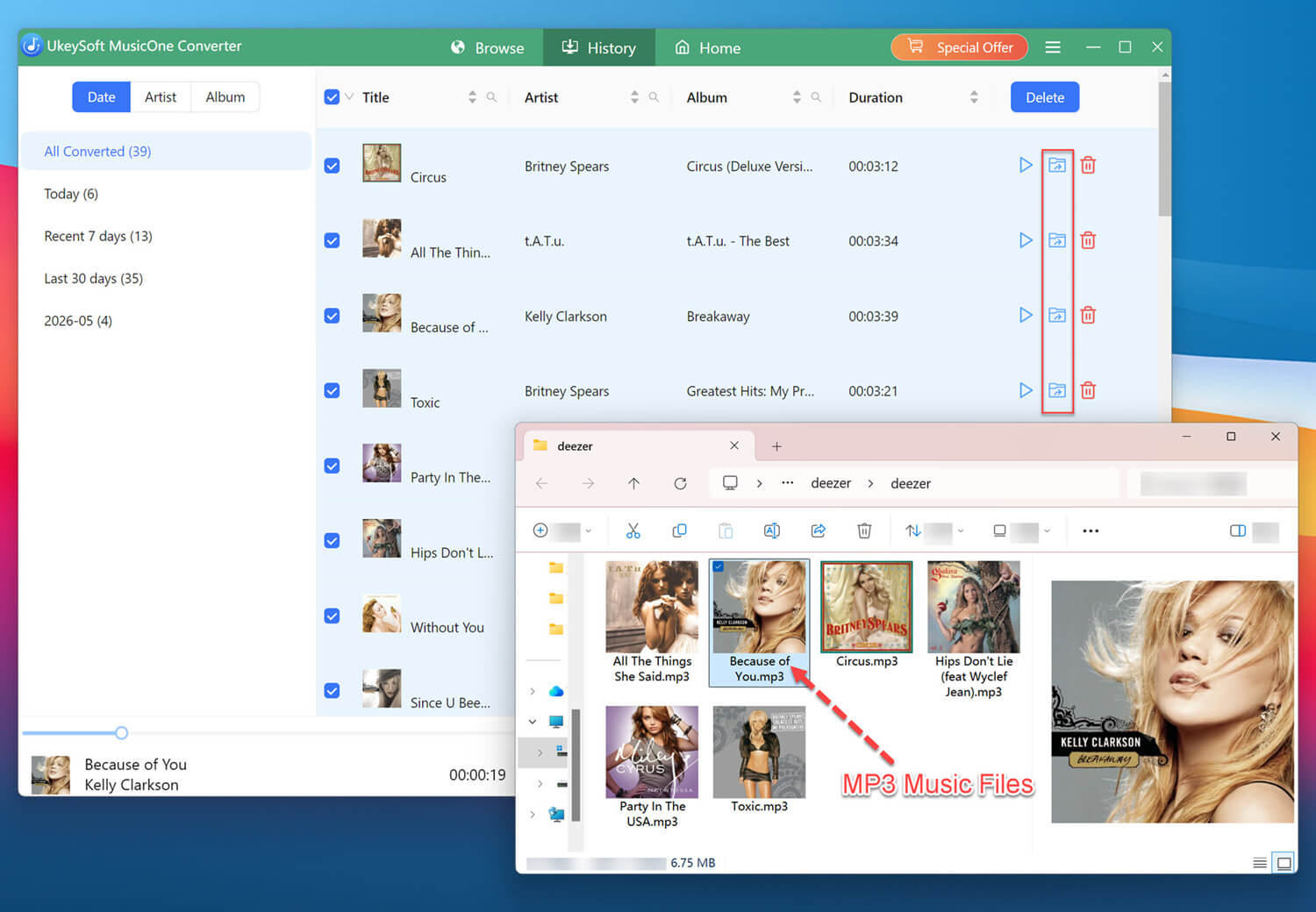
When the conversion finishes, you can click the "Blue Folder" icon of any song to open the output folder for offline use.

youtube Music Converter

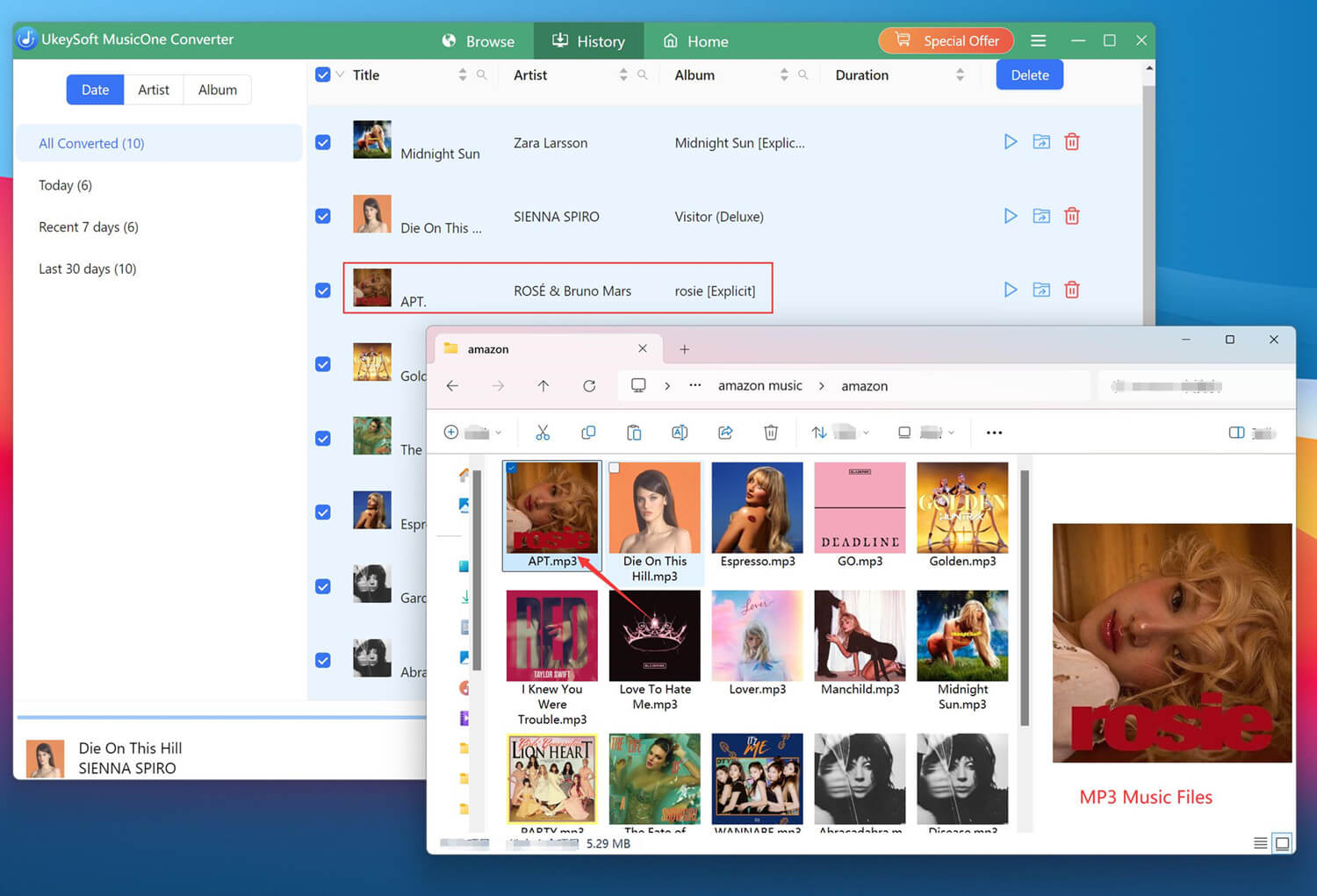
Step 7. Get Output MP3 Music Files

You can view all converted YouTube Music songs in the "History" section. Click on the "Blue Folder" icon next to any song title to locate the output MP3 YouTube Music files.

youtube Music Converter

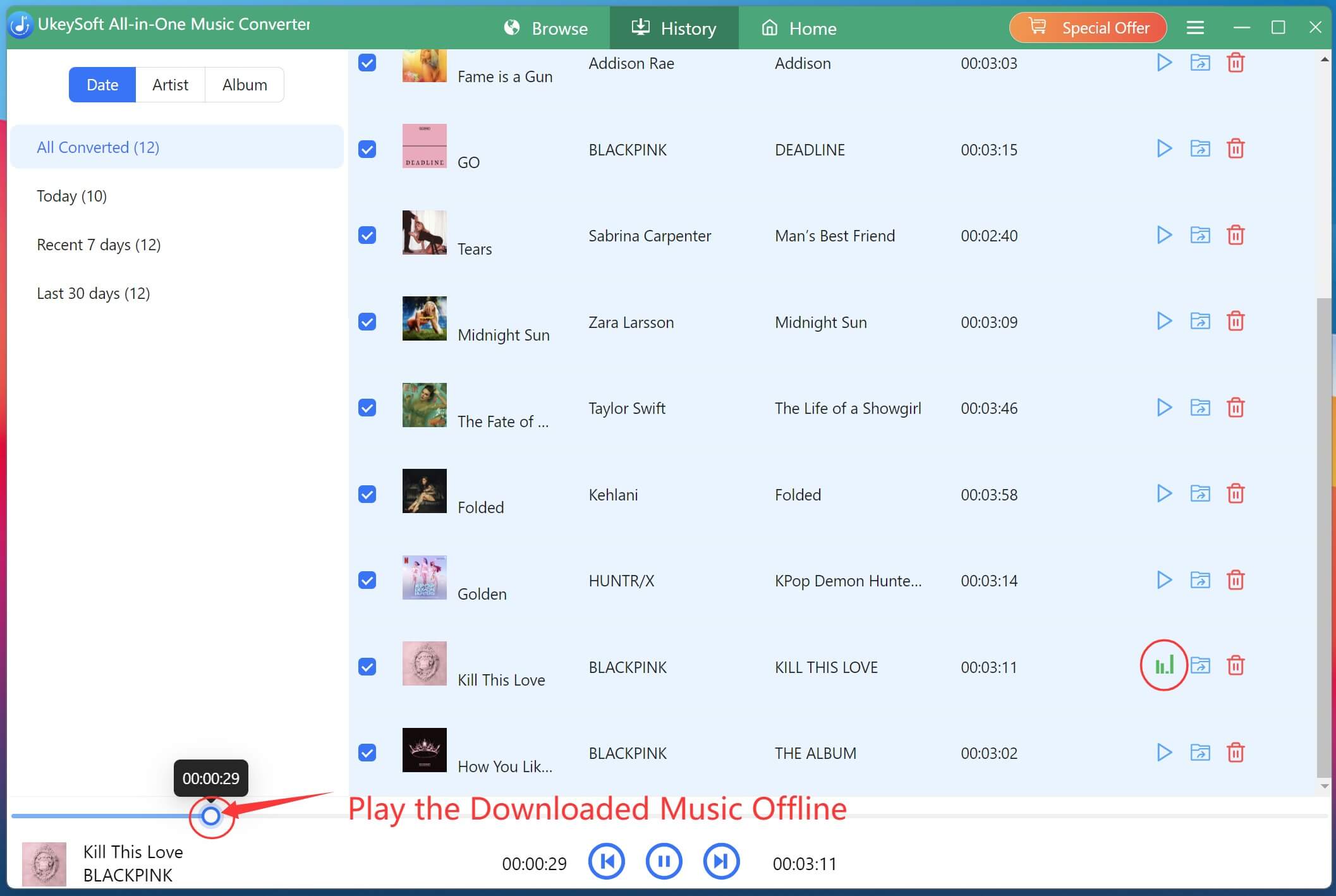
Step 8. Play MP3 Music Offline(with Built-in Music Player)

Hit on the "Play" icon next to the song title, you can now play the downloaded YouTube songs offline with the built-in music player!

youtube Music Converter

Part 3. Video Tutorial

View this video tutorial to learn how to download YouTube Music to MP3 with UkeySoft YouTube Music Converter.

Part 4. How to Customize the Output Audio Parameters

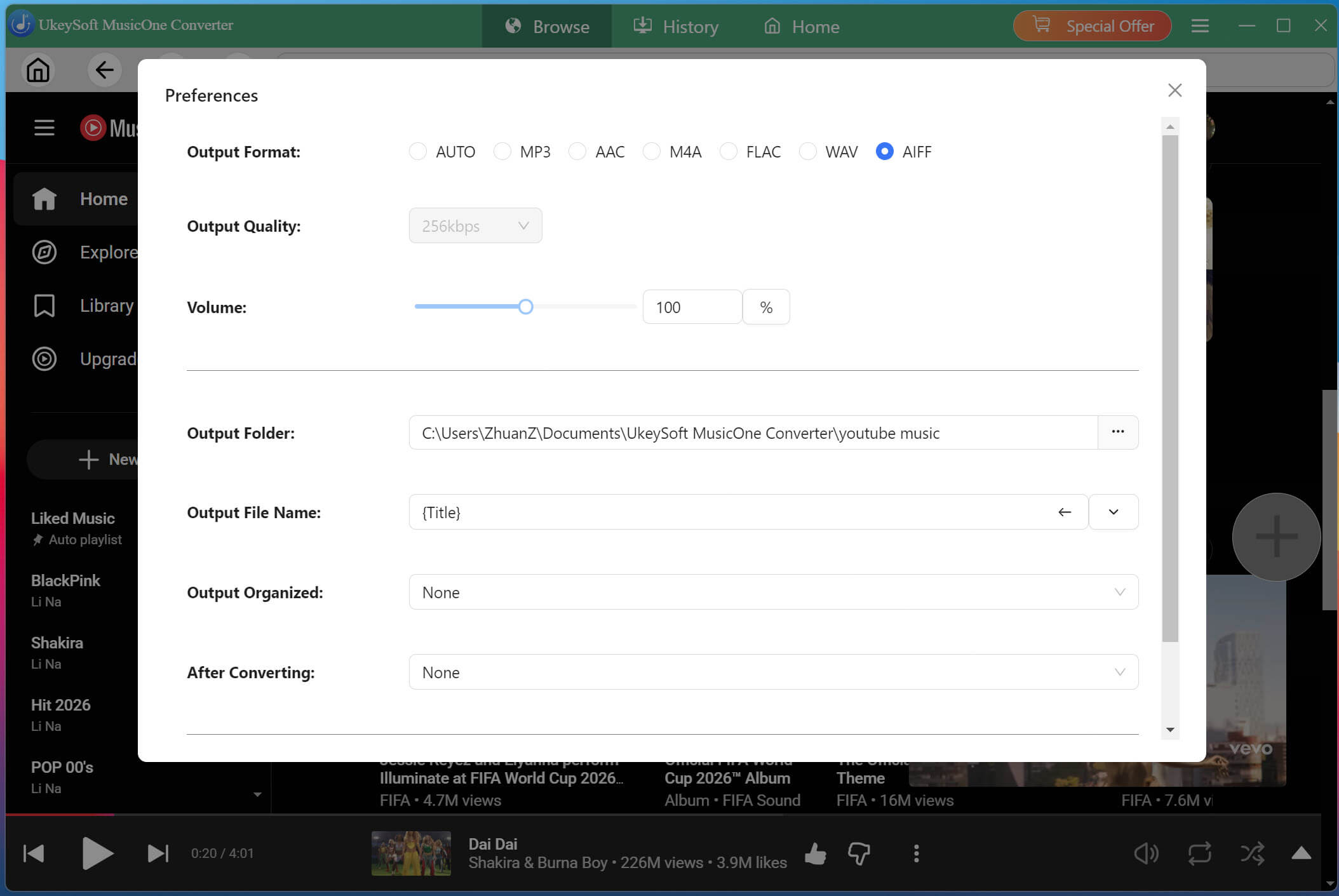
Unlike other online YouTube music converters that only offer basic or default output settings, UkeySoft YouTube Music Converter allows you to customize the output audio parameters based on your preferences. Simply click on "Menu" icon and choose "Preferences" option to open the Preferences window.

1. Change Output Format

The default output format is AUTO, similar to the original audio format of YouTube Music. You can change it to MP3, AAC, M4A, FLAC, WAV, or AIFF audio format for you YouTube music conversion.

output m4a

2. Adjust Output Quality

Choose MP3 as the output format and select 320kbps for excellent compatibility and high-quality audio. This ensures the output YouTube music files are playable on most devices and media players.

output mp3

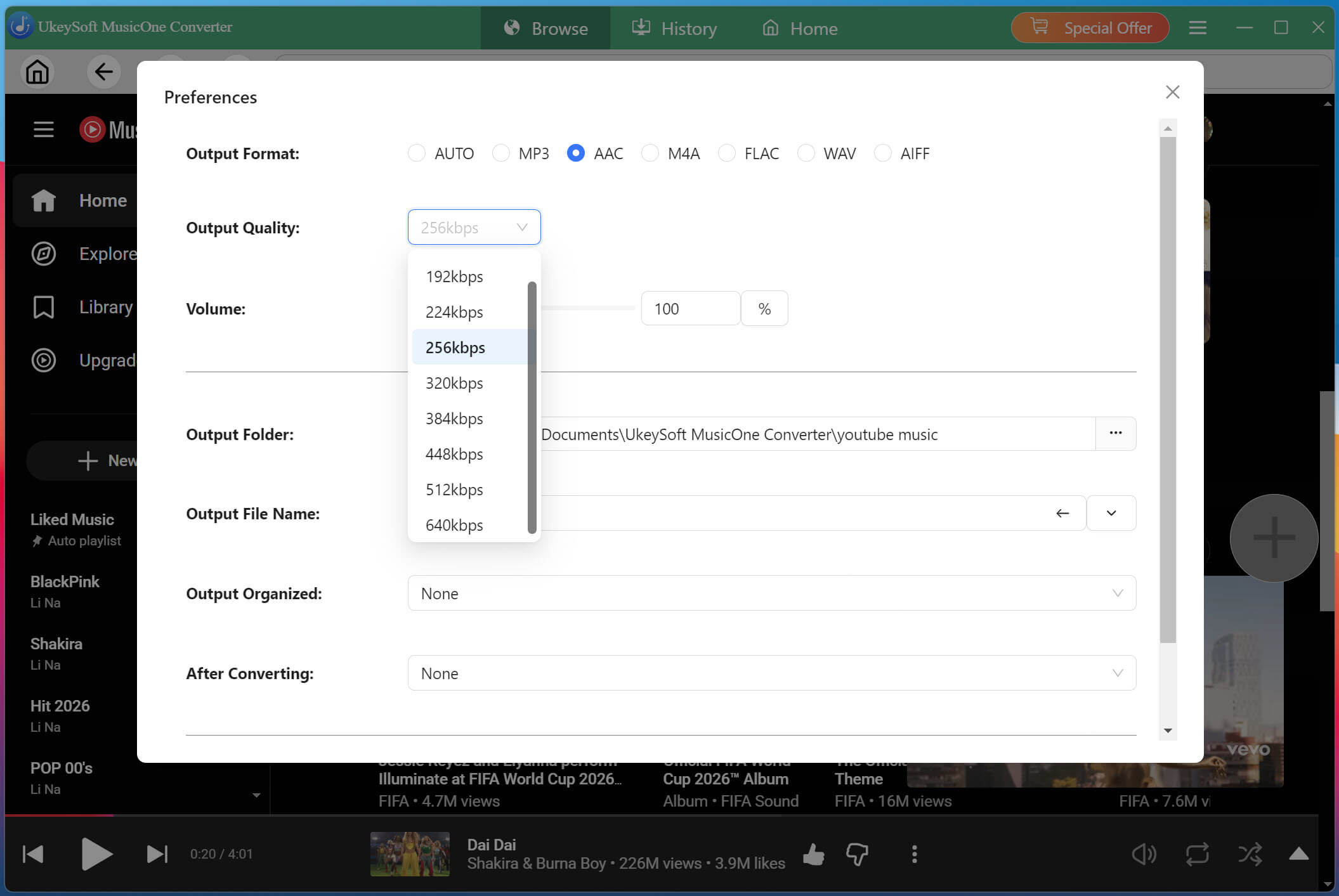
For even higher sound quality, select AAC and choose up to 640kbps for an enhanced offline listening experience.

output aac

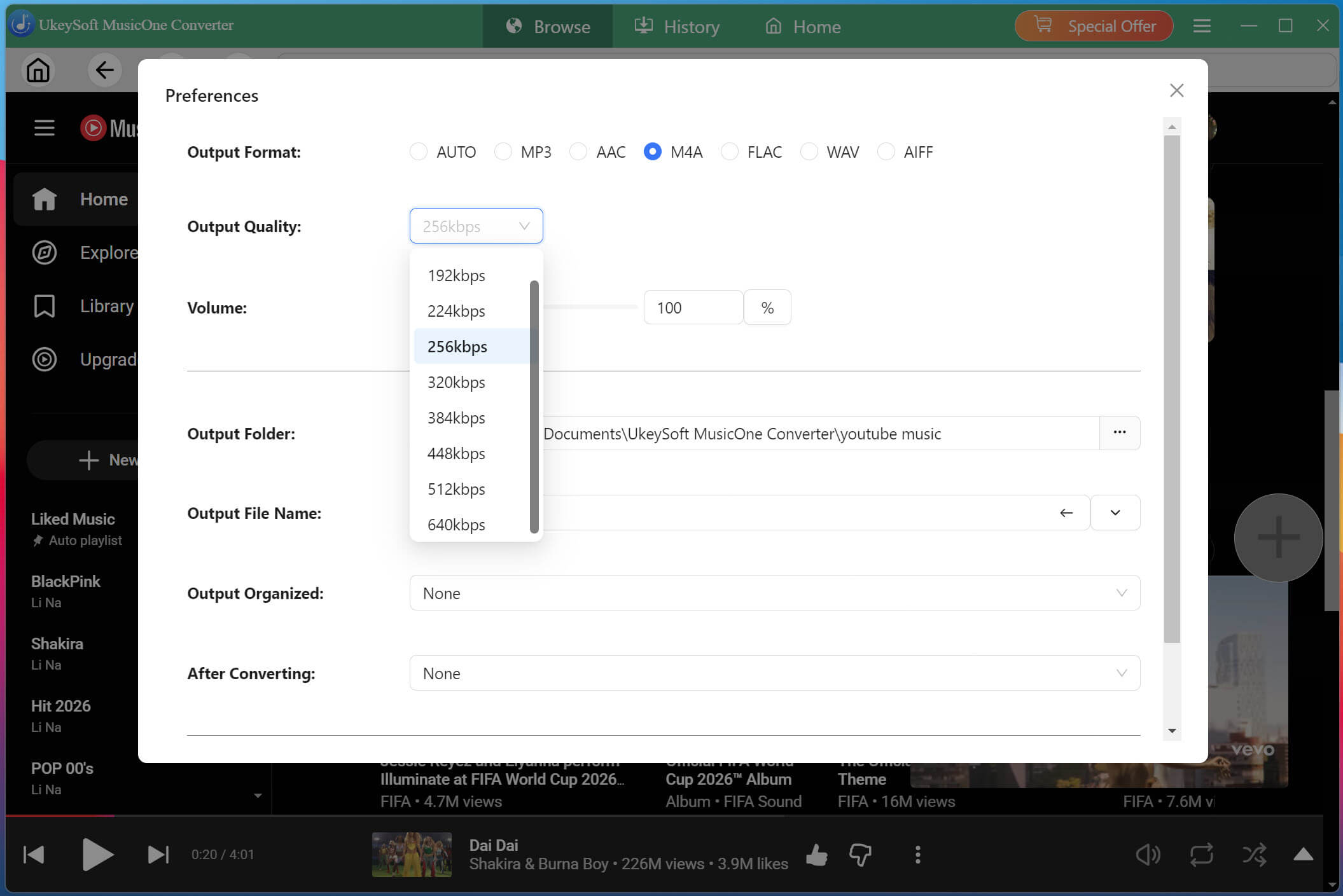
Alternatively, choose the M4A output format and freely select the output quality from 256kbps to 640kbps.

output m4a

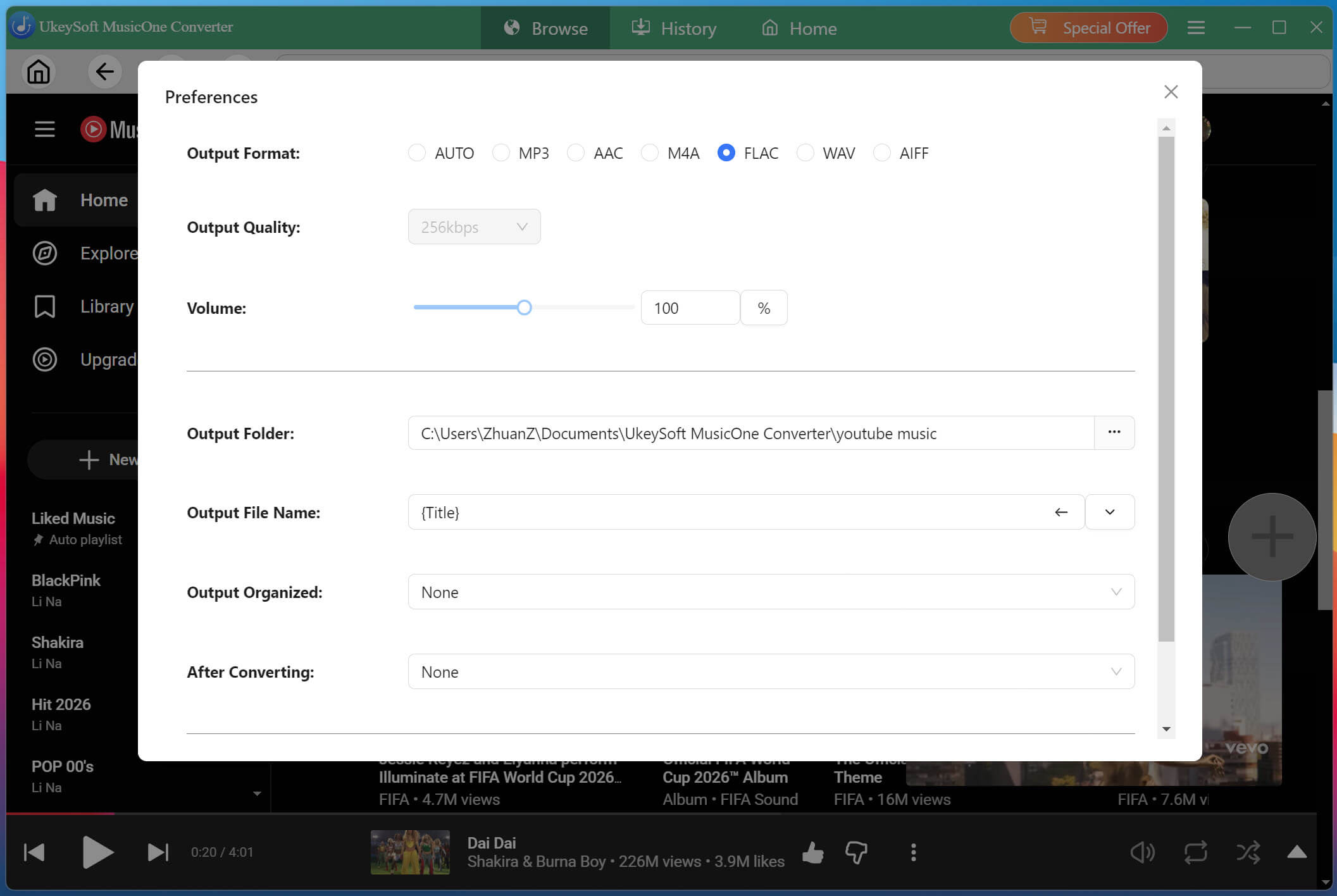
To get lossless audio from YouTube Music, FLAC format is perfect.

output flac

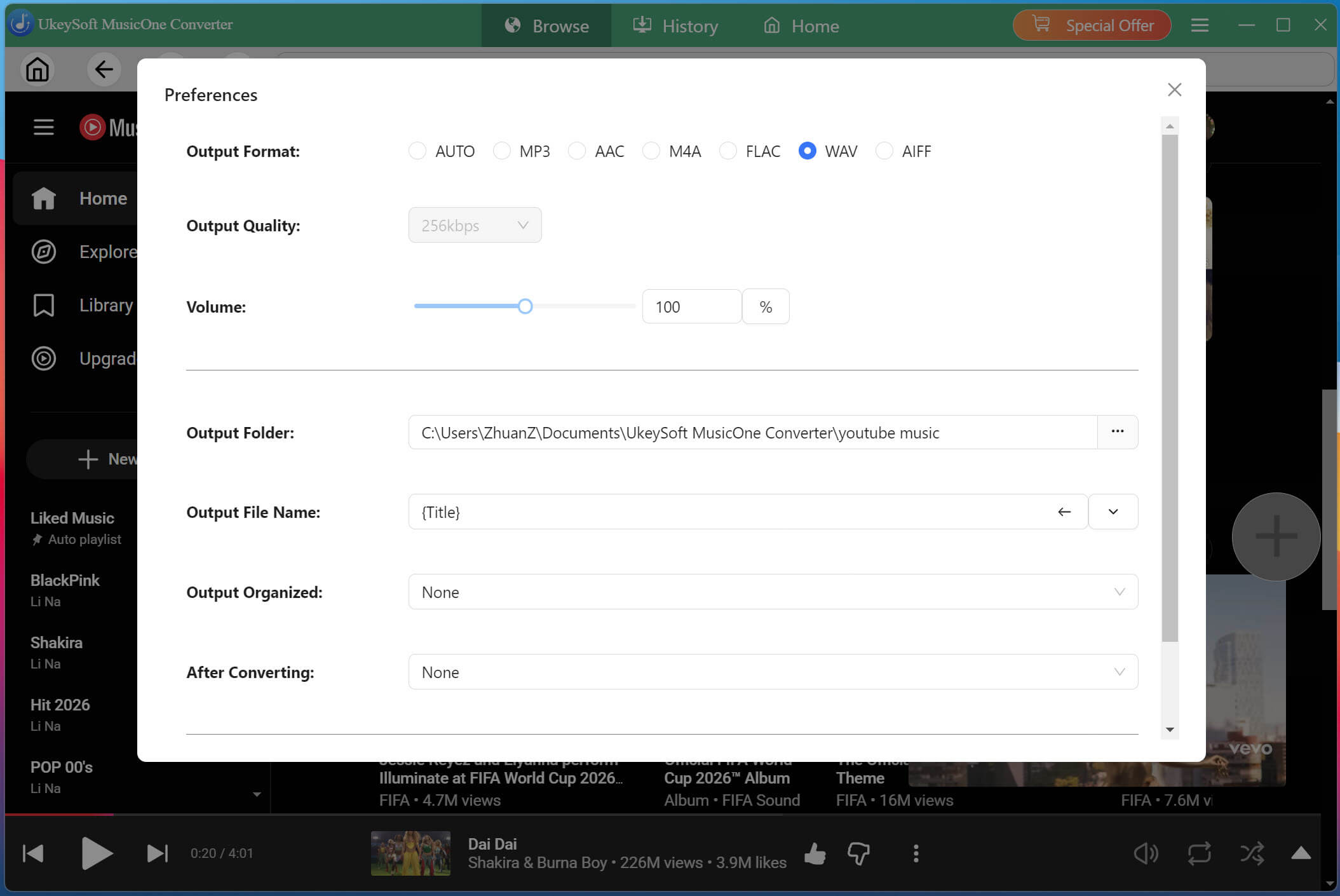
If you want to burn YouTube Music to CDs, the best output format is uncompressed WAV.

output wav

To convert entire YouTube Music playlists to AIFF format, choose AIFF format.

output aiff

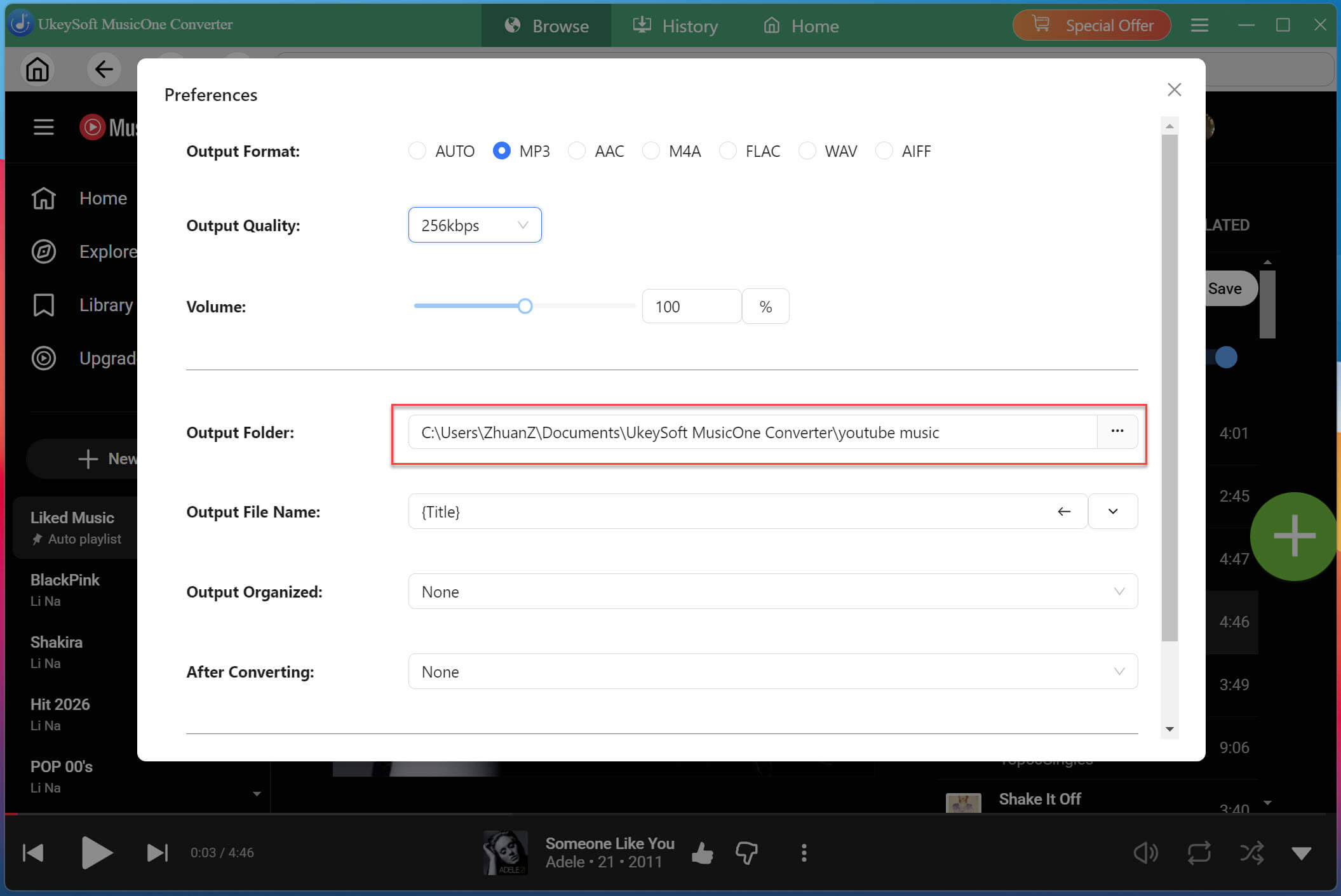
3. Change the Output Folder

Select your preferred destination folder for downloaded music, making it easier to find, manage, transfer, or back up your converted YouTube Music files.

output folder

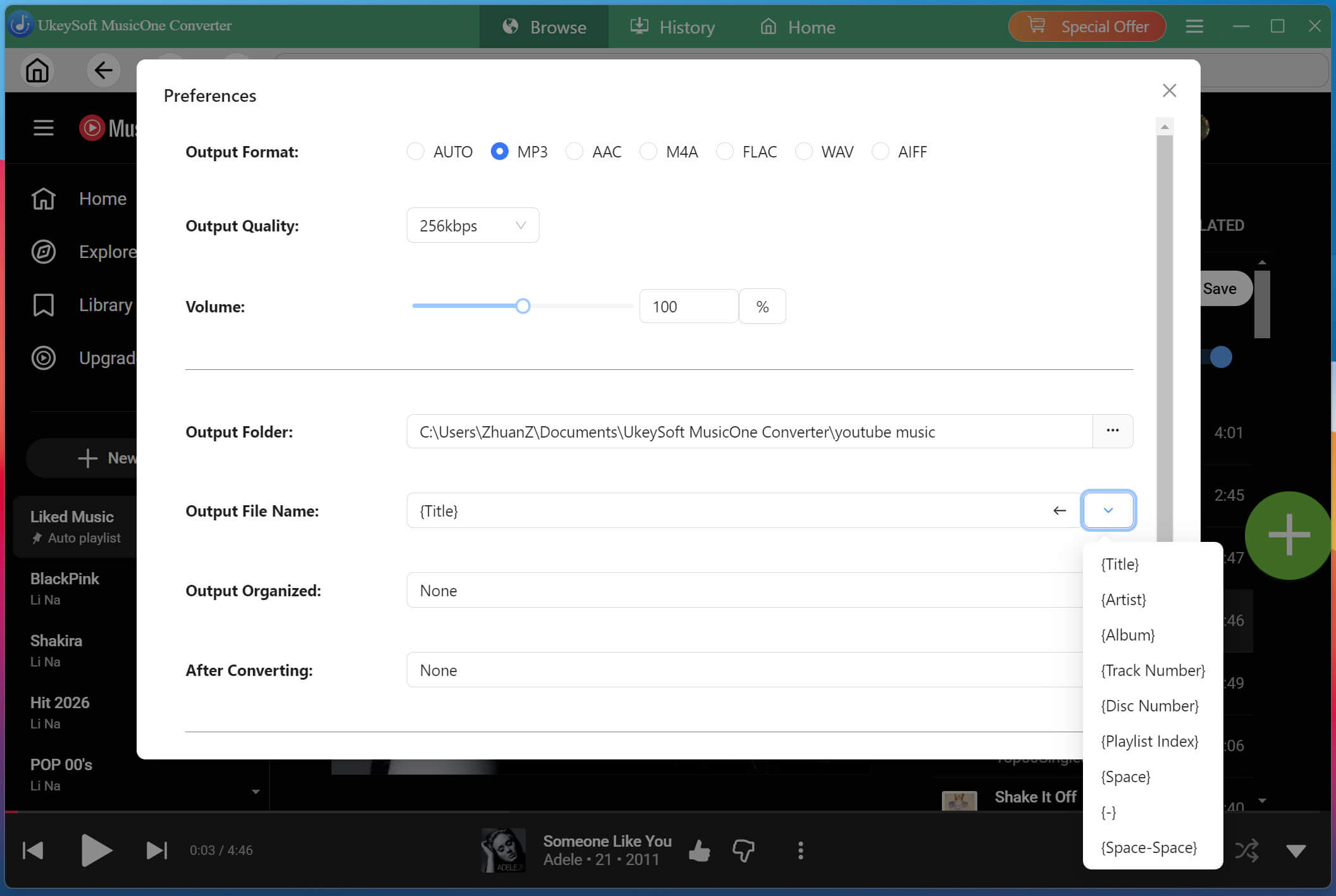
4. Rename Output Songs

Customize output file names using ID3 tags metadata such as Title, Artist, Album, Track Number, Disc Number, and Playlist Index for a neatly organized music collection.

file name

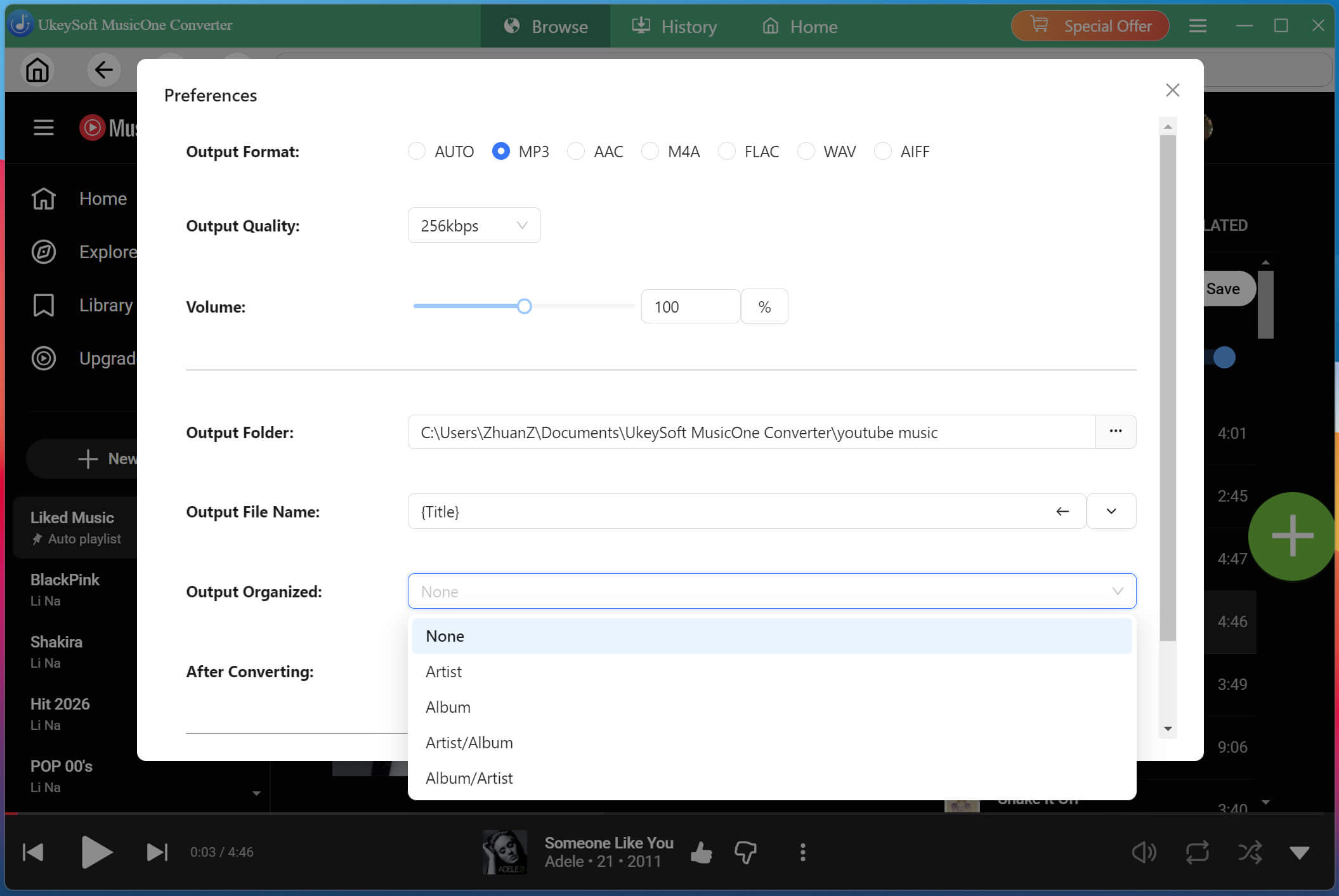
5. Organize Output Songs

Automatically organize downloaded songs by Artist, Album, Artist/Album, or Album/Artist, helping you keep your local music library clean and easy to browse.

output organized

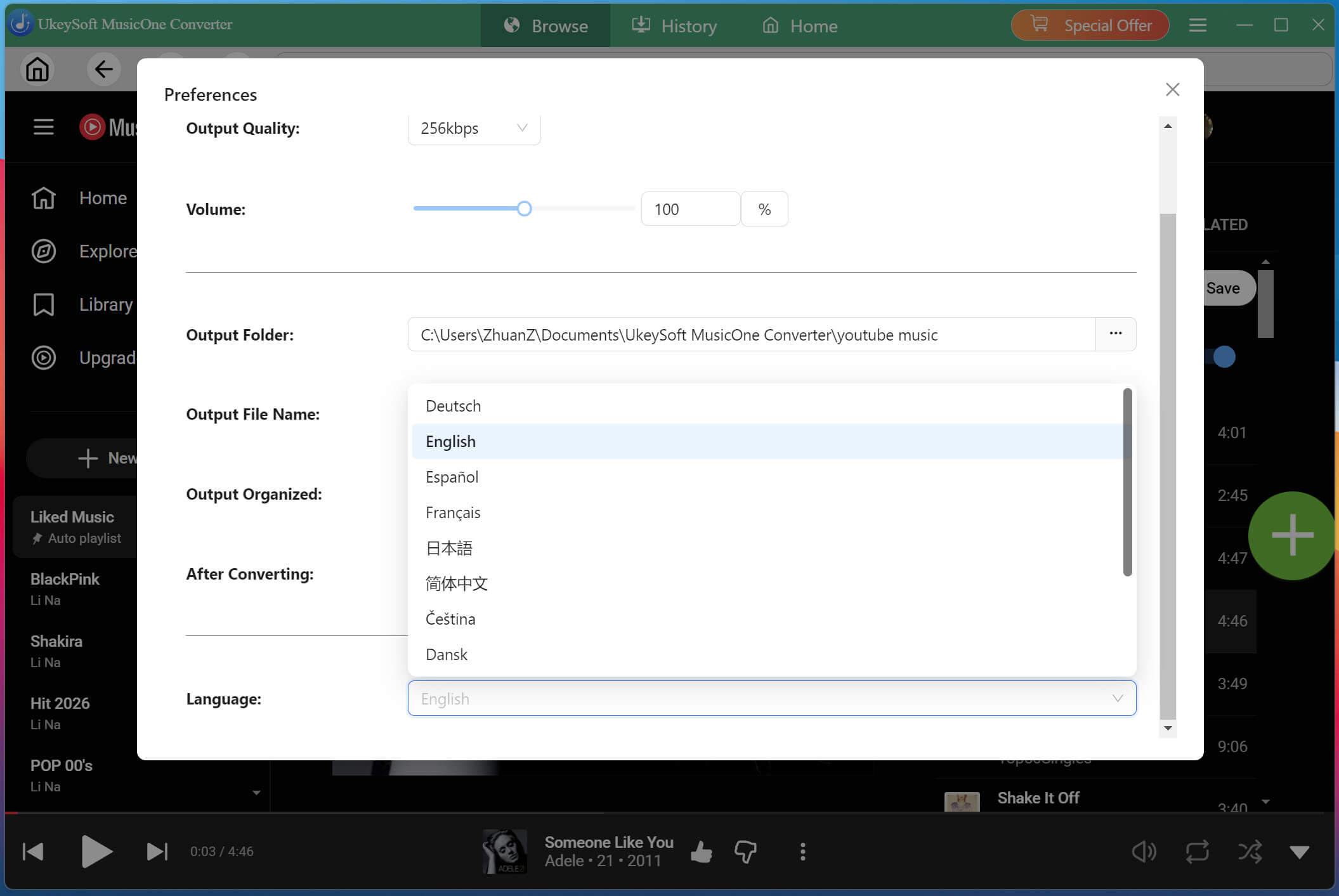
6. Change Interface Language

Choose your preferred interface language from multiple supported options, like English (default), Deutsch, Español, Français, Japanese, Simplified Chinese, Čeština, Dansk, Bahasa Indonesia, Malayu, Türkçe, Polski, Português, Korean, and more.

support language

Part 5. Built-in Music Manager & Player

UkeySoft YouTube Music Converter has a built-in Music Manager and Music Player, allowing users to play, organize, and manage the downloaded YouTube Music songs in the software directly. No matter if you are a YouTube Music Free or Premium user, you can enjoy all versatile features of this software. There's no need to open another media player, making offline music management faster and more convenient.

After the conversion is complete, click the "History" section to access the built-in music player and music manager.

conversion complete

1. Classify the Converted YouTube Music Songs

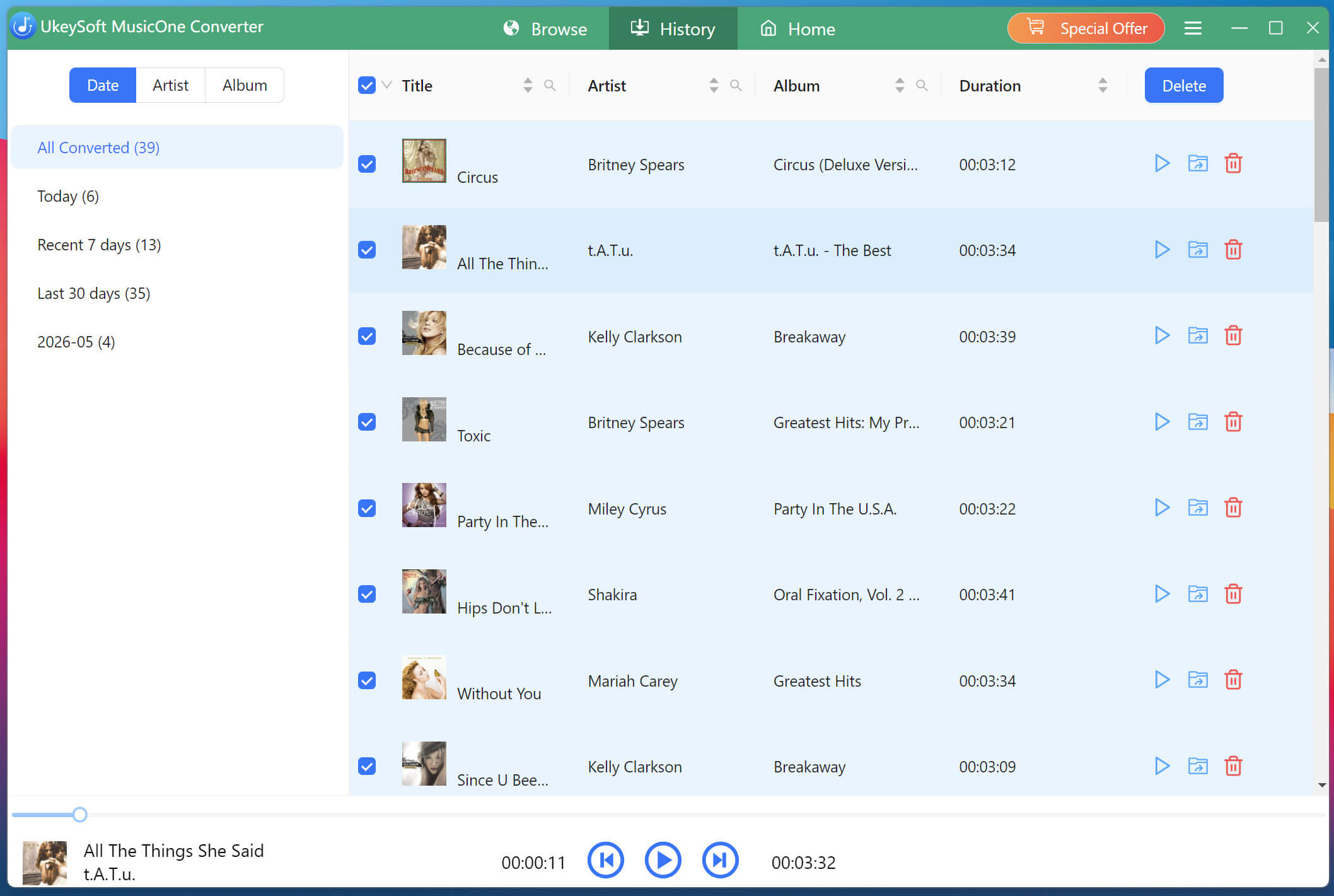
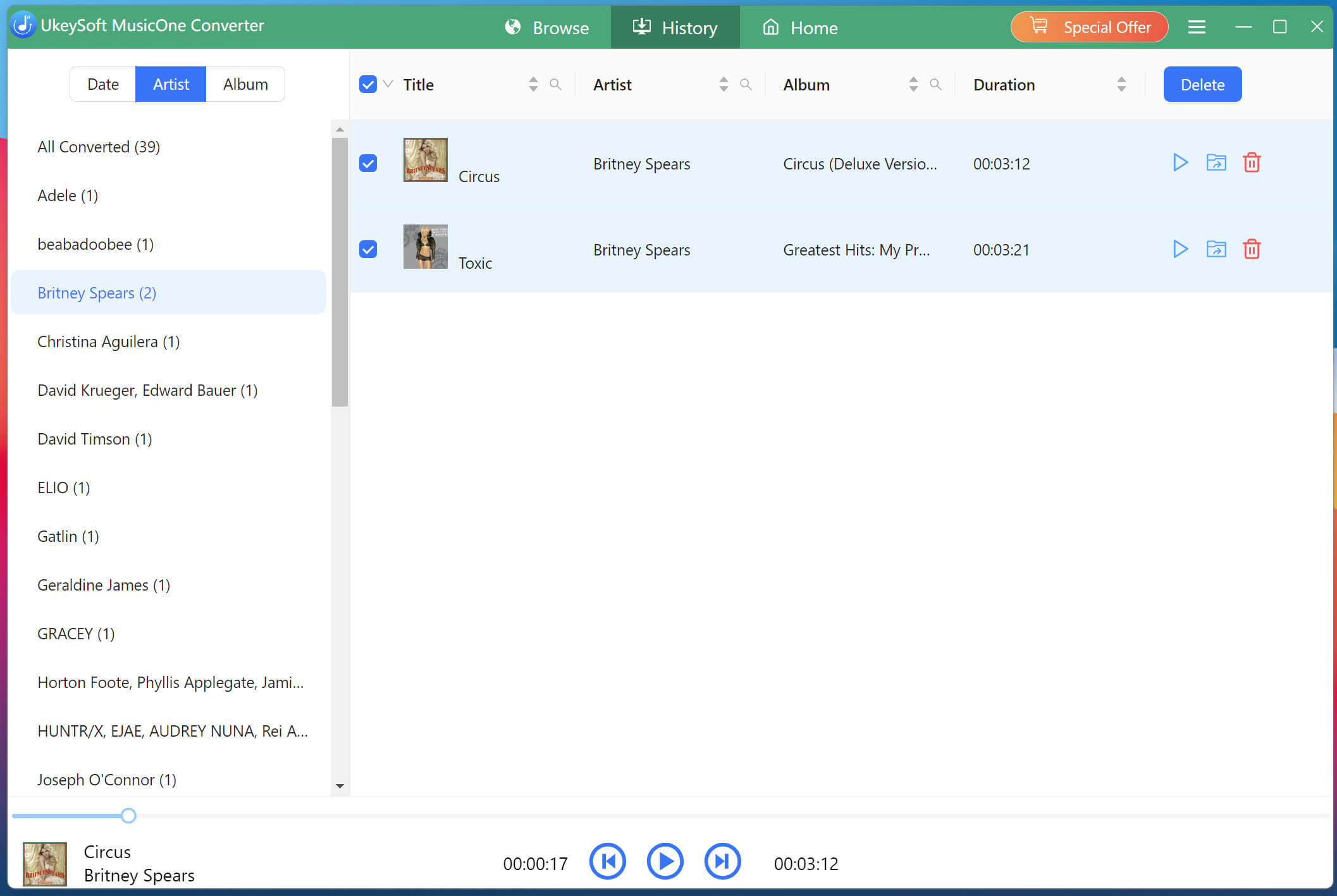
The built-in Music Manager automatically sorts your downloaded songs by date, artist, or album, making it easy to browse and manage your downloaded YouTube music collection.

Classify the converted YouTube Music songs by Date:

music manager date

Classify the converted YouTube Music songs by Artist:

music manager artist

Classify the converted YouTube Music songs by Album:

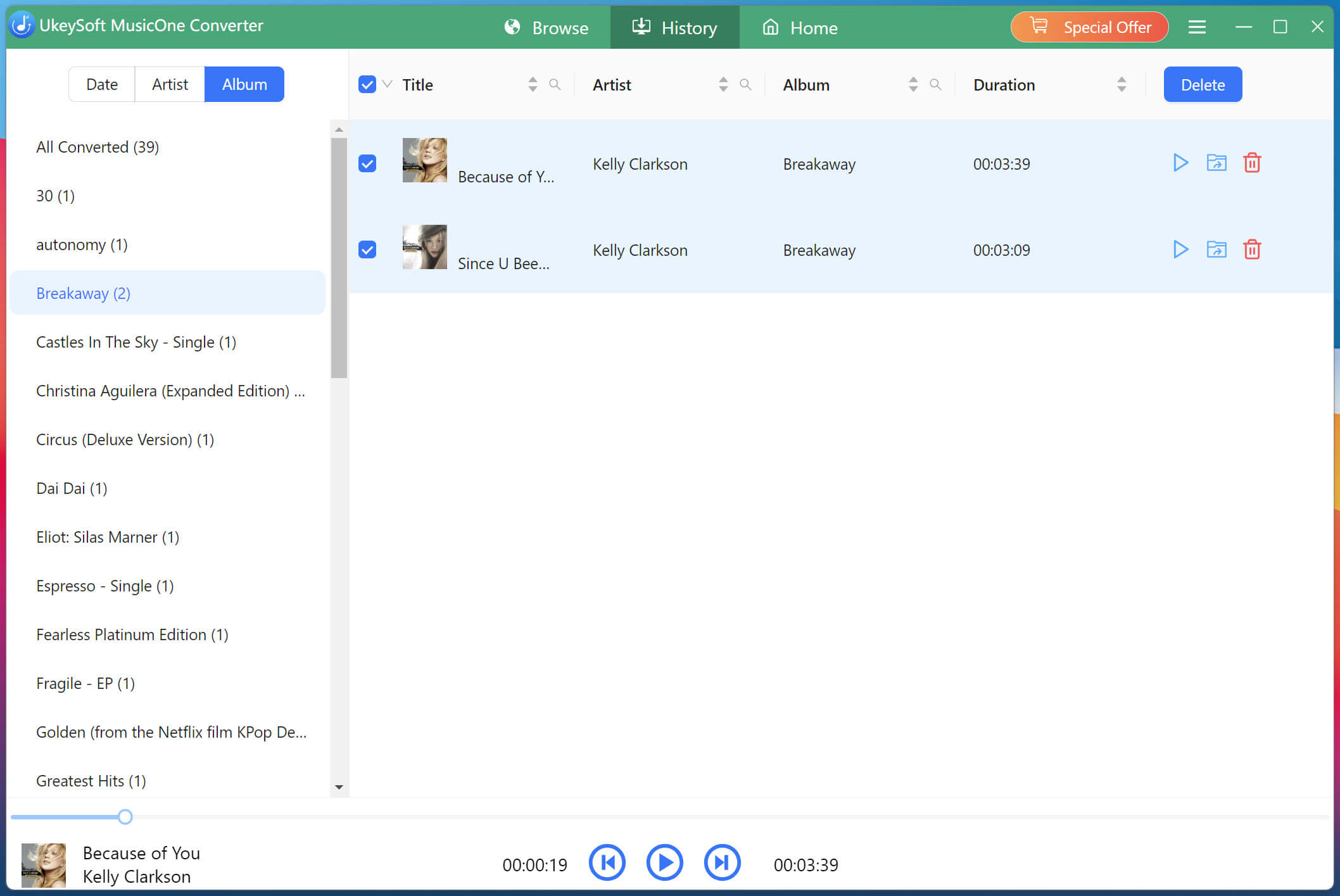
music manager album

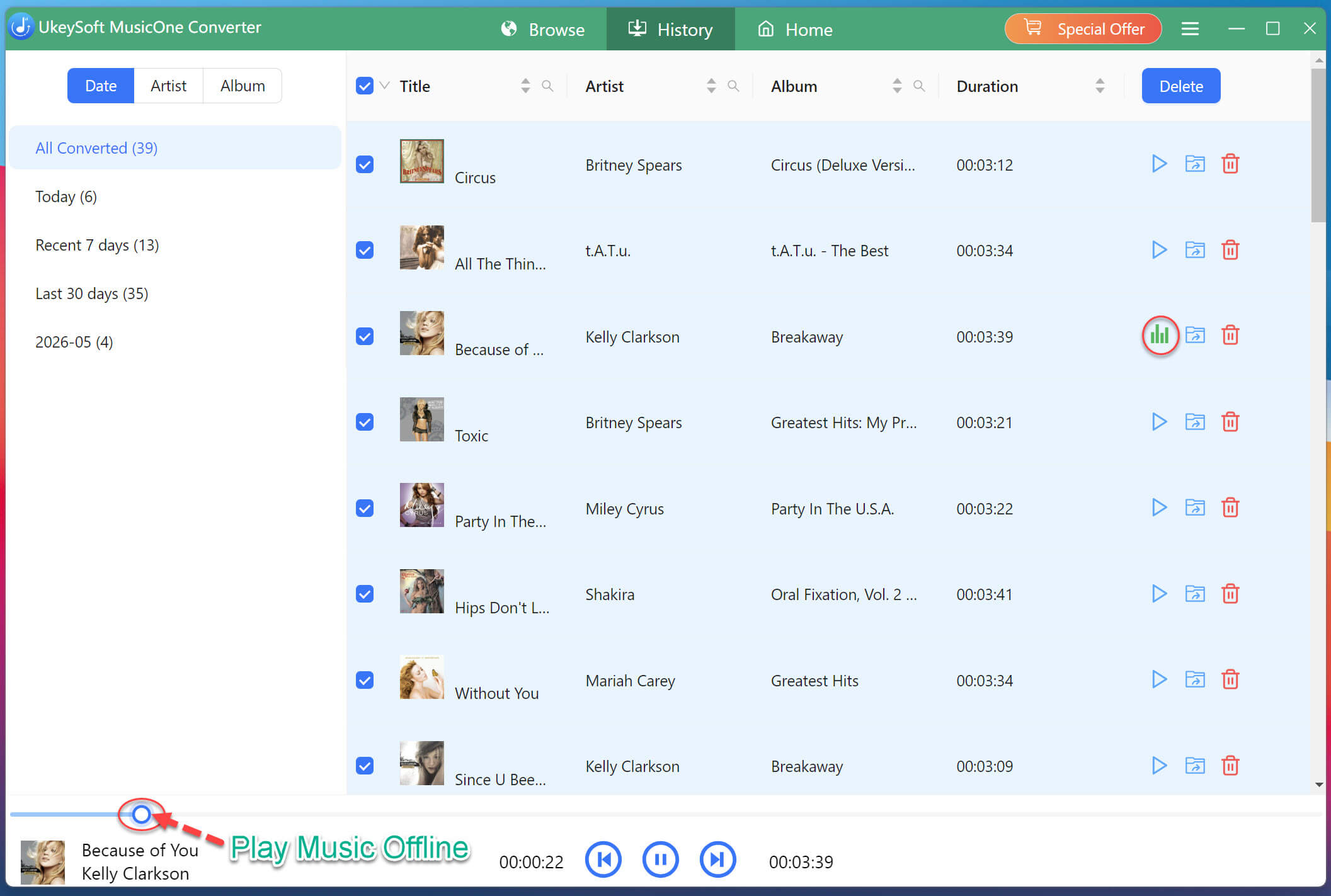
2. Play Converted YouTube Music Offline

After conversion, you can directly use the built-in Music Player to listen to your converted YouTube Music tracks directly on your computer! No need to open any media player. UkeySoft YouTube Music Converter ensures you can enjoy smooth offline playback without launching the YouTube Music app!

play music offline

3. Stream YouTube Music Content Online

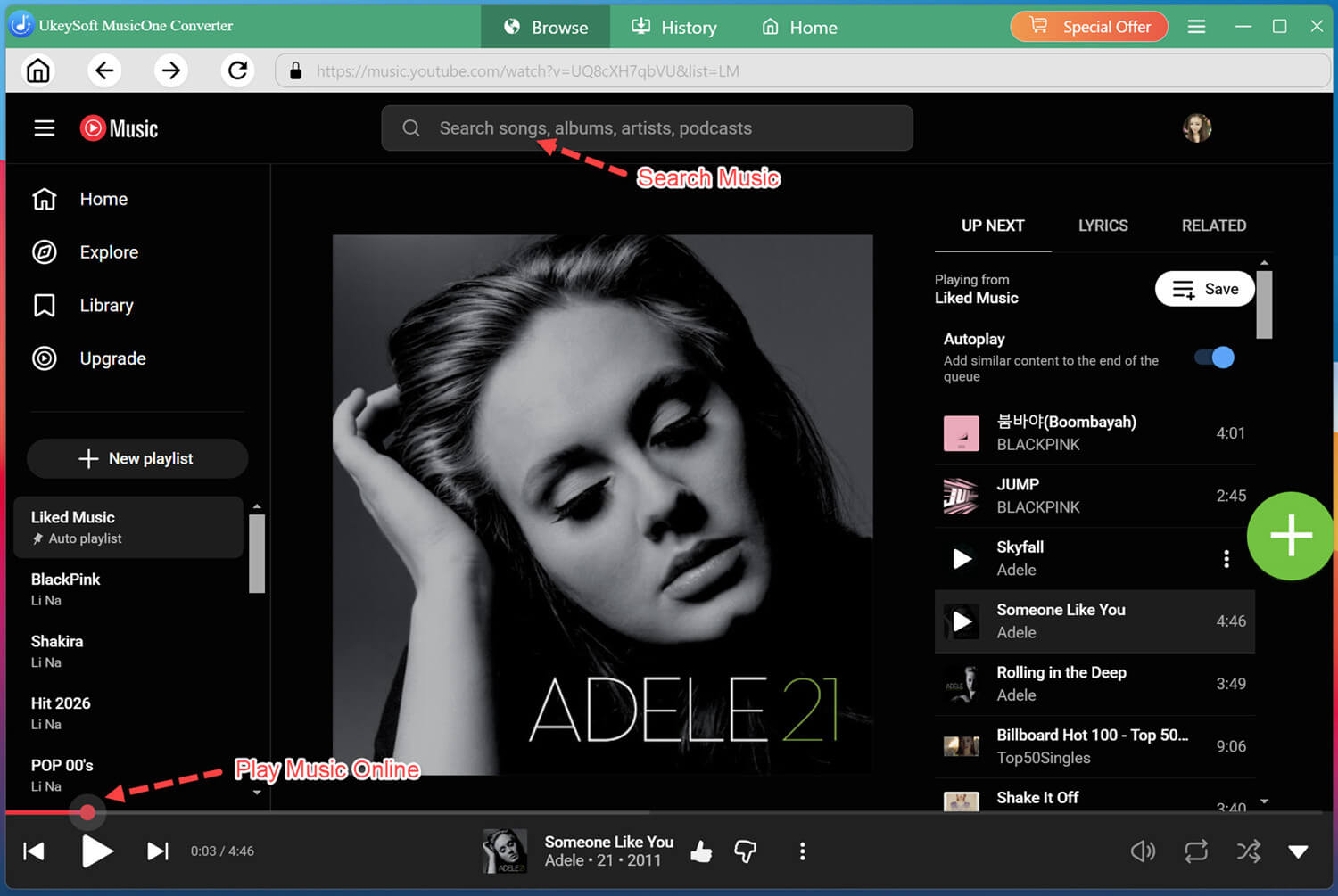
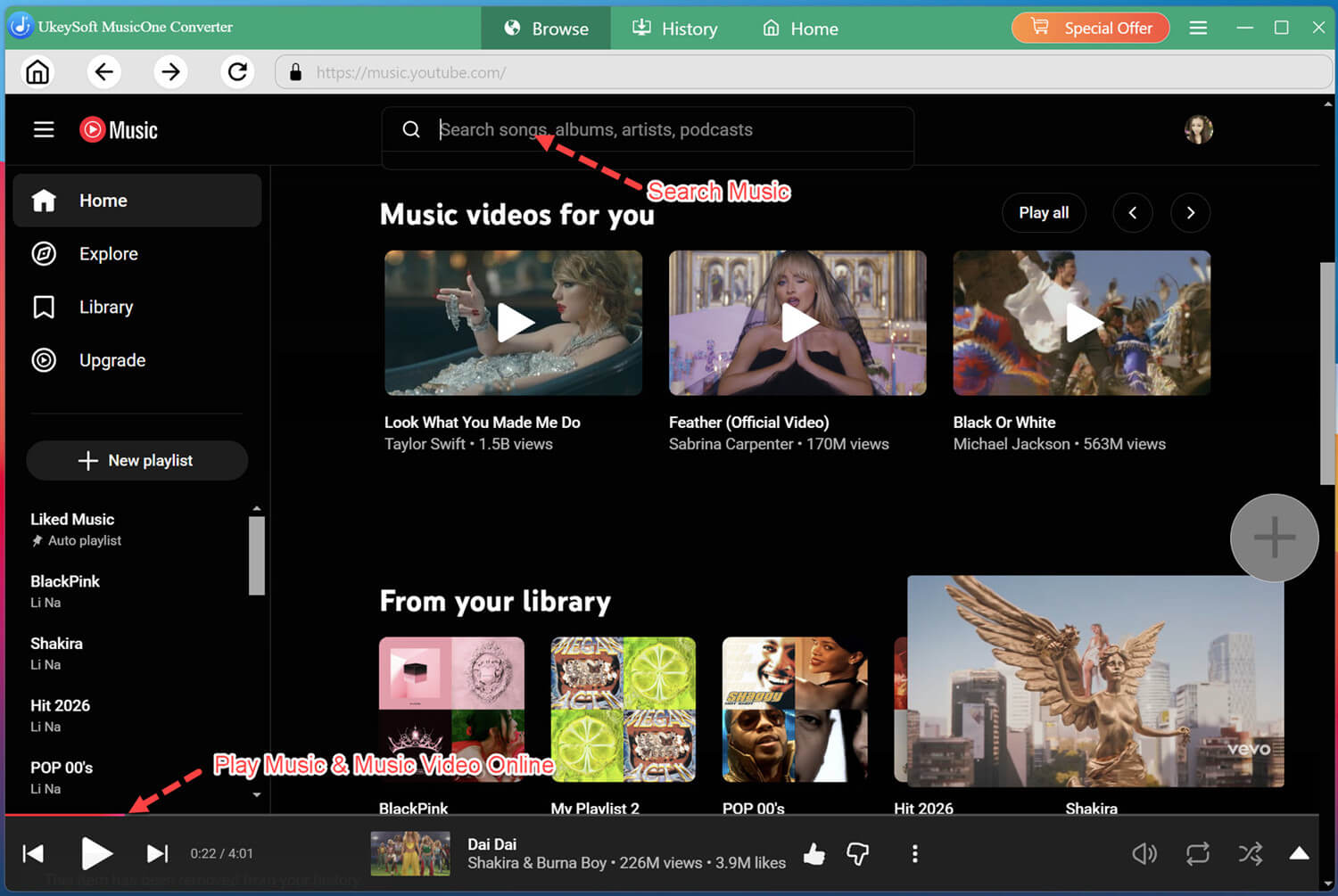
After successfully logging into your account on the UkeySoft YouTube Music Converter, both YouTube Music Free and Premium users can access the built-in YouTube Music web player online. Plus, users can stream any YouTube Music single, album, artist, playlist, podcast, or music video in the software.

search play youtube music

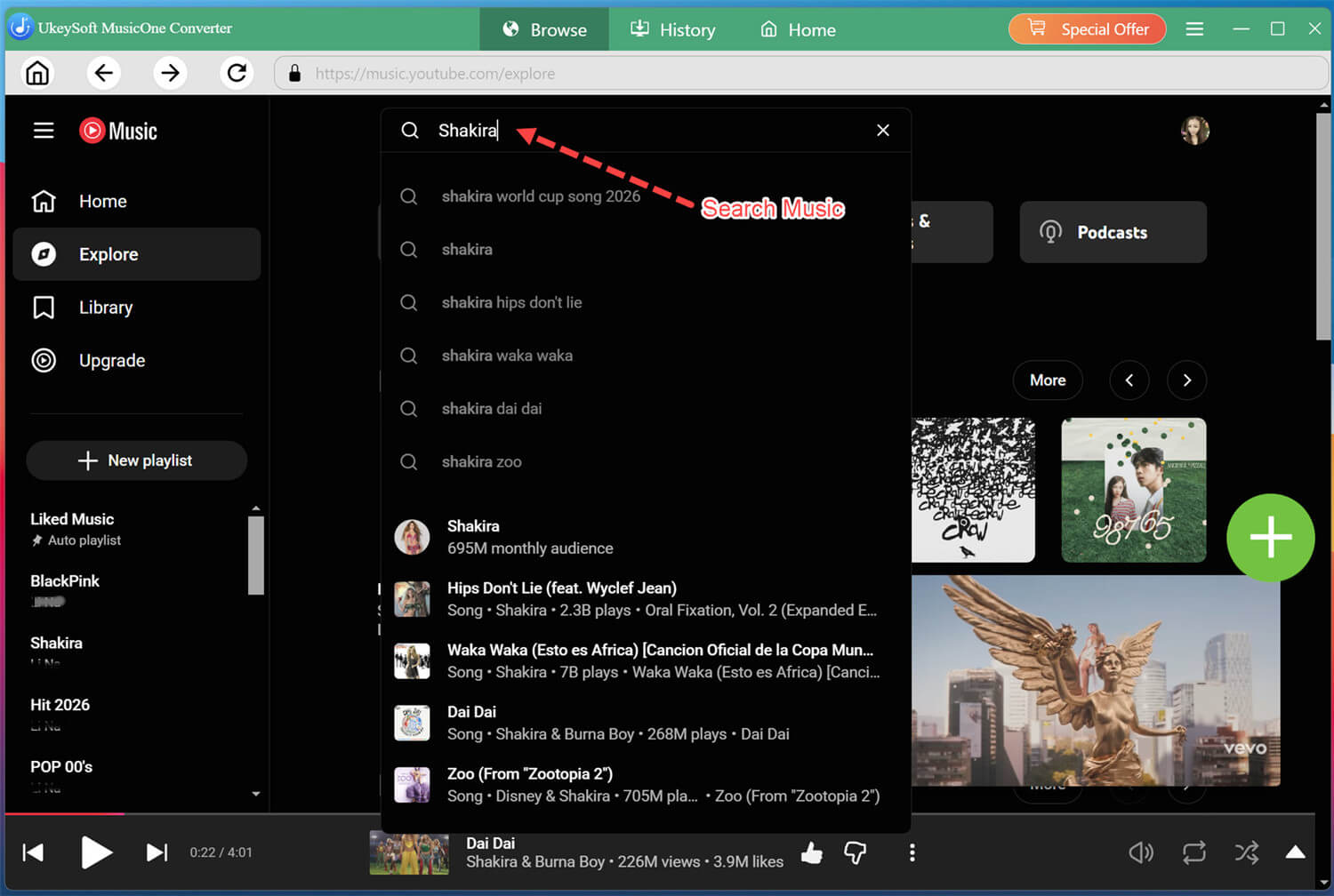
Search your favorite artist in the search bar.

play youtube online

4. Open the Output Folder to Get MP3 Music Files

Turn to "History" section, click the "Blue Folder icon to instantly locate your downloaded YouTube music files. They are stored in .mp3 formats. From there, you can copy, transfer, edit, or play them with any compatible device or media player.

mp3 files

Copyright © 2026 UkeySoft Software Inc. All rights reserved.