
Part 1. How to Register UkeySoft SoundCloud Music Converter
UkeySoft SoundCloud Music Converter offers a free trial and paid version. The 30-day free trial allows you to convert the first three minutes of each track. To unlock the full functionality and enjoy unlimited downloads without trial restrictions, you need to purchase and activate a license. Follow the steps below to register UkeySoft SoundCloud Music Converter.
Step 1. Purchase a License Code for UkeySoft SoundCloud Music Converter
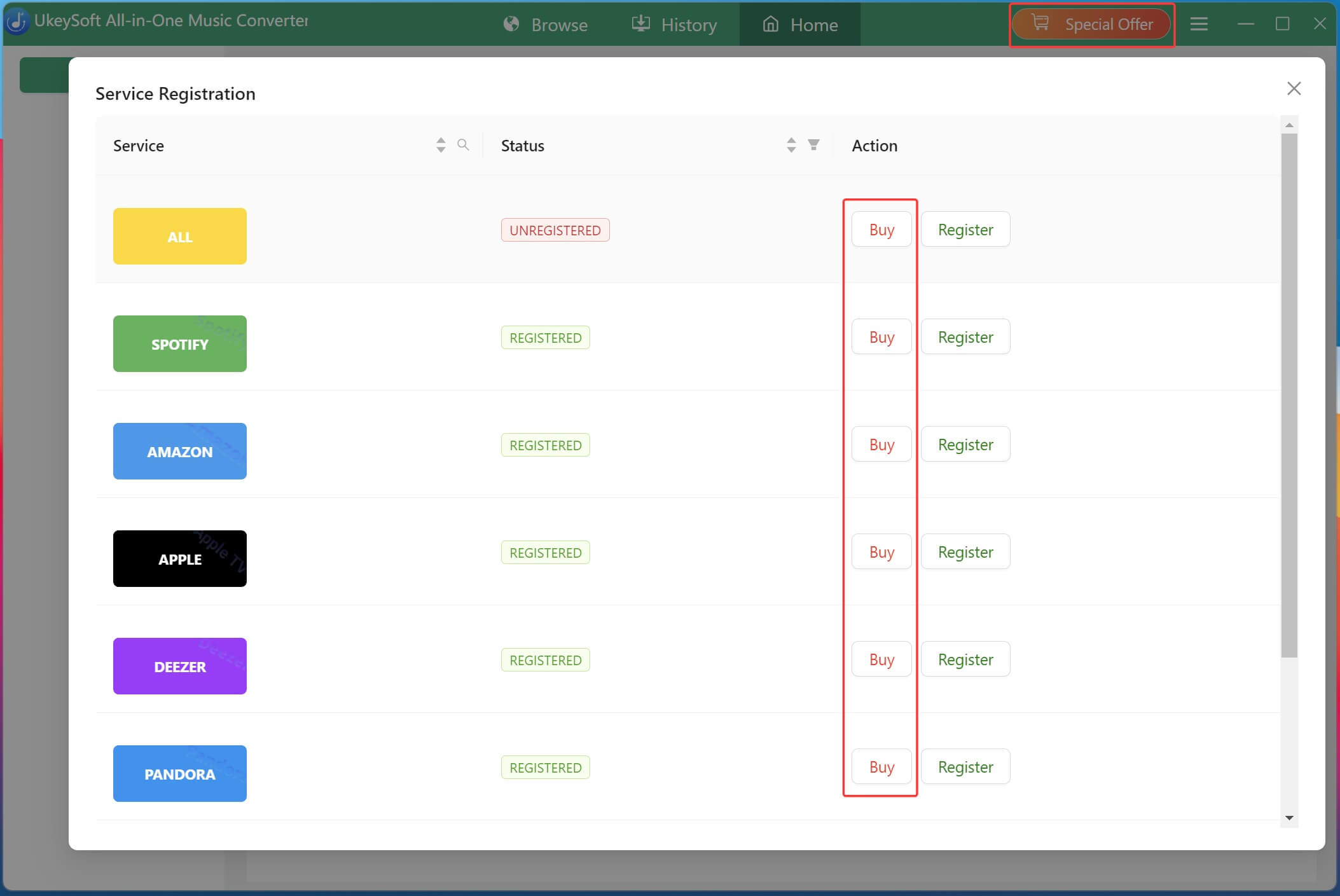
Download and launch UkeySoft All-in-One Music Converter on your computer. Access "Special Offer" at the upper right corner. Scroll down until you find the SOUNDCLOUD. Click "Buy", you will be redirected to the purchase page, where you can choose a suitable license plan and complete the payment.
Step 2. Receive Your License Key via Email
After completing your purchase, check the email address you provided during checkout. UkeySoft will send your license information and activation key to this email address. If you cannot find the message, check your spam or junk folder.
Step 3. Activate UkeySoft SoundCloud Music Converter
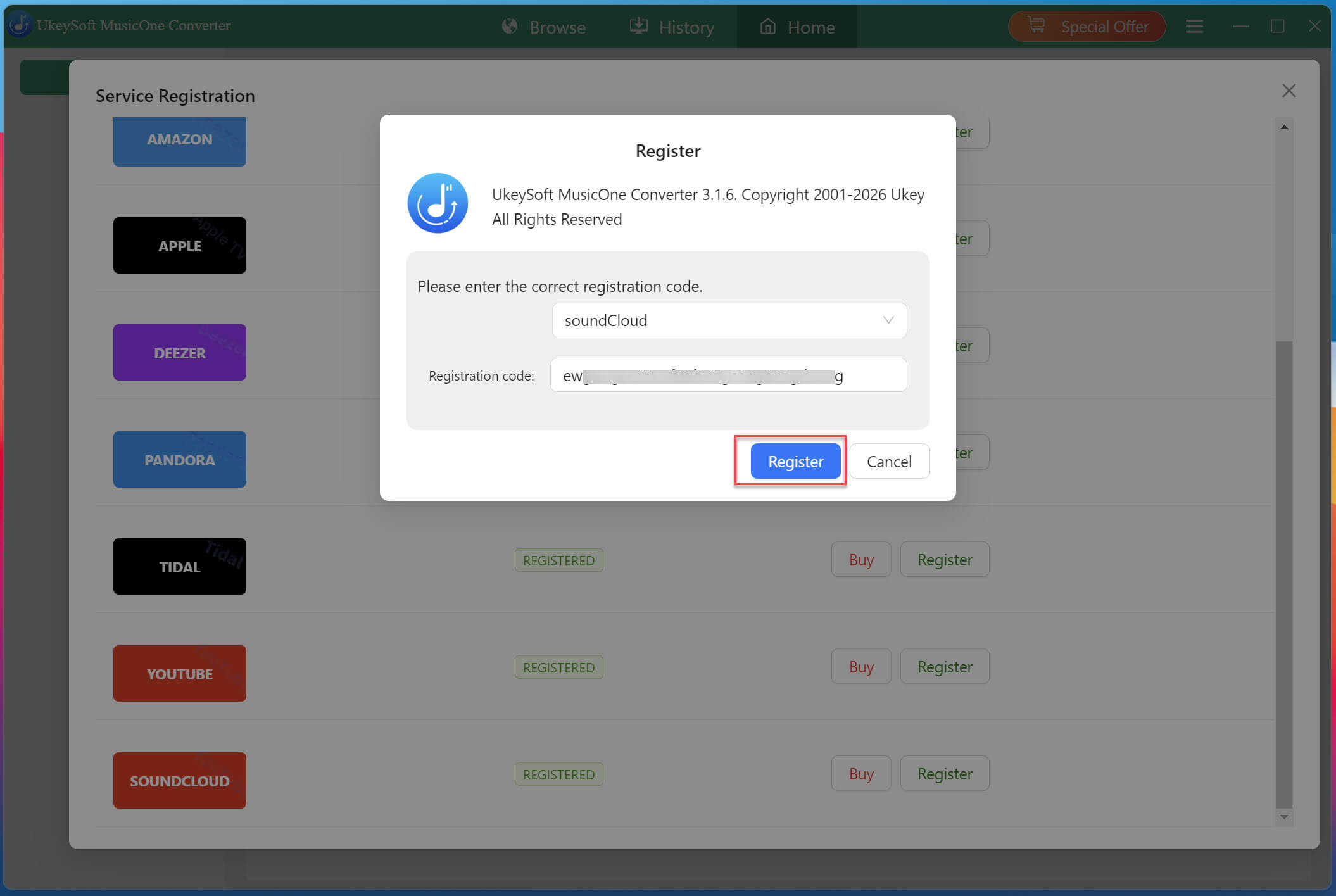
Open UkeySoft SoundCloud Music Converter and turn to "Special Offer", find the “SOUNDCLOUD” option and click "Register" option to unlock all features. Enter the license key you received by email and confirm the activation. Once verified successfully, the full version of the software will be unlocked.
Tip: If your license key does not arrive after purchase, check your spam or junk folder first. If you still cannot find it, contact UkeySoft Support Team ([email protected]) for assistance.
Step 4. Browse, Stream and Download SoundCloud Music
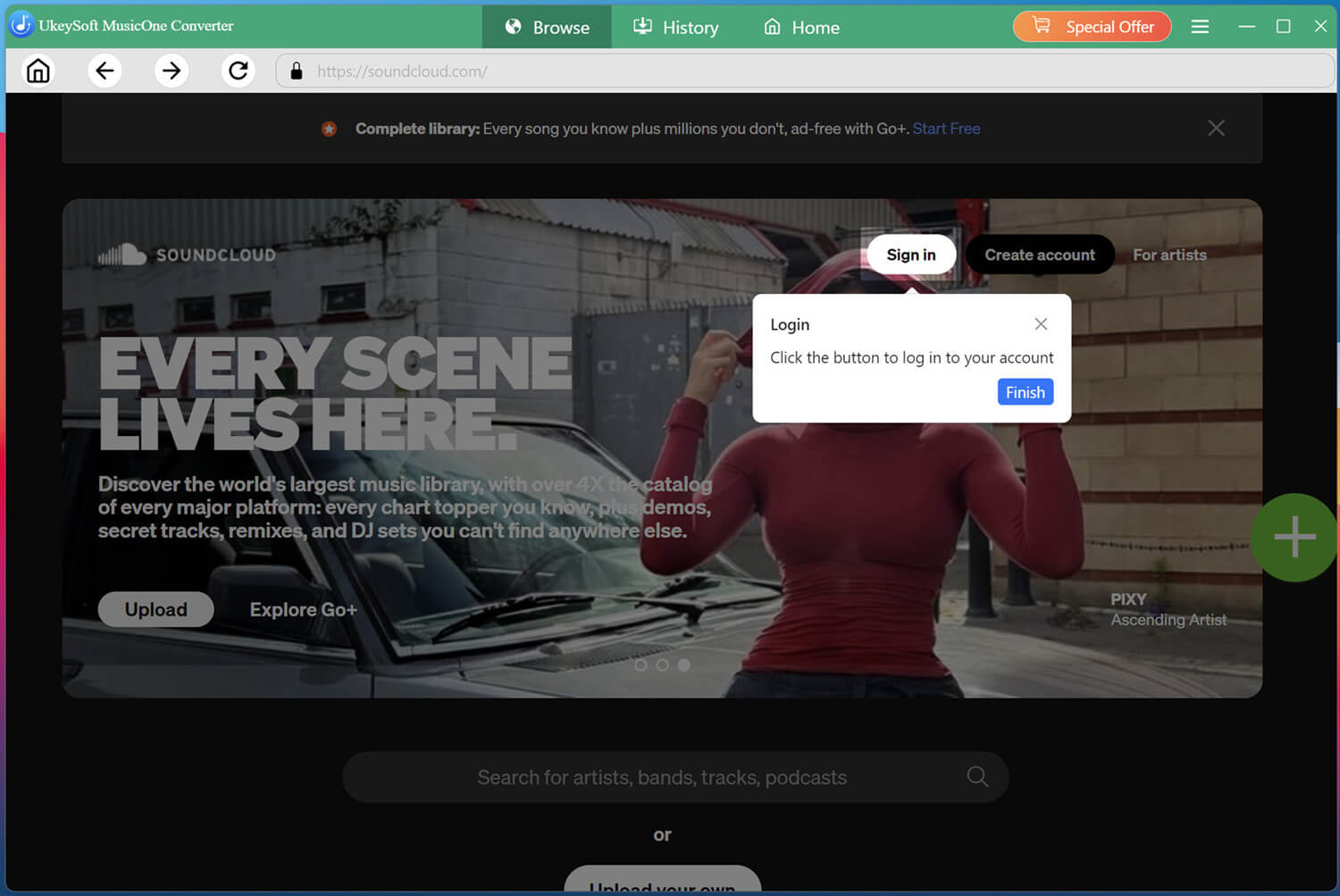
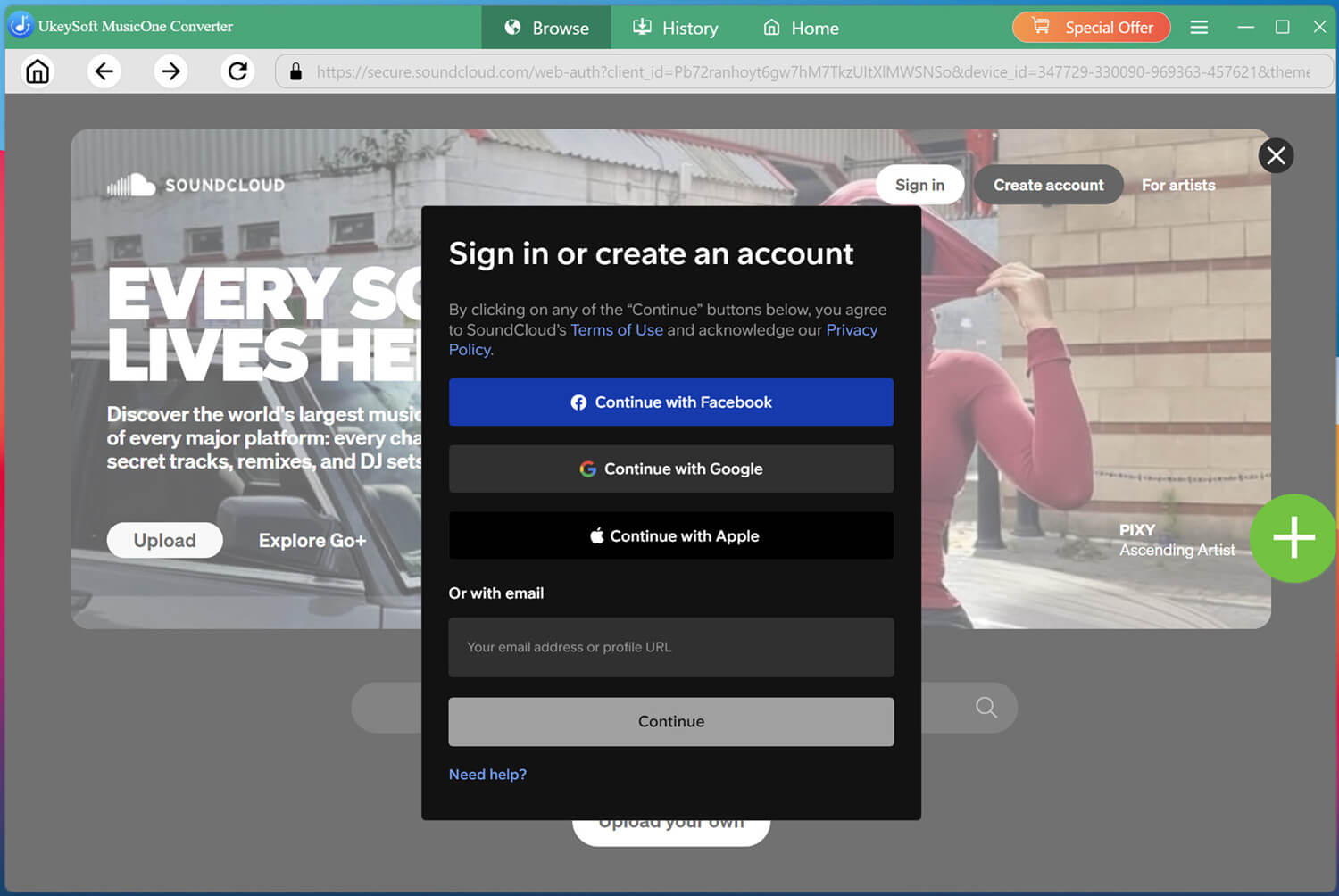
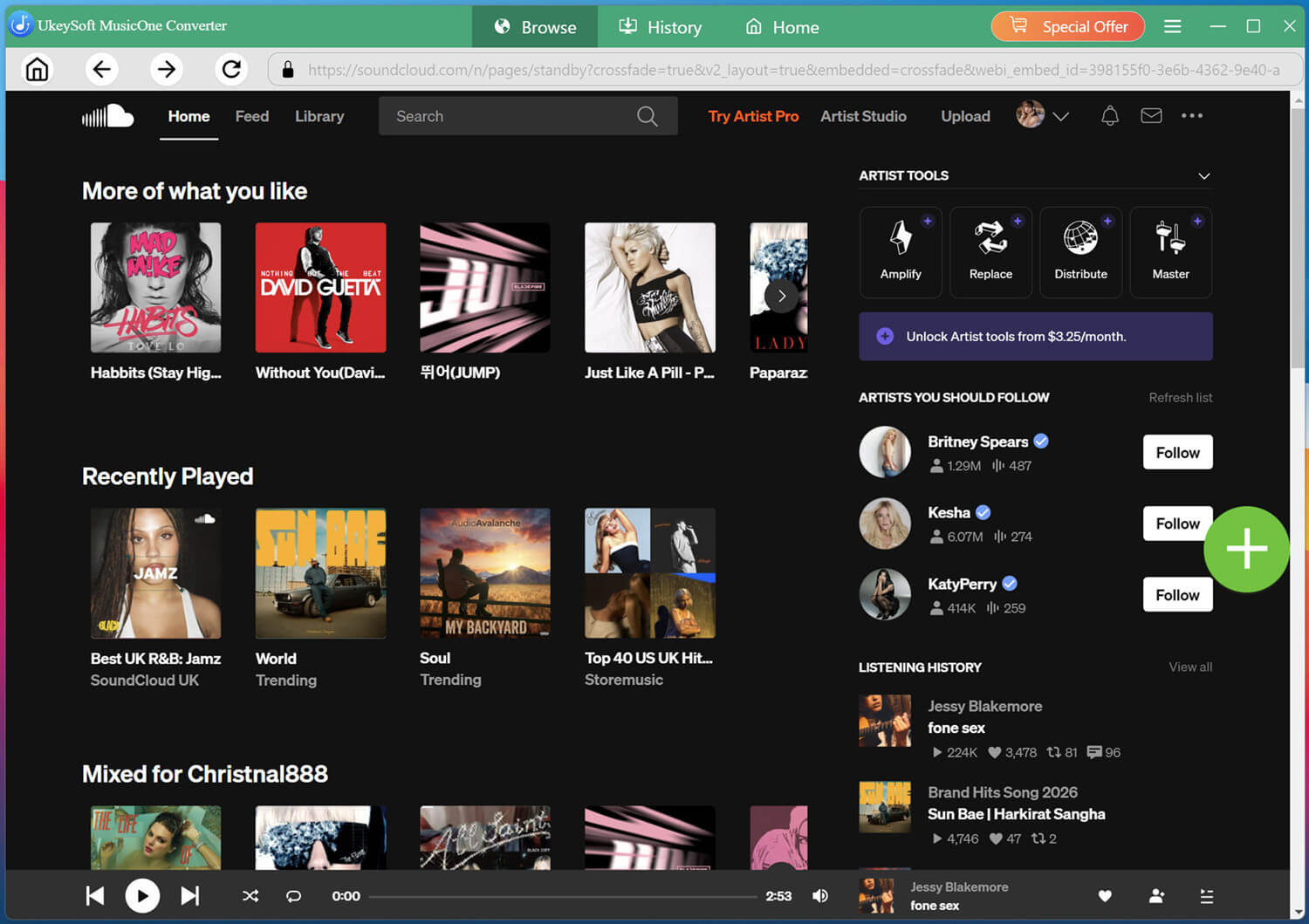
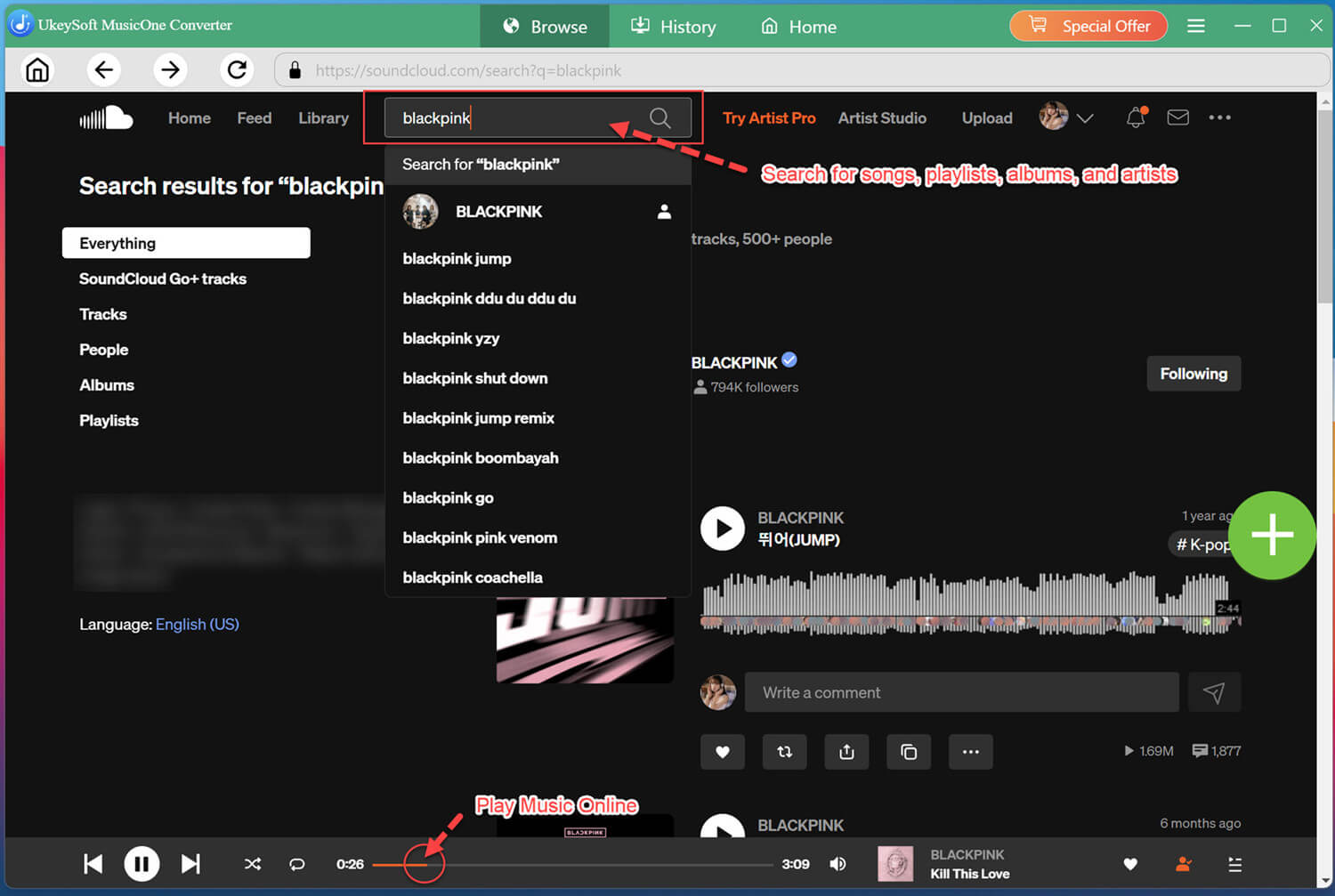
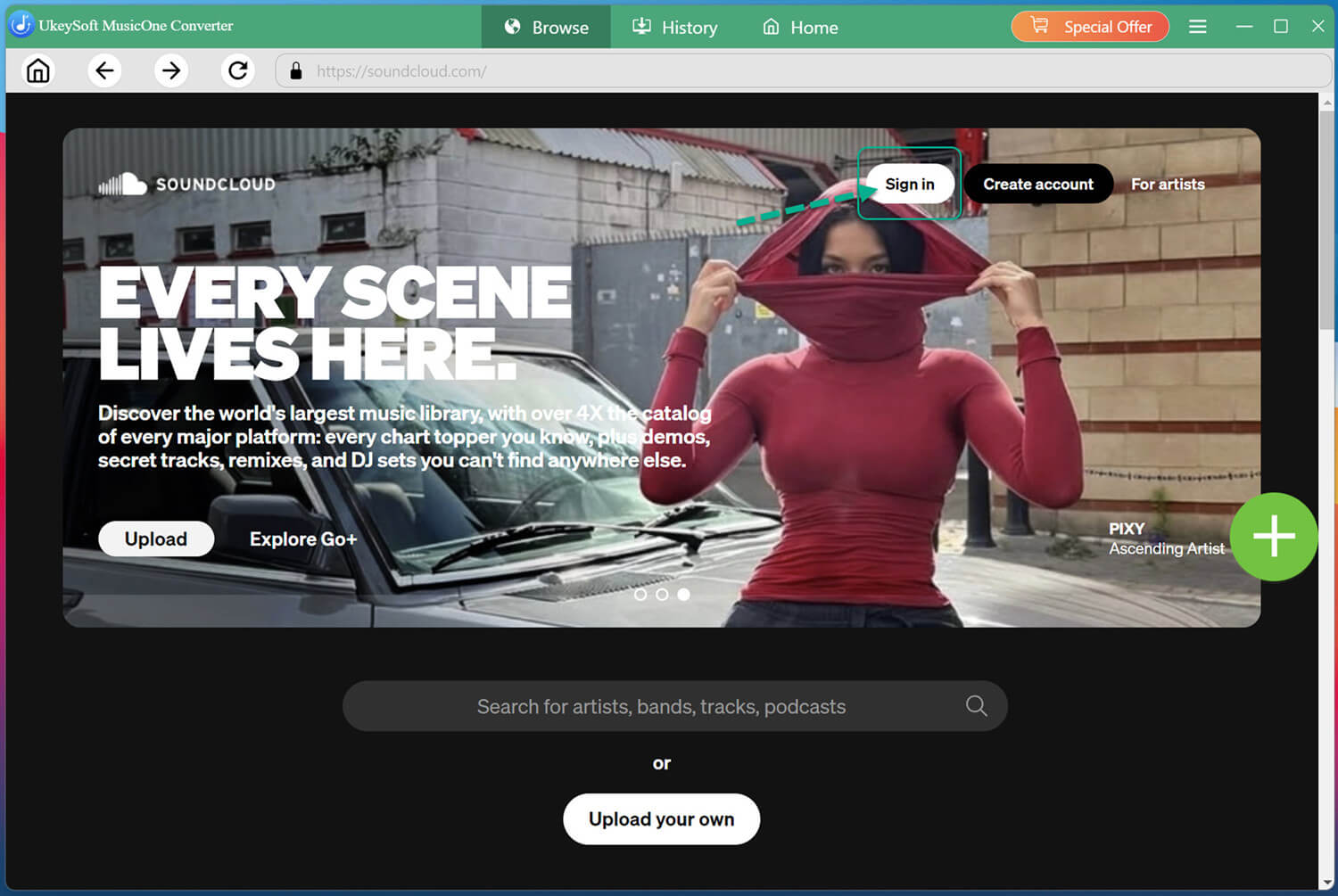
After activation, you can sign in to SoundCloud through UkeySoft's built-in web player.
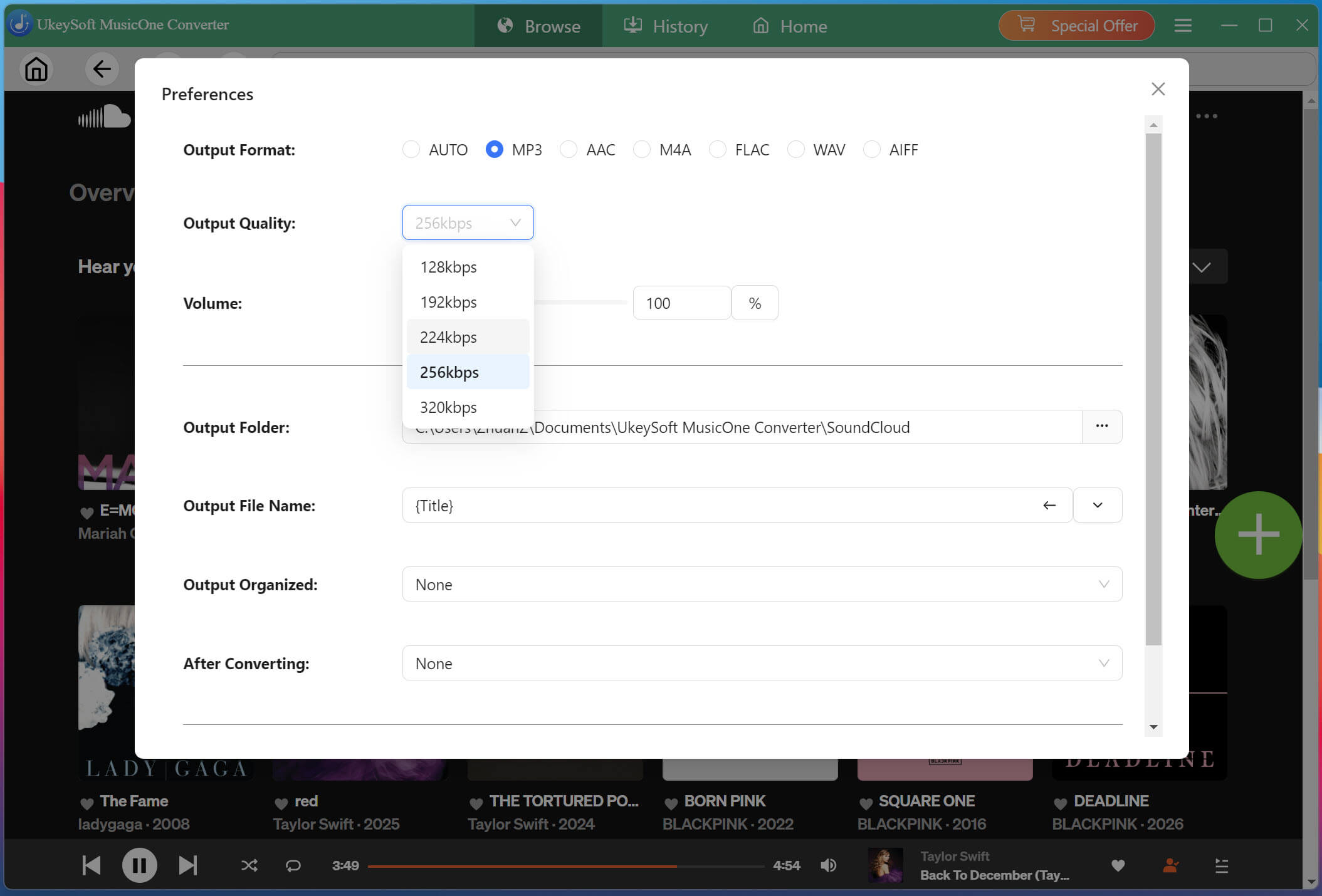
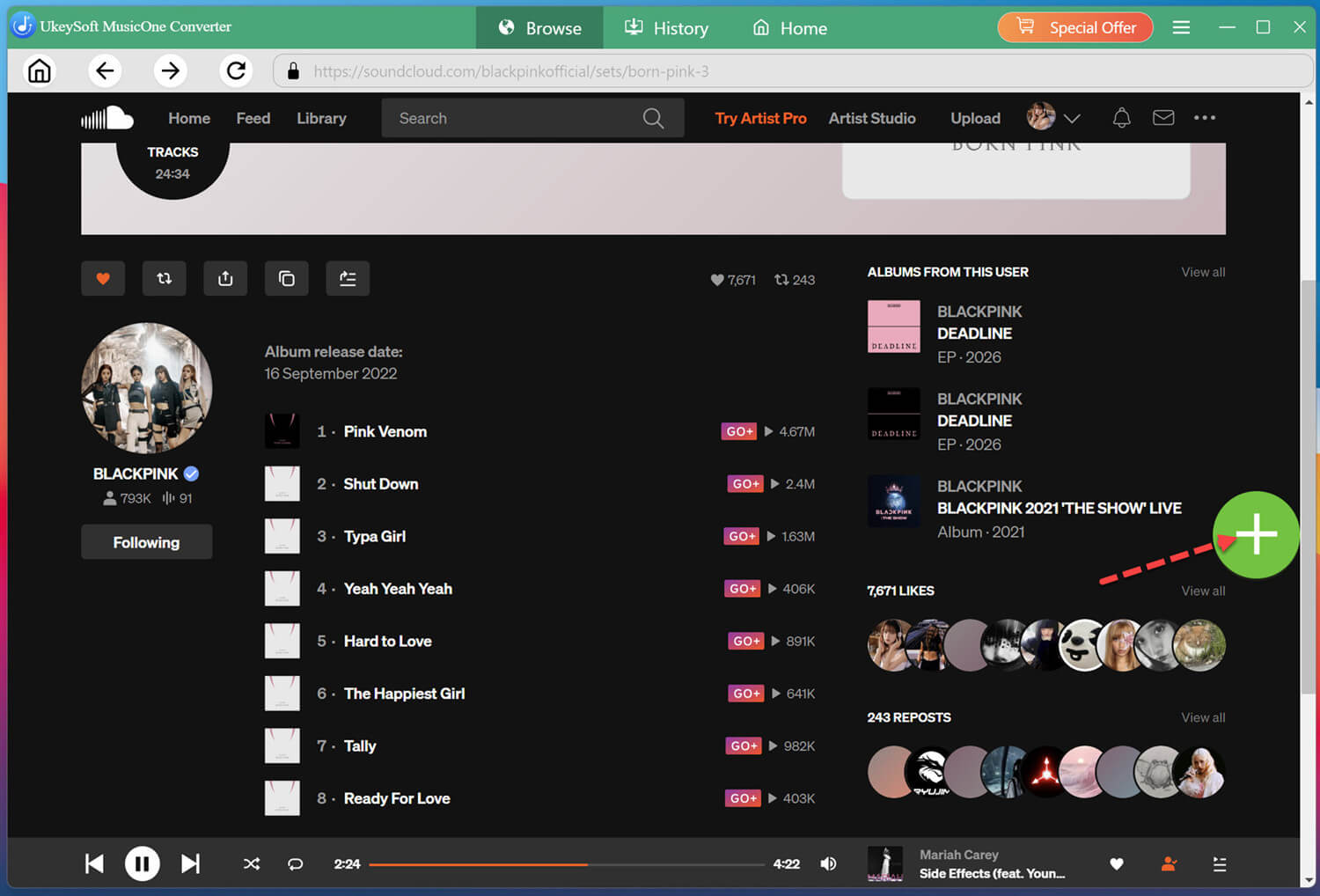
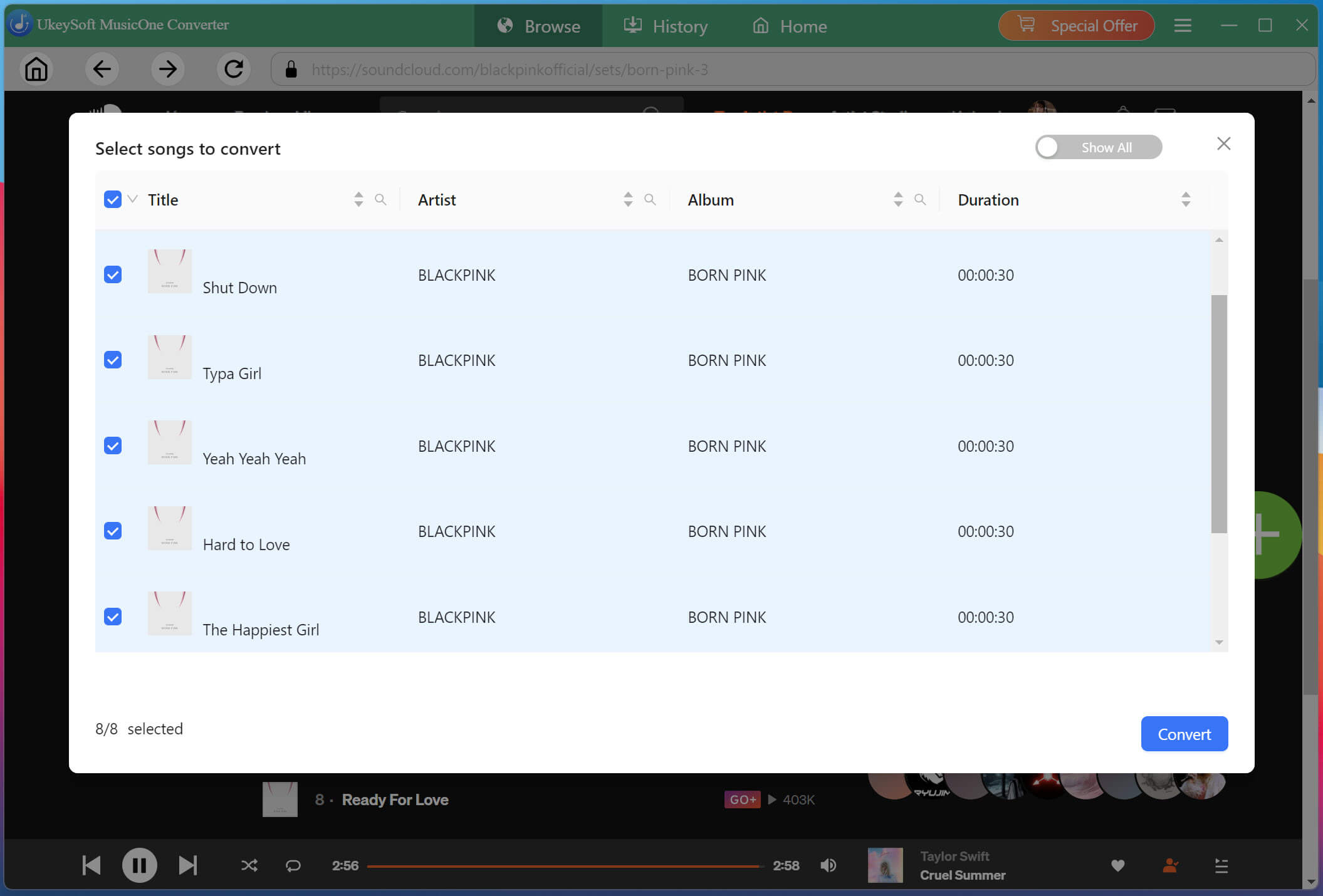
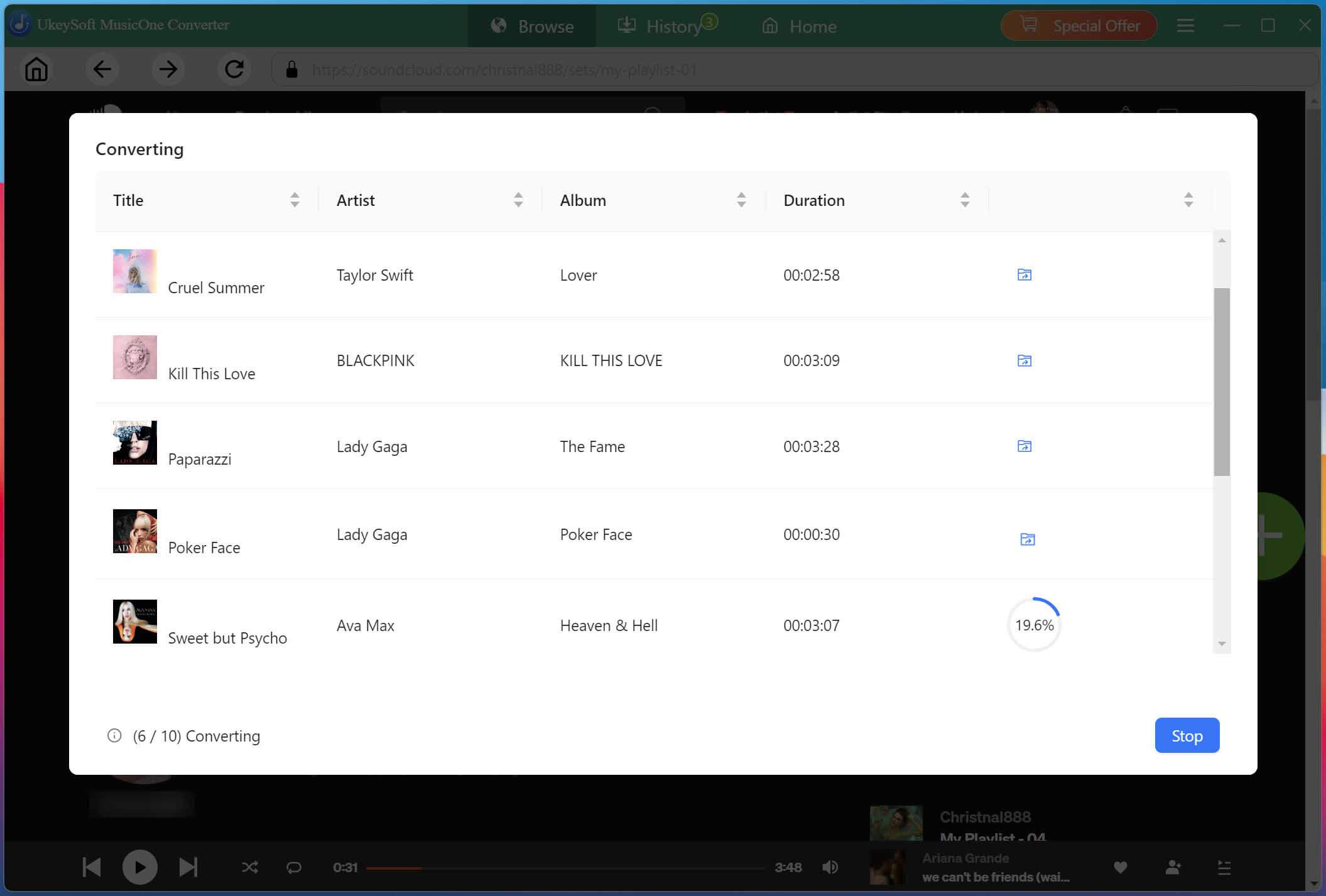
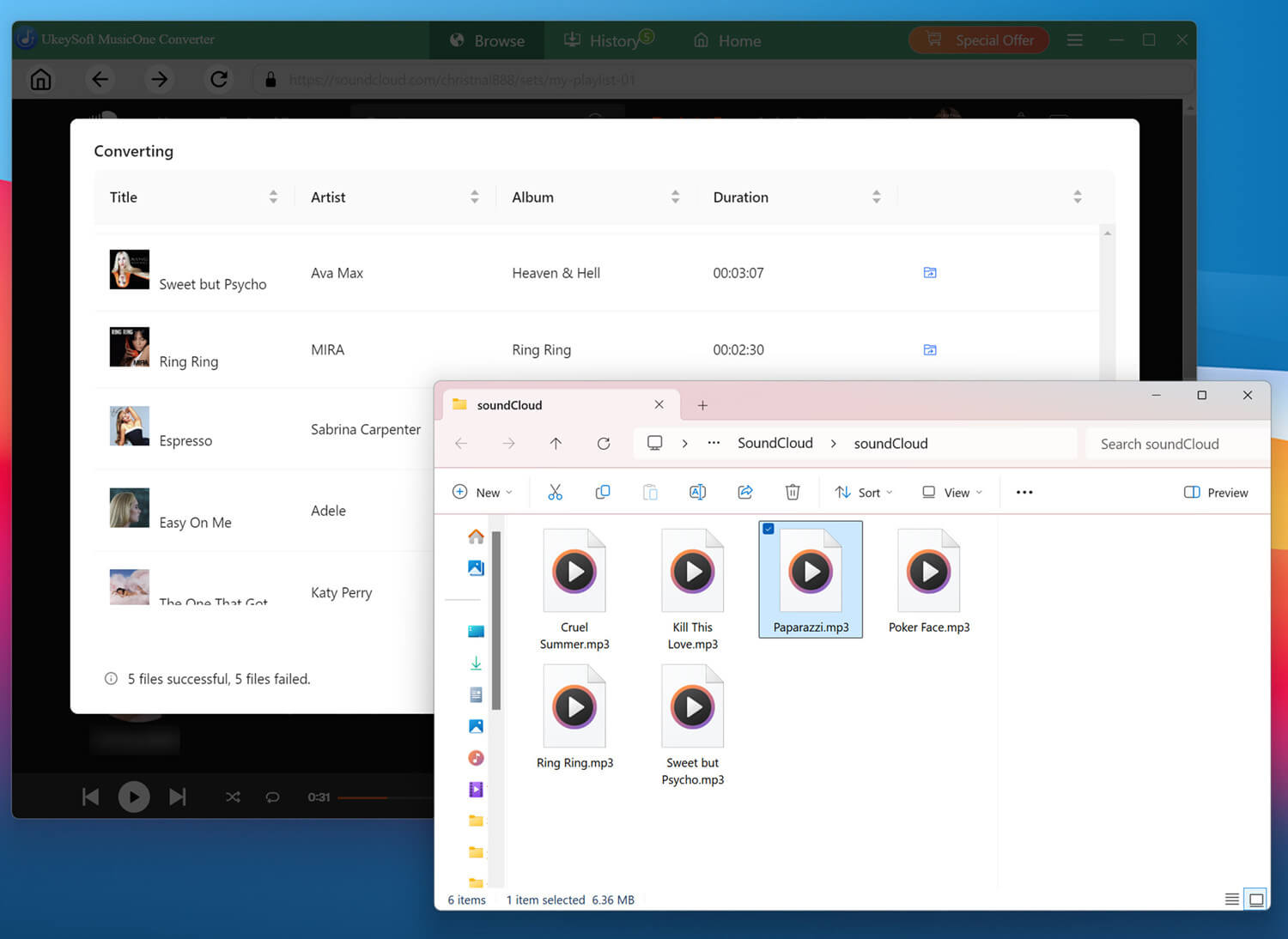
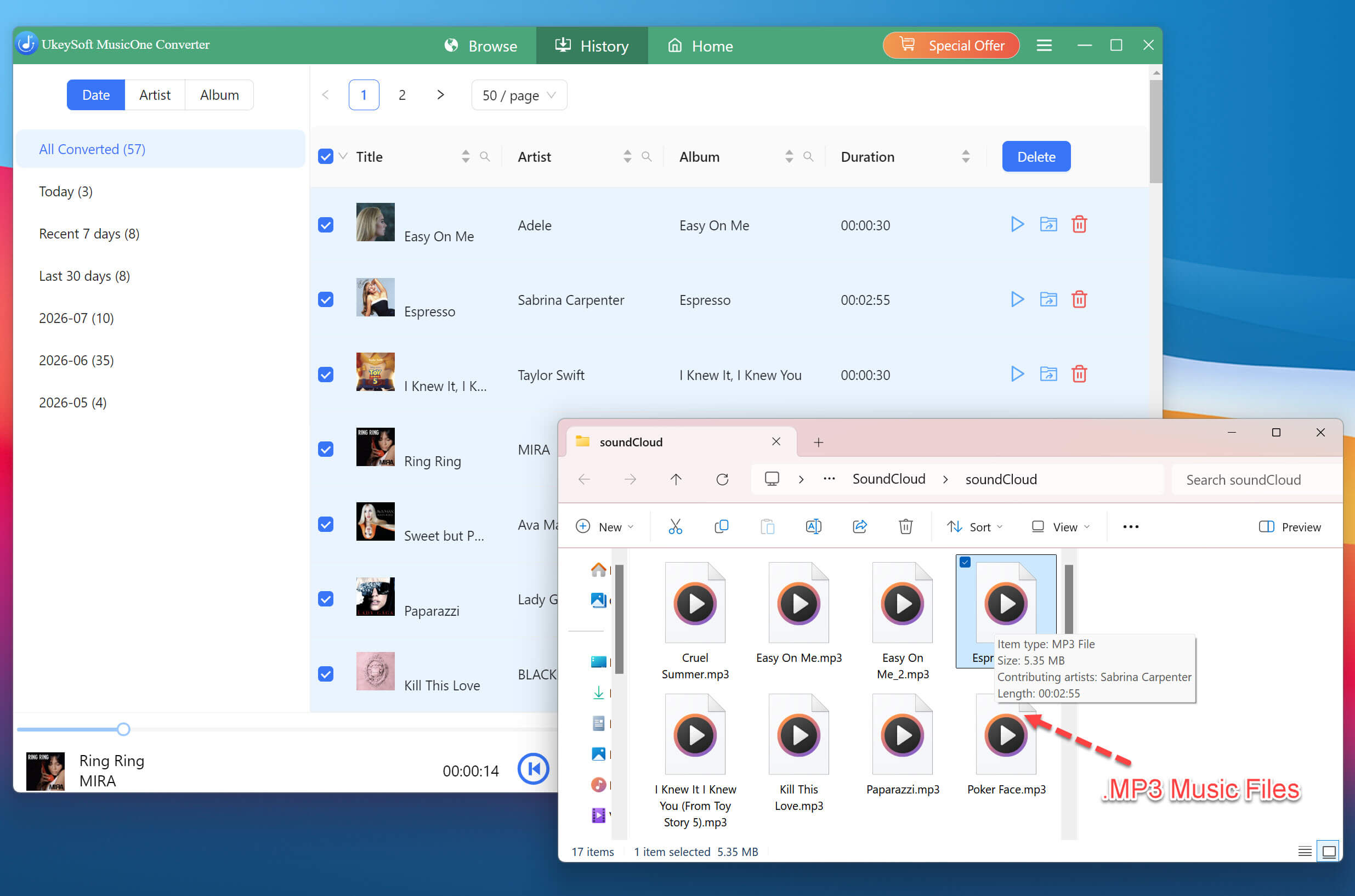
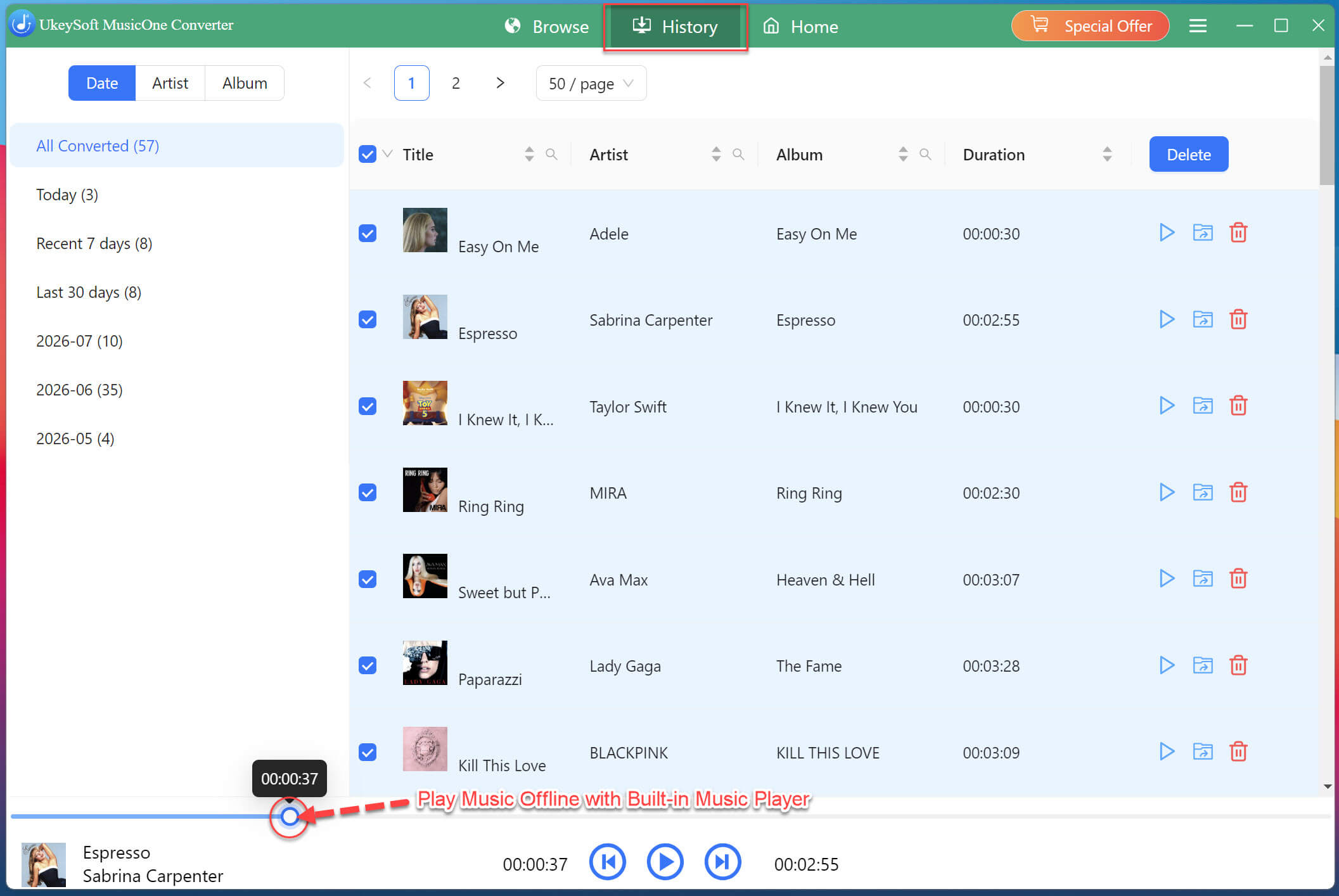
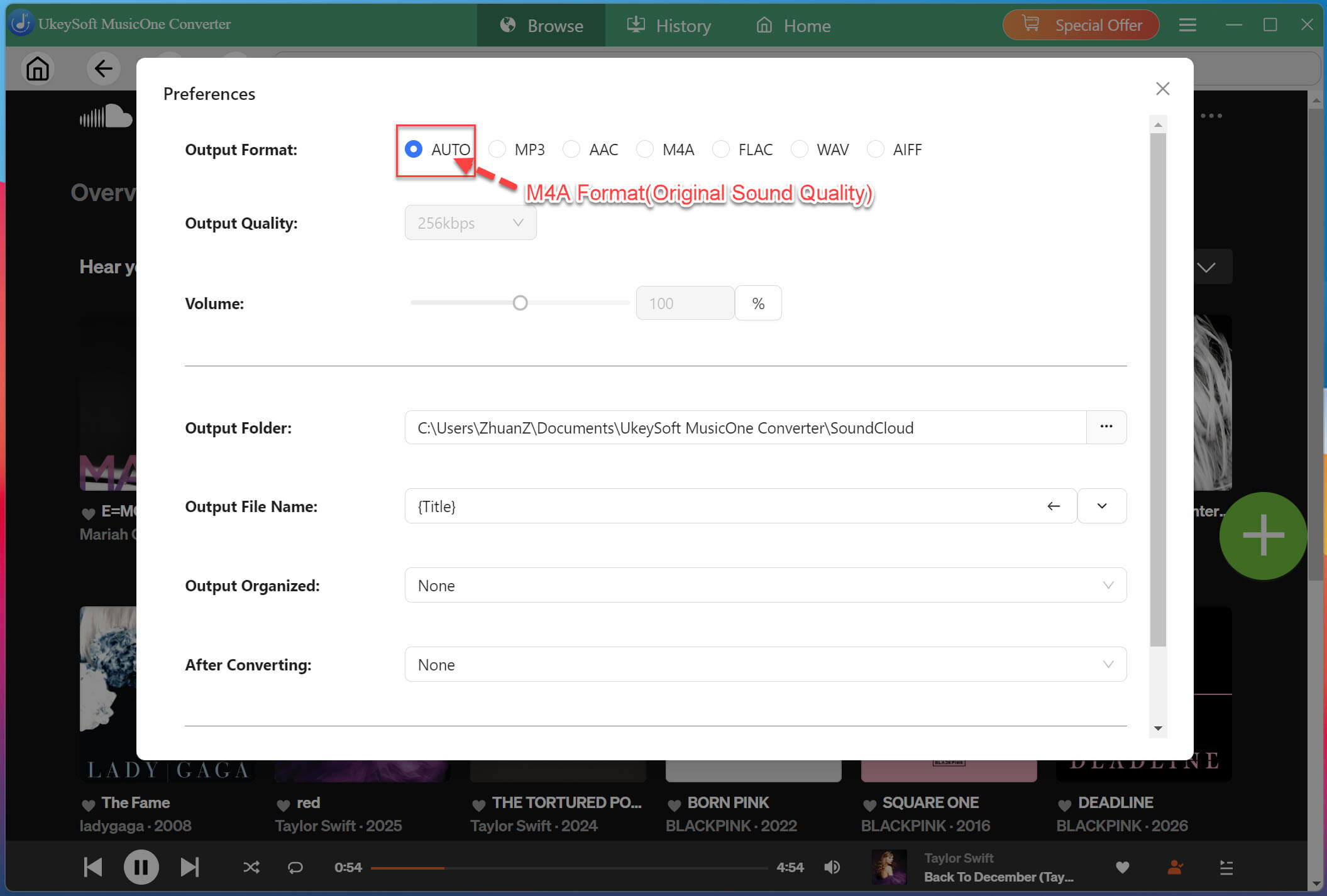
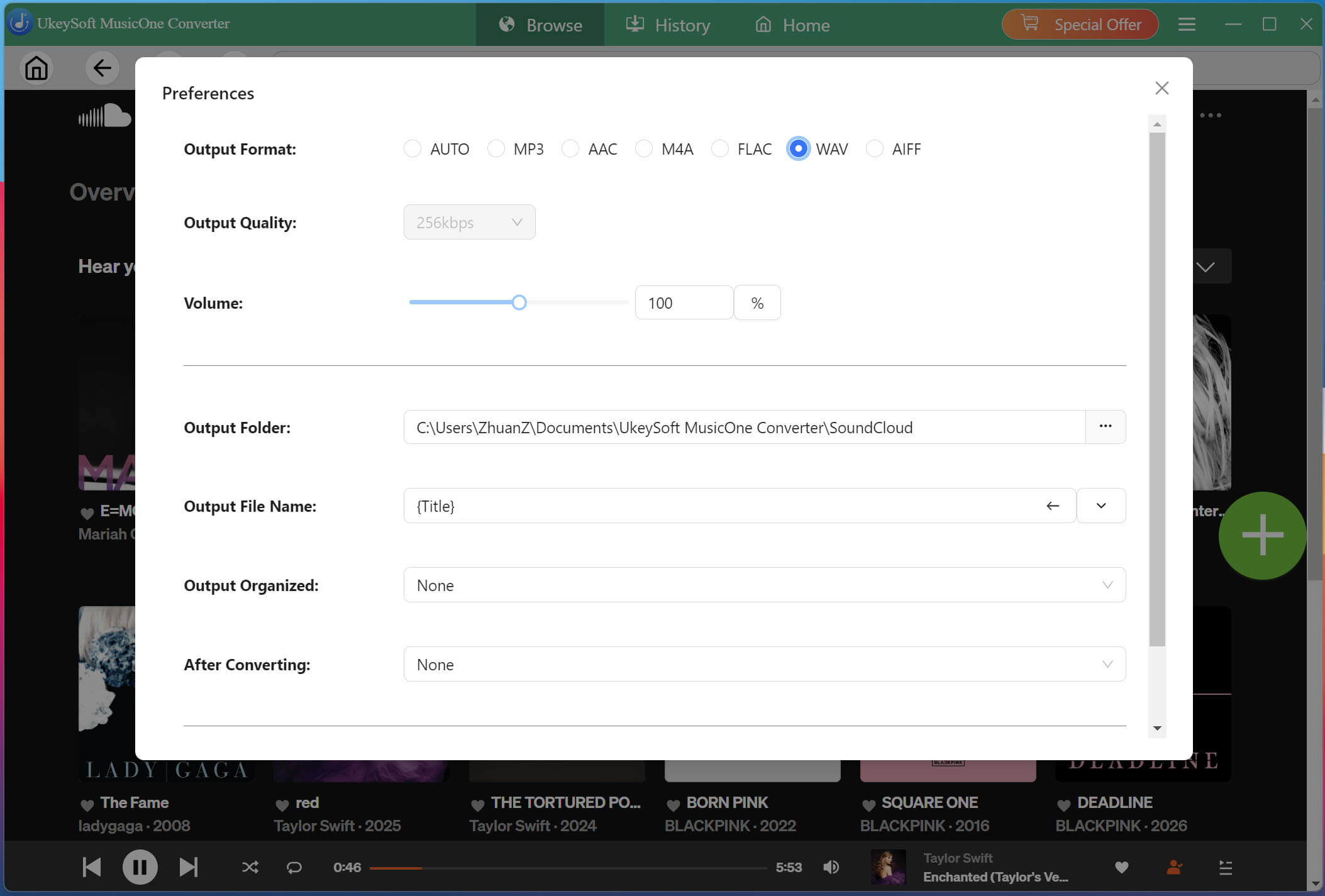
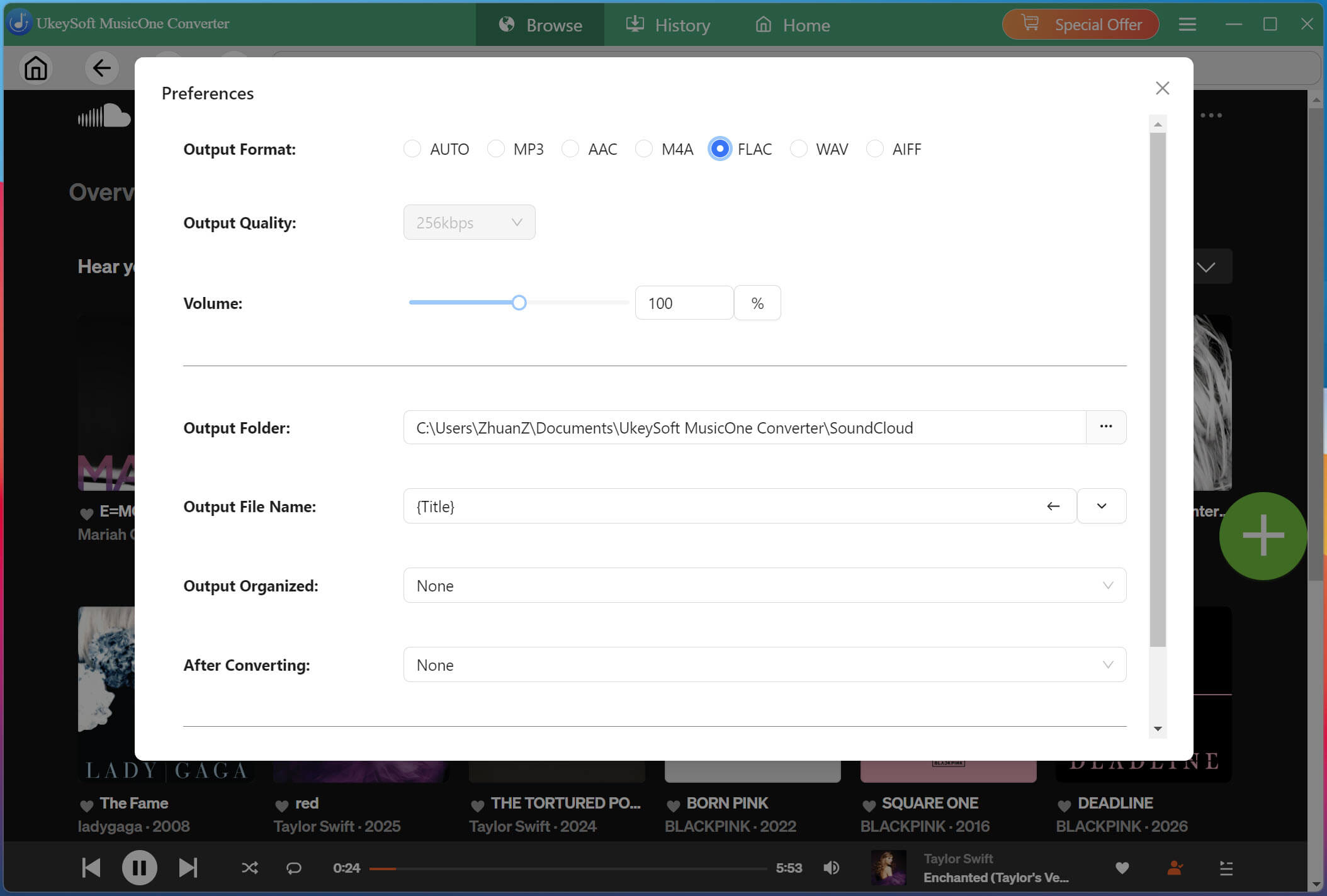
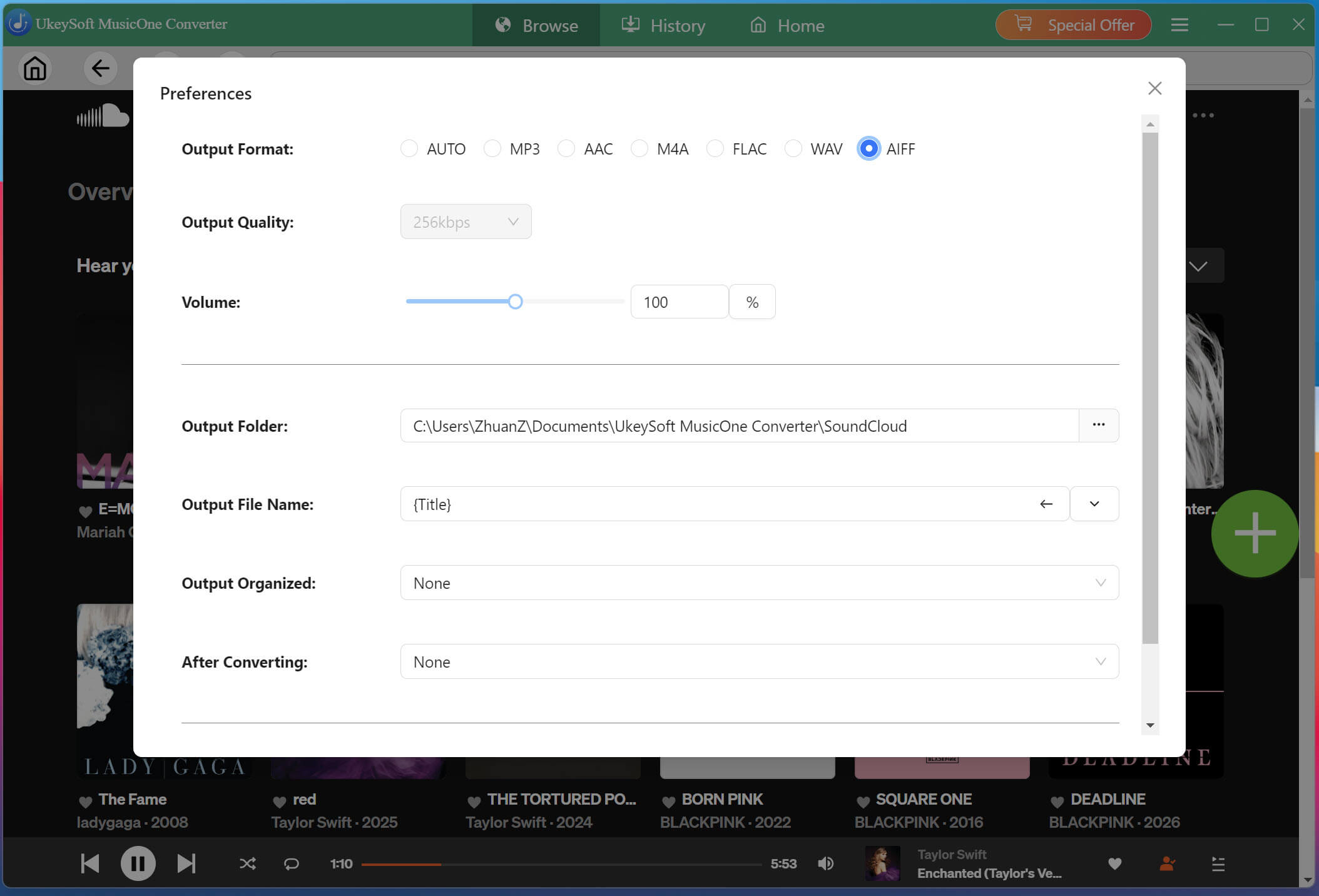
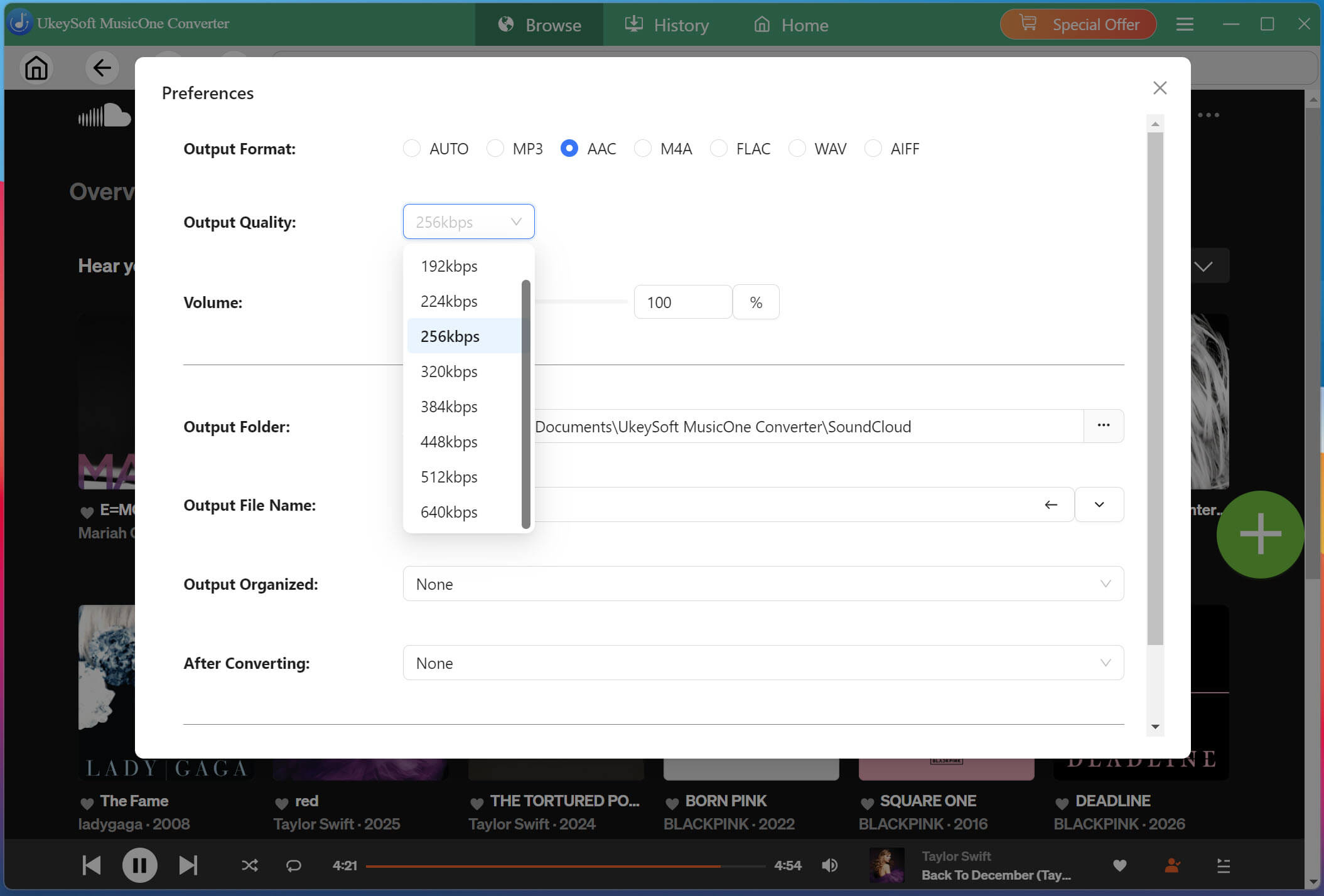
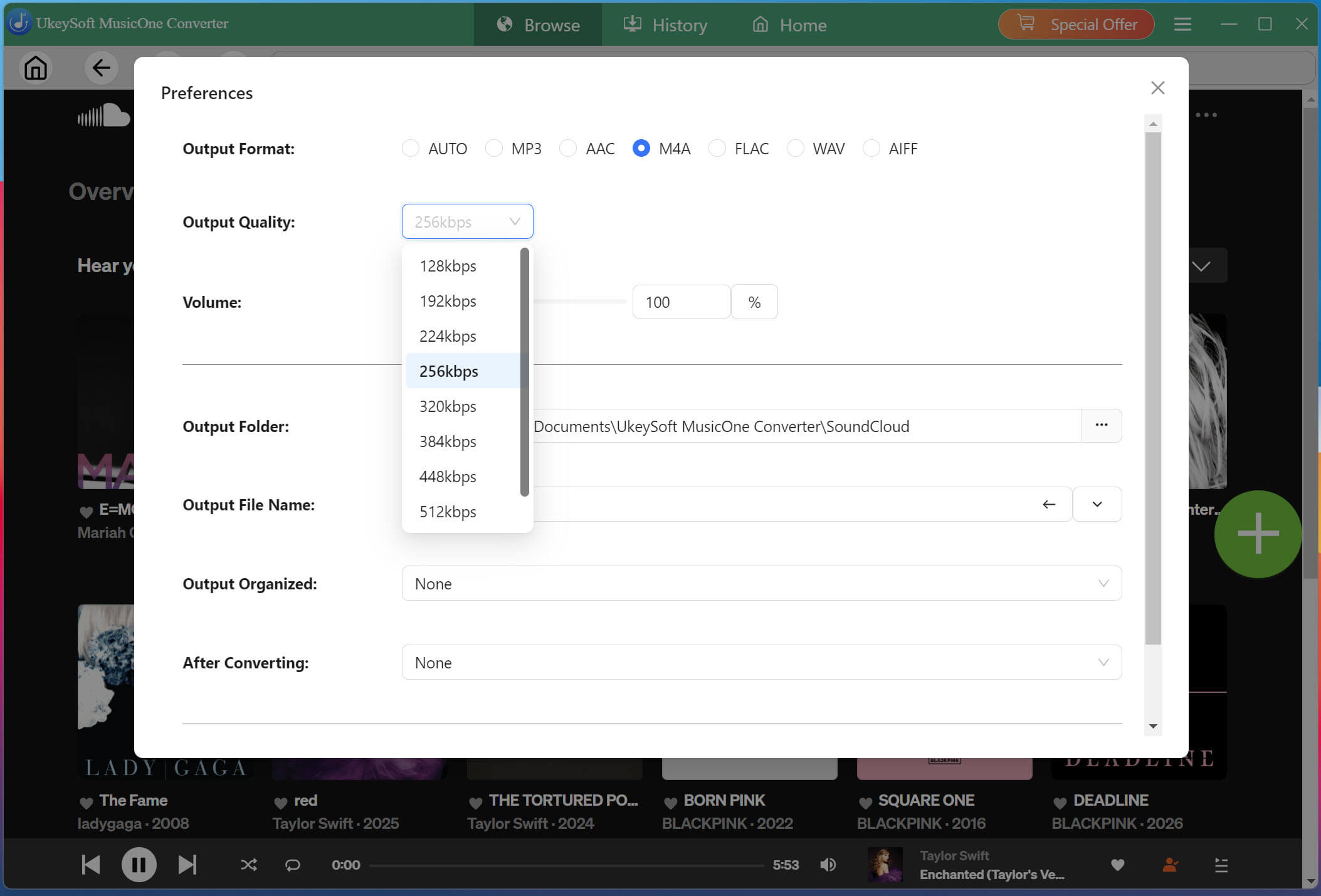
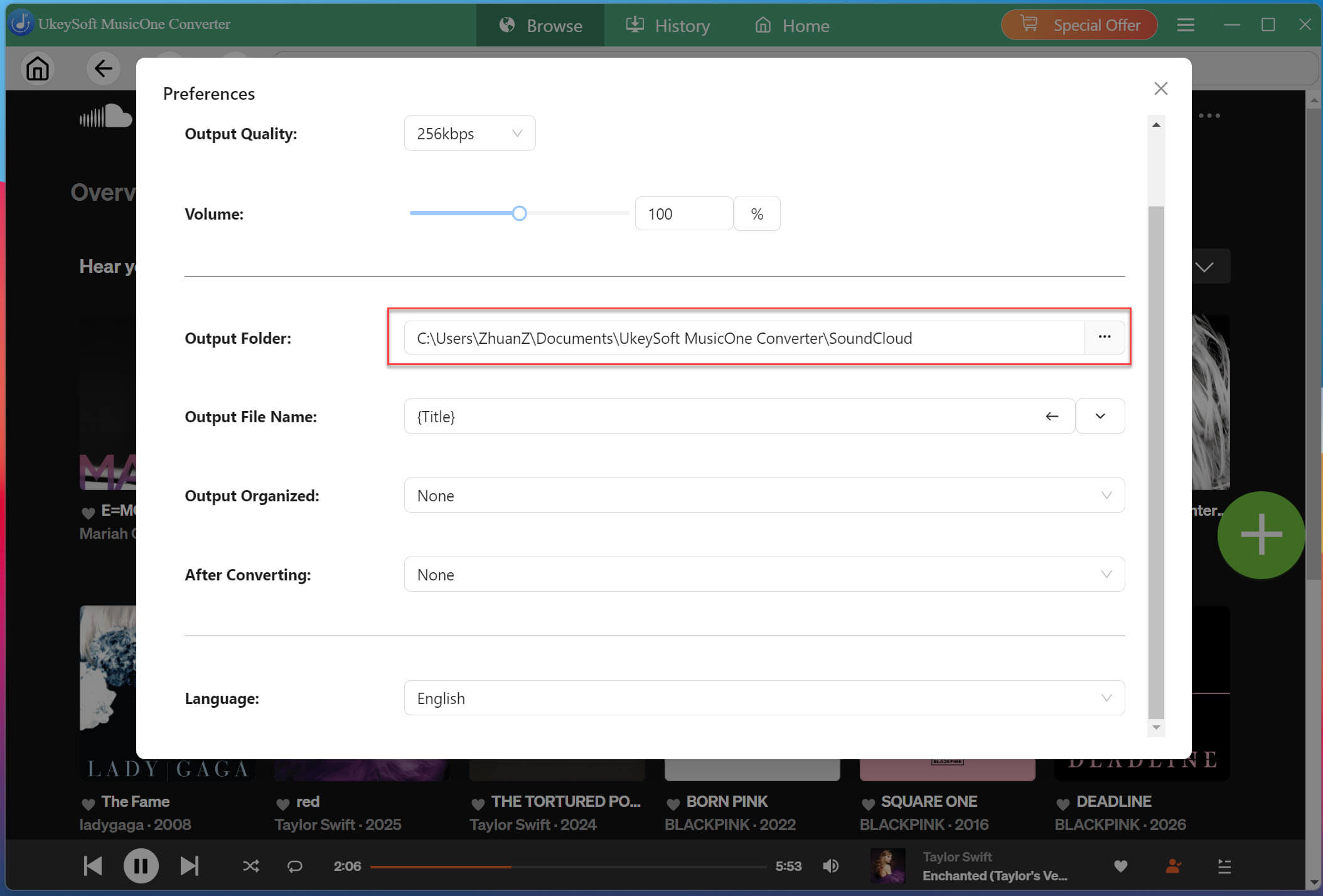
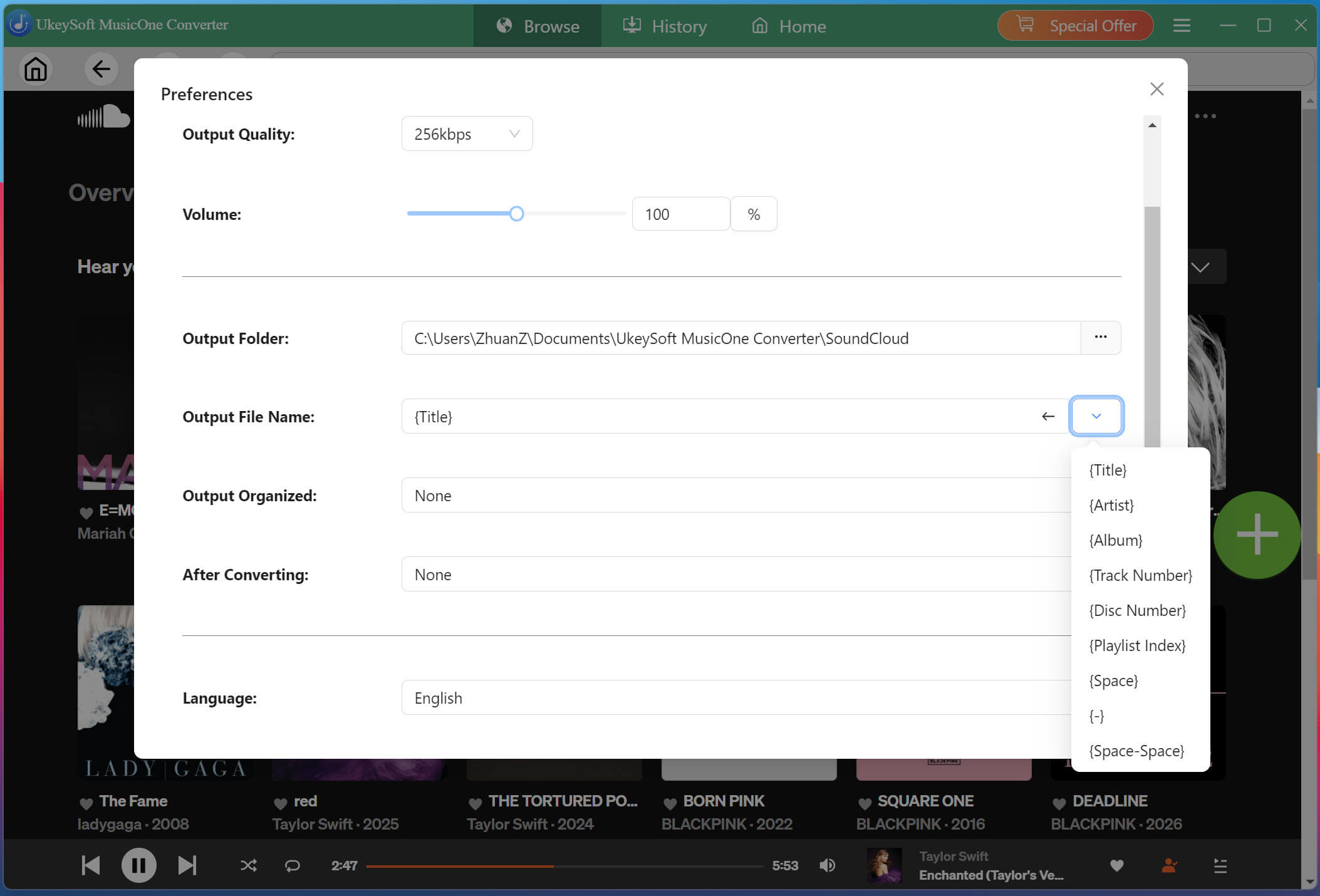
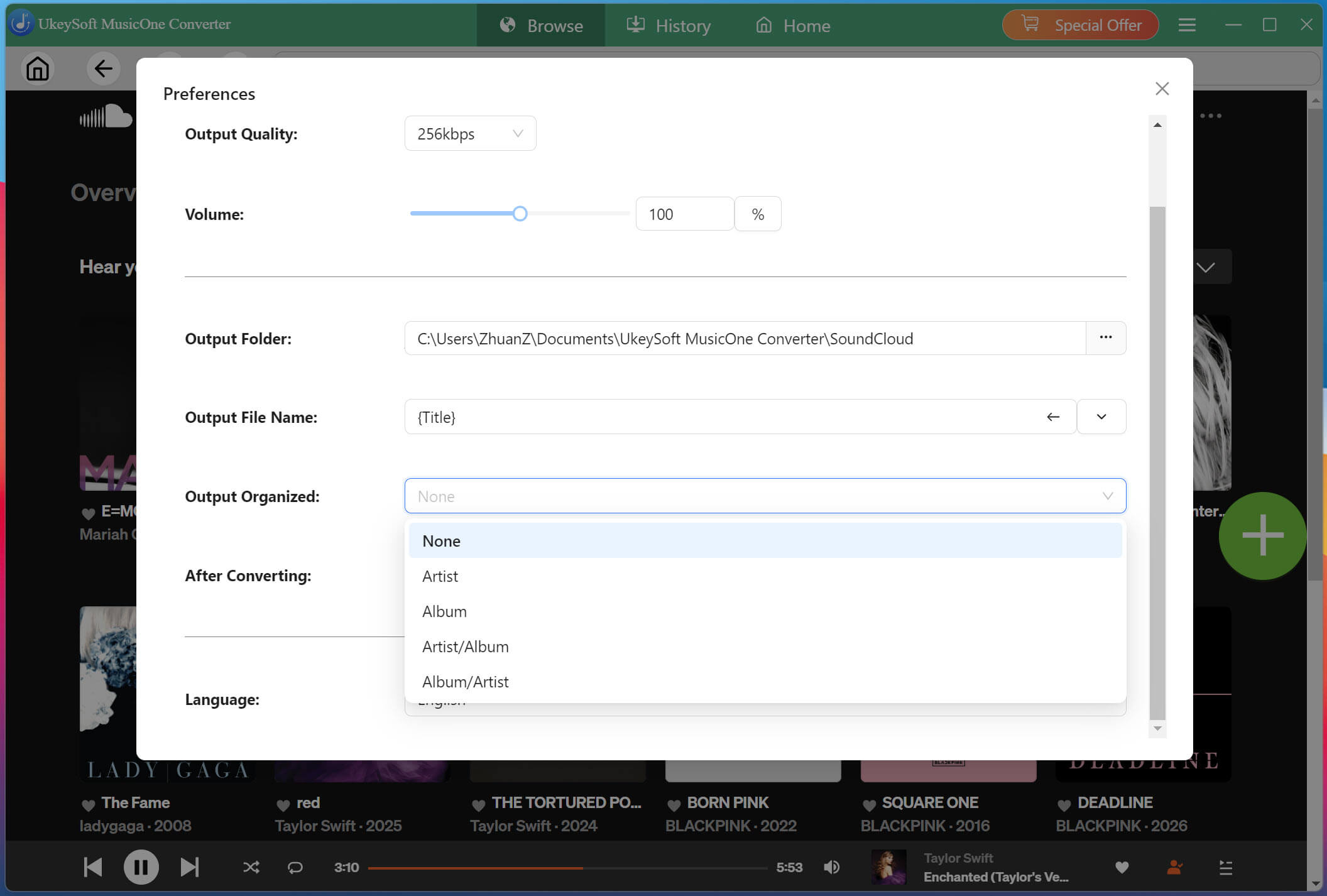
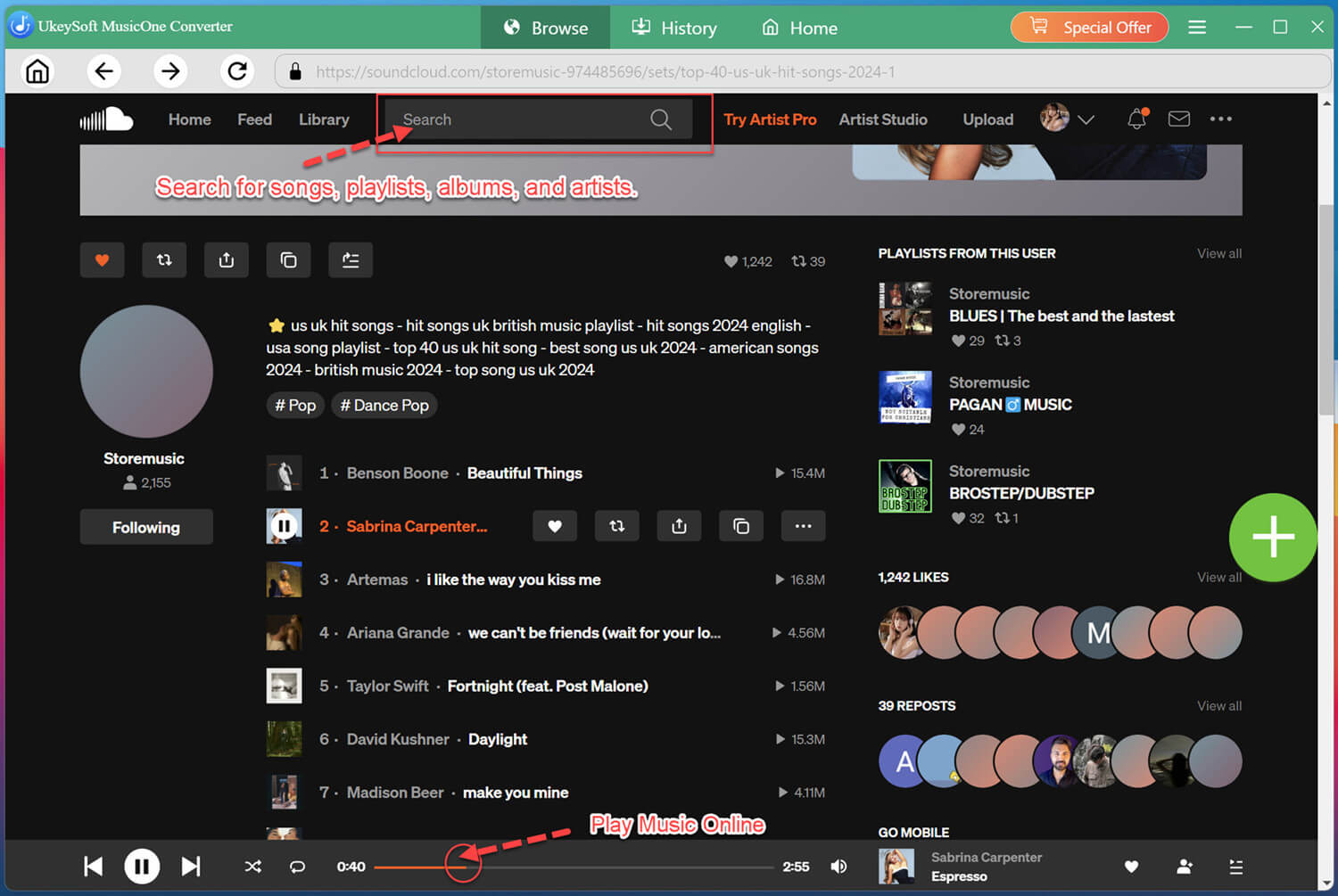
Search for your favorite songs, albums, artists, or playlists, select the content you want, and configure your preferred output settings. You can then download and convert SoundCloud music to multiple formats for offline listening!
Step 5. Set Interface Language
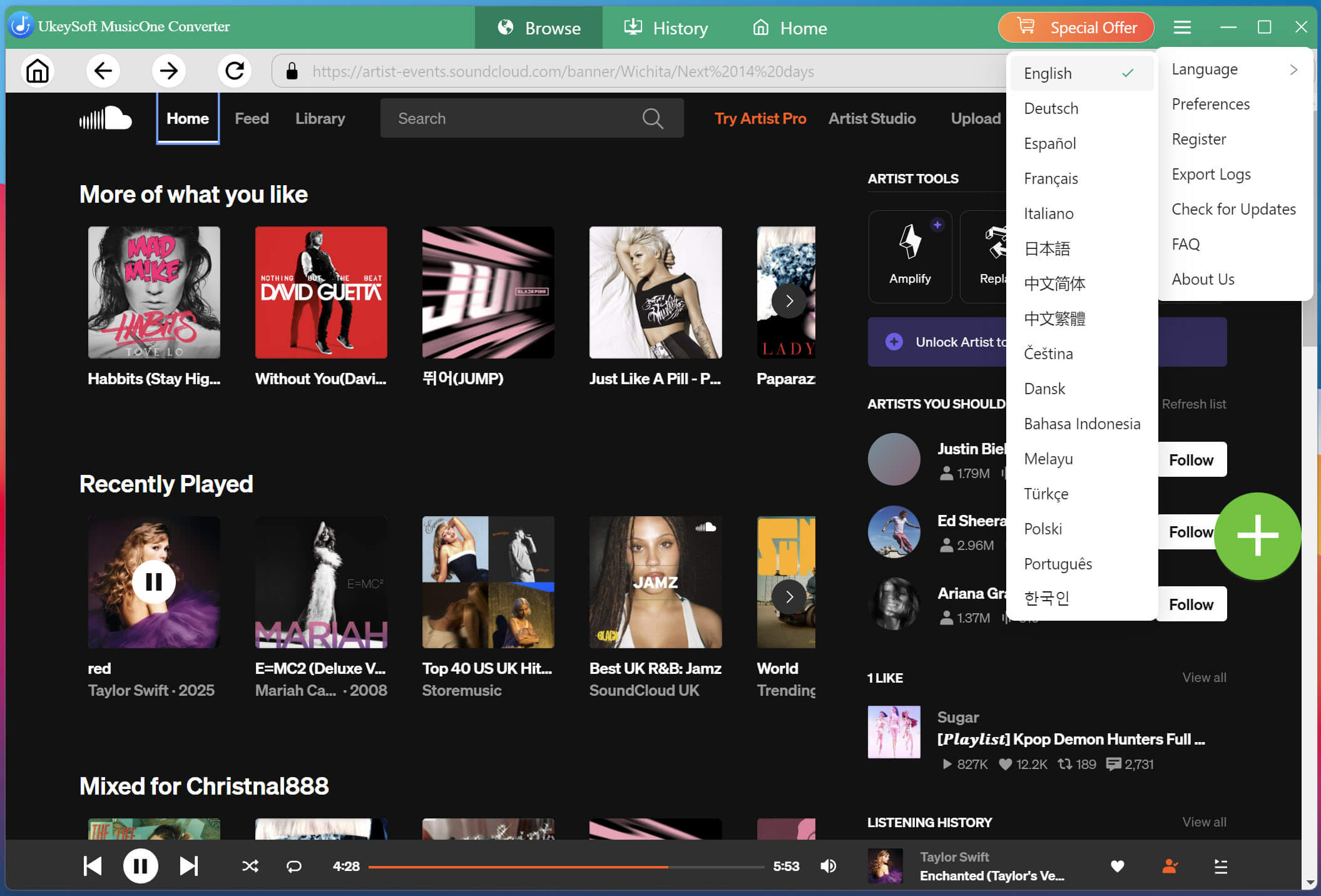
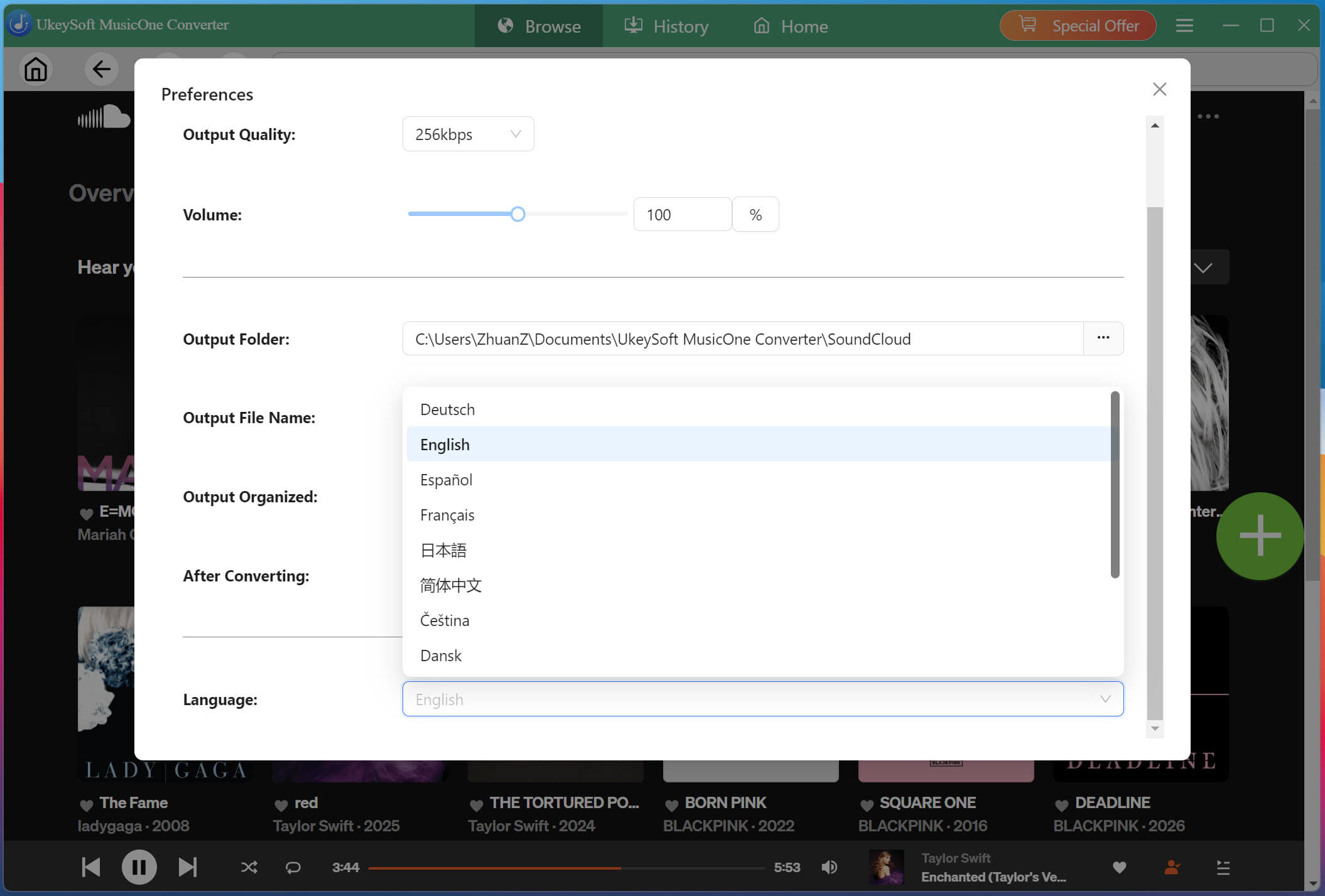
After launching UkeySoft SoundCloud Music Converter, you can choose your preferred interface language. Go to the "Menu" bar at the top of the software, select "Language," and then choose your desired language from the available options: English, Deutsch, Español, Français, Italiano, Japanese, Simplified Chinese, Traditional Chinese, Čeština, Dansk, Bahasa Indonesia, Malayu, Türkçe, Polski, Português, Korean, etc. The interface will switch to the selected language accordingly.